
There are several different ways you can access the Task Settings page.
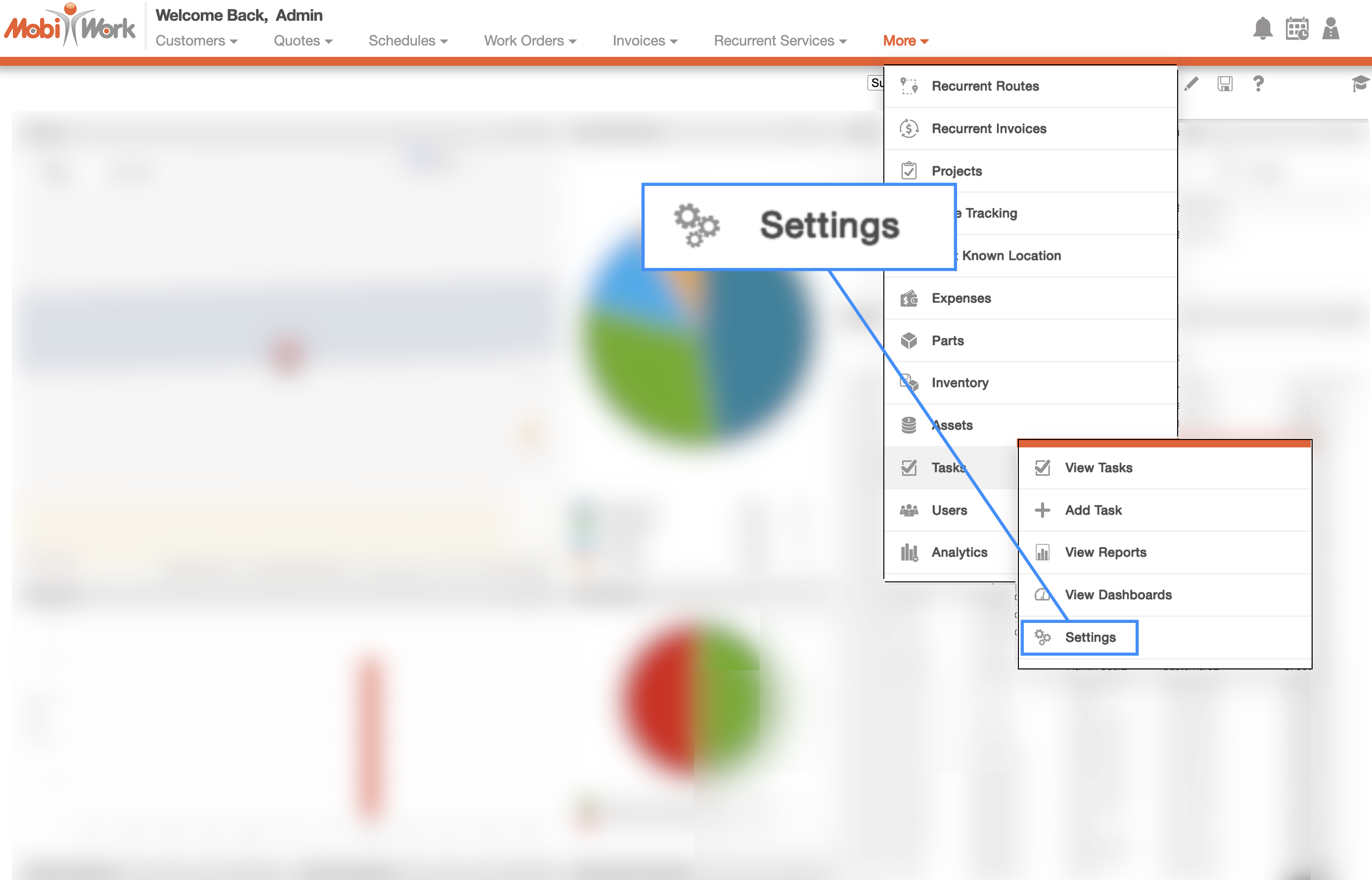
You can directly access the Task Settings page by selecting the Tasks feature tab and clicking on the "Settings" option:
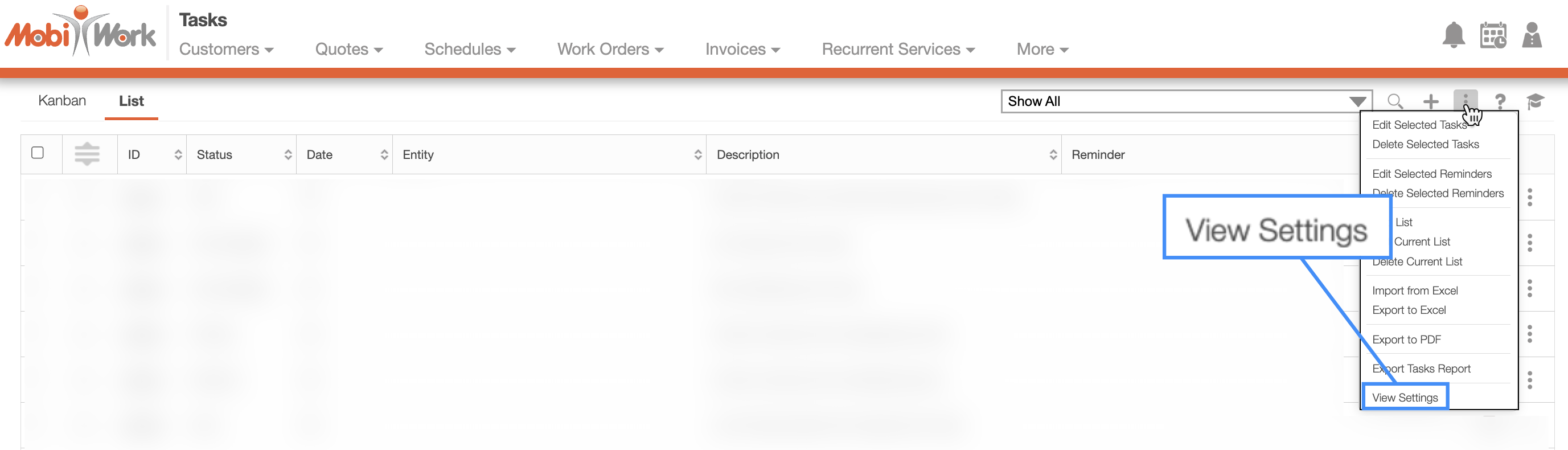
By clicking on the More Actions button located at the top-right of your Tasks feature page and from the drop-down select the "Settings" option:
Once you are on the Tasks Settings Page there will be a number of different sections:
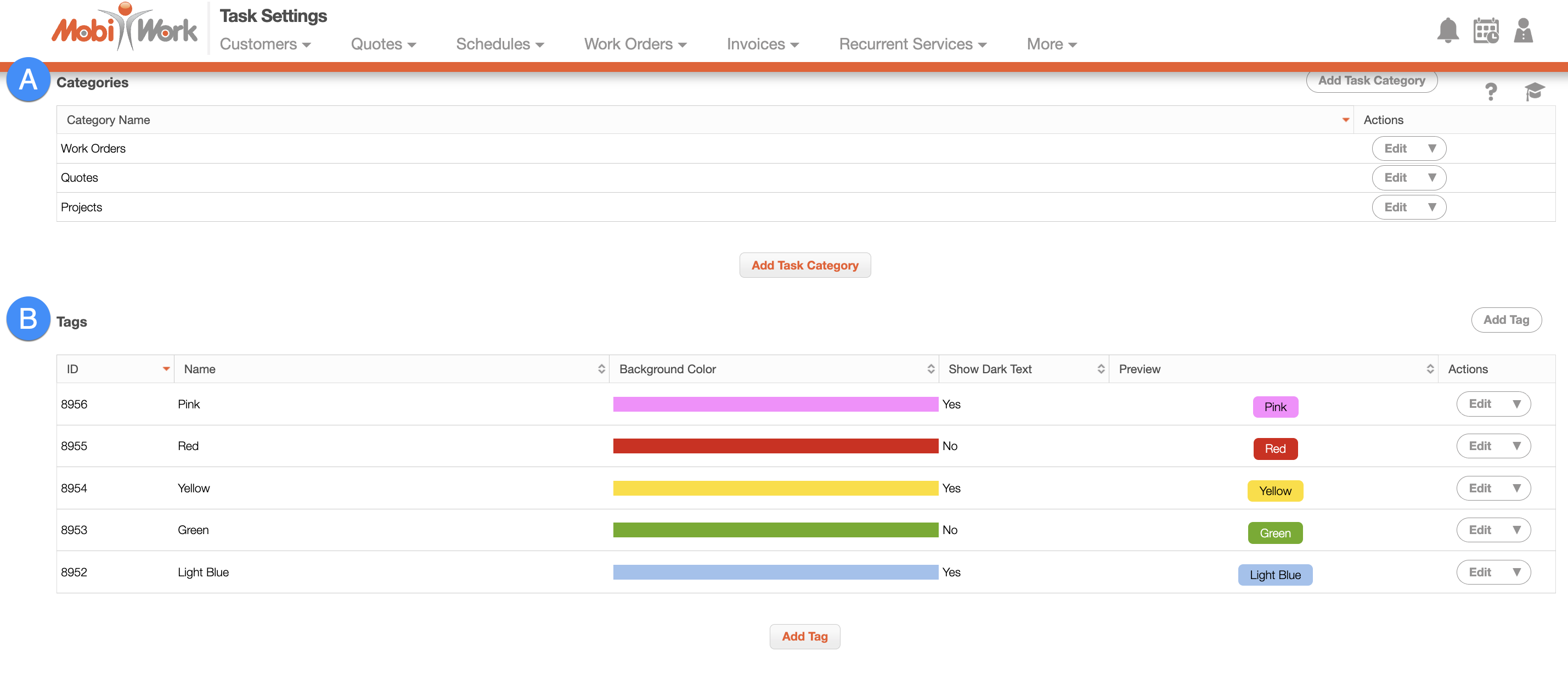
Categories
Tags
The "Categories" section will allow you to view unique category identifiers that will help to better organize your tasks (e.g., customer-focused, work order-focused, etc.).

You can also use task categories to narrow your search in the New Search pop-up window:
The terms found in the "Categories" section are defined below:
| Name: | Description: |
|---|---|
| "Work Order Number Type" | The number or sequence used to organize the work orders in MobiWork (can be MobiWork ID, a custom sequence with a prefix, start number, and suffix (which will increment by one), or custom entry - no sequence). |
| "Default Work Order Expected Duration" | Allows you to set the default planned duration (from 00:00 to 23:30 incremented by 30 minutes) for an appointment which can be overwritten on a work order type basis. |
| "External PO Number" | If marked, will allow you to include an external PO number for your work orders. These PO numbers will show on the quote, invoice, and work order PDF. |
| "Adding a Part or Service to the Invoice" | Indicates how parts are services are added to the invoice. There are four options to choose from; you can have them automatically added to the invoice (where the "Add to Invoice" checkbox is not shown), confirm with the user (the parts and services by default will not be added to the invoice), the parts and services will be added to the invoice (where the "Add to Invoice" checkbox is shown), or do not add to invoice. |
| "Name Singular" | How you refer to your work orders by another term (such as appointment) the singular value can be altered here. By doing so, "work order" will now be called the term you specified. |
| "Name Plural" | How you refer to your work orders by another term (such as appointments) the plural value can be altered here. By doing so, "work orders" will now be called the term you specified. |
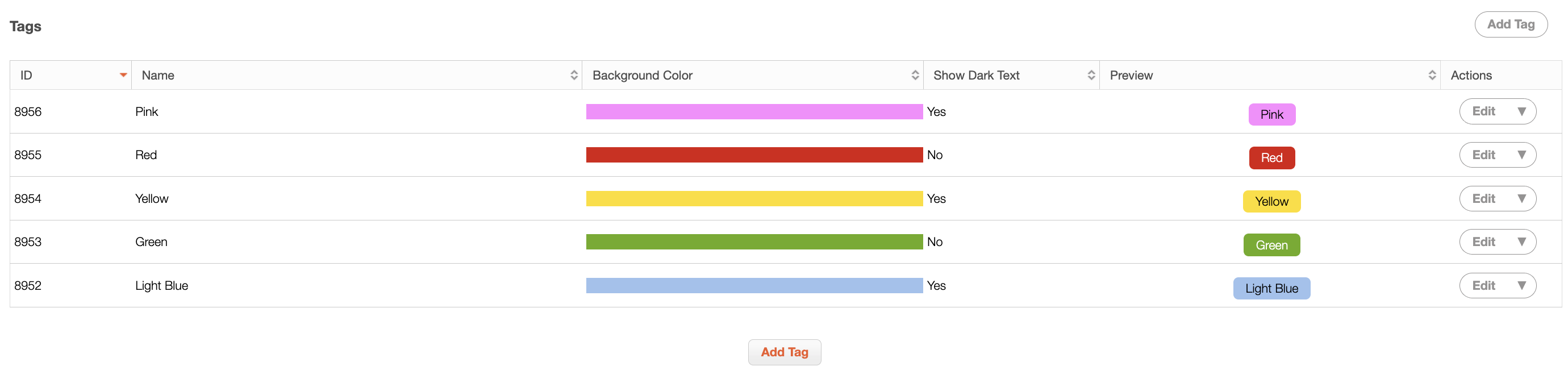
Tags serve as a visual indicator of custom statuses or categories, greatly enhancing organizational clarity by enabling you to identify designated tasks at a glance. These labels are highly adaptable, making it possible to tailor them to your business's unique requirements; this flexibility means that tags can represent a wide spectrum of information.
When you attach tags to tasks, you establish an efficient method for sorting and locating tasks based on specific criteria. This streamlined approach proves invaluable when handling a substantial volume of tasks.
To add a new tag in your MobiWork Tasks settings, click on the Plus Sign icon:
Once you click on the Plus Sign icon, the Add Tag pop-up window will then appear:
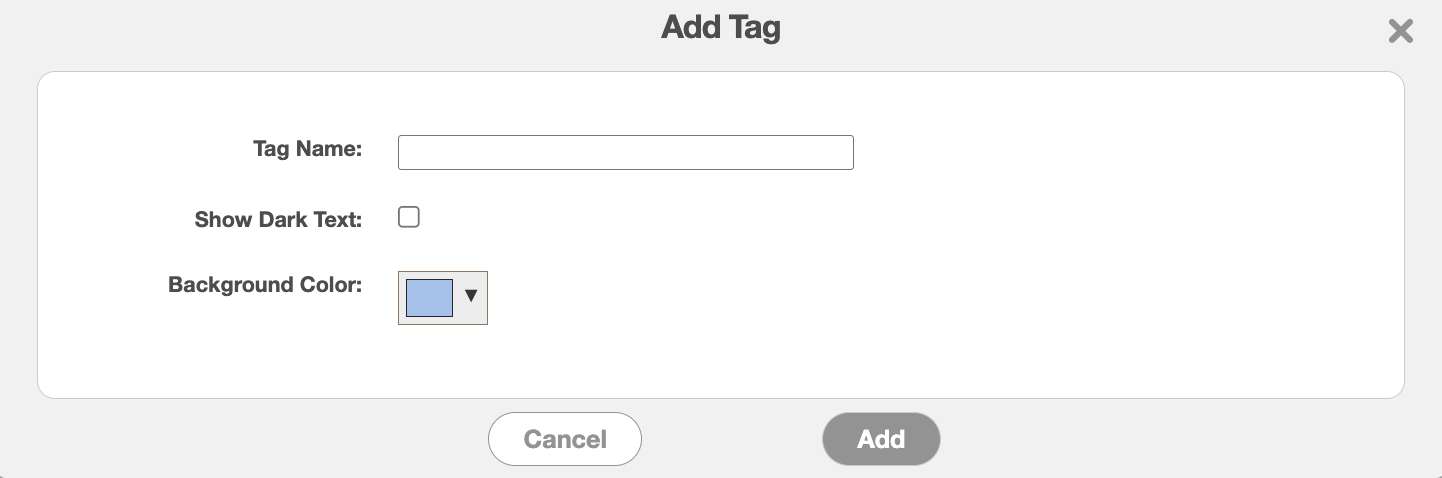
In this pop-up window, you can enter the following information:
- Enter the name of the tag.
- Instead of using a white font, you can choose to use a dark font. This is helpful when using a light-colored background for the tag to help the text stand out.
- Select the background color of the tag.
To add a new tag to your task, open the View Task pop-up window and in the "Summary" panel click on the Plus Sign for the "Tags" column; if you have already added tags to your tasks, this icon will turn into a Pencil icon:
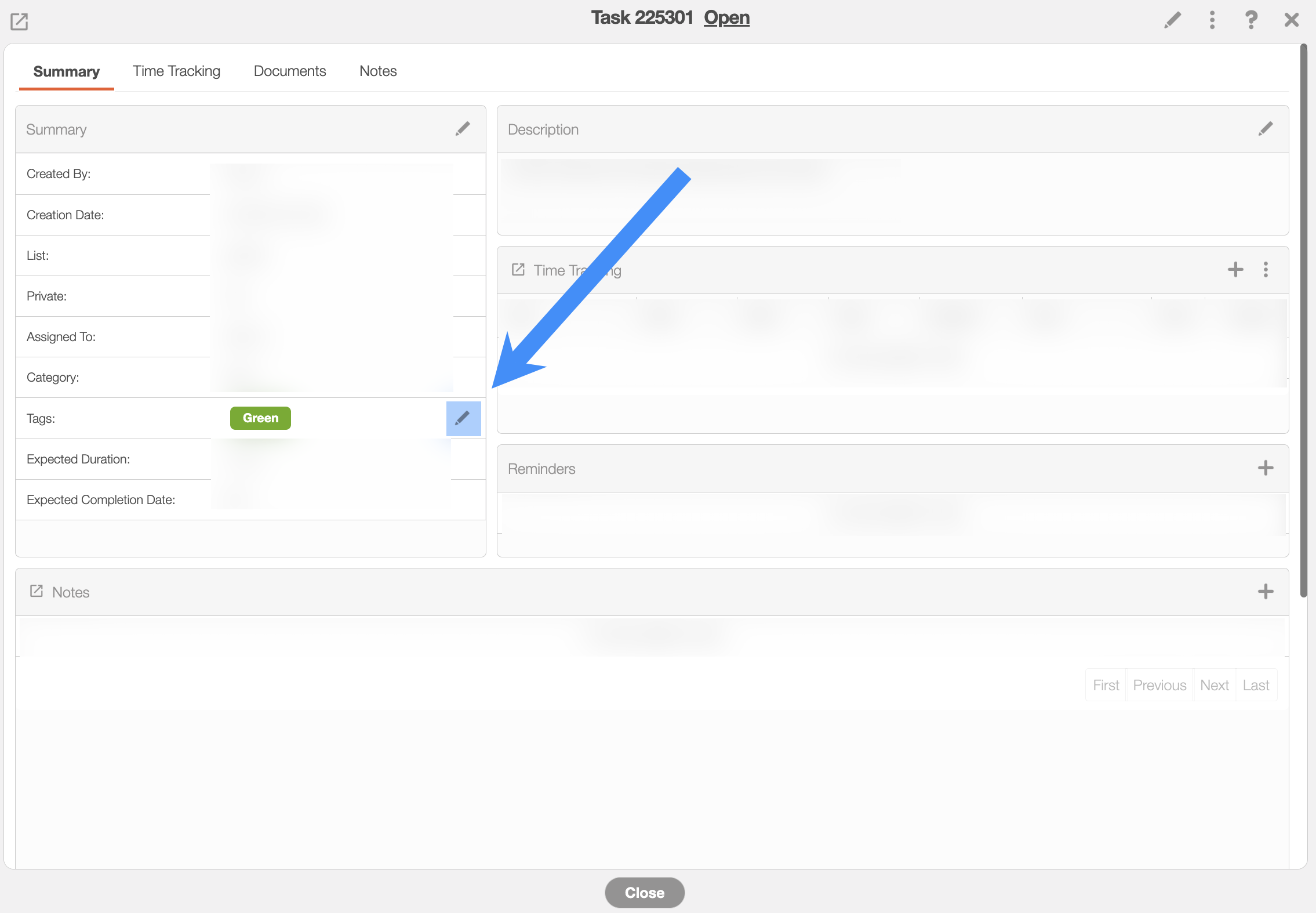
From the Add Tag pop-up window, you have the capability to assign multiple tags to a single task, allowing you to capture various facets of a task's status or category. This comprehensive tagging system simplifies the task of finding the right task precisely when you need it.
If you would like to remove any tags from a task, click on the Pencil icon again. The Add Tag pop-up window will appear again; from this window you will then be given the option to remove the tags by unchecking the specified tags:
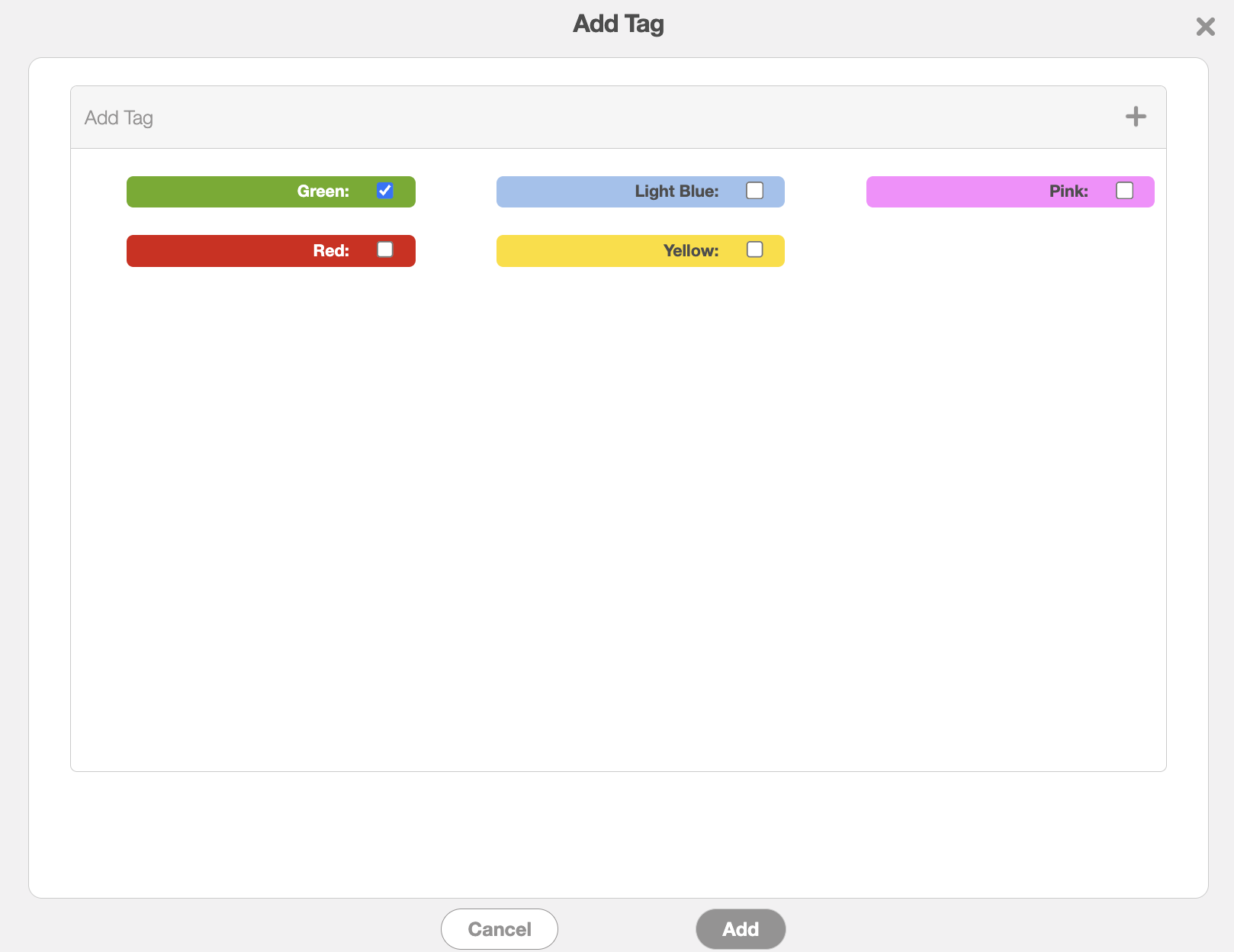
Once you are satisfied that the selected tags have been removed, press the Add button to save your changes.