
The maintenance services feature provides greater control and flexibility when managing recurring maintenance tasks within your work orders.
This feature allows you to automatically include specific action items in work orders based on a defined maintenance schedule.
For example, a pool may require:
A cartridge filter cleaning every four weeks
A salt cell inspection every twelve weeks
Using this feature, you can configure these requirements so that the appropriate action items are automatically added to upcoming work orders when the scheduled maintenance interval is reached.
Please note that each maintenance service action is linked to a specific work order type and can only be used within that designated type. For example, if a maintenance service action called "Inspect Filter" is created for an "Inspection" work order type, it cannot be used within a "Service" work order type.
This ensures that maintenance actions remain properly aligned with the workflows they were designed for.
If you require assistance configuring maintenance services for your account, please contact our support team.

The following subsections will explore in detail how to create a custom mainteneance service action item for your work orders
Note: These instructions apply to Legacy Pools accounts. If you are using a Premier, Advanced, or Starter account, please contact our team for assistance with configuring Maintenance Services.
For this example, we will use the "Filter Cleaning" maintenance servie action item.
Create a Form and Associate it with the Work Order Type
The first step to creating mainteneance service action for your work orders, is to create the corresponding form that will be used for the mainteneance task.
To create this form, locate the "MobiForm Settings" column on the Work Order Settings page:
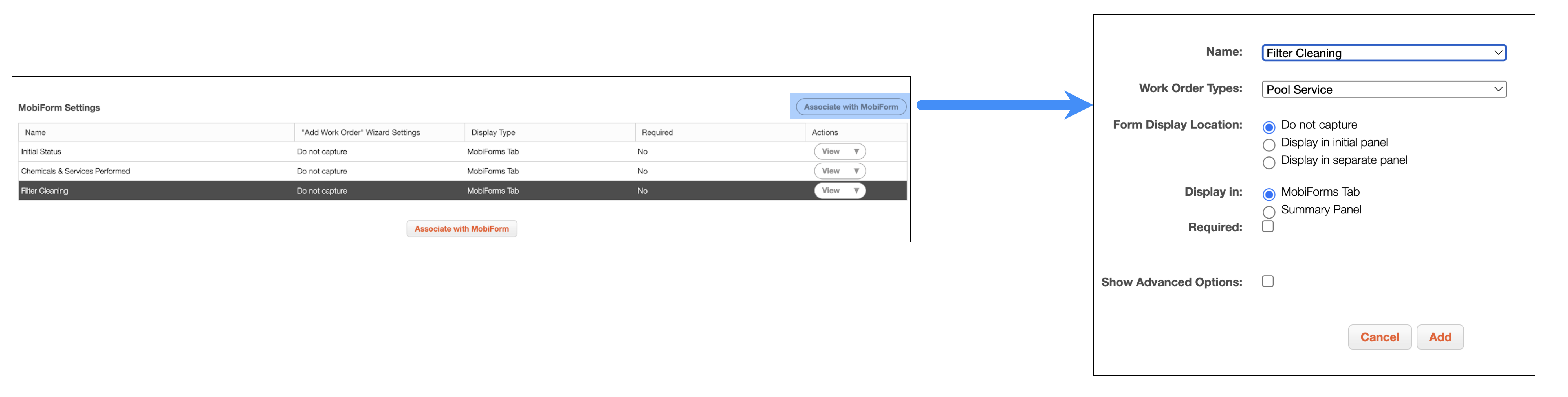
Click on the Associate with MobiForm button.
In the Associate With MobiForm pop-up window, complete the required fields:
Name- Enter the name for the form
Work Order Types- Input the work order type to associate with the form. Please note, the form will only be available for the selected work order type
Form Display Location-
Show Advanced Options
Once all the necessary fields are completed, please click the Add button to create the form.
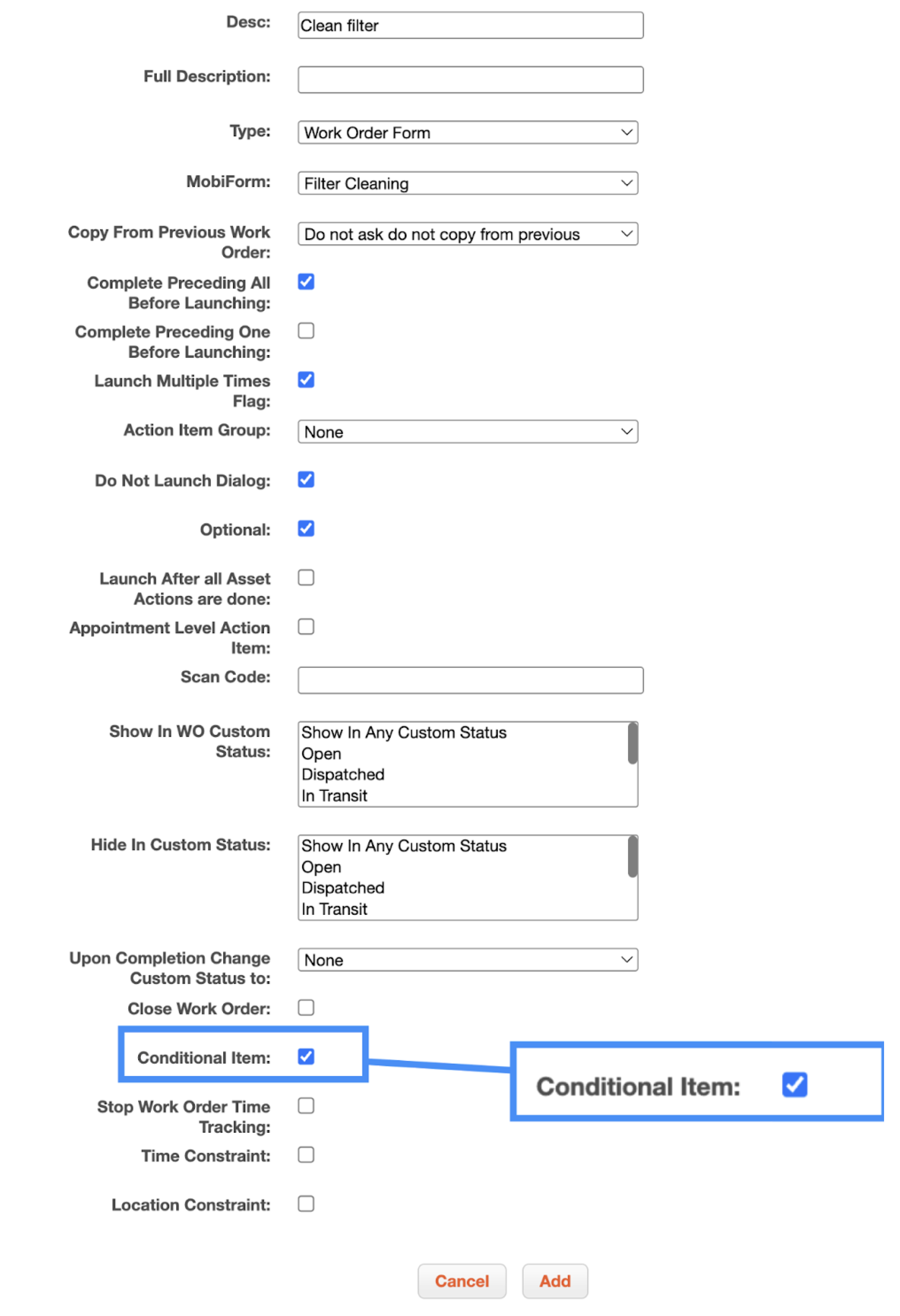
Select the Conditional Item
Next, ensure that the "Conditional Item" is marked off in the selected work order type:
Add Maintenance Service
Now, you will need to add the maintenance service. The maintenance service will have the parameters of the work order action including how often the maintenance service should repeat on designated work orders.
Enter the following details:
Name- Enter the name for the maintenance service
Abbreviation- Input the abbreviative name of the maintenance service
Description- In this field, enter the description of the action that should be performed by the maintenance service (e.g., inspecting the pool filter)
Repeat- Input the frequency of the maintenance service. In other words, how often that the maintenance service action should reoccur on the work order after a designated amount of time.
Work Order Type- The type of work order that is associated with the maintance type. This type specified here should also match the work order type indicated when creating the form from the previous step.
Create Work Order Automatically- If the work order should be created automatically. For this use case, leave this checkbox unmarked as you would want to update existing work orders to include the new maintenance service action.
Action Item- The action item that should be completed for the maintenance service.
Once all the fields are completed, click the Save button to confirm the new maintenance service:

The ability to add a maintenance service action to a work order is determined by the "Last Maintenance Date" associated with the selected entity:
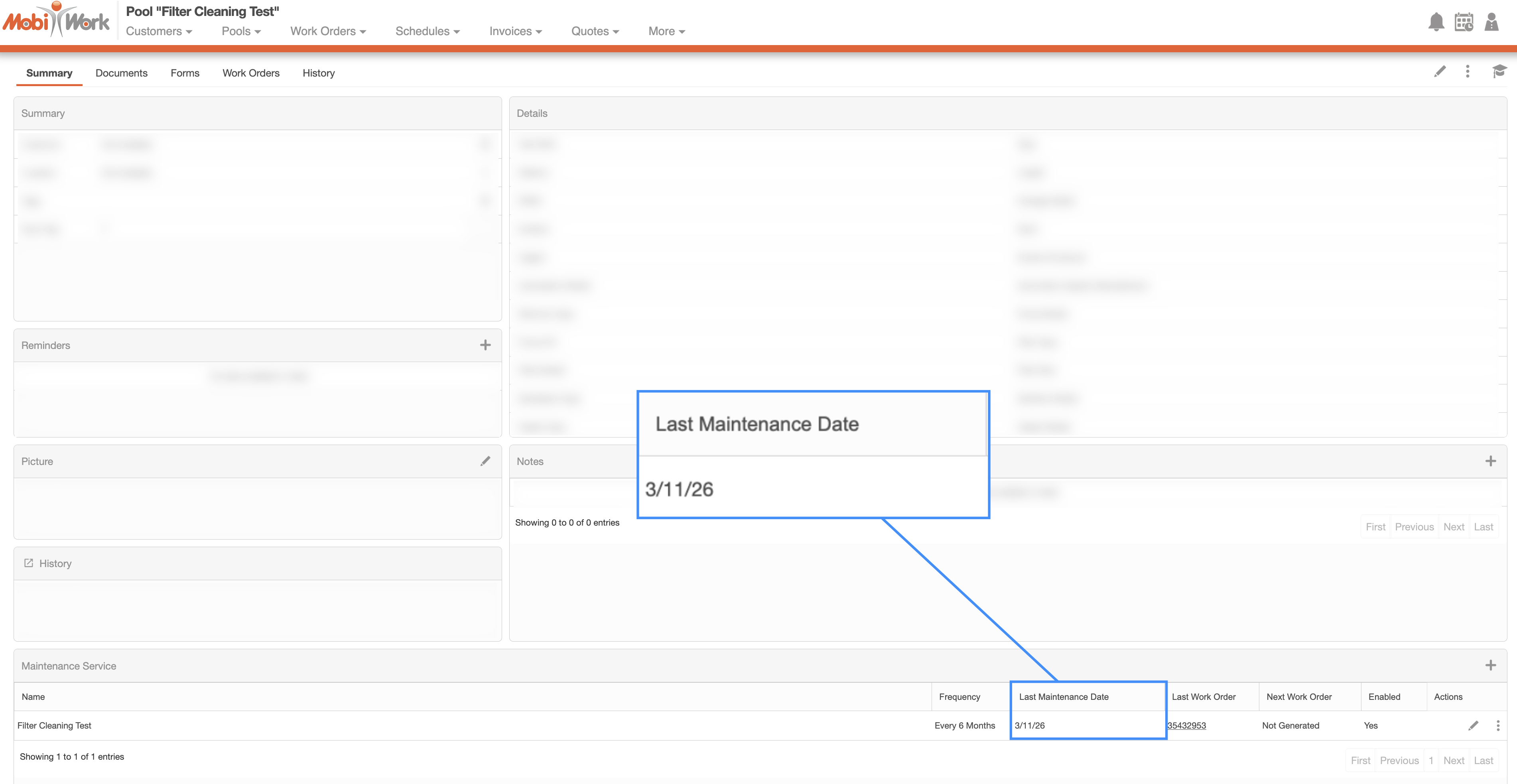
To generate a maintenance service action, open the desired entity, then select the "Generate" option from either the right-click actions or the Individual Actions drop-down:

If a work order already exists for the correct date and has the appropriate work order type, the maintenance service action will automatically be added to that work order.
For example, if an entity was last serviced three months ago and is configured to include an "Inspect Filter" action every six months, MobiWork will automatically add the action item to the appropriate future work order if the type and dates allign.
If there is no work order scheduled with the correct work order type or date range for the maintenance service, an error message will appear when attempting to generate the maintenance action.
To resolve this issue, create a work order with the correct work order type and schedule it within the appropriate date range.
When a maintenance action item is marked as completed and the work order status is set to "Closed" or "Completed", the "Last Maintenance Date" will automatically update to match the work order's closing or completed date. If the maintenance action item is not completed, it will remain pending and can be included in a future work order, depending on how the action item was configured.
Once the maintenance action item is added to the work order, and the schedule corresponds with the correct date, then you will be able to view the maintenance action item on the device's work order:
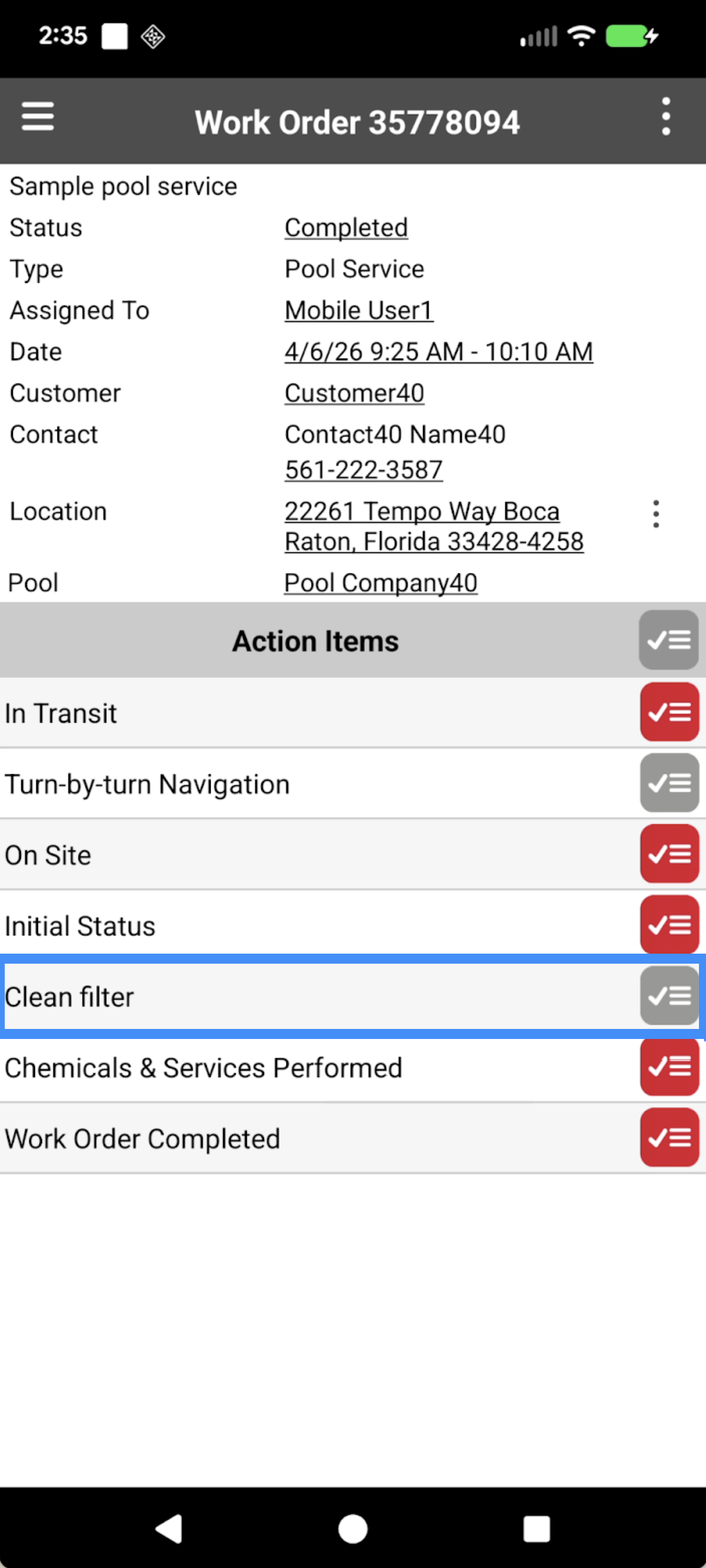
Like any other work order action item, you will be able to complete the given task.
Once the action item is checked off, the corresponding maintance service form will be launched:
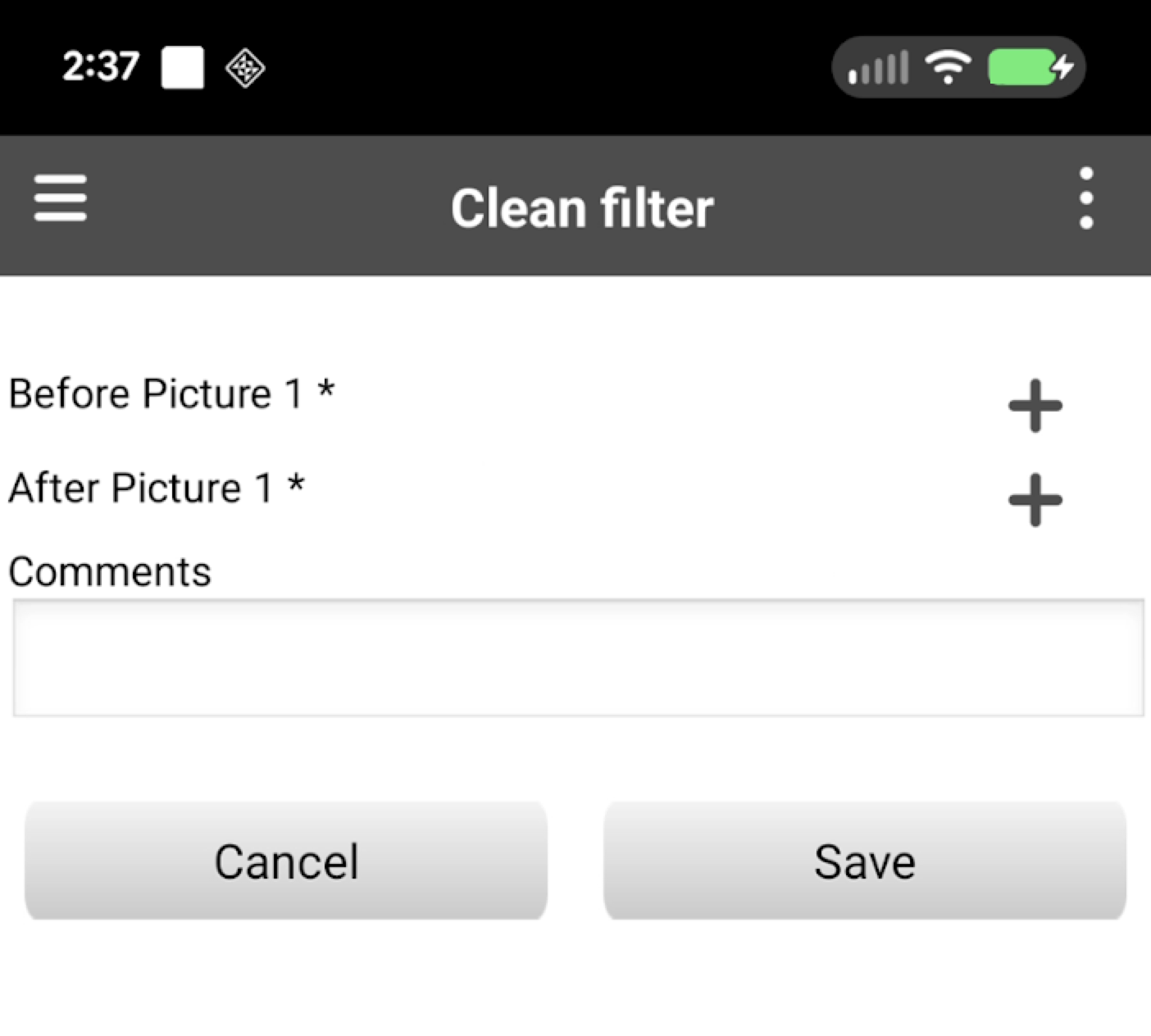
Complete the requisite details, and then press the Save button. Once the work order is saved, the last maintenance date of the filter is automatically reset.
You can also generate reports for maintenance services, allowing you to review and update maintenance records as needed.
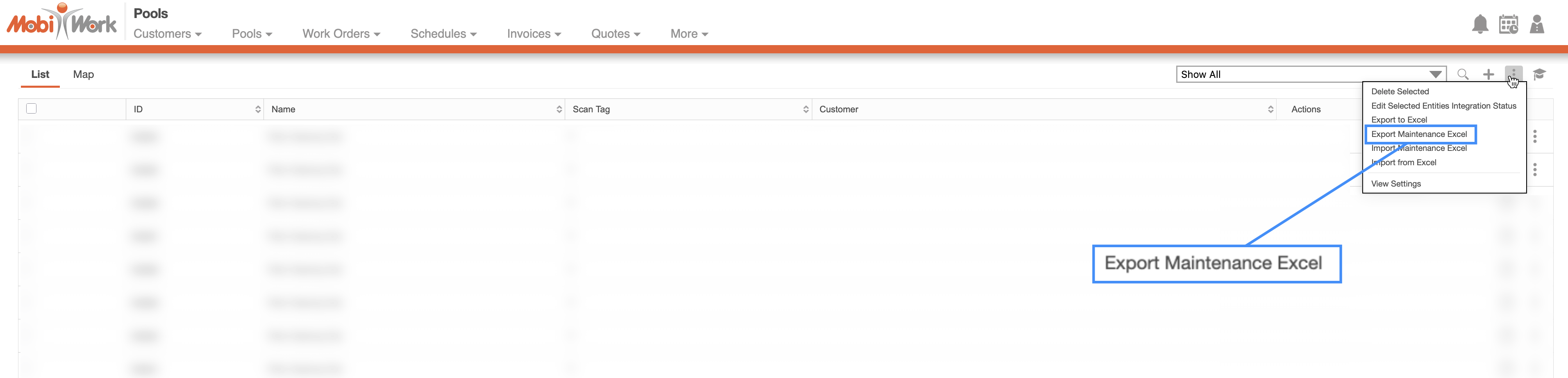
To export the report, click on the More Actions button and select the "Export Maintenance Excel" option from the drop-down:
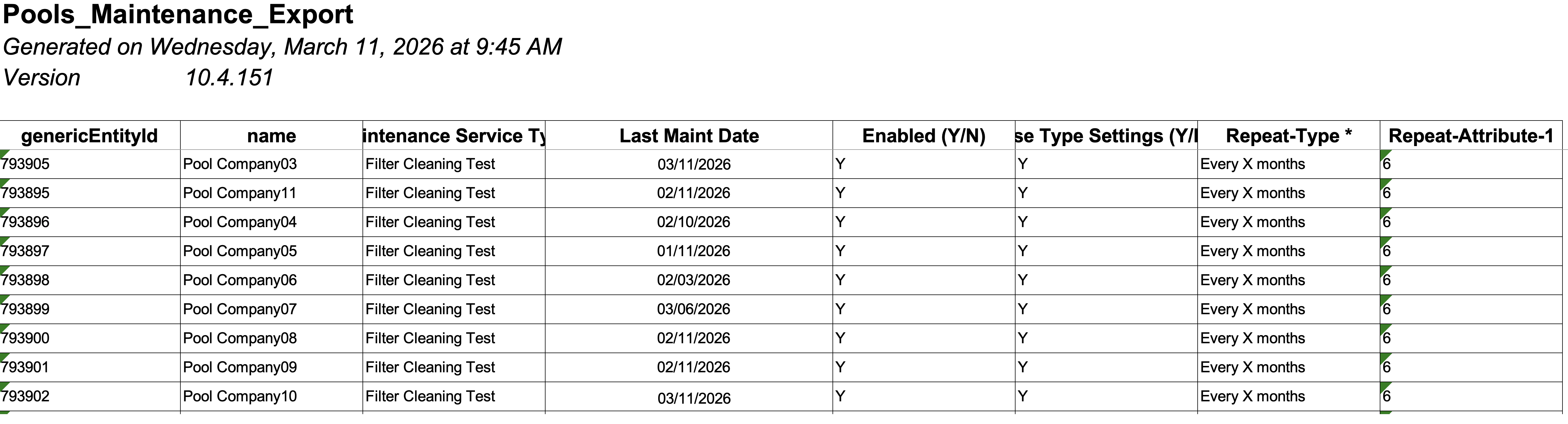
The report will download to your computer. You may then update the required fields directly in the spreadsheet:
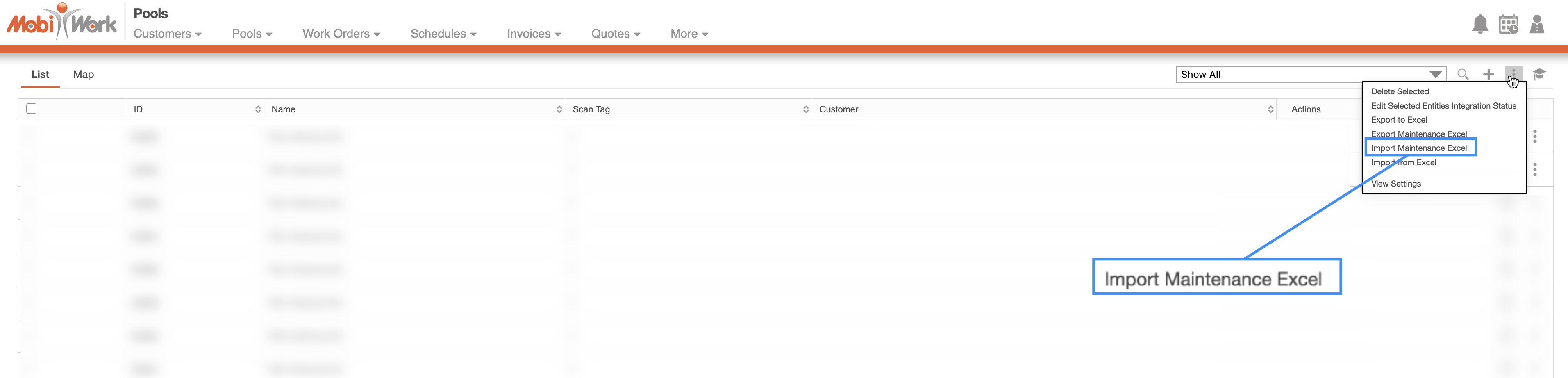
Once you have made the necessary updates to the Excel file, click on the More Actions button and select the "Import Maintenance Excel" option from the drop-down:
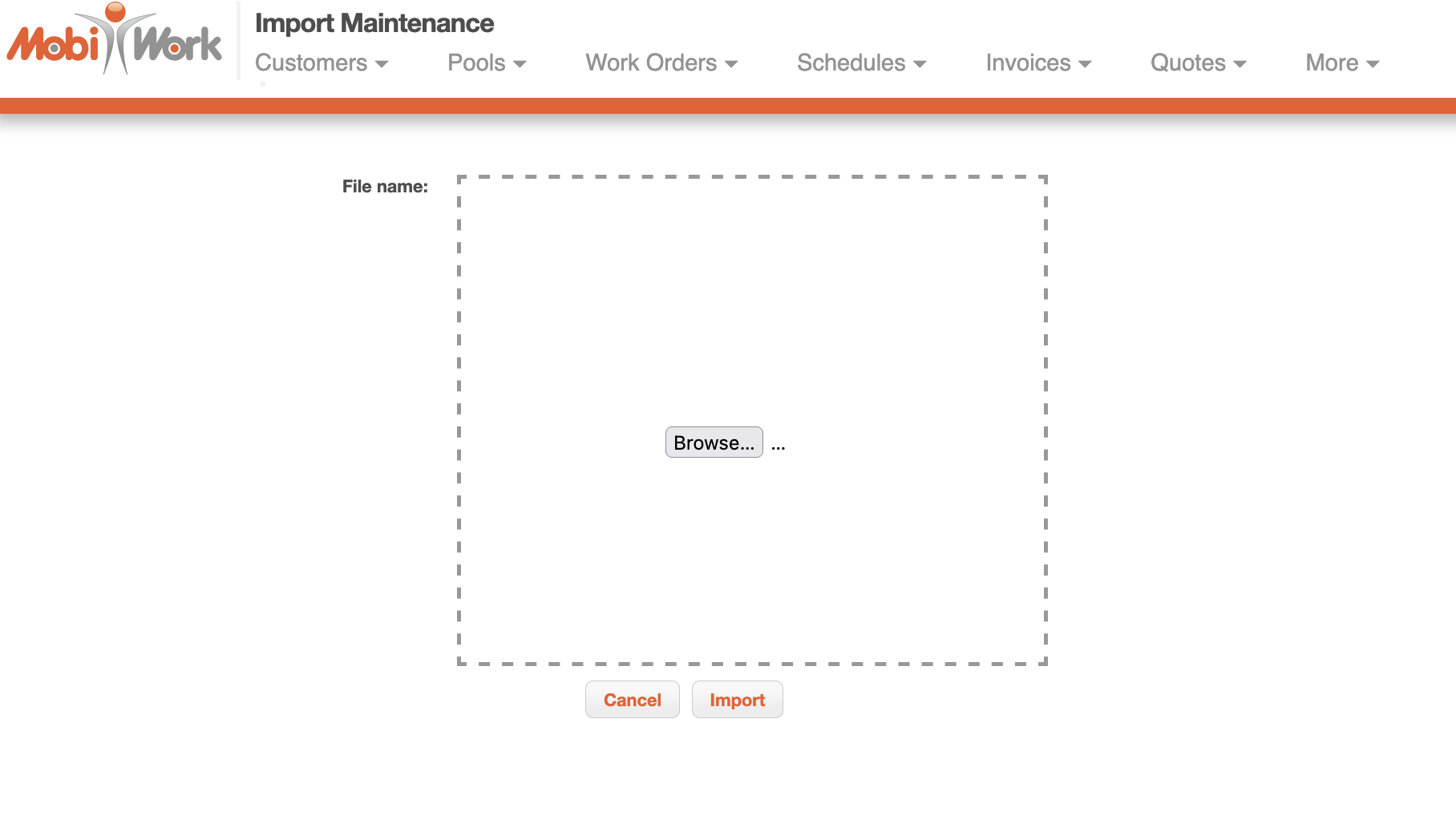
Upload the updated file an then click the Import button:
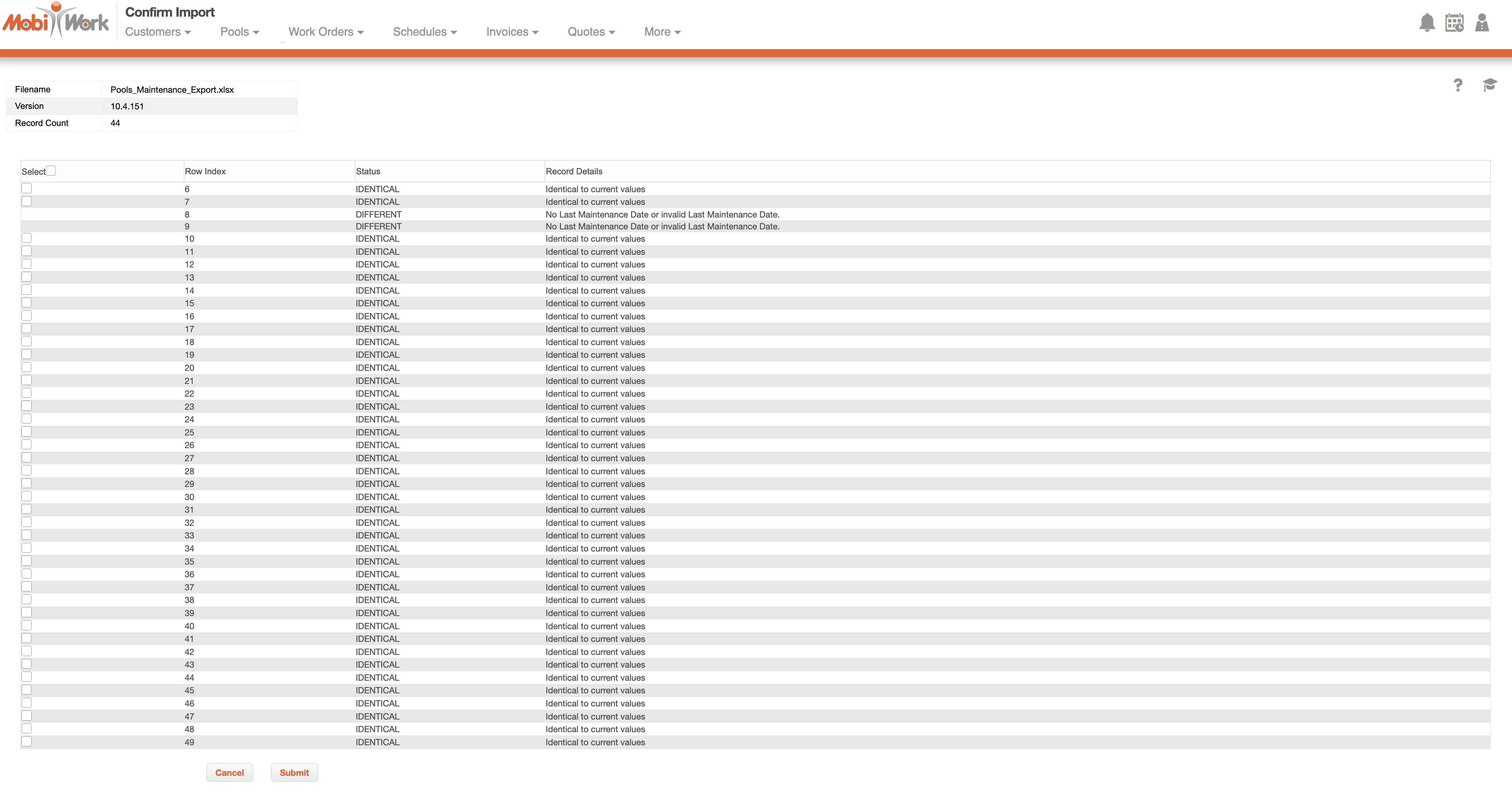
On the Confirm Import page, select Submit button:
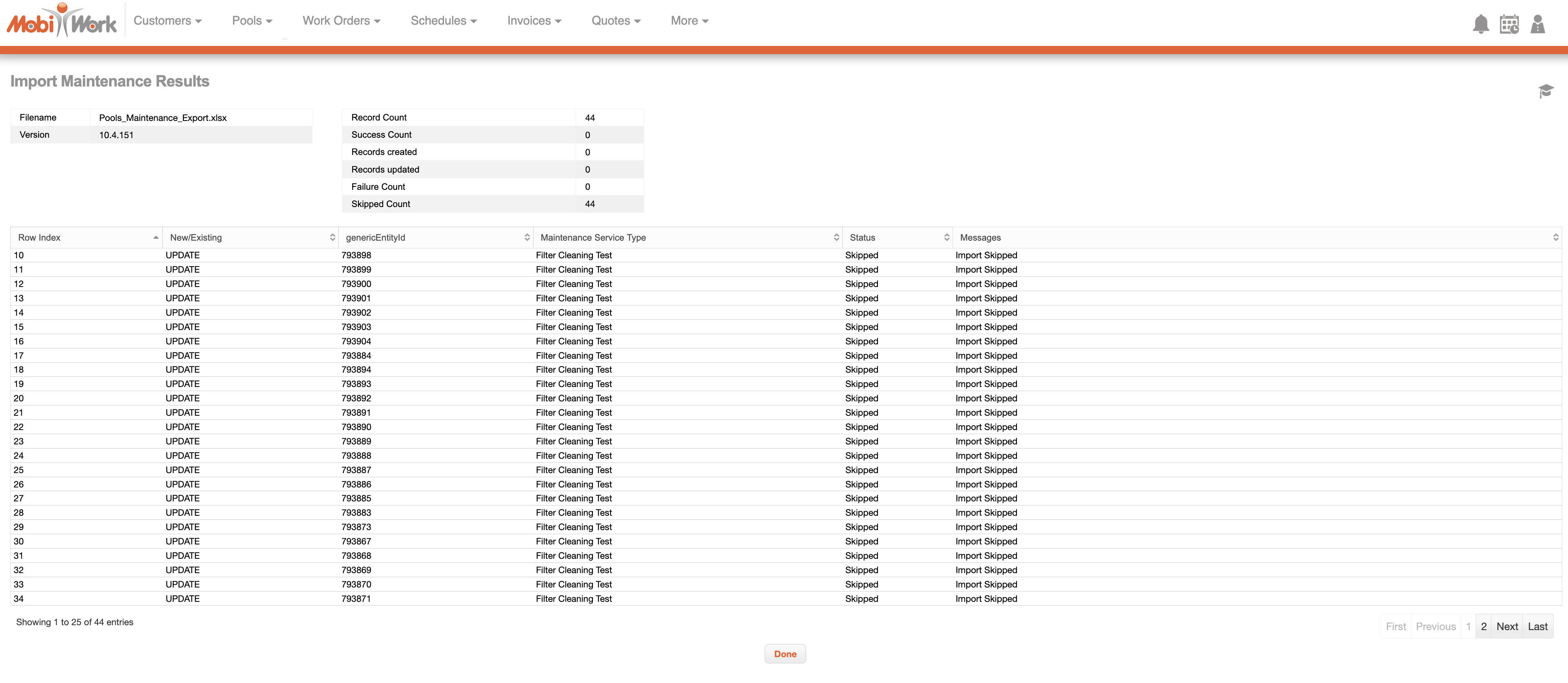
Then, on the Import Confirmed page, click Done to finalize the upload. The entities will then be updated with the revised "Last Modified Date:"
After adding maintenance services to your entities, you can disable them if needed. This is useful when certain entities require a different maintenance schedule.
For example, a customer may request that their salt cell inspection occur once per year instead of every twelve weeks.
Disabling the maintenance service for that entity allows you to accommodate the request without affecting other entities.
Maintenance services can also be re-enabled at any time, providing additional flexibility and customization for managing your work orders.
To enable or disable the maintenance service action, simply access the desired entity view and in the "Maintenance Service" panel. Then select the "Disable" option by from the right-click actions or the from the Individual Actions drop-down:
If the maintenance service action is already disabled, then to enable it, simply edit the maintenance service to access the "Enable" option.