
You will be able to dispatch the work order to a contractor directly from the MobiWork system. MobiWork also allows you to send the work order request to the contractor so that they can decide whether to accept or reject the perspective job. The following subsections highlight how to dispatch the work order directly to the contractor and how to send the accept / reject work order request to the contractor.
Dispatch Work Order
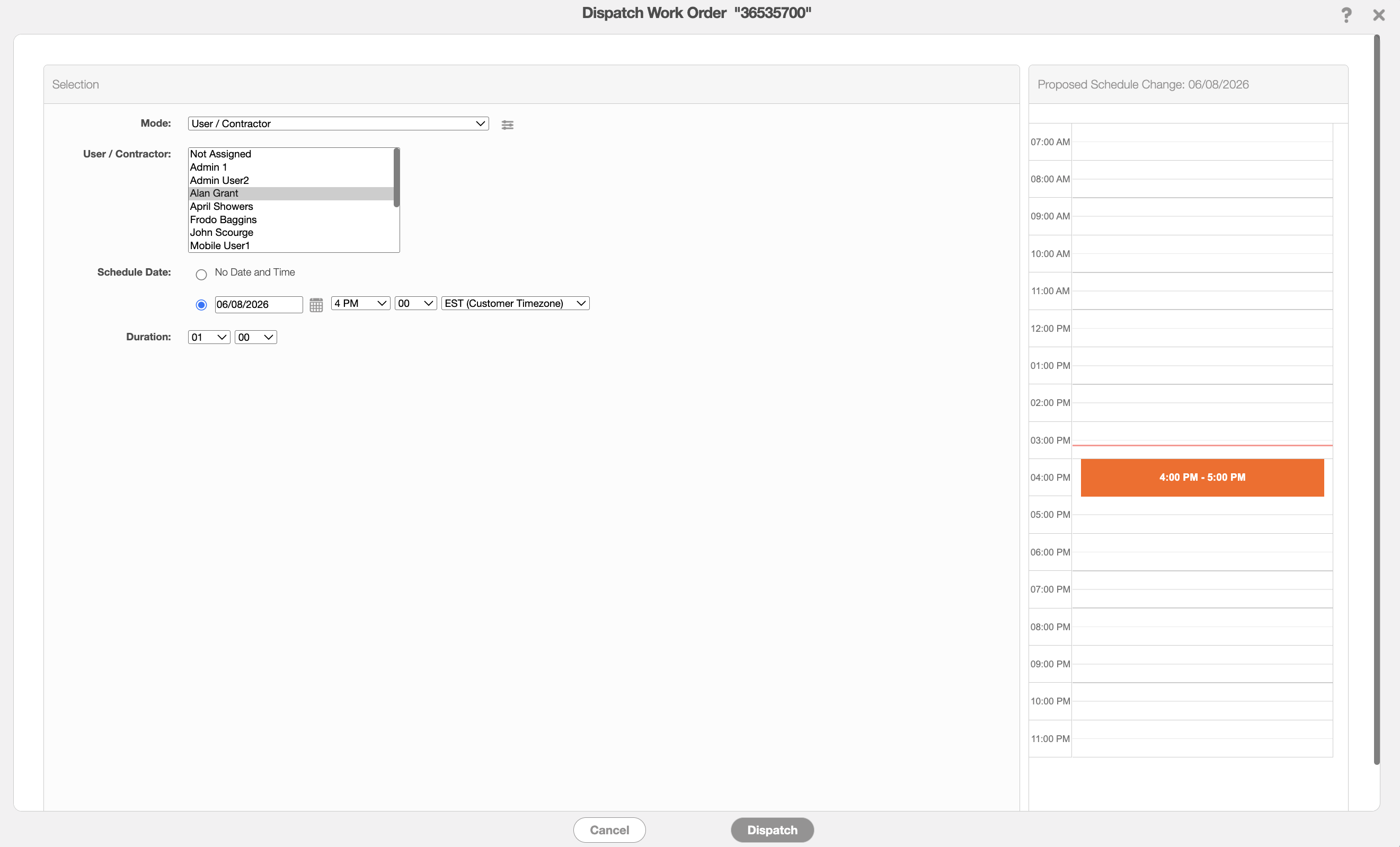
From the Dispatch Work Order pop-up window, you will be able to directly dispatch the work order to the contractor from the MobiWork web interface.
As you dispatch the work order, simply select the desired contractor from the "User" list. Select the specified date and time for the work order, as well as the estimated duration for how long the work order should take to complete:
For more information on how to dispatch work orders, please see Dispatching Overview page.
View Work Order
To send the accept / reject request to contractors, the work order will first need to be dispatched but not assigned to a user or contractor. Then access the View Work Order pop-up window.
In the work order's "Scheduling and Dispatching" panel click on the corresponding Individual Actions button and from the drop-down select the "Send Accept/Reject Request to Contractors" option:

The Send Accept/Reject Request to Contractors pop-up window will then appear:
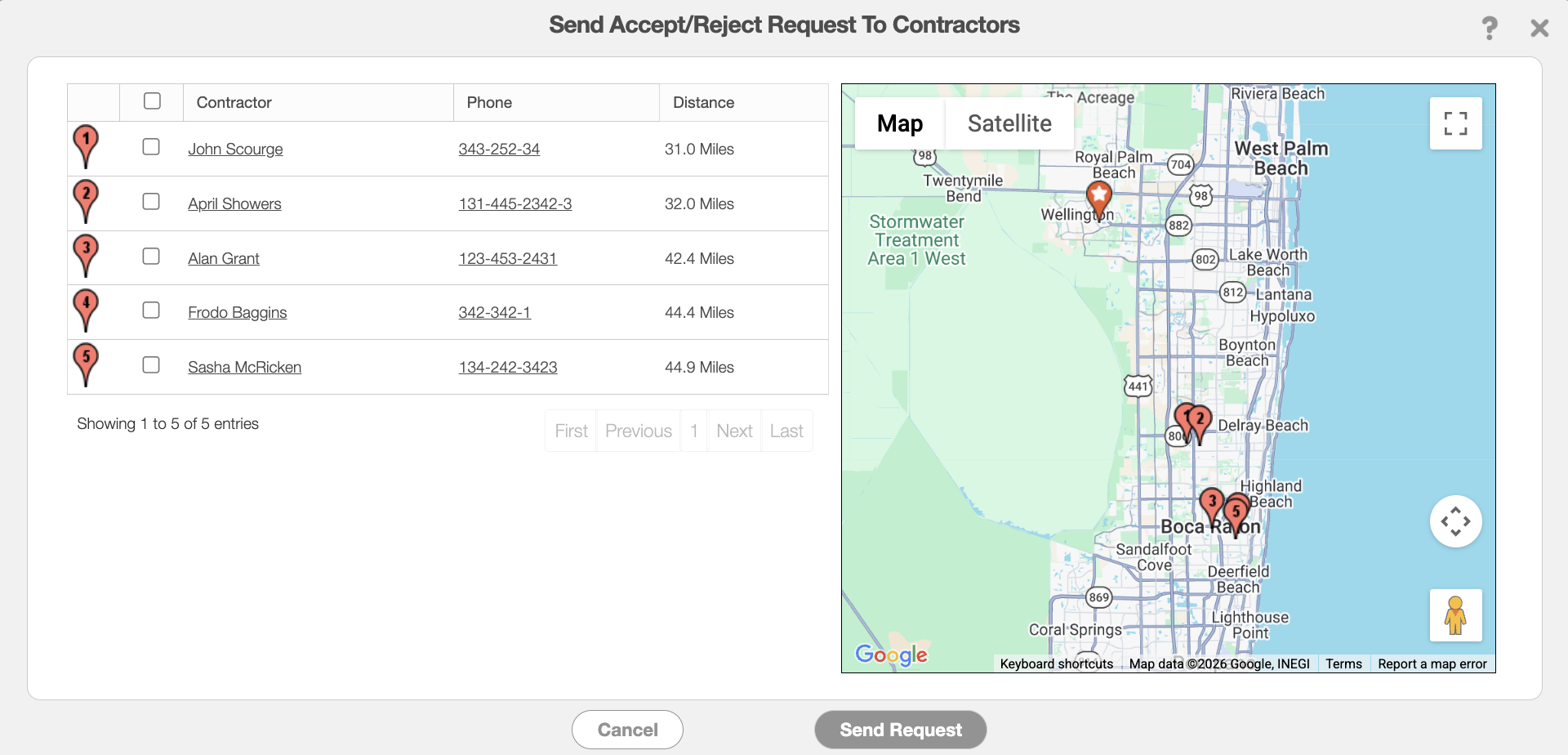
Select the desired contractor from the "Contractor" column. Then click the Send Request button to confirm that you would like to send the work order to the specified contractor(s).
Note: You can select multiple contractors.
You can dispatch a work order to a contractor either during the work order creation process or after the work order has been created. For more information about dispatching work orders, please see the Dispatching Overview.
From the Dispatch Work Order pop-up window, simply select the desired contractor and scheduled date and time of the work order. Then click the Dispatch button to dispatch the work order to the designated contractor:
Unlike the "Send Accept/Reject Request" action, dispatching a work order directly to a contractor does not provide them with the option to accept or reject the assignment. The work order is assigned immediately upon dispatch.
This approach is ideal when working with trusted contractors who have already agreed to perform the work or when prior arrangements have been made, eliminating the need for an acceptance step.
You can also send contractors an "Accept/Reject Request" before assigning a work order. This dispatching option allows you to determine a contractor's availability and willingness to perform the work before the assignment is finalized.
After creating the work order, open the View Work Order pop-up window:
Within the "Scheduling and Dispatching" panel, click the corresponding Individual Actions button and select "Send Accept/Reject Request to Contractors" from the drop-down menu.
Select the desired contractor(s) from the "Contractor" column, then click Send Request button to submit the request.
The Send Accept/Reject Request to Contractors pop-up window will appear:
The selected contractor will receive a notification prompting them to either accept or reject the job.
Once the request has been sent, the contractor's status in the "Scheduling and Dispatching" panel will display "Waiting for Contractor to Accept" status:

When the contractor responds, the status will automatically update to reflect whether the work order was accepted or rejected, allowing you to make informed scheduling decisions.
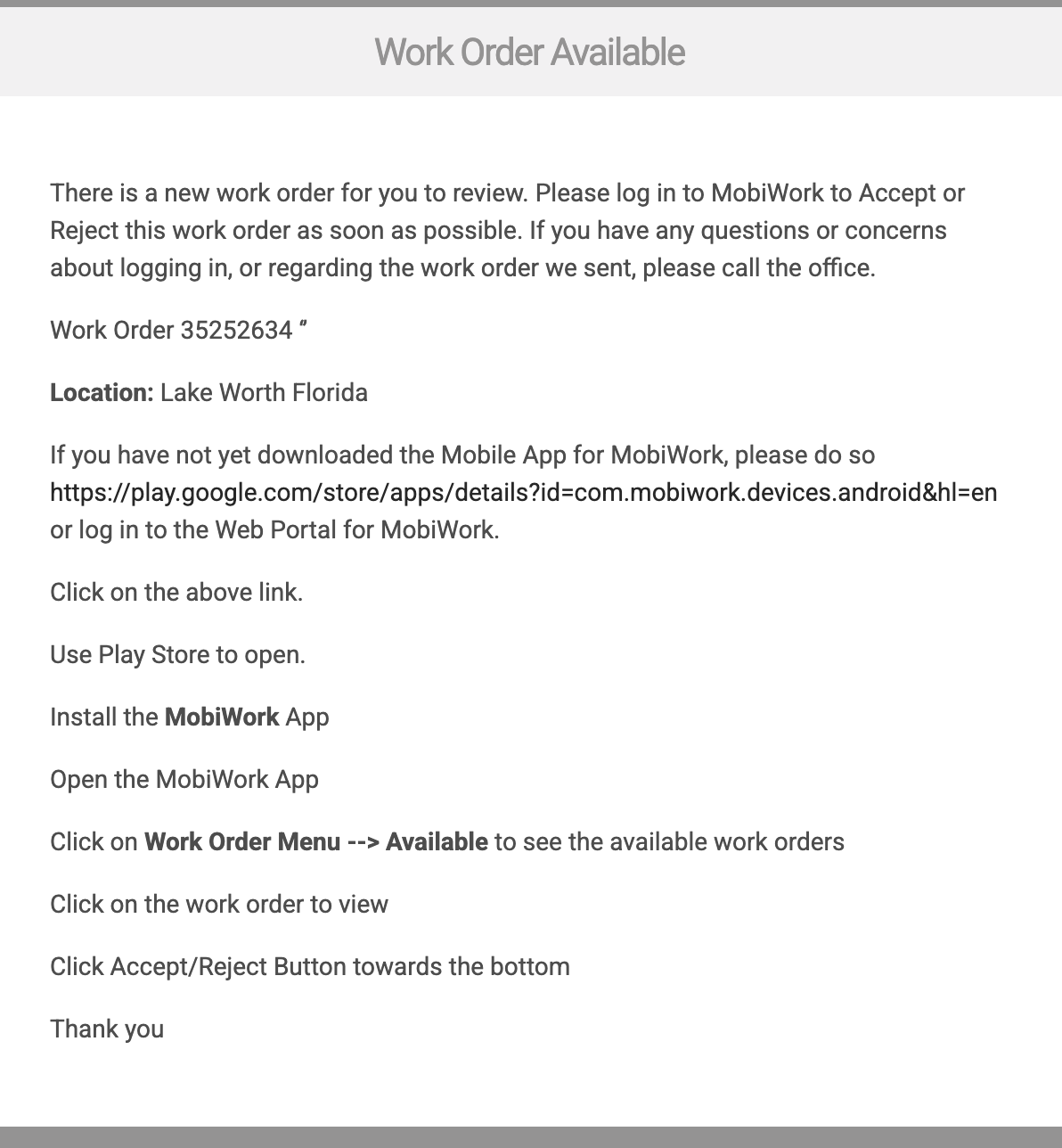
Once the "Accept/Reject Request" has been sent, the contractor will receive an email notification informing them of the potential work order assignment.
The email template appears as follows:
If the contractor wishes to accept the job, they can log in to either the MobiWork web application or the MobiWork mobile app.
After logging in to the web user interface, the contractor can locate the pending work order and choose to either "Accept" or "Reject" the assignment:
Once a response is submitted, the work order status will automatically update accordingly, providing real-time visibility into the contractor's availability and decision:
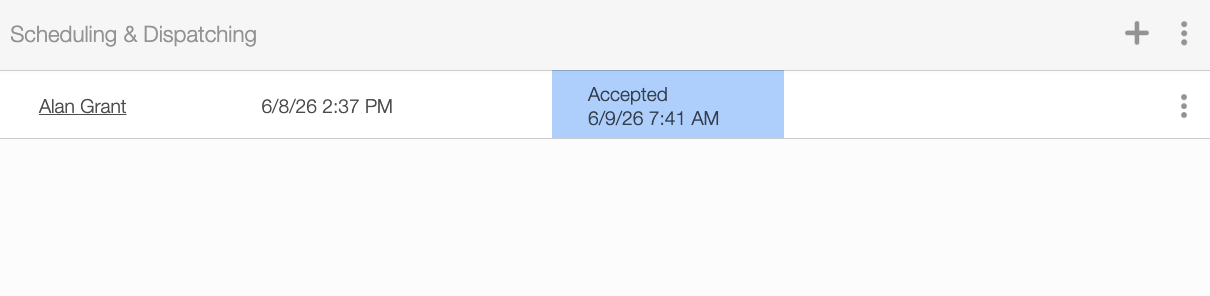
If the work order has been rejected then the contractor will be removed from the "Scheduling and Dispatching" panel and you will be able to dispatch it to another contractor or user. For more information on how contractors can accept or reject work orders from the MobiWork mobile app, please see the Mobile Contractor page.