To edit a contractor, you will first need to be on the Contractors "List" tab, on MobiWork; for more information on how to access this page, please see the Contractor List page.
Once you are on this page, there are three different ways you can edit a user:
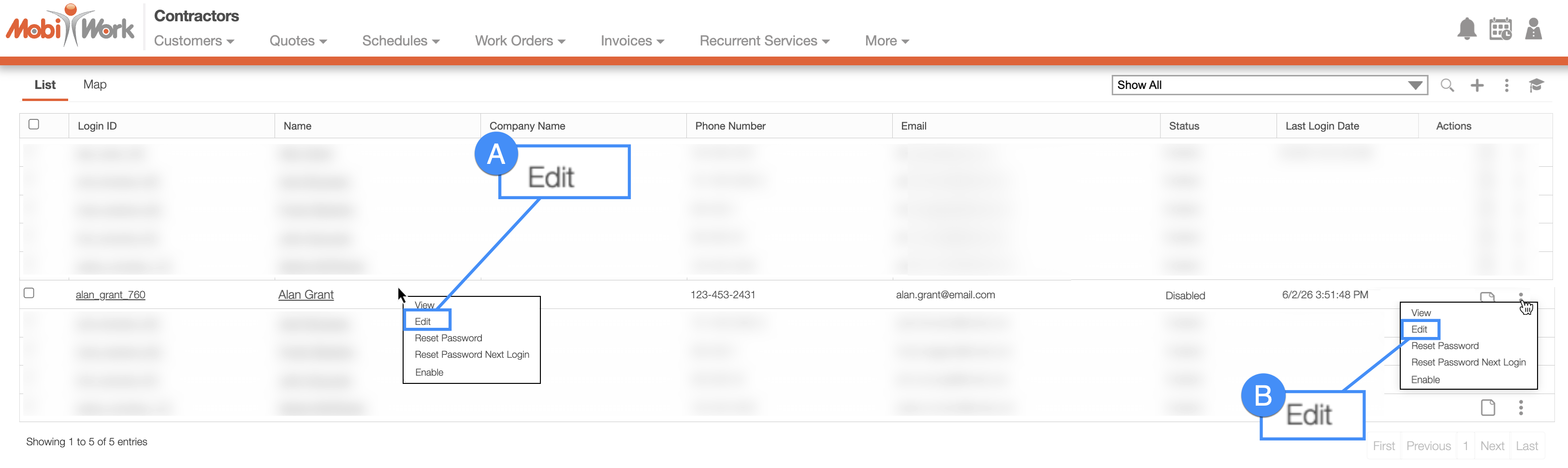
To edit a contractor, you will first need to be on the Contractor "List" tab, on MobiWork; for more information on how to access this page, please see the Contractor List page.
Once you are on this page, there are three different ways you can edit a contractor:
Clicking on the Contractor's login ID to open the View Contractor pop-up window:
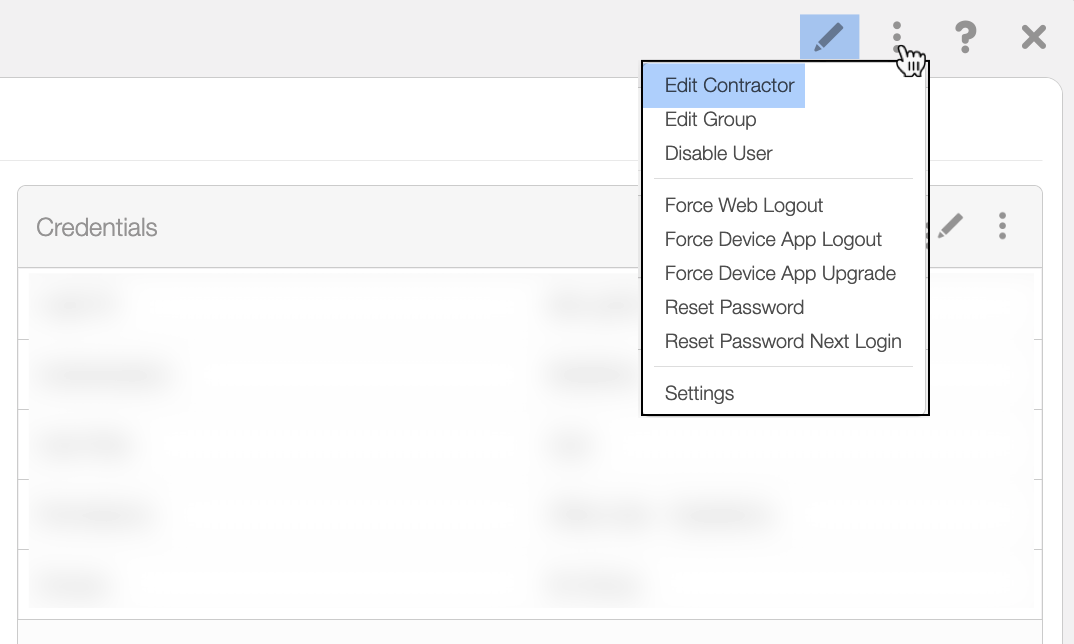
In the upper right-corner of the View Contractor pop-up window, you will see a Pencil icon and the Individual Actions button. Either option will allow you to edit the contractor:
Please note that there are many ways that you can access the View Contractor pop-up window. Please see the View Contractor page for the different ways that you can open the View User pop-up window.
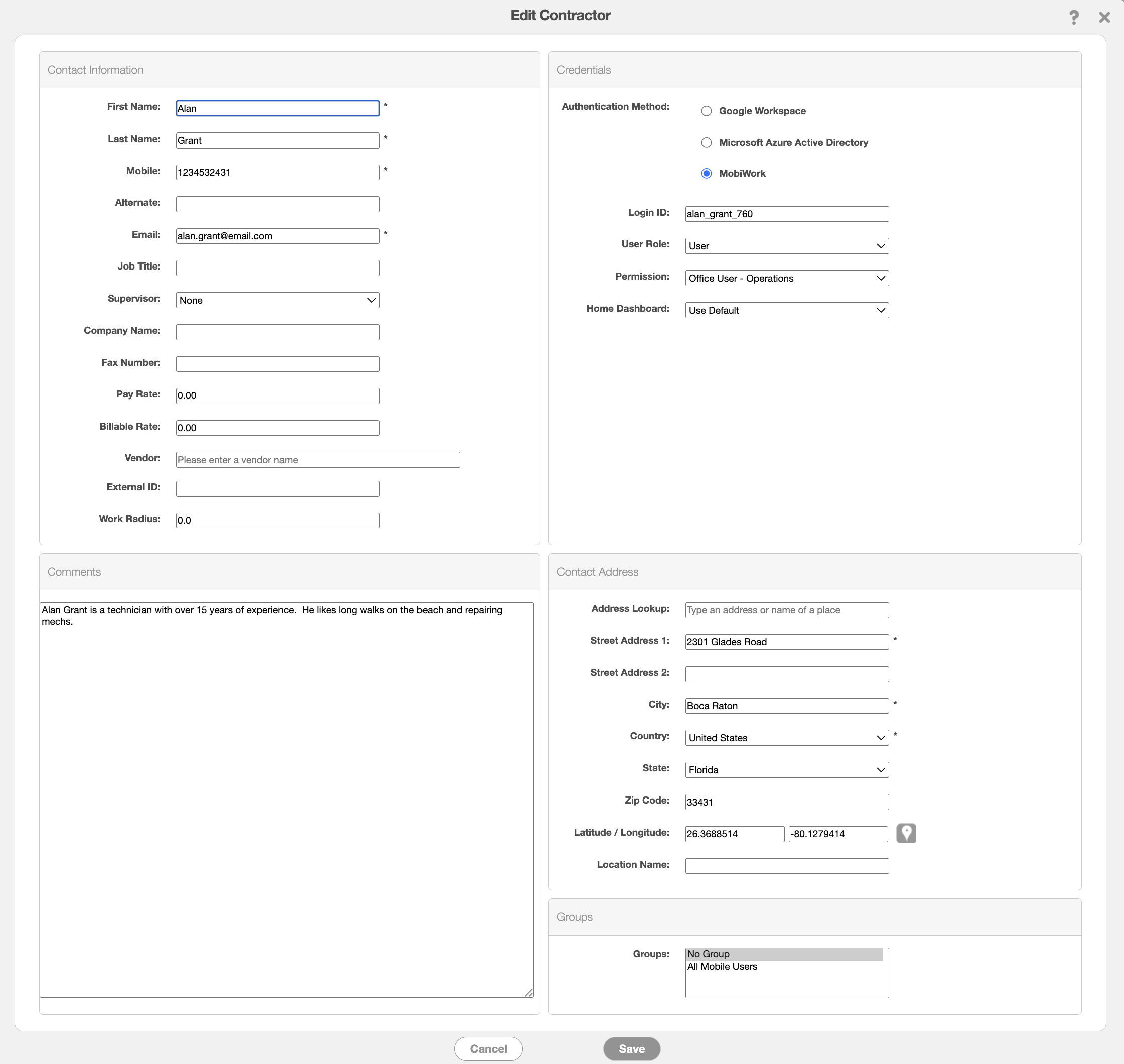
Regardless of how you choose to edit the contractor, the Edit Contractor pop-up window will appear.
Once the Edit Contractor pop-up window appears, update the fields that you would like to change for the selected contractor. When you are finished updating the selected fields, click on the Save button:
From this pop-up window, you will also be able to reset the contractor's password, in addition to editing their profile information.
From the Edit Contractor pop-up window, you can also update the following:
The first and last name of the contractor.
The email address of the contractor and the contractor's phone number.
The contractor's job title and the supervisor in charge of the contractor.
The contractor's pay and billable rates.
Any comments associated with the contractor.
The Authentication Method that the contractor will use to acccess their MobiWork account (i.e., MobiWork user ID and password, or their Google account, or their Microsoft account).
The login ID and password for the contractor.
The user role and permission level within your company.
The contact address of the contractor (this address will be used when issuing work orders, etc).
The groups that the contractor should be a part of.
All the terms for the Edit Contractor pop-up window are defined below:
Note: Please do not put special characters in the phone number field; doing so will inhibit the ability to send text messages to the recipient.
The columns for the Edit User pop-up window are defined below:
| Name: | Description: |
|---|---|
| "First Name" | The contractor's first name. |
| "Last Name" | The contractor's last name. |
| "Mobile" | The contractor's phone number. |
| "Alternate" | The contractor's alternate phone number. |
| "Email" | The contractor's email address. |
| "Job Title" | The contractor's job title within your company. |
| "Supervisor" | The supervisor of the contractor; the supervisor can access and take action on the contractor. |
| "Company Name" | The company that the contractor associated with. |
| "Fax Number" | The fax number of the contractor. |
| "Pay Rate" | The pay rate that the contractor earns. |
| "Billable Rate" | What a client is charged for the contractor's services. |
| "Vendor Reference ID" | The ID of the vendor associated with the contractor. |
| "Authentication Method" | Displays how the contractor can acccess their MobiWork account (i.e., MobiWork user ID and password, or their Google account, or their Microsoft account). |
| "Login ID" | The MobiWork Login ID of the contractor. |
| "Password" | The MobiWork password of the contractor. |
| "Confirm Password" | Retype the password in this field to confirm it. |
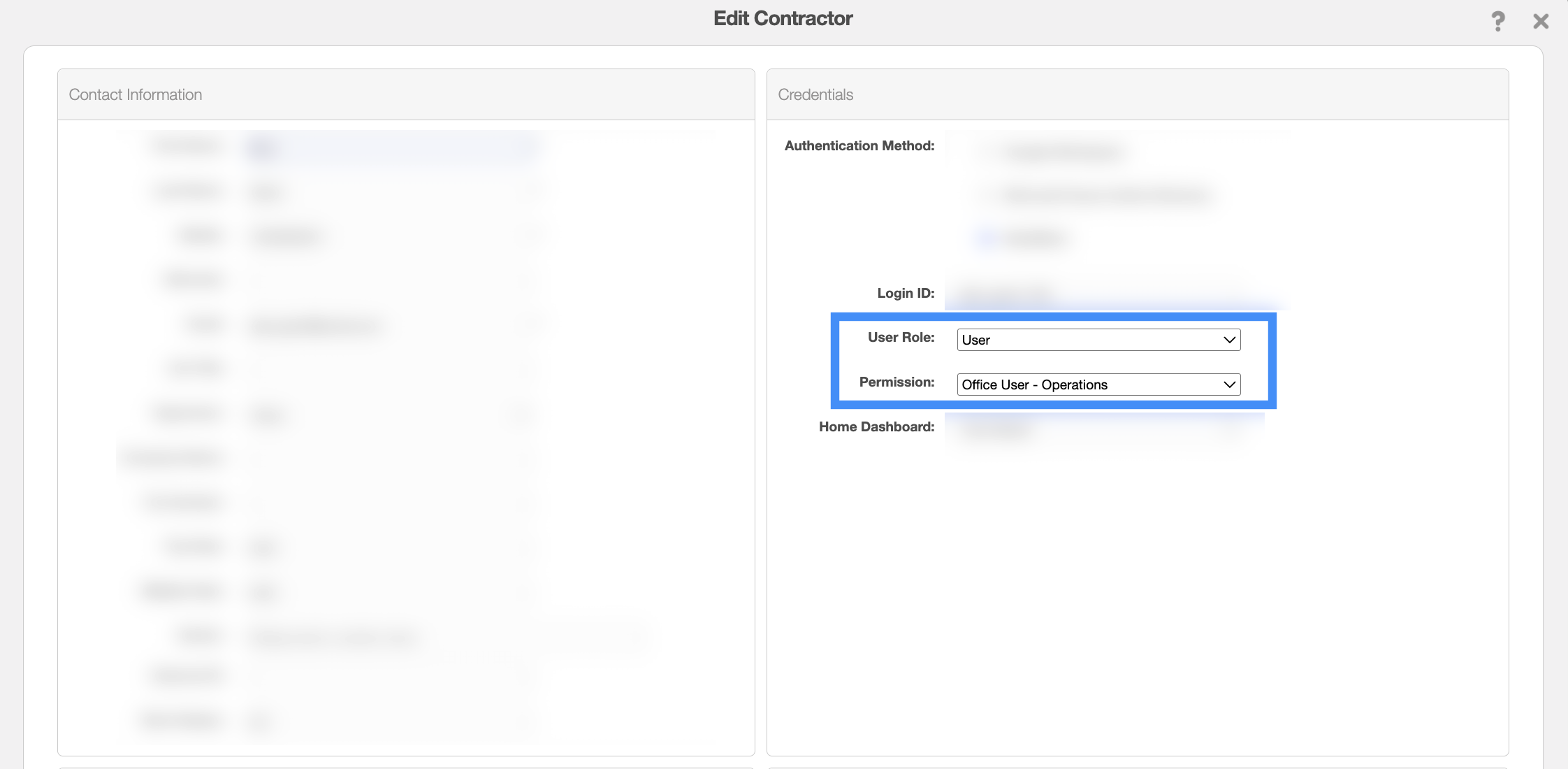
| "User Role" | The contractor's role. Can either be a user (permissions can be edited) or a Global admin (have access to all actions within MobiWork). |
| "Permission" | Indicates which permission template the contractor will be assigned to; this field will only appear if "User Role" is selected as the role. |
| "Home Dashboard" | Indicates the type of dashboard that the contractor uses in MobiWork. |
| "Address Lookup" | Alternatively, you can use the "Address Lookup" field or the "Latitude/Longitude" fields to enter the contractor's address. |
| "Street Address 1" | In this field input the address of the contractor. |
| "Street Address 2" | In this field input the any additional address information of the contractor. |
| "City" | In this field input the city of the contractor. |
| "Country" | In this field input the country of the contractor. |
| "State" | In this field input the state of the contractor. |
| "Zip Code" | In this field input the zip code of the contractor. |
| "Latitude / Longitude" | Allows you to input the latitude and longitude coordinates of the address. |
| "Location Name" | The name of the location that is associated with the contractor. This name corresponds with address fields above. |
| "Groups" | List the groups associated with the contractor. |
If you would like to change the permissions or user role of a selected contractor, simply use the respective drop-down in the "Credentials" panel to choose the new permission template or user role:
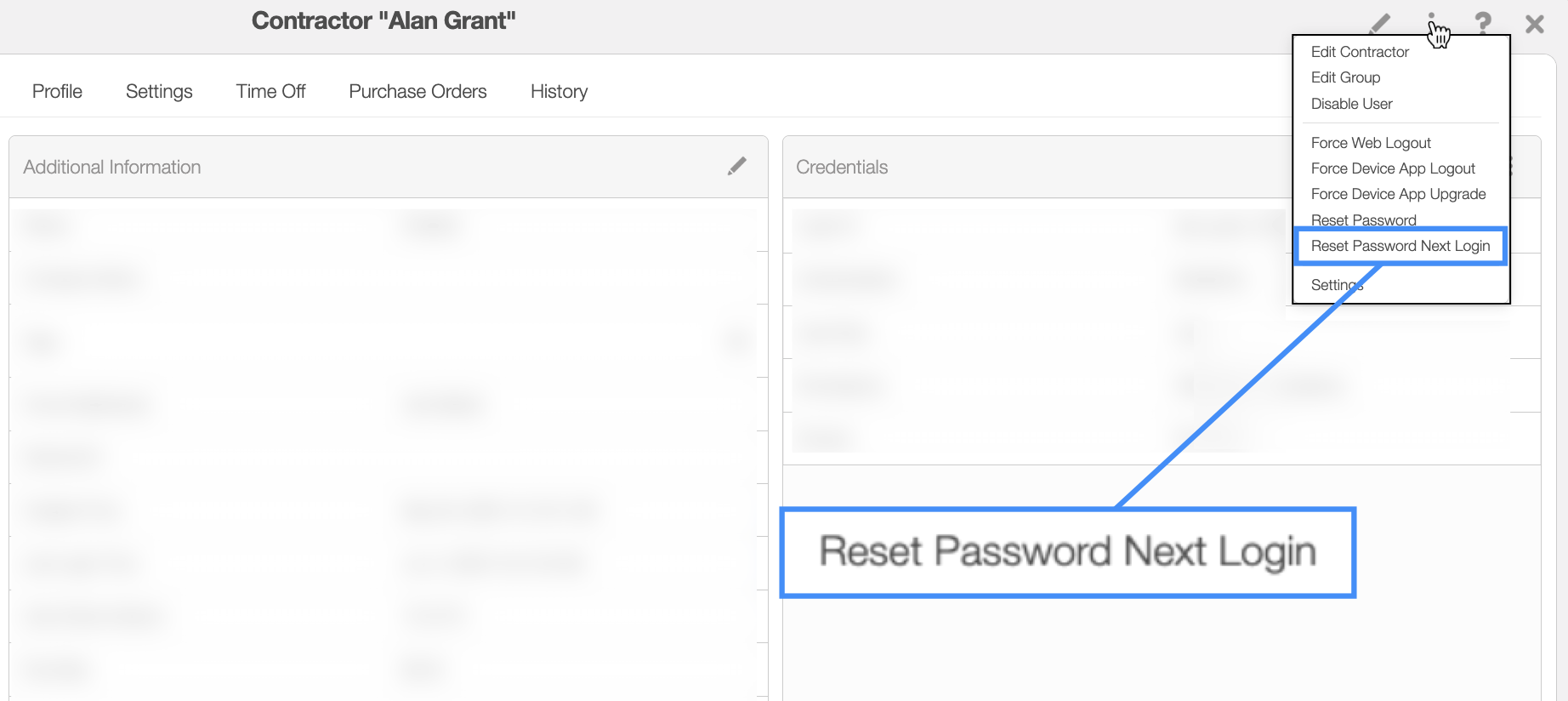
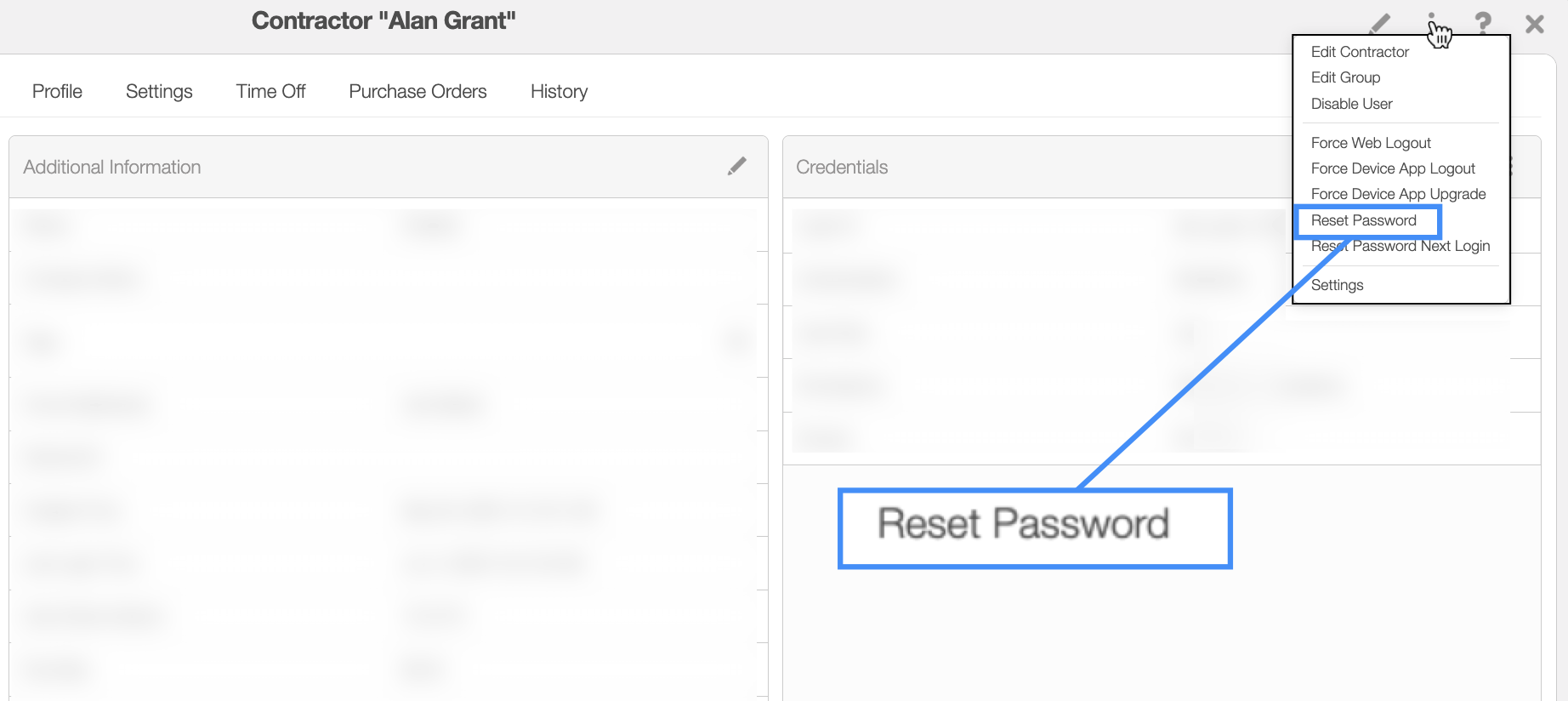
To reset the password, you will need to first be on the View Contractor pop-up window; for more information on how to access this pop-up window please see the View Contractor page. Once on this page, click on the "Reset Password" from the Individual Actions button:
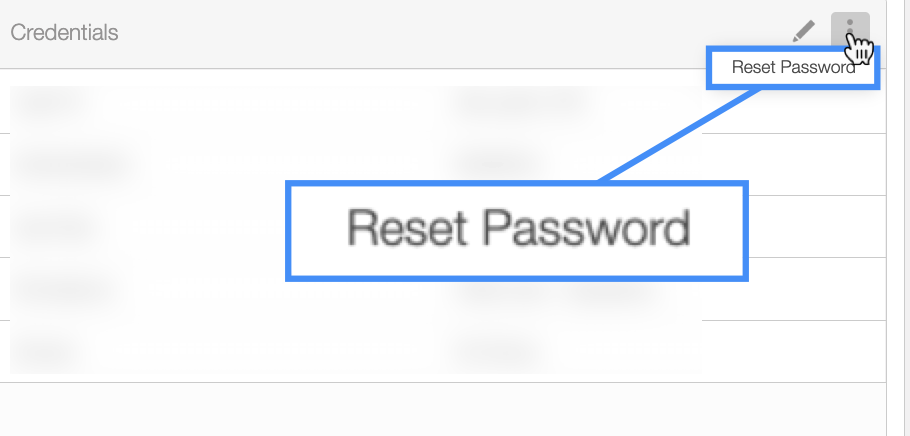
Likewise, you can select the Individual Actions button from the "Credential" panel:
If you would like to force your contractor to reset their password the next time they log in, you can select the "Reset Password Next Login" action from the Individual Actions drop-down: