
To set up a skill within MobiWork, you will first need to be on the User Settings page.
Once you are on this page, scroll down to the "Skills" section. Under this section, use the Plus Sign button to add specific skills, certifications, etc. to your MobiWork account:

Enter the name, the type of work order the skill is associated with, and any tags. When done, click on the Save button:

Note: You can add a set of skills so that is corresponds with a particular work order (e.g., machine unit certification for an installation work order).
If you would like to edit the skills that are listed in your MobiWork account, you must first access the "Skills" section in the Settings page.
Once you are on this page, scroll down to the "Skills" section. Under this section, click on the "Edit" option from the Individual Actions button or the Pencil icon from the skill that you would like to edit:

The Edit Skills pop-up window will then appear. On this pop-up window, update the necessary fields. Once you are satisfied with your changes, click the Save button:

If you would like to associate the skills with a specific contractor, you will first need to be on the View Contractor pop-up window. For more information on how to access the View Contractor pop-up window, please see the View Contractors page.
Once you have opened the View Contractor pop-up window, click on the "Skills" tab.
To add or edit the skills associated with a contractor, click on the Pencil icon:
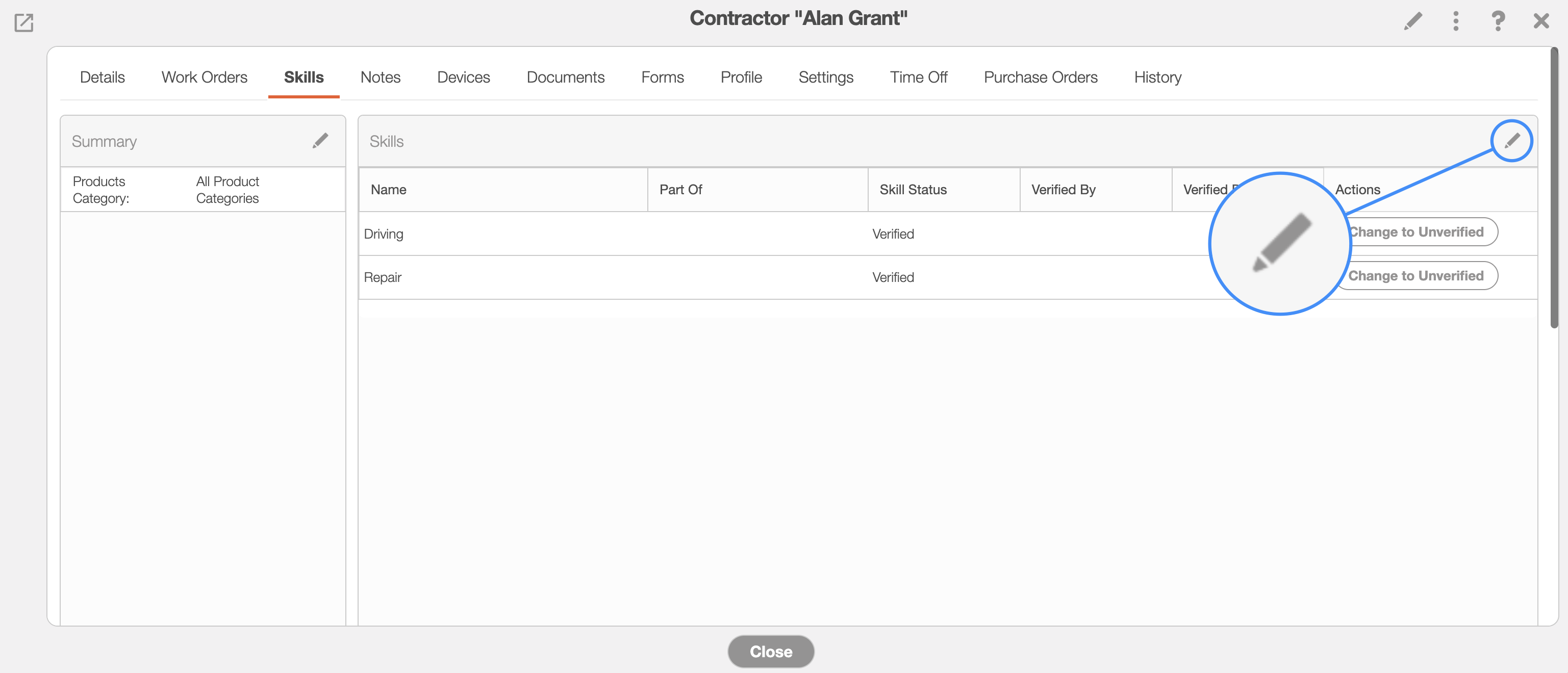
You will then be redirected to the Edit User Skills page; use the checkmarks to indicate which skills you would like to associate with or remove from the contractor:

When you are ready to finalize, click the Save button:
On the View Contractor pop-up window, make sure that the selected skills that are associated with the contractor are verified (active). If a skill is not verified, the "Skill Status" column will show that the specified skill is "Unverified."
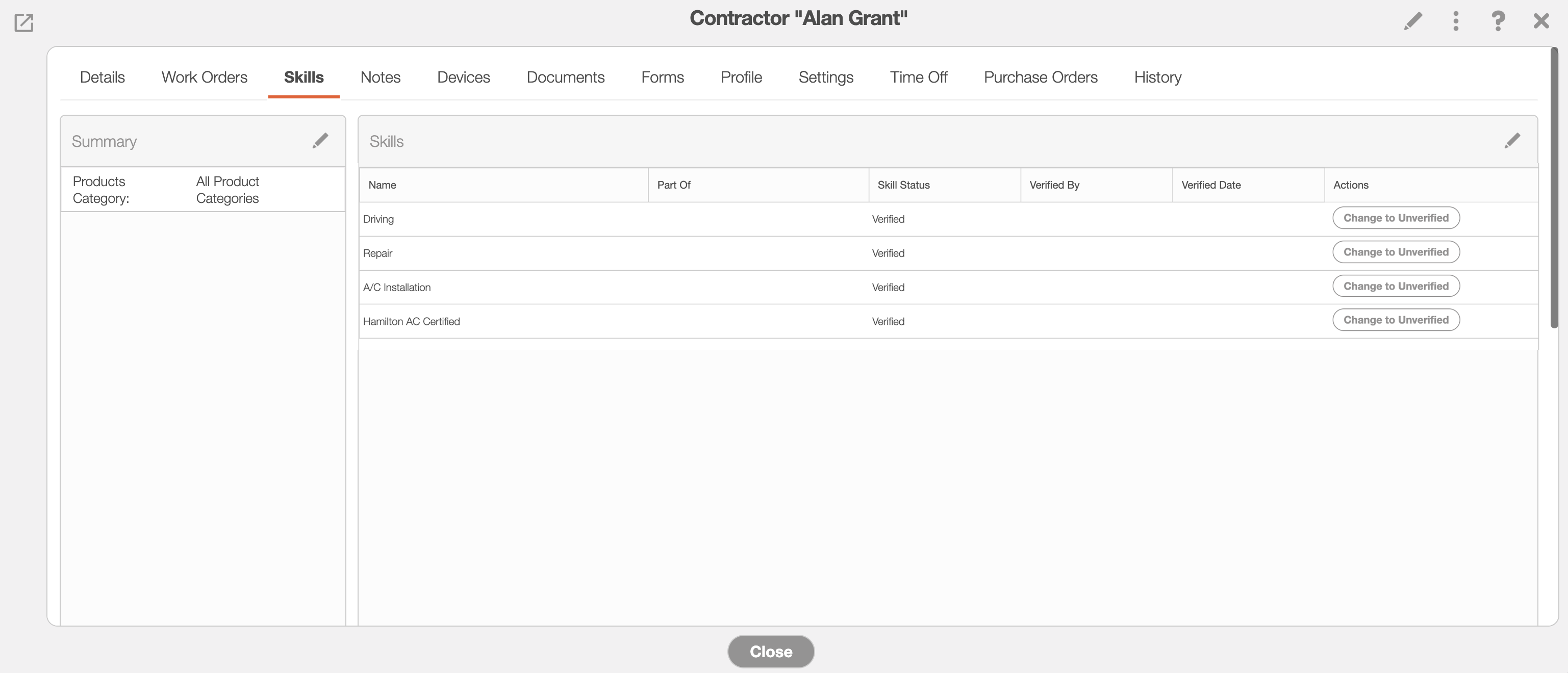
Verified skills are skills that are currently active (e.g., drug tests that are still valid). Once a skill is unverified, (e.g., certifications that have expired) it will no longer be used for the "Dispatching User Skill Mode."
To verify a skill, click the Change to Verified button.
To unverify a skill, click the Change to Unverified button.
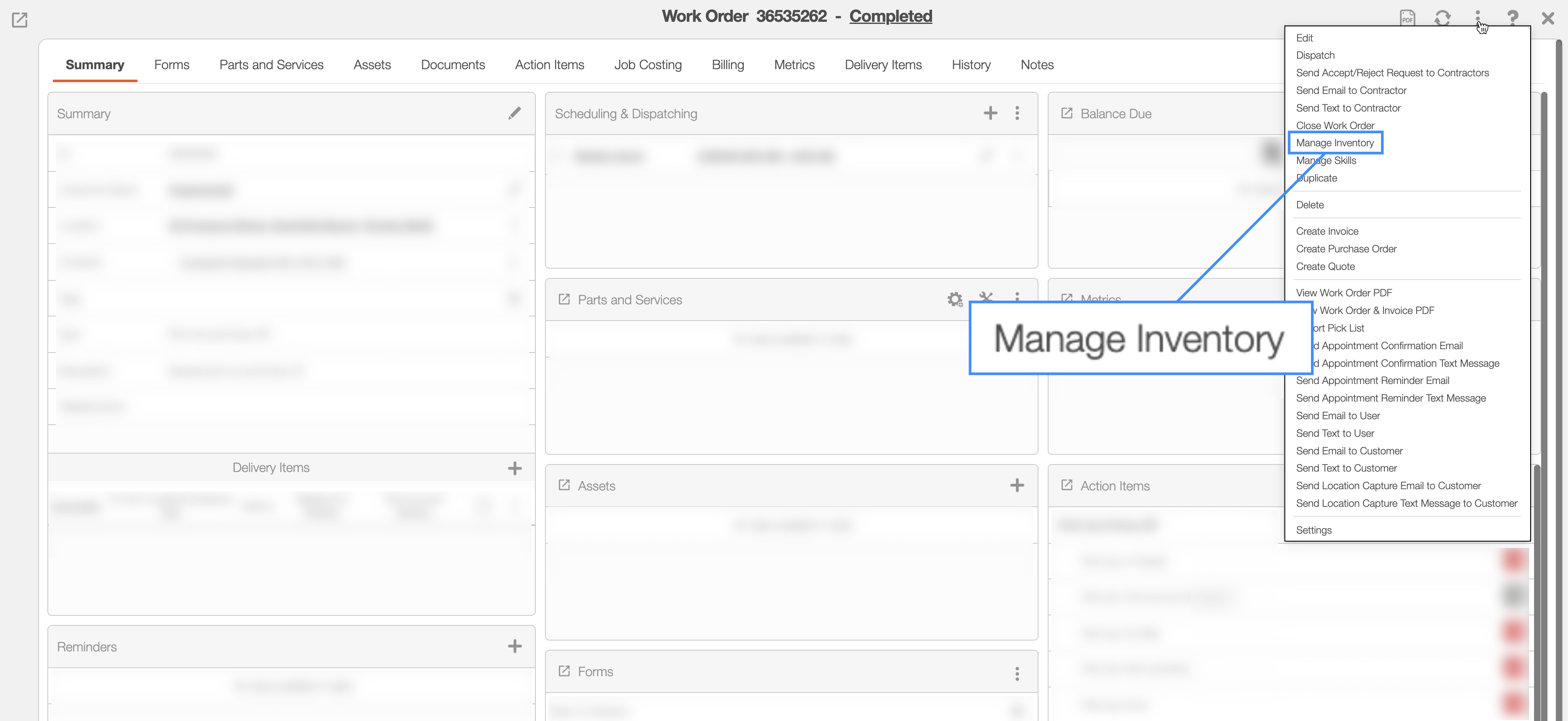
To manage the skills associated with a work order, you must first be on the View Work Order pop-up window. Once you are on this pop-up window, click on the Individual Actions button in the upper right corner.
From the drop-down, select the "Manage Skills" option:
The Manage Skills pop-up window will then appear. On this pop-up window highlight the desired skill and use the arrows to move the skill over to the "Selected Skills" column:
