
You will be able to access the Contractor's import and export features from the "List" tab. For more information on how to access this page, please see the Contractor List page.
Once you are on the "List" tab, click on the More Actions button, and from the drop-down select your desired option:

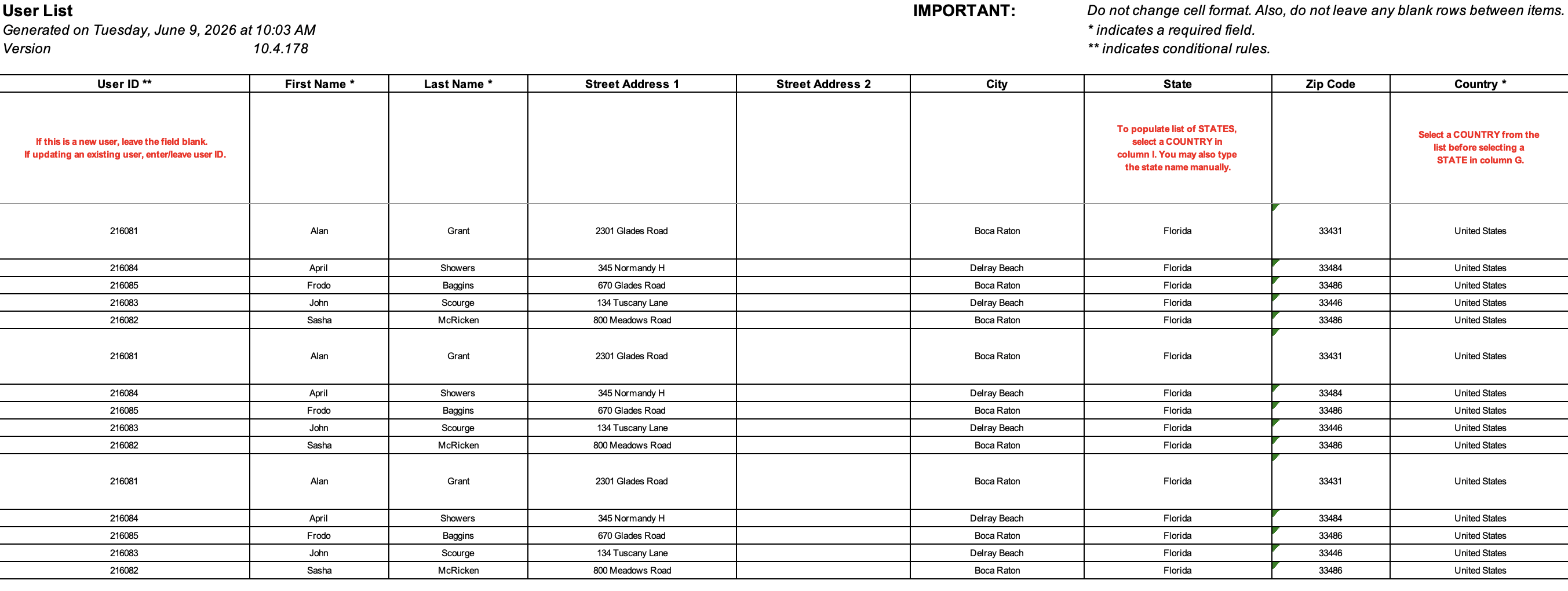
You can import contractors from your Excel document. Please note that in order to import the contractors correctly, the Excel document must be formatted in the correct manner (please see the image below for the correct headings and order):
Please note that:
Headers marked with an asterisk (*) are required.
Headers marked with two asterisks (**) are conditional and are required if specific criteria are met.
Once you have entered the contractors in the Excel document correctly, you can upload that document to MobiWork.
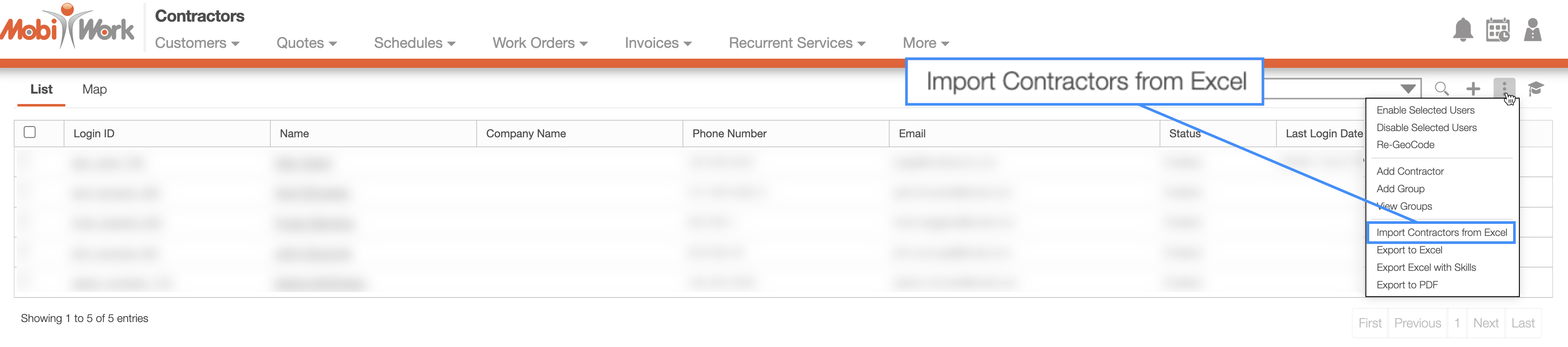
Select the More Actions button and from the drop-down click on the "Import From Excel" option:
Upload your Excel file to the drag & drop feature and then click on the Import button:
To validate any emails or phone numbers click the "Strict Validation" option:

You will then be redirected to the Confirm Import page. Confirm your imported Excel file by hitting the Submit button:

Once you are redirected to the Import Users Results page, click the Done button:

The newly uploaded contractors from Excel will then be displayed in MobiWork with your other contractors.
You can also edit contractors in bulk through Excel.
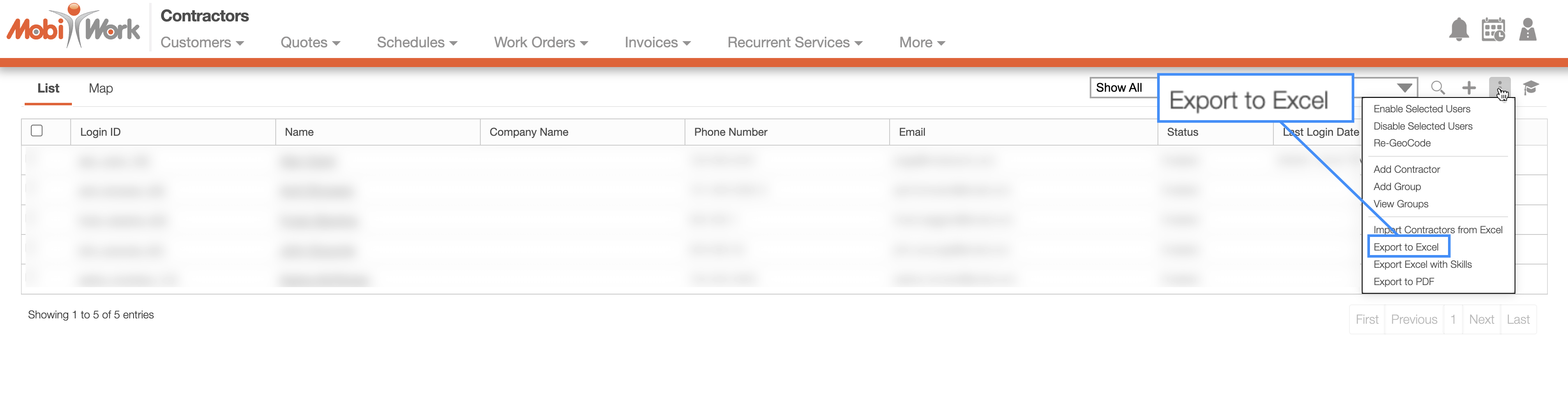
- To export your contractors into an Excel document, you will first need to access the "List" tab. Once you click on the More Actions button, select the "Export to Excel" option from the drop-down:
Select the contractors that you would like to export to Excel:
Please note that if you would like to export all your contractors into Excel you can click on the topmost checkbox (Multiple Selection Area). Likewise, if you do not select any entries ALL records will be exported:
Click on the More Actions button and from the drop-down menu select the "Export to Excel" option:
The Excel file will automatically download, and you will be able to locate it in your computer's Download folder:
The Excel download will display the contractor's first and last name, their address, email, etc.