
By default, the customer profile includes the "Manager" field; you can enter the assigned manager in this field. The manager must be a user in MobiWork.
Please note that only one manager can be assigned to a customer/prospect profile:
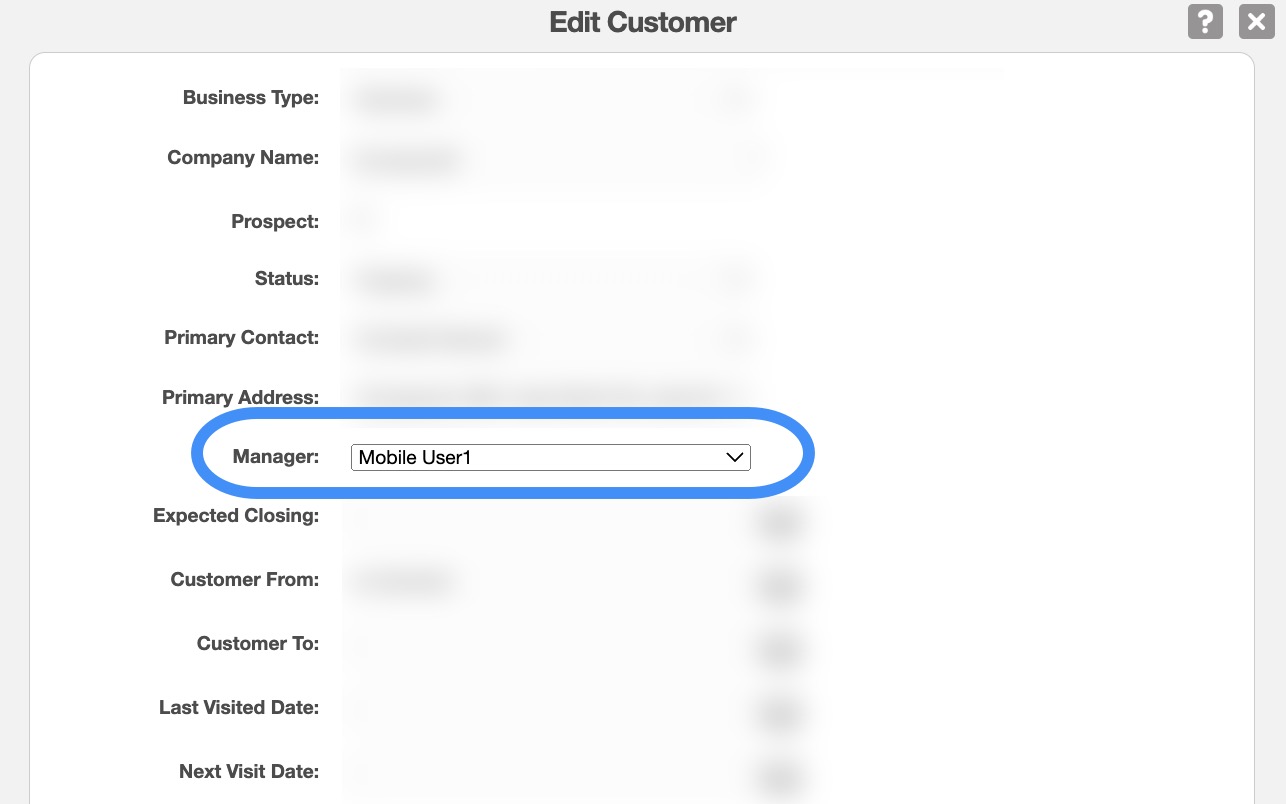
For more details about editing the customer/prospect profile information, please see the Edit Customer(s) page.
If you do not require the "Manager" field for your business, you can remove it; you can accomplish this task by turning off specified field in the Customer Settings page:
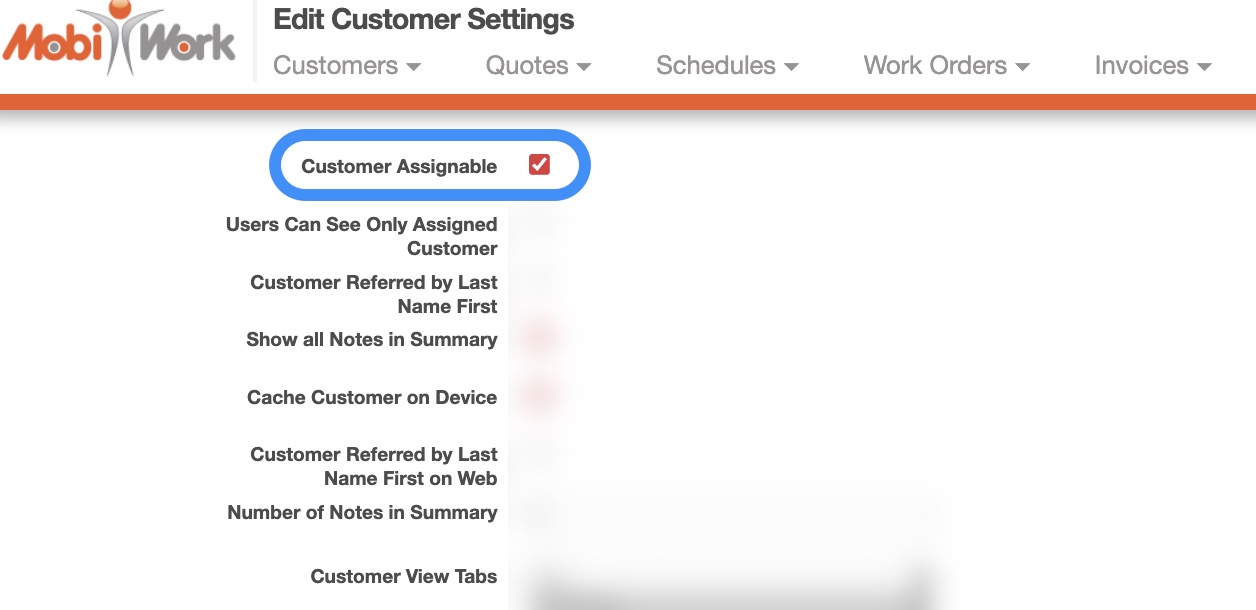
For more information about how to remove this field, please see the Customer Settings page.
You can use the "Users Can See Only Assigned Customer" option in the Customer Settings page to ensure that your managers only view their assigned customers or prospects:
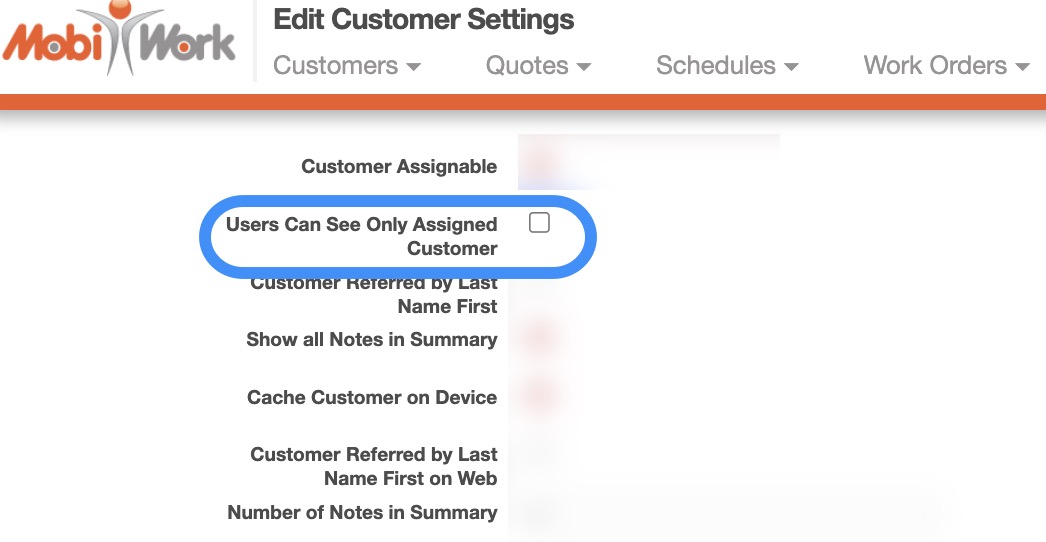
In other words, when the user logins to the web portal and/or the device app, they will only be able to view the customers/prospects that they are assigned to as managers.
For more information please see the Customer Settings page.
Please note that Customer Managers (e.g., Assigned Users) can be displayed on the Customer's "Territories" tab:
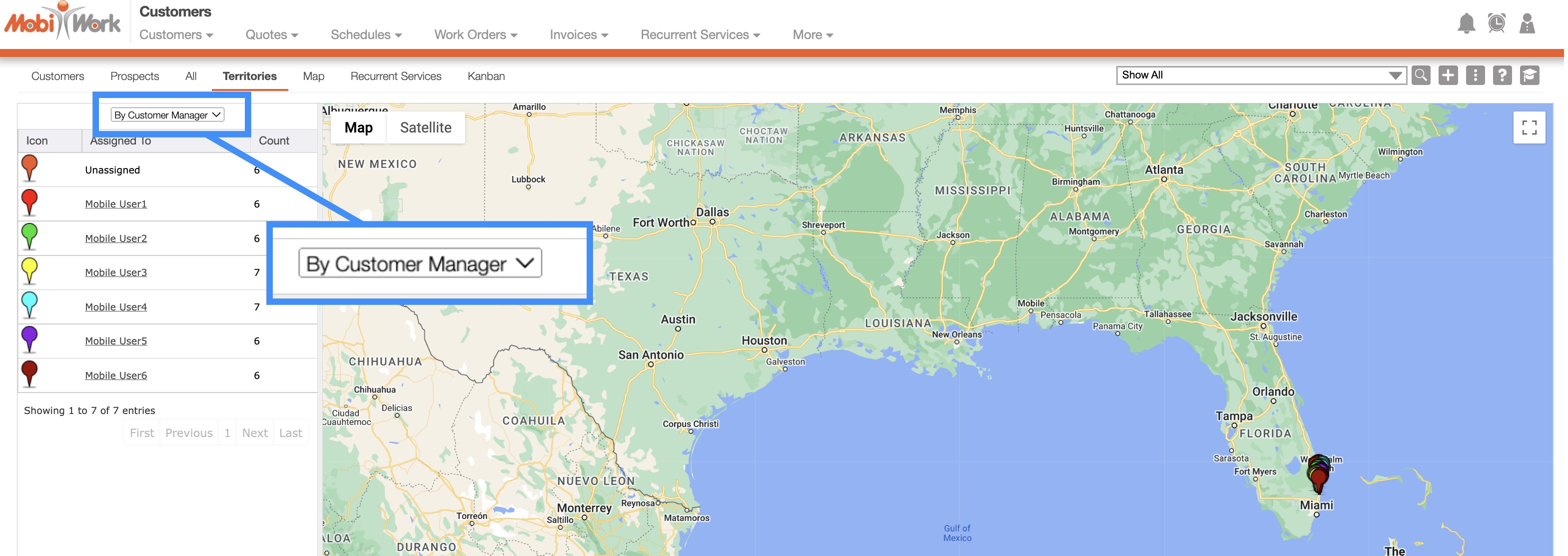
Please see the Customers List page for more information.
Users who are designated Customer Managers can also receive email notifications regarding customer activity (e.g., customer status changes, work order custom status updates, etc.). For more information on automated email notifications, please contact our Sales Team.