
If you would like to search for a specific customer in your MobiWork app, there are several different methods you can use. Regardless of the method that you choose, you will first need to access the Customers feature page:
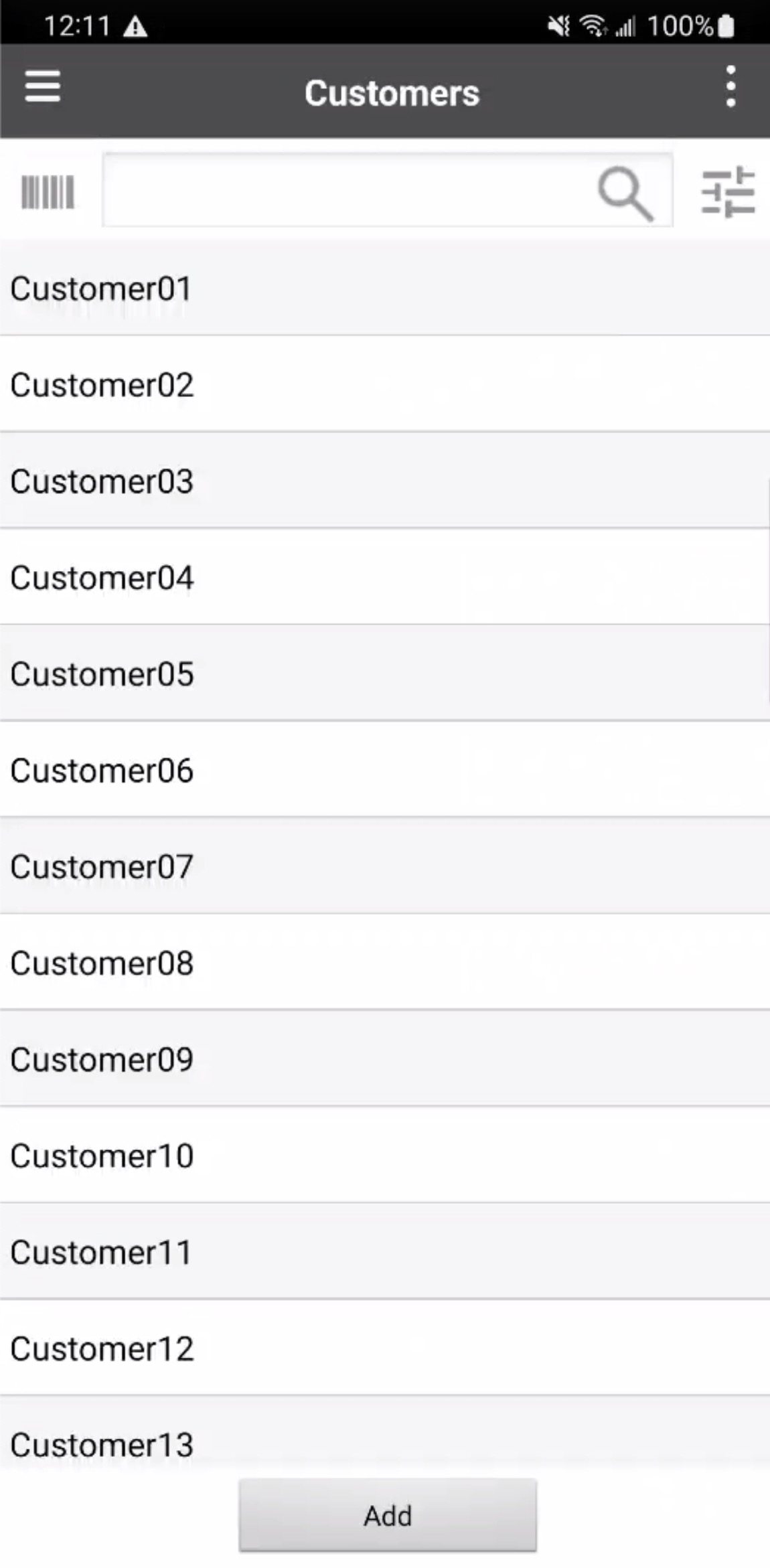
For more information on how to access this page on your mobile app, please see the Mobile Customer Layout page.
The Search Bar provides a quick and convenient way to locate a customer. Enter your search criteria directly into the search bar to find matching customers.
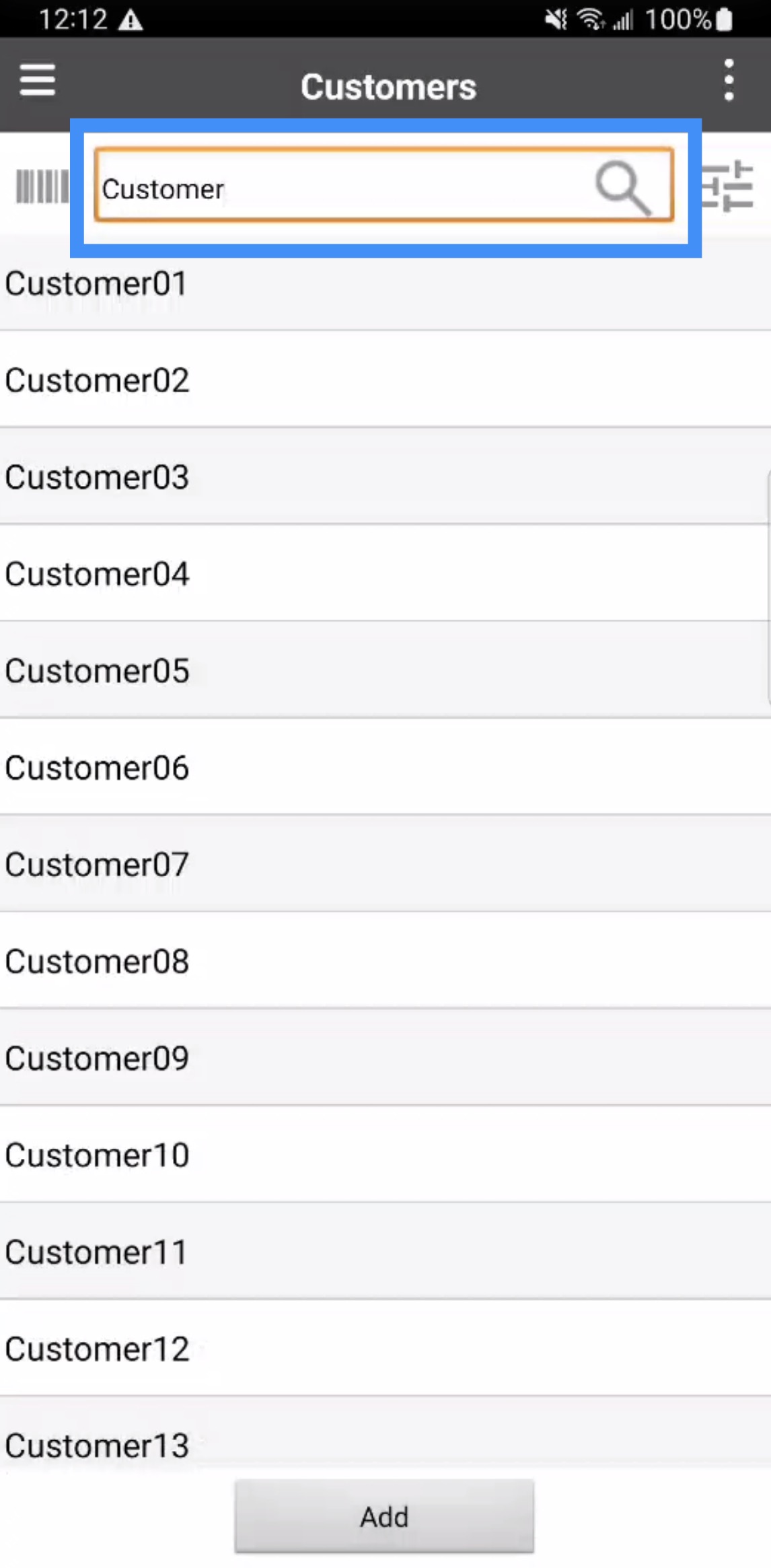
Common search parameters include the customer's or company's name.
For more targeted searches, you can use the Search Filter tile on the Customer feature page.
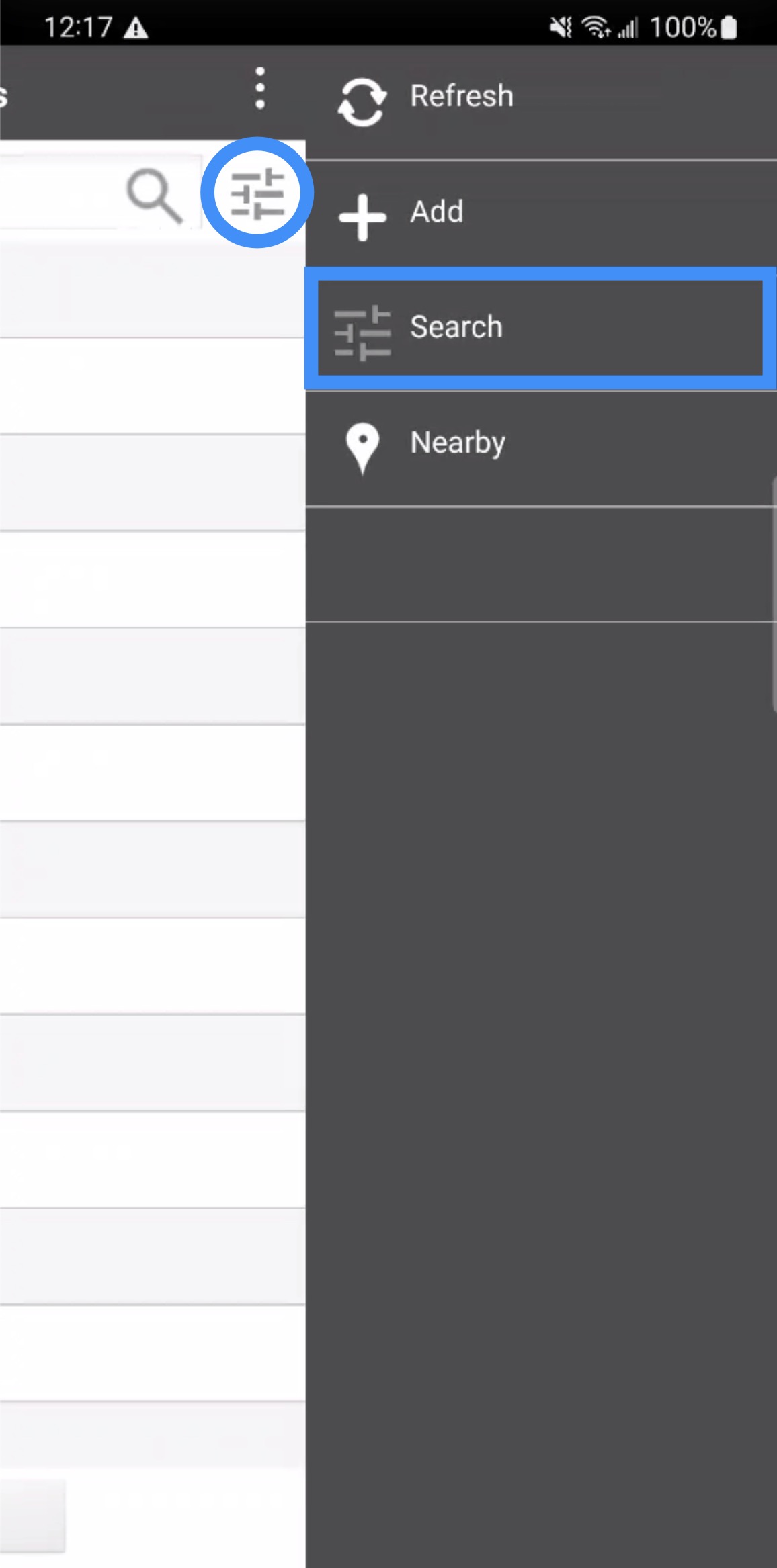
After pressing on the tile, the Select Search window will appear; from this window, you can then choose the Advanced Search option.
You can also access the Advanced Search option from the Customer's Actions Panel menu.
Regardless of the option you choose you will be redirected to the Advanced Search page. The Advanced Search page allows you to enter multiple criteria to narrow down your results and quickly locate the desired customer:
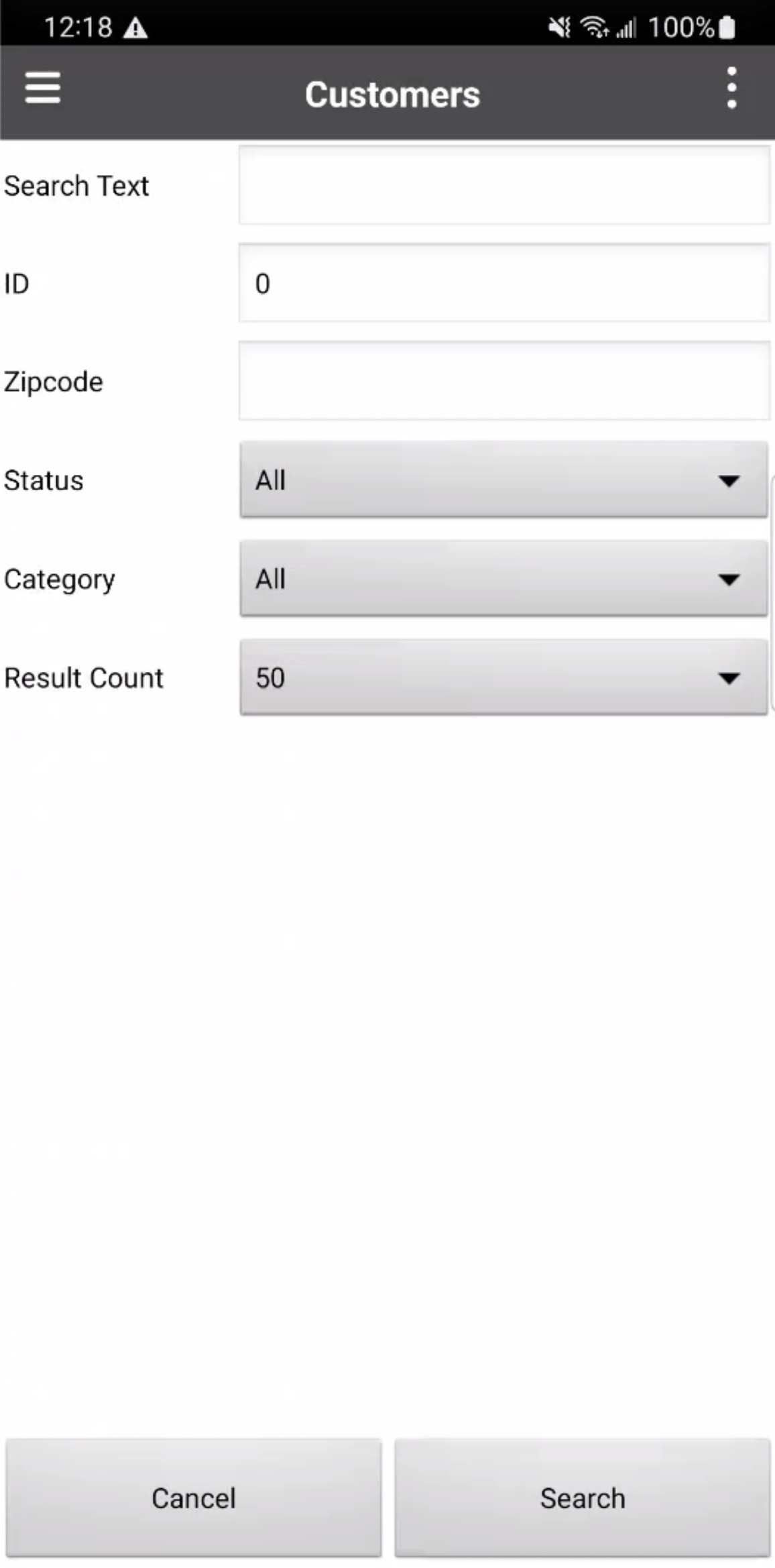
On this page, you will be able to input the following data:
Customer or company name and other text-based search parameters
Customer ID
Customer ZIP code
Customer status, such as All, Open, Ongoing, At Risk, On Hold, or Lost
Customer category
Number of results to display
Once you have entered your desired search criteria, tap the Search tile to run the search.
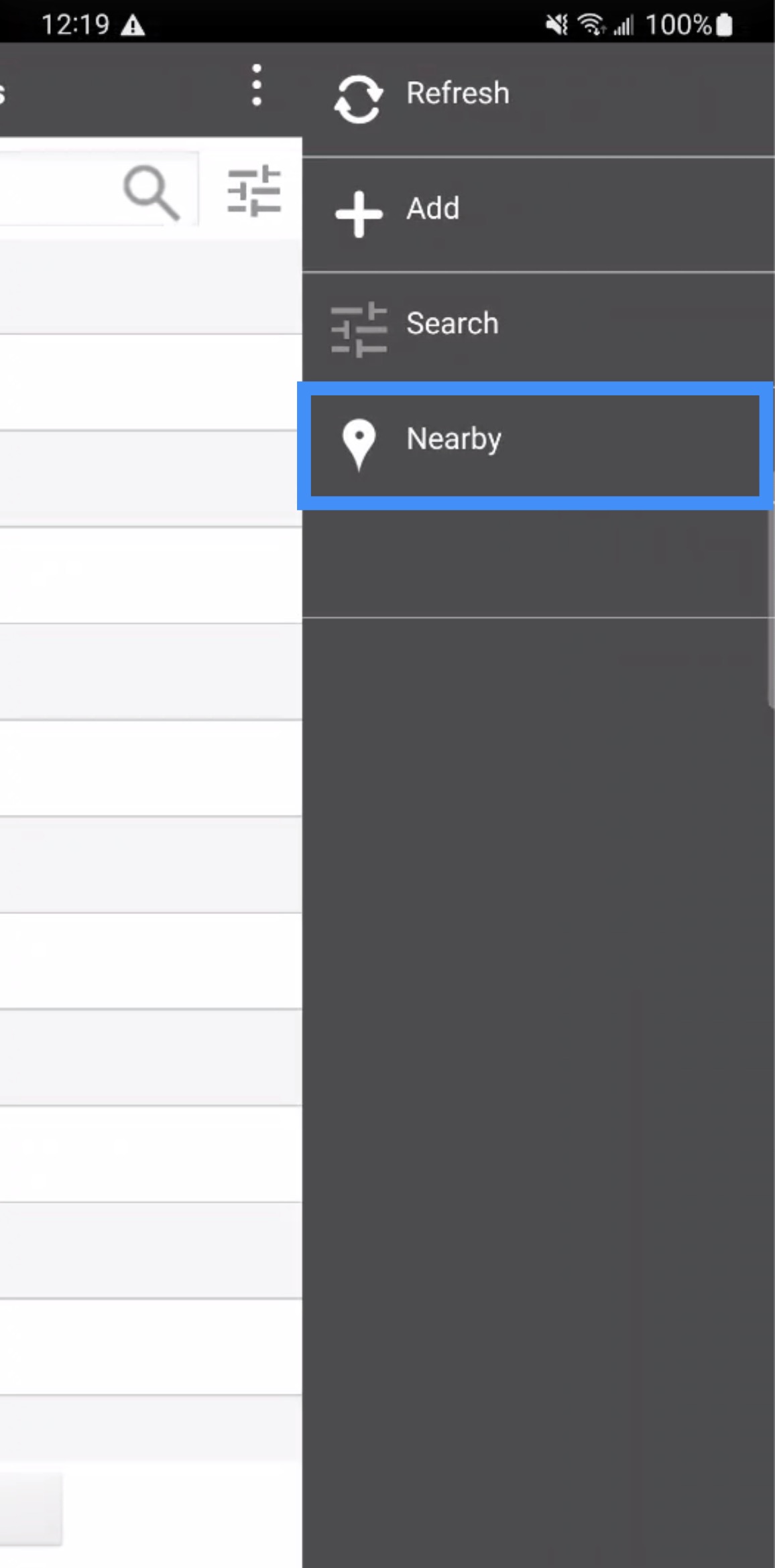
The Nearby search feature allows you to quickly find customers located near your current location, making it especially useful when you are working in the field and need to identify nearby customers. To access this feature, press on the Search Filter tile or open the Actions Panel menu:
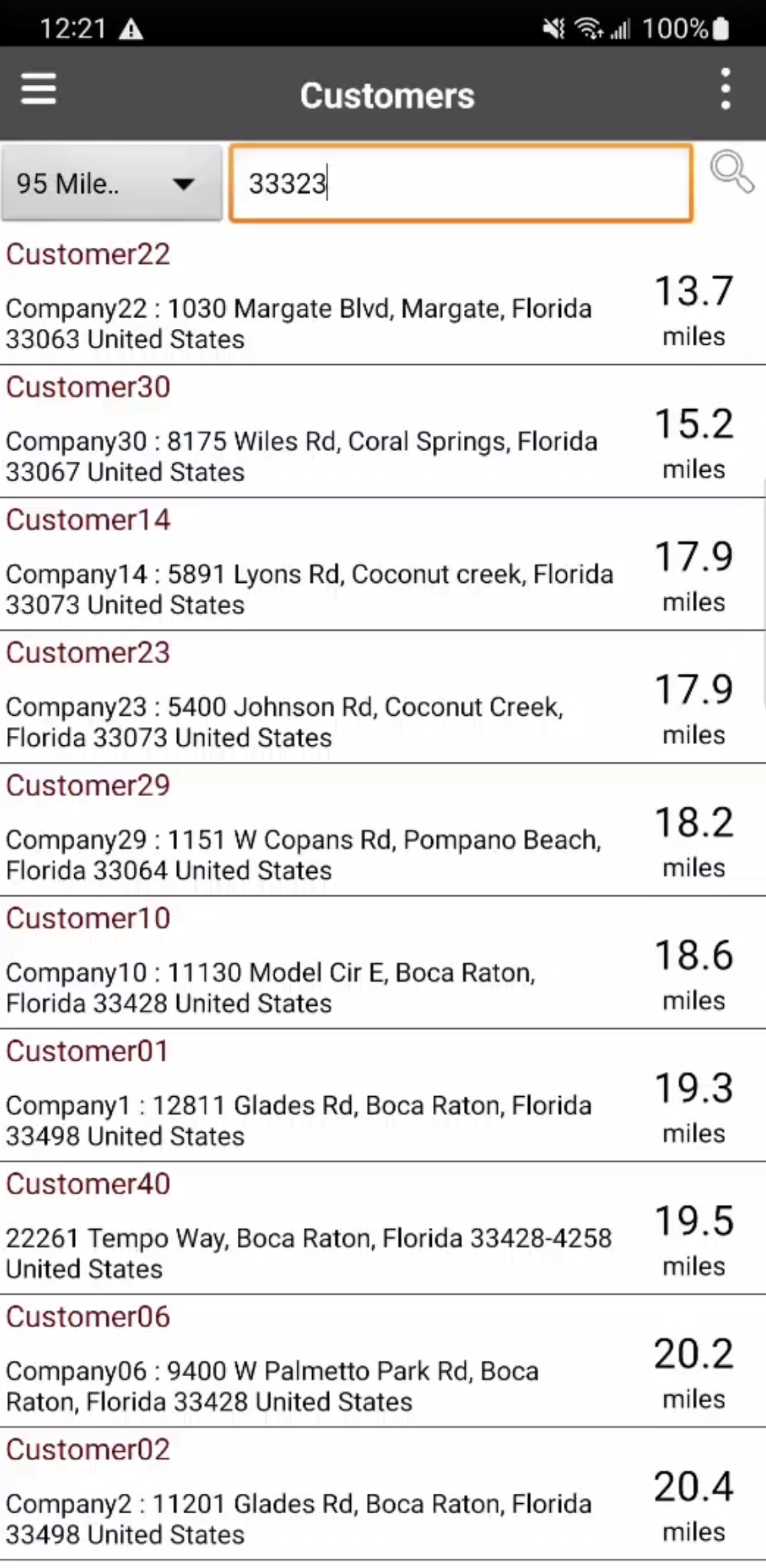
You can use the search bar to find addresses near a specific location.
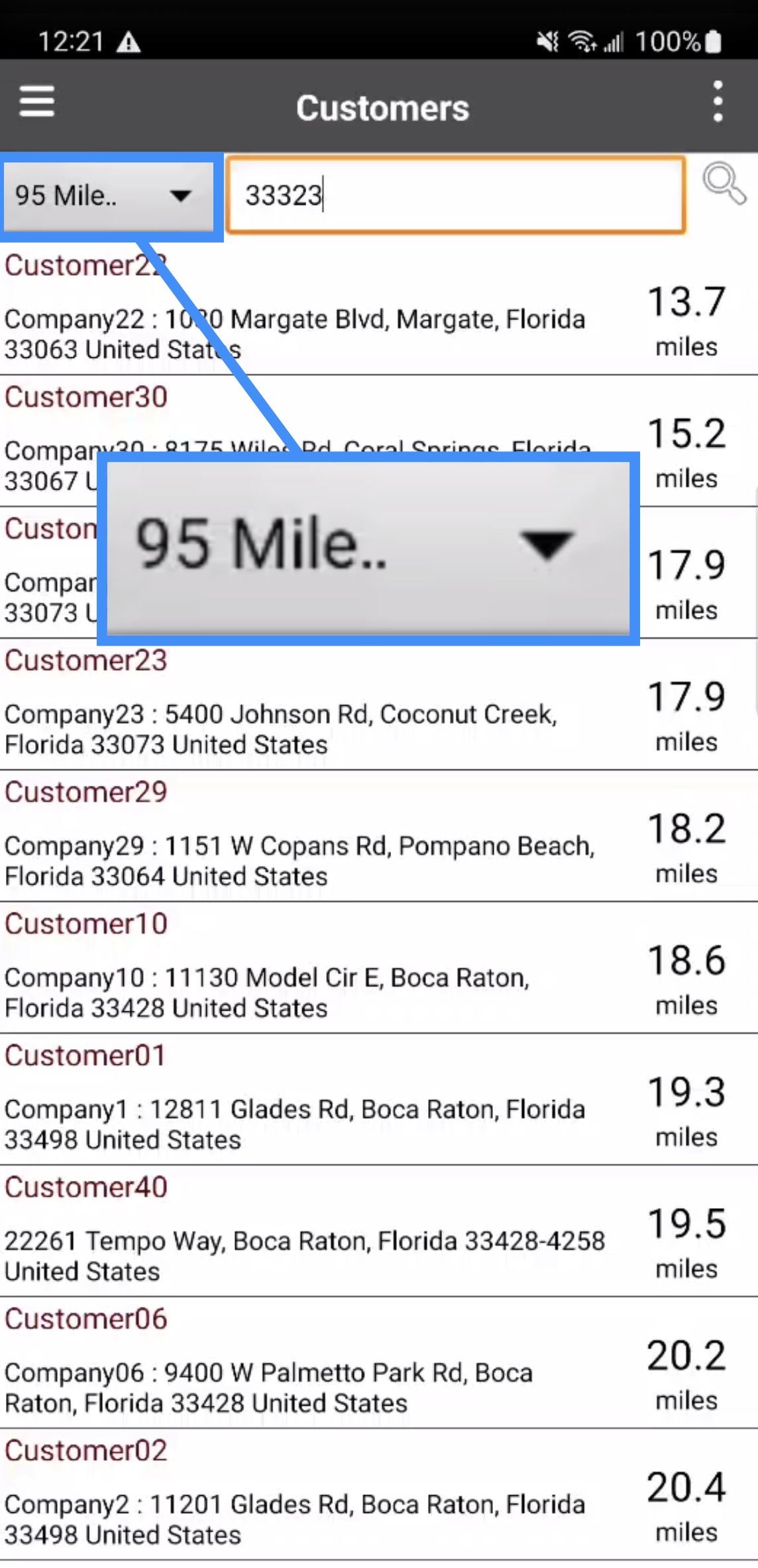
To further refine your search, you can also tap the drop-down tile next to the search bar to adjust the distance radius:
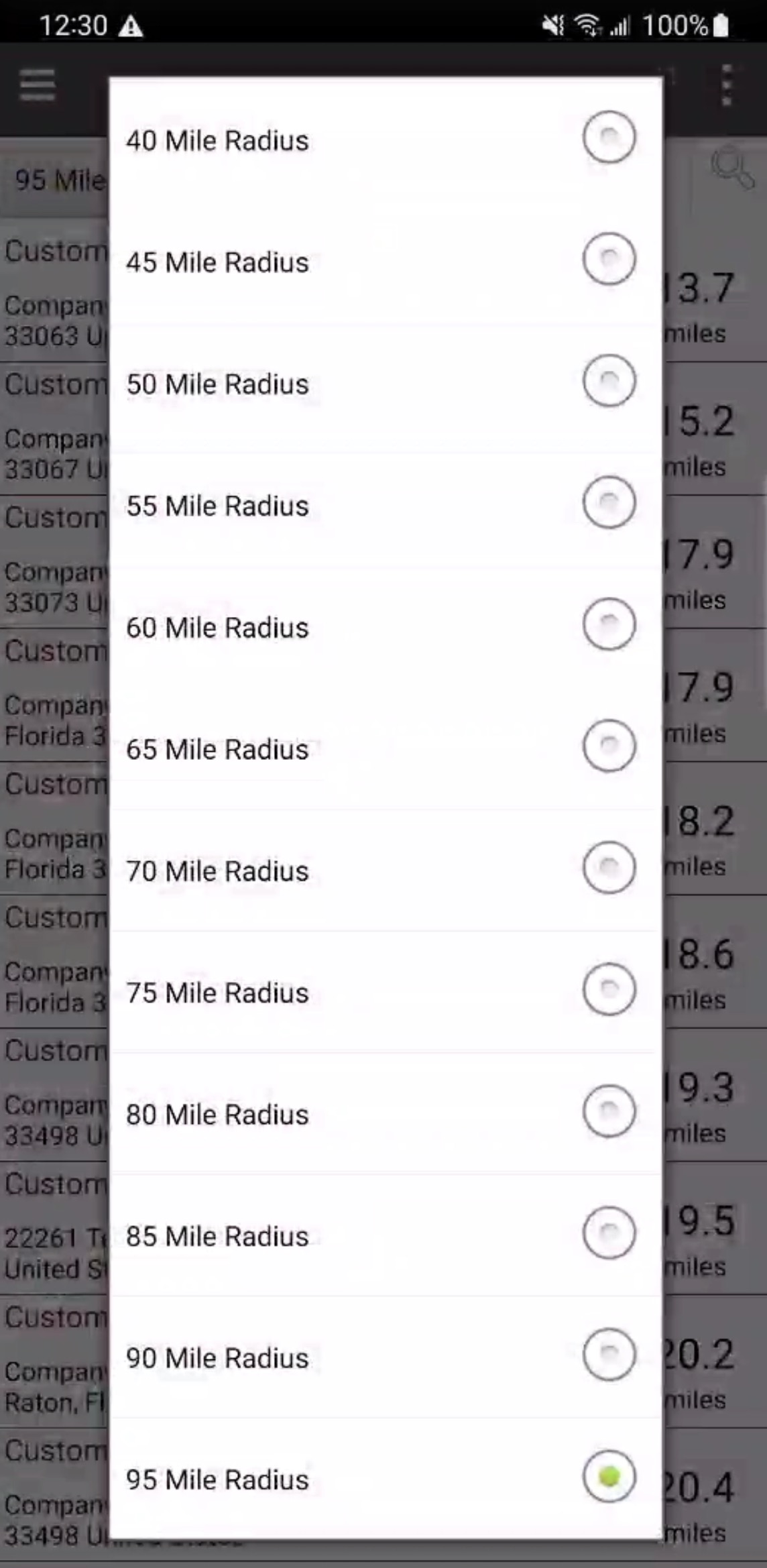
Select the desired radius from the available options to expand or narrow the area used to find nearby customers:
Customers located near your current location will then be displayed on your mobile device.