
On the View Customer page, press on the Actions Panel tile to access the customer actions. From the listed options that appear, select the Edit tile:

You will then be automatically redirected to the Edit Customer page:

On the Edit Customer page input the requisite information in the appropriate fields:
The customer's company name, if applicable.
The customer's current status (i.e., Open, Ongoing, At Risk, On Hold, or Lost)
The customer's first and last name
The mobile, home, or work phone numbers for the customer
The customer's email address.
Use the checkbox to indicate whether the new customer is a prospect.
Once the above fields are completed, scroll down to input the customer's location information:
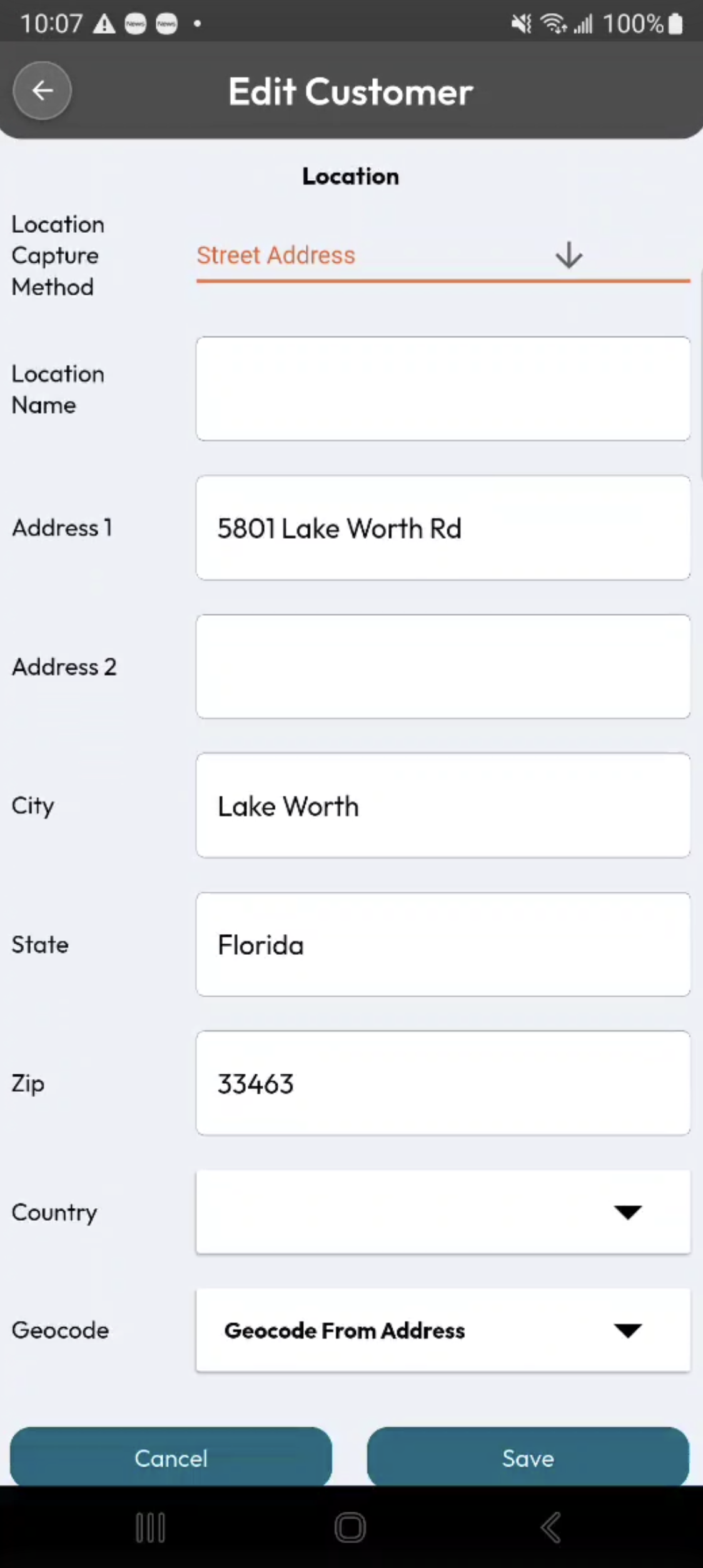
In the "Location Capture Method" drop-down, select how you would like to enter the customer's address information. By default, you can manually enter the customer's street address. However, you can also select to input the latitude and longitude coordinates instead:
If you select the "Street Address" option, you will be prompted to input the address, city, state, zip code, and country of the customer. The Geocode option will also get the approximate latitude and longitude from the entered address.
If you select the "Use Latitude And Longitude Only" option, you can use the device's coordinates to mark the customer's address, manually enter the latitude and longitude coordinates, or use the Geocode from the entered address.
Once you are satisfied with the new customer's information, press the Add tile to save the new customer. The new customer will then be available from both the MobiWork web application and the mobile device, allowing your team to access and manage the customer's information from either platform.