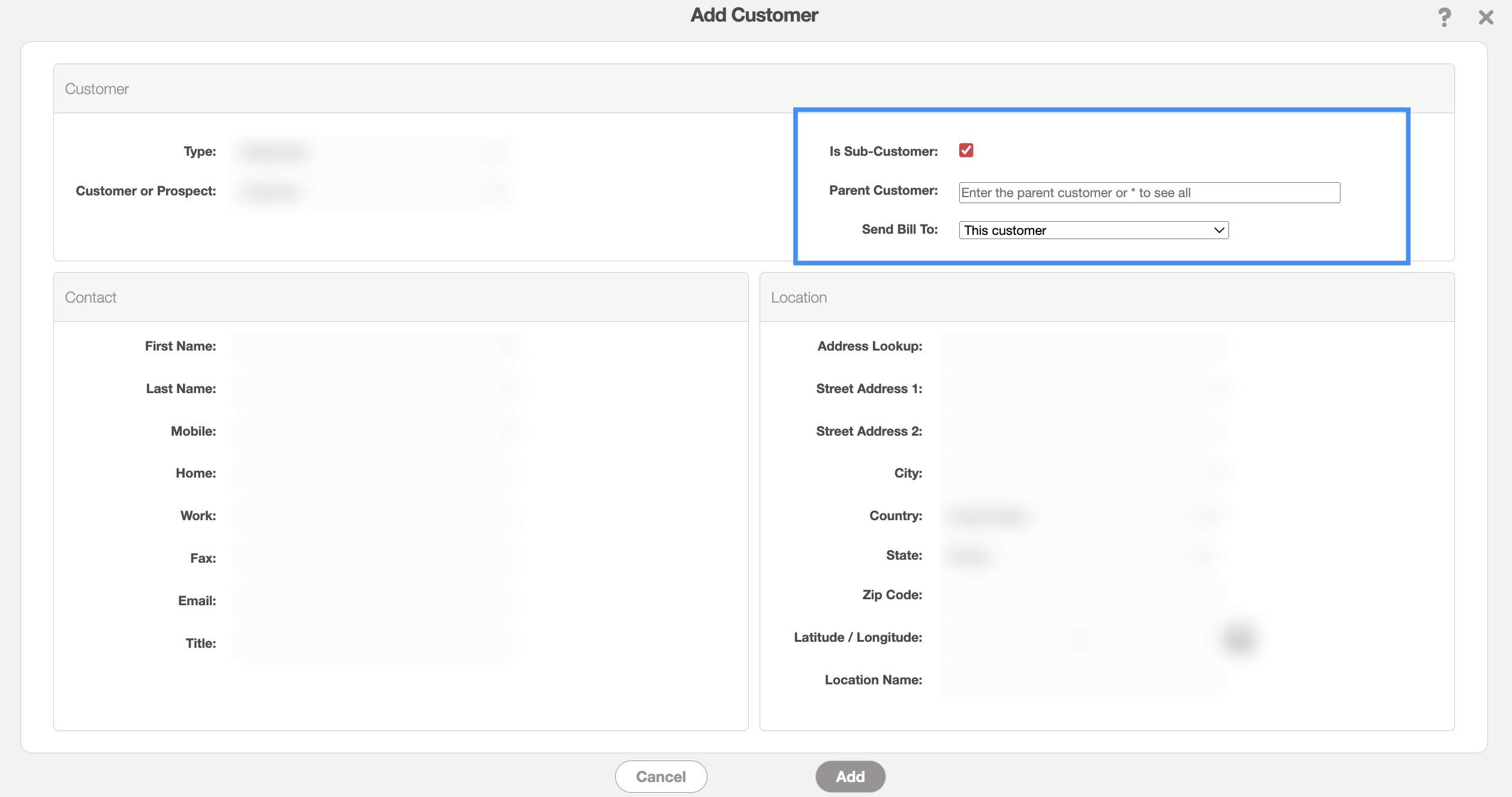
In the Add Customer or Edit Customer pop-up window, you can indicate if a customer is a subcustomer by clicking on the "Is Sub-Customer" checkbox. In the "Parent Customer" field input the parent customer who oversees the subcustomer. Next, specify which customer is getting the bill (i.e., the sub-customer, the parent customer, or another customer):
For more information about subcustomers, please see the Add Customer page.
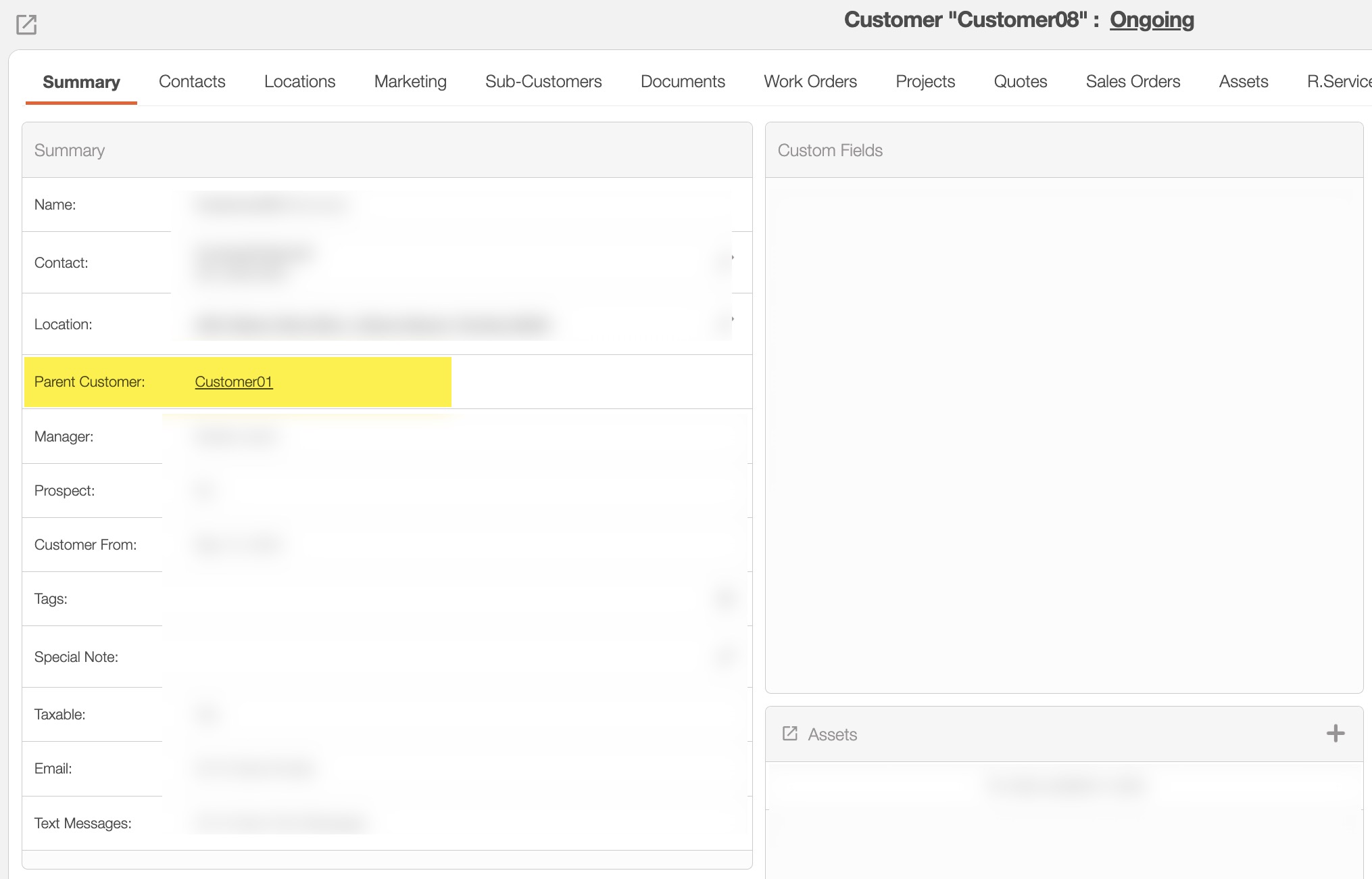
Similar to parent customers, prospects, and business or residential customers, sub-customers will appear when searching in the Customers feature page. You can identify a sub-customer by opening the View Customer pop-up window and seeing that the customer has a parent customer. You can directly access the parent customer from this link:
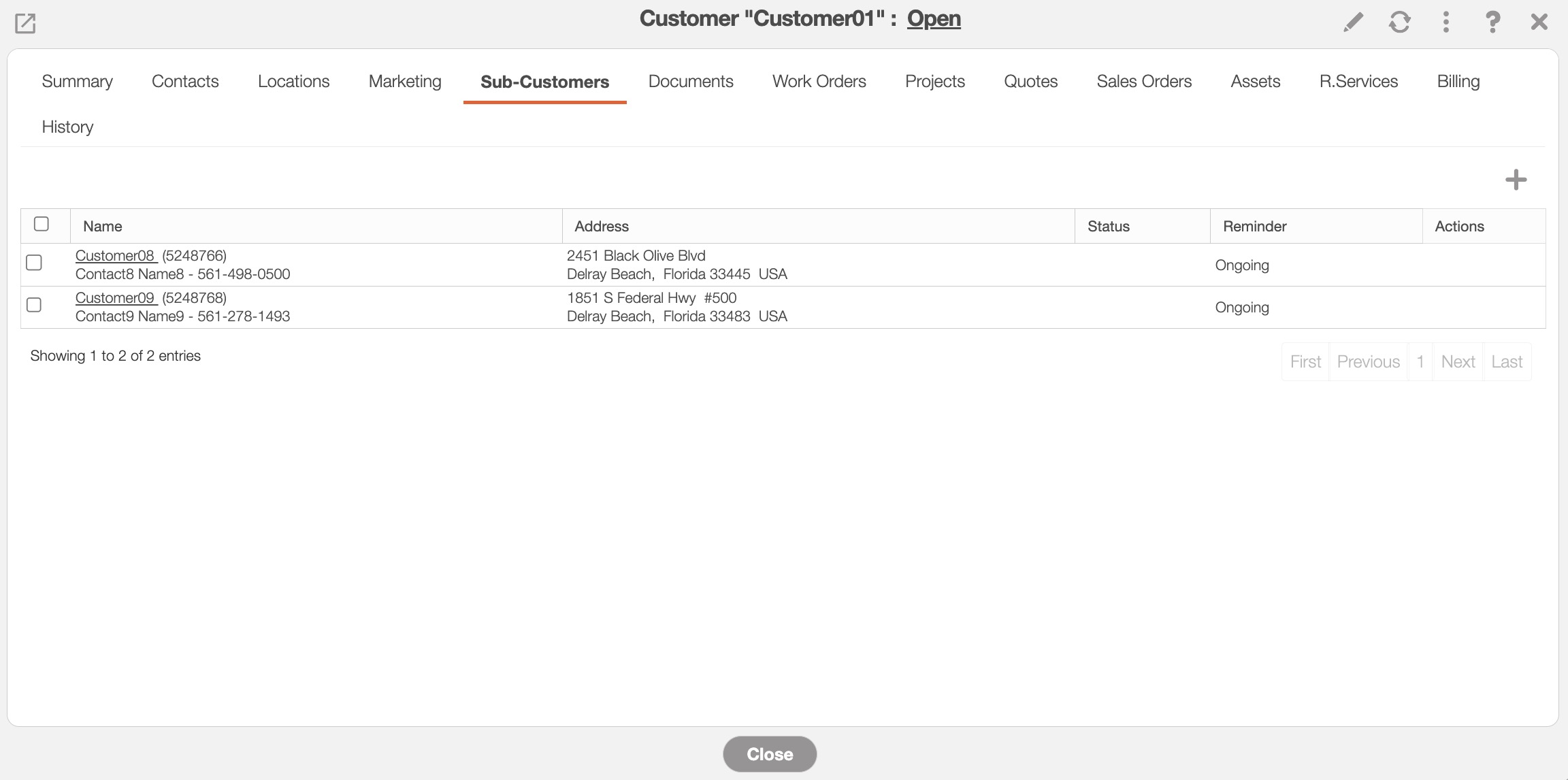
Likewise, if you are in the parent customer's View Customer pop-up window, you can see all the associated sub-customers in the "Sub-Customers" tab: