
To access the contacts feature, first open the View Customer page. For more information on how to access this page, please see the View Customer on Device page.
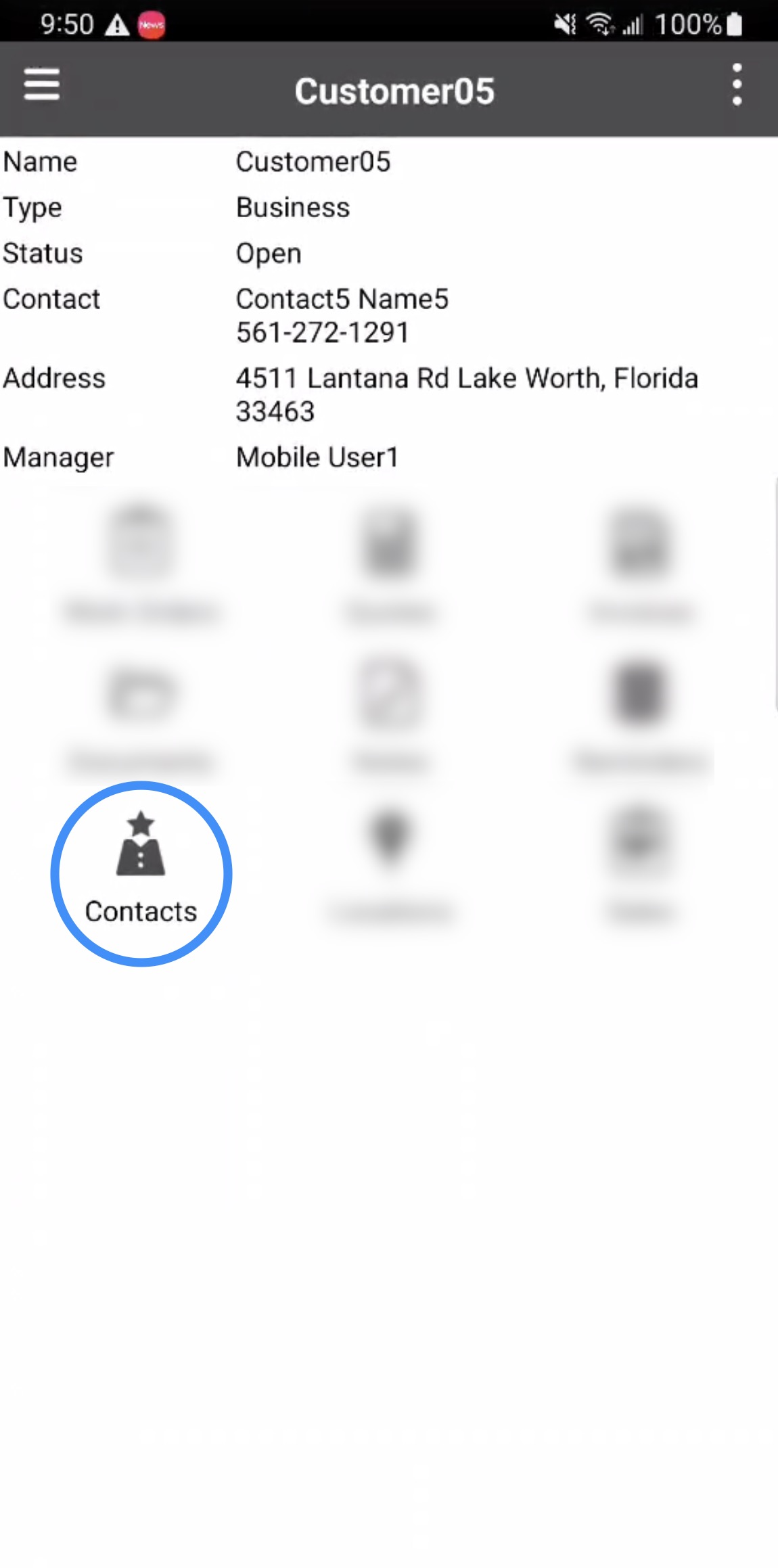
Once you are on this page, access the "Actions" section and then select the Contacts tile. Please note that you can also access the contacts feature from the Actions Panel:
The Contacts page displays all contacts associated with the selected customer. From this page, you will be able to add additional contacts or edit existing contacts:
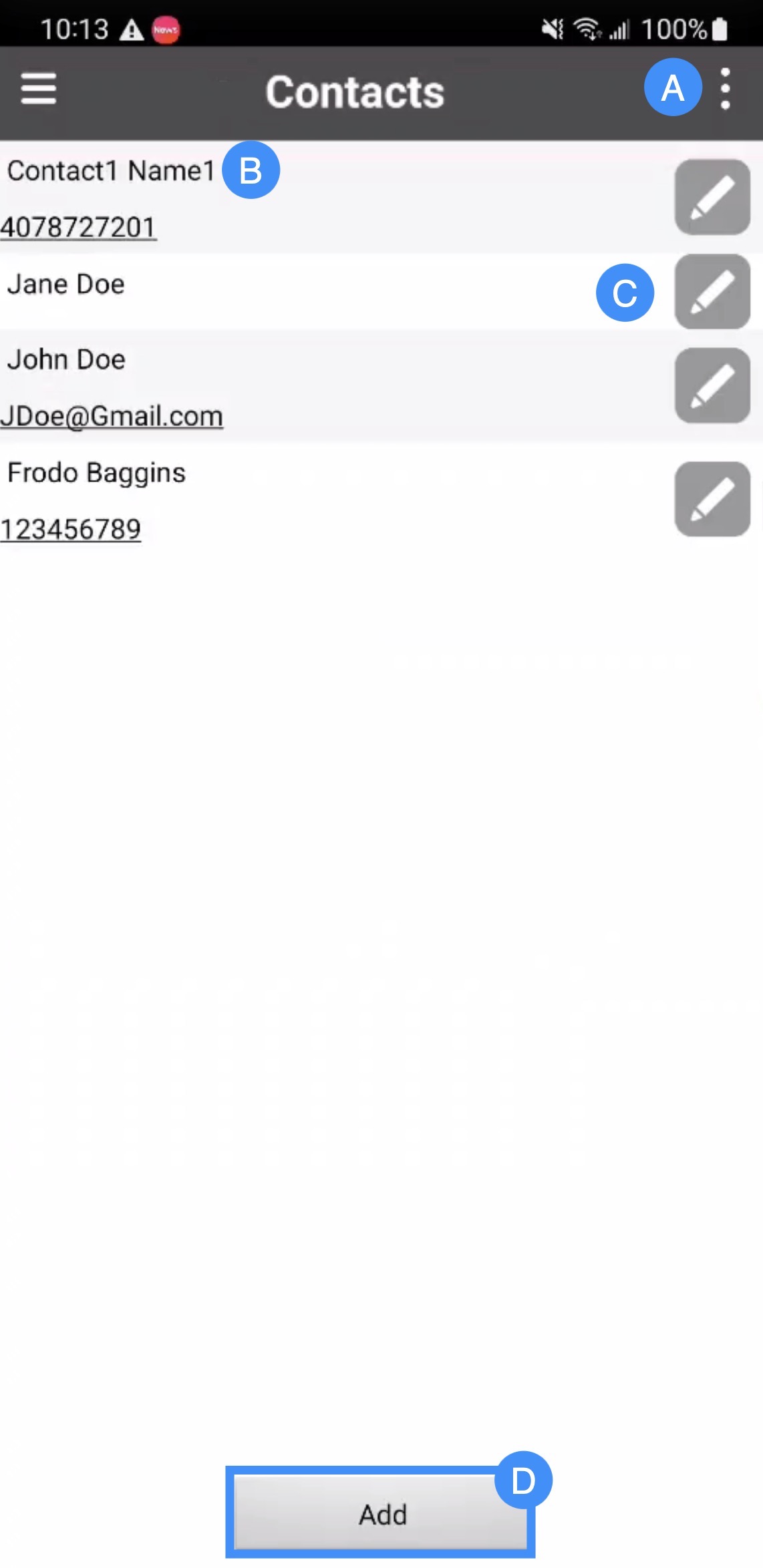
The Actions Panel allows you to refresh the contact information displayed on the Contacts page.
The contact's name and phone number will be listed here; by pressing on the phone number, you can dial the contact from your mobile device.
The Pencil tile will allow you to edit the contact's information
The Add tile allows you to add a new contact under the customer's profile.
To add a new contact under the customer's profile, you will first need to access the Contacts page and access the Add tile. You will then be redirected to the Add Contact page:
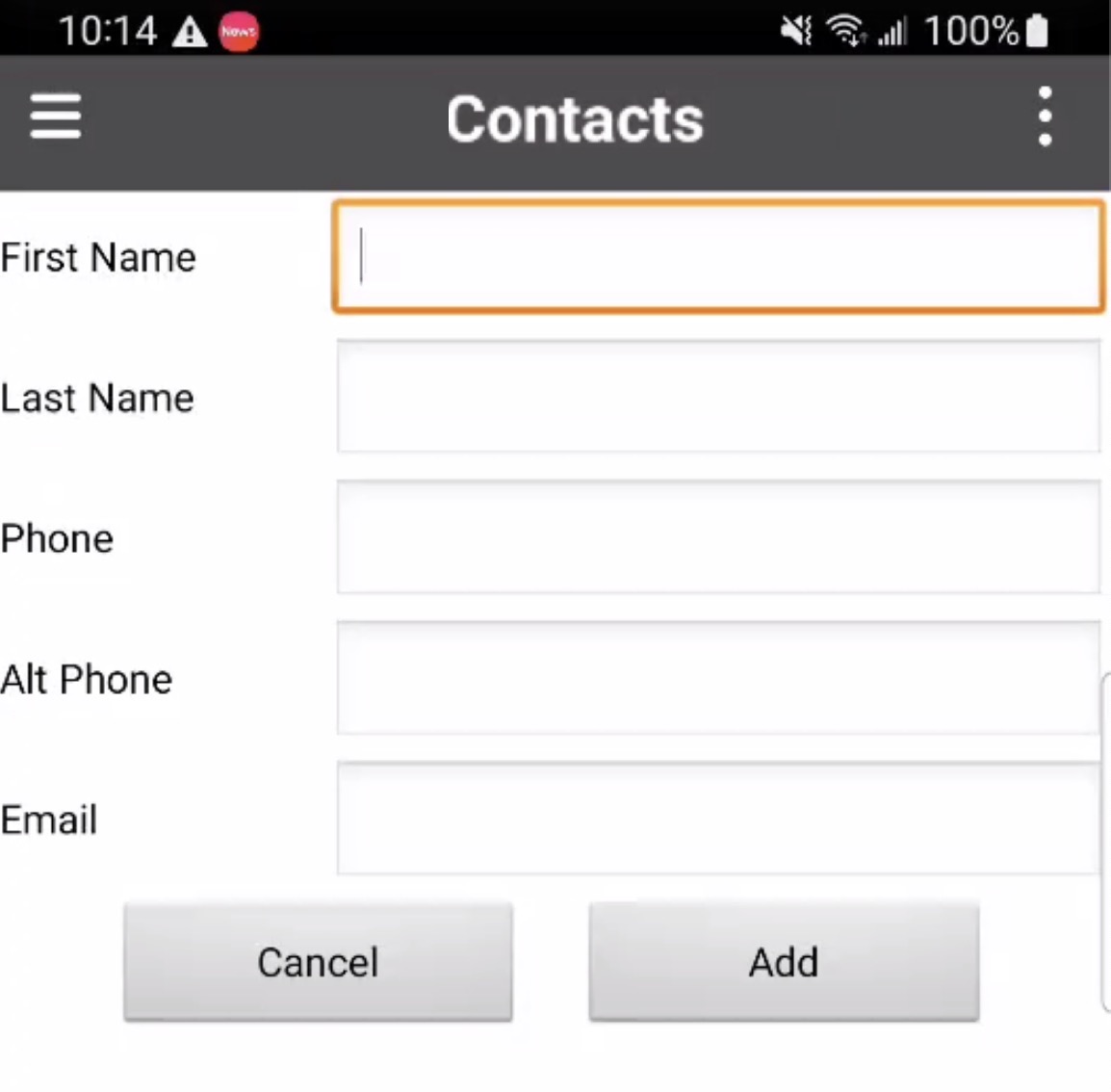
On the Add Contact page, input the following contact information:
The contact's First and last name
The phone and alternate phone number of the contact
And the contact's email address
Once you have entered the contact's information, press the Add tile, to finish adding the contact to the customer profile.
To edit an existing contact, first access the Contacts page and then select the Pencil tile next to the contact you want to update. You will then be redirected to the Edit Contact page:
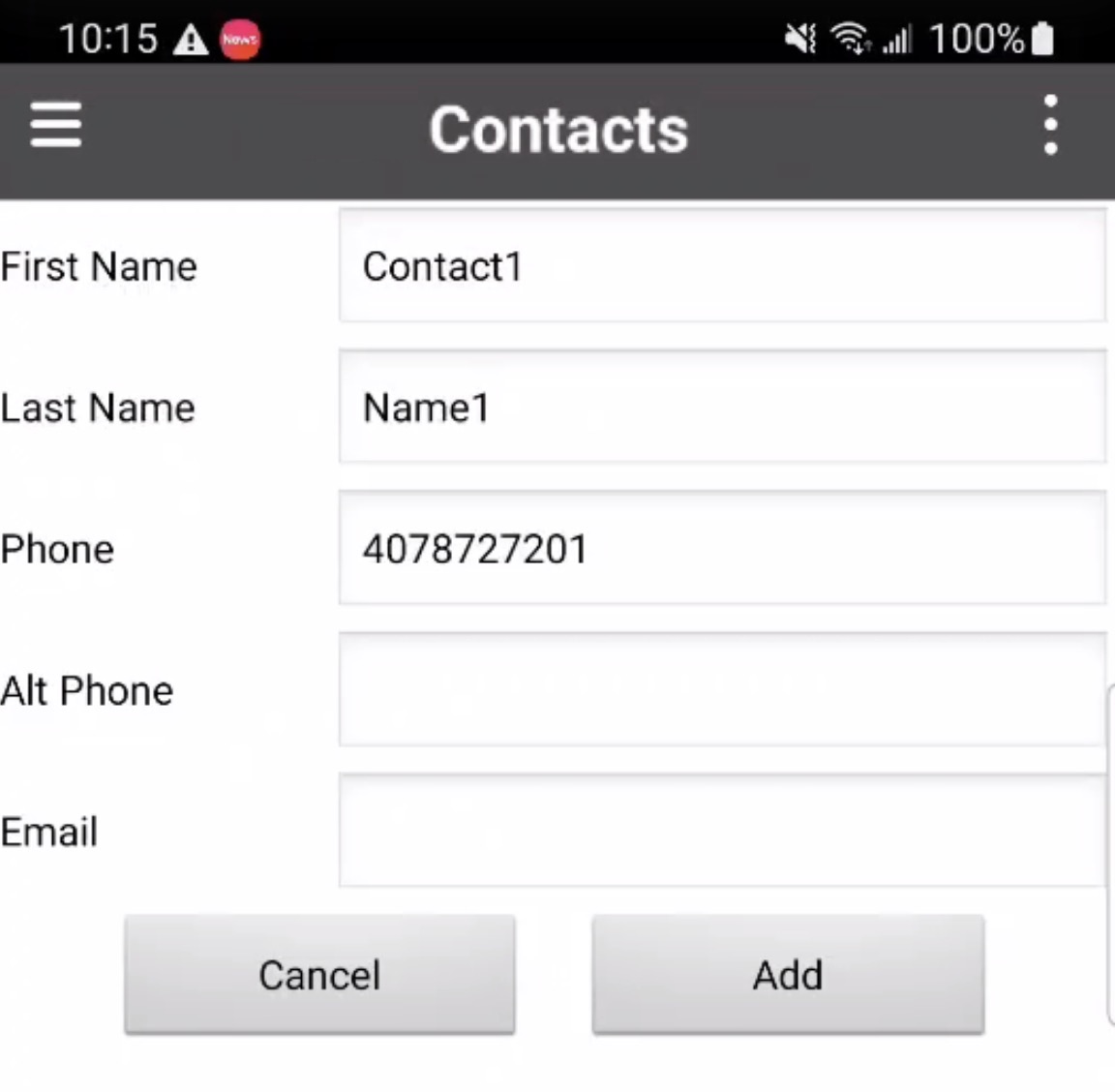
In the Edit Contact page, input the:
First and last name of the contact
The phone and alternate phone number of the contact
And the contact's email address
Once you have made the necessary changes, select the Save tile to save the updated contact information.