To send messages to your customers, you must first be on the Customers feature page. For more information on how to access this page, please see the Customers List page.
Once you are this page there are several ways you can send messages to your customers:
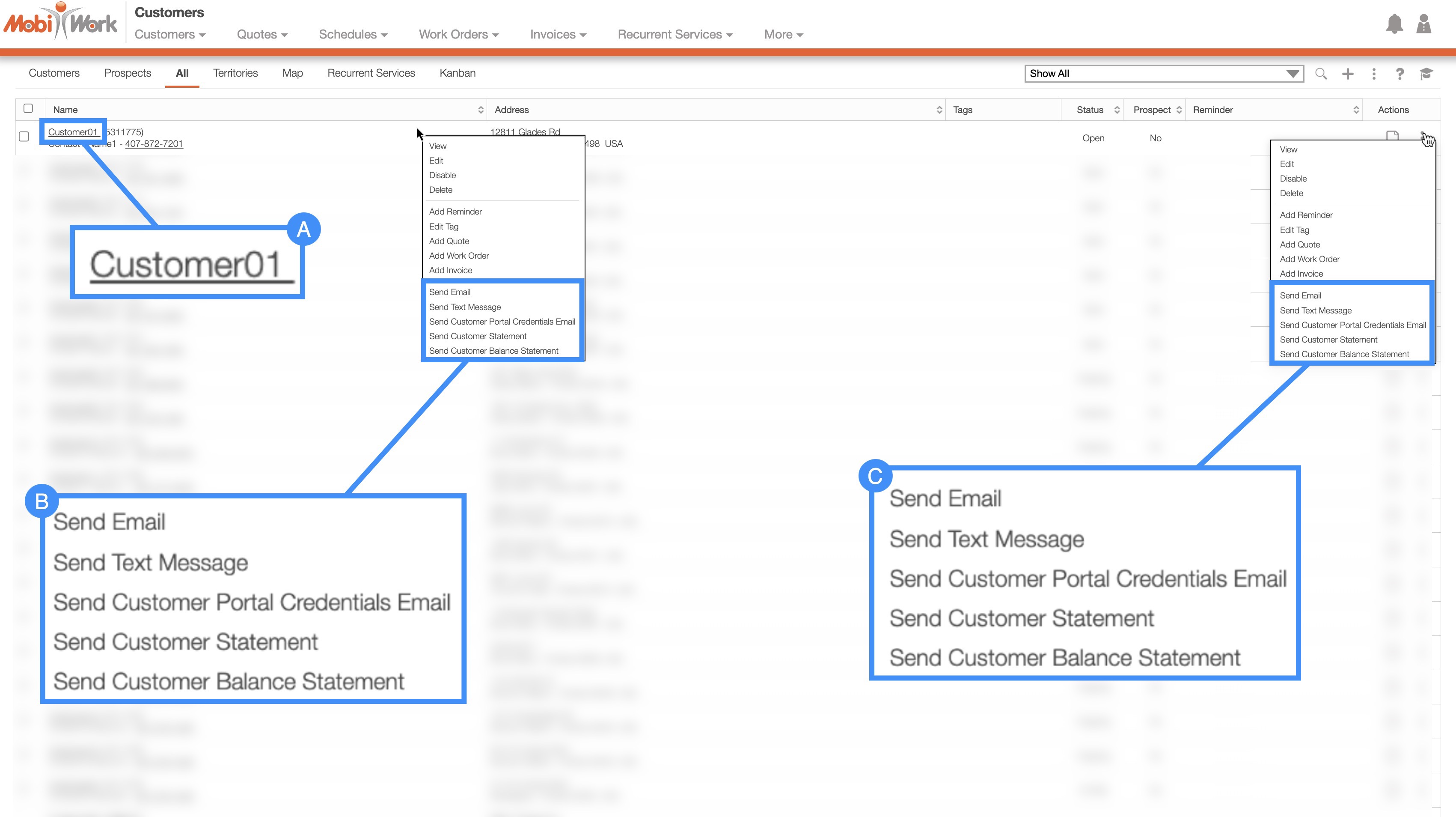
Select the desired Customer ID and once the View Customer pop-up window appears, click on the Individual Actions and from the drop-down choose to send an email, a text, or the customer portal credentials to the customer:
Right-click on the selected customer and choose to send an email, a text, or the customer portal credentials to the customer.
Click on the Individual Actions button and from the drop-down choose to send an email, a text, or the customer portal credentials to the customer.

By default, MobiWork offers a preconfigured email template. This template can be accessed from the customer profile:
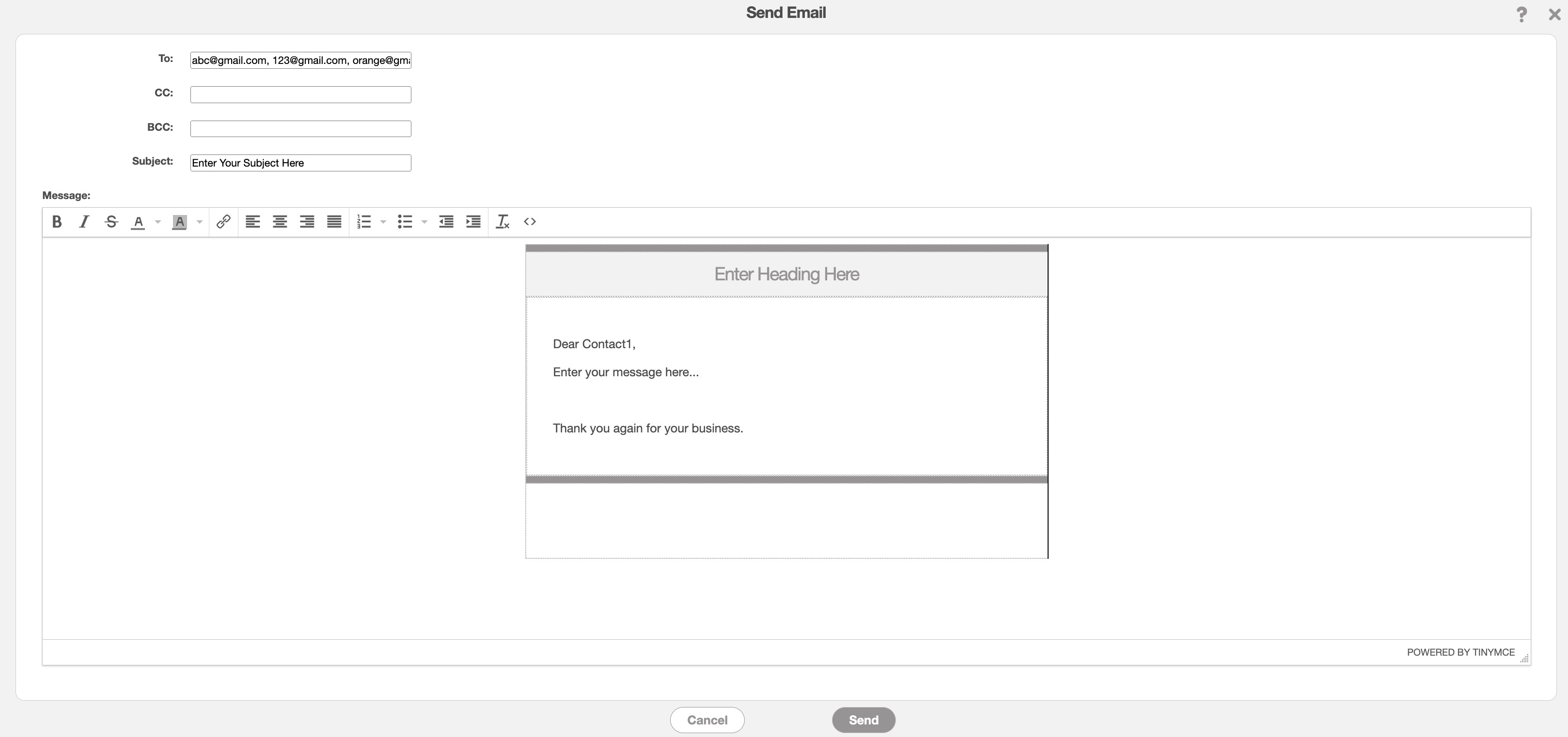
In this pop-up window, you will be able to edit the message, the email recipient, and the subject line. Your company logo will automatically be included in the message.
If you would like to adjust or update your logo, please see the Account Settings page:
Once you are finished composing your email, click on the Send button.
You can easily send your customer login credentials with the following steps:
STEP 1: Access the Customer Feature
- Access the Customer feature tab from your web application:
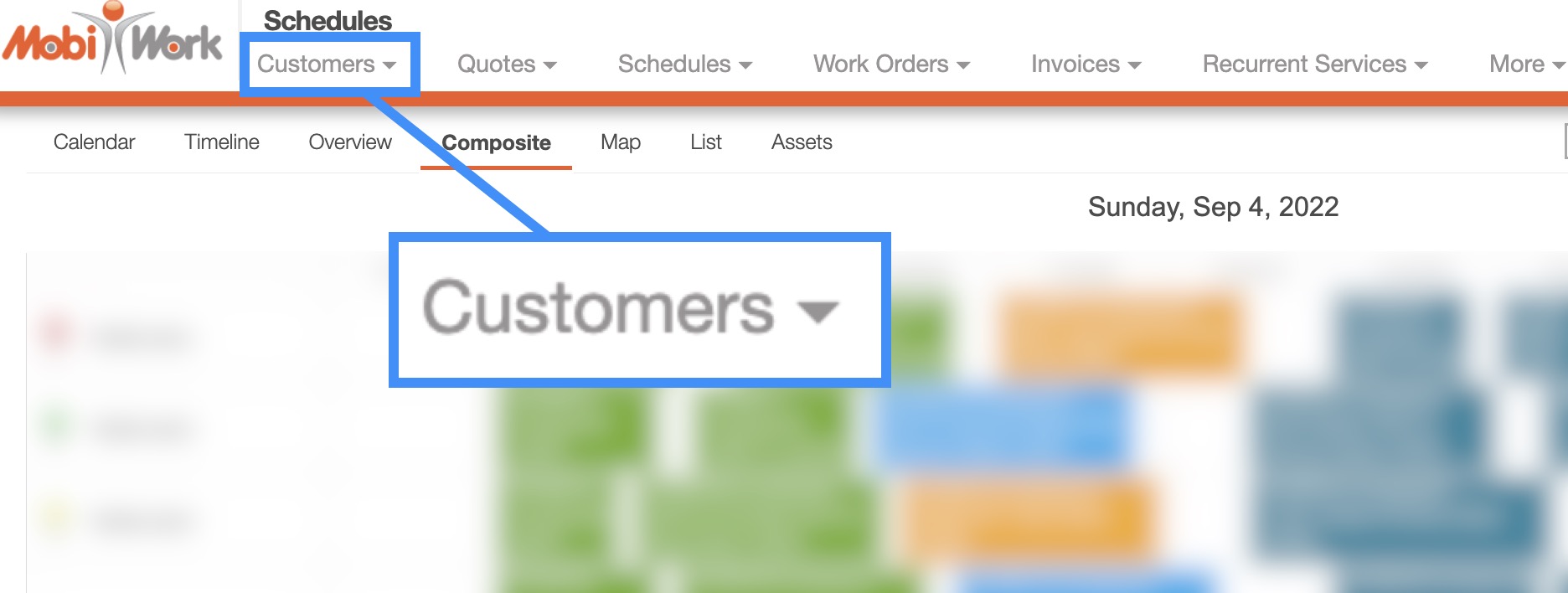
STEP 2: Access the Drop-Down Menu
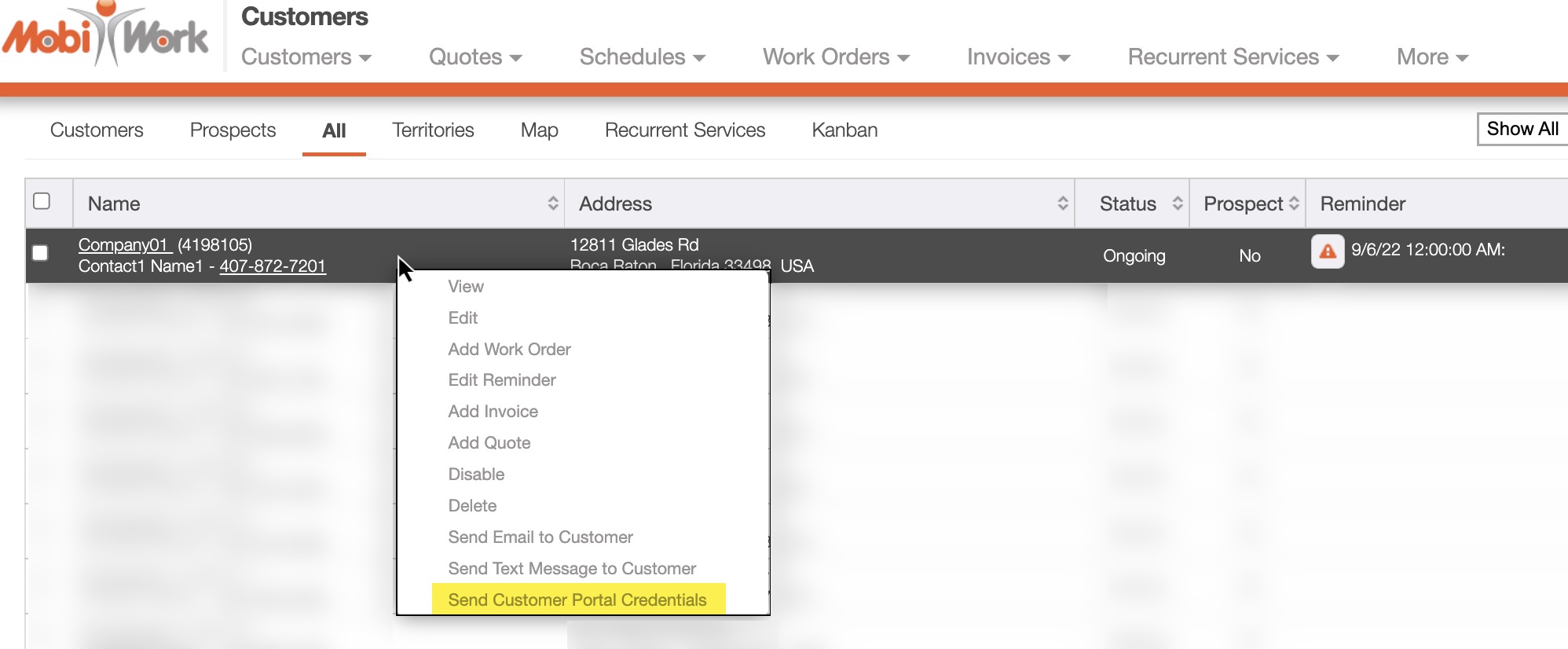
- Right-click on the desired customer or click on the Individual Actions button; from the drop-down menu, select the "Send Customer Portal Credentials" option. The Send Customer Portal Credentials pop-up window will then appear:
STEP 3: Edit the Message
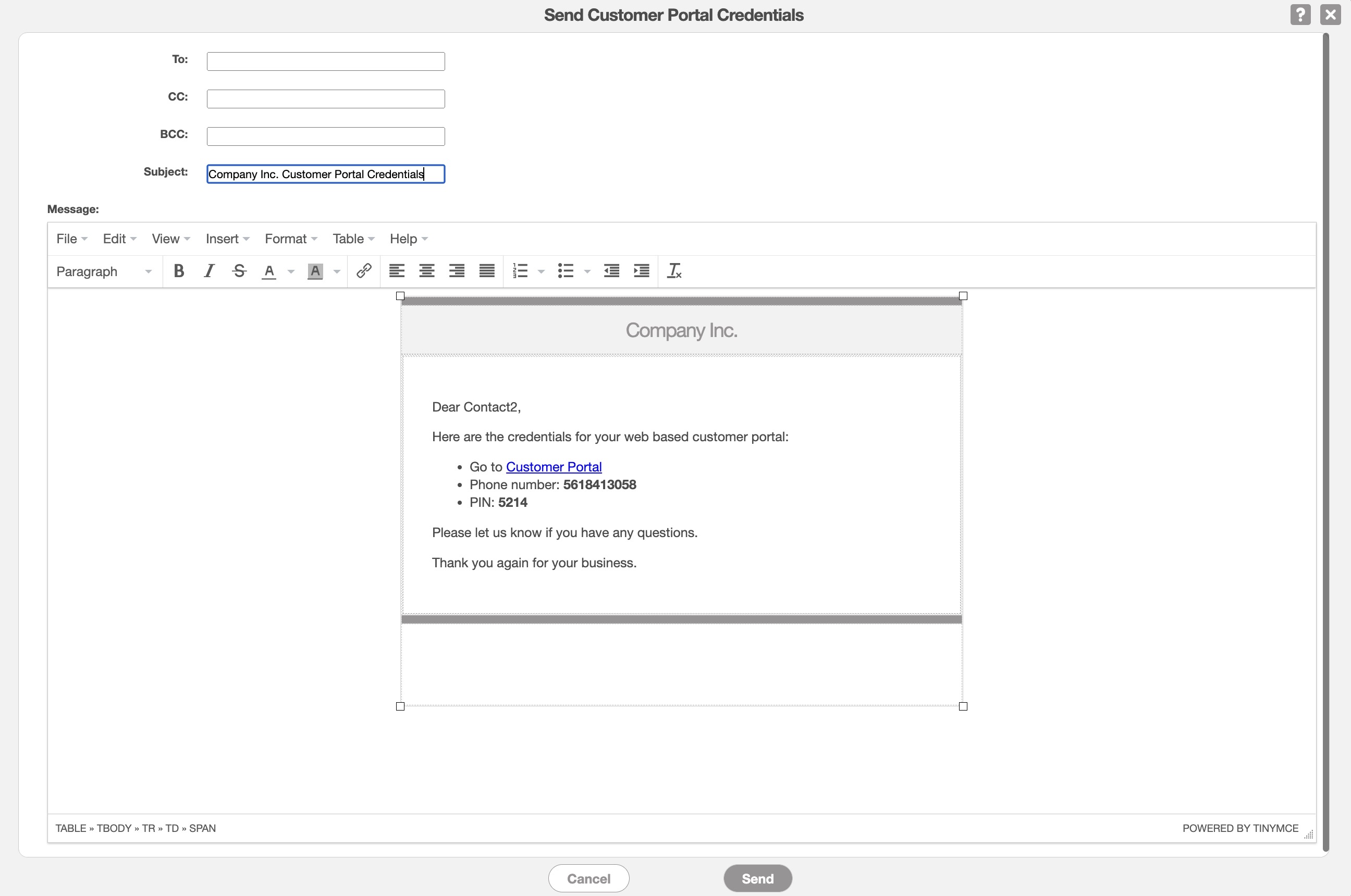
- In the Send Customer Portal Credentials pop-up window, enter the email address and subject; you can also edit the message itself. Once you are satisfied with your updates, click the Send button.
- The default message will include a link to the customer portal, the log-in ID for the customer (phone number), and the password (PIN) for the customer:
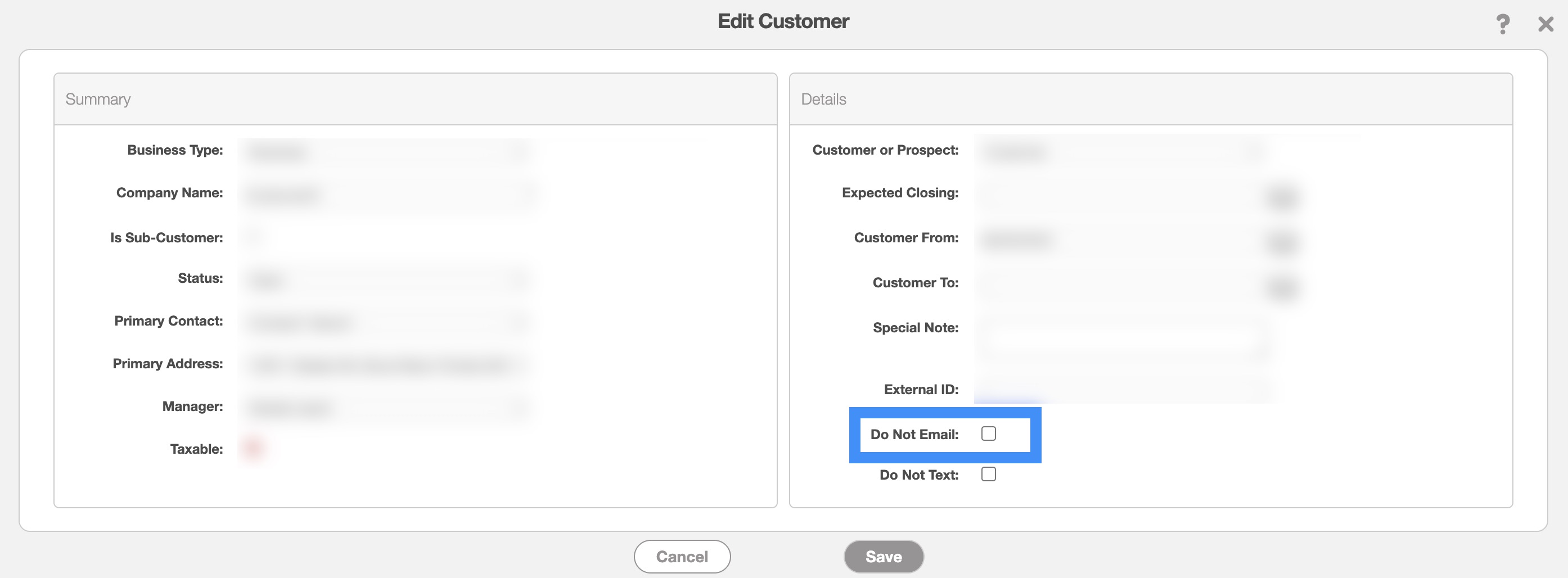
If a customer requests not to receive emails from your company, you can configure the "Do Not Email" setting in their customer profile. To set up this preference, you will need to edit their customer profile. For instructions on accessing the Edit Customer pop-up window, please refer to the Edit Customer(s) page.
Once you have opened this editing window, select the "Do Not Email" checkbox, and then click the Save button. The customer will no longer receive emails from your company:
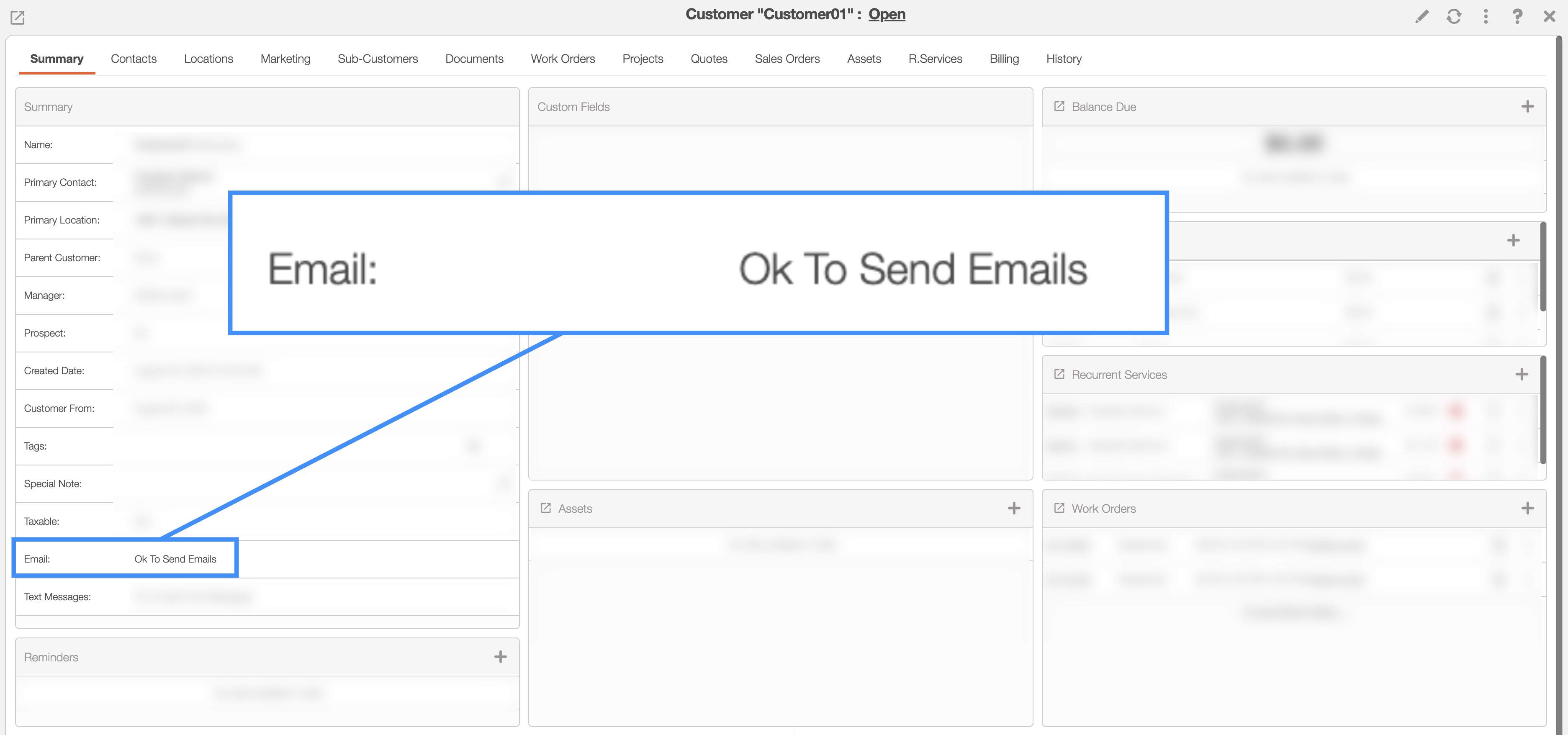
To see if a customer has the "Do Not Email" setting activated in their customer profile, you can access their View Customer pop-up window and view the "Email" row in the "Summary" column:
For more information on accessing the View Customer pop-up window, please consult the View Customer page.
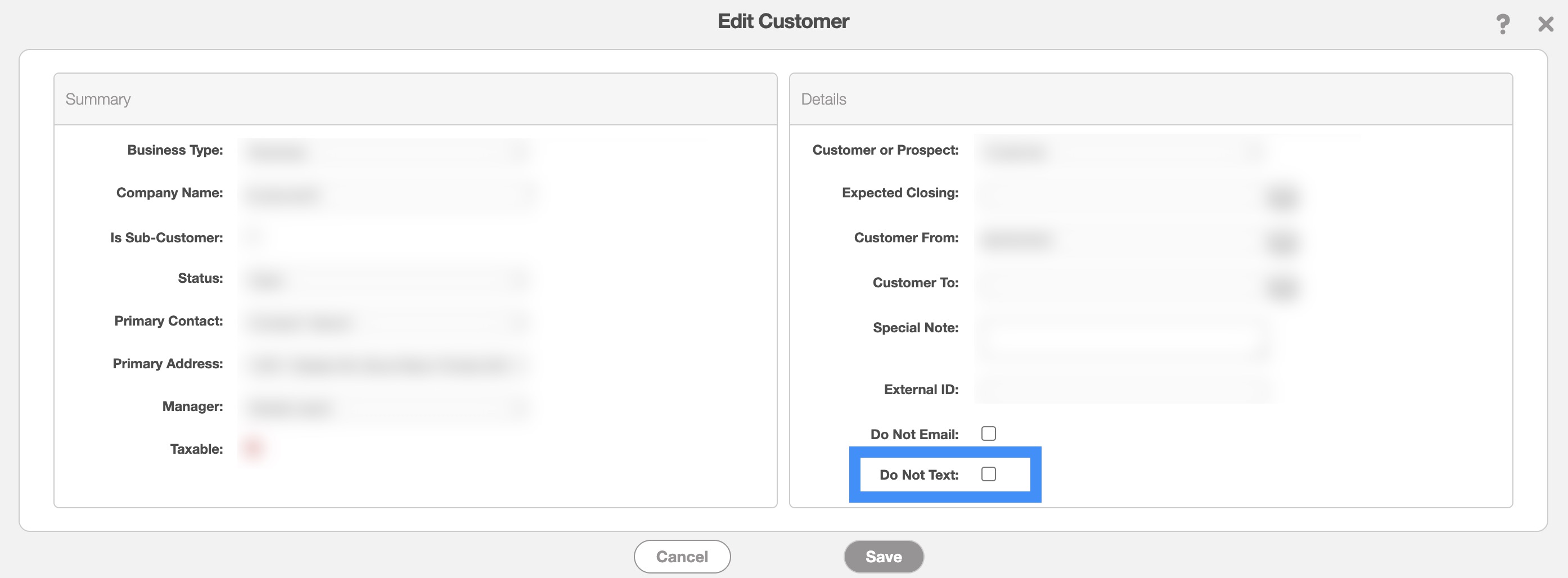
If a customer requests not to receive text messages from your company, you can configure the "Do Not Text" setting in their customer profile. To set up this preference, you will need to edit their customer profile. For instructions on accessing the Edit Customer pop-up window, please refer to the Edit Customer(s) page.
Once you have opened this editing window, select the "Do Not Text" checkbox, and then click the Save button. The customer will no longer receive text messages from your company:
To see if a customer has the "Do Not Text" setting activated in their customer profile, you can access their View Customer pop-up window and view the "Text Messages" row in the "Summary" column:
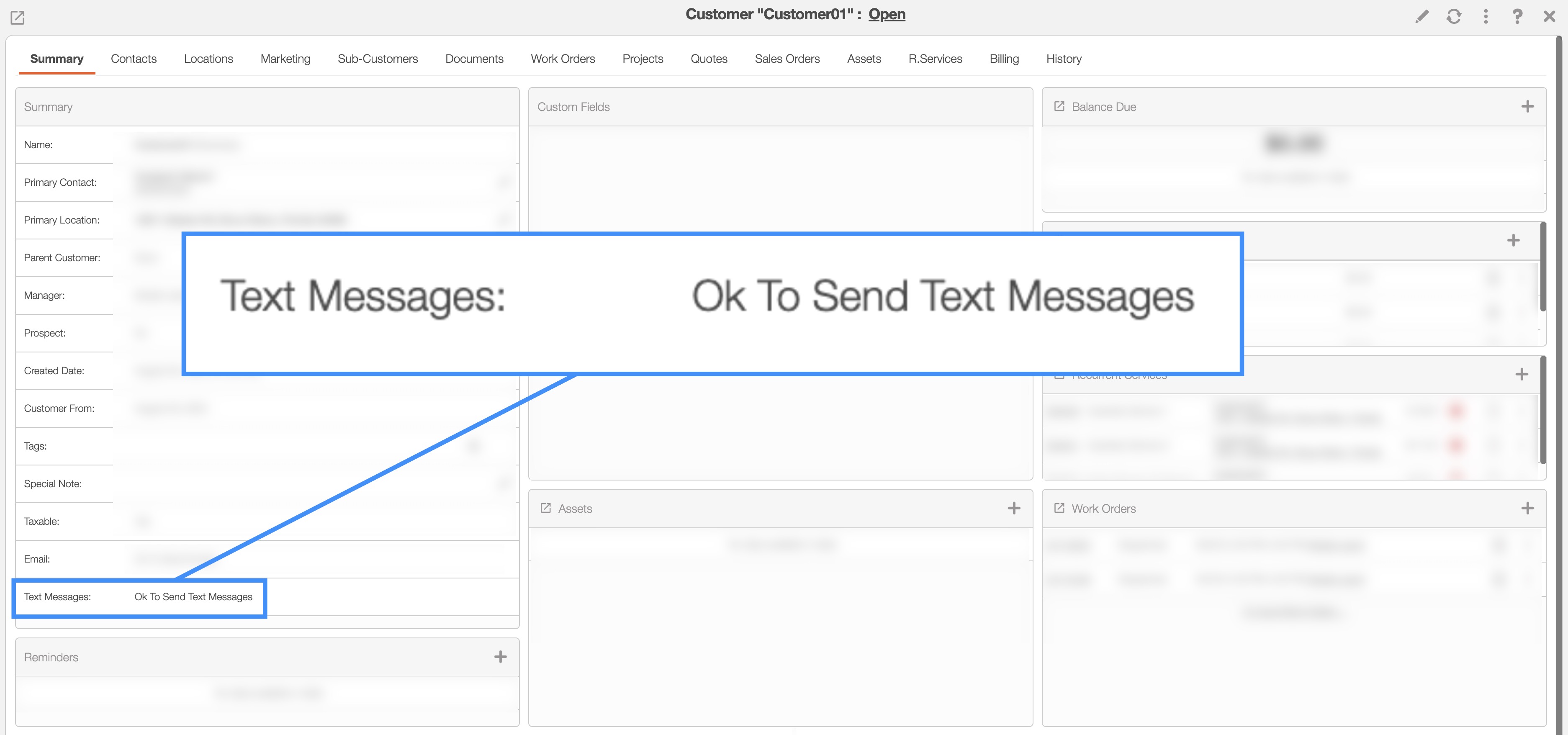
For more information on accessing the View Customer pop-up window, please consult the View Customer page.
To send messages to your customers, you must first be on the Customers feature page. For more information on how to access this page, please see the Customers List page.
Once you are this page there are several ways you can send messages to your customers:
Select the desired Customer ID and once the View Customer pop-up window appears, click on the Individual Actions and from the drop-down choose to send an email, a text, or the customer portal credentials to the customer:
Right-click on the selected customer and choose to send an email, a text, or the customer portal credentials to the customer.
Click on the Individual Actions button and from the drop-down choose to send an email, a text, or the customer portal credentials to the customer.
Regardless of the method you choose to text a customer, the Send Text Message To Customer pop-up window will appear:

You can write your text message in the text box, input the phone number, etc. Once you are finished composing your text message, click on the Send button.
Please note that in order to send out text messages from your MobiWork account, you will need to have a connector installed; see the Text Messaging Overview page for more information on how to use MobiWork to send out text messages.
You will be able to send your customers their statement or statement balance either through the Customers More Actions button or through the View Customer pop-up window.
For more information on how to access these actions, please see the Customers List page or the View Customer page.
Please note that if you send statements through the Customers More Actions button, the statements will be sent to multiple customers:

If you send the statement through the View Customer pop-up window, the statement will be sent to the respective customer:

You can also use the "Export Customer Statement" or "Export Customer Balance Statement" options from the View Customer pop-up window's Individual Actions to view the desired statement as a PDF.
The "Send Customer Statement" option sends the invoice statement (regardless of the invoice status); this statement provides a summary of all the customer's invoices, any payments made towards those invoices, and the remaining balance:

Whereas, the "Send Customer Balance Statement" option sends the invoice balance statement; this statement provides a summary of the invoices with the "Customer Invoiced" status, any payments made towards those invoices, and the remaining balance:

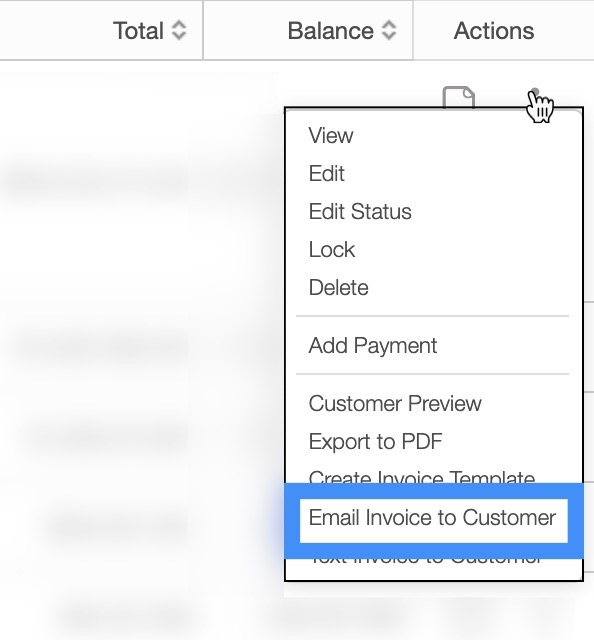
Regardless of how you choose to select the "Email Invoice to Customer" option, you will be brought to the Email Invoice to Customer pop-up window.
Please note that the "Email Invoice to Customer" option will send a copy of the invoice and the payment link to the customer:
In this pop-up window, you will be able to edit the message, the email recipient, and the subject line. Your company logo, company address, customer-facing email, and the link to pay the invoice will automatically be included in the message:
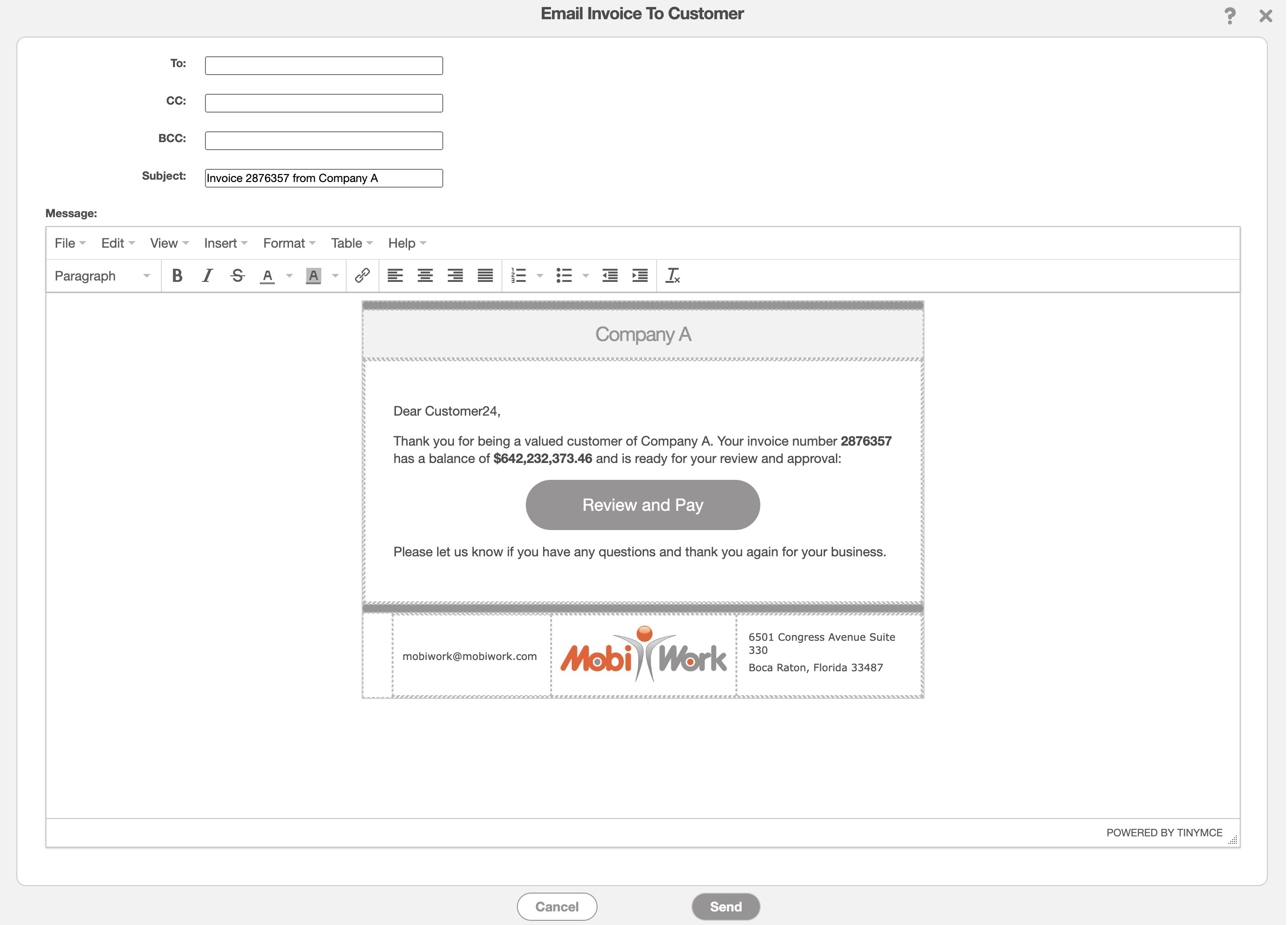
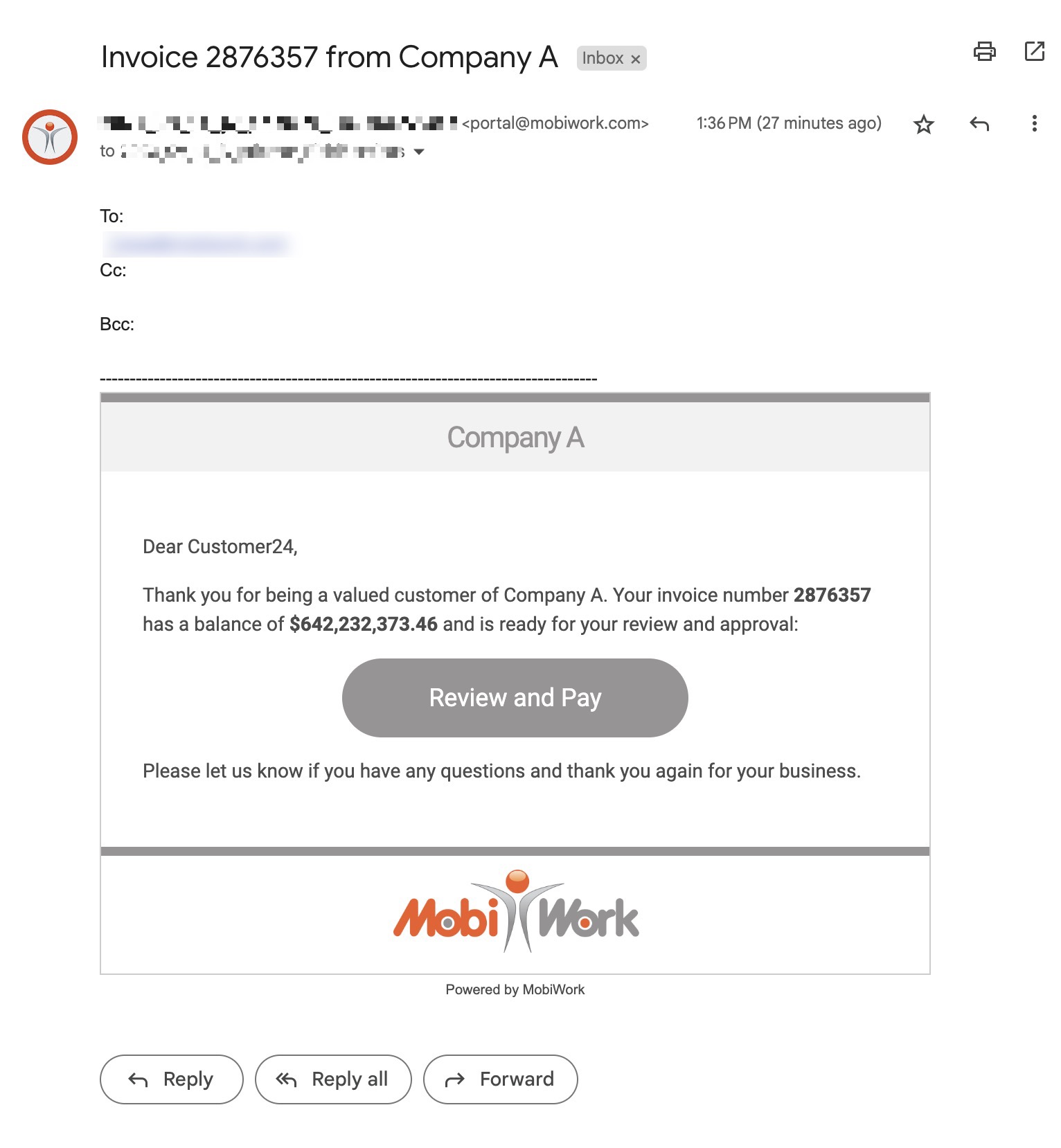
You will be unable to add attachments to this email. Please see the Attach Images or Documents to an Invoice subsection for more information.
Regardless of the method chosen, once you select the "Text Invoice to Customer" option, you will be able to text the customer their invoice and a link to pay the outstanding invoice.
Please note that in order to send out text messages from your MobiWork account, you will need to have a connector installed; see the Text Messaging Overview page for more information on how to use MobiWork to send out text messages:
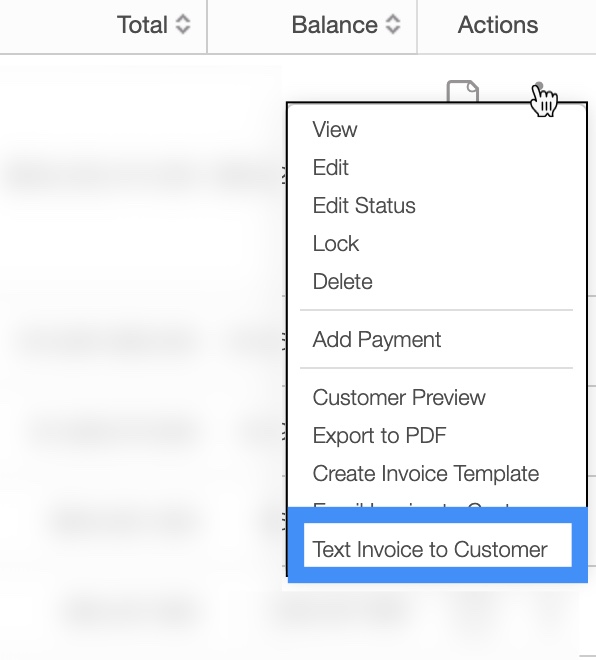
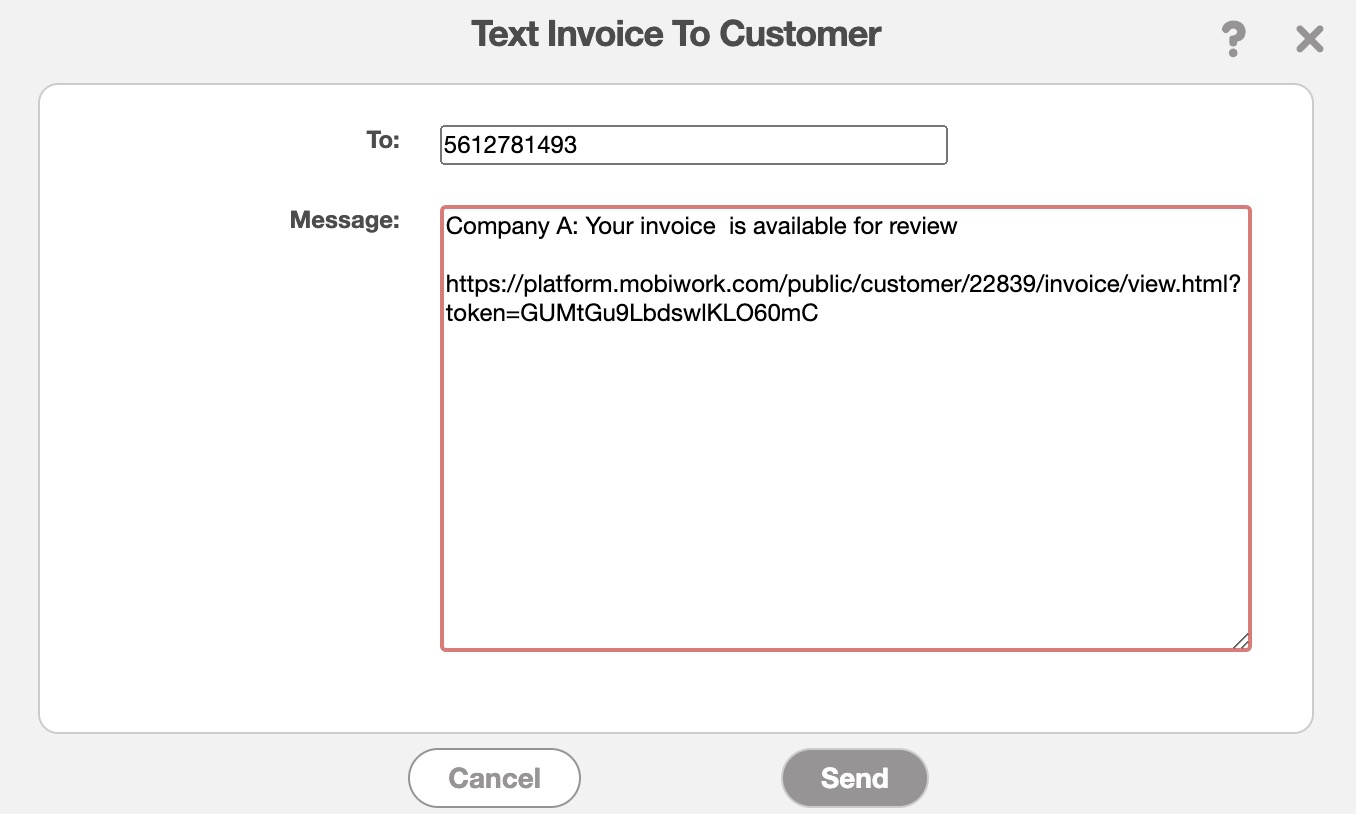
Once you select the "Text Invoice to Customer" option from the drop-down, the Text Invoice to Customer pop-up window will appear.
When this pop-up window appears, you can input the phone number and edit the message as you would like. Once you are satisfied with your message click on the Send button:
MobiWork allows you to send multiple invoices to multiple customers at once. To send out multiple invoices, you will first need to be on the Invoice feature page.
From this page choose the desired invoices, and then click on the More Actions button. If you would like to send all your invoices, you can click on the topmost checkbox (Multiple Selection Area) located in the "List" column.
From the drop-down menu select the desired option:
- Email Invoice to Customer
- Text Invoice to Customer
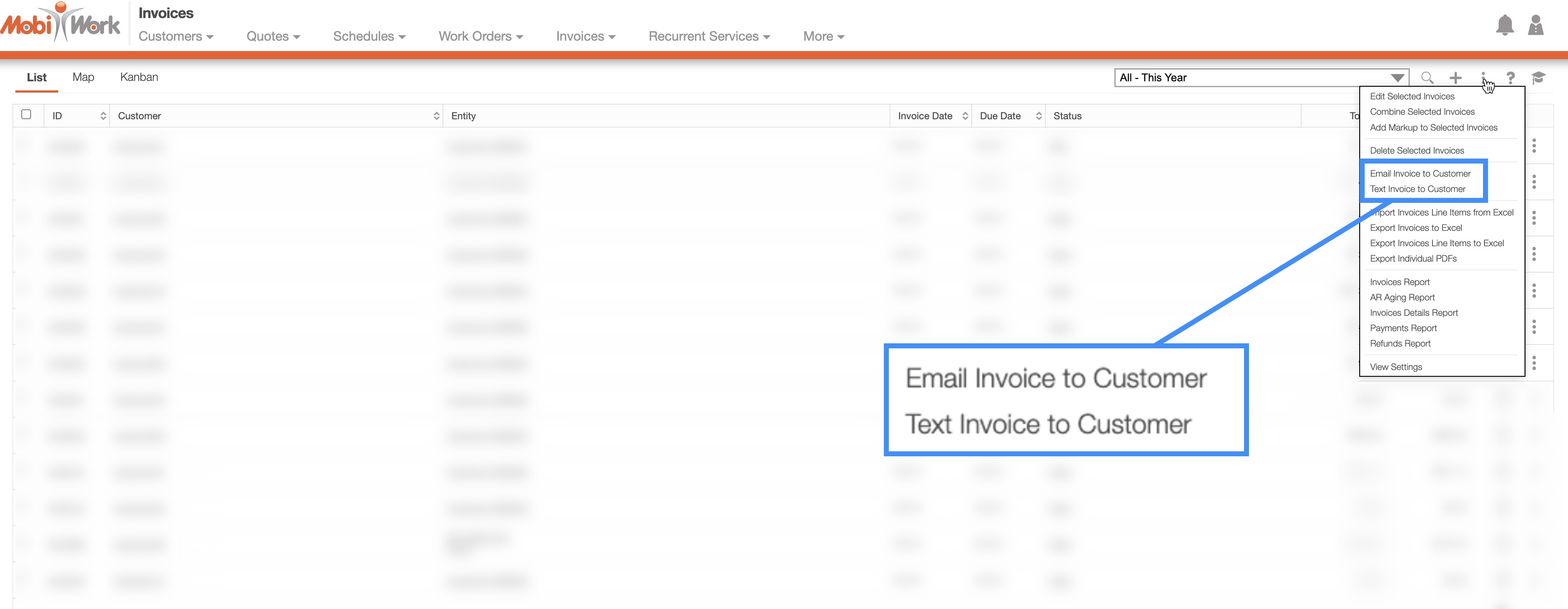
Please note that you will not be able to edit the messages that are sent from the More Actions drop-down:
To send a quote for approval, you will first need to be on the "List" tab. For more information on how to access this page, please see the Quote List page.
Once you are on this page, there are three different ways you can send your quote to your customers for approval:
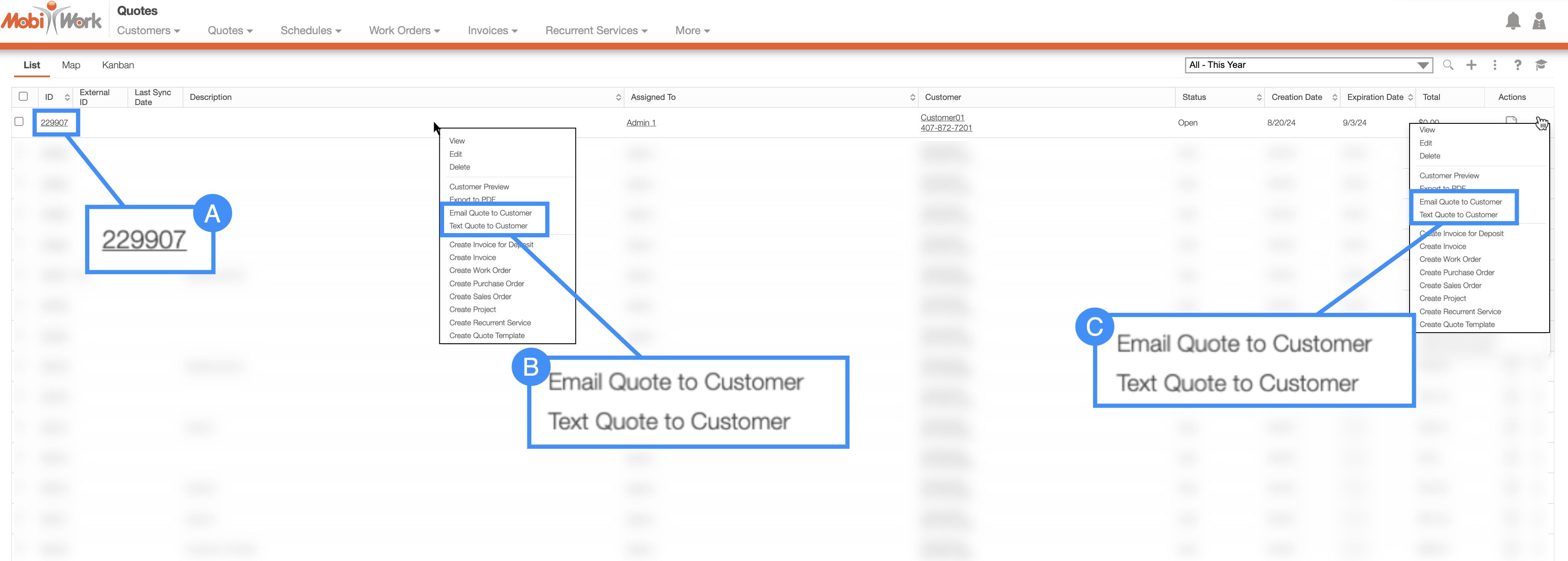
Select the desired quote ID and when the View Quote pop-up window appears, click on the Individual Actions button:
From the drop-down select the desired option (i.e., "Email Quote To Customer" or "Text Quote to Customer").
Right-click on the desired quote and from the drop-down select the appropriate option (i.e., "Email Quote To Customer," or "Text Quote to Customer").
Click on the Individual Actions button and from the drop-down select the appropriate option (i.e., "Email Quote To Customer," or "Text Quote to Customer").
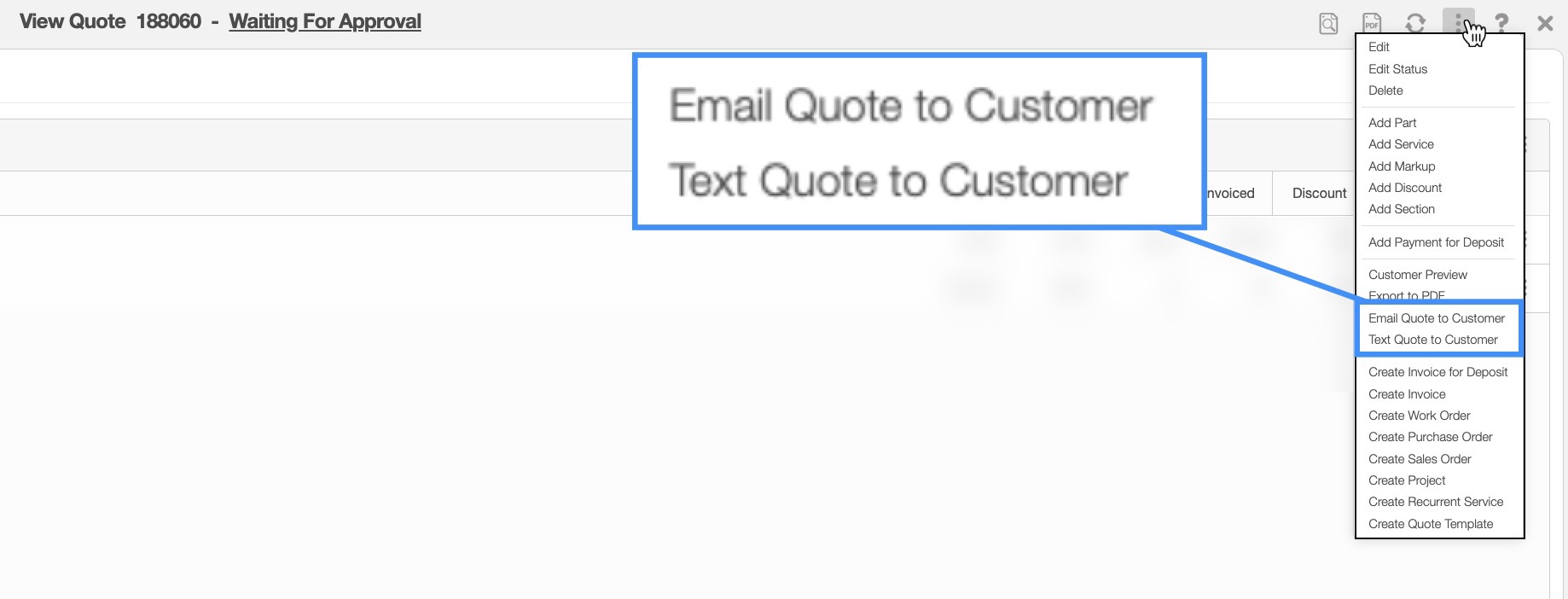
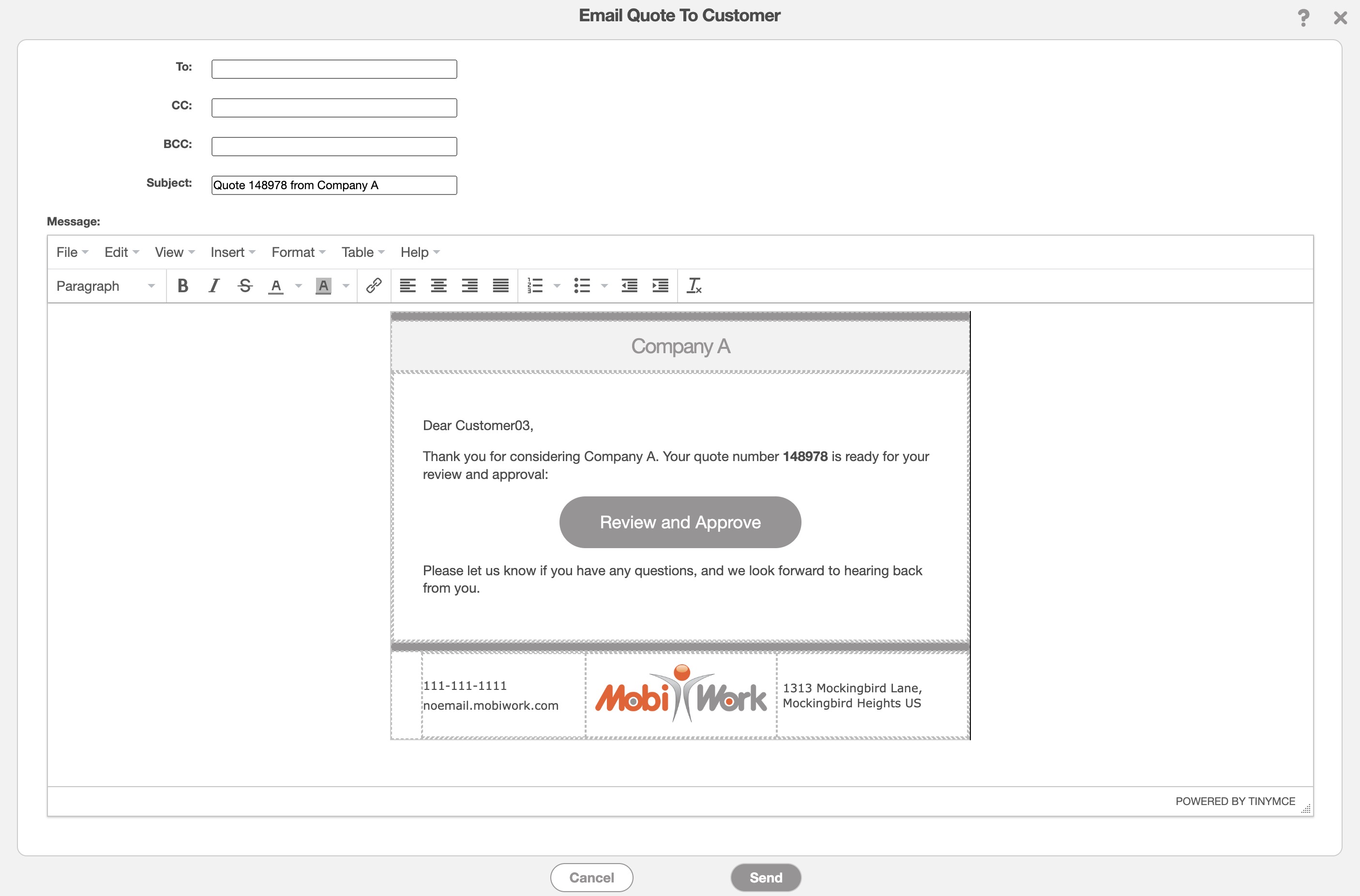
Regardless of how you choose to select the "Email Quote to Customer" option, you will be brought to the Email Quote to Customer pop-up window.
Please note that the "Email Quote to Customer" option will send a copy of the quote and a link where they can view and digitally approve the quote.
In this pop-up window, you will be able to edit the message, the email recipient, and the subject line. Your company logo, address, contact information, and the link to approve the quote will automatically be included in the message.
If you would like to adjust or update your logo, please see the Account Settings page:
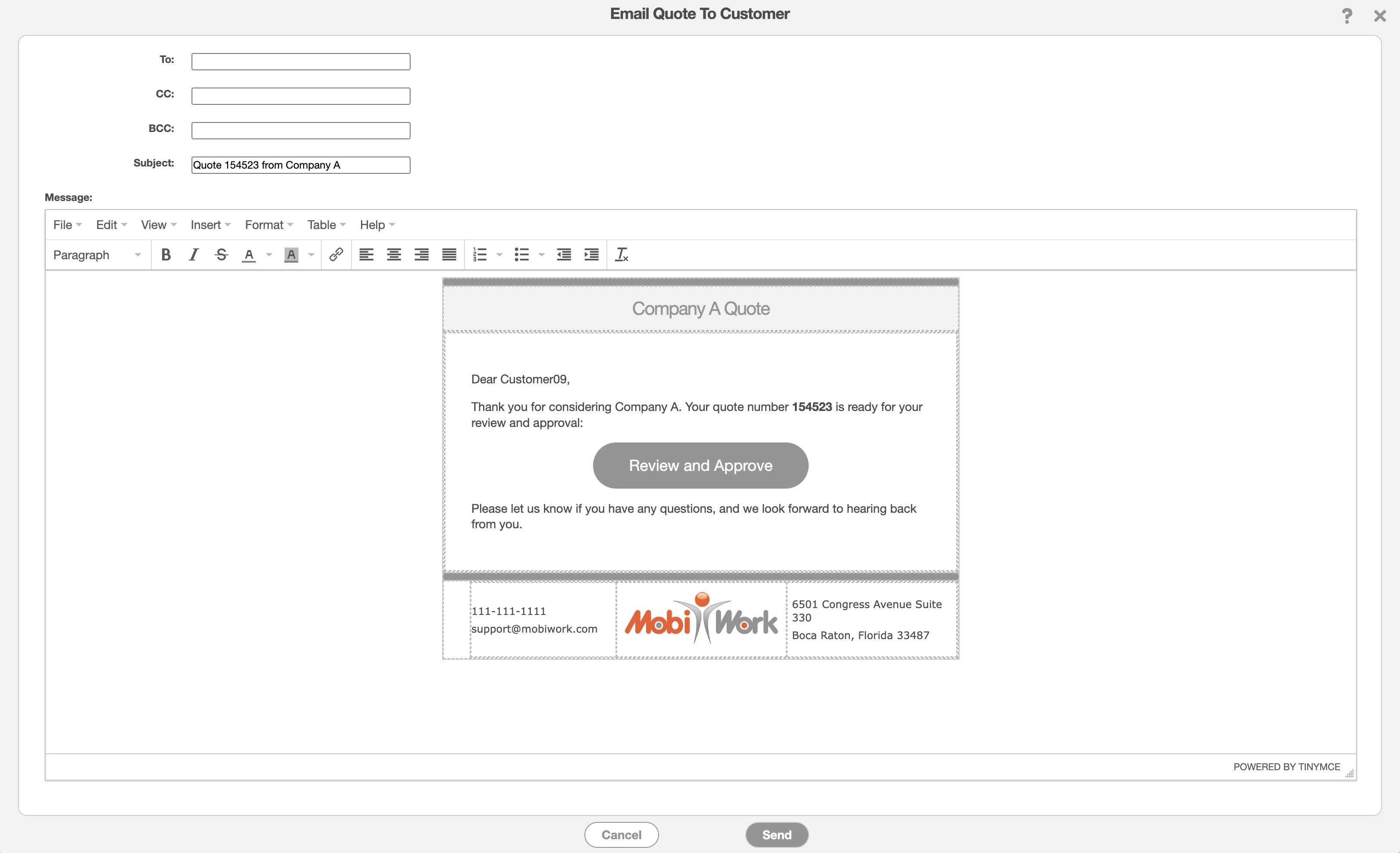
Once the customer clicks on the emailed link, they will be brought to the webpage where they can view and digitally approve the quote or request changes:
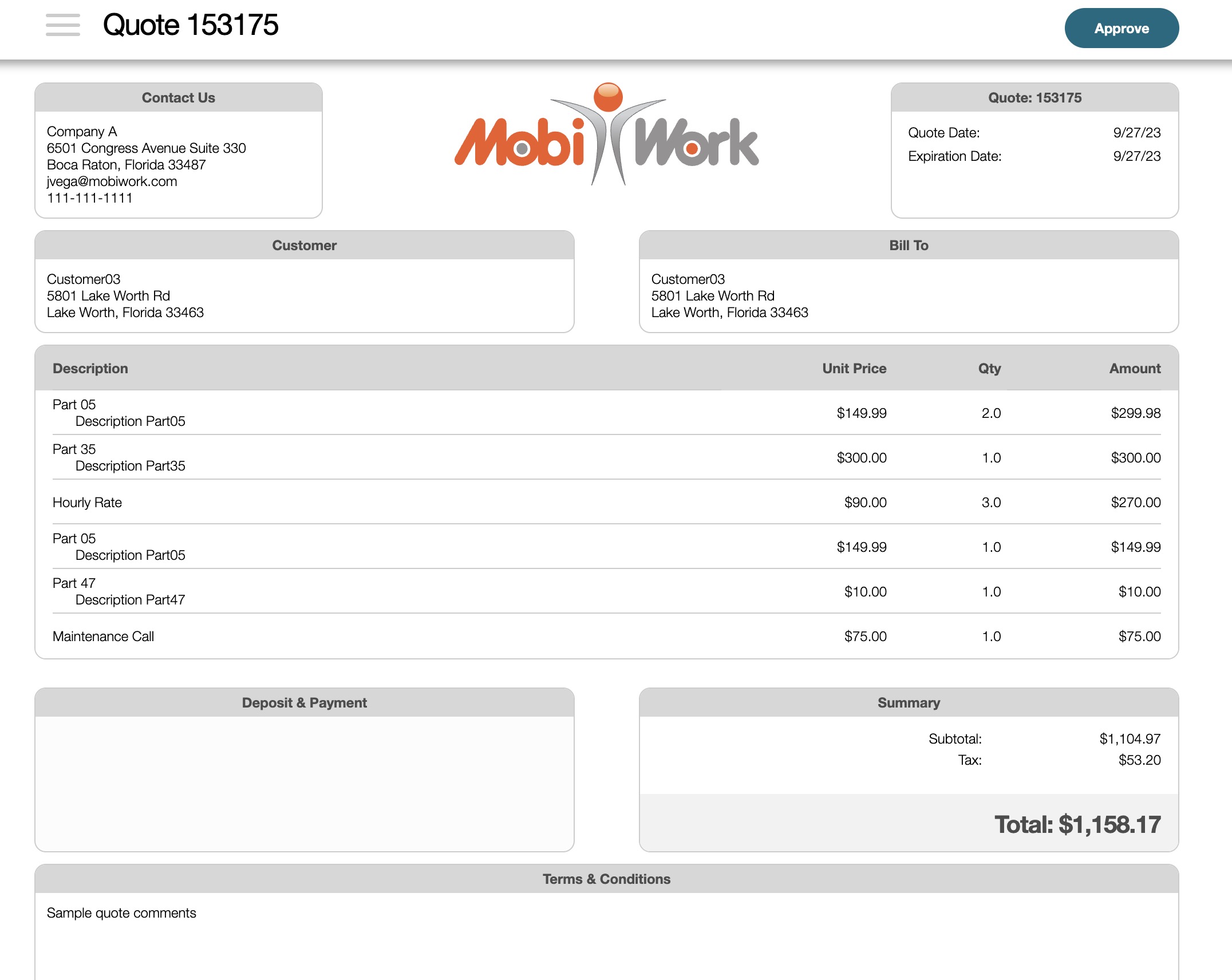
Please note that you will be able to preview how the quote will be presented to the customer. For more information on how to preview the quote, please see the View a Quote in PDF page.
To send a quote for approval, you will first need to be on the "List" tab. For more information on how to access this page, please see the Quote List page.
Once you are on this page, there are three different ways you can send your quote to your customers for approval:
Select the desired quote ID and when the View Quote pop-up window appears, click on the Individual Actions button:
From the drop-down select the desired option (i.e., "Email Quote To Customer" or "Text Quote to Customer").
Right-click on the desired quote and from the drop-down select the appropriate option (i.e., "Email Quote To Customer," or "Text Quote to Customer").
Click on the Individual Actions button and from the drop-down select the appropriate option (i.e., "Email Quote To Customer," or "Text Quote to Customer").
Regardless of the method chosen, once you select the "Text Quote to Customer" option, you will be able to text the customer their quote.
Please note that in order to send out text messages from your MobiWork account, you will need to have a connector installed; see the Text Messaging Overview page for more information on how to use MobiWork to send out text messages.
Once you select the "Text Quote to Customer" option from the drop-down, the Text Quote to Customer pop-up window will appear.
When this pop-up window appears, you can input the phone number and edit the message as you would like. Once you are satisfied with your message click on the Send button: