
You can update the way that MobiWork keeps tracks of invoices through your Invoice Settings page.
To make changes, access the Edit Settings pop-up from the General Settings section. In this pop-up window, use the drop-down field for "Invoice Number Type" to enter the new numbering sequence for your invoices:
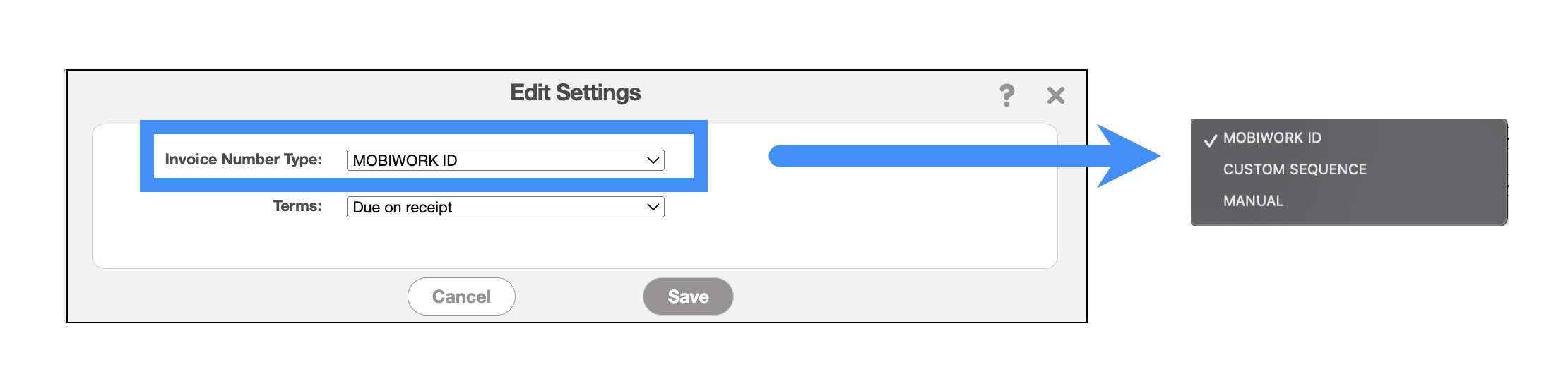
You can use the following options to organize your invoices:
- The MobiWork ID.
- A custom sequence with a prefix, start number, and suffix (which will increment by one),
- Or you can enter the digits manually (where the user enters the invoice number). The Manual option still assigns each invoice a unique MobiWork ID, but also allows you to give the invoice a custom number in the "Invoice Number" field.
For more information on accessing the Invoice Settings page, please see the Invoice Settings page.
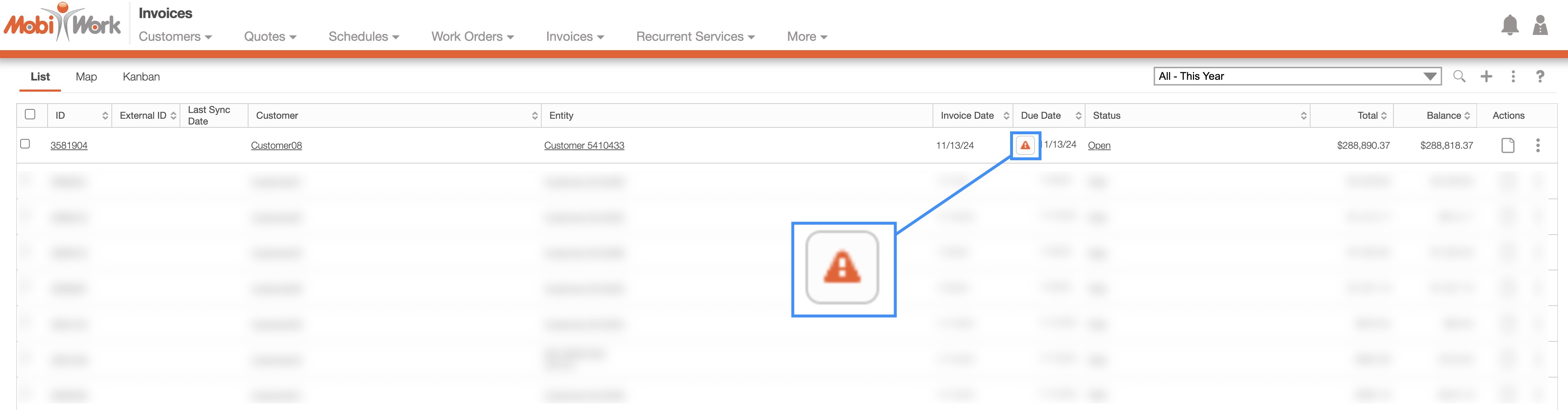
The Caution Sign icon displayed on the Invoices "List" tab indicates overdue invoices with unpaid balances (this includes partially paid payments). This icon appears for any invoice with a remaining balance greater than $0.00:
When invoices are linked to the corresponding work order, you will be able to see the work order number (and a link directing you the work order) in the View Work Order pop-up window:
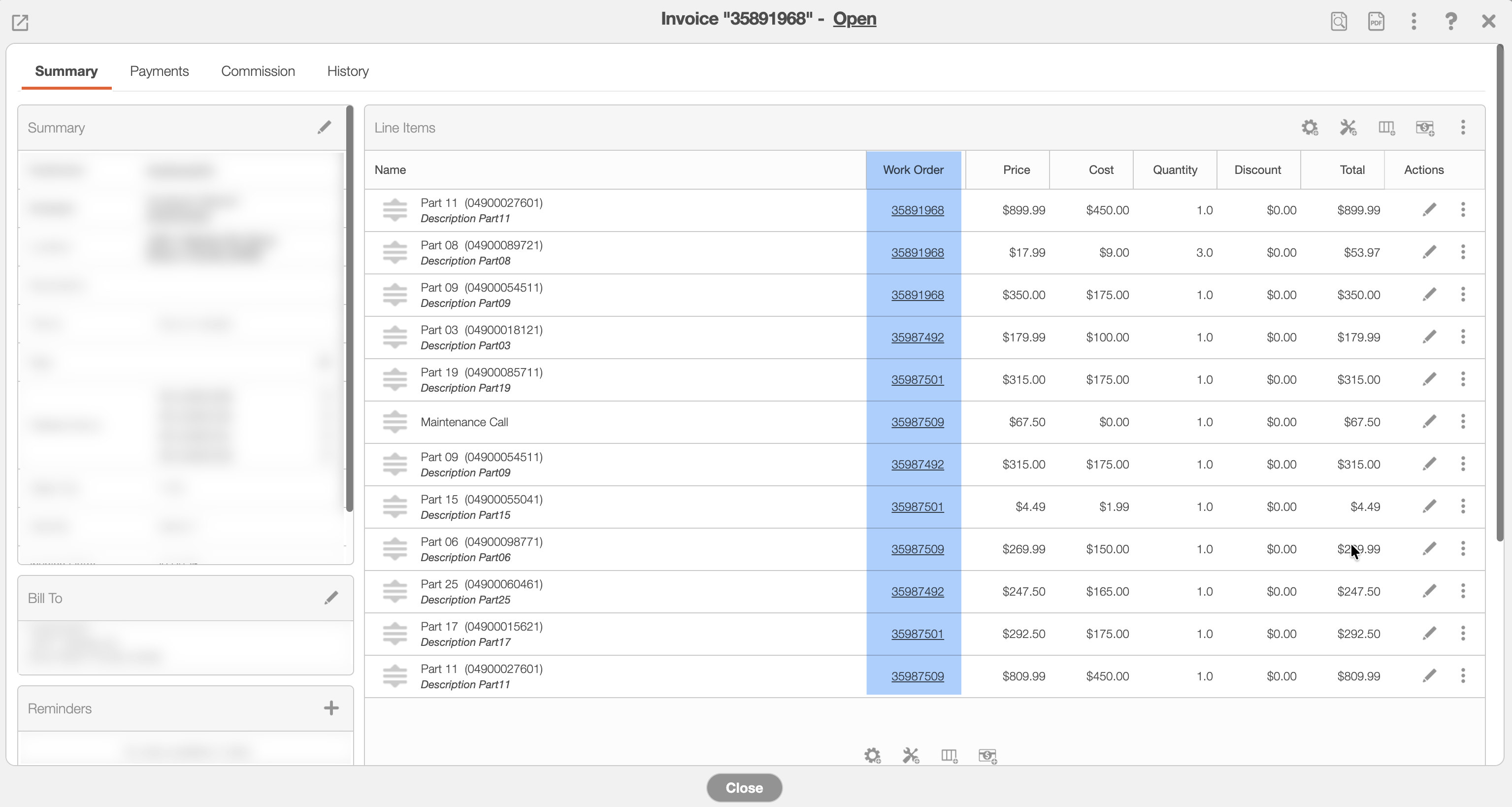
Multiple work order IDs can be shown in this view.
If the invoice is exported to PDF, a column will display the corresponding work order ID:
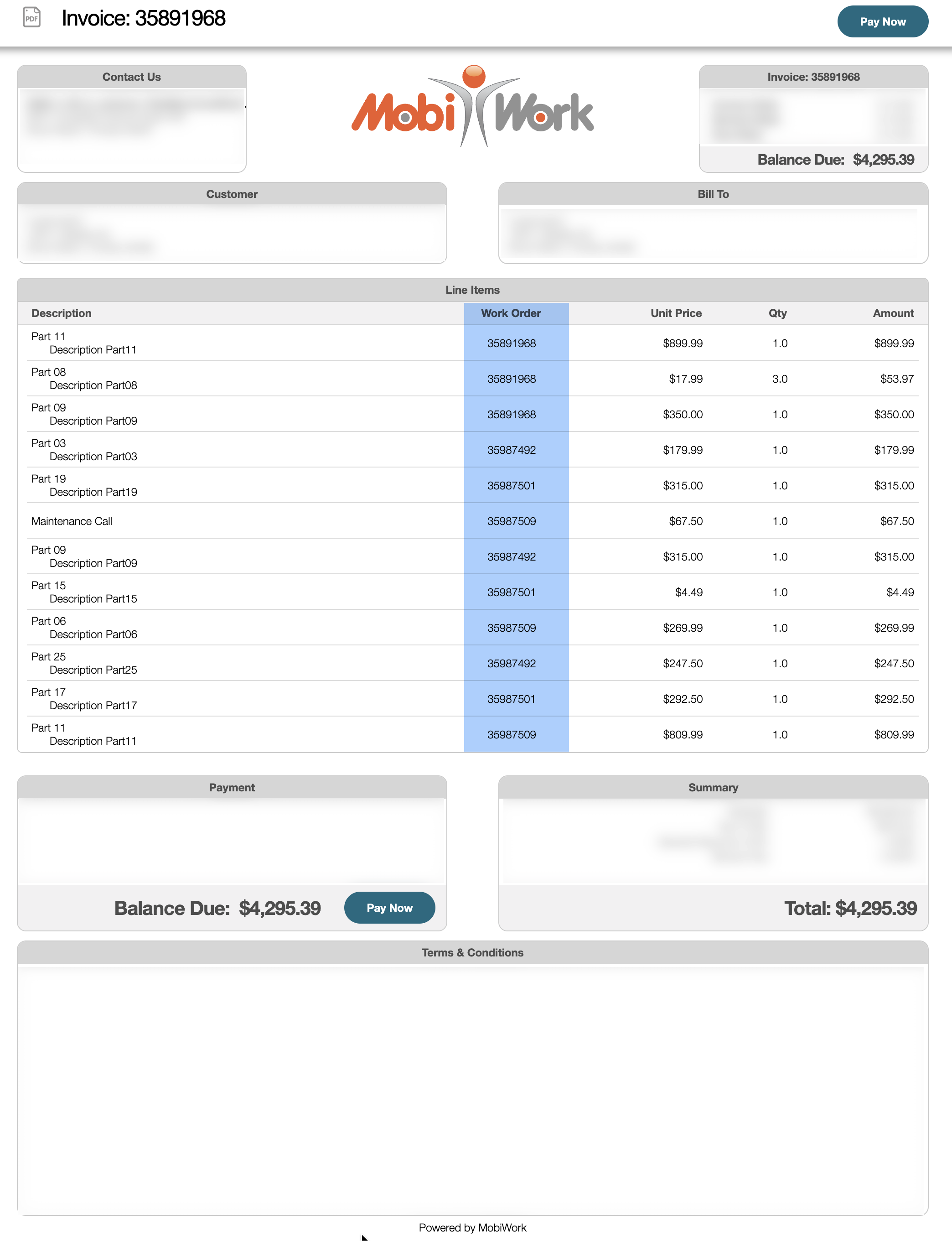
The "Description" field contains the supporting text that provides additional details about the invoice and work order. This information is displayed in View Invoice pop-up window, the Customer Preview and the generated Invoice PDF that can be sent to the customer:
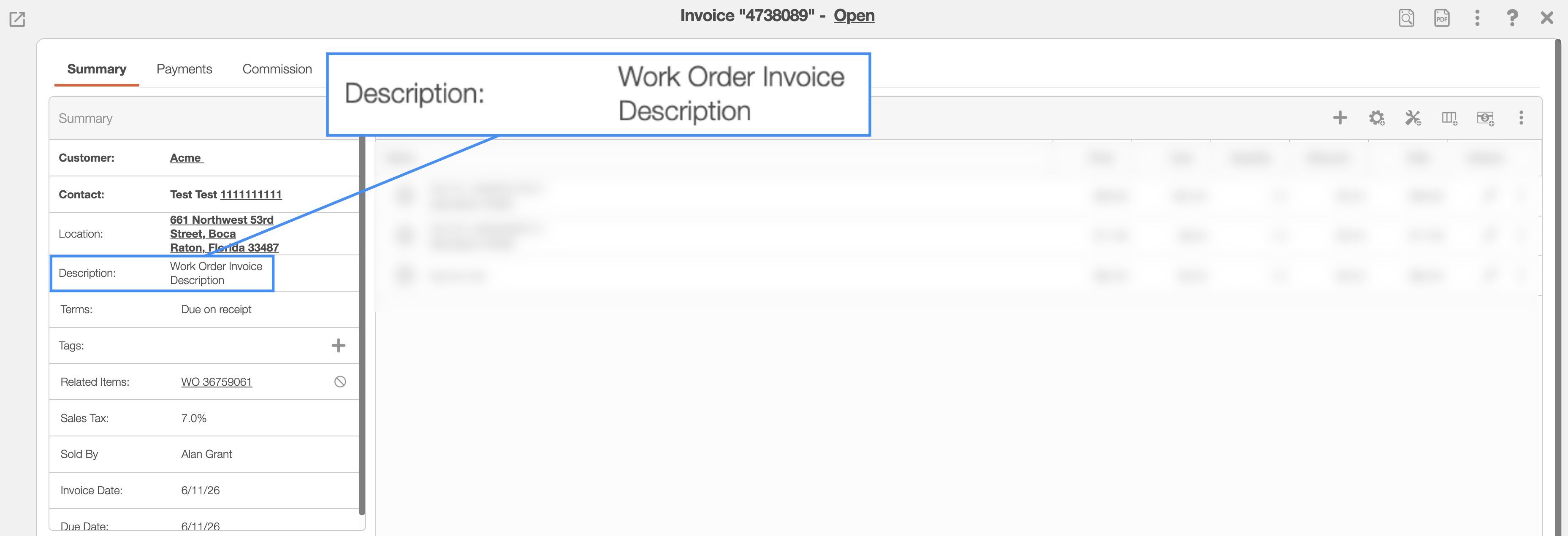
Depending on how your settings are set up, the description can populate differently.
When editing an invoice, you can manually enter or modify the description in the "Description" field.
If the invoice is generated from a work order, the "Description" field can be configured to automatically populate the work order description or the Work Order Completed Form's comments.
Please note that for the "Description" field to populate automatically, the corresponding information must already exist. For example, if the description is configured to use the Work Order Completion Form's comments, the work order must first be completed and the completion form must have text, in order for the corresponding description to appear on the invoice.
On the Invoice Settings page, you can choose which option fits your business better. Click on the Pencil icon in the "General" panel to edit the "Invoice Description Pre-population:"
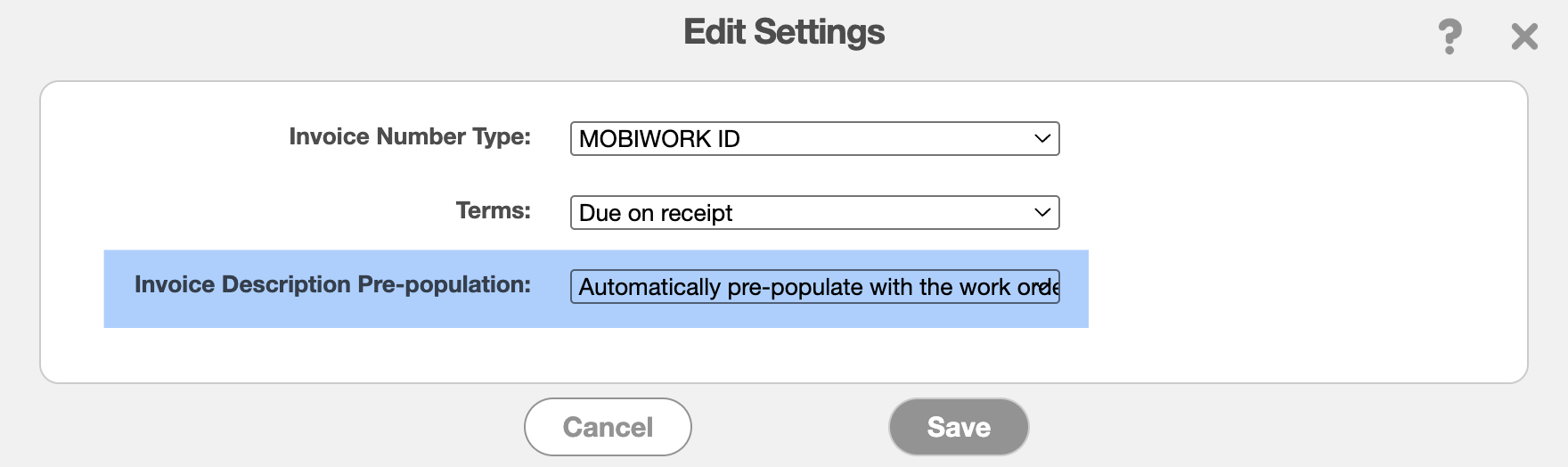
You can choose to:
Automatically populate with the Work Order Description
Automatically populate with the Work Order Completion Form Comment
Remain blank and require manual entry.
These options help streamline invoice creation while ensuring that relevant job details are accurately reflected on customer-facing documents.