
To check out, sign, and pay the invoice, you will first need to access the Invoice page. For more information on how to access this page, please see the Mobile Invoices Layout page:
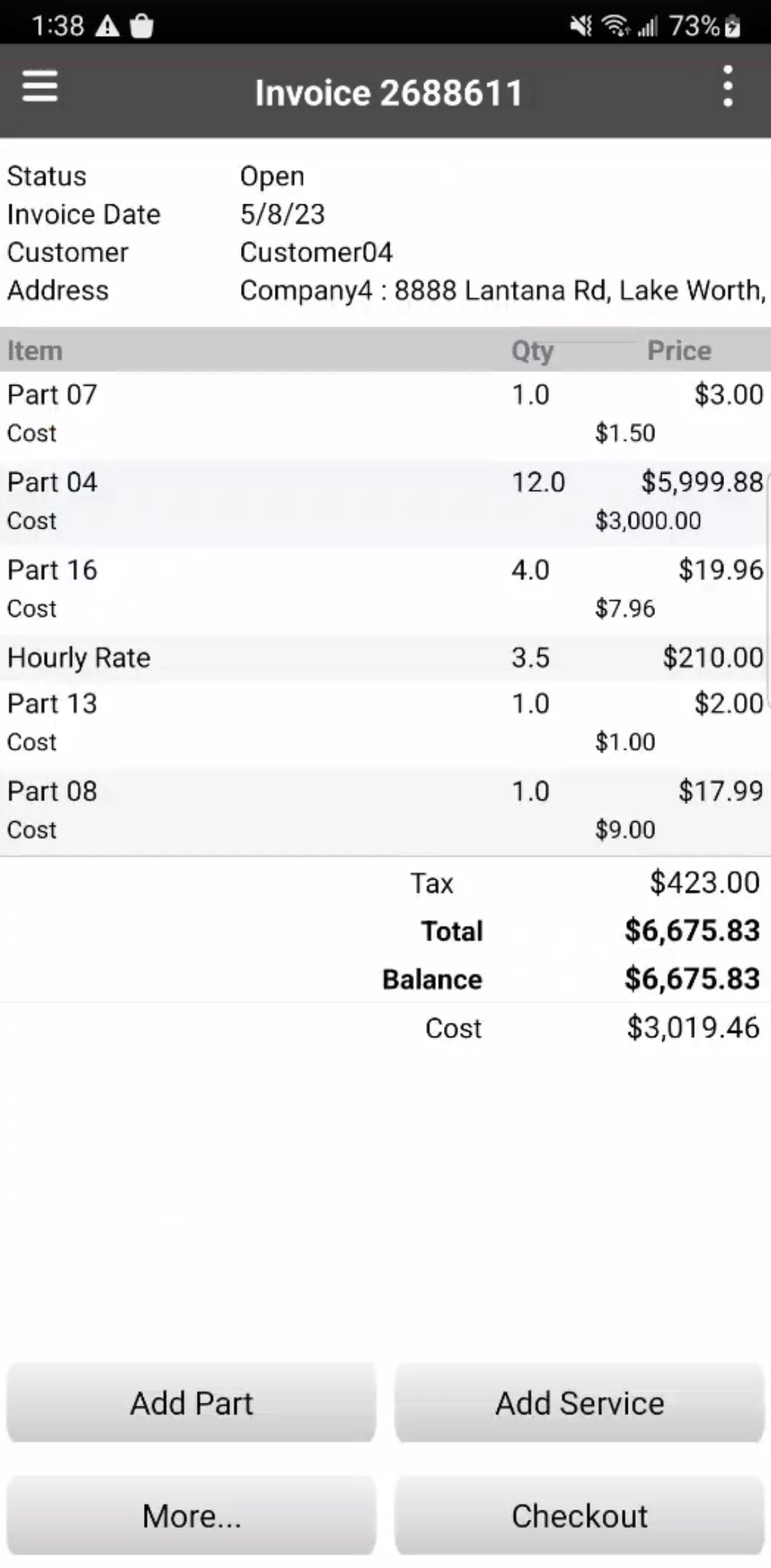
To check out an invoice, press the Check Out tile on the Invoice page. You can only check out an invoice with an "Open" status.
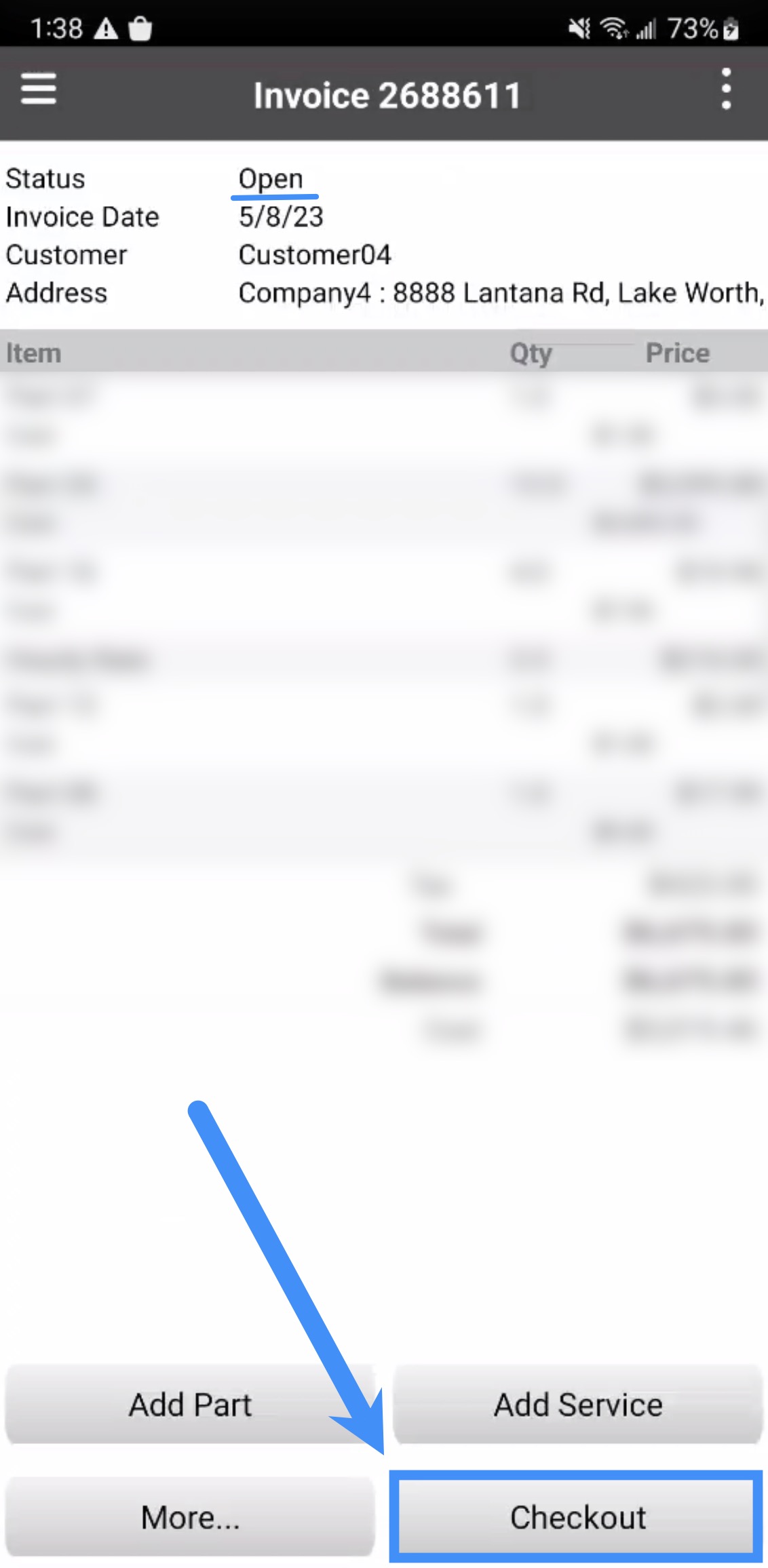
After you press the Check Out tile, a confirmation window will appear asking you to confirm that you want to check out the invoice.
Click the Yes tile to proceed with checking out the invoice.
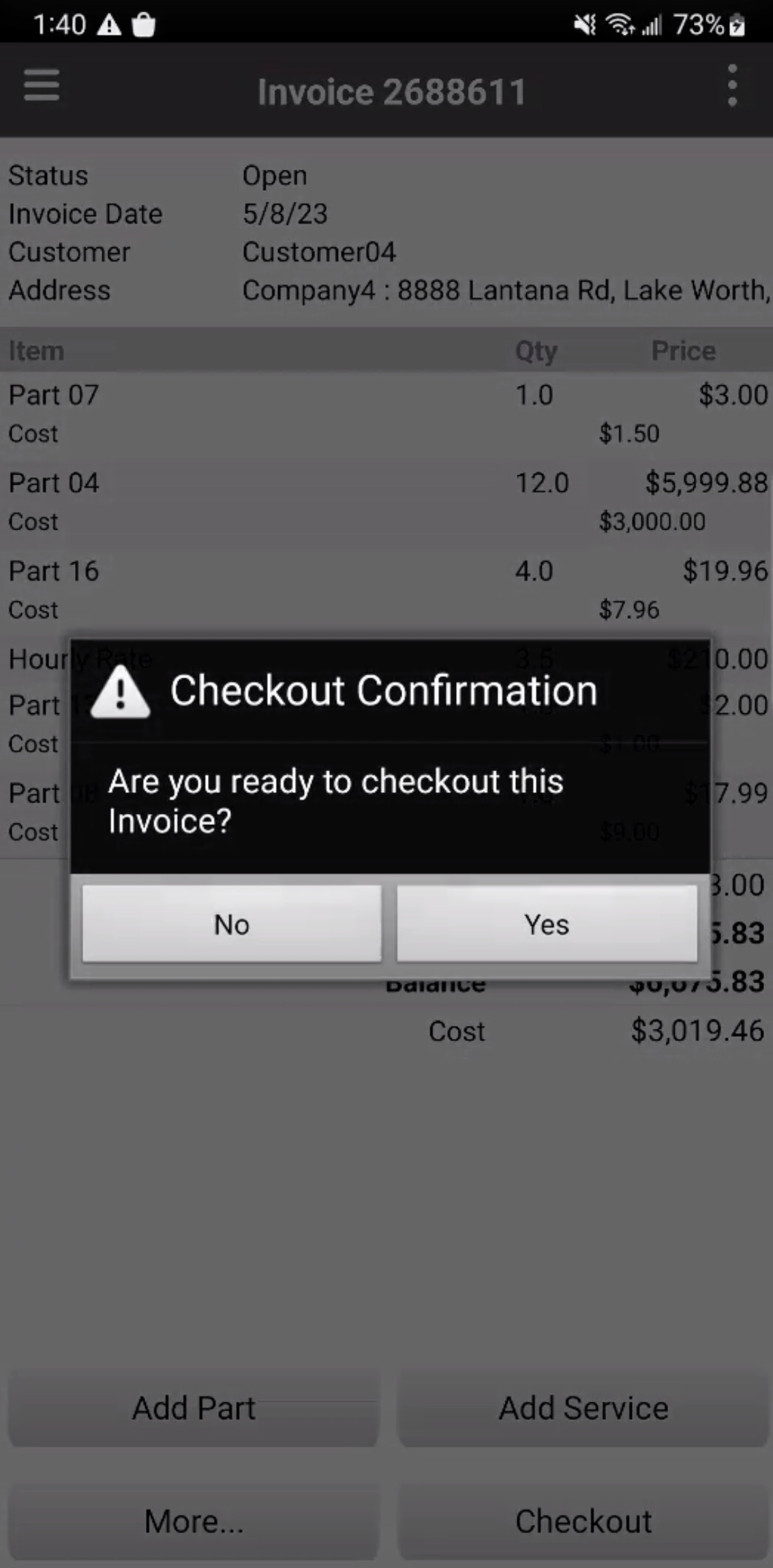
To collect a customer's signature for an invoice, press the More... tile on the Invoice page. From the More... menu, select the Add Signature tile.
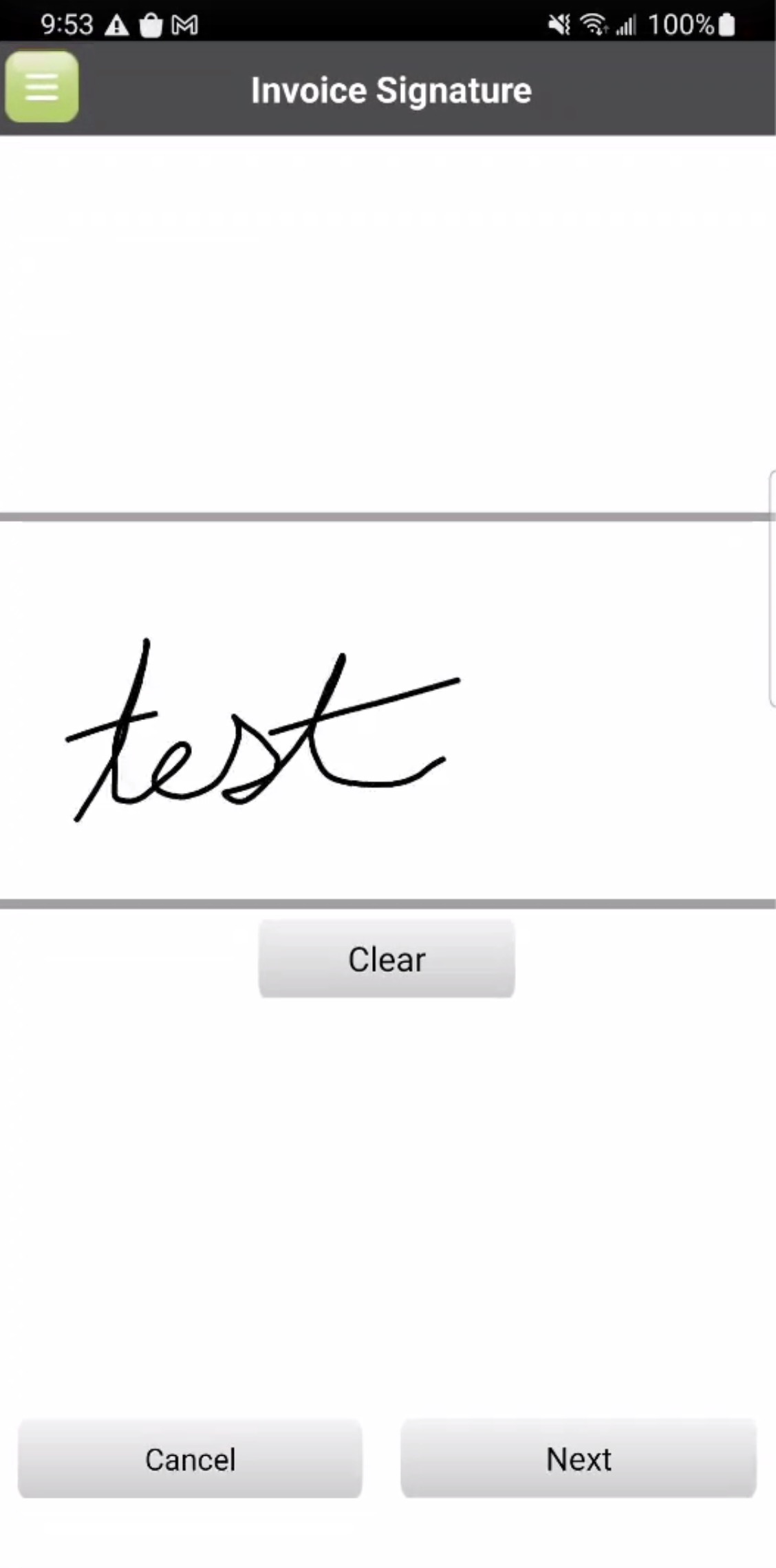
You will be redirected to the Signature page, where your customer can provide their signature:
Once the customer has signed, press the Clear tile to redo the signature or the Next tile to save the signature:
To record a payment for an invoice, first navigate to the Invoice page. You can record payments for invoices with either an "Open" or "Checked Out" status.
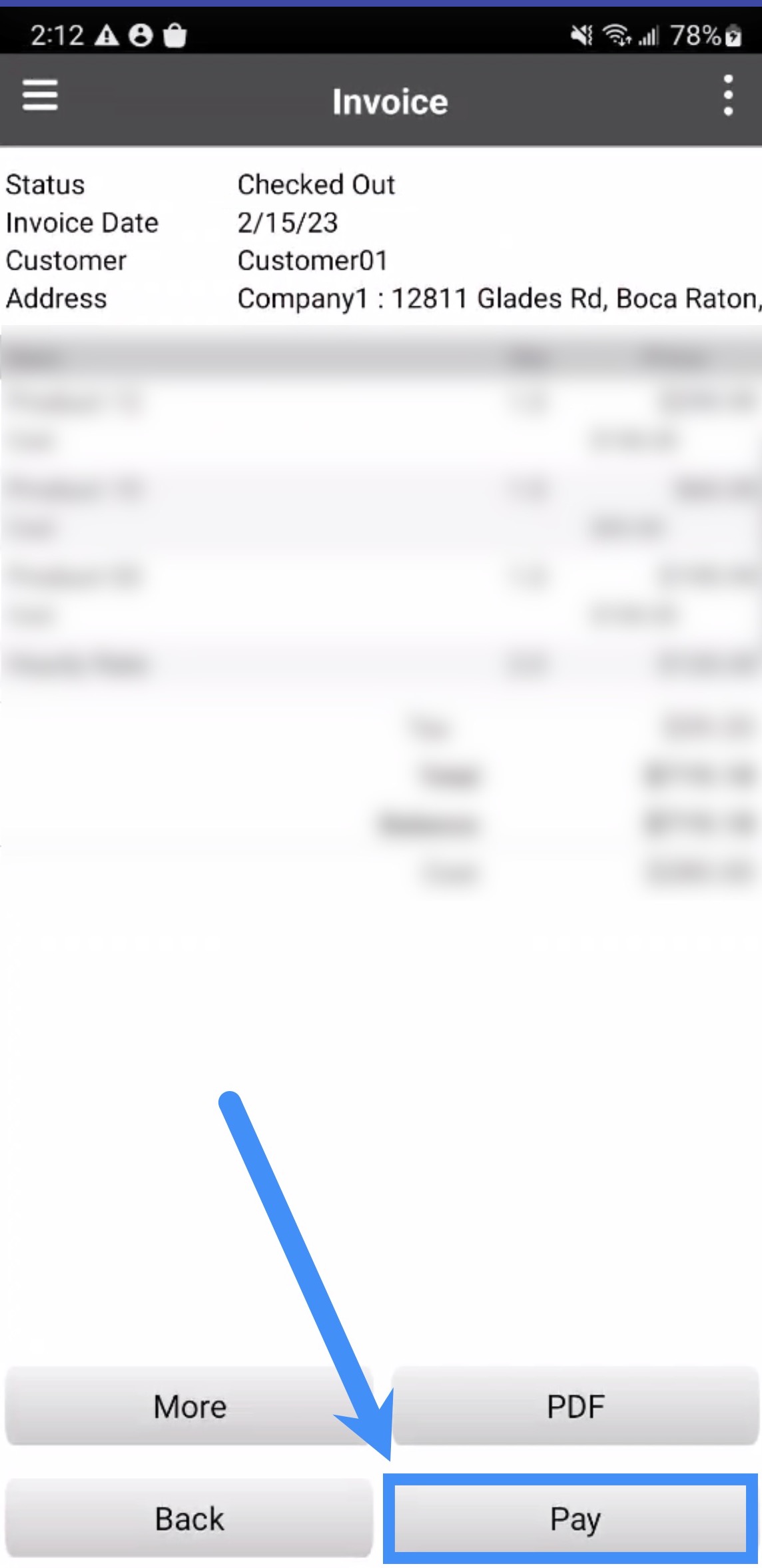
To issue a payment for an invoice, you will first need access the Invoice page. Once you are on the Invoice page, press the Next tile to issue a payment:
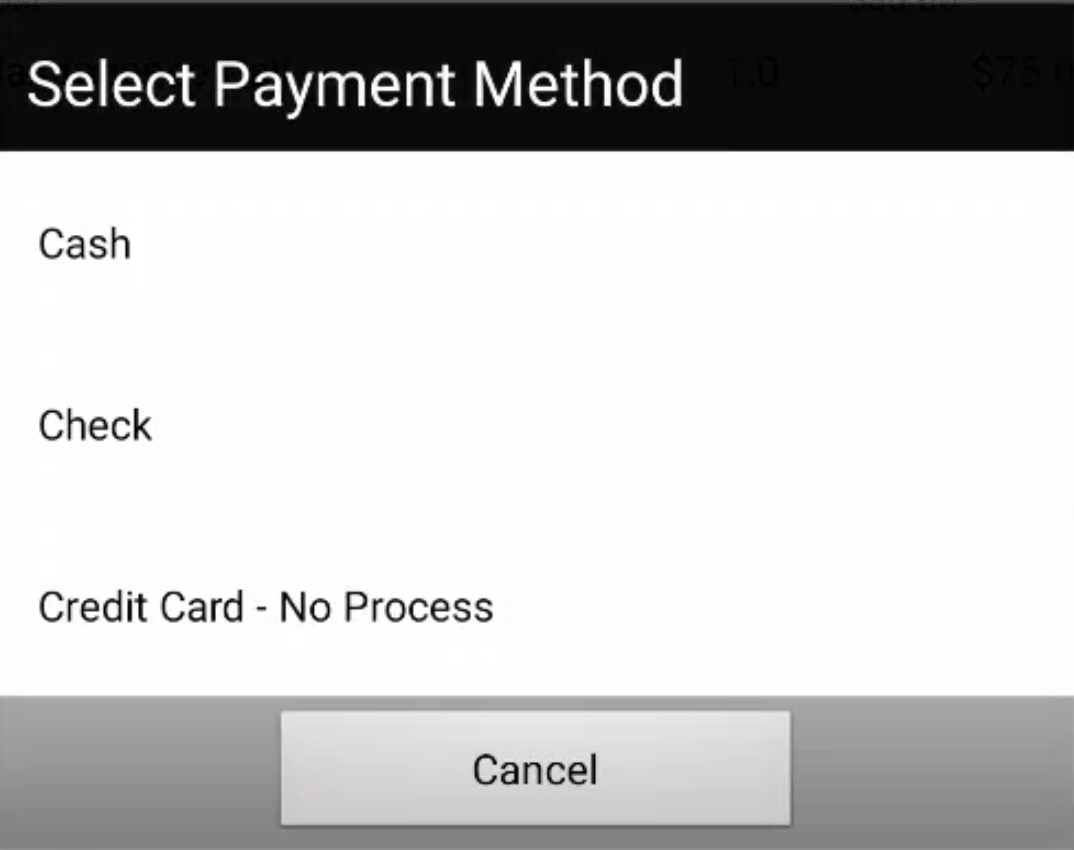
You will then be prompted to select the payment method:
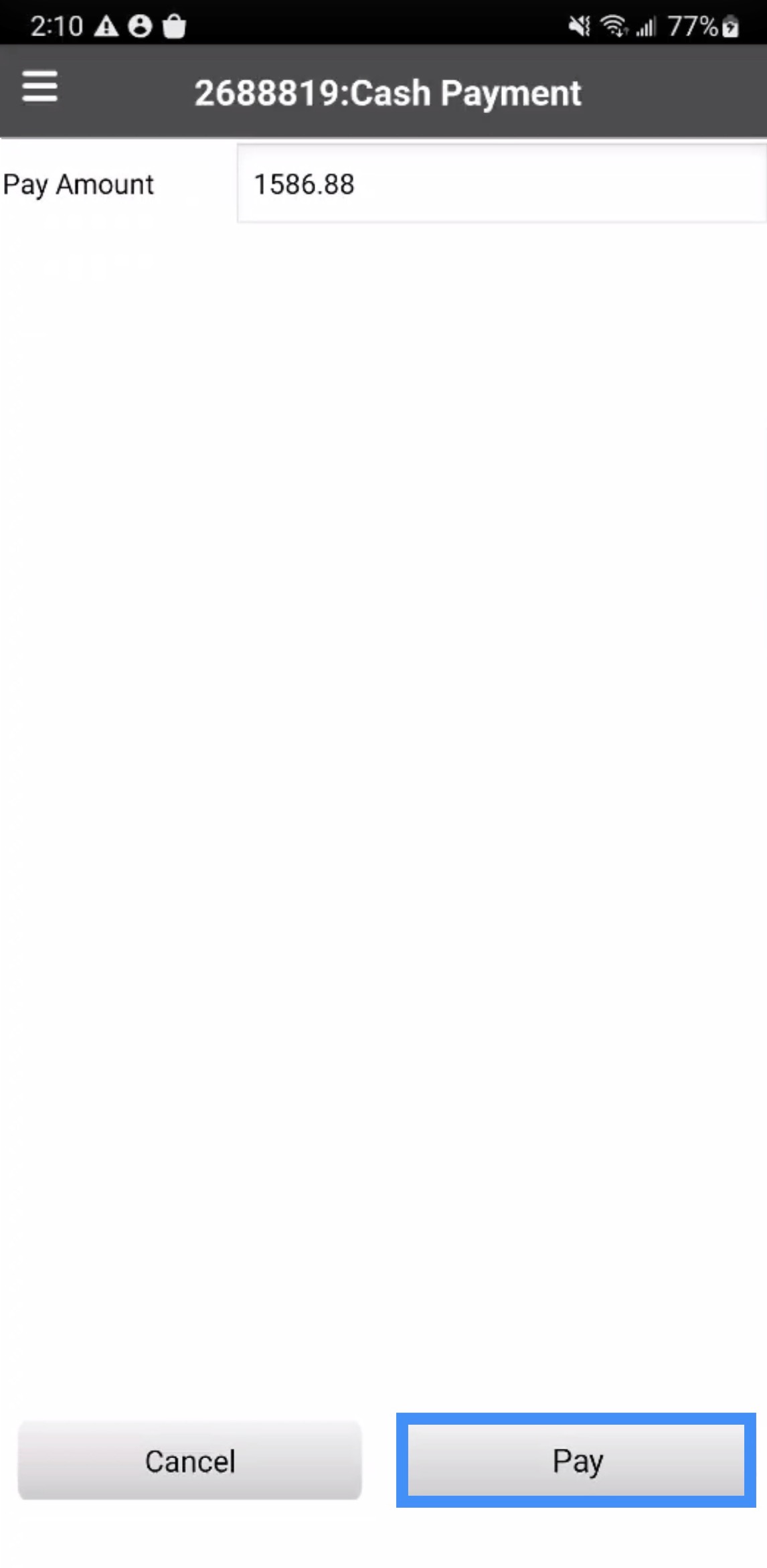
Input the desired payment amount. Once the payment amount is entered, press the Next tile to save the amount:
You will then be redirected back to the Invoice page.
If you would like to use a different payment method than the default methods listed, the appropriate payment method must be set up in your MobiWork account settings. Please see the Add Payment page for additional information.
If you would like to process credit card or ACH payments, first ensure that a payment connector is set up for your MobiWork account. Otherwise the "Credit Card - No Process" and the "ACH - No Process" will only record the transaction for historical purposes. MobiWork has connectors for Braintree, Clearent, and Stripe.
You can easily split payment amounts and methods within the invoice. While issuing a payment for either an open or checked out invoice, select the desired payment method from the "Payment Method" section:
In the Add Payment page enter the desired amount and then press the Next tile to save the payment. Repeat these steps as necessary until the invoice is paid in full:
If you would like to use a different payment method than the default methods listed, the appropriate payment method must be set up in your MobiWork account settings. Please see the Add Payment page for additional information.
If you would like to process credit card or ACH payments, first ensure that a payment connector is set up for your MobiWork account. Otherwise the "Credit Card - No Process" and the "ACH - No Process" will only record the transaction for historical purposes. MobiWork has connectors for Braintree, Clearent, and Stripe.