
To export or import your invoices you will first need to access the Invoice feature page. From the More Actions drop-down select the desired action:
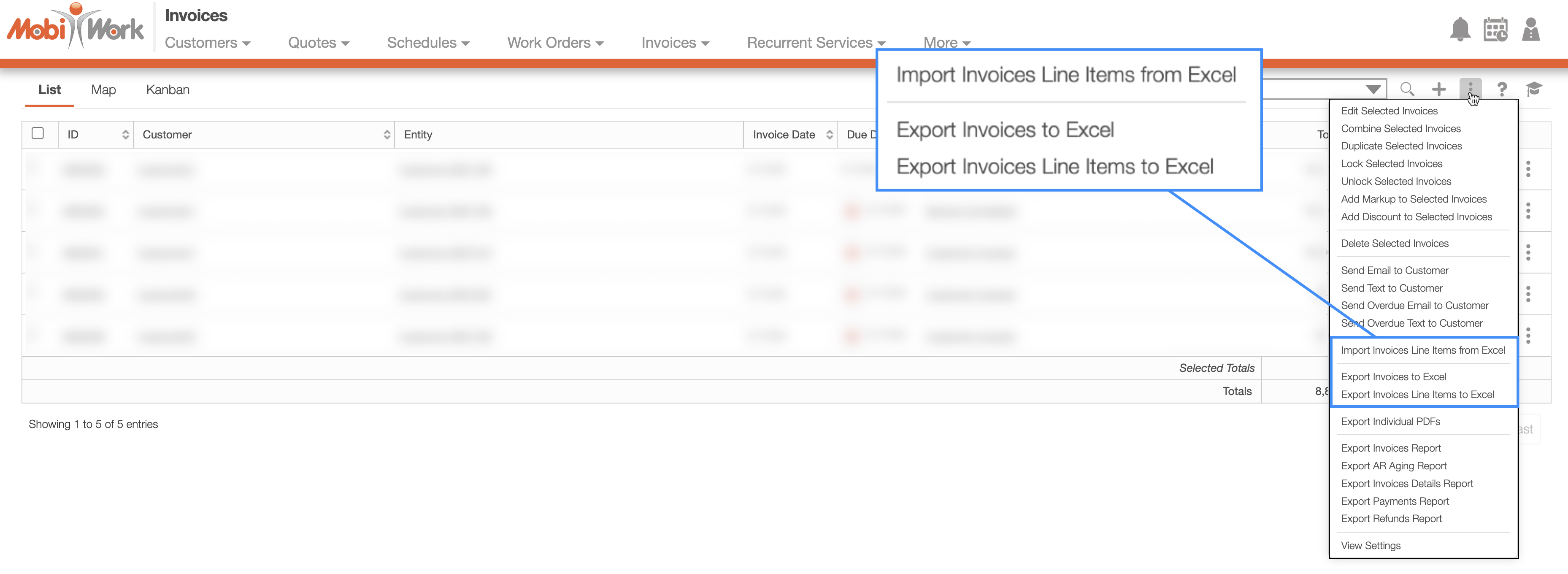
Please see the Invoices List section for more information on how to access this page.
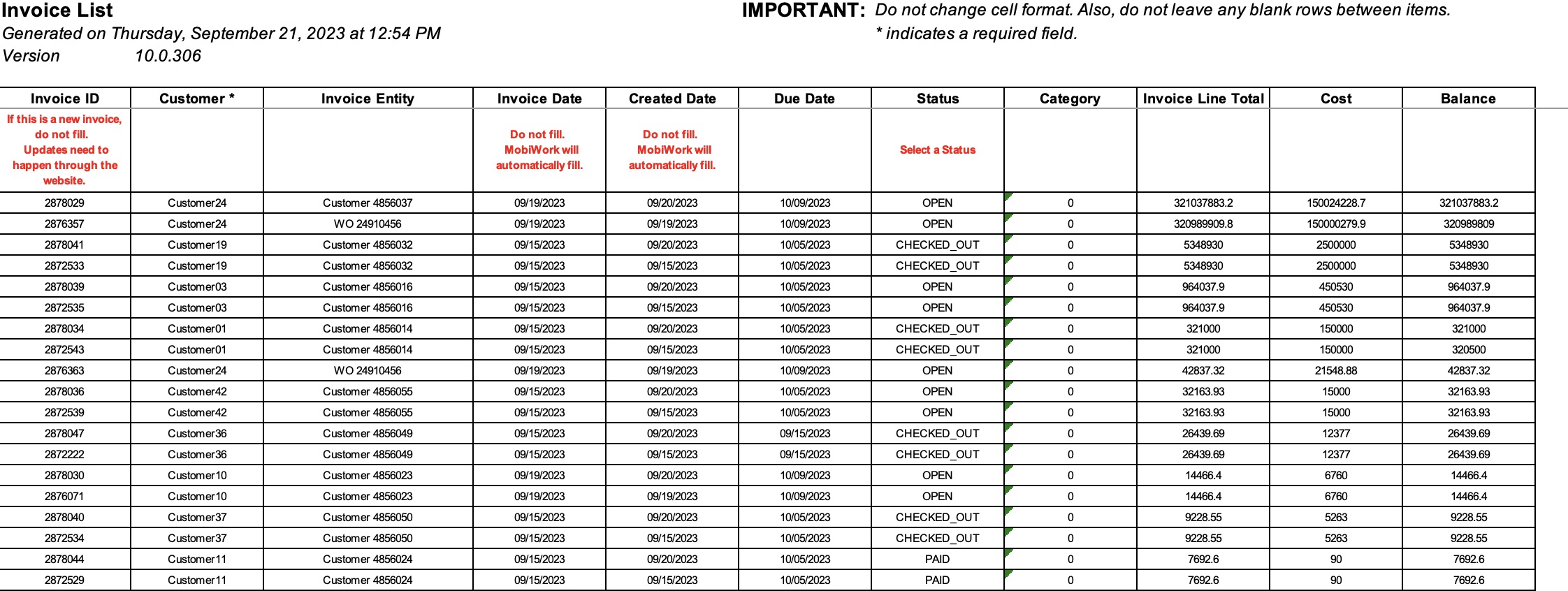
You can import multiple invoices from your Excel document. Please note that to import the invoices correctly, the Excel document must be formatted in the correct manner (please see the image below for the correct headings and order):

Please note that:
Headers marked with an asterisk (*) are required.
Headers marked with two asterisks (**) are conditional and are required if specific criteria are met.
Once you have entered the invoices in the Excel document correctly, you can upload that document to MobiWork:
First, access the Invoice feature page.
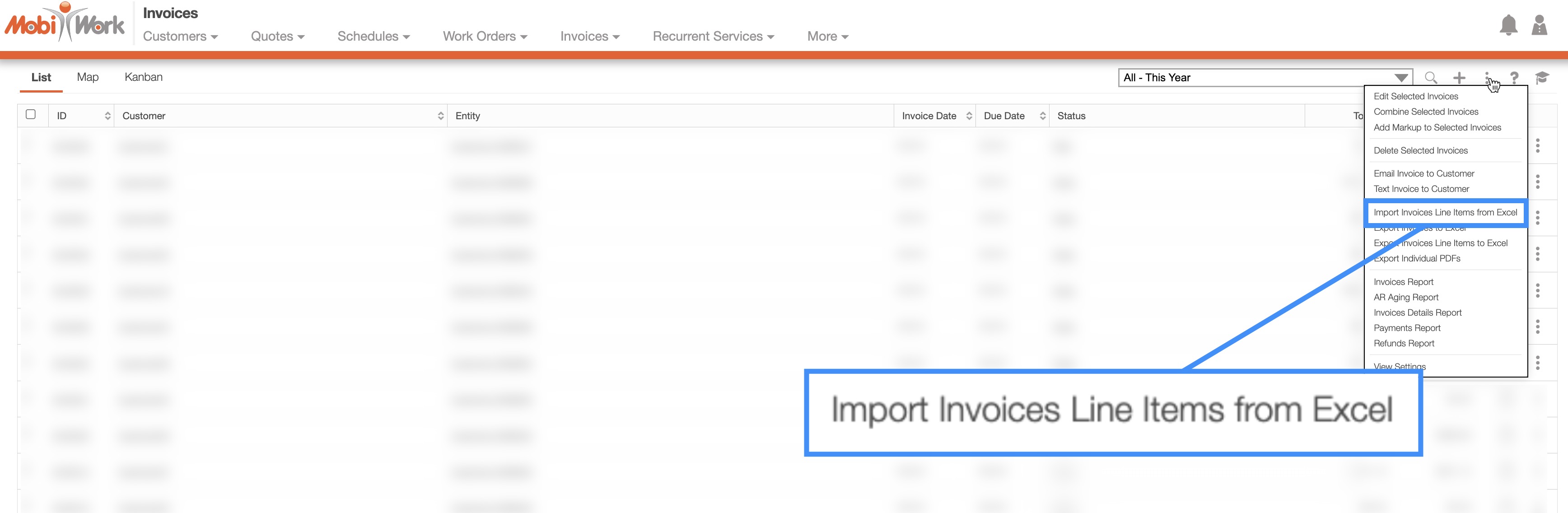
When you are on the Invoice feature page, select the More Actions button and from the drop-down click on the "Import Line Items from Excel" option:
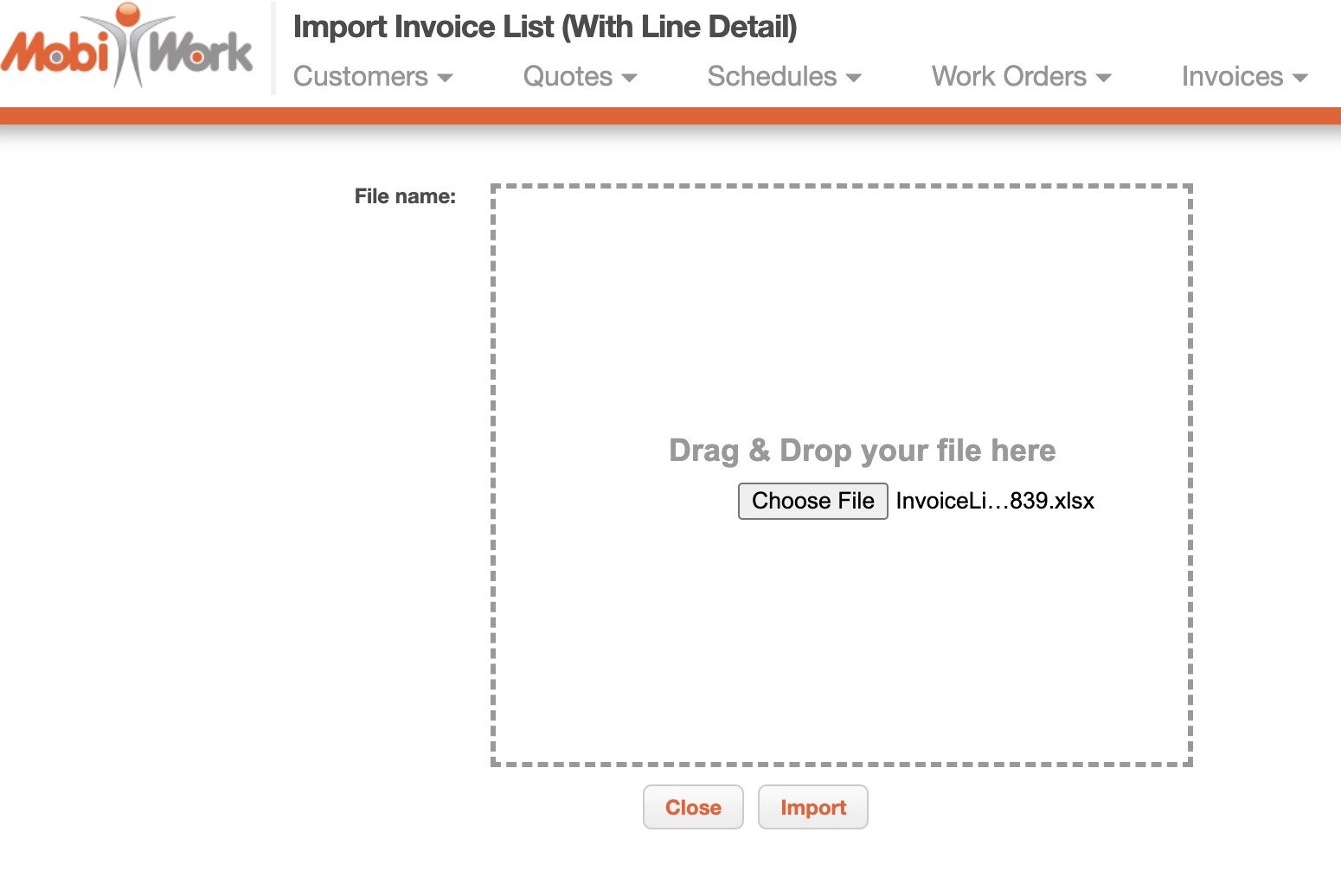
Upload your Excel file to the drag & drop feature and then click on the Import button:
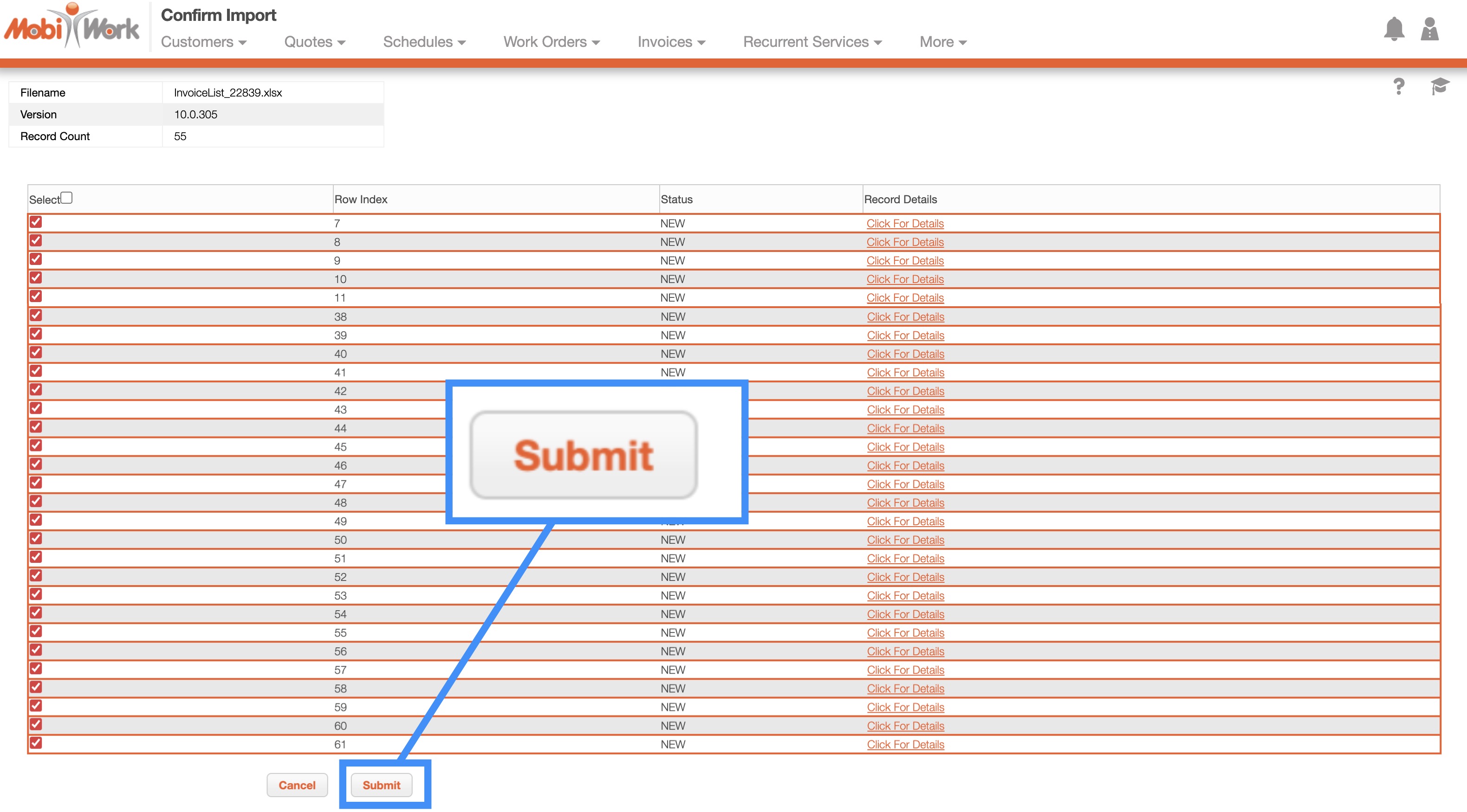
You will then be redirected to the Confirm Import page. Confirm your imported Excel file by hitting the Submit button:
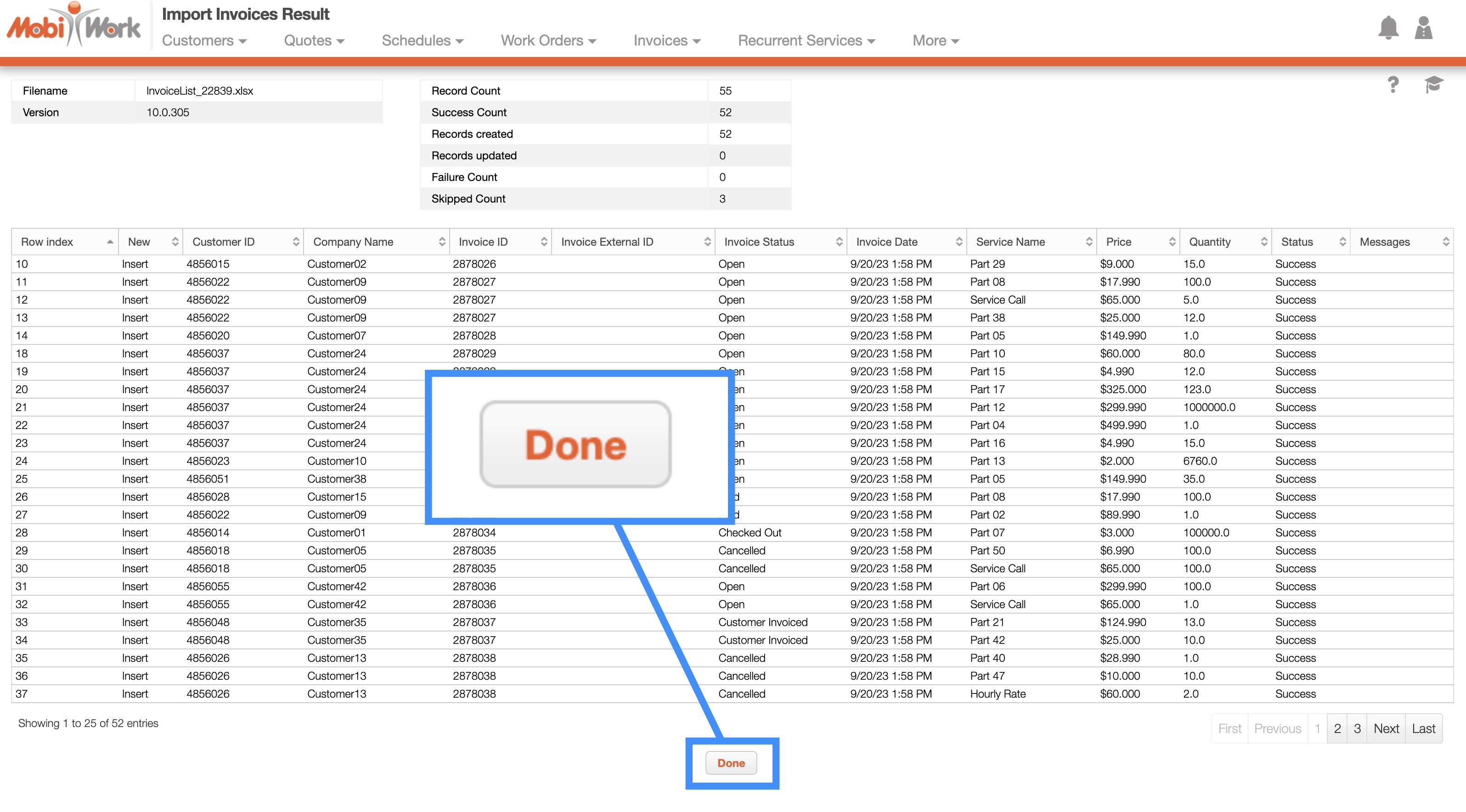
Once you are redirected to the Import Invoices Results page, click the Done button:
The newly uploaded Excel invoices will then be displayed in the Invoice feature page.
Note: Please note that in the Excel document, a double asterisk (**) indicates a conditional field, while a single asterisk (*) denotes a required field.
You can also edit invoices in bulk through Excel; this process will enable you to update more than just the status of the invoices:
First, you would need to select the desired invoices and then select the "Export Invoices Line Items to Excel" or the "Export Invoices to Excel" option.
Once you have the exported file, you can make the changes directly to the Excel document:
Once you are done updating your invoices, you can import the Excel file back into MobiWork.
Note: Please note that if you would like to export all your entries into Excel you can click on the topmost checkbox (Multiple Selection Area). Likewise, if you do not select any entries ALL records will be exported.