
To edit an invoice, you will first need to access the Invoice page. For more information on how to access this page, please see the Mobile Invoices Layout page.
Once you are on this page, select the The Actions Panel tile:

This option will allow you to update key invoice information, including the invoice status, invoice date, due date, tax rate, payment terms, and terms and conditions.
If you would like to update the invoice line items, simply press and hold on the corresponding part or service to access the menu. From this menu, you will be able to edit or remove the part or service from the invoice.
The "Edit" option will allow you to edit the terms of the invoice, in addition to key invoice information, including the invoice status, invoice date, due date, tax rate, and payment terms.
You can access the "Edit" option from the Actions Panel tile:

After pressing on this tile, you will be able redirected to the Edit Invoice page:

Once you are on this page, you will be able to edit the following invoice data:
The status of the invoice (i.e., "Open," "Checked Out," "Service Completed," "Customer Invoiced," "Paid," and "Cancelled")
The date of the invoice
The invoice's payment terms, (e.g., due on receipt, net 15, net 20, etc.). If there are "net" terms and no due date MobiWork will automatically be able to calculate the due date based on the "net" selected.
The date that the payment is due
The tax rate
You can also update the terms and conditions of the invoice. You can use the terms and conditions to outline the specific language and requirements governing the invoice, payment terms, and legal obligations between your business and your customers.
Once you are satisfied with the updated data, press the Save tile to confirm the changes.
Sales Tax Note: Please note that MobiWork partners with Zip Tax. Zip Tax provides, free of charge, over 42,000 sales tax percentages based on the customer’s zip code. MobiWork also partners with Avalara for more advanced sales requirements. For more information about our Avalara connector, please see the Avalara Connector page.
Terms and conditions define the specific terminology, requirements, and provisions that govern an invoice and the associated payment process.
They help clarify payment expectations, including applicable deadlines, payment obligations, and other conditions relevant to the transaction. These invoice terms can be customized to reflect your business policies and the requirements relevant to your customers.
You can edit the invoice's terms and conditions directly from the Actions Panel tile. Simply press on the "Edit T&C" option to access the Invoice Terms & Conditions page.
Once you are on the Invoice Terms & Conditions page, you can enter the corresponding terms and conditions for the invoice.
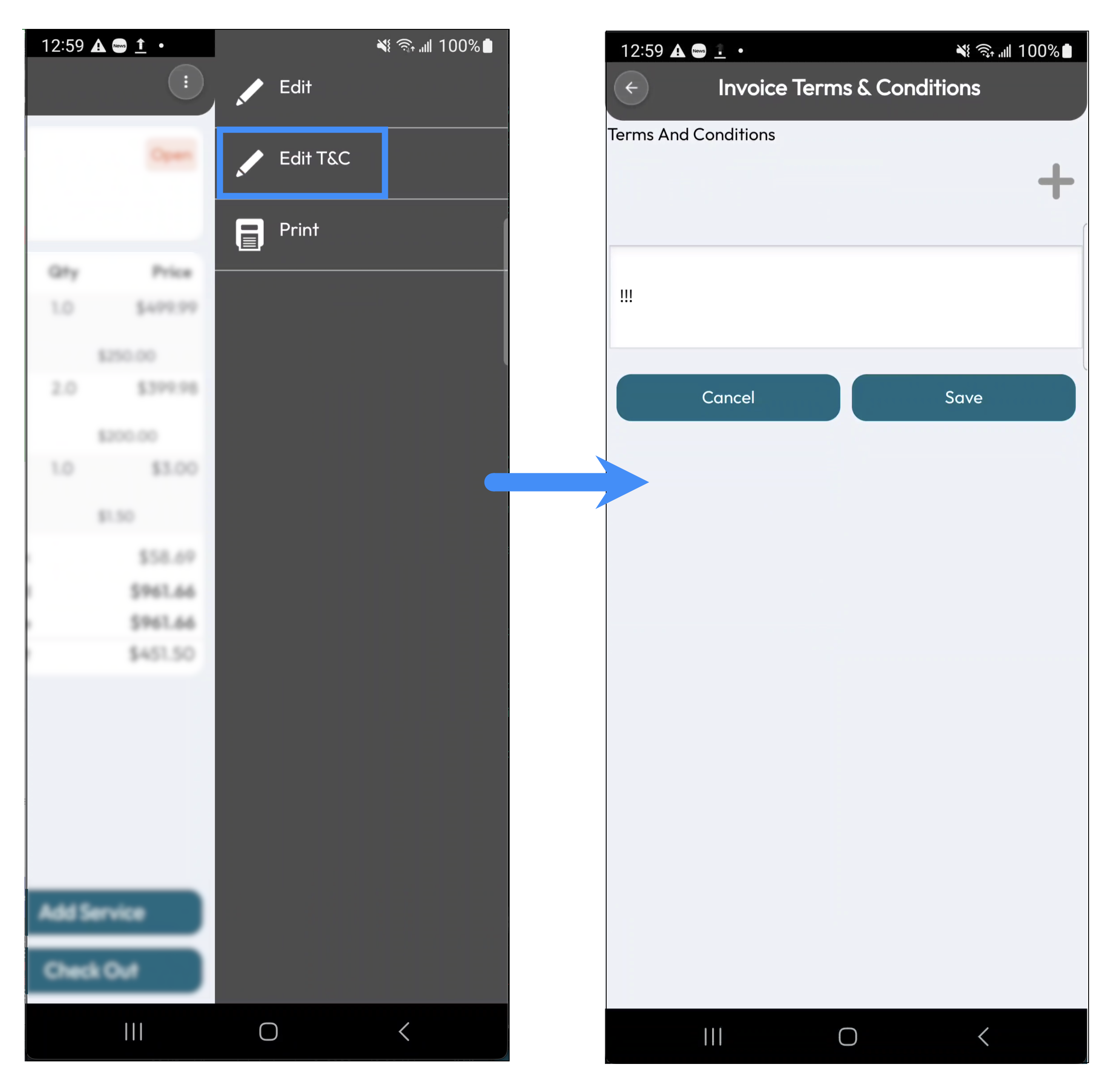
After the terms and conditions have been populated, press the Save button to confirm the updated text has been registered.
To edit or remove a specific invoice item from the Invoice page, press and hold the desired item to access the available options. Please note that the invoice must have an "Open" status for you to edit or remove an invoice item:

Edit Invoice Item
By selecting the "Edit" option from the pop-up that appears, you will be redirected to the item page of the selected product:

On this page, you can update the price, quantity, discount, and description of the selected product:

Once you are satisfied with the updated information, press the Save tile.
Remove Invoice Item
By selecting the "Delete" option from the pop-up that appears, the product or service selected will automatically be removed from the invoice:
