
Progressive invoicing allows you to bill customers incrementally as work progresses, rather than waiting for full project completion or contract finalization. The following steps will highlight how to create a progressive invoice from a quote.
First open the View Quote pop-up window of the desired quote and ensure that all relevant line items and sections are populated in the quote. Click on the Individual Actions of the quote and from the drop down select the "Create Invoice" option:

The Add Invoice pop-up window will then appear:
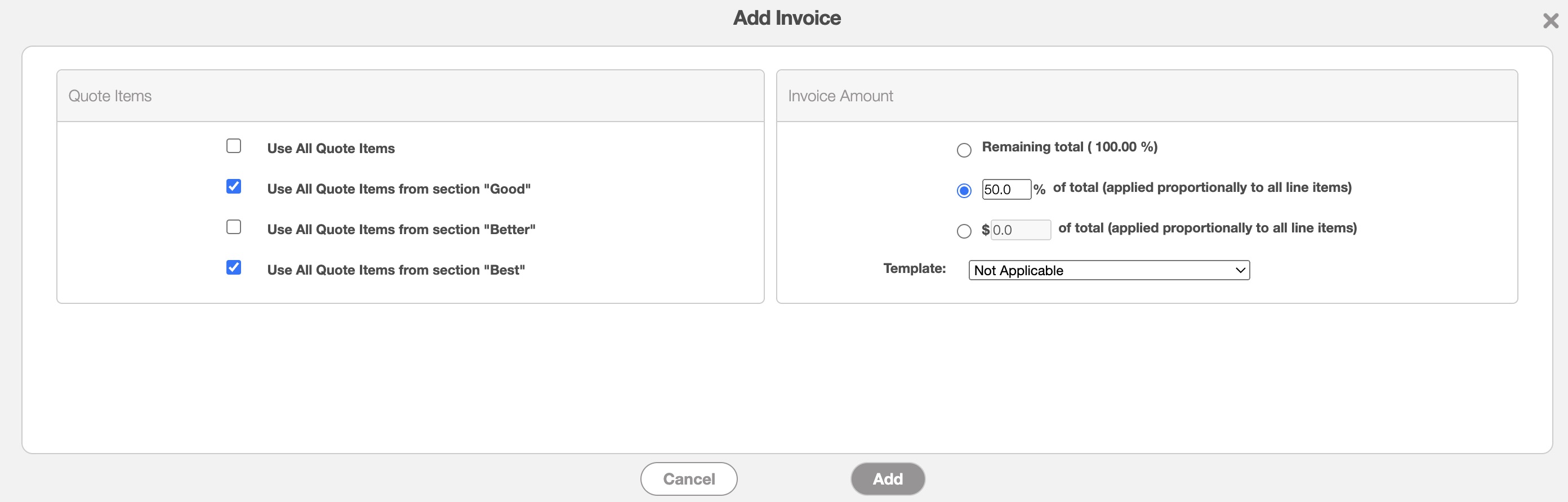
In this pop-up window, you can choose to invoice specific quote sections by toggling them individually, or select "All Quote Items" to include everything in the invoice.
Once created, the invoice will reflect the selected amount or percentage, and it will remain linked to the original quote.
Duplicating an invoice is different from creating or using an invoice template. While templates are ideal if the parameters of the invoice need to be reused on an ongoing basis, duplicating invoices is perfect for reproducing the required details for singular instances.
When duplicating an invoice, key information like the customer, line items, terms and conditions, the deposit required, and billing information will be transferred to the new invoice. Any payment related information (for example the payment method) and notes will not be transferred to the newly duplicated invoice.
You can then adjust the invoice date and status as needed to reflect the new transaction.
You can either duplicate an individual invoice or multiple invoices.
Duplicate a Single Invoice
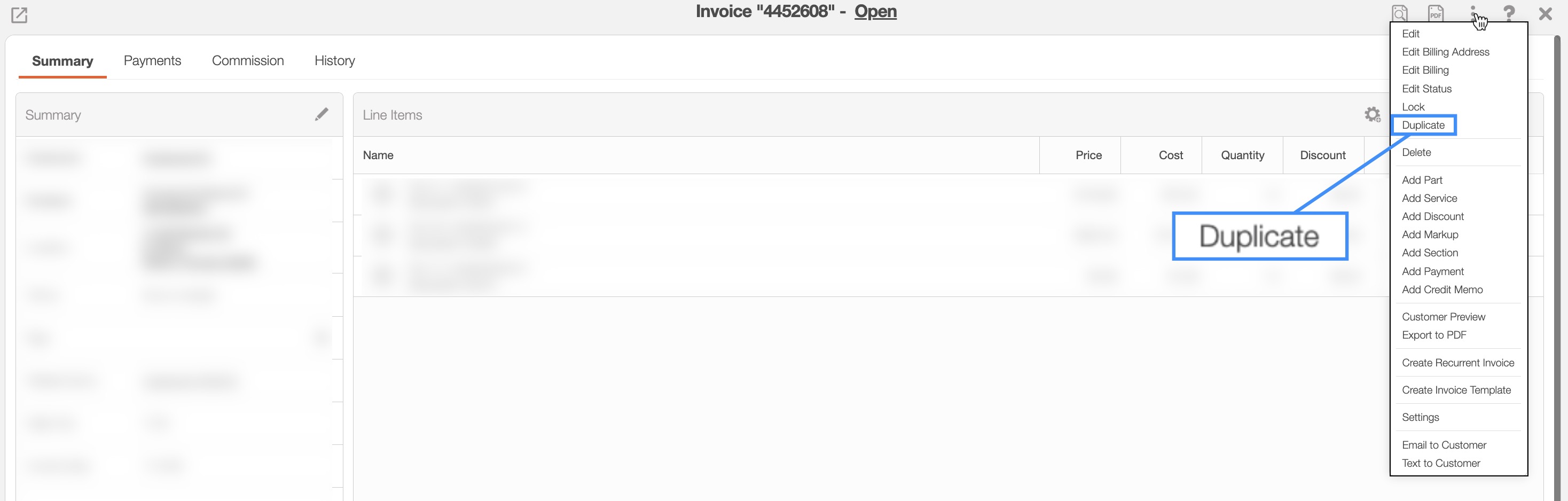
To duplicate a single invoice, you can access the "Duplicate" option by right-clicking on the selected invoice, selecting the option from the Individual Actions drop-down, or directly through the View Invoice pop-up window.
The example below shows how to access the "Duplicate" option from the View Invoice pop-up window:
The Duplicate Invoice pop-up window will then appear:
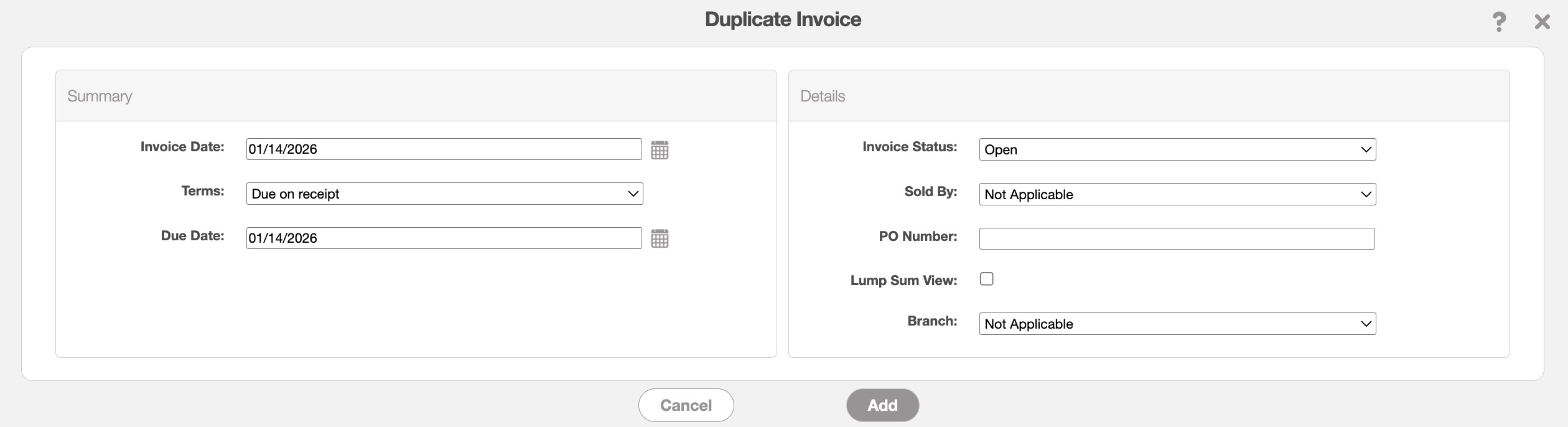
In this pop-up window you can enter the following details for the newly duplicated invoice:
Invoice Date- The date the invoice is generated. The calendar icon to the right of this field can be clicked on to choose a different date.
Terms- Select the Terms of your invoice. The terms and conditions of how the invoice should be paid, (e.g. due on receipt, net 15, net 20, etc.). If there are "net" terms and no due date MobiWork will automatically be able to calculate the due date based on the "net" selected.
Due Date- Enter the payment due date for the invoice. The calendar icon to the right of this field can be clicked on to select a specific date.
Invoice Status- Select the invoice status (i.e. "Open," "Checked Out," "Service Completed," "Customer Invoiced," "Paid," and "Cancelled") For more information about the invoice status please see the View an Invoice page.
Sold By- The user who created or oversees the invoice.
PO Number- Enter the purchase number for the invoice.
Lump Sum View- If you prefer not to display individual prices and costs for line items, you can use the "Lump Sum View" option.
The invoice will then be generated with the cloned details from the original invoice; these replicated details include the customer, line items, and more.
Duplicate Multiple Invoices
To duplicate multiple invoices, simply access the Invoice List page. Click on the More Actions button, and from the drop-down select the "Duplicate Selected Invoices" option:
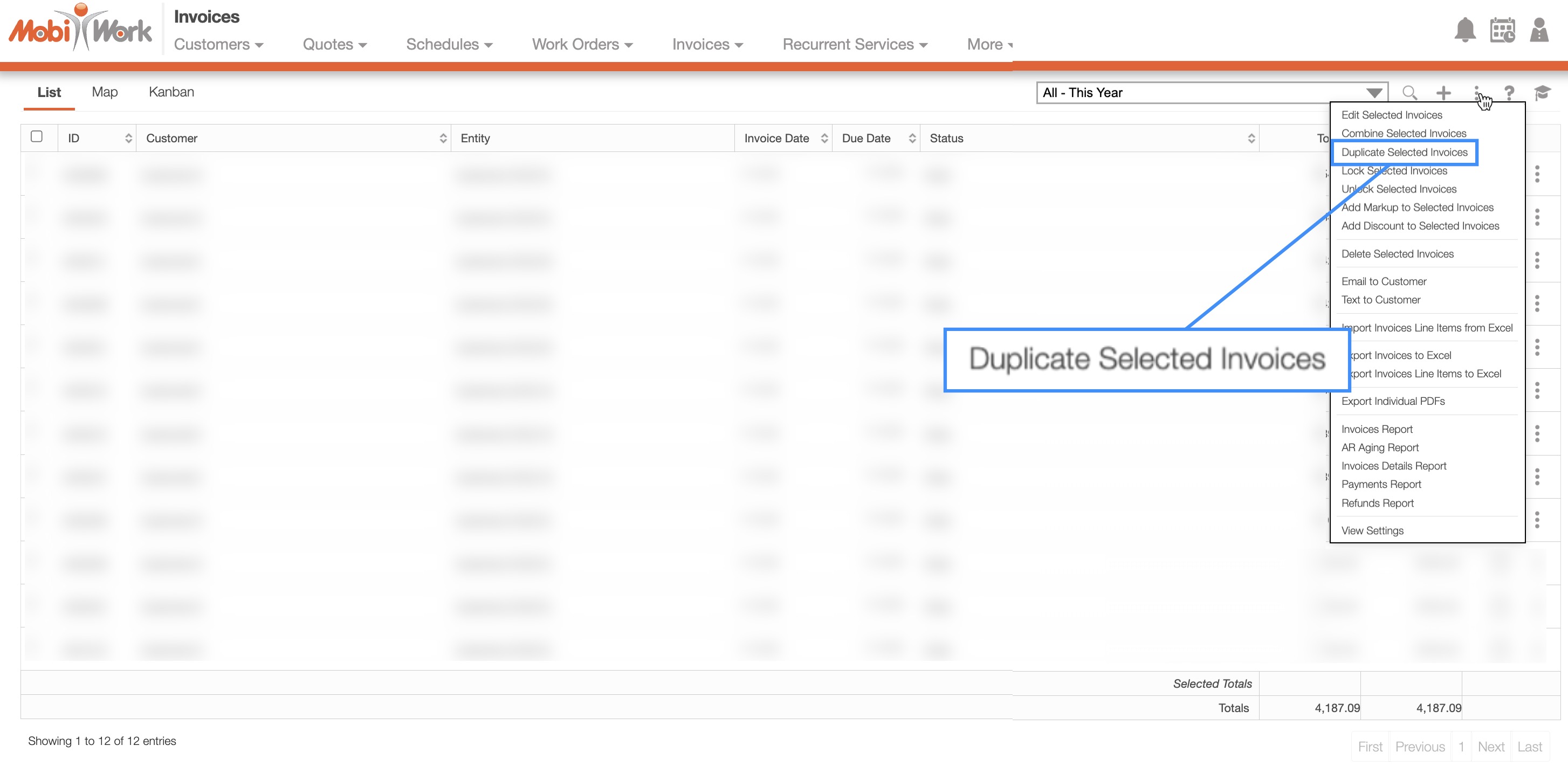
The Duplicate Selected Invoices pop-up window will then appear:
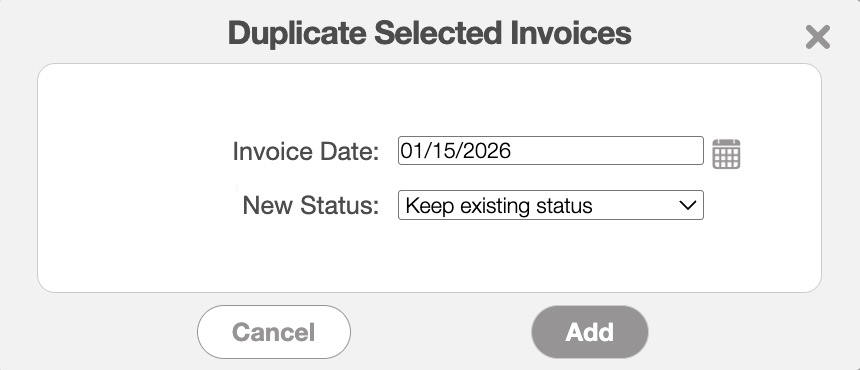
In this pop-up window, enter the new invoice date and status as desired and then click the Add button to confirm. The invoice will then be generated with the cloned details from the original invoice; these replicated details include the customer, line items, and more.
Duplicating an invoice is different from creating or using an invoice template. While templates are ideal if the parameters of the invoice need to be reused on an ongoing basis, duplicating invoices is perfect for reproducing the required details for singular instances.
When duplicating an invoice, key information like the customer, line items, terms and conditions, the deposit required, and billing information will be transferred to the new invoice. Any payment related information (for example the payment method) and notes will not be transferred to the newly duplicated invoice.
You can then adjust the invoice date and status as needed to reflect the new transaction.
You can either duplicate an individual invoice or multiple invoices.
Duplicate a Single Invoice
To duplicate a single invoice, you can access the "Duplicate" option by right-clicking on the selected invoice, selecting the option from the Individual Actions drop-down, or directly through the View Invoice pop-up window.
The example below shows how to access the "Duplicate" option from the View Invoice pop-up window:
The Duplicate Invoice pop-up window will then appear:
In this pop-up window you can enter the following details for the newly duplicated invoice:
Invoice Date- The date the invoice is generated. The calendar icon to the right of this field can be clicked on to choose a different date.
Terms- Select the Terms of your invoice. The terms and conditions of how the invoice should be paid, (e.g. due on receipt, net 15, net 20, etc.). If there are "net" terms and no due date MobiWork will automatically be able to calculate the due date based on the "net" selected.
Due Date- Enter the payment due date for the invoice. The calendar icon to the right of this field can be clicked on to select a specific date.
Invoice Status- Select the invoice status (i.e. "Open," "Checked Out," "Service Completed," "Customer Invoiced," "Paid," and "Cancelled") For more information about the invoice status please see the View an Invoice page.
Sold By- The user who created or oversees the invoice.
PO Number- Enter the purchase number for the invoice.
Lump Sum View- If you prefer not to display individual prices and costs for line items, you can use the "Lump Sum View" option.
The invoice will then be generated with the cloned details from the original invoice; these replicated details include the customer, line items, and more.
Duplicate Multiple Invoices
To duplicate multiple invoices, simply access the Invoice List page. Click on the More Actions button, and from the drop-down select the "Duplicate Selected Invoices" option:
The Duplicate Selected Invoices pop-up window will then appear:
In this pop-up window, enter the new invoice date and status as desired and then click the Add button to confirm. The invoice will then be generated with the cloned details from the original invoice; these replicated details include the customer, line items, and more.