
To send an invoice to a customer, first access the Invoice page. For more information on how to access this page, please see the Mobile Invoices Layout page.
Once you are on the Invoice page, select the More tile to access the available email and text messaging options.

There are two different ways you can email an invoice to your customer from your mobile device; you can use either the "Email Invoice to Customer" option or the "Send Overdue Email to Customer" option.
You can access the "Email Invoice to Customer" or the "Send Overdue Email to Customer" option if the invoice status is set to "Checked Out."
If the invoice status is set to "Open" then you will only be able to access the "Email Invoice to Customer" option.
The following subsections will go into further detail about these two different methods.
Email Invoice to Customer
The Send Email to Customer tile allows you to email the invoice to the customer for their review and payment:
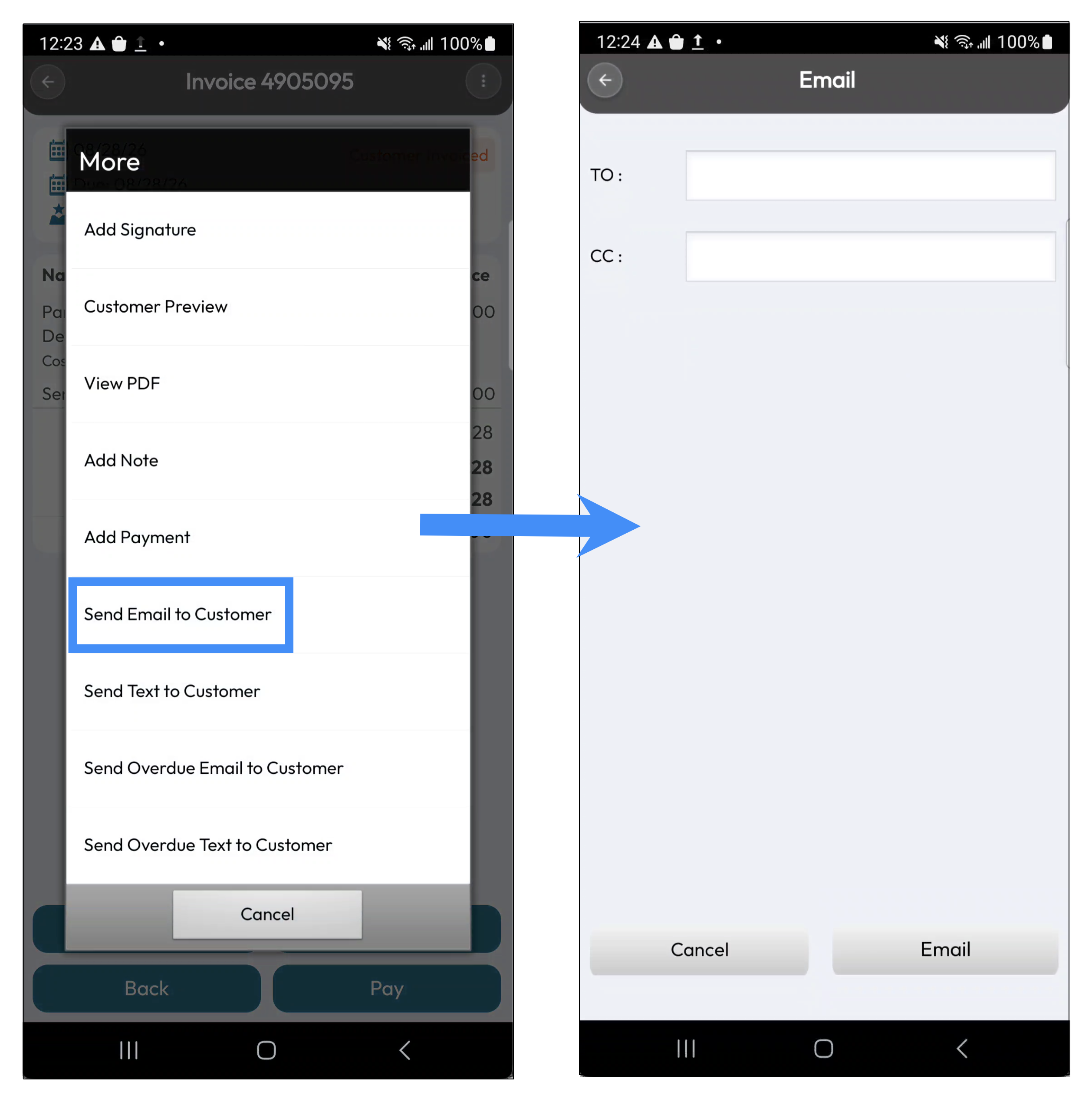
This action is available regardless of the current status of the invoice.
Your customer will then be sent the following email message and payment link:

Please note that if you want to change the message that is displayed in the email, you will need to modify it in the Invoices Settings page. For more information on how to access this page, please see the Settings page.
Send Overdue Email to Customer
The Send Overdue Email to Customer tile allows you to email the invoice to the customer for their review and payment:
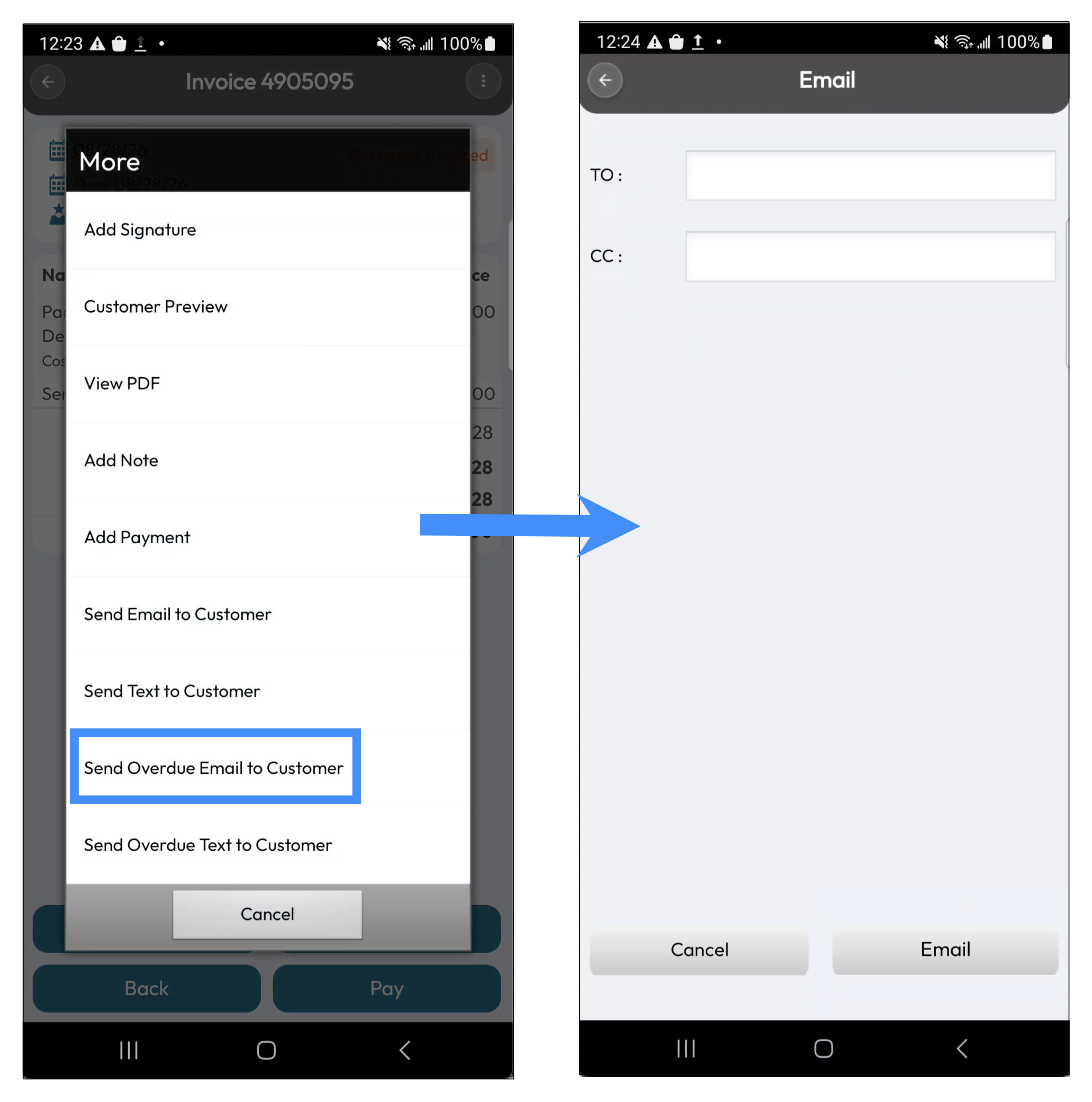
The Send Overdue Email to Customer tile is only available for invoices with a "Customer Invoiced" or with a "Checked Out" status.
When you are ready to send your email, press the Email tile.
Your customer will then be sent the following email message and payment link:

Please note that if you want to change the message that is displayed in the email, you will need to modify it in the Invoices Settings page. For more information on how to access this page, please see the Settings page.
The "Send Text to Customer" or the "Send Overdue Text to Customer" will allow you to text your customer their invoice and corresponding payment link.
Once you select this option, you will be redirected to the SMS page; the customer's phone number will automatically populate the "TO:" field.
When you are ready to send your text message, press the Send tile.
Please note that if you want to change the message that is displayed in the text message, you will need to modify it in the Invoices Settings page. For more information on how to access this page, please see the Settings page.
Send Text to Customer
The Send Text to Customer tile allows you to text the invoice to the customer for their review and payment:
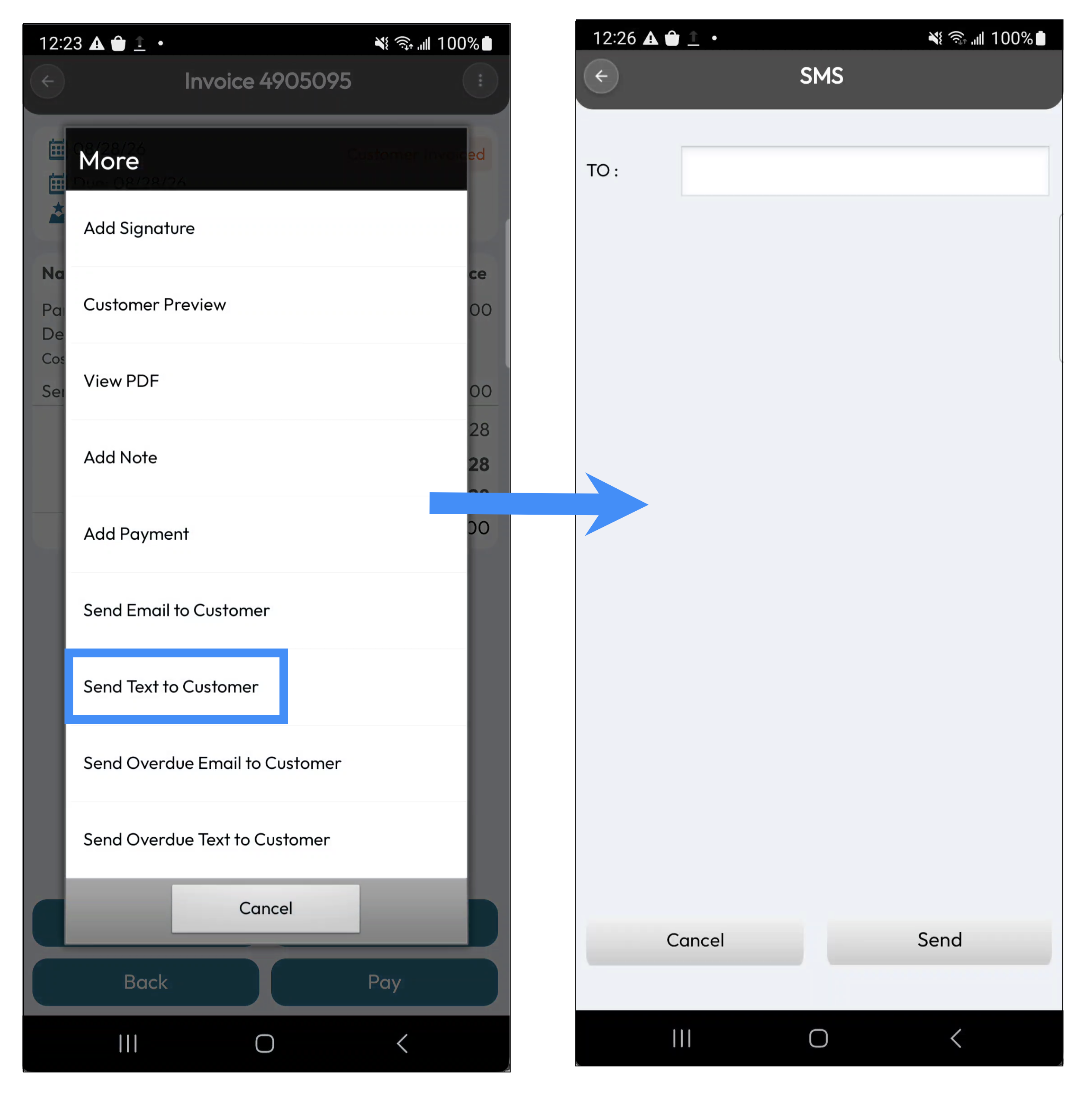
To ensure that the text message can be sent to your customer, you will first need to make sure that:
You have a Text Message Connector installed in your MobiWork Web Application.
And that the customer has a cell phone number associated with their profile.
Please see the MobiWork Features and Texting page for more information about texting. The Send Text to Customer is available regardless of the current status of the invoice.
Send Overdue Text to Customer
The Send Overdue Text to Customer tile allows you to text the invoice to the customer for their review and payment:
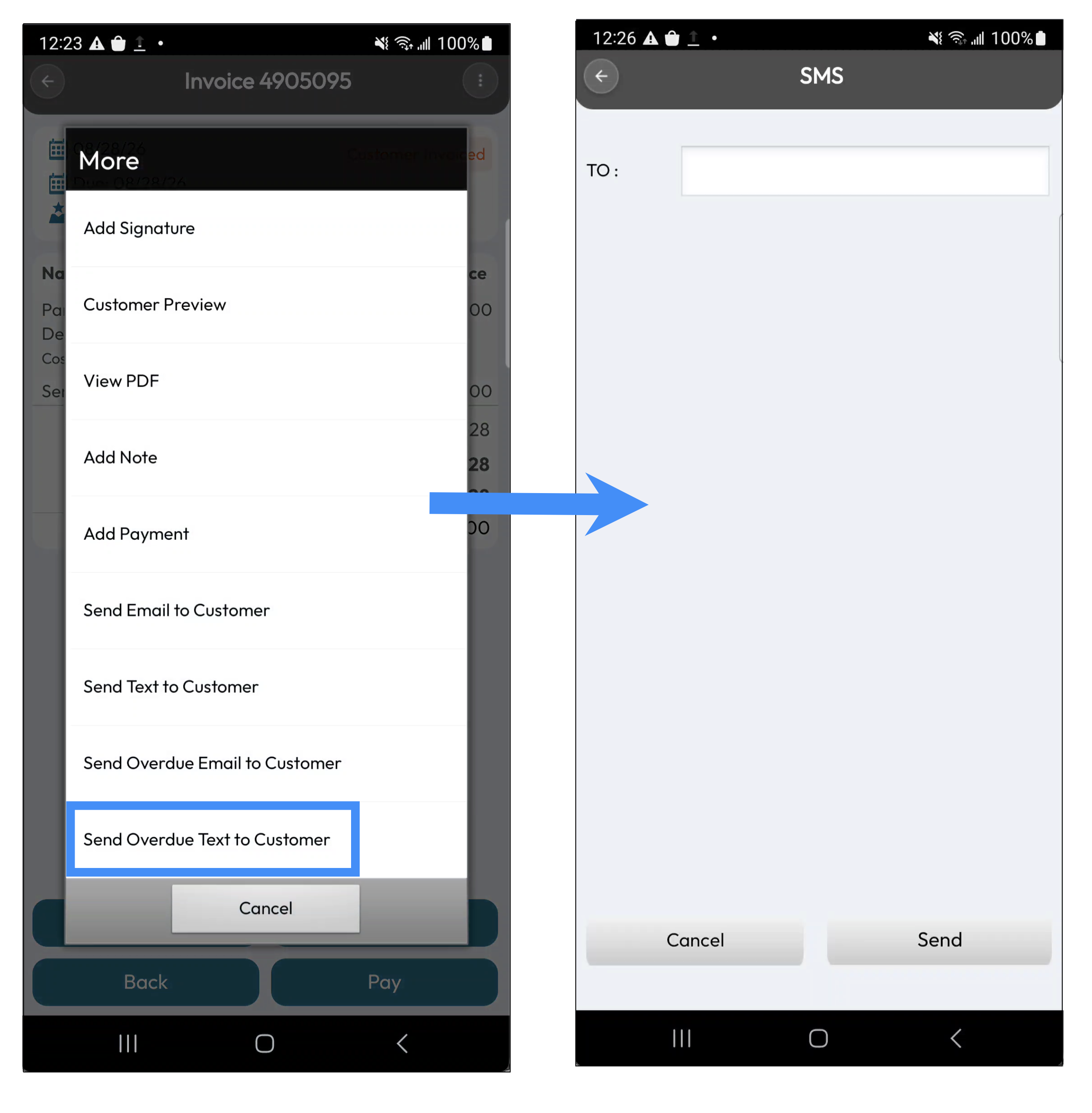
To ensure that the text message can be sent to your customer, you will first need to make sure that:
You have a Text Message Connector installed in your MobiWork Web Application.
And that the customer has a cell phone number associated with their profile.
Please see the MobiWork Features and Texting page for more information about texting. The Send Overdue Text to Customer tile is only available for invoices with a "Customer Invoiced" or with a "Checked Out" status.