
To access the "Invoice - Overdue and Upcoming" dashboard panel, navigate to your MobiWork dashboard page.
On this page, click on the "Dashboard Panel" drop-down and select the "Invoice - Overdue and Upcoming" dashboard panel; the page will then refresh with the updated information:
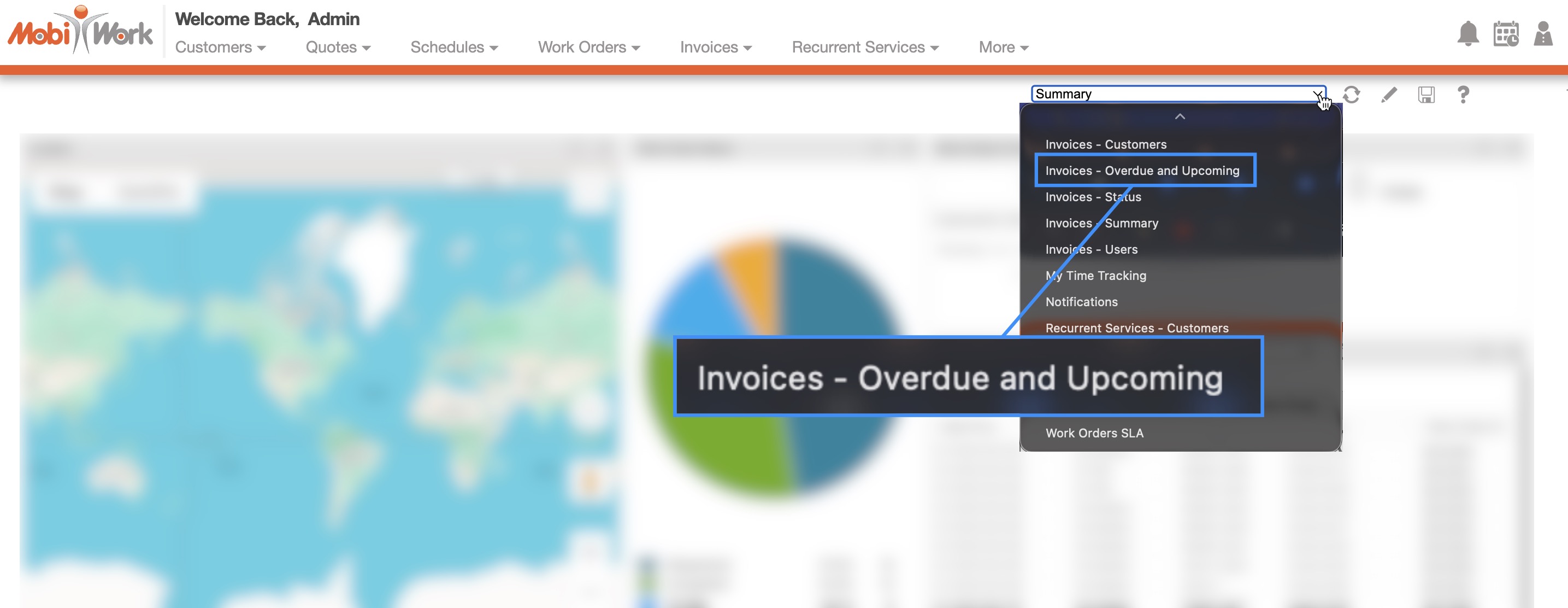
With the "Invoice - Overdue and Upcoming" dashboard panel, you can quickly glean the date range of your overdue invoices:
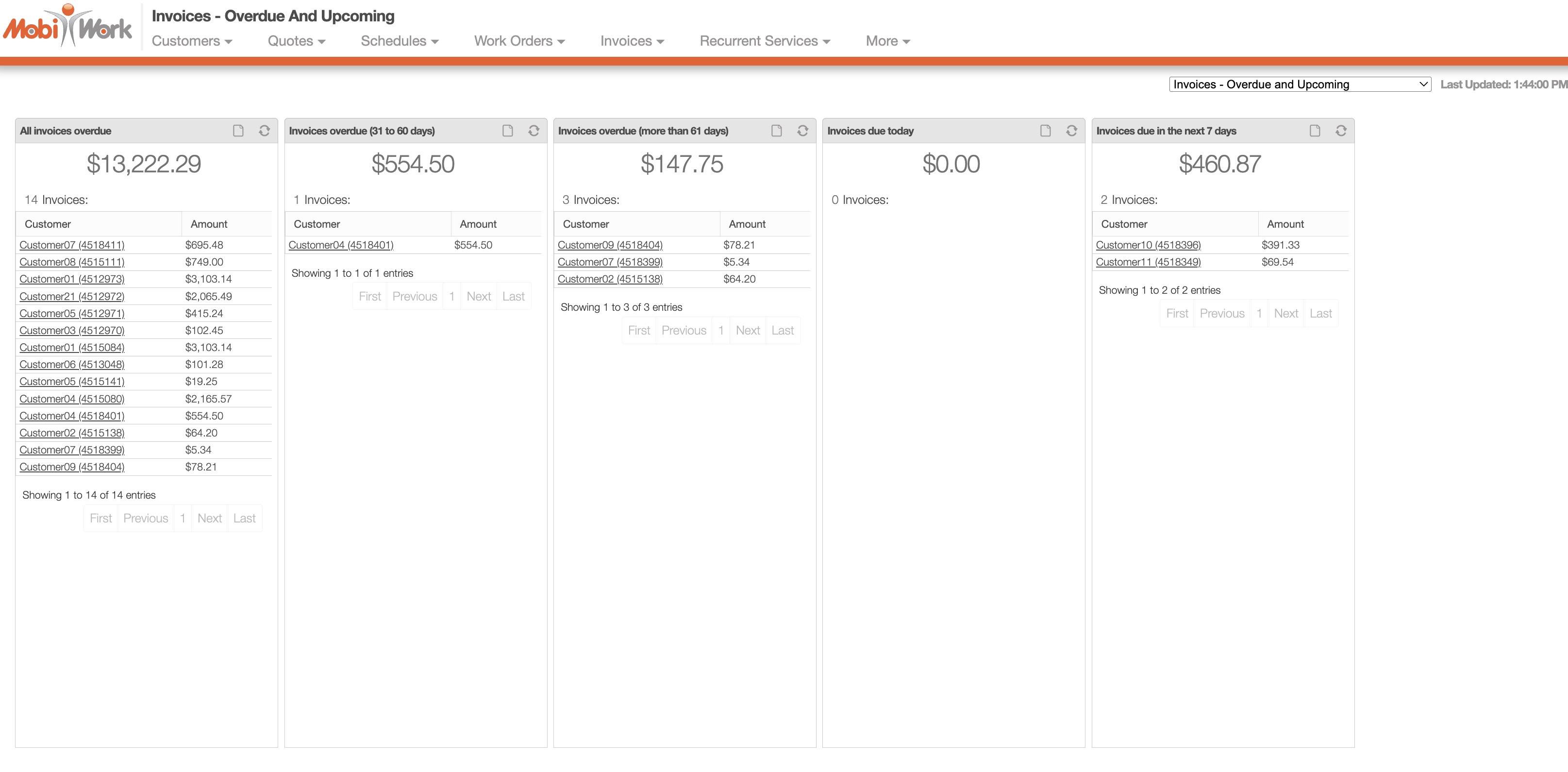
The dashboard panel will display:
All Invoices Overdue- Will display all invoices that are currently overdue regardless of the invoice date.
Invoices Overdue (31 to 60 days)- This column will display invoices that are overdue from the last 31 to 60 days.
Invoices Overdue (more than 61 days)- Invoices that are overdue more than 61 days will be displayed here.
Invoices Due Today- Will display invoices with an invoice date that is due today.
Invoices Due in the Next 7 Days- Displays invoices that are due in the next seven days.
The "Invoice - Overdue and Upcoming" dashboard uses the data from the "Invoice Date" field to populate the designated kanban columns.
Note: Please note, that in order for the invoice to appear on the dashboard the invoice status must be set to "Customer Invoiced." If the invoice status is not set accordingly, then the invoice will not appear in the "Invoice - Overdue and Upcoming" dashboard panel.
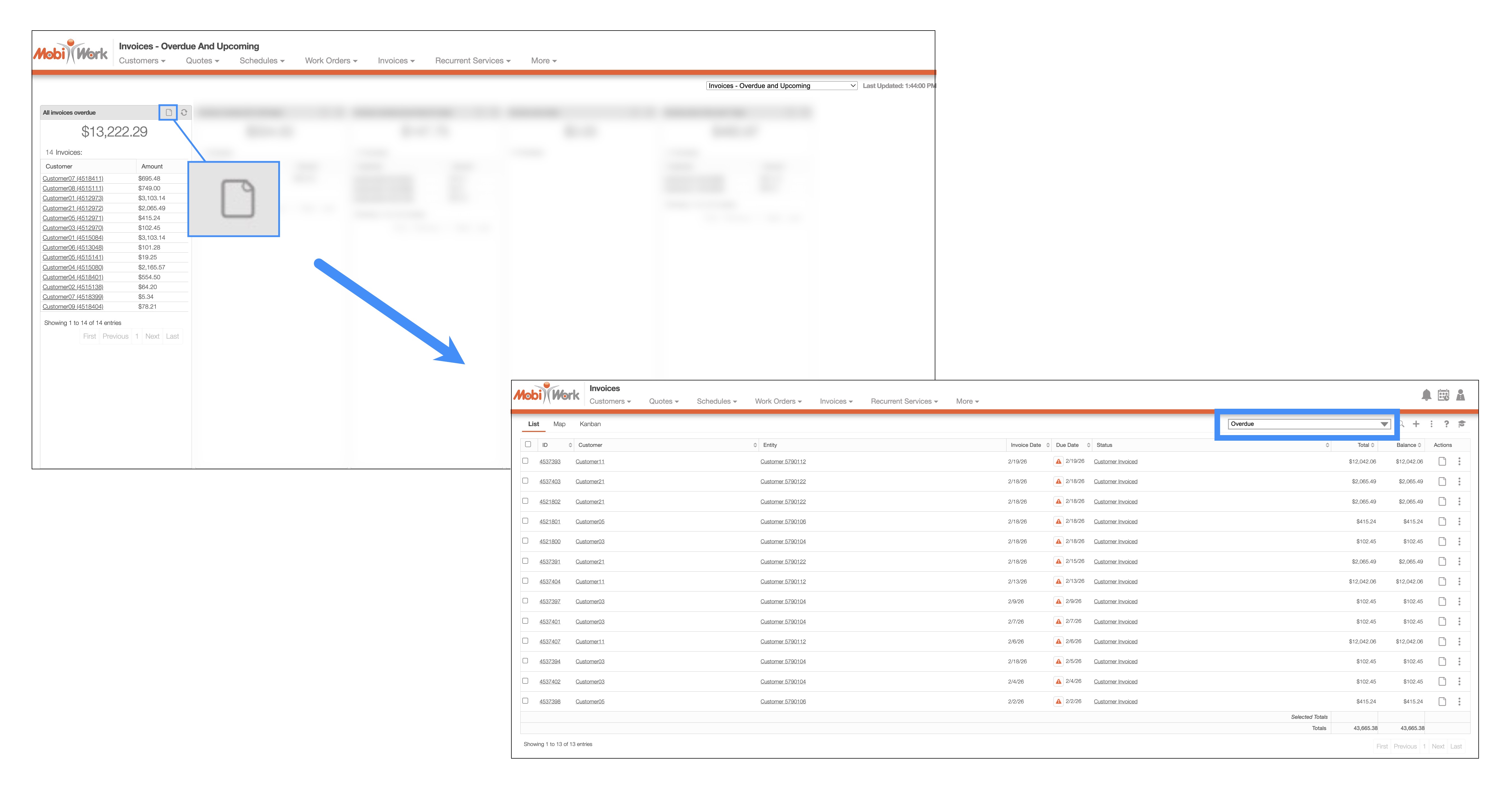
Clicking the View icon will redirect you to the Invoice List page with the appropriate predefined saved search applied. For example, selecting the "All Overdue Invoices" dashboard will open the Invoice List page filtered to display all overdue invoices:
If you cannot access the "Invoice - Overdue and Upcoming" dashboard, please contact us to have it enabled for your account.
On the Invoices List page you will be able to quickly access and view your overdue invoices from the saved search drop-down menu:
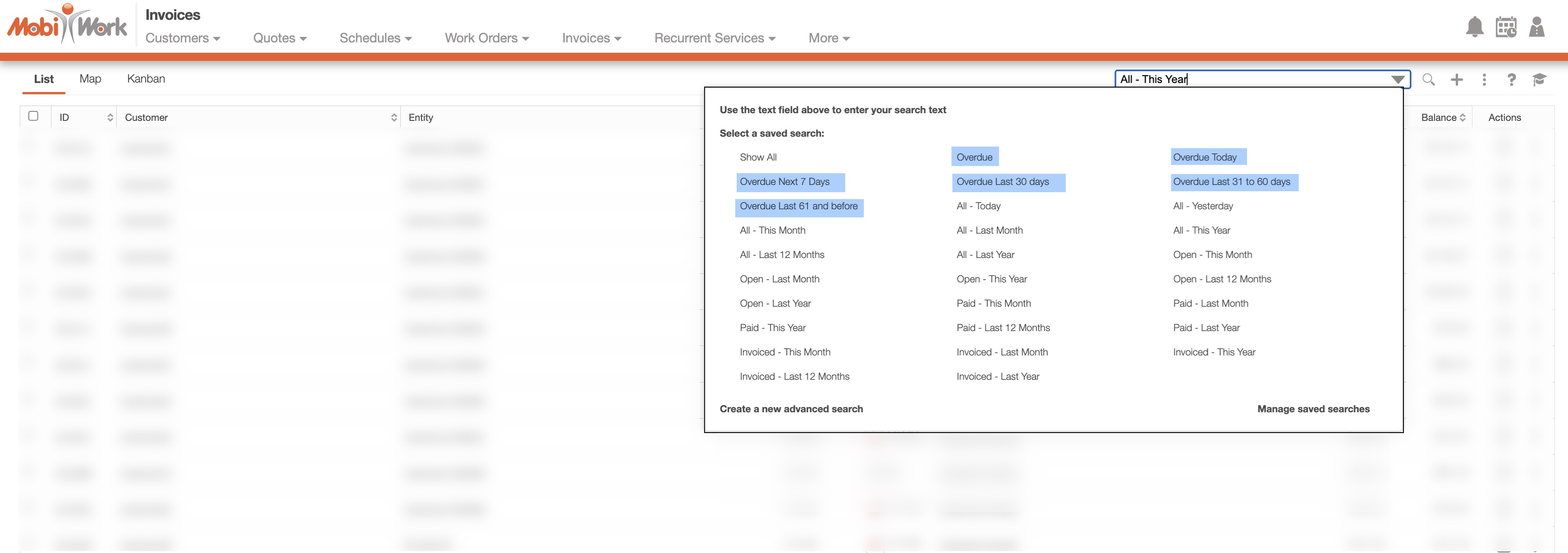
By selecting a predefined search, the Invoices List page will display invoices that match the selected criteria; for example, choosing the "Overdue Today" saved search will show all invoices with an "Invoice Date" set to the current day.
Like the "Invoice - Overdue and Upcoming" dashboard panel, there are several categories to choose from that will allow you to quickly access a specified overdue invoice within the selected date range.
You will be able to select from the following predefined saved search options:
Overdue- Displays all overdue invoices.
Overdue Today- Displays all overdue invoices with an invoice date that is due today.
Overdue Next 7 Days Displays invoices that are due in the next seven days.
Overdue Last 30 Days- This search displays invoices that were due in the last 30 days.
Overdue Last 31 Days to 60 Days- This search will display invoices that are overdue from the last 31 to 60 days.
Overdue Last 61 and Before- Invoices that are overdue more than 61 days will be displayed here.
The saved searches use data from the "Invoice Date" field to populate the search parameters.
Note: Please note, that in order for the invoice to appear in the specified saved searches, the invoice status must be set to "Customer Invoiced." If the invoice status is not set accordingly, then the invoice will not appear in the saved searches.
Overview
Now that you have identified your overdue invoices, you can message the customers directly. MobiWork gives you the ability to send an overdue email or text message to:
You may notify customers individually by selecting the Individual Actions button, right-clicking the desired invoice, or using the View Invoice pop-up window.
To notify multiple customers at once, select the applicable invoices and use the More Actions option to send reminders in bulk.
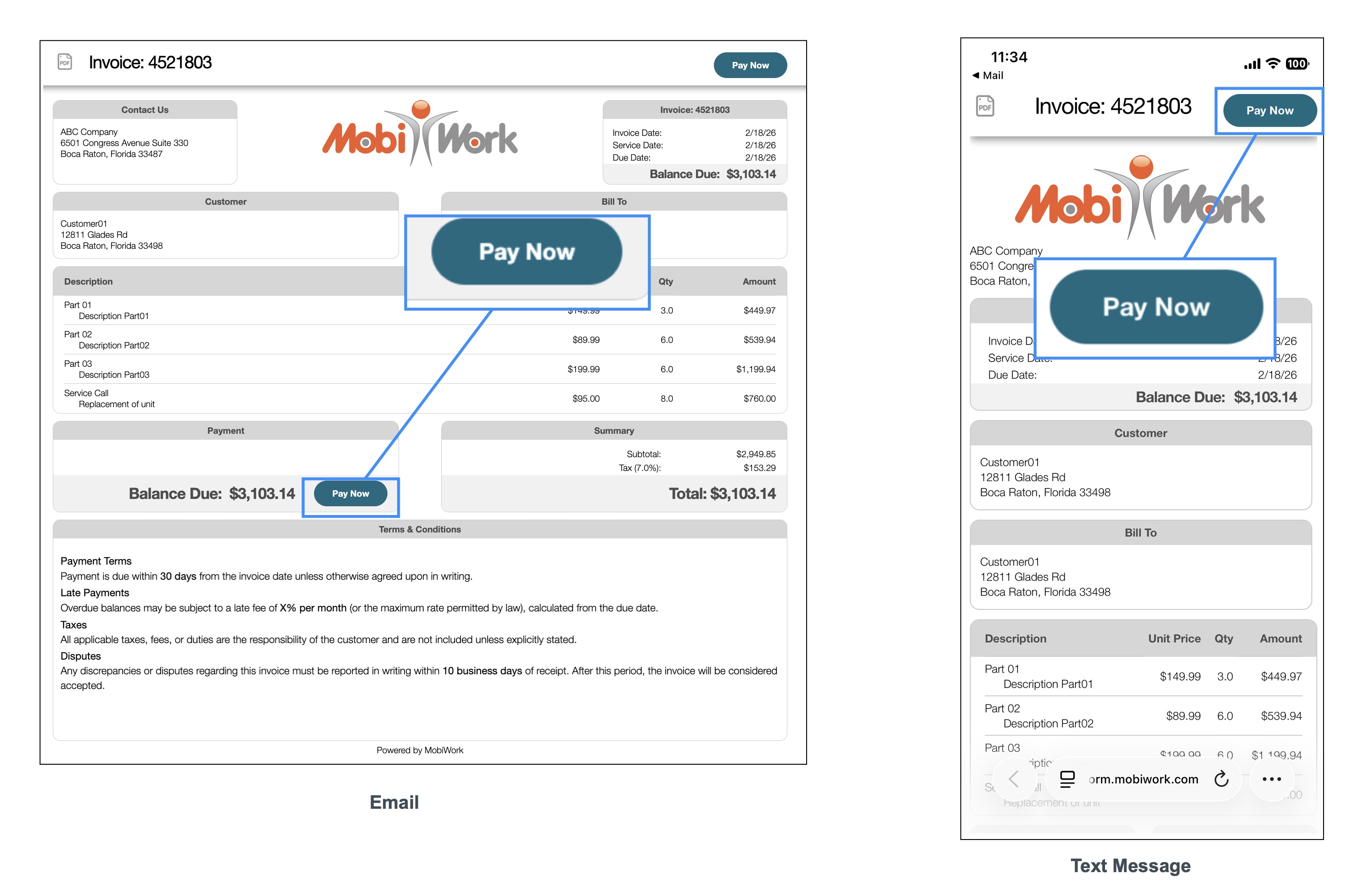
The email and text notifications inform customers that their invoice is overdue and will include a direct link to review and submit payment; thus, allowing them to complete the process without any additional action from your team:
For more information about configuring payments, please see the Payments Overview section.
Set Up Text Messages for Your MobiWork Account
To ensure that your text messages are sent, please confirm that the following criteria are met:
You must first have a Text Message Connector installed in your MobiWork Web Application. Please see the Adding a Text Message Connector for more information on how to add a text message connector to your MobiWork account.
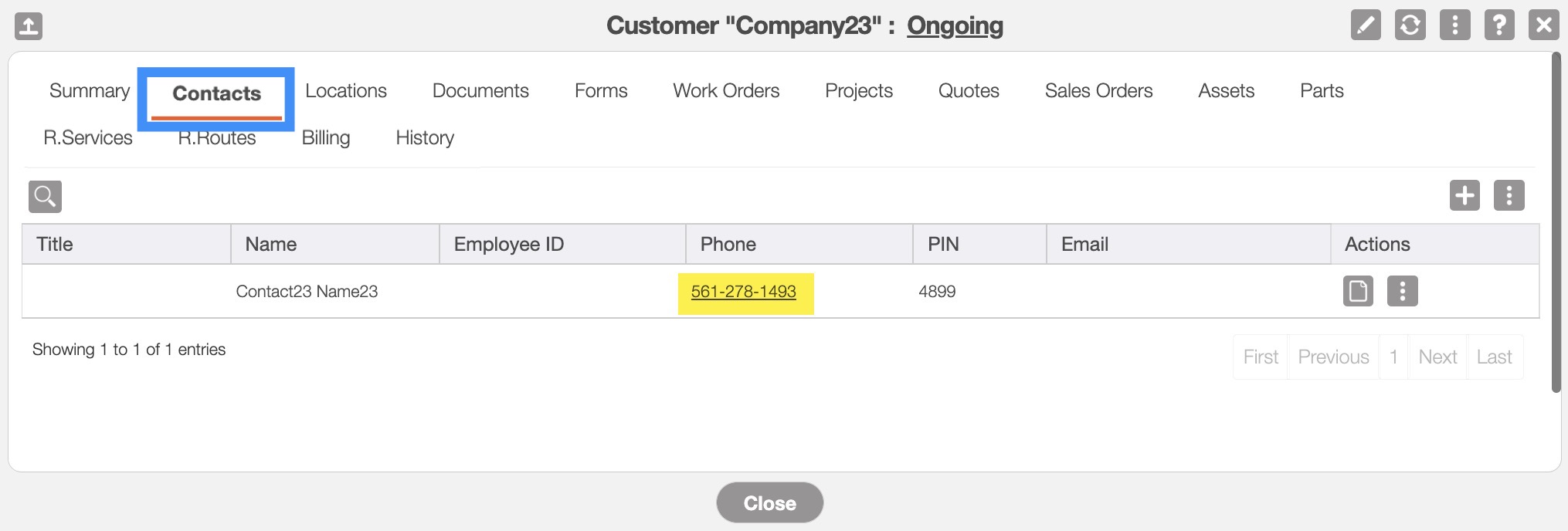
The customer must have a cell phone number associated with their profile. For a new customer you can add the cell number directly onto their profile; please see the Add Customer. For an already existing customer, please see the Edit Customer(s) page for more information on how to edit their contact details:
Send Overdue Email to a Single Customer
The image below highlights how to access the email overdue action by selecting the desired option from the individual actions:
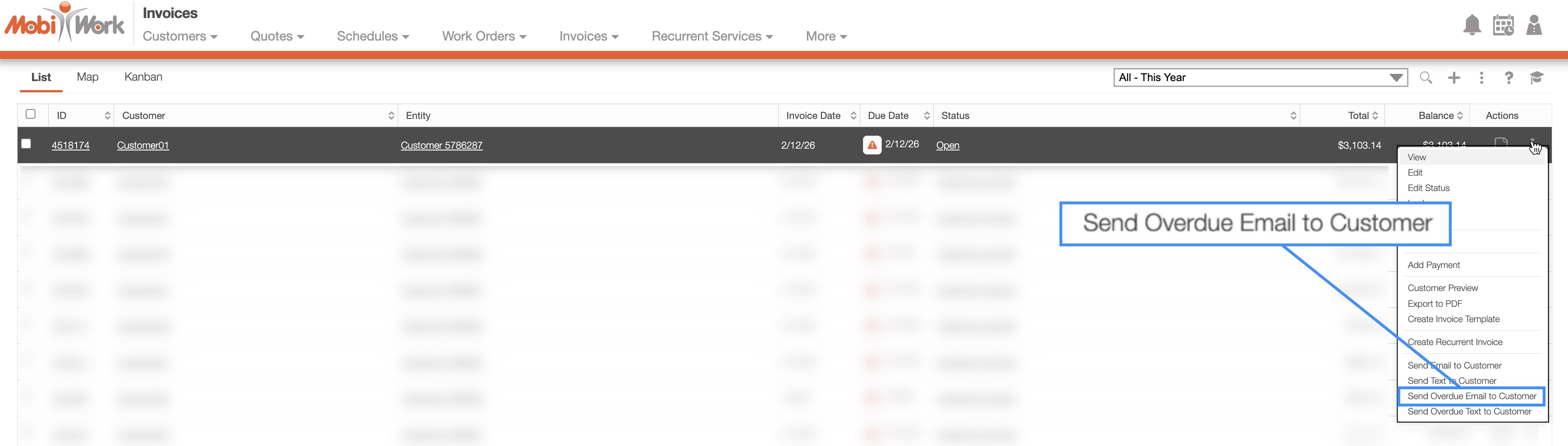
You can choose to send an overdue email with the "Send Overdue Email to Customer" option:
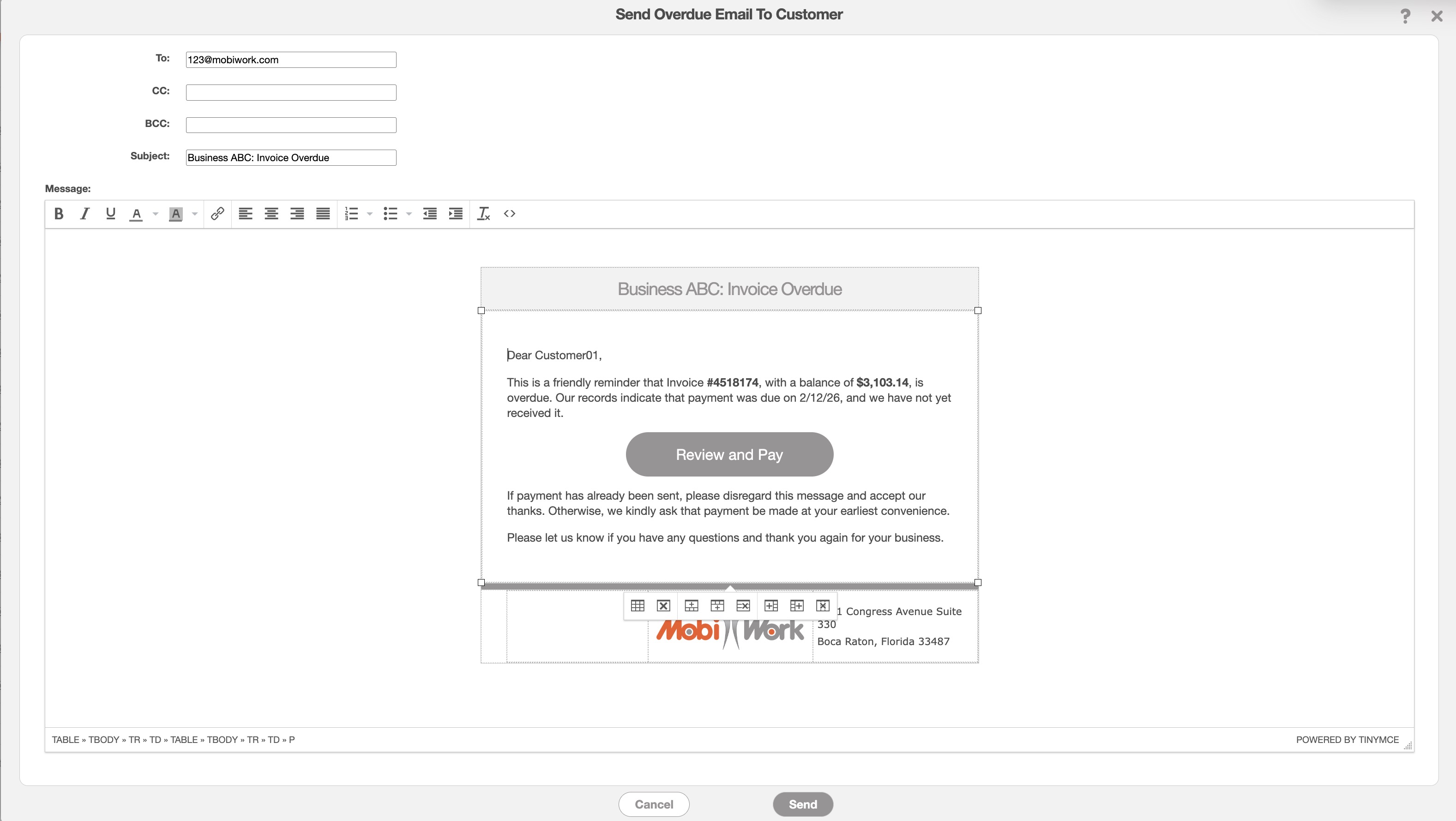
With this option, you can edit the email text, subject line and more before emailing the overdue invoice to the selected customer.
Note: The email or text message will go to the specified contact in the customer's Billing tab. By default the contact is listed with the customer's information, but this can be set to the parent customer, another customer, or another contact completely. For more information about customer billing information, please see Billing and Invoices page.
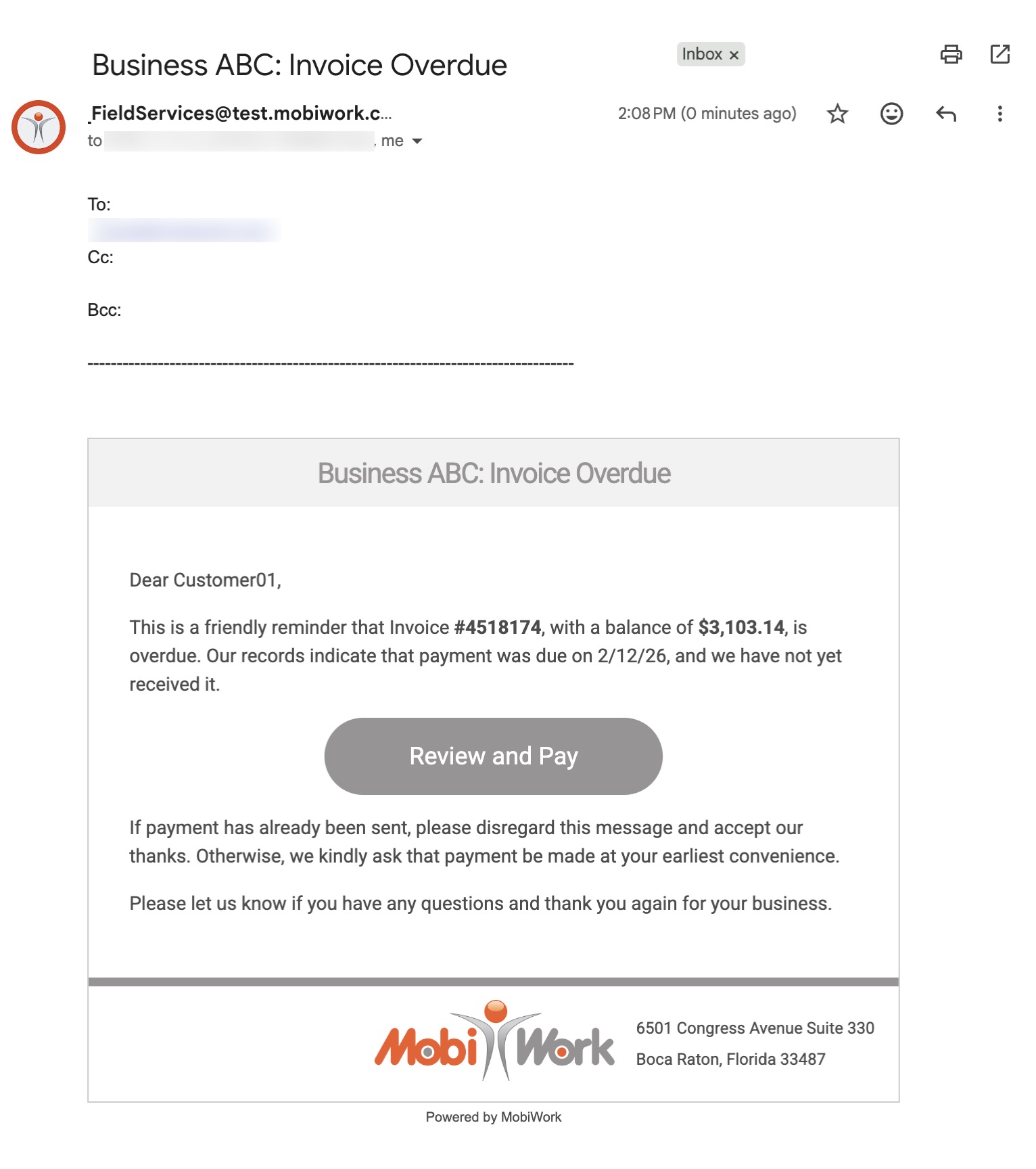
The customer will then receive the overdue invoice email in their inbox, where they have the option to promptly pay the outstanding fee:
Send Overdue Text to a Single Customer
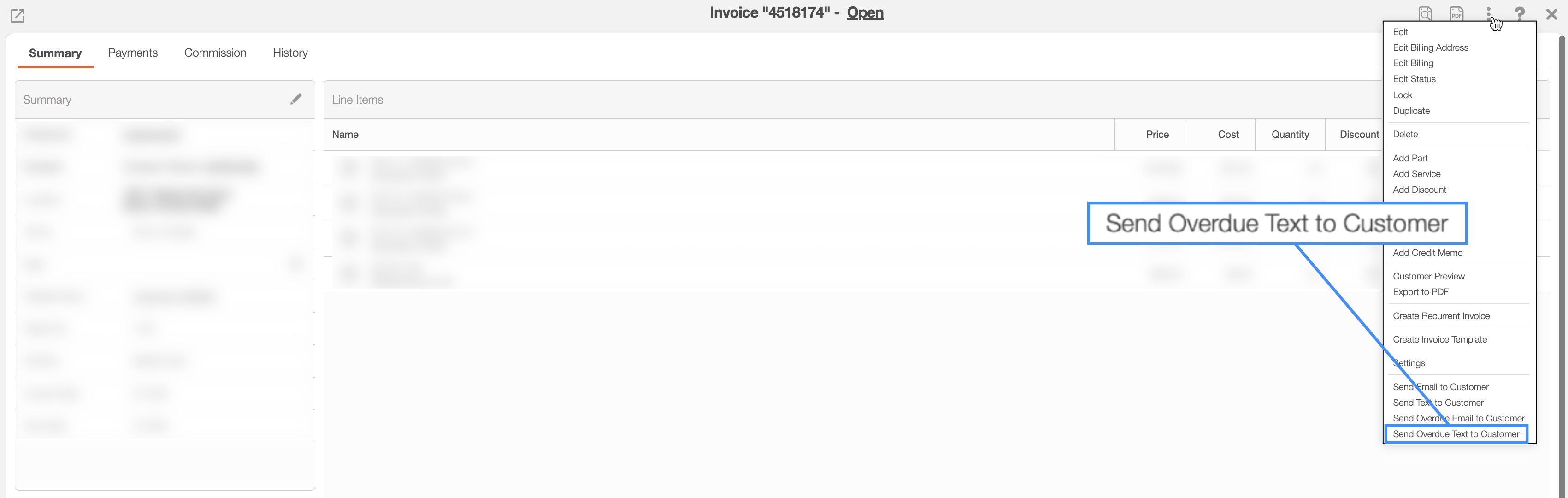
The image below highlights how to access the text message action by selecting the desired option from the View Invoice pop-up window:
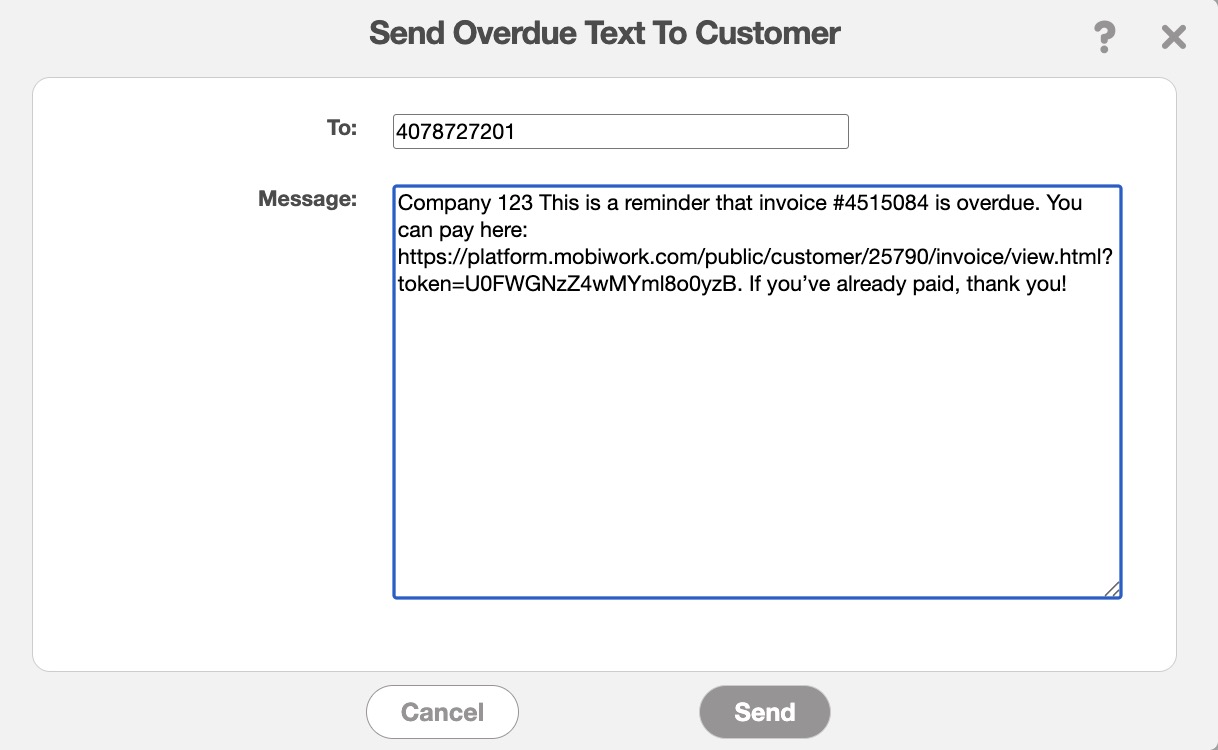
By selecting the "Send Overdue Text to Customer" option, you can send a text message reminder to the selected customer concerning their overdue invoice:
Send Overdue Email to a Multiple Customers
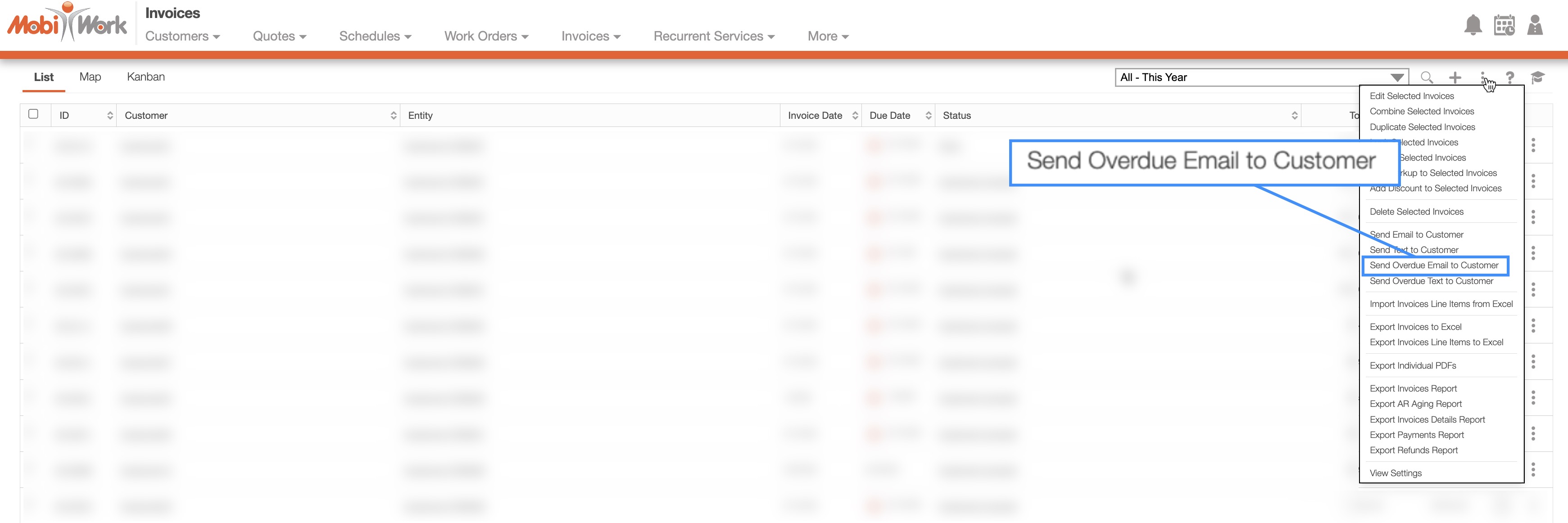
To send the overdue invoice email to multiple customers at once, simply access the "Send Overdue Email to Customer" option from the More Actions drop-down:
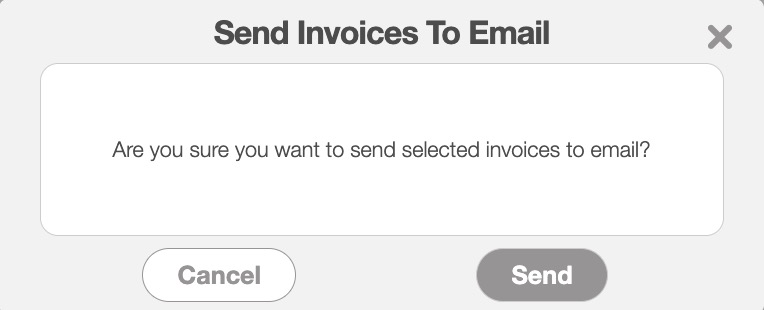
The Send Overdue Email to Customer pop-up window will then appear, where you can confirm that you would like to send out the mass emails with the Send button:
Note: The email or text message will go to the specified contact in the customer's Billing tab. By default the contact is listed with the customer's information, but this can be set to the parent customer, another customer, or another contact completely. For more information about customer billing information, please see Billing and Invoices page.
Send Overdue Text to a Multiple Customers
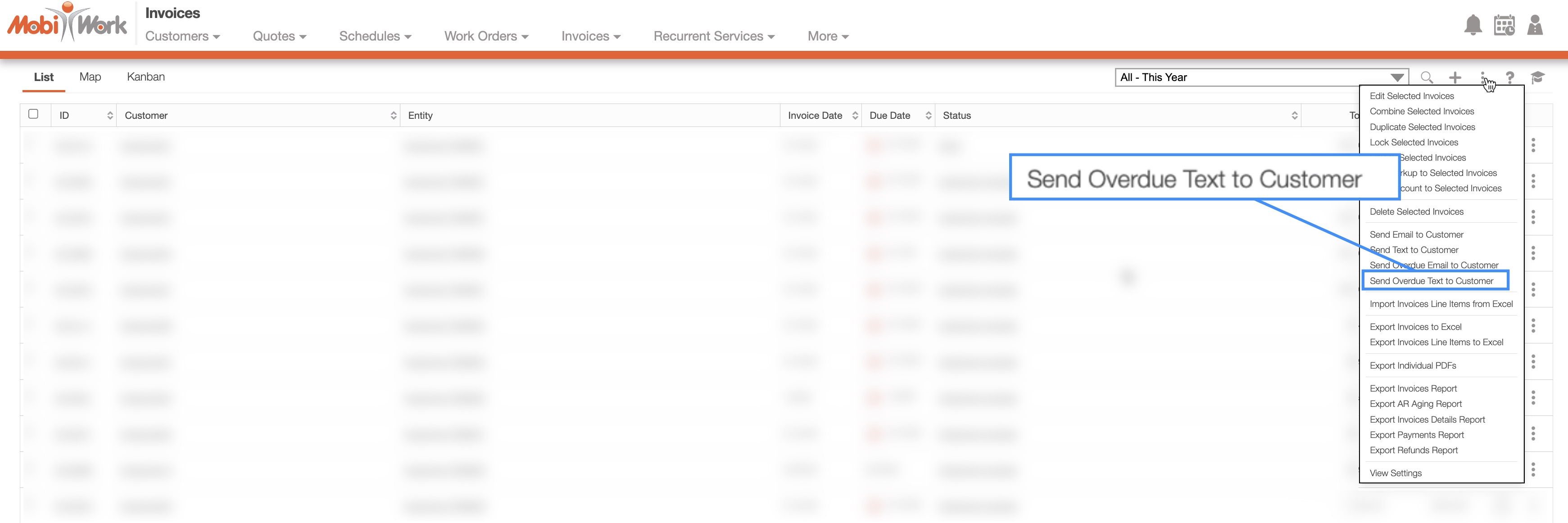
To send the overdue invoice text message to multiple customers at once, simply access the "Send Overdue Text to Customer" option from the More Actions drop-down:
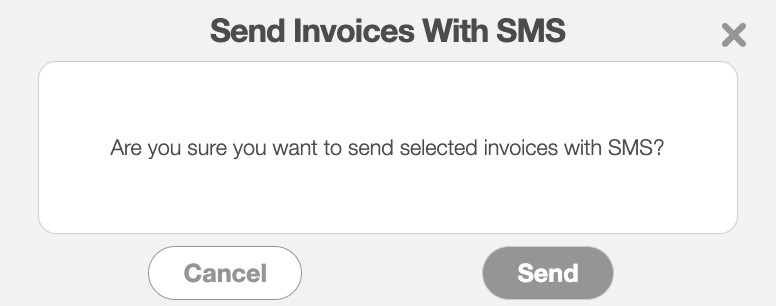
The Send Overdue Text to Customer pop-up window will then appear, where you can confirm that you would like to send out the mass emails with the Send button:
Note: The email or text message will go to the specified contact in the customer's Billing tab. By default the contact is listed with the customer's information, but this can be set to the parent customer, another customer, or another contact completely. For more information about customer billing information, please see Billing and Invoices page.