
You can access the MobiWork Settings feature page by hovering over the User icon from your MobiWork menu; from the drop-down that appears click on the "Settings" option:

Click on the "Connectors" tab to view the connectors associated with your MobiWork account.
The "Connectors" tab provides an overview of the connectors linked to your MobiWork account. From this tab, you can review connector logs, add new connectors, remove existing ones, and more:
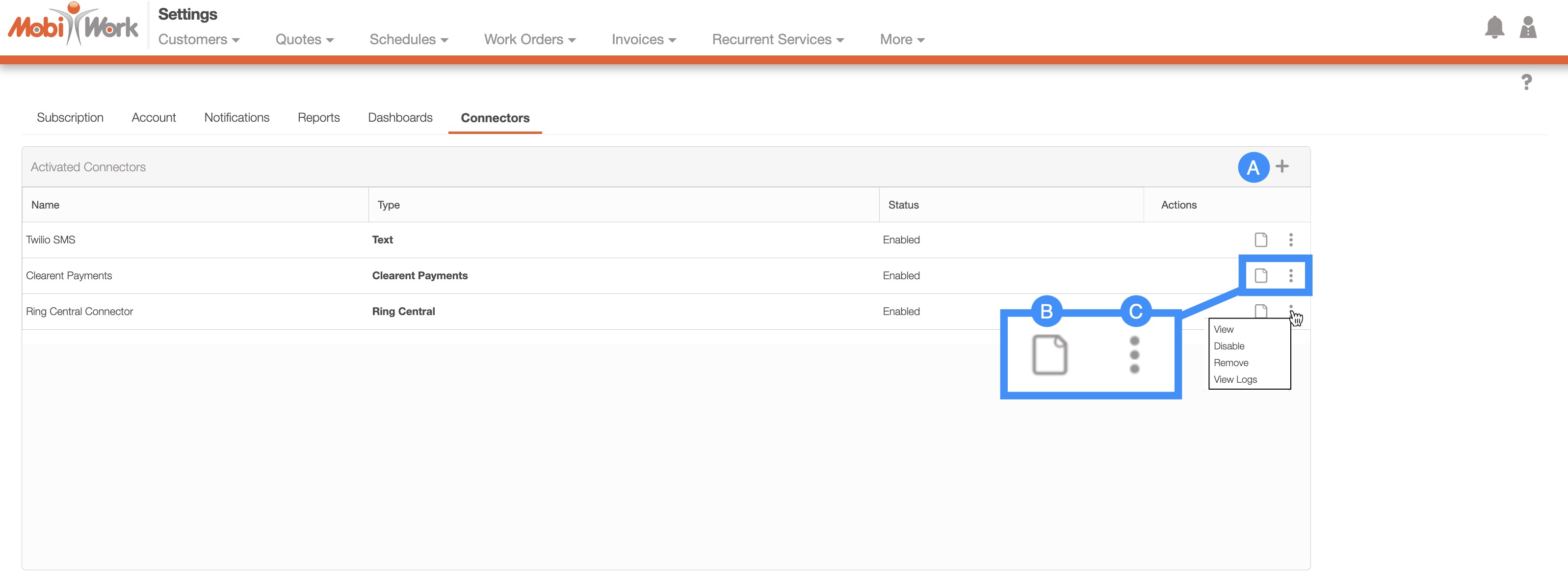
You can access the following actions from the "Connectors" tab:
The Plus Sign icon will allow you to add a new connector to your MobiWork account.
The View icon will direct you to the settings page of the specified connector. From the settings page, you will be able to edit, disable, or delete the selected connector.
The Individual Actions button will allow you to view, disable, remove, or view the connector logs.
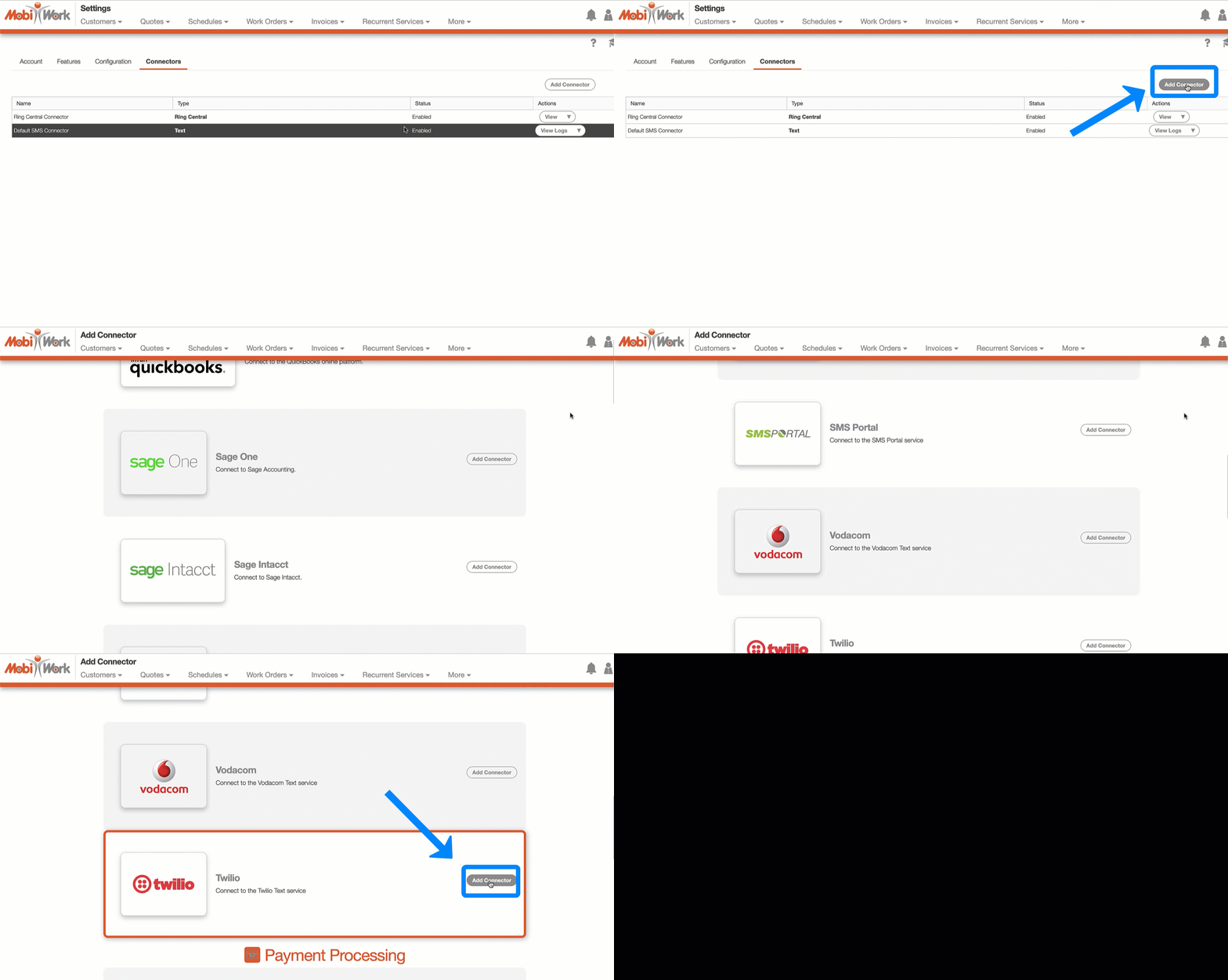
To add a connector, click on the Plus Sign button; you will then be redirected to the Add Connector page:
Scroll through this page until you locate the connector you would like to add. Once you have located the connector you would like to add, click on the respective Add button:
You can either remove or disable a connector from your MobiWork account, depending on your needs:
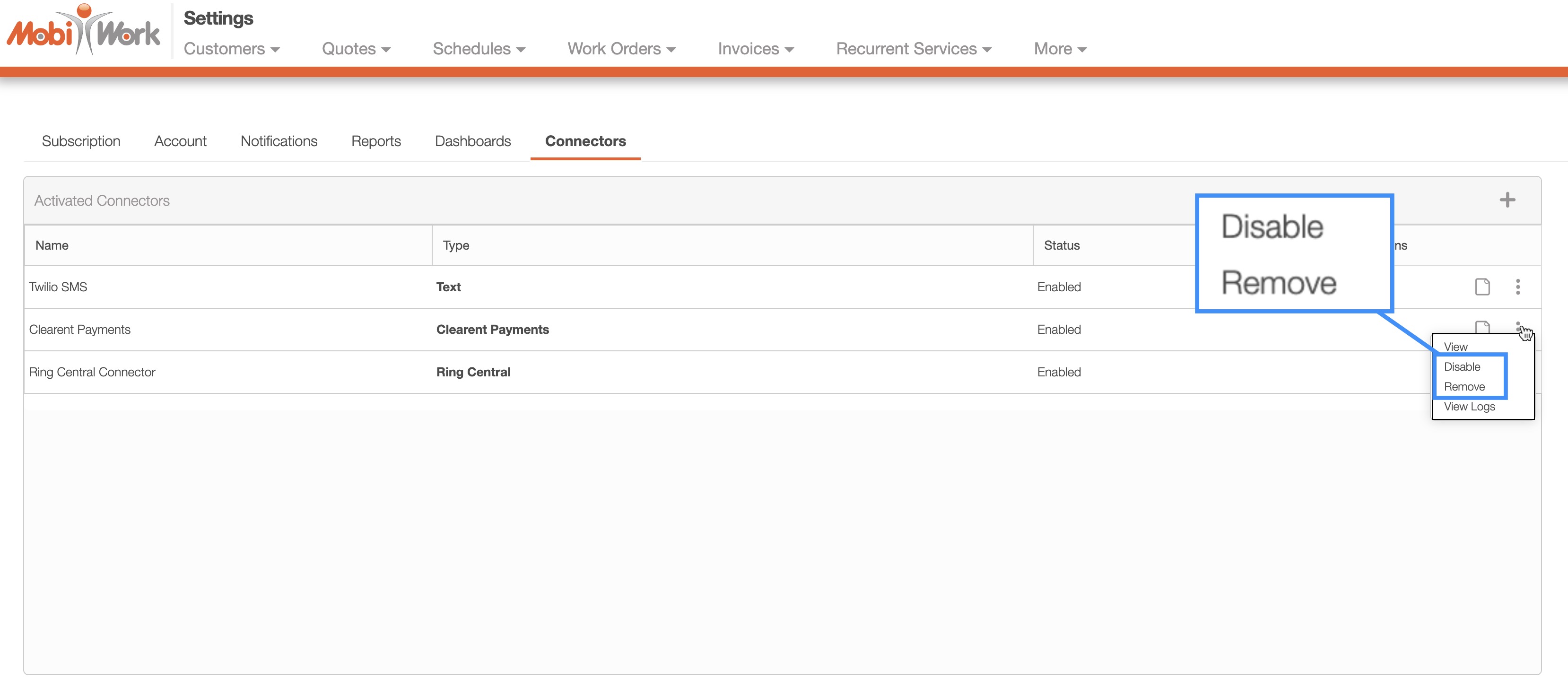
To completely remove a connector, select the "Remove" option from the Individual Actions drop-down menu. This will permanently remove the connector from your MobiWork account.
If you prefer to keep the connector associated with your account but temporarily deactivate it, you can disable it instead. To do so, select the "Disable" option from the Individual Actions drop-down menu.
You can access the Connectors Log by clicking on the Individual Actions of the specified connector, and selecting the "View Logs" option:
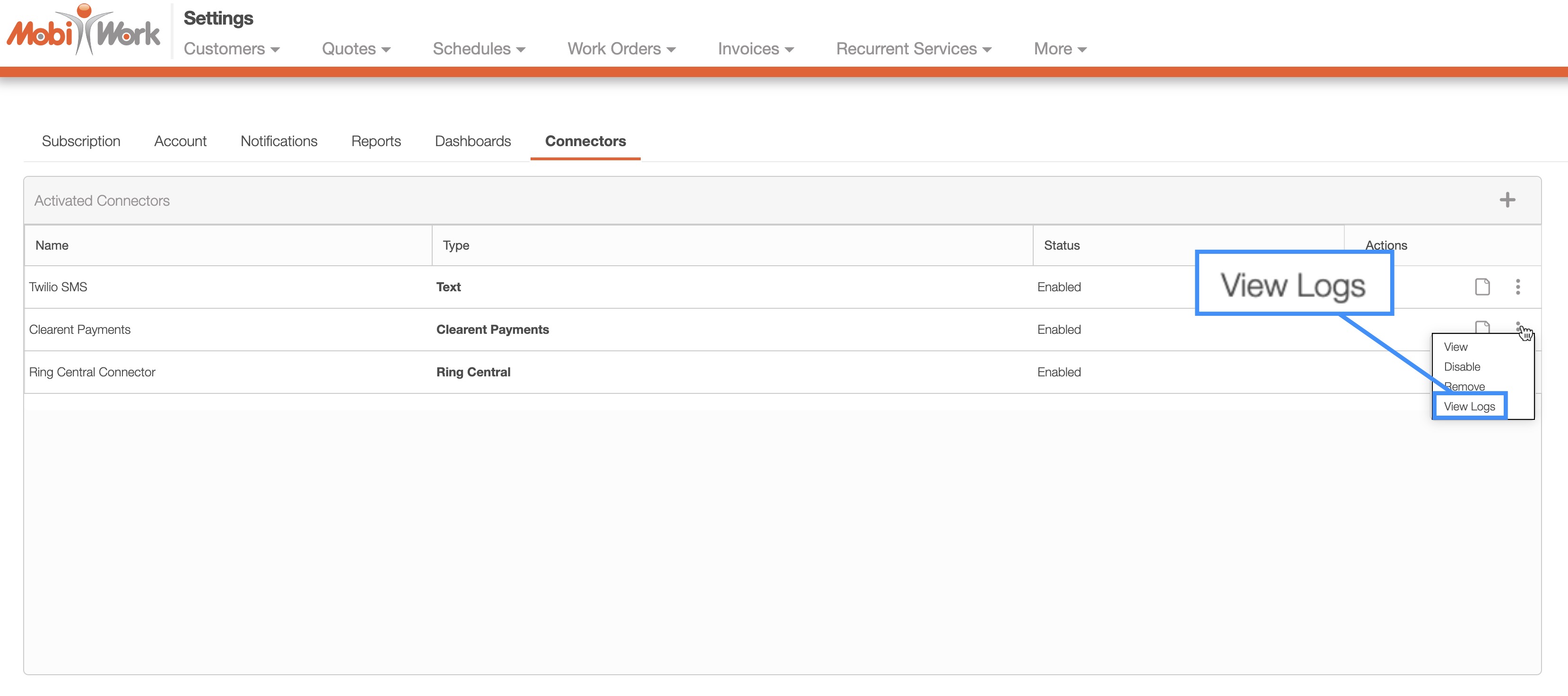
The Connector Logs provide insight into any errors related to your connector's syncing. For example, if a customer fails to sync with QuickBooks, the logs will display details about the issue, helping you diagnose and resolve it:

Please note that Connector Logs are only available for 24 hours. You can also check if a sync was successful in the External ID column or on the Notifications Center page.