
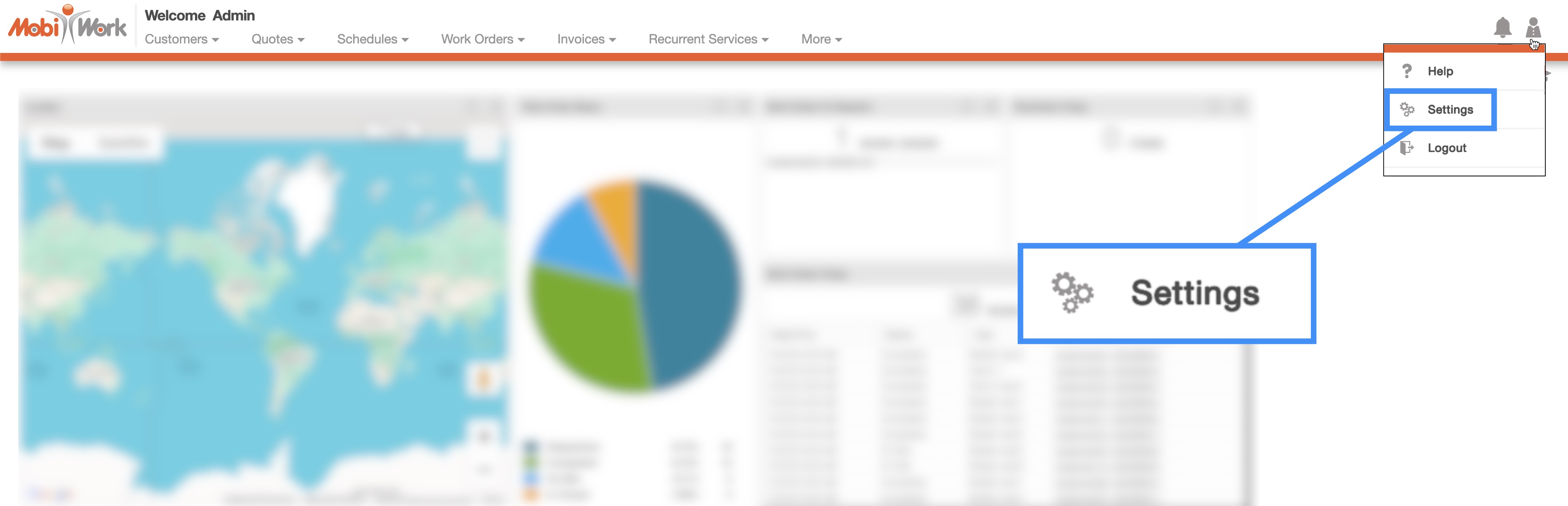
You can access the MobiWork Settings feature page by hovering over the User icon from your MobiWork menu; from the drop-down that appears click on the "Settings" option:
Click on the "Notifications" tab to view the email, text messages, and reminder settings for your MobiWork account.
The "Notifications" tab displays the account notifications associated with your email, text, and reminder settings.
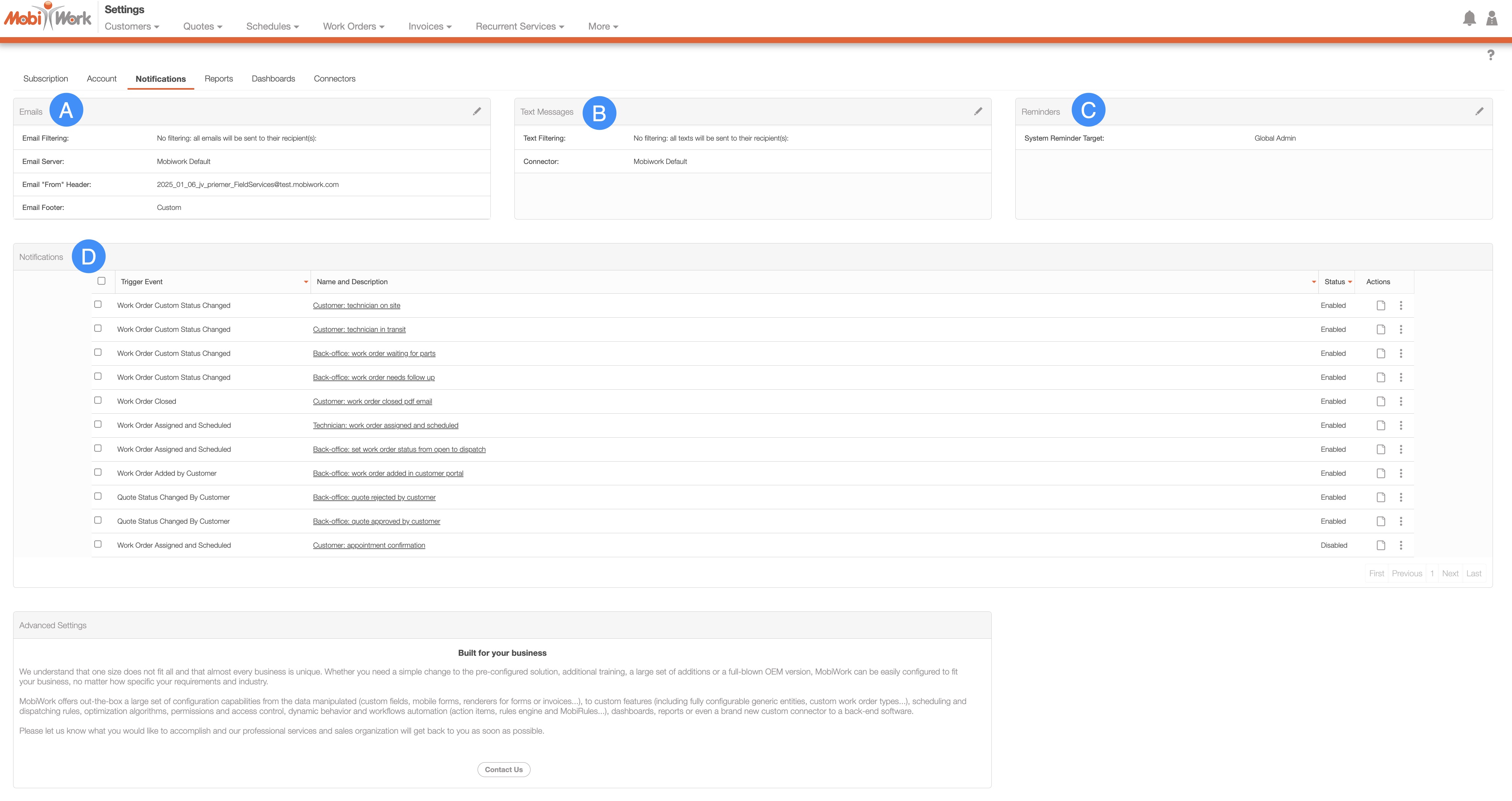
You can access the following panels from the "Notifications" tab:
The "Emails" panel provides an overview of the email notification settings associated with your MobiWork account:
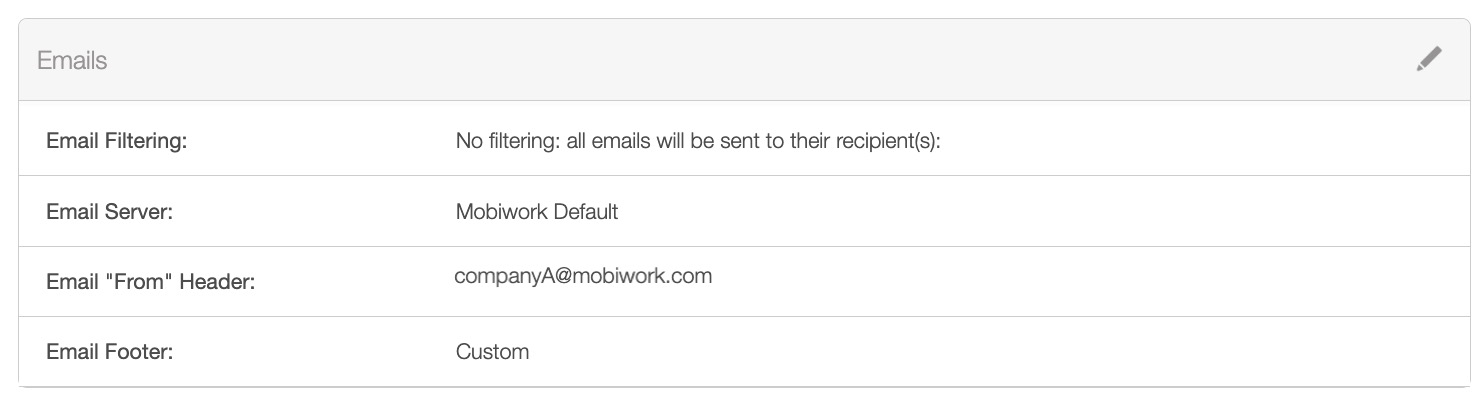
This panel includes details such as email filtering, the server used to send emails, the "From" email address, and the footer displayed at the end of each email message.
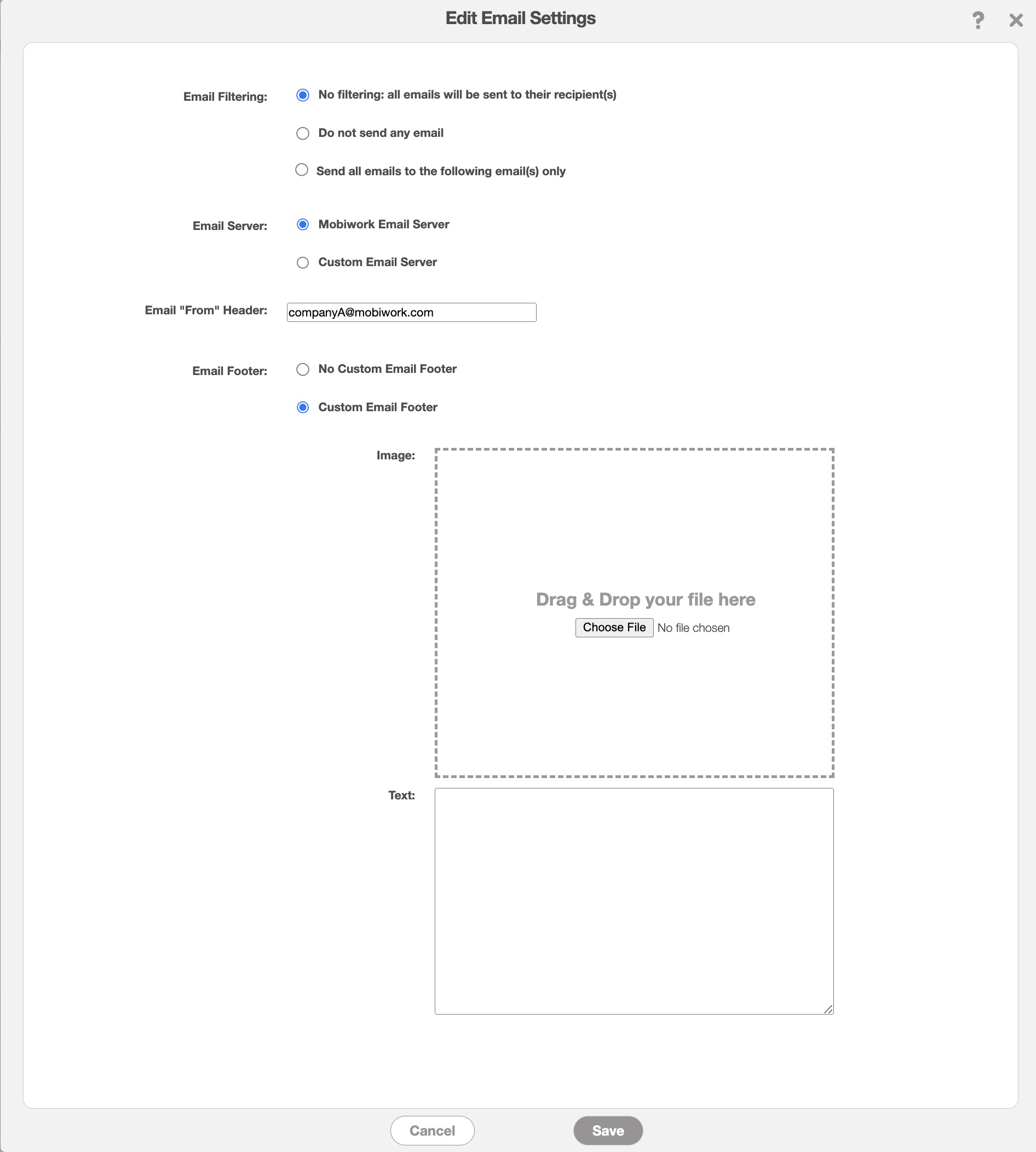
To adjust these settings, click the Pencil icon located in the top-right corner of the panel. This will open the Edit Email Settings pop-up window:
Within the pop-up window, you can adjust the following data:
The email filtering preferences.
The server used to send emails.
The sender's header, such as the company name.
The email footer, including custom text and an optional image footer.
The terms found in the "Emails" panel are defined below:
| Name: | Description: |
|---|---|
| "Email Filtering" | Determines how emails are sent. Options include sending emails only to specified recipients, disabling the ability to send emails entirely, or sending all emails without restrictions. |
| "Email Server" | Specifies the server responsible for processing and sending outgoing emails. |
| "Email 'From' Header" | Defines the sender's display name, such as the company name, that appears in the recipient's inbox. |
| "Email Footer" | Customizable footer that appears at the end of each email, which can include text and an optional image. |
The "Text Messages" panel provides an overview of the text message notification settings associated with your MobiWork account:
This panel includes details such as text message filtering as well as the text message connector associated with your account.
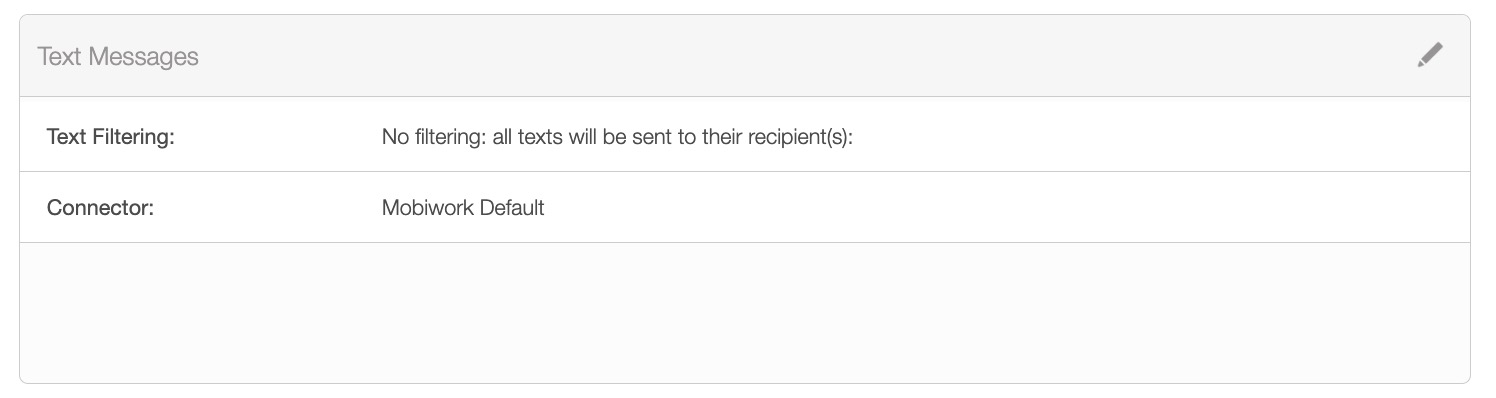
To adjust these settings, click the Pencil icon located in the top-right corner of the panel. This will open the Edit Text Settings pop-up window:
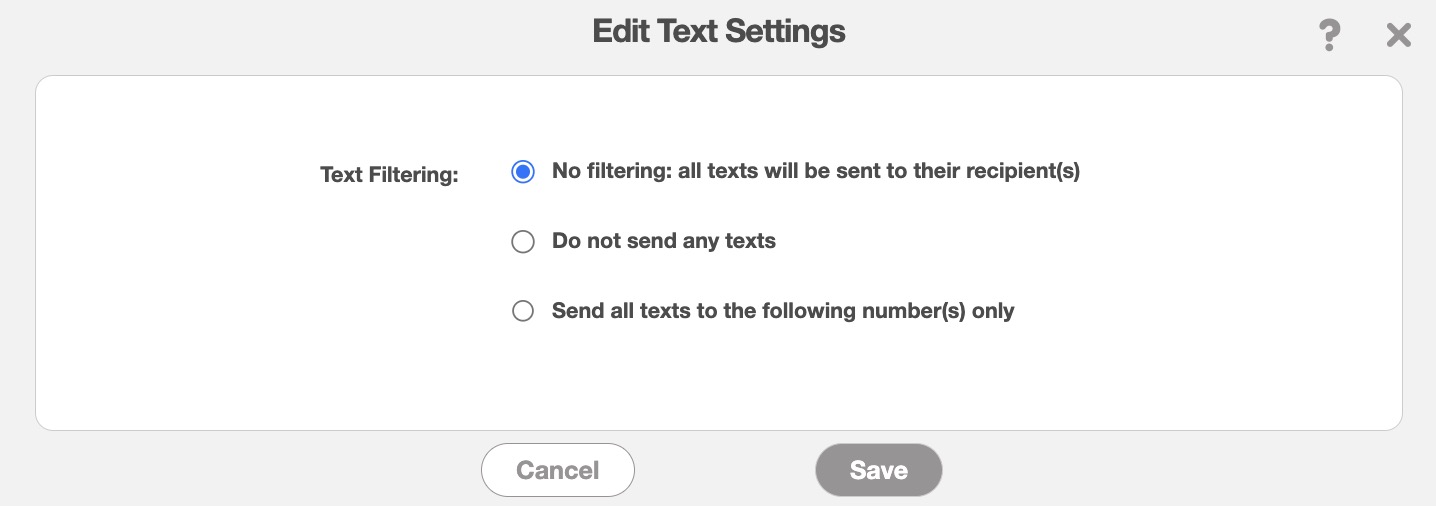
To adjust these settings, click the Pencil icon located in the top-right corner of the panel. This will open the Edit Text Settings pop-up window:
Within the pop-up window, you can update the text messaging filter data. The terms found in the "Text Messages" panel are defined below:
| Name: | Description: |
|---|---|
| "Text Filtering" | Determines how text messages are sent. Options include sending texts only to specified recipients, disabling the ability to send texts entirely, or sending all texts without restrictions. |
| "Connector" | Displays the Text Message Connector that is associated with your account. |
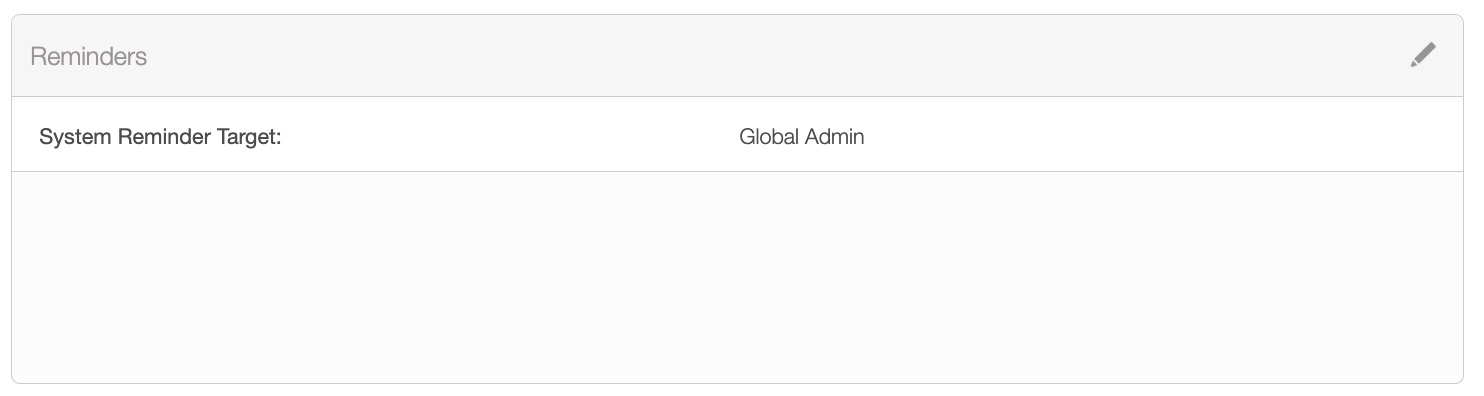
The "Reminders" panel provides an overview of the text message notification settings associated with your MobiWork account. These reminders consist of system notifications and errors:
You can edit you receives these messages by clicking on the Pencil icon in the top right corner of the panel.
The System Reminder Recipients pop-up window will then appear. In this pop-up window, you can select the users you would like to receive the system notification:
You can move the users from the "Selected Users" column to the "Available Users" column if you would not want them to receive the system notifications.
| Name: | Description: |
|---|---|
| "System Reminder Targets" | The user(s) selected to receive the system notifications and errors from MobiWork. |
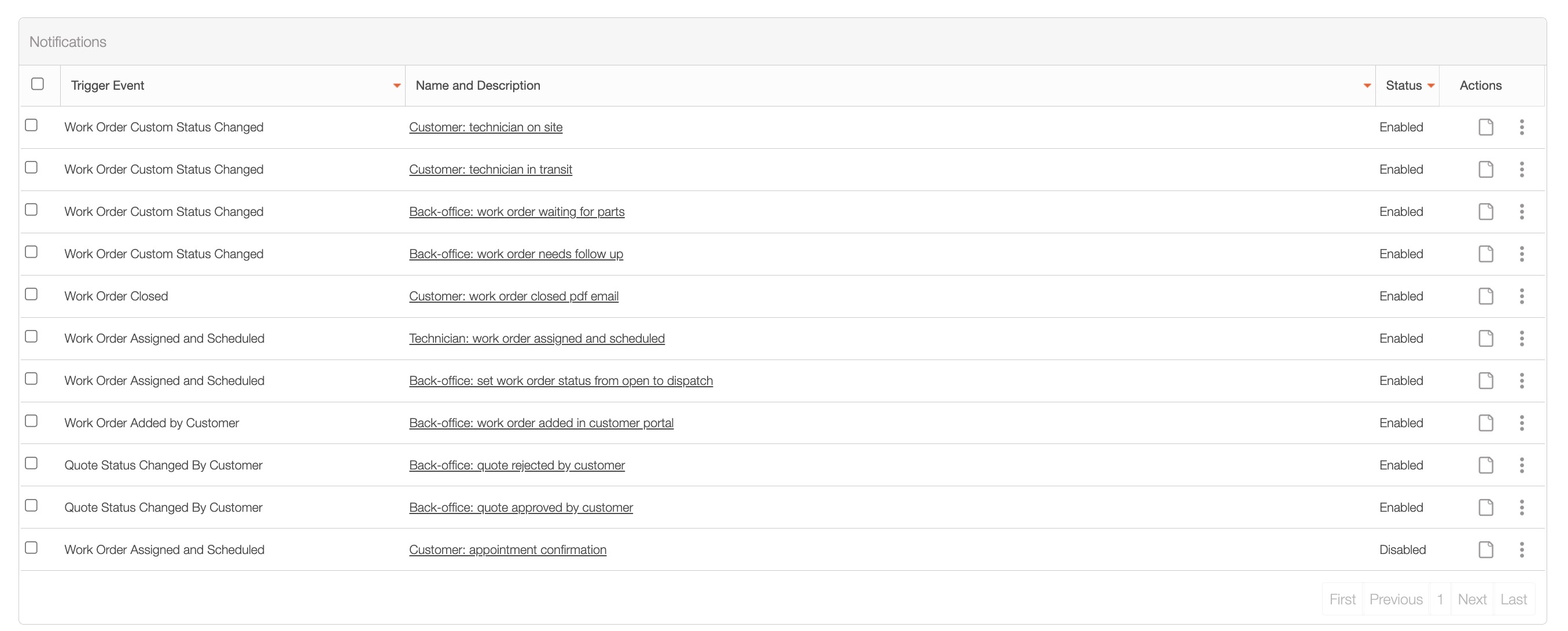
The "Notifications" panel provides an overview of the MobiRules that are available for your MobiWork account. These MobiRules will trigger specified actions once certain criteria have been met in MobiWork.
For example, once a work order status has been changed, a message will be sent to the customer letting them know that a technician is en route or on site:
If you would like additional MobiRules created, please contact us at support@mobiwork.com.