
You can access the MobiWork Settings feature page by hovering over the User icon from your MobiWork menu; from the drop-down that appears click on the "Settings" option:
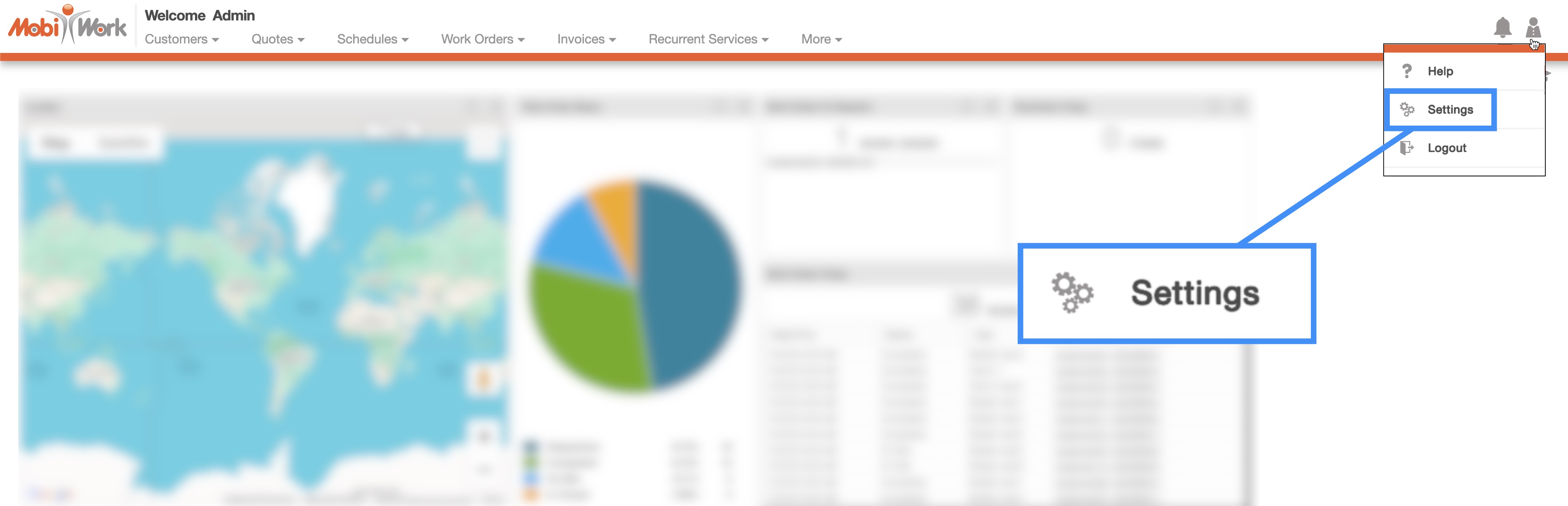
The "Account" tab is the default tab you will be directed to when you select the "Settings" option from the drop-down menu.
The "Account" tab will display the account and company details of your MobiWork account. These details include your company's office hours, company contact information, user permissions, and more:
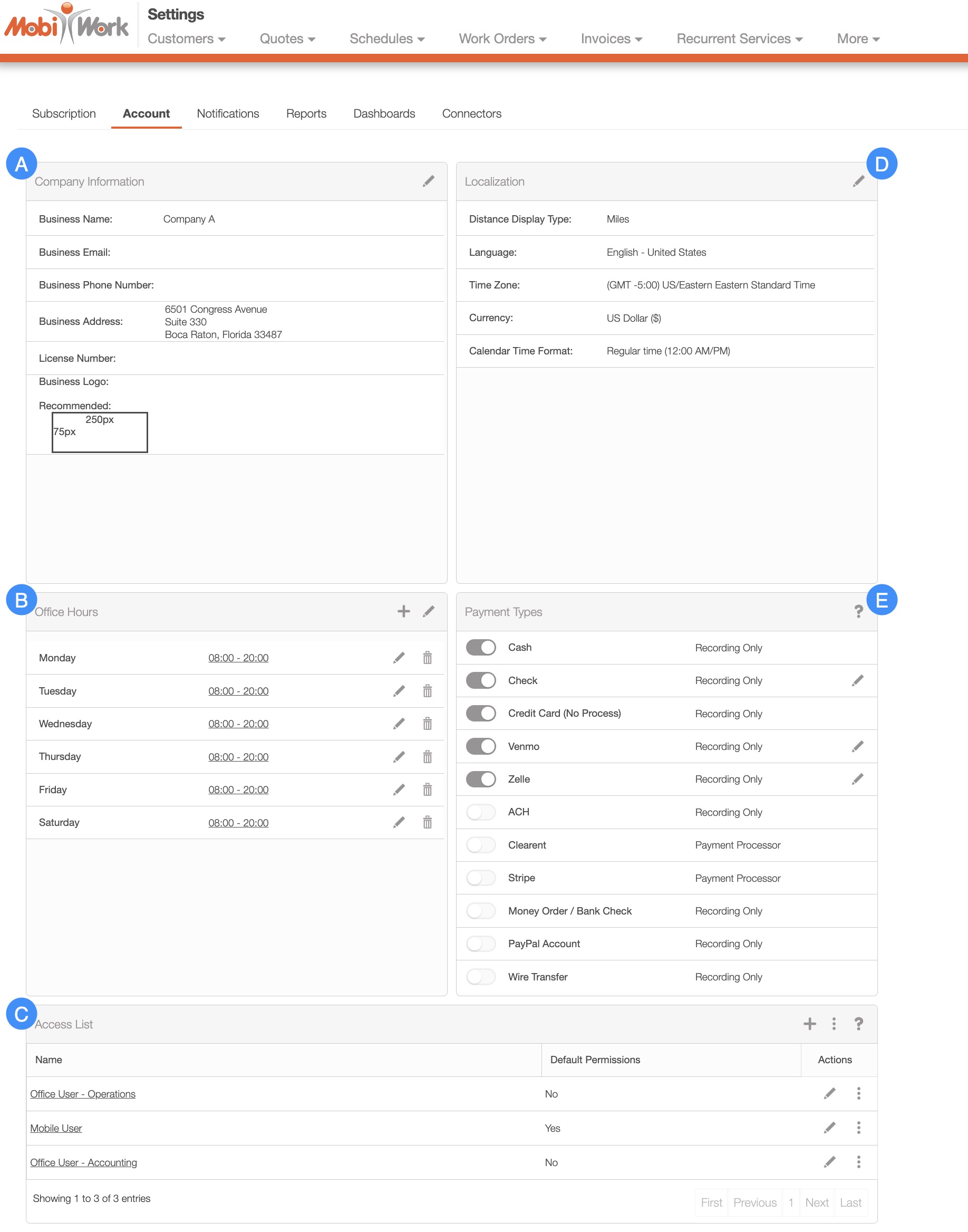
You can access the following panels from the "Account" tab:
The "Company Information" panel provides an overview of your business details within MobiWork, including your business name, phone number, email address, and physical address. This information is fed across all aspects of your company's MobiWork account:
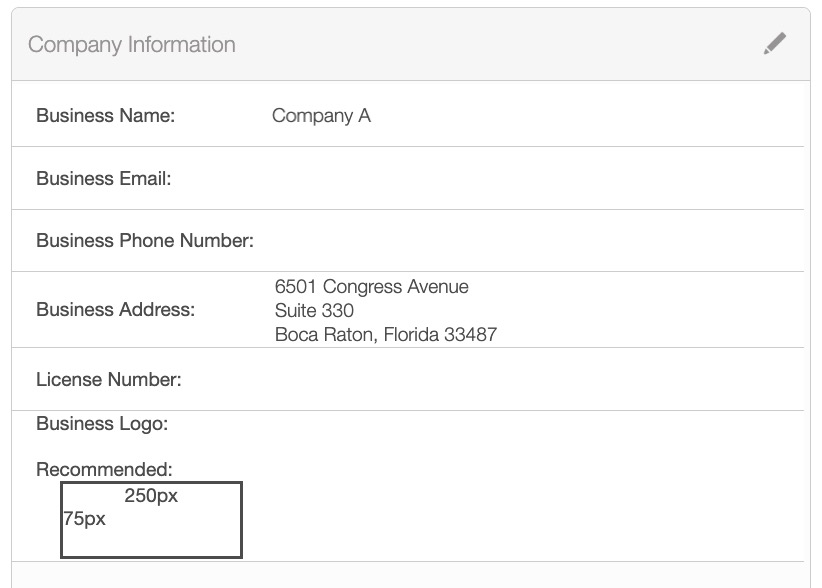
To update any of displayed company details, simply click the Pencil icon in the top-right corner of the "Company Information" panel:
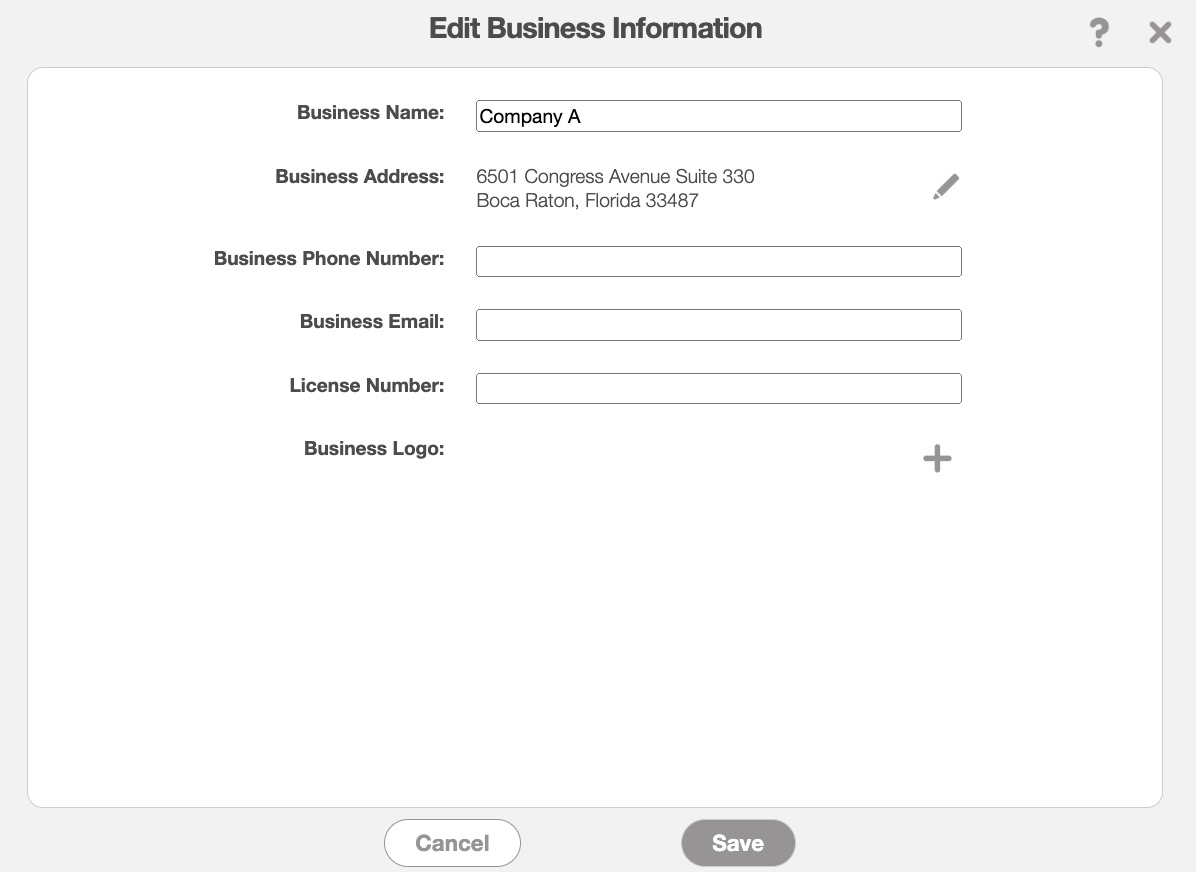
Once you are satisfied with the updated information, click on the Save button to process the changes.
The fields in the "Company Information" panel tab are defined below:
| Name: | Description: |
|---|---|
| "Business Name" | Your company's official business name. This name will be displayed for all users under the company's MobiWork account. |
| "Business Email" | The official email address linked to your company's MobiWork account. This email address will appear on all forms generated within your MobiWork account, such as invoices, work orders, and more. |
| "Business Phone Number" | The official phone number linked to your company's MobiWork account. This phone number will appear on all forms generated within your MobiWork account, such as invoices, work orders, and more. |
| "Business Address" | The main physical address where your business resides. This address will appear on all forms generated within your MobiWork account, such as invoices, work orders, and more. |
| "Business Logo" | The logo that will appear on all forms associated with your company's MobiWork account. This logo will appear on all forms generated within your MobiWork account, such as invoices, work orders, and more. Please ensure the image has a 250 x 75 aspect ratio for optimal display. |
The "Office Hours" panel displays the official working hours of your company. In this panel, you can add, edit, or remove the days and times when your company is active or inactive.
To add additional dates and times, click the Plus Sign button in the top-right corner of the panel. You can use the Pencil icon to edit multiples dates and times displayed in the "Office Hours" panel:
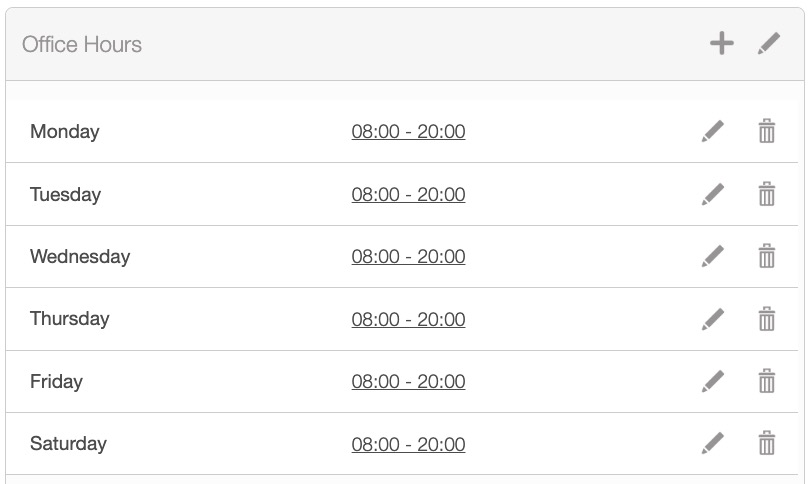
Or you can use the individual Pencil and Trash Can icons to edit or remove the selected dates and times.
Add Office Hours
To add additional dates and times, click the Plus Sign button in the top-right corner of the panel. The Add Business Hours pop-up window will then appear:
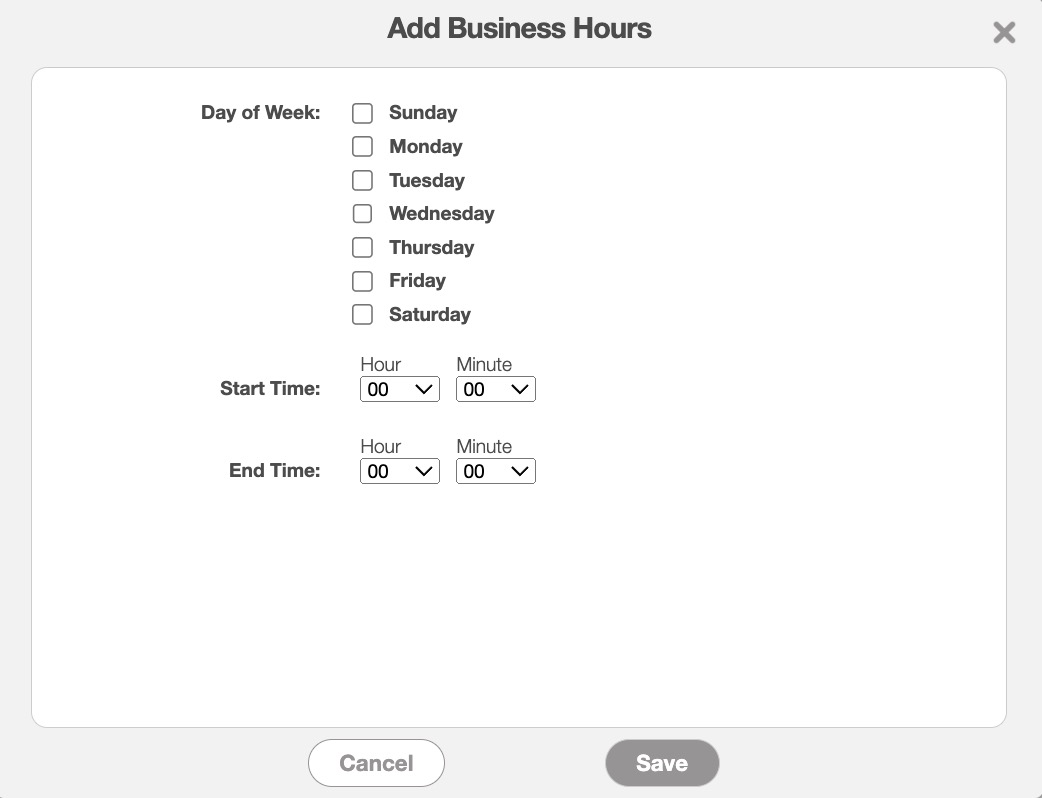
In this pop-up window, select the days of the week your business operates, then specify the start and end times. Enter the exact hour and minute for both the start and end of each active day.
Edit Office Hours
You can edit the office hours for your company through two different methods. You will be able to edit multiple hours and dates at once with the Pencil icon located in the top-right corner of the "Office Hours" panel:
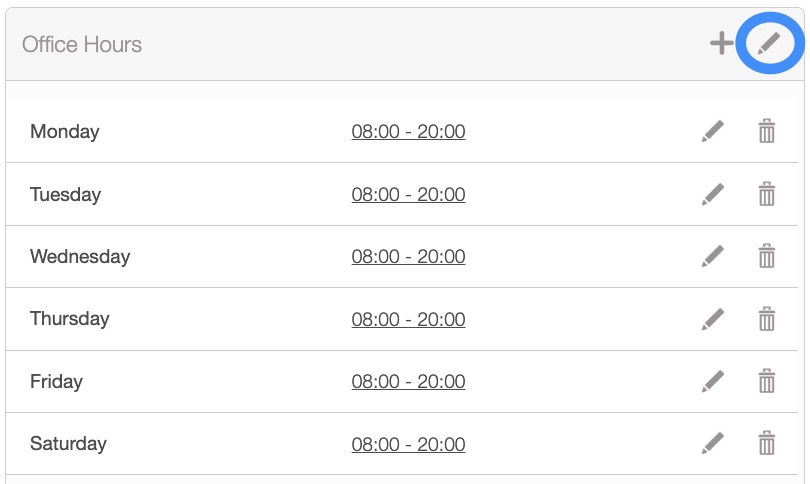
In Edit Office Hours pop-up window, select the Pencil icon of the day of the week you would like to update:
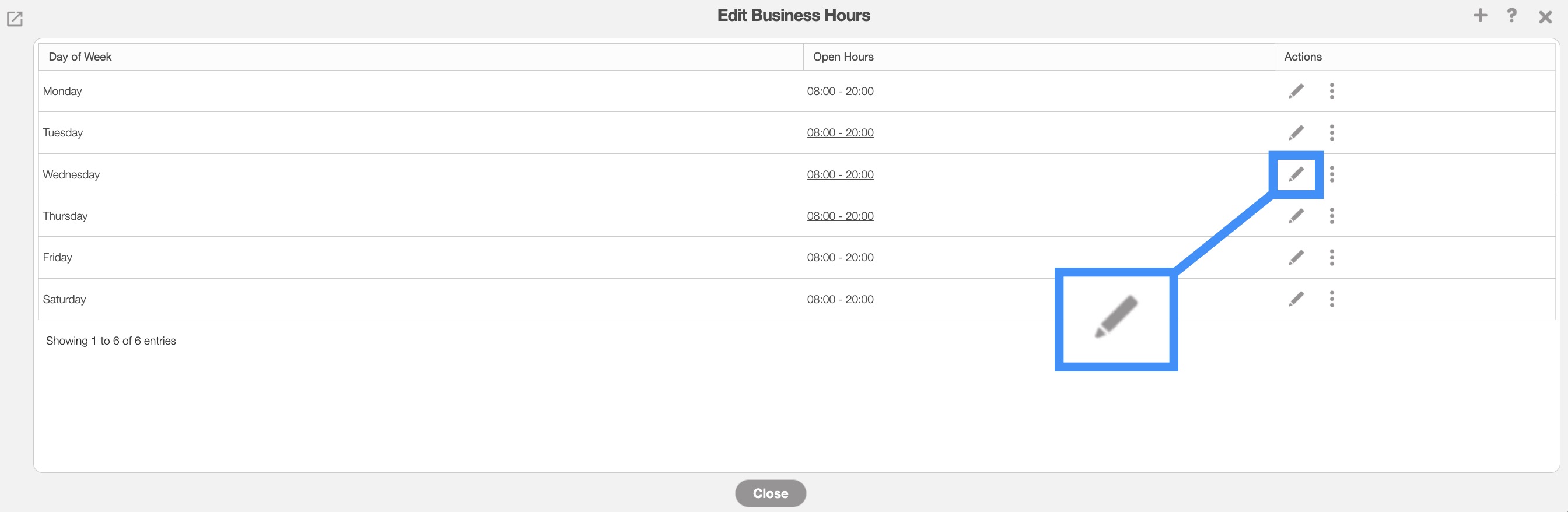
The Edit Office Hour pop-up window will then appear:
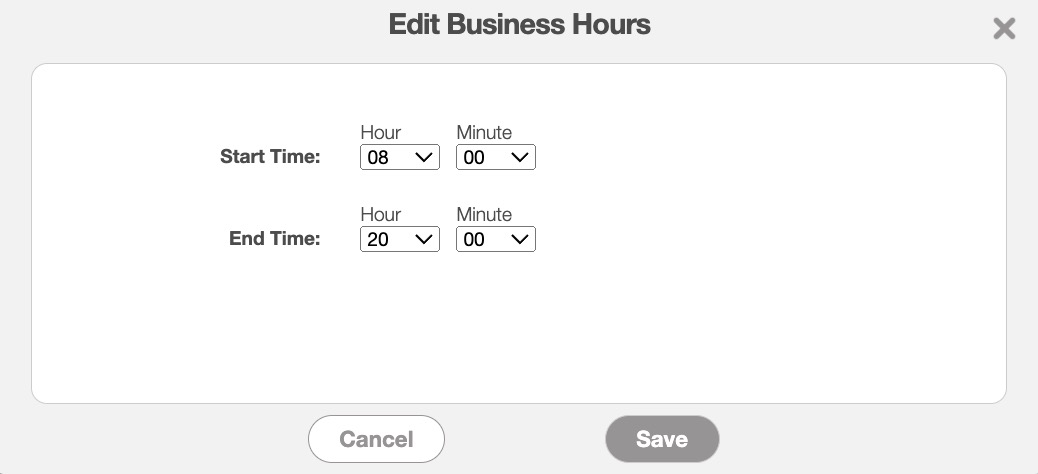
In this pop-up window, enter the exact hour and minute for both the start and end of each active day. Once you are satisfied with the information entered, click the Save button.
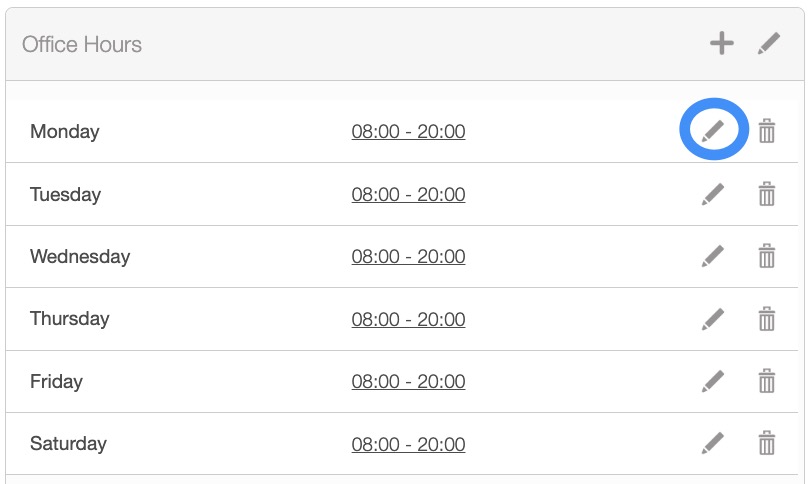
You can also access the Edit Office Hour pop-up window directly by clicking on the individual Pencil icon of the selected date/time:
Delete Office Hours
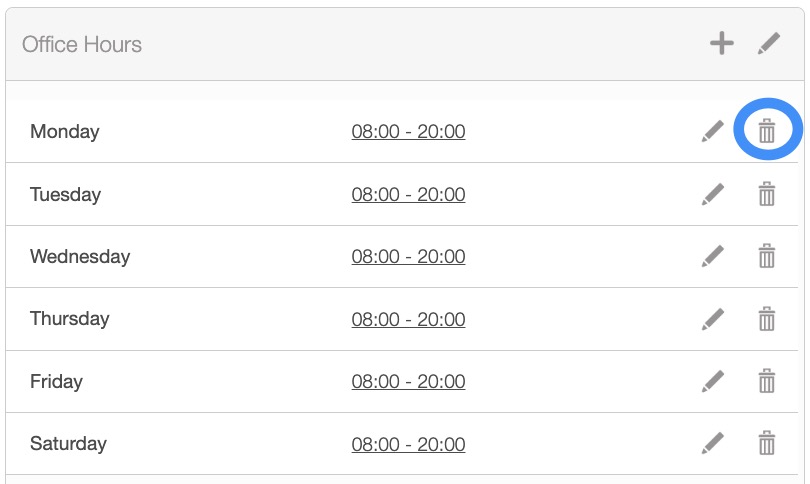
You can delete the office hours for a specific date by clicking on the Trash Can icon next to the corresponding date:
The Delete Business Hours confirmation pop-up window will then appear:
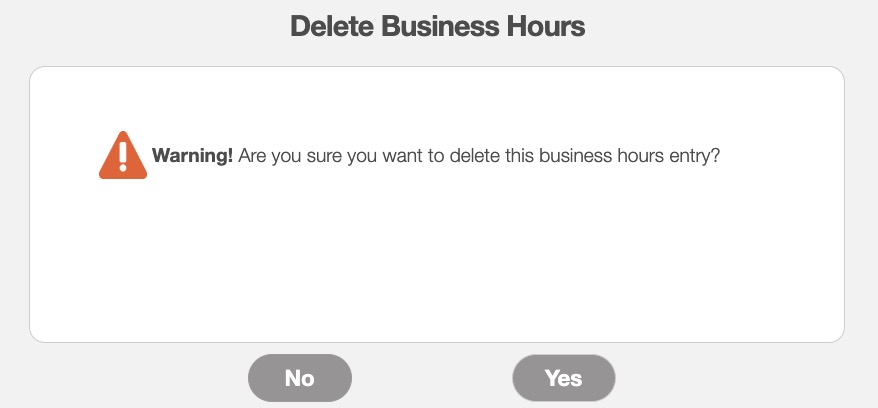
In this pop-up window, select the Yes button to confirm that you would like to delete the selected date and time.
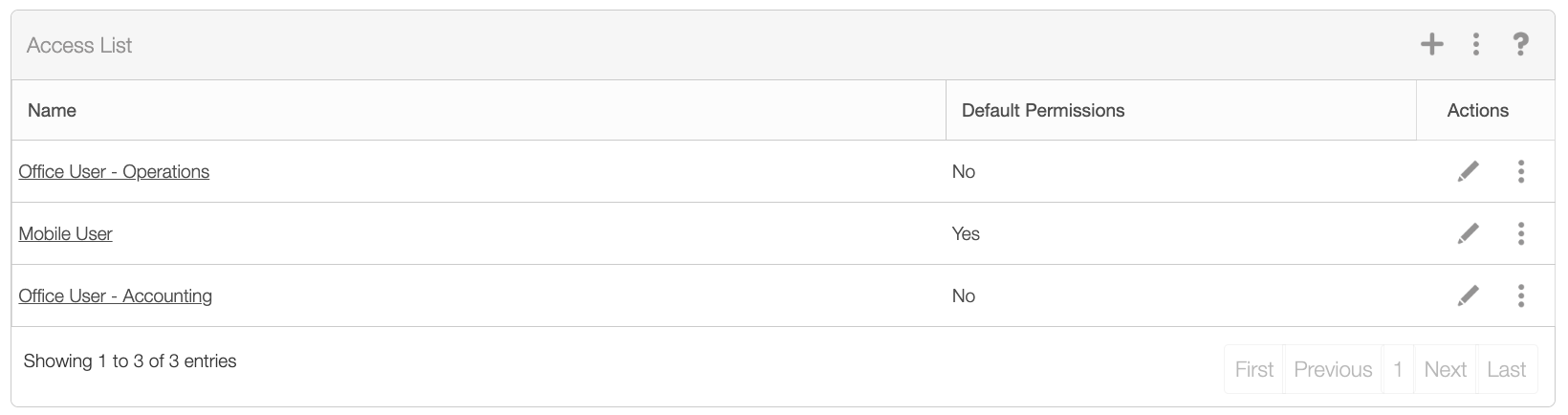
As the MobiWork administrator, you can control the data a specific user has access to by setting permissions and restrictions on your users. By default, there are three different Permission Templates:
Office User: Operations- Users will have access to user data and be able to add/edit/delete users. They will also have access to all the store, partner, route, inventory audits, planograms, and work order functions. This template is ideal for office users that are in charge of logistics and operations.
Mobile User: Users will have access to their own schedule, work orders, etc. These users will not be able to access or view data from other mobile users or edit any of the features within the MobiWork web interface. This template is ideal for users in the field.
Office User: Accounting- Users will have access to all the users' data, including commissions. They will also have access to all the billing, budget, and store audits features. This template is ideal for office users that handle accounting and bookkeeping.
The "Access List" panel will display the all the active permission templates that are available under your company's MobiWork account. If you need to set up specific access control for a user, please contact us.
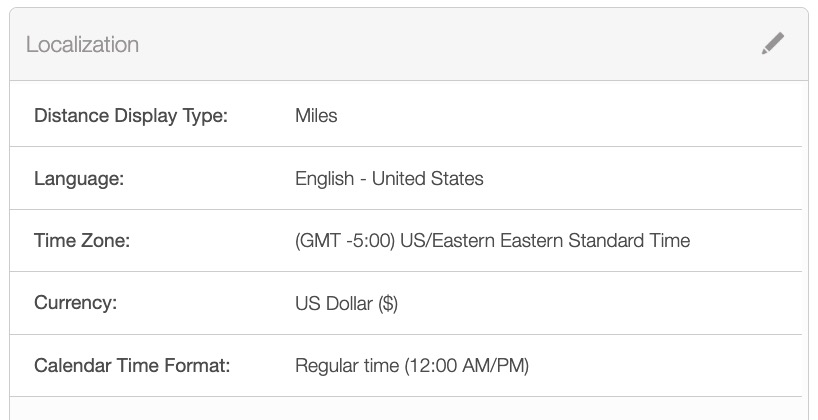
The "Localization" panel will display the local data settings of your MobiWork account; these settings will include, the language, currency, time format, and more.
To edit the data displayed in this panel, click on the Pencil icon in the top right-corner of the panel:
The Edit Localization pop-up window will then appear. In this pop-up window, select the desired criteria from the respective drop-downs:
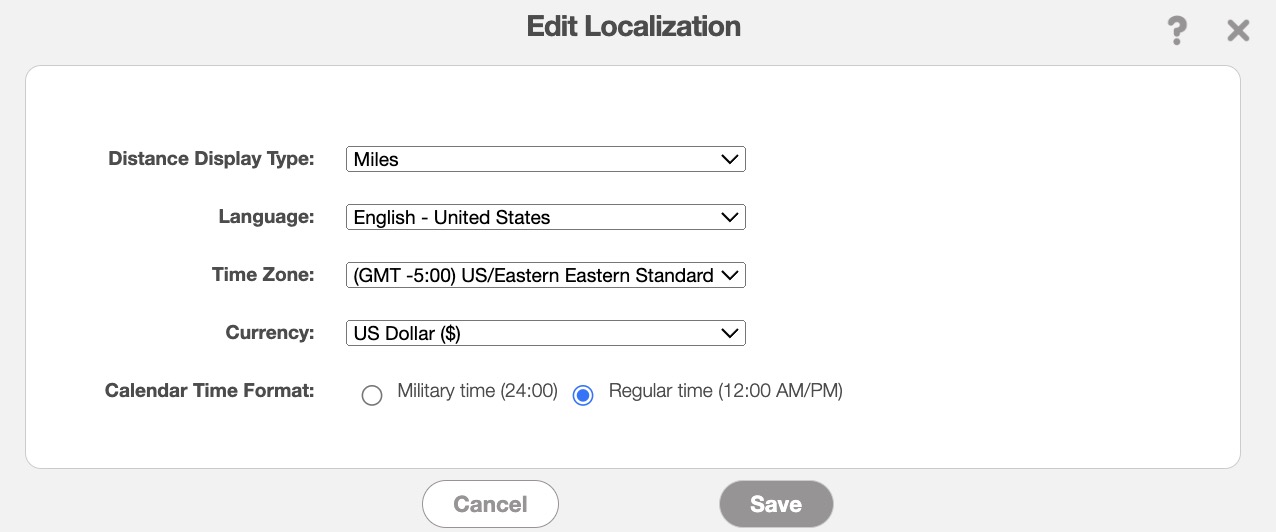
Once you are satisfied with the information entered, click on the Save button to finalize the updated data.
The fields in the "Localization" panel tab are defined below:
| Name: | Description: |
|---|---|
| "Distance Display Type" | How distance (in yards, miles, meters, or kilometers) will be displayed for all users in your account. |
| "Language" | The language that will be displayed for all users in your account. |
| "Time Zone" | The time zone that MobiWork will be in for all users in your account. |
| "Currency" | Indicates the type of currency used for transactions in your account. |
| "Calendar Time Format" | Indicates your preferred time format in MobiWork. The time format can either be measured in a 12-hour format (regular time) or a 24-hour format (military time). |
MobiWork offers default payment types that you can use when processing invoices. However, you will also be able to activate additional payment types, such as PayPal or Zelle, through the "Payment Types" panel in your account settings:
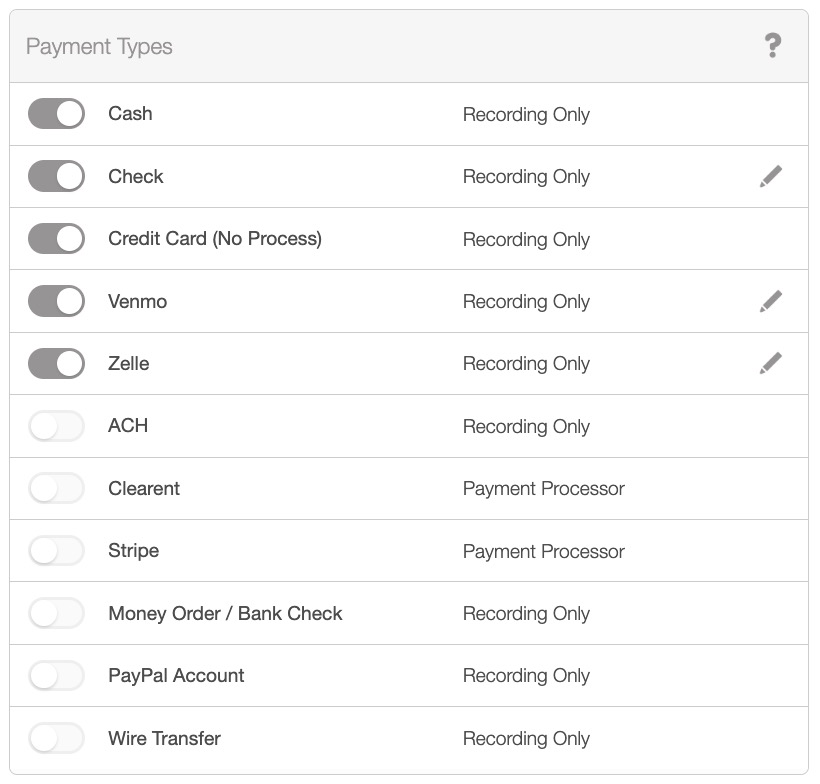
Once the desired payment type is toggled, you will be able to record the specified payment details. Please note that these payments are processed outside the MobiWork system but are recorded in MobiWork for consistency and tracking purposes.