
Overview

For seamless payroll processing, MobiWork automatically summarizes raw time tracking data using payroll rules to categorize time spent into:

  • Regular Time

  • Overtime

  • Double Overtime

  • Holiday

Note: Need custom payroll types? Please contact professional services.

Summarization Rules

By default, MobiWork applies the following payroll rules:

  • Overtime: Any time over 40 hours per week.

  • Overtime: Any weekend hours.

  • Holiday Pay: Automatically applied on designated holidays:

    • New Year's Day

    • Memorial Day

    • Independence Day

    • Labor Day

    • Thanksgiving Day

    • Christmas Day

For rounding rules, overtime calculations can be customized based on your payroll needs:

  • No rounding (default)

  • Round to the nearest X-minute interval (e.g., 5 min, 15 min)

  • Round down to the lowest X-minute interval (e.g., 2 hrs 50 min for a 5-min interval)

  • Round up to the highest X-minute interval (e.g., 2 hrs 55 min for a 5-min interval)

  • Fully Customizable Payroll Summarization

Need specific payroll rules? Whether it's overtime after 8 hours per day, double overtime on weekends, or custom holiday pay, MobiWork can implement any payroll summarization rules to fit your business needs.

Contact our Customer Success team to set up your customized payroll rules today!

When is Summarization Performed?

Each time a raw time tracking segment is added, edited, or deleted, the system automatically updates the summarization for that user, day, and week based on the segment's date.

Before removing any corresponding summarized segments, the system checks if they have been reviewed or approved. If they have, a prompt will be displayed to confirm the action.

If a field employee needs to modify a time tracking entry, they should contact the back office.

Billing options include automatic invoicing upon job completion (e.g., Work Order Completed) or as a separate step for backend processing.

List View

You will be able to access the List View for the time tracking billing by hovering over the Time Tracking feature on the MobiWork menu. From the drop-down, select the "View Time Tracking for Billing" option:

On the List View page for time tracking billing, you will see two tabs. One tab will be for time tracking for projects while the other is for customer time tracking.

Global Actions

If you click on the the More Actions in the upper right corner, you will be able to access additional billing actions. These actions will apply to all the selected time tracking billing entries:
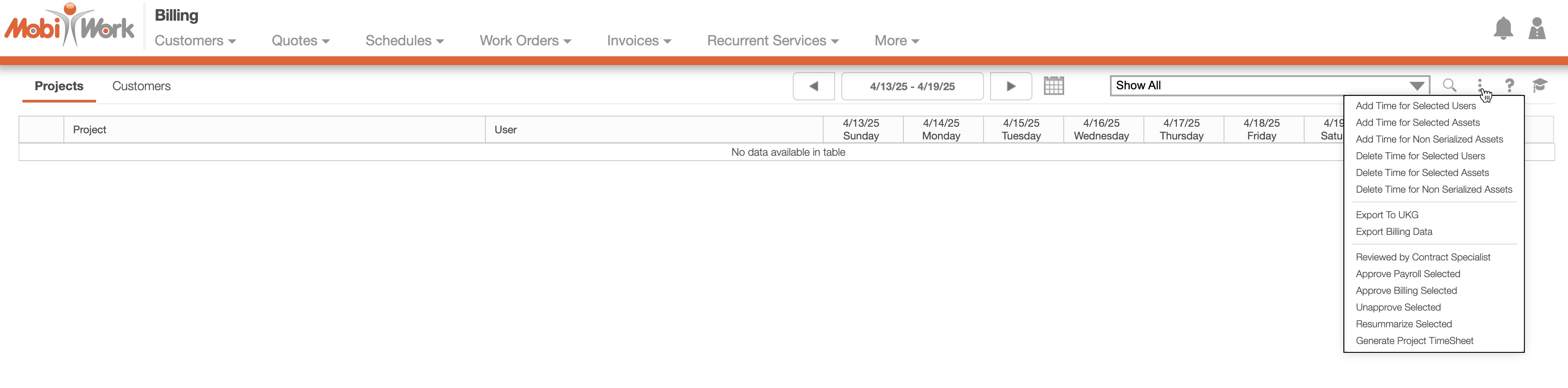
You will be able to perform the following actions:

  • Add Time for Selected Users

  • Add time for Selected Assets

  • Add Time for Non Serialized Assets

  • Delete Time for Selected Users

  • Delete Time for Selected Assets

  • Delete Time for Non Serialized Assets

  • Export to UKG

  • Export Billing Data

  • Reviewed by Contract Specialist

  • Approve Payroll Selected

  • Approve Billing Selected

  • Unapprove Selected

View

You will be able to access the View Billing pop-up window of the selected time tracking activity: