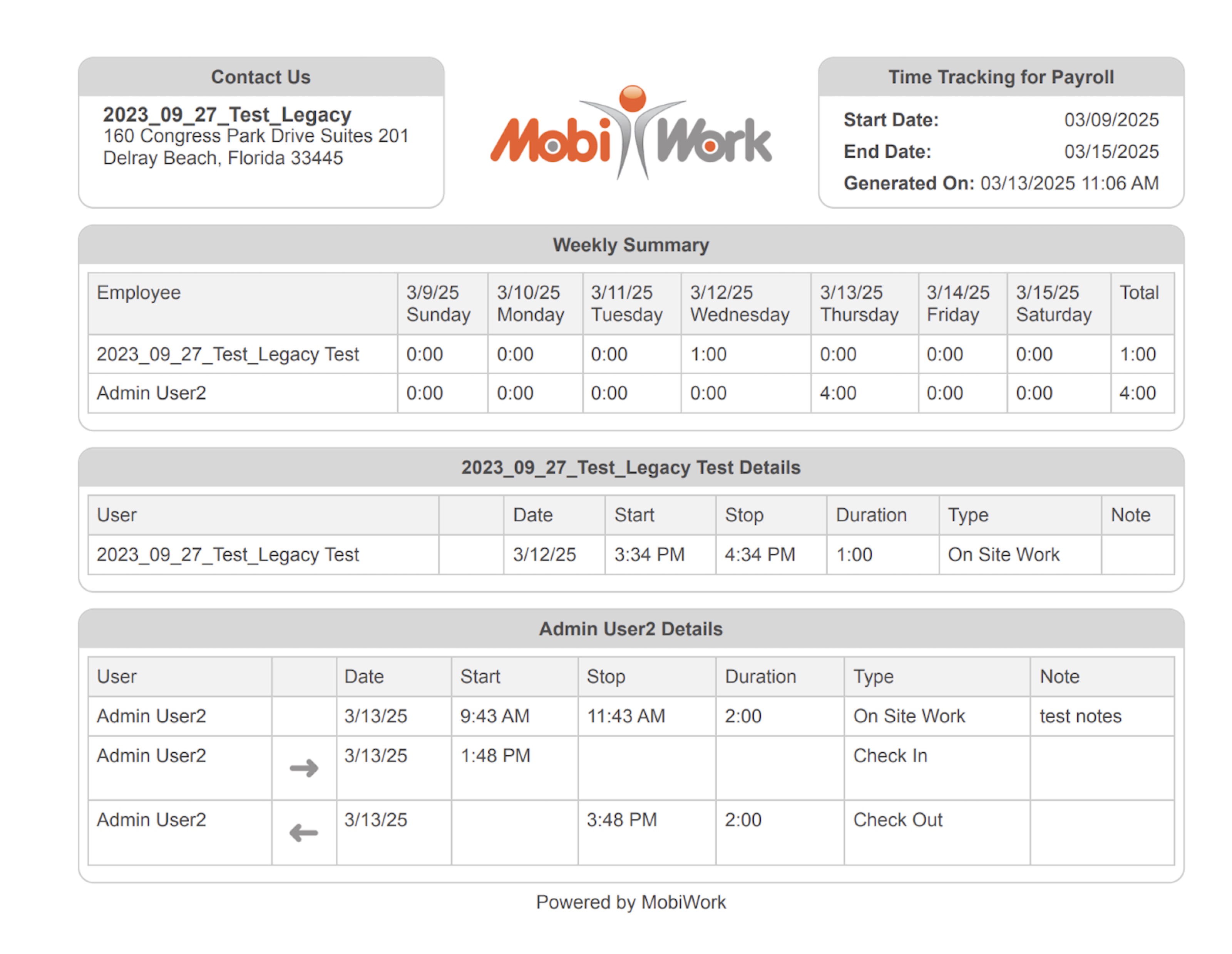
You will be able to access the List View for the time tracking payroll by hovering over the Time Tracking feature on the MobiWork menu. From the drop-down, select the "View Time Tracking for Payroll" option:
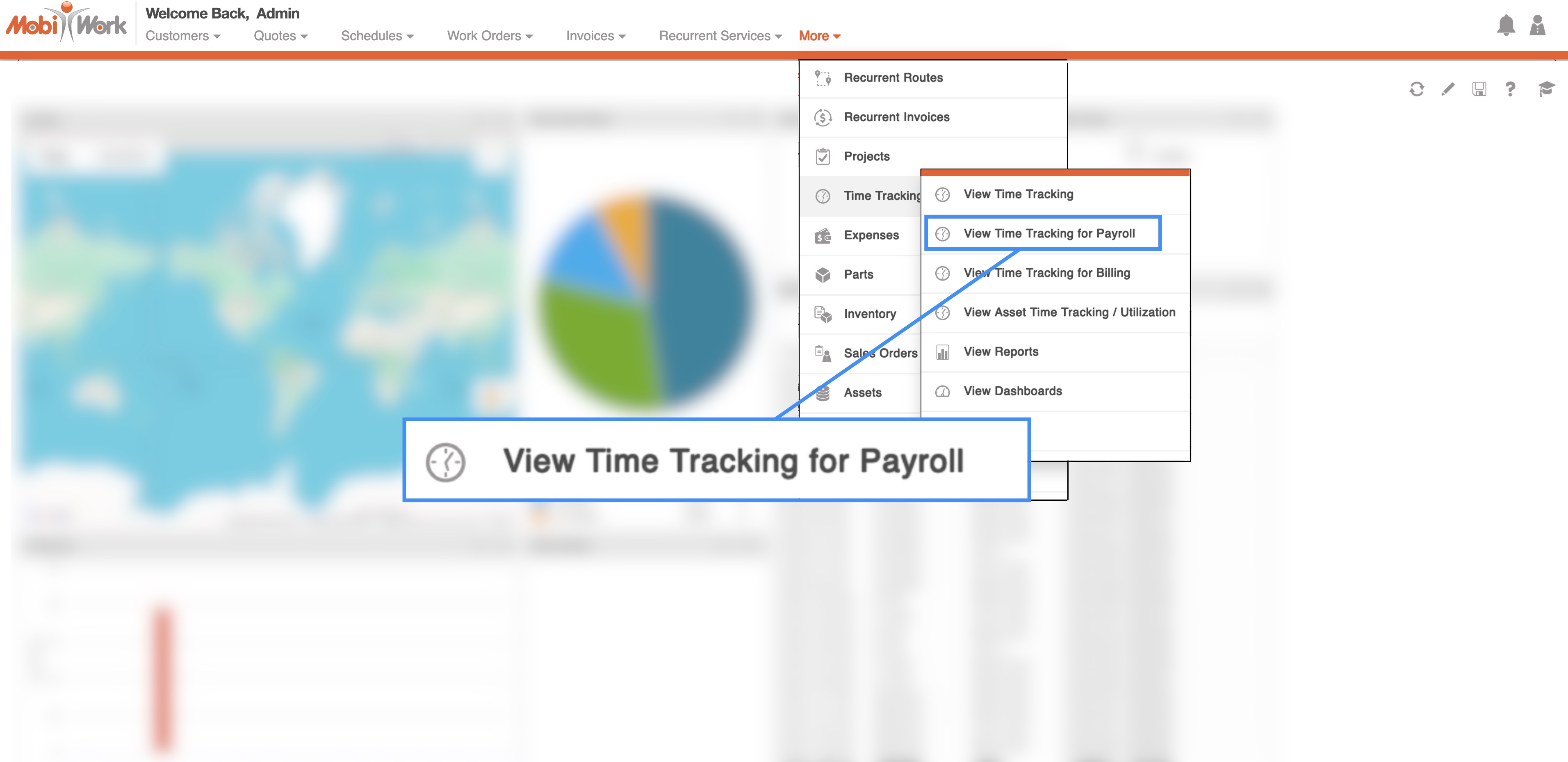
You will then be redirected to the List View page for time tracking payroll.
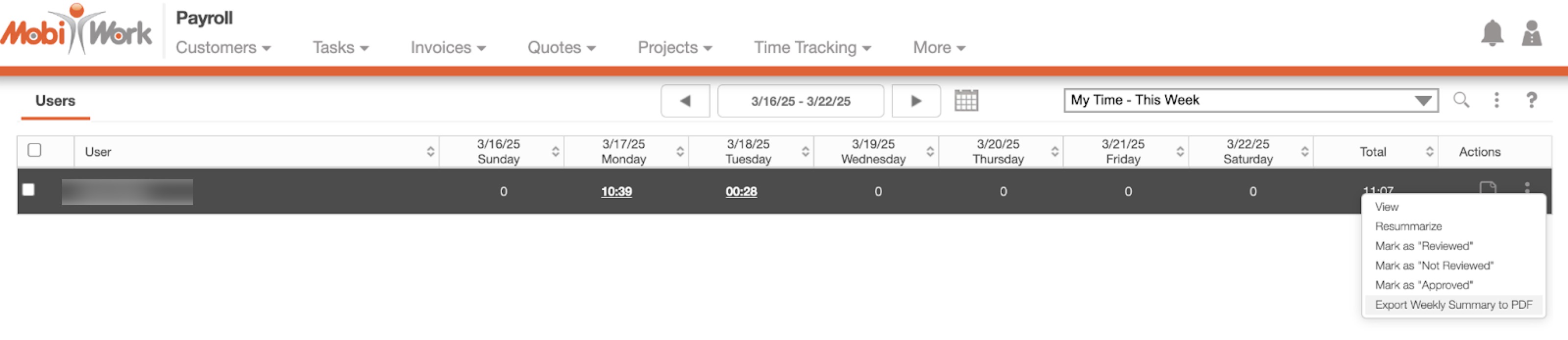
List view individual row actions
Once time tracking data is entered, you can easily access and review payroll details for your users. When you click on the Individual Actions for the selected time tracking entry, you will be able to perform additional actions on the entry:
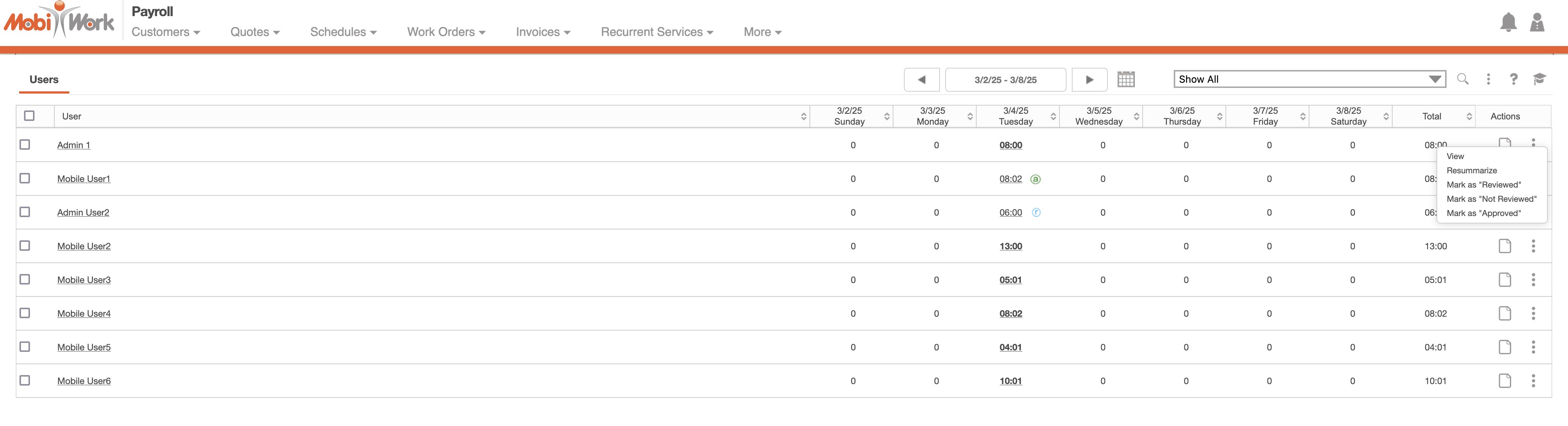
You will be able to perform the following actions:
You can access the View Payroll Details pop-up window.
You can resummarize the time tracking, which will recalculate and update the time tracking data accordingly. This will exclude time tracking that is not on payroll.
You can also mark the time tracking entry if it has been reiewed or not reviewed by the user.
And global admins, supervisors, and managers can mark the time entry as approved.
Global actions
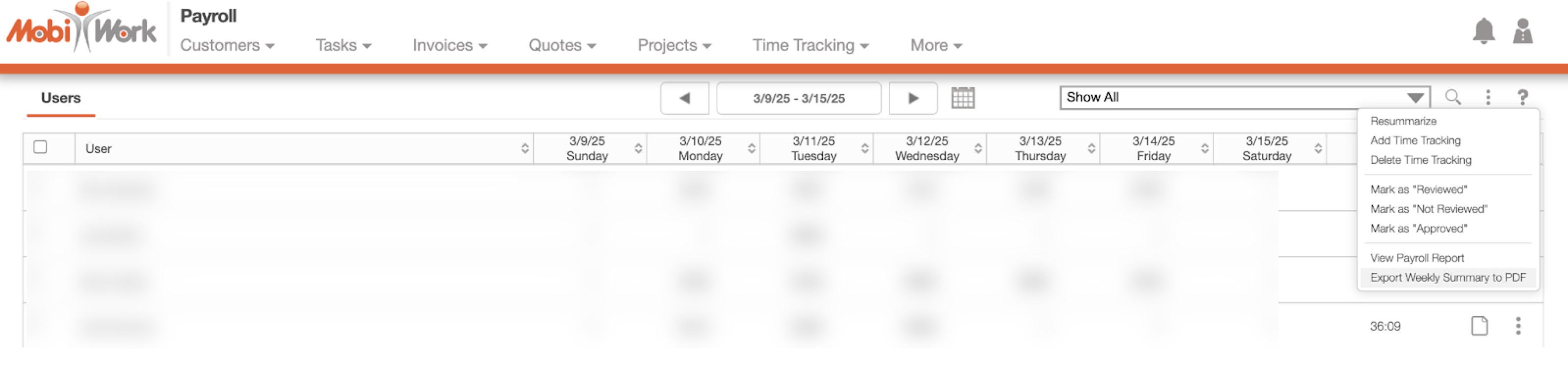
If you click on the the More Actions in the upper right corner, you will be able to access additional payroll actions. These actions will apply to all the selected time tracking payroll entries:
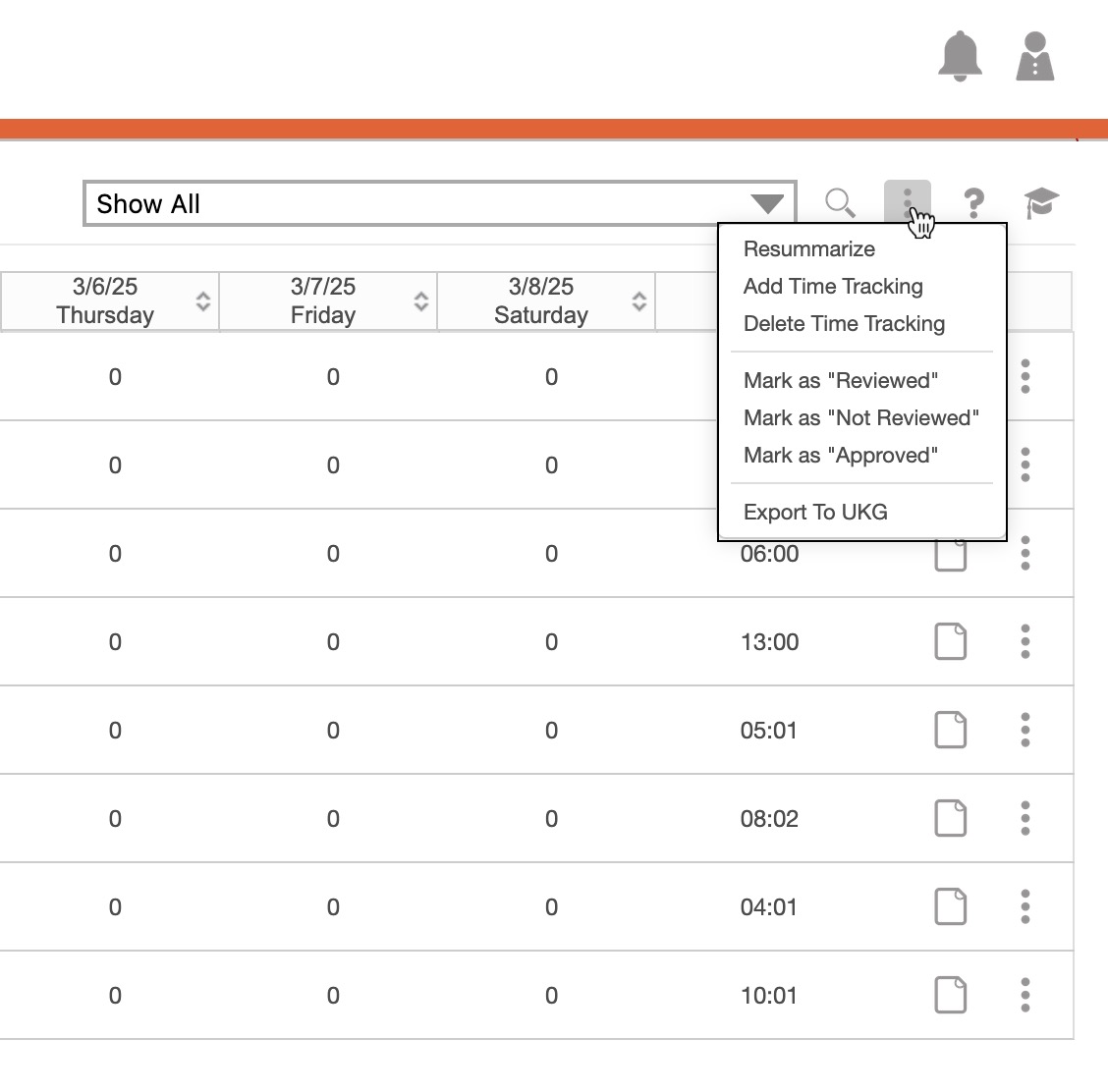
You will be able to perform the following actions:
You can resummarize the selected time tracking entries, which will recalculate and update the time tracking data accordingly. This will exclude time tracking that is not on payroll.
You will be able to add time tracking for multiple users; this includes the start time, duration of the activity, the activity type, if the activity is considered overtime, and any relevant notes.
Likewise, you will be able to delete the time tracking for multiple users.
You can also mark the time tracking entries as been reiewed or not reviewed by the user. This action will mark multiple entries as reviewed.
And global admins, supervisors, and managers can mark multiple time entries as approved.
Review
With the More Actions in the upper right corner, you will be able to review your time tracking entries by clicking on the "Mark as 'Reviewed'" option from the drop-down.
This allows users to mark when their time tracking entries are ready for for approval by their respective global admins, supervisors, and managers. Once reviewed, the entry will have an orange R icon next to it to indicate it has been reviewed. At the end of the day, review your time tracking and mark it as "Reviewed" once you are satisified with the time tracking.
Applying the "Review" action will mark all time tracking entries from the start of the week through the most recent one as reviewed. Once reviewed, the time tracking entry will become read-only.
Approval
With the More Actions in the upper right corner, you will be able to review your time tracking entries by clicking on the "Mark as 'Approved'" option from the drop-down.
This allows global admins, supervisors, and managers to mark when their users' time tracking entries are approved. Once approved, the entry will have a blue A icon next to it to indicate it has been approved. The manager will mark the time tracking as approved, after the user marks it as reviewed.
Applying the "Approval" action will mark all time tracking entries from the start of the week through the most recent one as approved. Once approved, the time tracking entry will become read-only.
Export to Excel
By selecting the "Export to Excel" option, you will be able to export the payroll time tracking into an Excel report.
Export to UKG
By selecting the "Export to UKG" option, you will be able to export the payroll time tracking data to UKG.
Export to ADP
By selecting the "Export to ADP" option, you will be able to export the payroll time tracking data to your ADP connector.
Export to Paylocity
By selecting the "Export to Paylocity" option, you will be able to export the payroll time tracking data to your Paylocity connector.
Export to QuickBooks Online
By selecting the "Export to QuickBooks Online" option, you will be able to export the payroll time tracking data to your QuickBooks Online connector.
You will be able to access the Payroll Details pop-up window from the List View page, by clicking on the View icon of the respective time tracking entry:
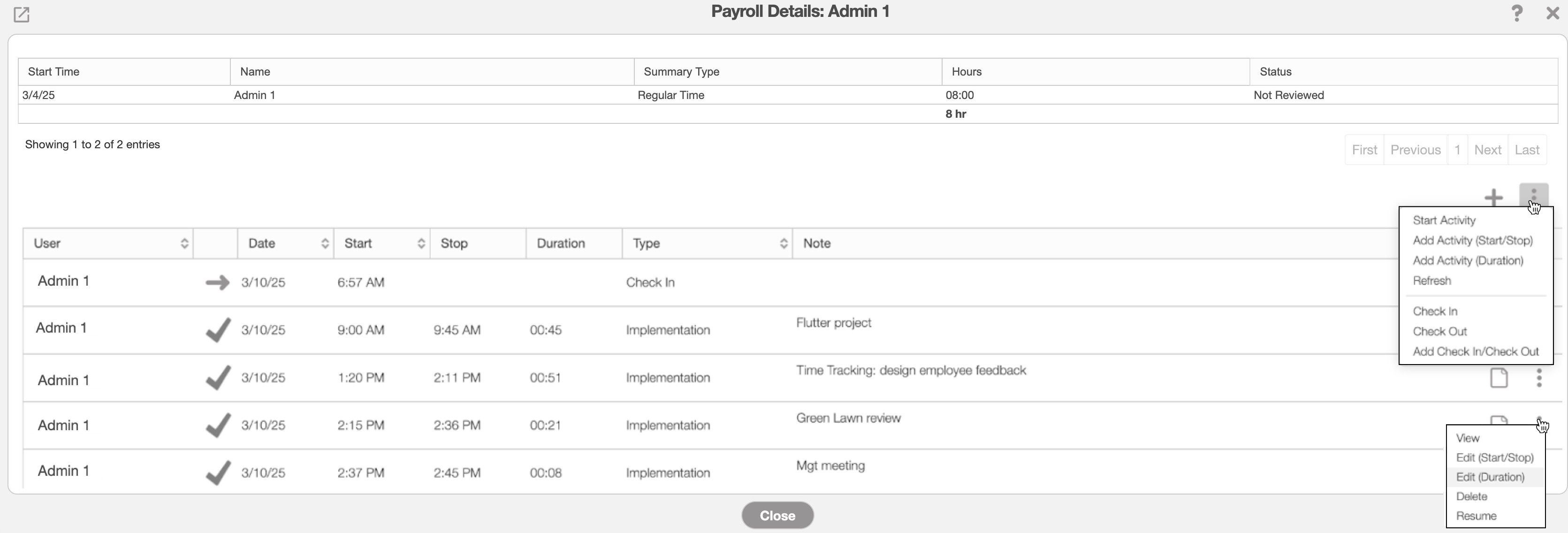
The Payroll Details pop-up window will display the start time, how many hours worked, the user being tracked, and more.
From this window, you will also be able to perform additional actions on the time tracking entries, like resuming stopped activities, deleting time tracking entries, or editing existing entries.
Supervisors, managers, and global admins will be able to provide additional feedback to employees by way of email.
You can export the payroll data into a PDF document for a single user or multiple users.
To export the time tracking for multiple users, click on the More Actions button and from the drop-down select the "Export Weekly Summary to PDF" option:
To export a single user's time tracking, click on the Individual Actions button from the desired user and from the drop-down select the "Export Weekly Summary to PDF" option:
The exported PDF will display the user start and end dates, times, duration and more: