
There are two different View Time Tracking pop-up windows that you can access; the View Time Tracking Entries pop-up window can be accessed through the "Summary, "Weekly Billable," Weekly Non-Billable," and "Weekly (All)" tabs. This pop-up window will allow you to edit, start, add, and more to the selected user's time tracking.
The View Time Tracking Summary pop-up window can be accessed through the View Work Order pop-up window, and through the Time Tracking "List" tab. The View Time Tracking Summary pop-up window, will display the time tracking information in a read-only format.
There are several different ways you can access the View Time Tracking pop-up windows in MobiWork.
The following sections demonstrate some common methods of accessing the View Time Tracking pop-up windows from your MobiWork web platform.
View time tracking entries
The View Time Tracking Entries pop-up window can be accessed through through the Time Tracking tabs (with the exception of the "List" tab).
This pop-up window will allow you to edit, start, add, and more to the selected user's time tracking entries.
Once you are on the "Summary," "Weekly Billable," "Weekly Non-Billable," or "Weekly All" tabs, there are four different ways to access the View Time Tracking Entries pop-up window:
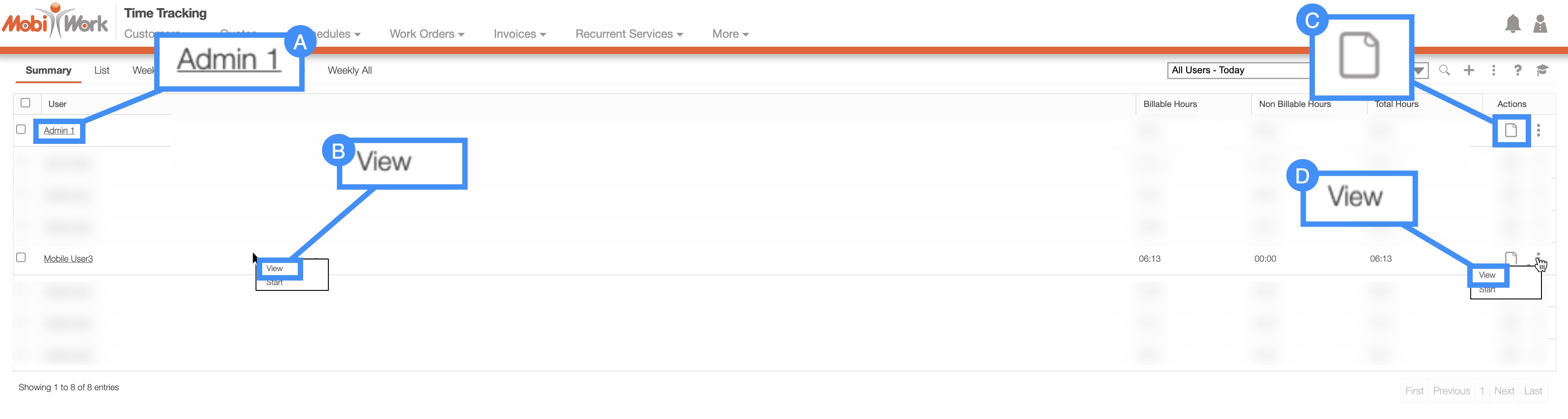
Select the desired user.
Right-click on the selected user's time tracking and click on the "View" option from the drop-down.
Click on the "View" option from the Individual Actions drop-down.
Select the View icon under the "Actions" column.
View time tracking summary
Unlike the View Time Tracking Entries pop-up window, the information displayed on the View Time Tracking Summary pop-up window is in a read-only format
The duration of the time tracking entry, the start/stop time, status, notes, and more can be found in this pop-up window. The View Time Tracking Summary pop-up window can be accessed through the View Work Order pop-up window, and through the Time Tracking "List" tab.
The following subsections will illustrate how to access the View Time Tracking Summary pop-up window.
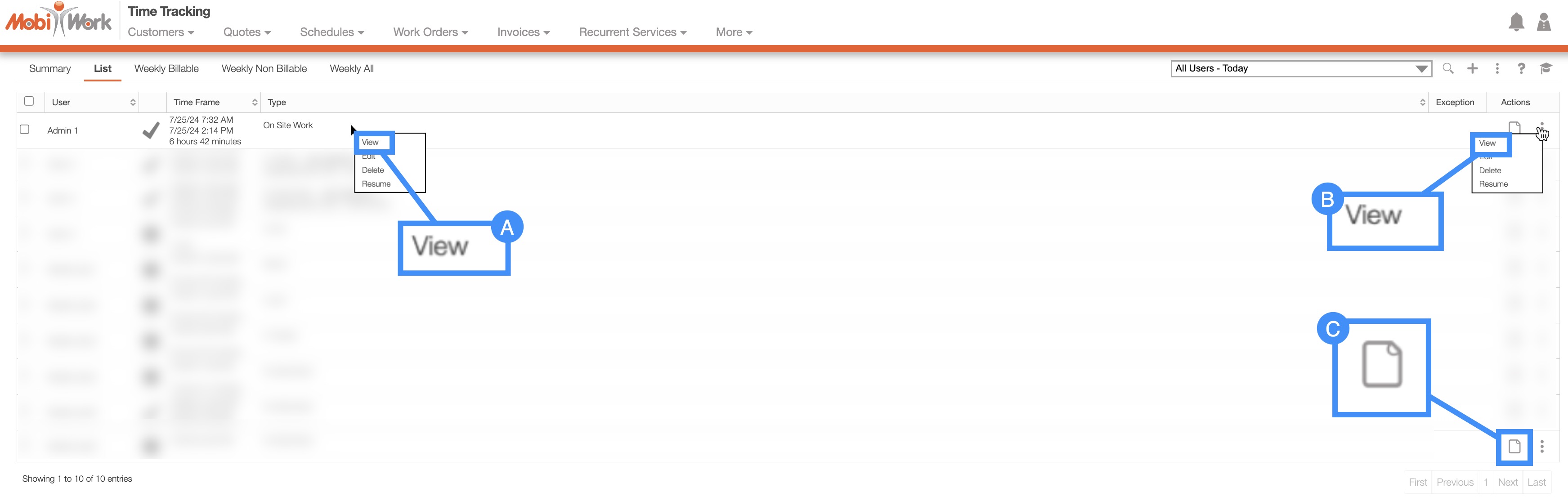
Right-click on the selected user's time tracking and click on the "View" option from the drop-down.
Select the View icon under the "Actions" column.
Click on the "View" option from the Individual Actions drop-down.
Time Tracking List Tab
You can access the View Time Tracking Summary pop-up window from the Time Tracking "List" tab.
Once you are on the "List" tab, there are three different ways to access the View Time Tracking Summary pop-up window:
View Work Order Pop-up Window
You can also access the View Time Tracking Summary pop-up window from the View Work Order pop-up window. For more information on how to access the View Work Order pop-up window please see the View Work Order page.
Once you open the View Work Order pop-up window, select the "Job Costing" tab:

All the hours associated with the work order will be displayed in the "Time Tracking" section of the "Job Costing" tab. To access a user's time tracking and open its View Time Tracking Summary pop-up window you can:
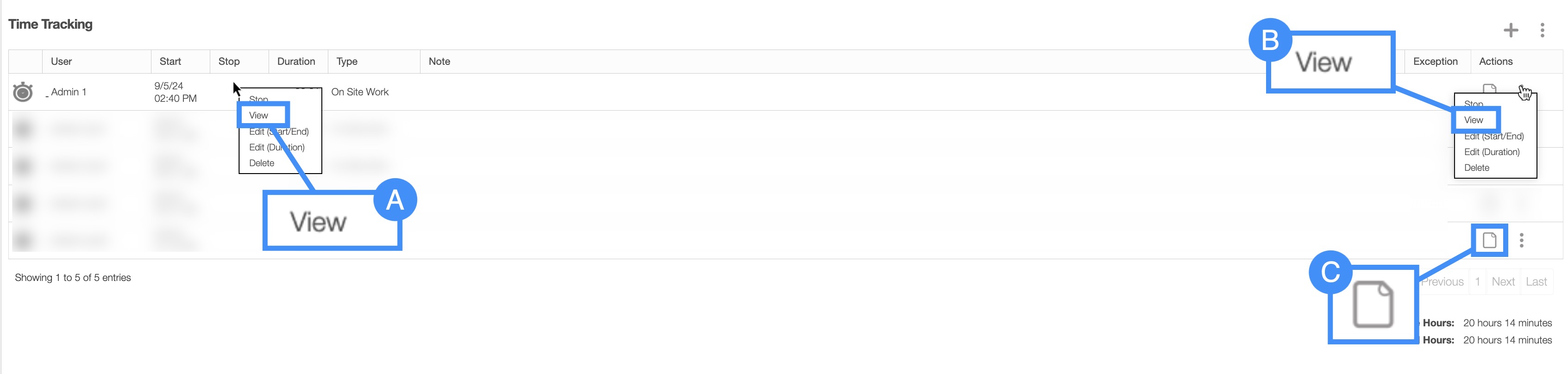
Right-click on the selected user's time tracking and click on the "View" option from the drop-down.
Click on the "View" option from the Individual Actions drop-down.
Select the View icon under the "Actions" column
By choosing to open the View Time Tracking from the "Summary," "Weekly Billable," "Weekly Non-Billable," or "Weekly All" tabs, the View Time Tracking Entries pop-up window will automatically appear.
The View Time Tracking Entries pop-up window will display the start and end times of the user. These timeframes will consist of multiple entries throughout the day, and you will be able to perform various actions on the time entries (e.g., editing, viewing, deleting, etc.).
The image below illustrates the More Actions drop-down:
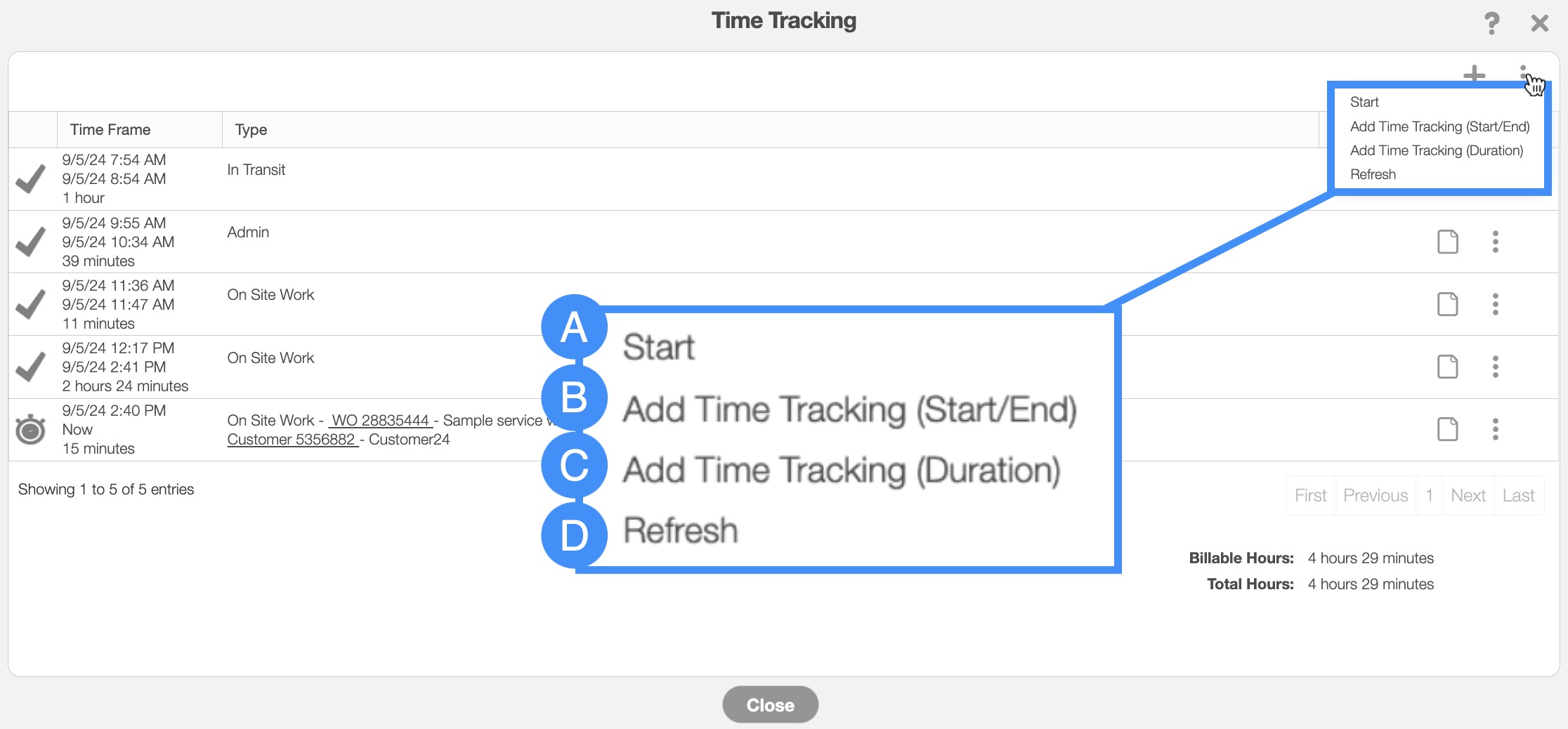
The "Start" option will open the Add Time Tracking: Duration pop-up window where you can input the start date/times for the specified user.
The "Add Time Tracking (Start/Stop)" option will open the Add Time Tracking: Start & End pop-up window where you can input the start and end date/times for the specified user.
The "Add Time Tracking (Duration)" option will open the Add Time Tracking: Duration pop-up window where you can input the start date/time for the specified user.
The "Refresh" option will refresh the data in the View Time Tracking Entries pop-up window.
The image below illustrates the Individual Actions drop-down for both ongoing and stopped time entries:
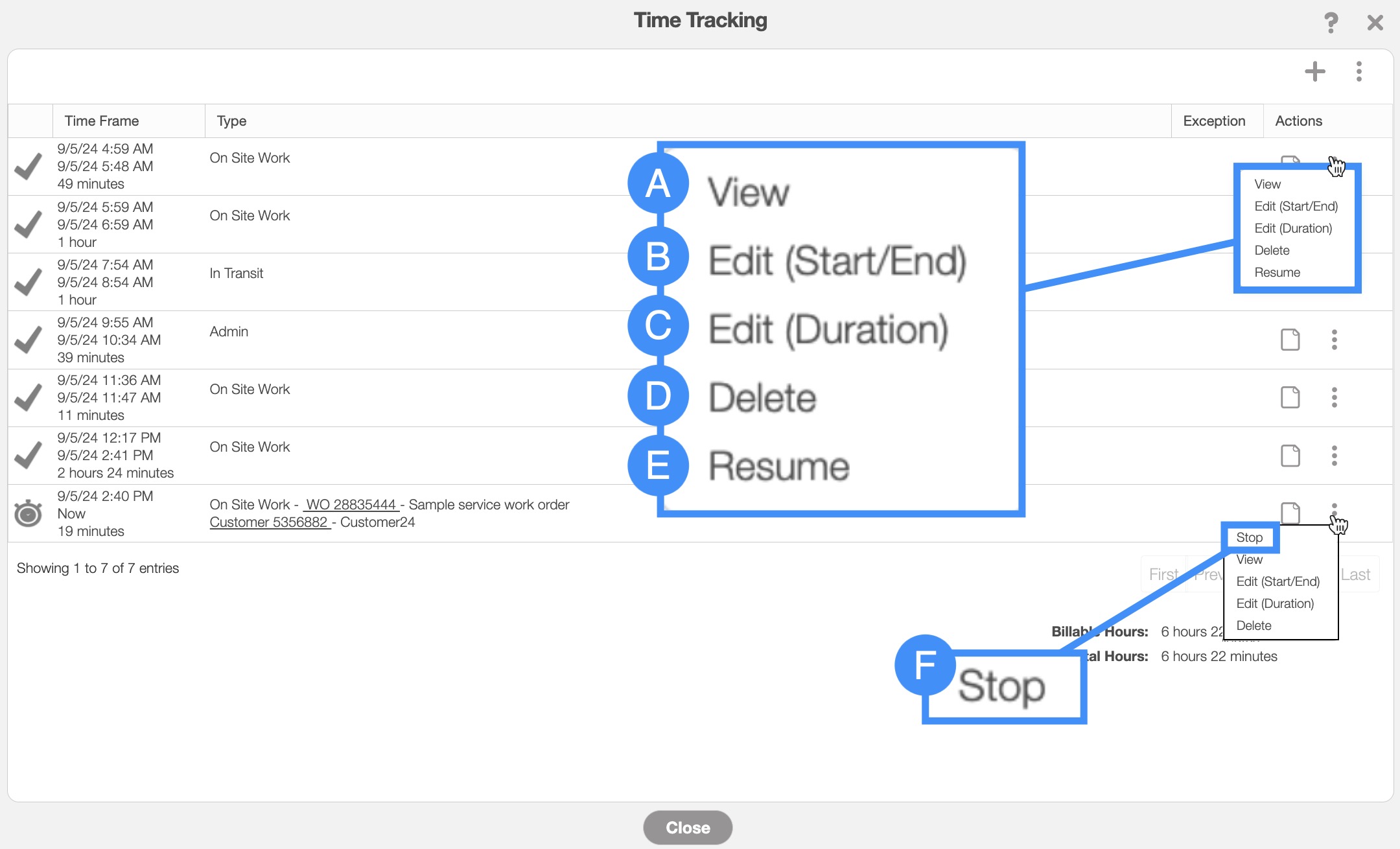
The "View" option and the View button will open the View Time Tracking Summary pop-up window of the selected time tracking.
The "Edit (Start/Stop) option will allow you to edit the start and end date and times, activity type, and any notes regarding the selected time tracking.
The "Edit (Duration)" option will allow you to edit the start date, time, activity type, and any notes regarding the selected time tracking.
The "Delete" option will delete the selected time tracking.
The "Resume" option will only appear if the "Time Tracking Icon" column has a Checkmark. When you select this action, the time tracking for the specified activity will resume.
The "Stop" option or Stop button will only appear if the "Time Tracking Icon" column has a Clock. When you select this action, the time tracking for the specified activity will end.
The columns for the View Time Tracking Entries pop-up window are defined below:
| Name: | Description: |
|---|---|
| "Time Frame" | The start and end time/date of the time tracking activity. |
| "Type" | The type of activity that the time tracking is measuring (e.g., working on site, the user in transit, lunch, admin work, etc.). |
| "Exception" | Displays any exceptions regarding the user's time tracking (e.g., users who started late, finished early, etc.). |
| "Actions" | Allows you to view, edit, or delete the selected time tracking. If the "Time Tracking Icon" column has a Clock icon, then you also have the option to stop the ongoing hours. |
By choosing to open the View Time Tracking from the Time Tracking "List" tab or the View Work Order pop-up window the View Time Tracking Summary pop-up window will automatically appear:
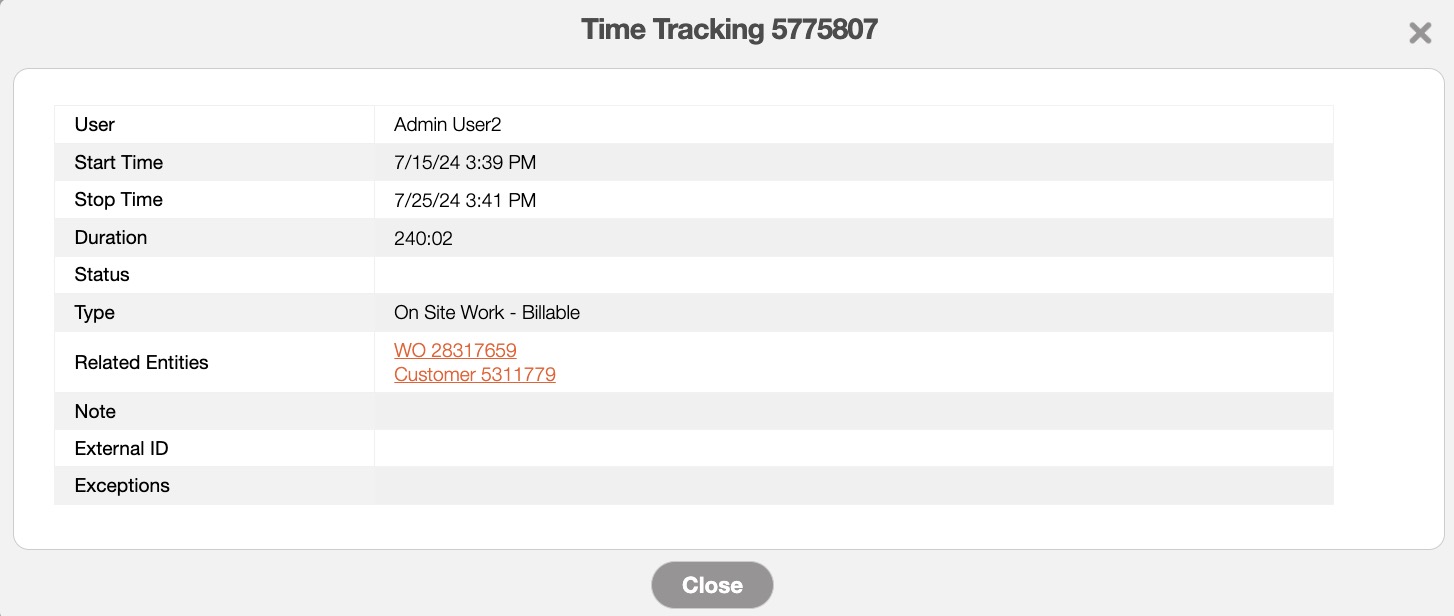
The View Time Tracking Summary pop-up window will display the user's start and end times, the duration of the time tracking entry, the type of worked done, and more.
The information displayed in this pop-up window will display the summary details of the time tracking in a ready-only format.
The columns in the View Time Tracking Summary pop-up window are defined below:
| Name: | Description: |
|---|---|
| "User" | The user associated with the hours |
| "Start Time" | The start time and date of the activity or task |
| "Stop Time" | The stop time and date of the activity or task |
| "Duration" | How long (from Start to Stop) the activity or task lasts |
| "Status" | The status of the time tracking (e.g., not submitted, submitted for approval, approved, and rejected). |
| "Type" | The type of activity or task that is being measured by the time tracking |
| "Related Entities" | The Quote or Work Order associated with the time tracking |
| "Note" | Any notes associated with the time tracking activities. |
| "External ID" | Is the external ID (outside of MobiWork) of the service; this ID can be from QuickBooks or another third-party accounting software. |
| "Exception" | Displays any exceptions regarding the user's time tracking (e.g., users who started late, finished early, etc.). |