
Overview
For a single user, there are two different ways to check in on the mobile device. The following subsections will address the different ways a single user will be able to check in and out from their device. Checking in or out will automatically stop any ongoing time tracking activities.
The "Check In" action is typically used to indicate the beginning of a shift for a user and the "Check Out" is typically used to indicate the end of a shift.
From daily check list
You can easily check in and check out directly from the Daily Task List on your mobile app. For quick access, simply tap the large orange button labeled "Daily Task List" on your home screen. This convenient feature allows you to manage your workday efficiently—no need to navigate through multiple menus:
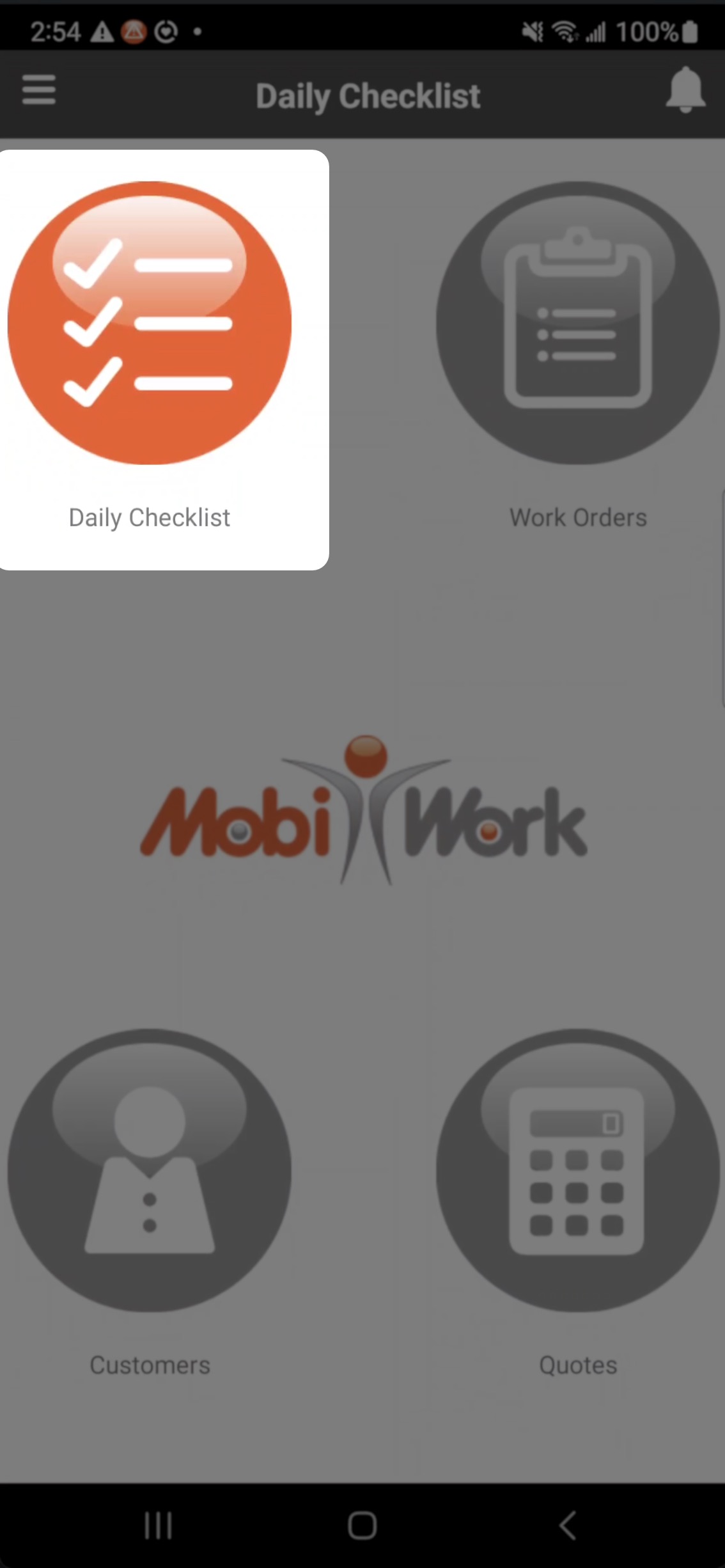
Once you are on the Daily Check List page, you will be able to access the Check In/Out feature.. We recommend this method for checking in and out:
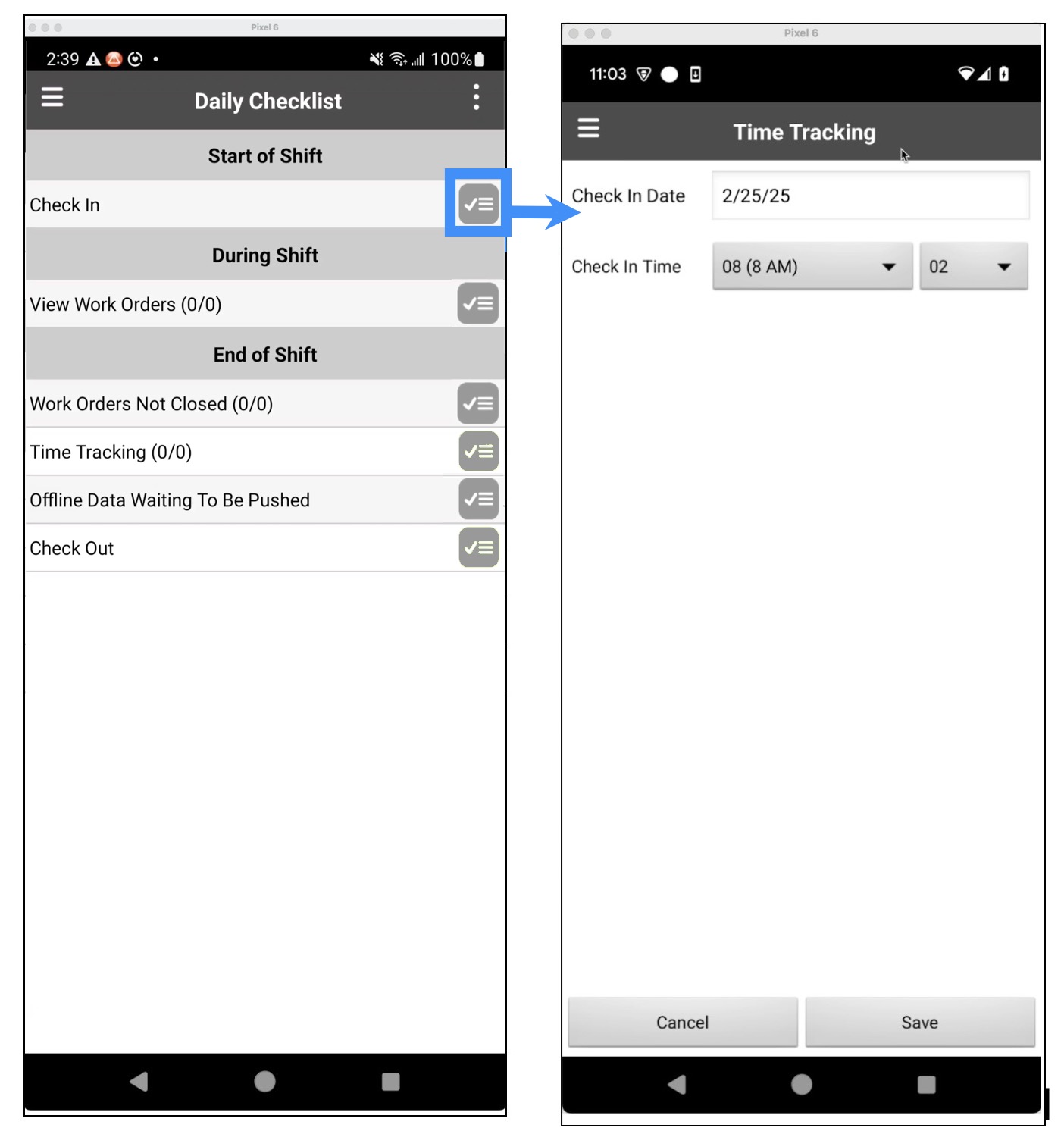
Note: Please note that the Daily Check List is not available on Starter.
From time tracking
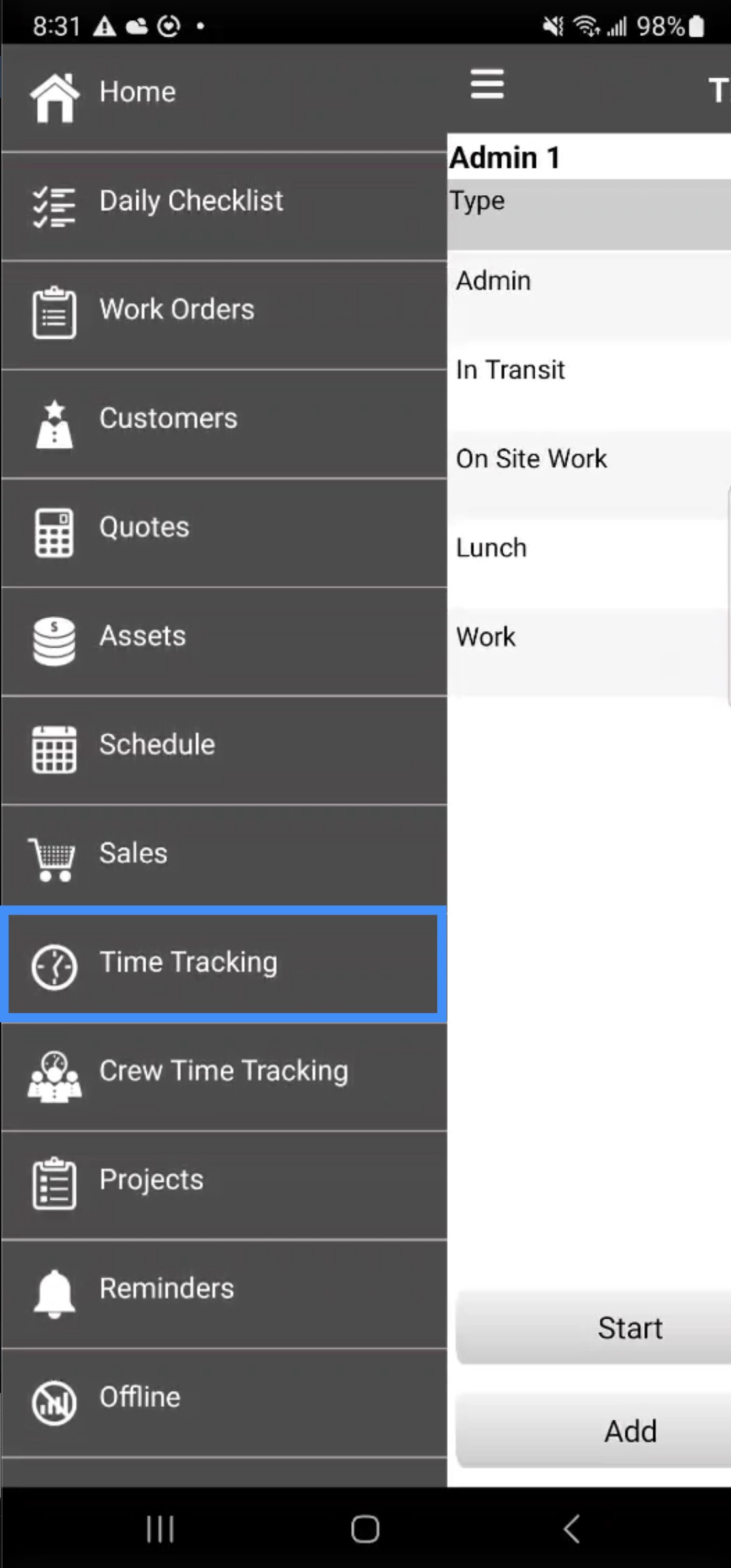
You can access the Time Tracking feature from the device's side panel to manage your time tracking and to check in or out:
To check in or out from the Time Tracking panel, click on the Individual Actions in the from the upper right corner of the Time Tracking panel:
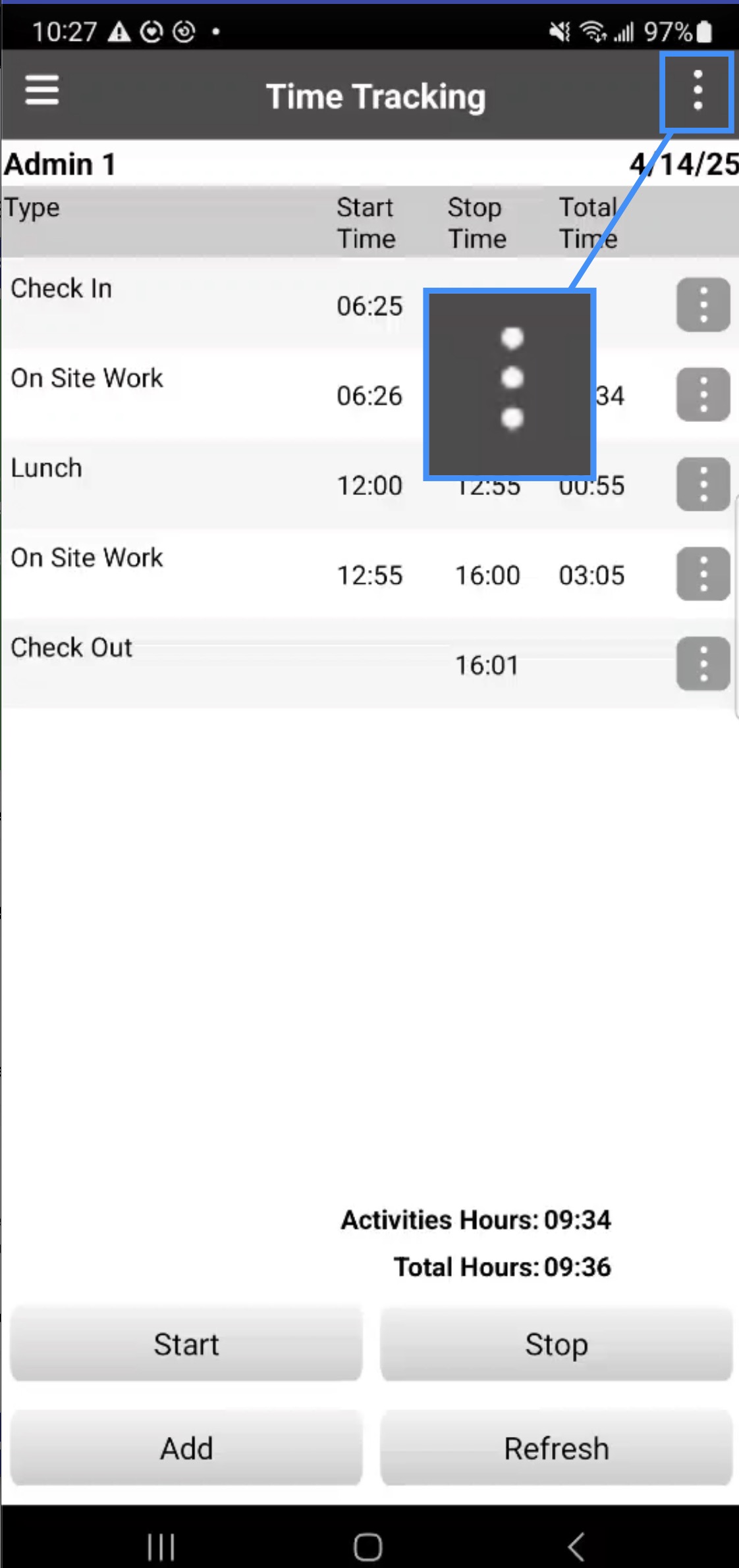
You will then be able to check in or check out directly from the Time Tracking panel:
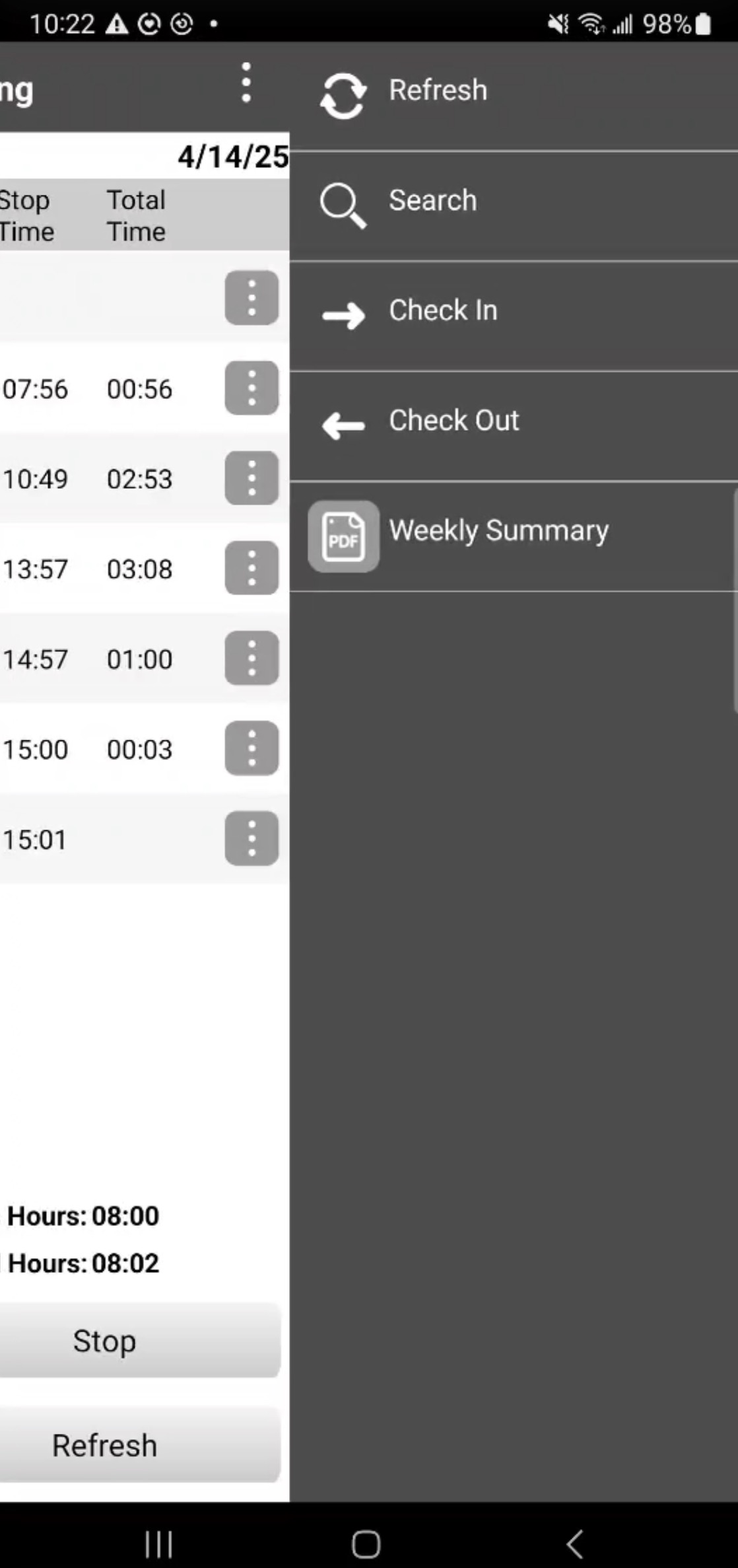
From the Time Tracking panel, you will be able to access additional actions; including the Start, Stop, and Add actions. The following subsections will go into detail regarding the different actions you can access from this panel.
Main panel
You can access the Time Tracking feature from the device's side panel to manage your time tracking, including starting a time tracking activity:
The main panel is the default panel you will be directed to once you access the Time Tracking panel. From this panel you will be able to access all the major actions regarding your time tracking:
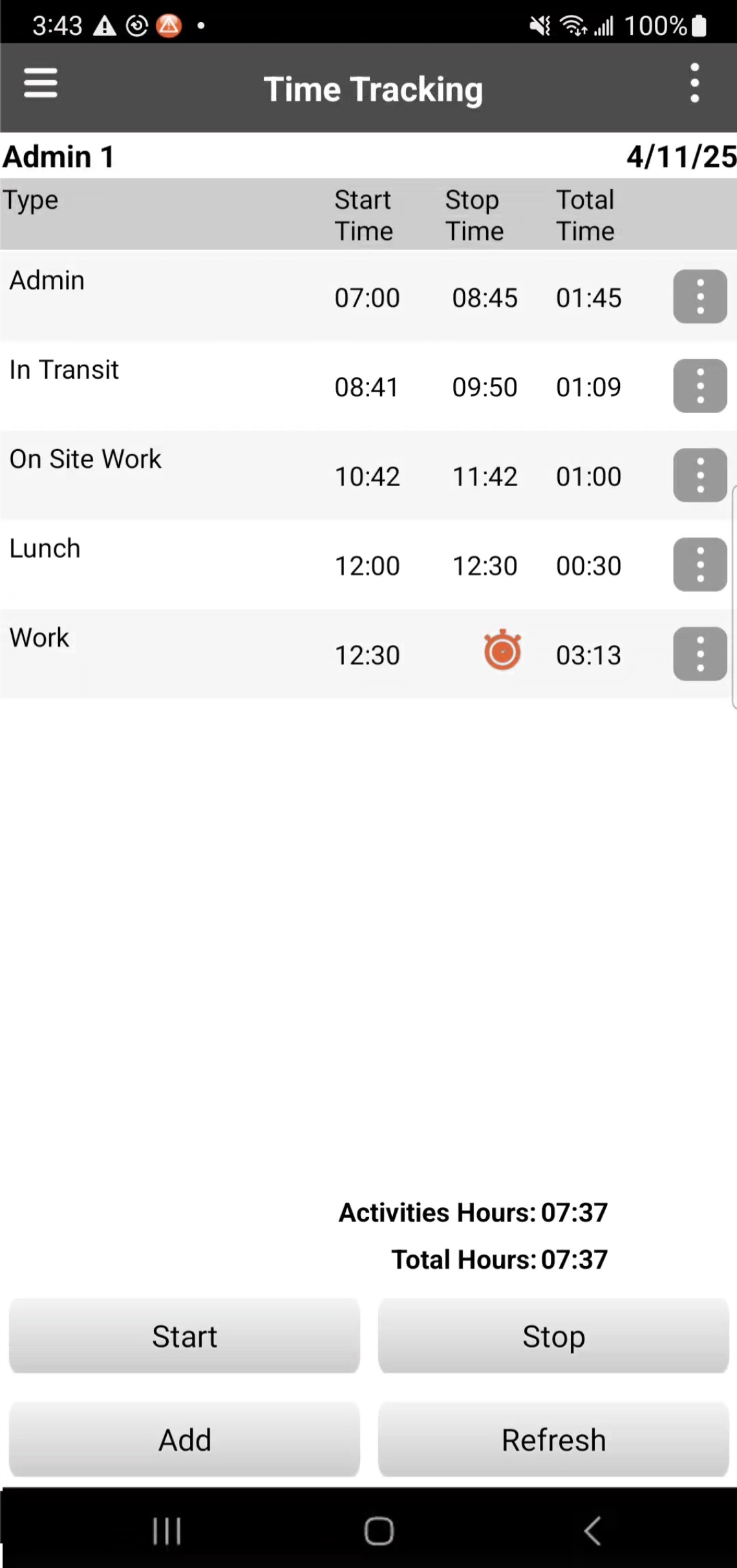
By pressing on the Individual Actions of the selected time tracking, you will be able to access additional actions, including editing the time tracking activity, resuming a stopped time tracking, or stopping an ongoing time tracking activity.
Start
By pressing the Start button you will be able to begin time tracking for an activity:
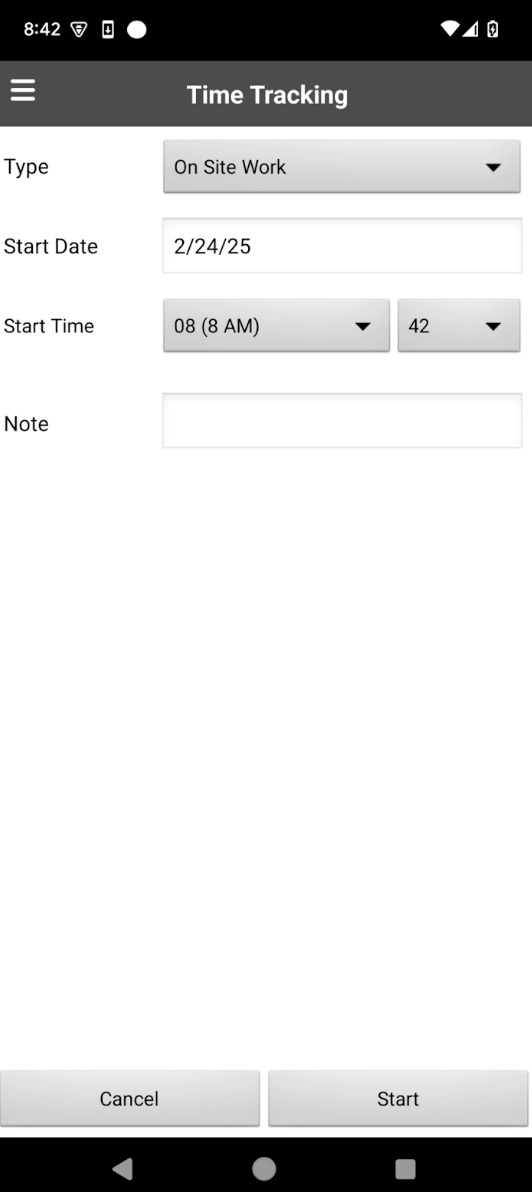
From this panel you will be able to input the following information:
The type of activity being recorded by the time tracker
The start date of the time tracking activity
And the start time of the time tracking activity
Any notes associated with the activity being recorded
Once you are ready to begin tracking the activity, press the Start button. Please note, that once you press the Start button, any previously running activity will automatically stop to allow the new activity to begin.
Stop
By pressing on the Stop button of the selected time tracking, you will be able to access the Stop Time Tracking panel. This action will stop the time tracking for the selected activity:
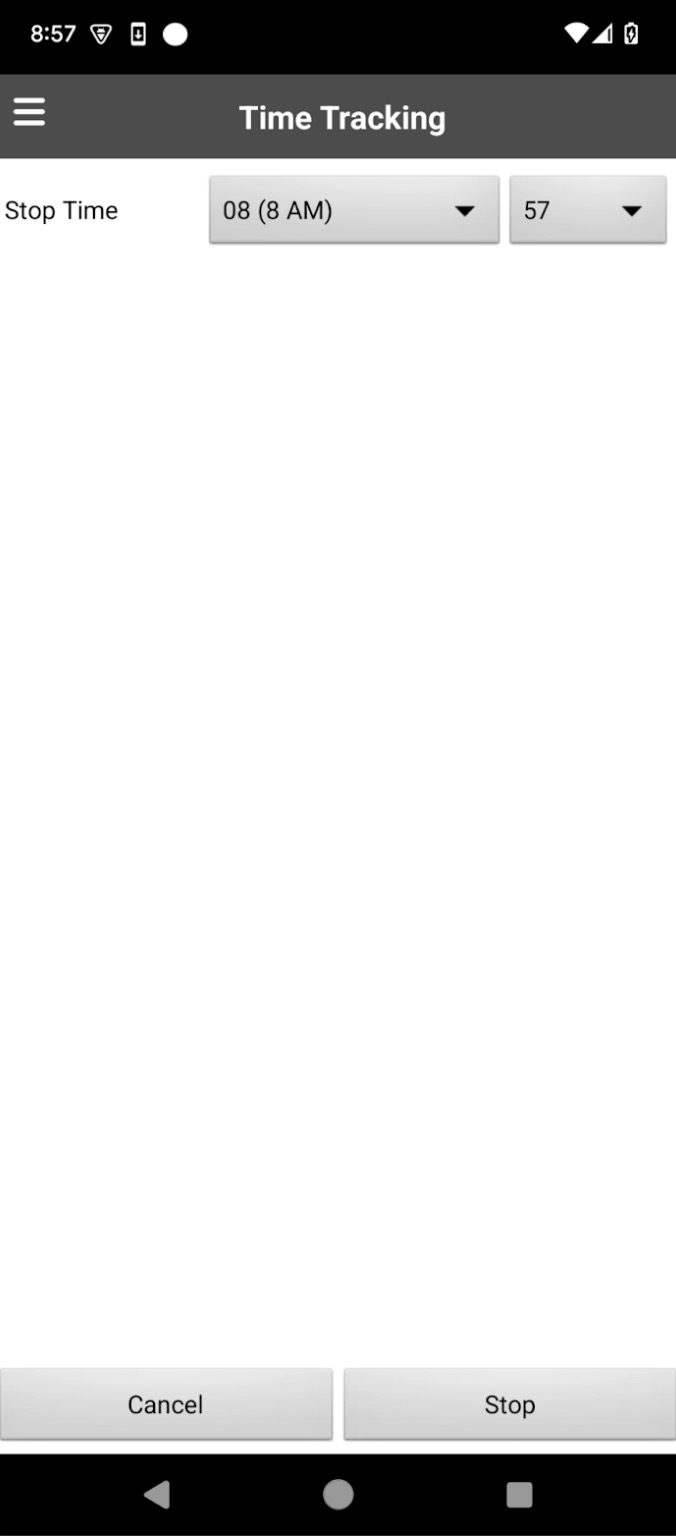
You can resume the time tracking by pressing the "Resume" action.
Add
By pressing the Add button you will be able to add the start and end time tracking for an activity:
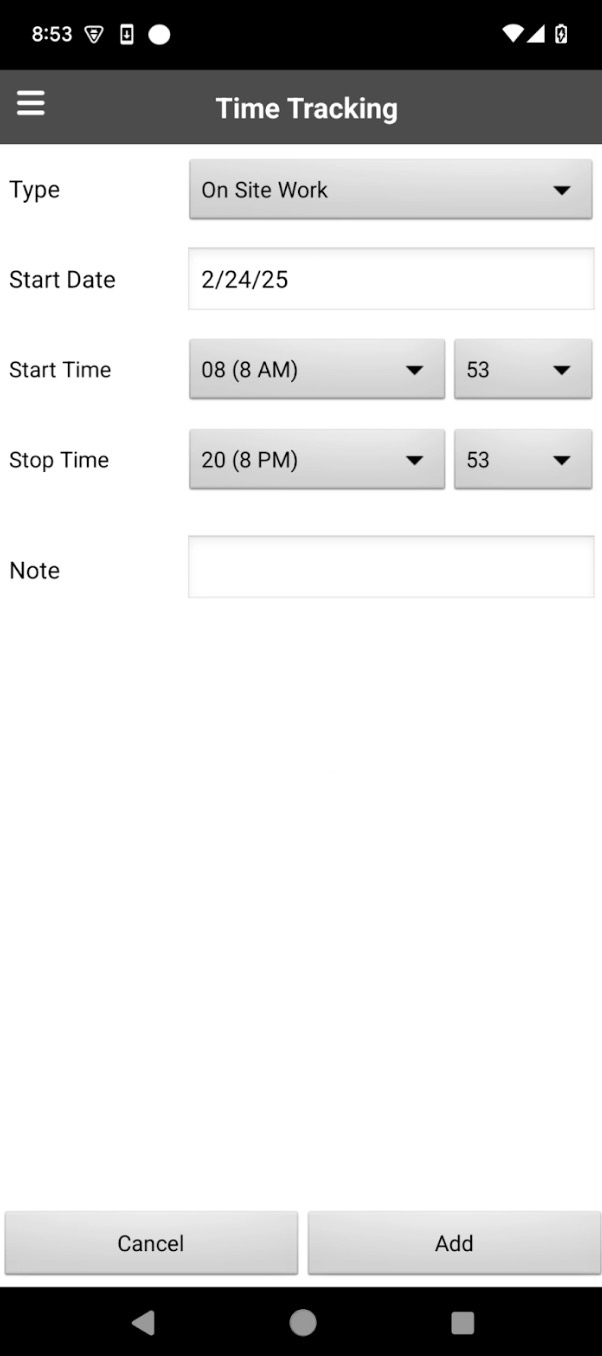
From this panel you will be able to input the following information:
The type of activity being recorded by the time tracker
The start date of the time tracking activity
The start time of the time tracking activity
The end time of the time tracking activity
Any notes associated with the activity being recorded
Once you are ready to enter the time tracking for the activity, press the Add button.
Please note that, the stop time is automatically set to the end of business hours.
Also, if enabled in the settings, the system will also capture the Cost Code and Billing Code- though both will default to empty if not specified. Additionally, Projects will not appear by default; instead, you will need to start from the project itself or from a work order linked to it.
Overlap handling

Resume (existing entry individual action)
By pressing on the Individual Actions of the selected time tracking, you will be able to access the "Resume" action:
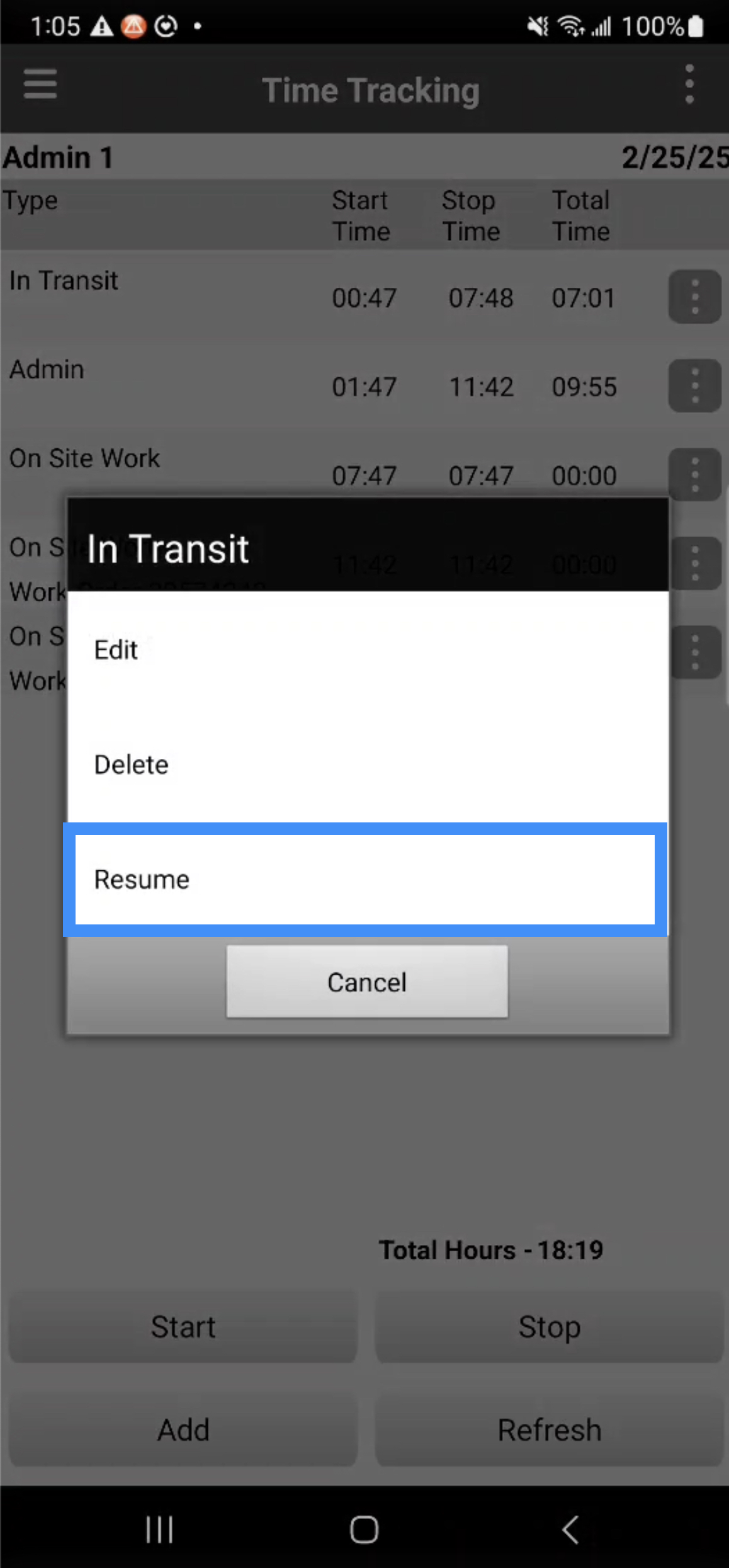
This will create a new time tracking segment from this activity, similar to "Start," but with a predefined activity type.
MobiWork will automatically stop any ongoing time tracking. Once pressed, the time tracking will automatically resume from the previously stopped activity. For example, you can use the "Resume" action to go back to "On Site" after lunch.
Edit (existing entry individual action)
By pressing on the Individual Actions of the selected time tracking, you will be able to access the "Edit" action.
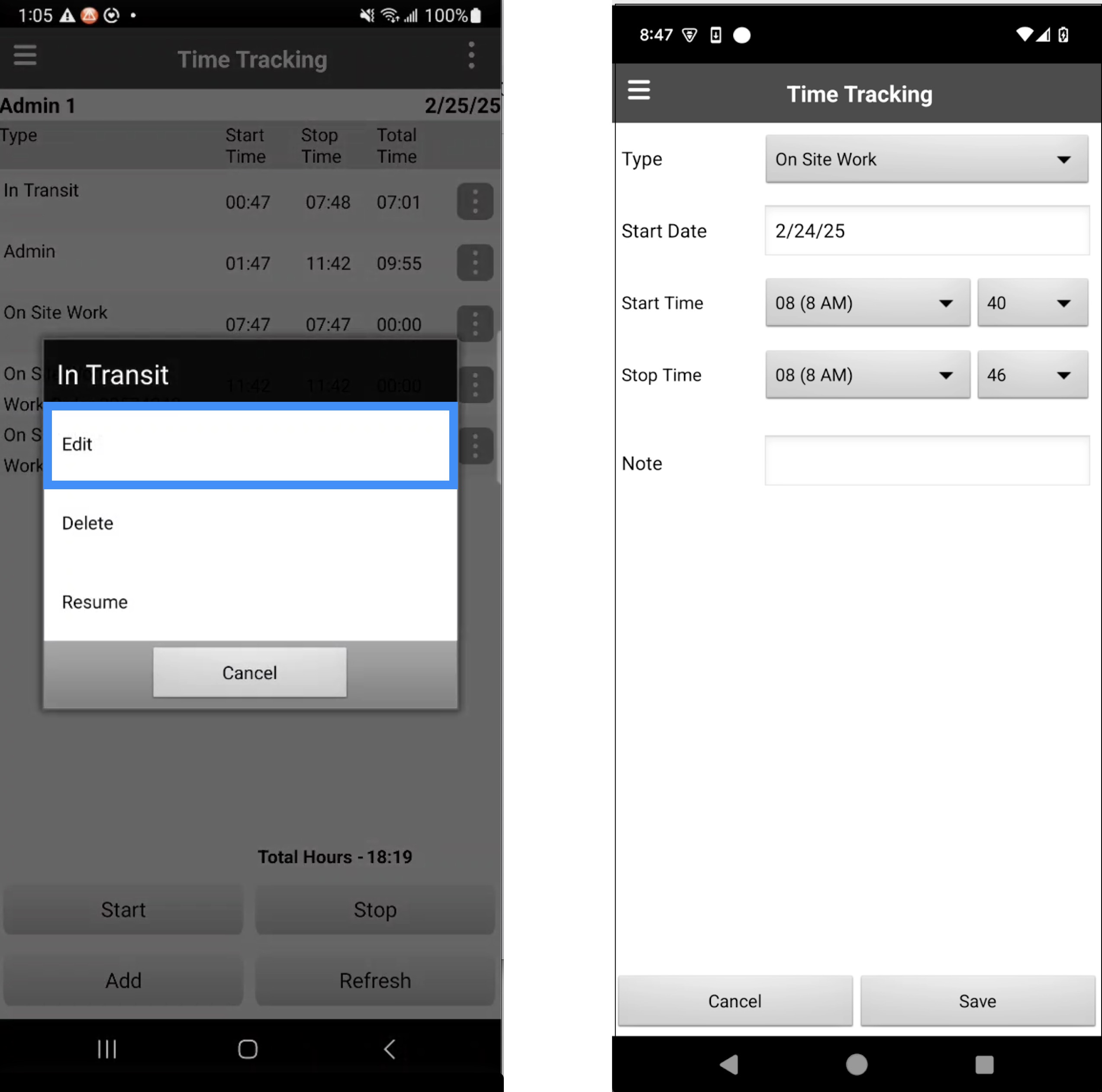
With this action you will be able to update the following information for a time tracking activity:
The type of activity being recorded by the time tracker
The start date of the time tracking activity
The start time of the time tracking activity
The end time of the time tracking activity
Any notes associated with the activity being recorded
Once you are ready to enter the updated time tracking for the activity, press the Save button. Editing will stop any ongoing activity (i.e. the activity will be stopped and the Stop Time used)
Please note, that the Stop action will appear if the activity is still in progress.
Also, if enabled in the settings, the system will also capture the Cost Code and Billing Code- though both will default to empty if not specified. Additionally, Projects will not appear by default; instead, you will need to start from the project itself or from a work order linked to it.
MobiWork makes it easy to keep track of your time with the work order action items. Please note, that standalone time tracking is also supported- for example, for managing lunch or break periods. Use the "My Time Tracking" feature to start a lunch break, and then use "Start" or "Resume" actions on the "On-Site" activity to continue your work.
Note: The cost code and billing code values for time tracking should be done at the project level.
Time tracking with standard action items
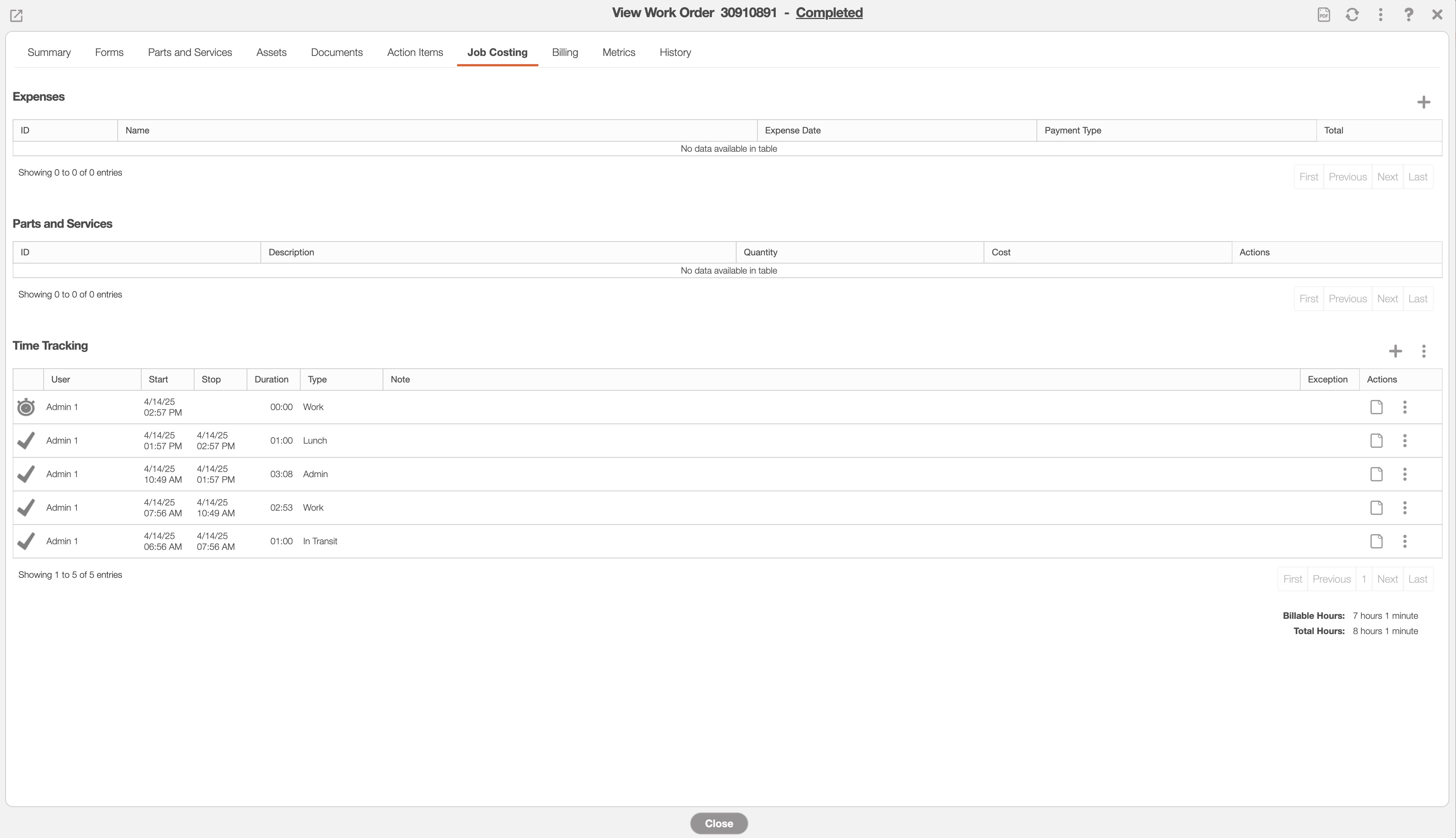
The MobiWork work order action items automatically keep track of the time spent in transit and on site. Just toggle the action items and MobiWork will do the rest:
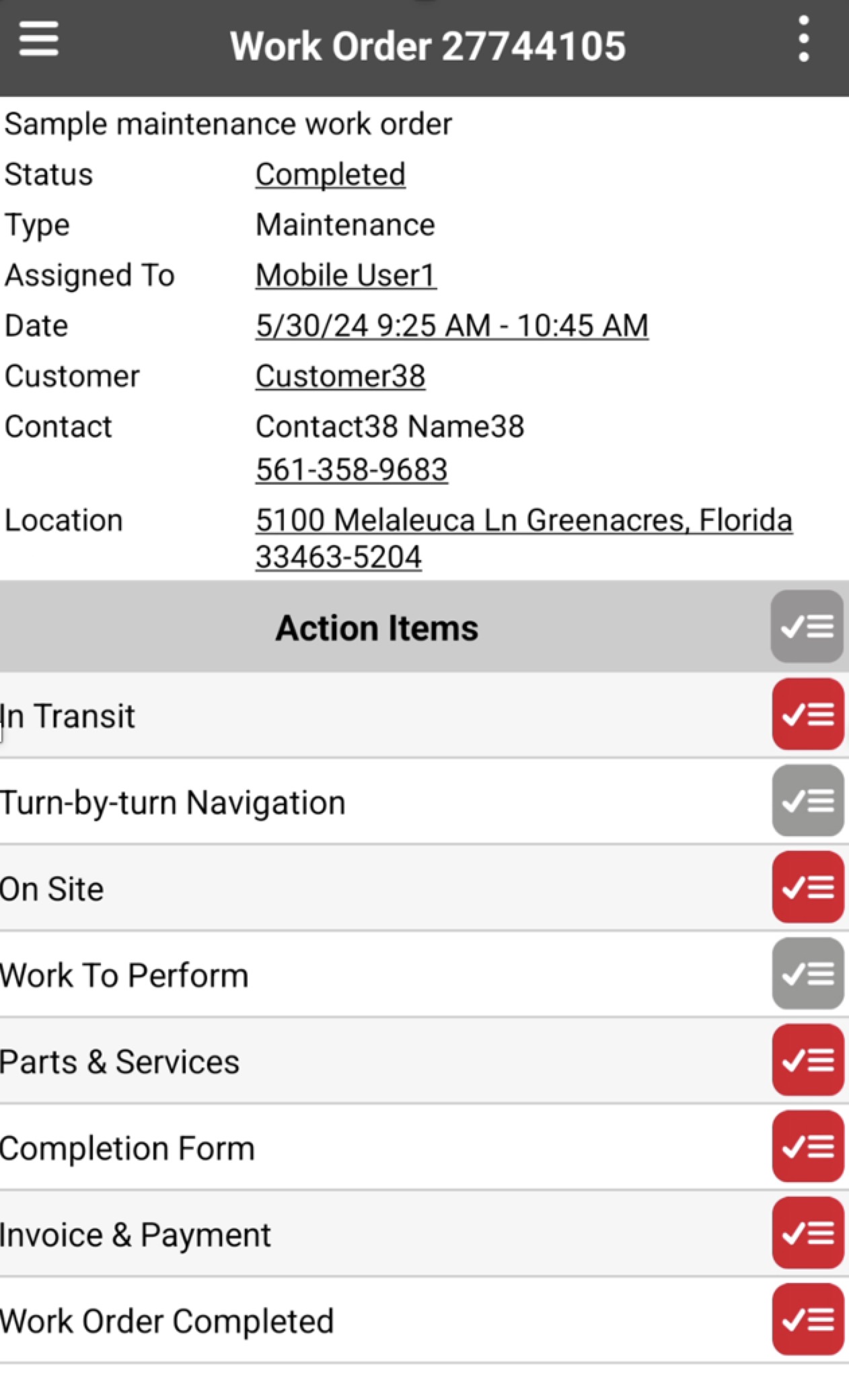
The corresponding time tracking entries are automatically added to the "Job Costing" tab of the work order:
Time tracking with optional action items
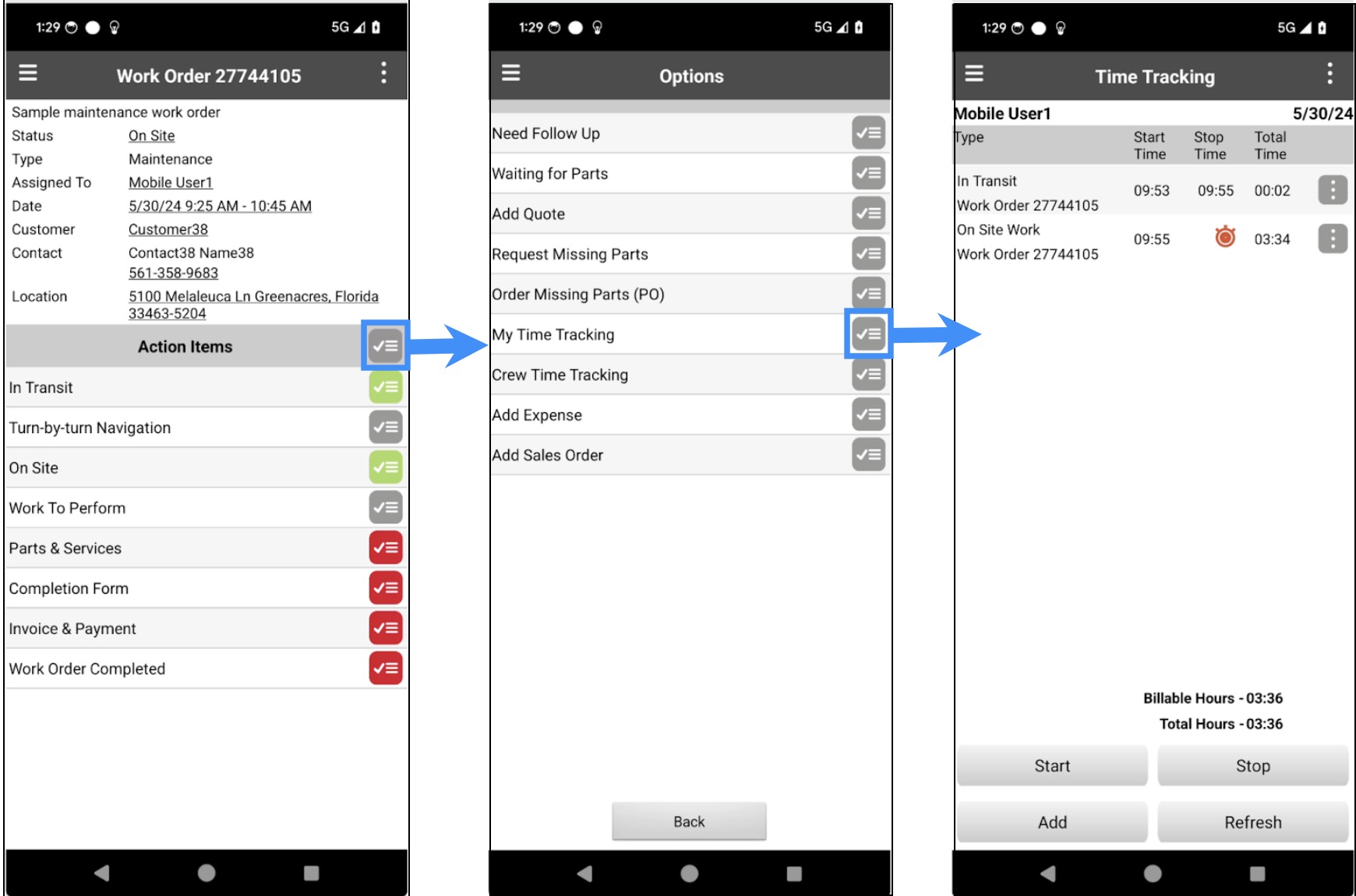
You can also add or update additional time tracking entries using the "My Time Tracking" action in the Optional Action Items section:
Note: MobiWork also supports automated invoicing for travel, time on site, and more.