
Time tracking feature page
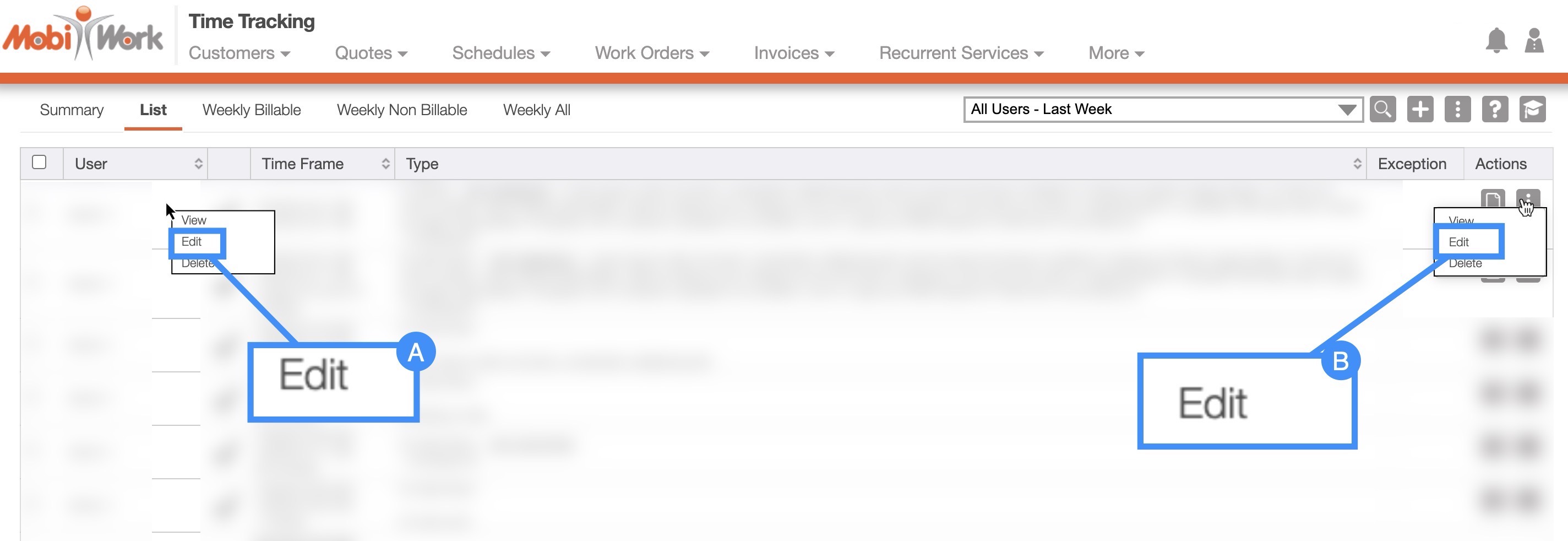
Right-click on the selected user's time tracking and click on the "Edit" option from the drop-down.
Click on the "Edit" option from the Individual Actions drop-down.
View Time Tracking Entries Pop-Up Window
You can edit the time tracking for a selected user by accessing the View Time Tracking Entries pop-up window. For more information on how to access this pop-up window, please see the View Time Tracking page.
Once you are in the View Time Tracking Entries pop-up window, access the drop-down from the Stop or View button and select the "Edit" option:

List Tab
To edit a user's time tracking data, you will first need to be on the "List" tab; for more information on how to access this tab, please see the Time Tracking List page.
Once you are on this tab, there are two different ways you can edit a user:
Work orders
You can access the Edit Time Tracking pop-up window through the View Work Order pop-up window. For more information on how to access the View Work Order pop-up window please see the View Work Order page.
Once you open this pop-up window, select the "Job Costing" tab:

All the hours associated with the work order will be displayed in the "Time Tracking" section of the "Job Costing" tab. To edit the user's time tracking you can:
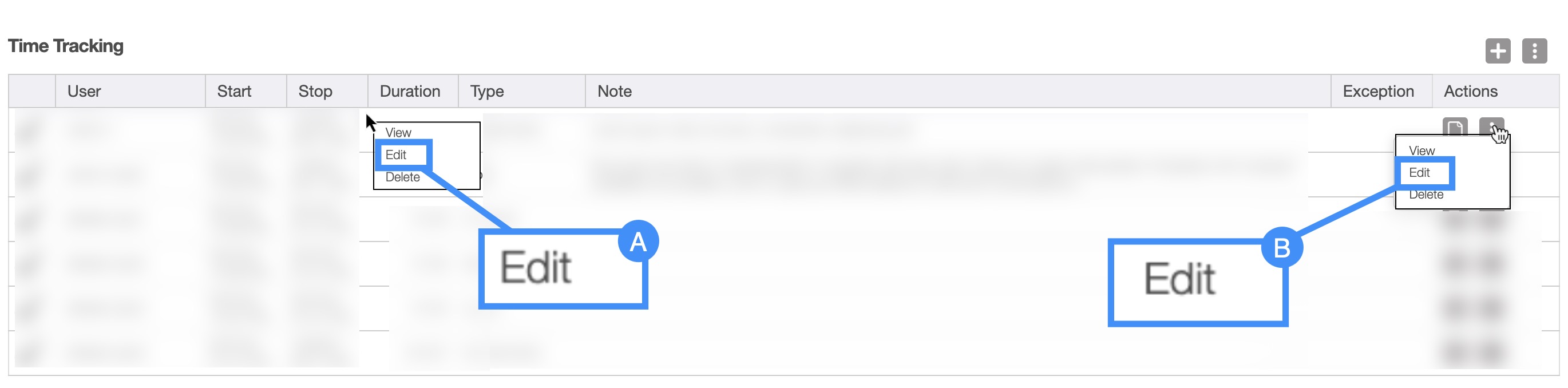
Right-click on the selected user's time tracking and click on the "Edit" option from the drop-down.
Click on the "Edit" option from the Individual Actions drop-down.
Quotes
Another way you can access the Edit Time Tracking pop-up window is through the View Quote pop-up window. For more information on how to access the View Quote pop-up window please see the View Quote page.
Once you open this pop-up window, select the "Time Tracking" tab:

All the hours associated with the quote will be displayed in the "Time Tracking" tab. To edit the user's time tracking you can:
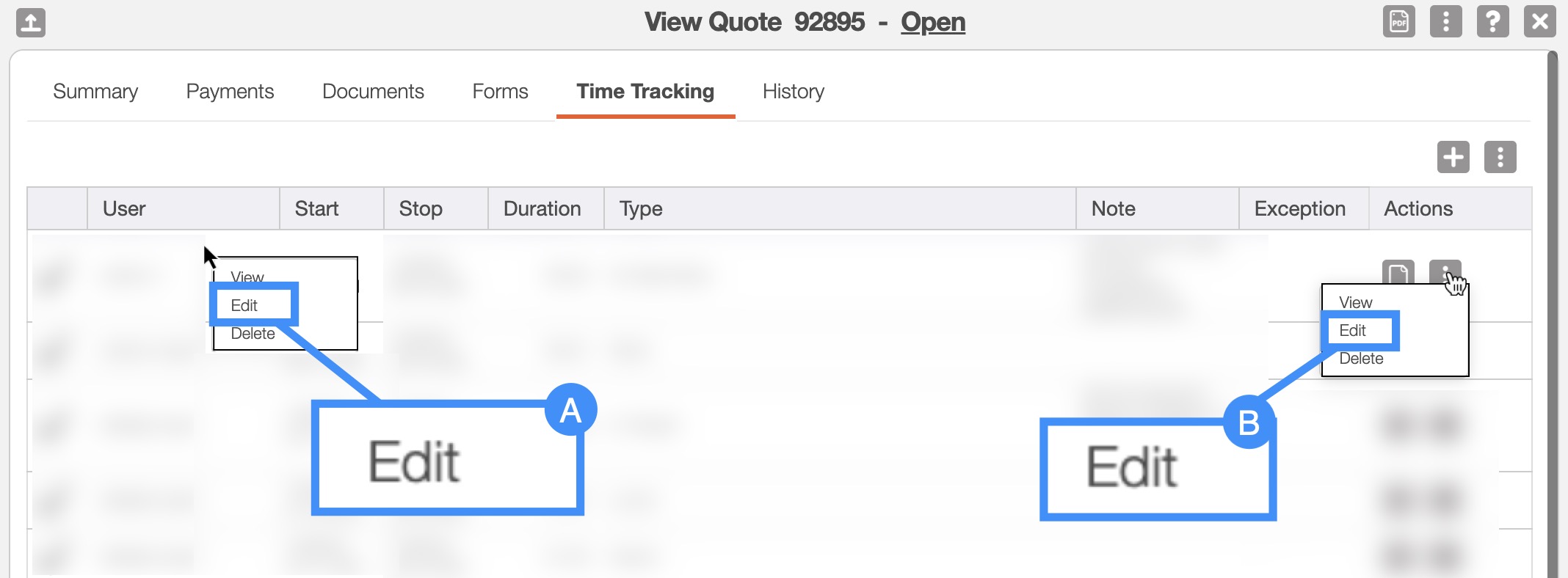
Right-click on the selected user's time tracking and click on the "Edit" option from the drop-down.
Click on the "Edit" option from the Individual Actions drop-down.
Regardless of the method that you choose to edit a user's time tracking, the Edit Time Tracker pop-up window will appear:
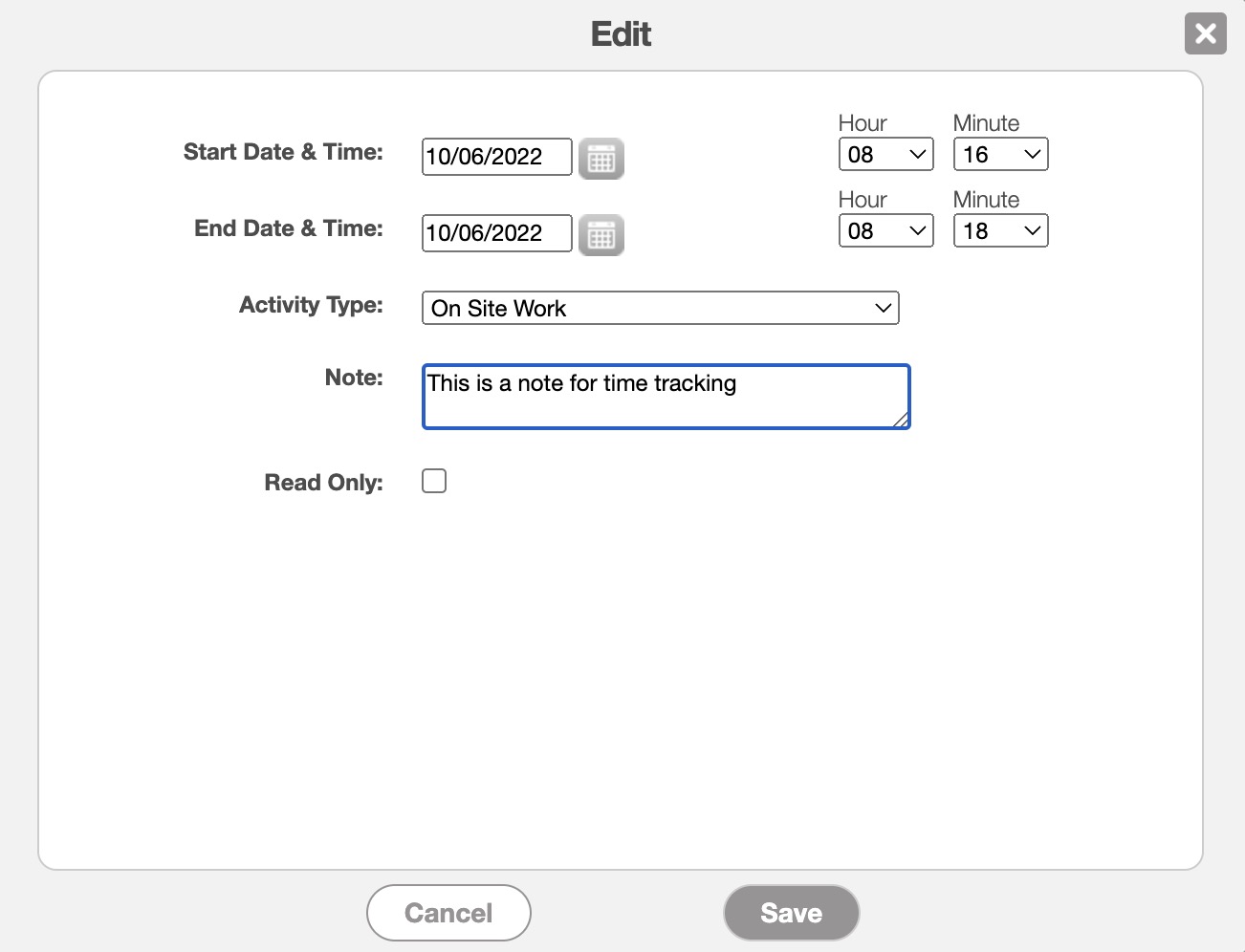
In the Edit Time Tracking pop-up window, you will be able to update:
The start time and date of the time tracking event.
The end time and date of the time tracking event.
The type of activity that the time tracking is measuring (e.g., working on site, the user in transit, lunch, admin work, etc.)
Any notes associated with the time tracking event.
If you would like the time tracking event to be read-only (i.e., no further changes or edits can be made) mark off the "Read-Only" checkbox.
Once you are satisfied with the edits to the user's time tracking data, click the Save button.
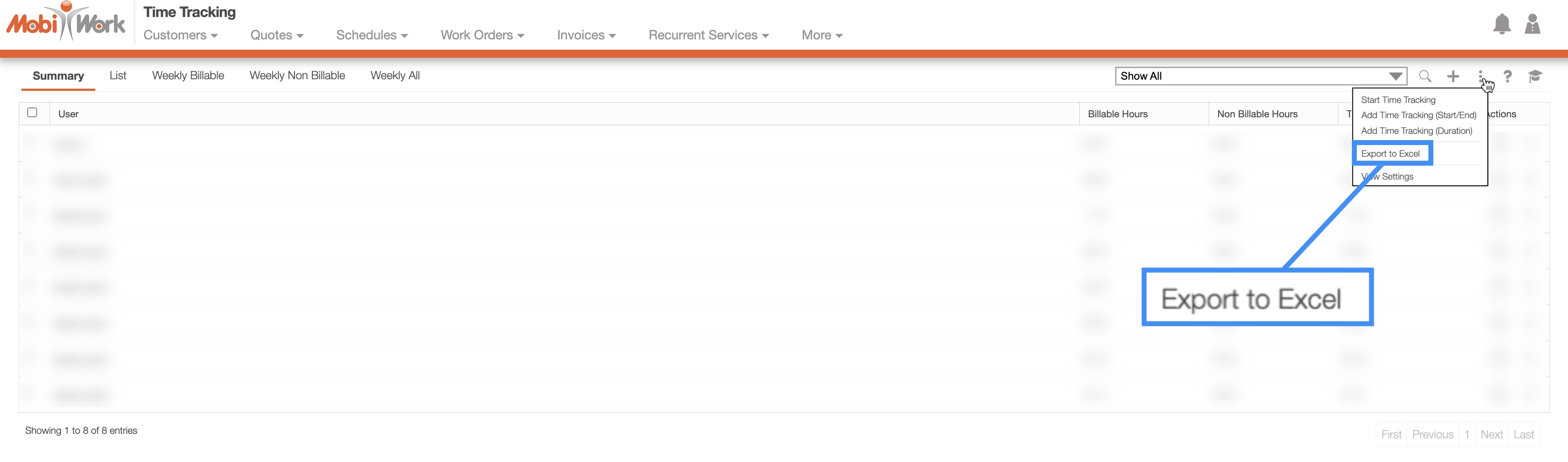
To export your users' time tracking data into an Excel document, you will first need to access the Time Tracking feature page. Once you click on the More Actions button, select the "Export to Excel" option from the drop-down:
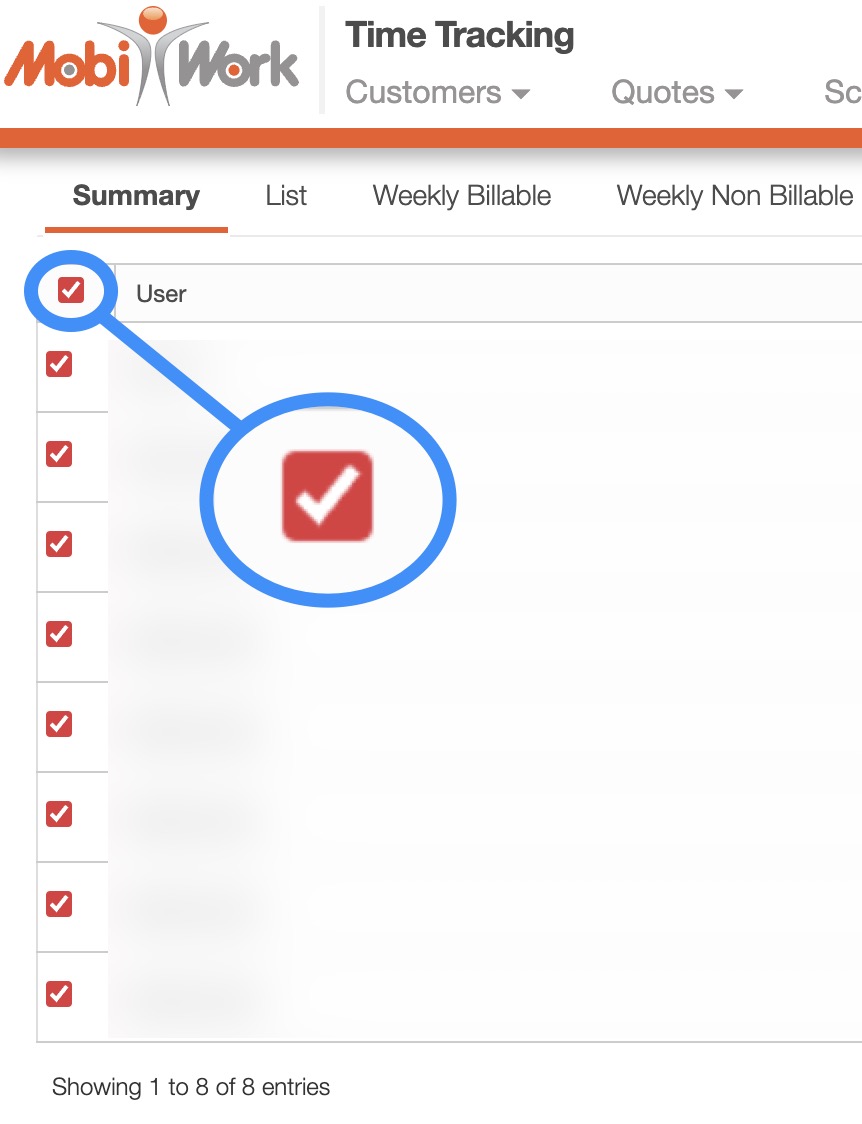
Select the users that you would like to export to Excel:
- Please note that if you would like to export all your users' time tracking data into Excel you can click on the topmost checkbox (Multiple Selection Area). Likewise, if you do not select any entries ALL records will be exported:
Click on the More Actions button and from the drop-down menu select the "Export to Excel" option:
The Excel file will automatically download, and you will be able to locate it in your computer's Download folder.
The Excel download will display the user, time duration, the billable hours, the non-billable hours, any exceptions, and the activity count (i.e., time entries associated with the user):
