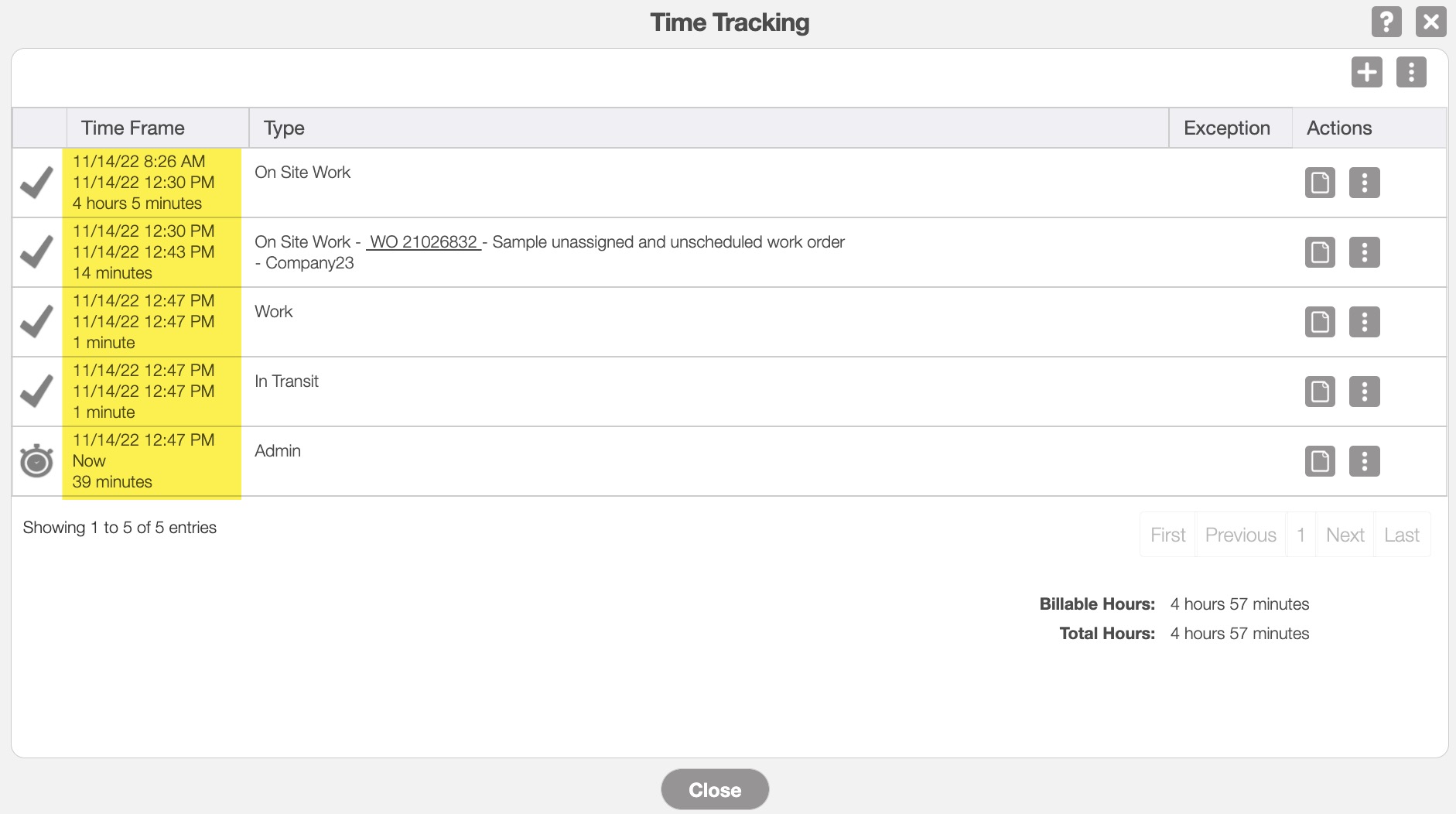
There are two different Add Time Tracking pop-up windows that you can access; the Add Time Tracking: Duration pop-up window will only allow you to input the start time and date.
The Add Time Tracking: Start & End pop-up window will allow you to input the start and end time/date for the user. You will be able to easily tell the difference between the two, as the Add Time Tracking: Start & End pop-up window will have an extra field to input the end date and time.
The following sections demonstrate some common methods of how to add hours to a selected user from your MobiWork web platform.
Add time tracking: start
Select the desired user, and from the View Time Tracking Entries pop-up window, click on either the "Start" option or the Add button:
Right-click on the selected user's time tracking and click on the "Start" option from the drop-down.
Select the "Start" option from the Individual Actions drop-down.
The Plus Sign button will allow you to quickly access the Add Time Tracking: Start pop-up window.
From the More Actions button, the "Start" option from the drop-down will also allow you to quickly access the Add Time Tracking: Start pop-up window.
Click on the Plus Sign button.
Or you can select the "Start" option from the More Actions.
Click on the Plus Sign button
Or you can select the "Start" option from the More Actions
Time Tracking Feature Page
On the Time Tracking feature page there are several ways to access the Add Time Tracking: Start pop-up window to add hours for your selected user. For more information on how to access this page, please see the Time Tracking List page:


Work Order
You can access the Add Time Tracking: Start pop-up window, through the View Work Order pop-up window. For more information on how to access the View Work Order pop-up window please see the View Work Order page.
Once you open this pop-up window, select the "Job Costing" tab:

All the hours associated with the work order will be displayed in the "Time Tracking" section of the "Job Costing" tab. To open the Add Time Tracking: Start pop-up window, you can:
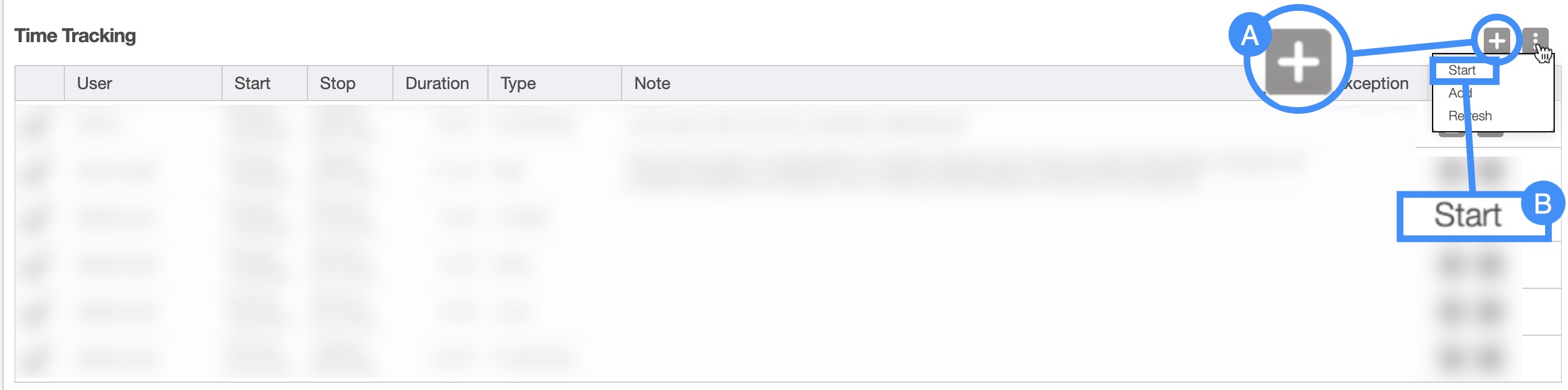
Quotes
Another way you can access the Add Time Tracking: Start pop-up window, is through the View Quote pop-up window. For more information on how to access the View Quote pop-up window please see the View Quote page.
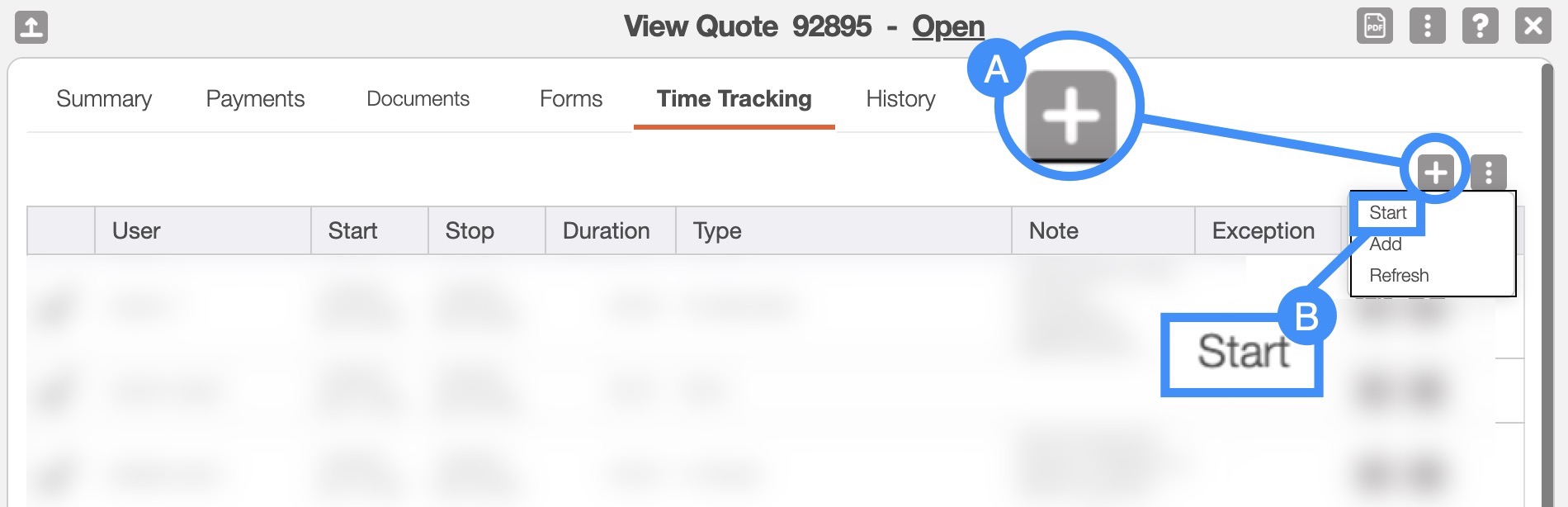
Once you open this pop-up window, select the "Time Tracking" tab:

All the hours associated with the quote will be displayed in the "Time Tracking" tab. To open the Add Time Tracking: Start pop-up window, you can:
Add time tracking: start & end
Select the desired user, and from the View Time Tracking Entries pop-up window, click on the Add button:
From the More Actions button, the "Add Time Tracking" option from the drop-down will also allow you to quickly access the Add Time Tracking: Start & End pop-up window.
Time Tracking Feature Page
On the Time Tracking feature page there are several ways to access the Add Time Tracking: Start & End pop-up window. For more information on how to access this page, please see the Time Tracking List page:


Work Order
You can access the Add Time Tracking: Start & End pop-up window, through the View Work Order pop-up window. For more information on how to access the View Work Order pop-up window please see the View Work Order page.
Once you open this pop-up window, select the "Job Costing" tab:
All the hours associated with the work order will be displayed in the "Time Tracking" section of the "Job Costing" tab. To open the Add Time Tracking: Start & End pop-up window, you can click on the More Actions button and from the drop-down select the "Add" option:

Quotes
Another way you can access the Add Time Tracking: Start & End pop-up window, is through the View Quote pop-up window. For more information on how to access the View Quote pop-up window please see the View Quote page.
Once you open this pop-up window, select the "Time Tracking" tab:
All the hours associated with the quote will be displayed in the "Time Tracking" tab. To open the Add Time Tracking: Start & End pop-up window, you can click on the More Actions button and from the drop-down select the "Add" option:

The Add Time Tracking: Start & End pop-up window looks very similar to the Add Time Tracking: Start pop-up window. However, in the Add Time Tracking: Start & End pop-up window, you can add the start and end time/date for your user, as opposed to the start column found in the Time Tracking: Start pop-up window:

Once you open the Add Time Tracking: Start pop-up window, you can enter the required details:
The user associated with the time tracking event
The start date and time of the time tracking event
The end date and time of the time tracking event
The type of event being record by the time tracker
Once you are satisfied with the data entered, click the Add button to add the time tracking.
If you need to stop an ongoing time tracking event, please see the Stop Time Tracking page for more information on how to accomplish this task.
The Add Time Tracking: Start & End pop-up window looks very similar to the Add Time Tracking: Start pop-up window. However, in the Add Time Tracking: Start & End pop-up window, you can add the start and end time/date for your user, as opposed to the start column found in the Time Tracking: Start pop-up window:

Once you open the Add Time Tracking: Start pop-up window, you can enter the required details:
The user associated with the time tracking event
The start date and time of the time tracking event
The end date and time of the time tracking event
The type of event being record by the time tracker
Any notes associated with the event being recorded
Once you are satisfied with the data entered, click the Add button to add the time tracking.
The same user can also list multiple time tracking events for a single work order or quote; please note to accomplish this, the timeframe cannot overlap.
For example, a user can input an in-transit entry at 7:00-8:00, admin work from 8:00-12:00, lunch from 12:00-12:30, and then performing actions at a work site from 12:30-5:00: