
From the "Time Tracking" tab on the View Project pop-up window, you will be able to view all of the users' time entries associated with the selected project:
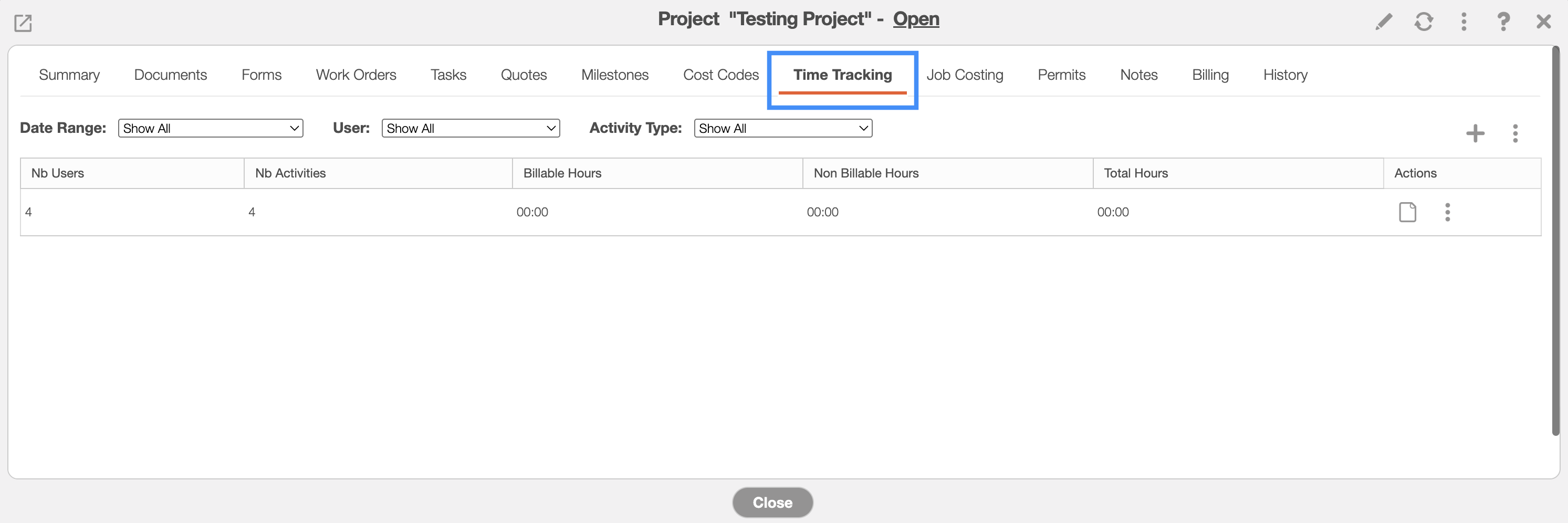
The columns on this tab will display key details; including, the number of users being tracked, the different activities that the users are performing for the project, the billable hours, the non billable hours, and total hours.
You can also filter and sort the project time tracking records with the "Date Range," User," and "Activity Type" filters to quickly find relevant information.
This enhanced view provides better visibility into project time tracking, helping you monitor activity and manage resources more effectively.
In the Start Activity and the Add Time Tracking pop-up windows, the toggle allows you to associate the time tracking entry with a project, customer, or leave it as a standalone entry:
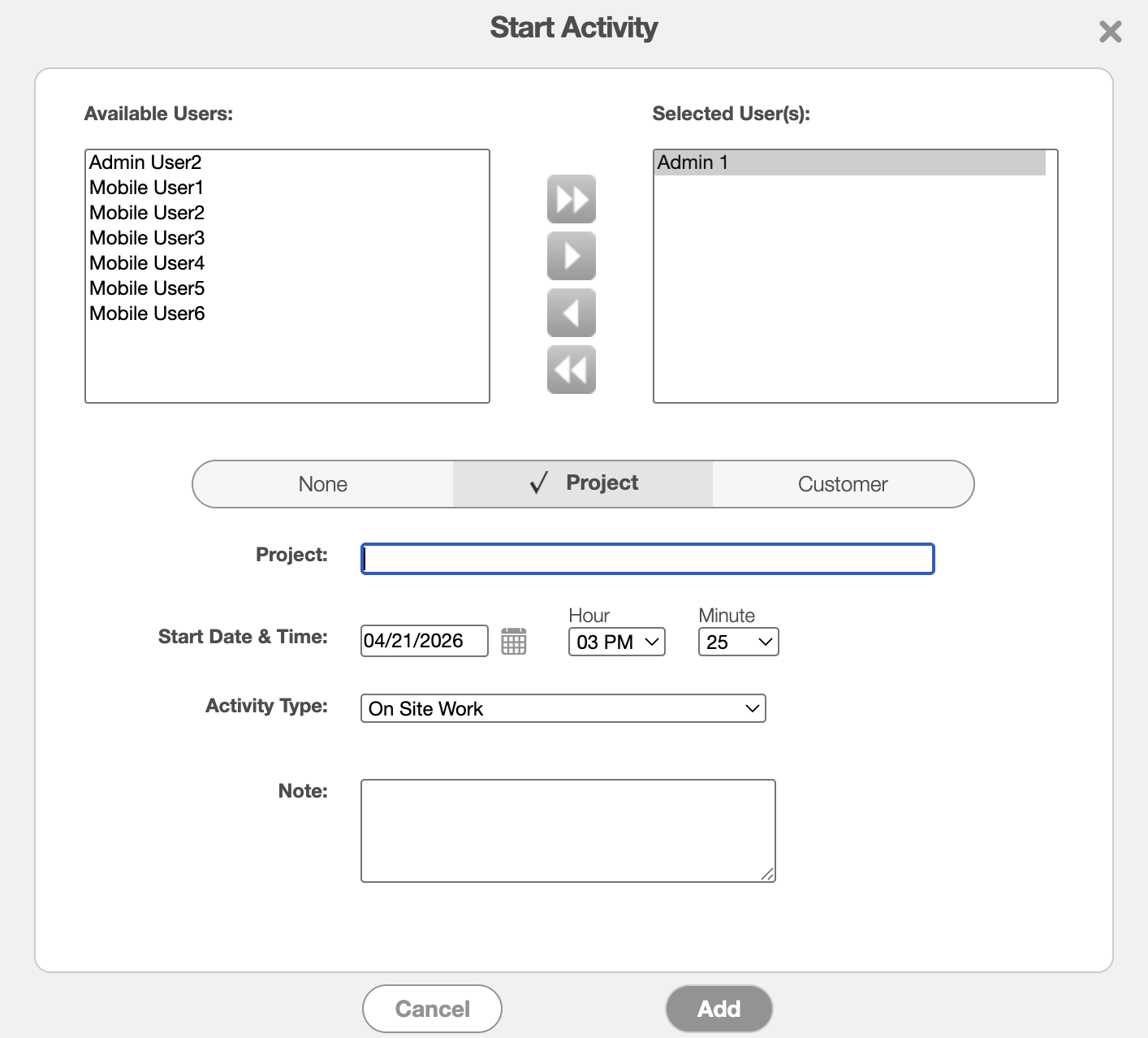
Simply select the appropriate option from the toggle and then complete the required time tracking data.
If the time tracking is a standalone entry, you can leave the toggle on the None option.
To associate the time tracking entry with a customer, toggle the Customer option. In the "Customer" field that appears, enter the corresponding customer that the time tracking should be associate with.
To associate the time tracking entry with a project, toggle the Project option. Then, in the "Project" field, enter the corresponding project that the time tracking should be linked to.
Finish inputting the rest of the time tracking information and then click the Add button to confirm the time tracking entry.
The New Saved Search pop-up window now allows you to search for customers associated with the user who was working on them when the corresponding time tracking entry was recorded:
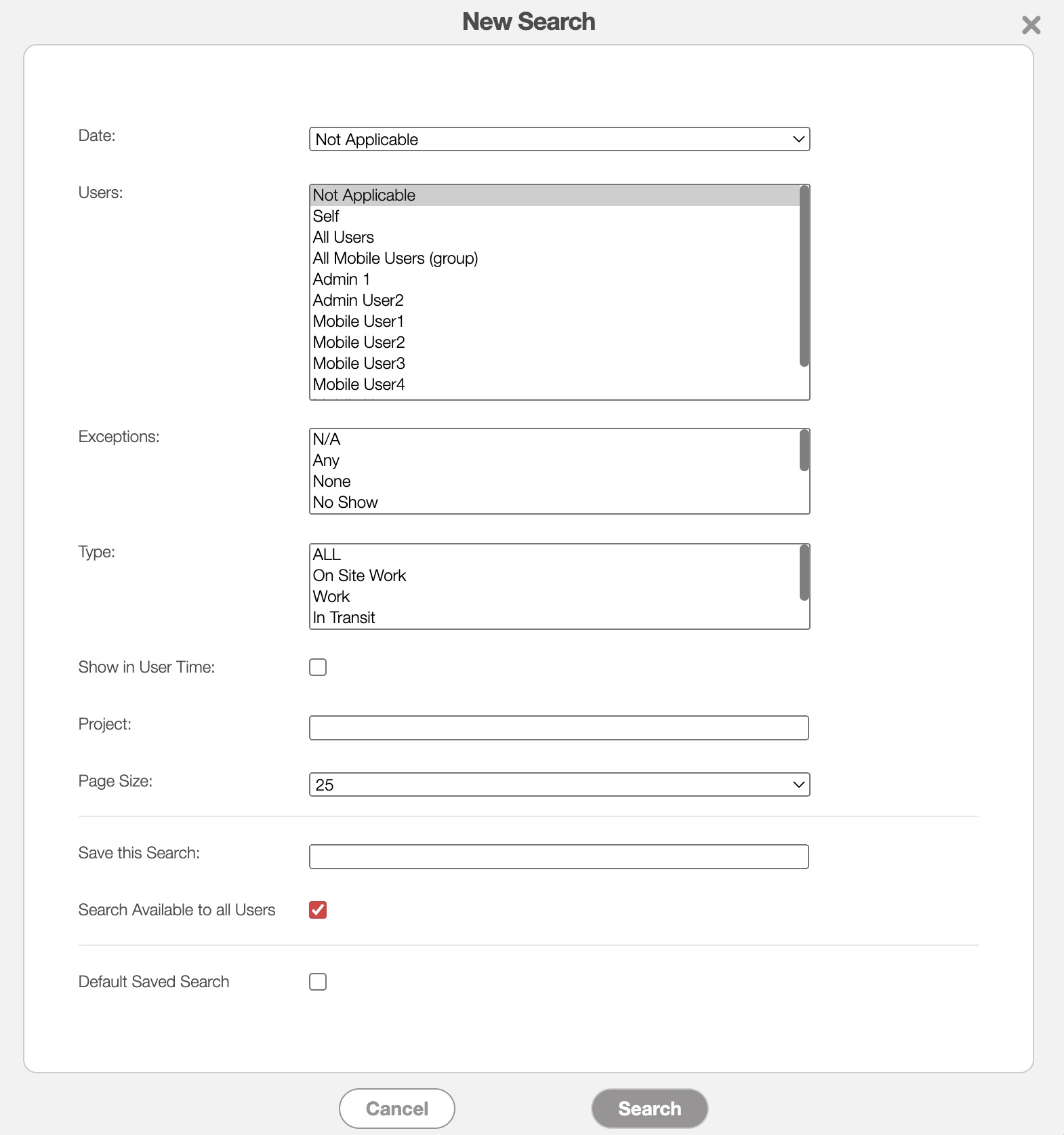
Simply input the customer you would like to locate the time tracking for in the "Customer" field; you can use the "Sort By" to fully organize the time tracking entries for the customer.
The new "Customer" tab on the Time Tracking List page allows users to filter all time tracking entries and organize them by user:
