
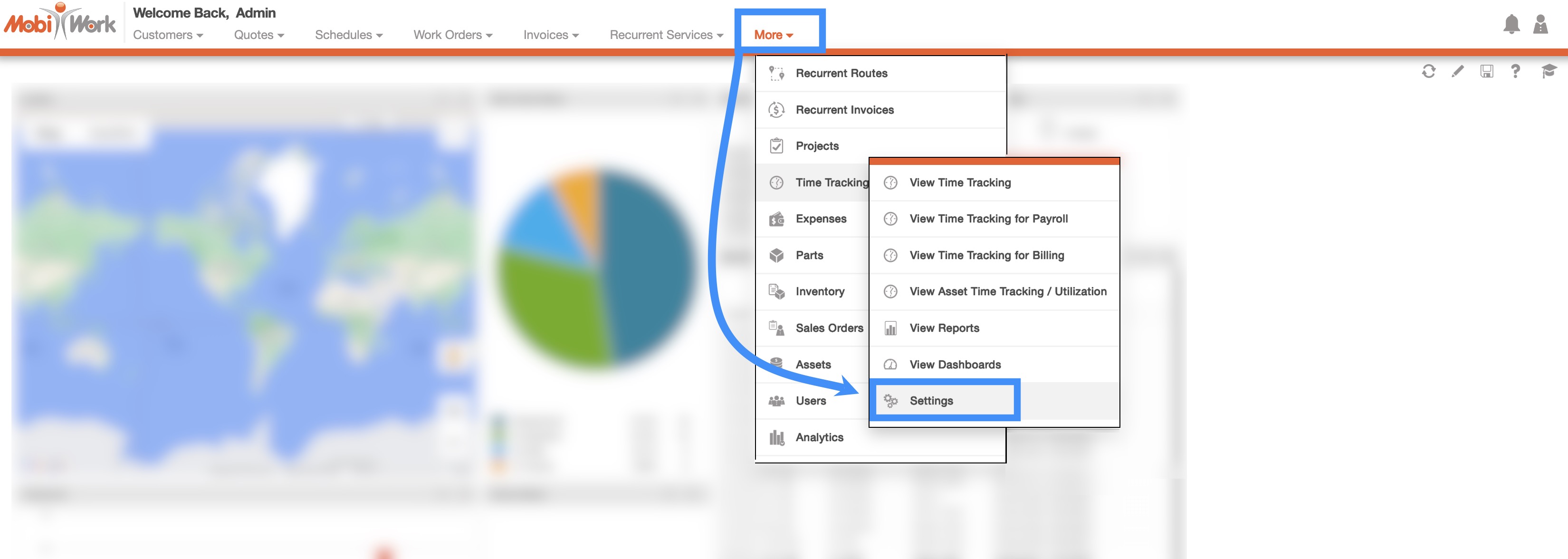
There are several different ways you can access the Settings page:
You can directly access the Settings page, by hovering over the Time Tracking feature, and clicking on the "Settings" option:
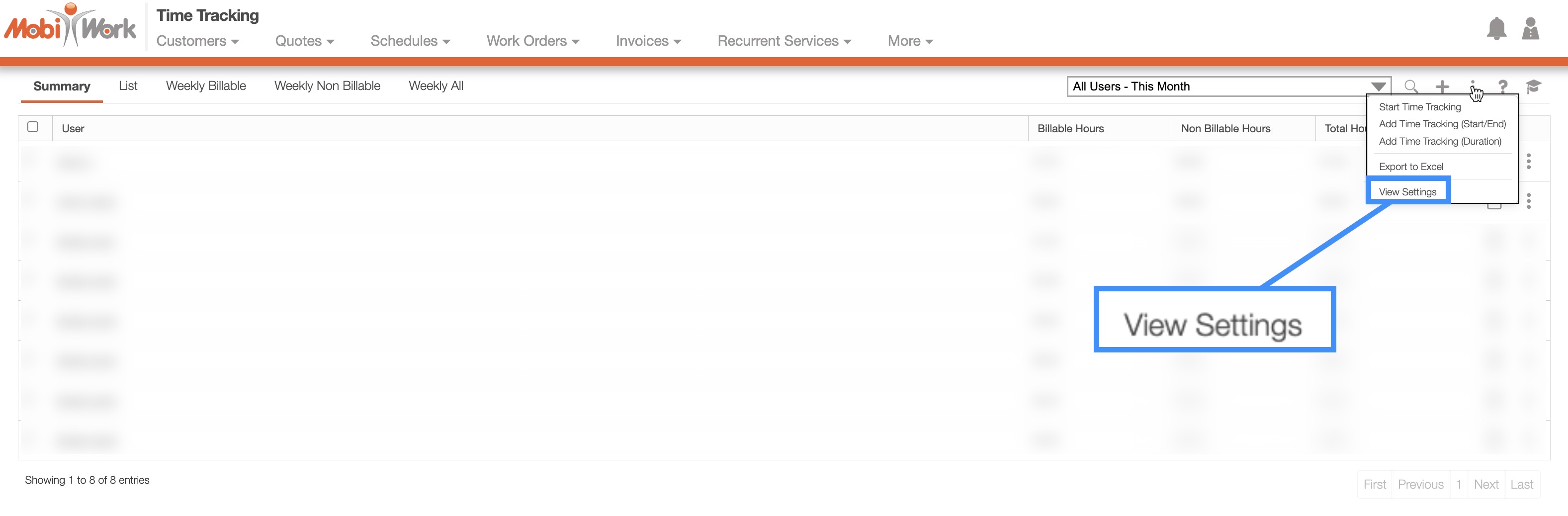
From the Time Tracking page, you can also access the Settings page through the More Actions button. For more information on how to access the Time Tracking page, please see the Time Tracking List page:
Once you are on the Time Tracking feature page, there will be several different sections that you can access to further customize the time tracking feature:
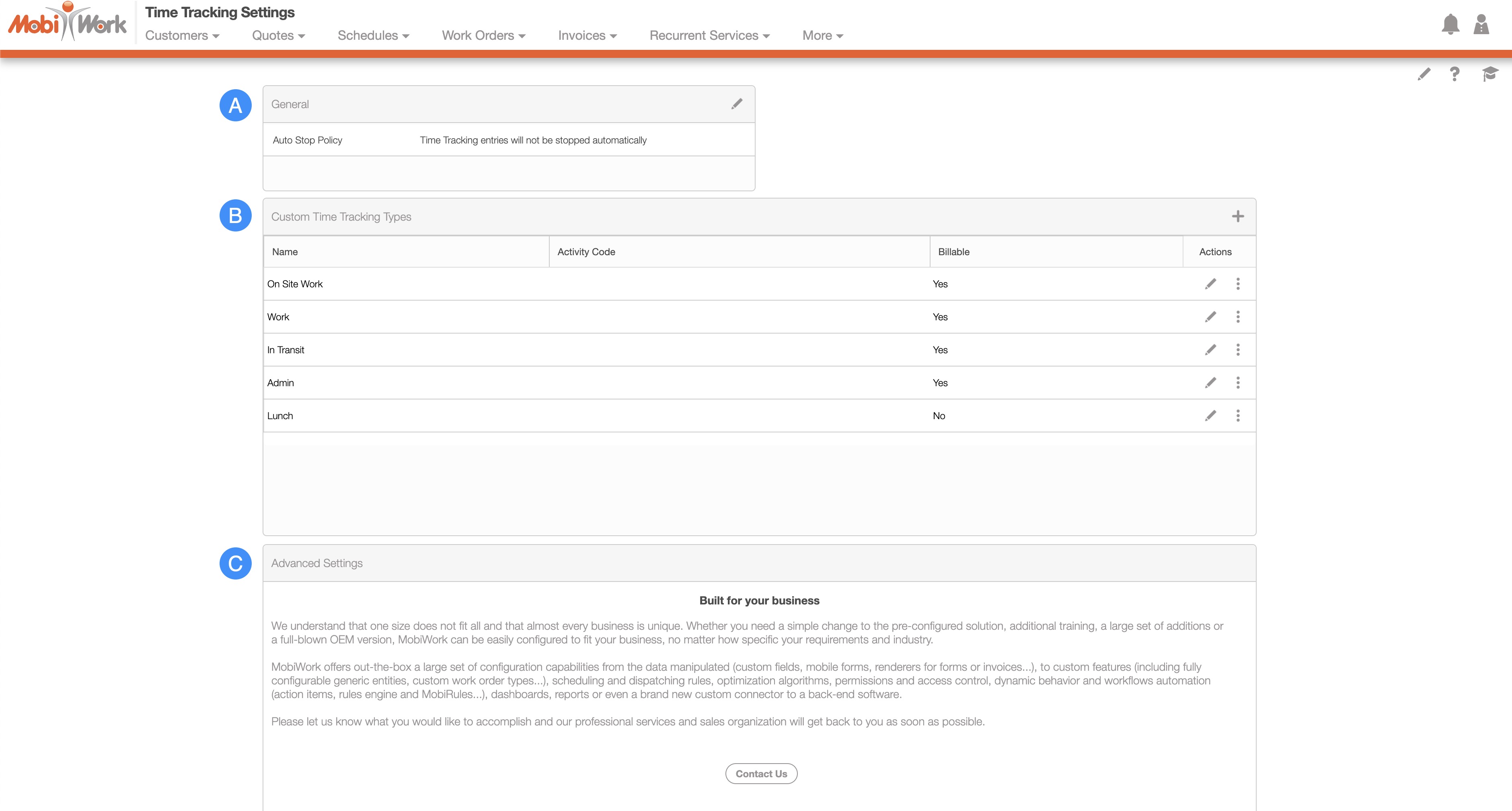
The General section, will allow you to adjust the auto stop policy for your time tracking. The time tracking entry will then automatically stop at the designated interval. To edit this feature, click on the Pencil icon:
There are three different options you can choose from (i.e., Do Not Stop, Stop at End of Day, or Stop at End of Business Hours + "X" Hours). Once you are satisfied with your selection, click the Save button:
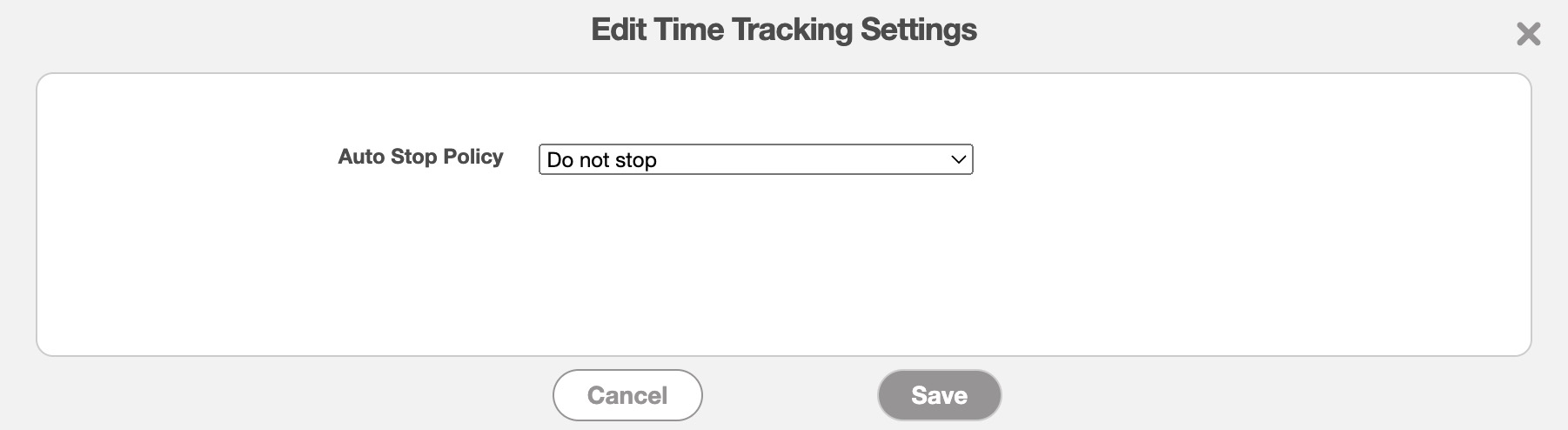
Your time entries will then stop at the designated interval, or in the case of "Do Not Stop" option you will need to manually stop the time entry log.
With the "Custom Time Tracking Types" section, you will be able to add additional time tracking types for your account. You will also be able to indicate whether the time tracking types should be classified as billable or not:
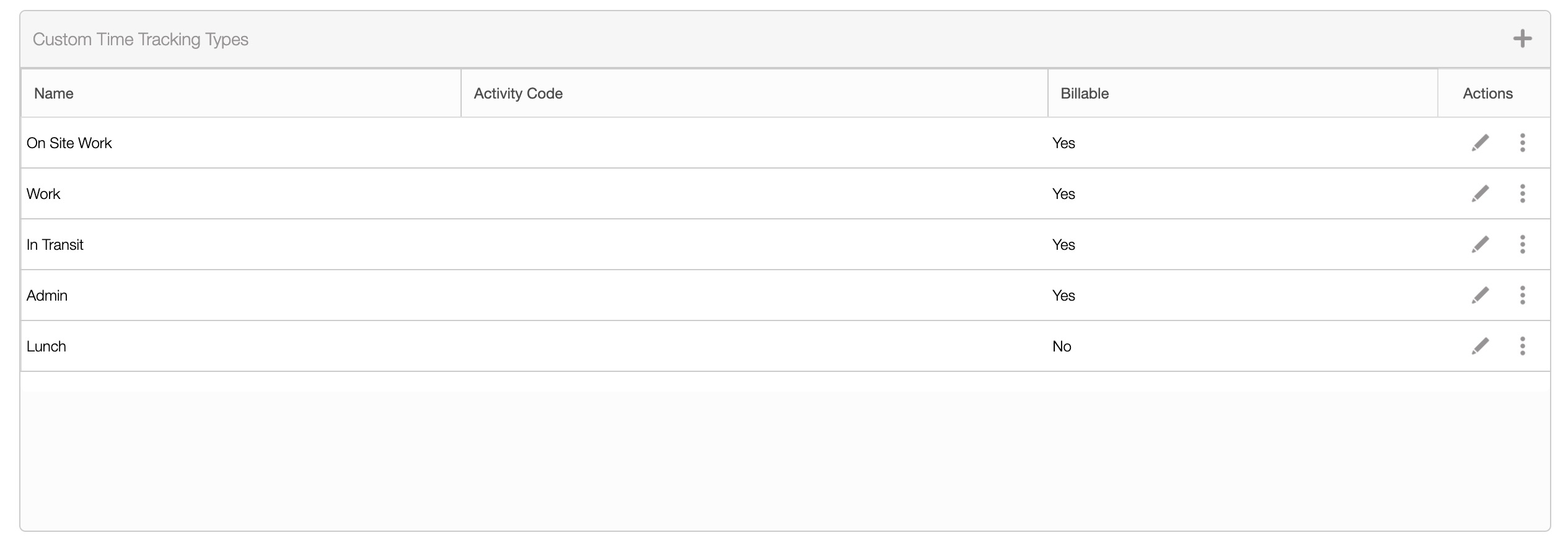
To add a new custom time tracking type, click the Custom Time Tracking Type button. Then input the name and check the "Billable" checkbox if the event should be billable. You can also input the category and activity code if you would like:
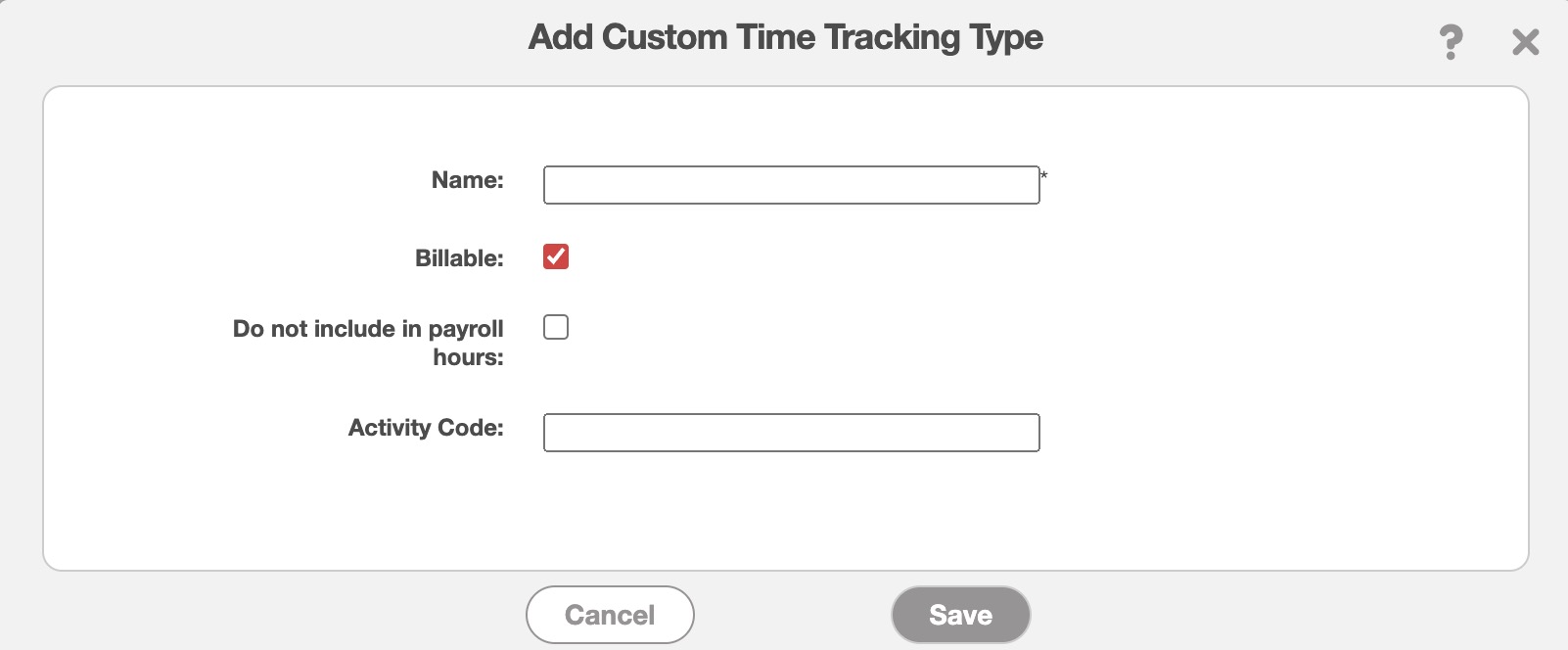
Once you are satisfied with the new time tracking type click the Add button.
The columns for the "Custom Time Tracking Type" section are defined below:
| Name: | Description: |
|---|---|
| "Name" | The name of the custom activity type (e.g., lunch, training, etc.) |
| "Activity Code" | The Activity Code that represents that specified Custom Time Tracking Type. |
| "Category" | The category of the custom activity type |
| "Billable" | If the specified custom time tracking type is considered billable or not |
| "Actions" | Will allow you to edit or delete the time tracking type |