
To add the Gusto connector to your MobiWork account, please follow the steps below:
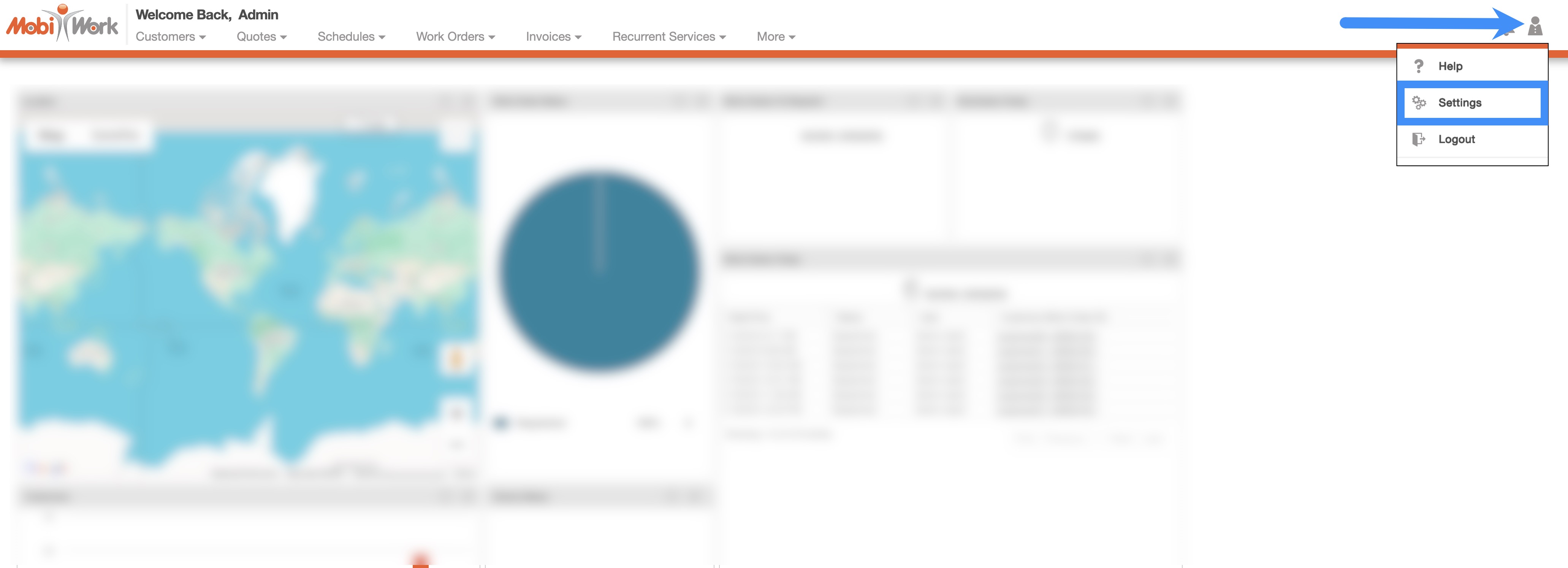
In your MobiWork account, navigate to the User icon, and from the drop-down menu choose the "Settings" option:
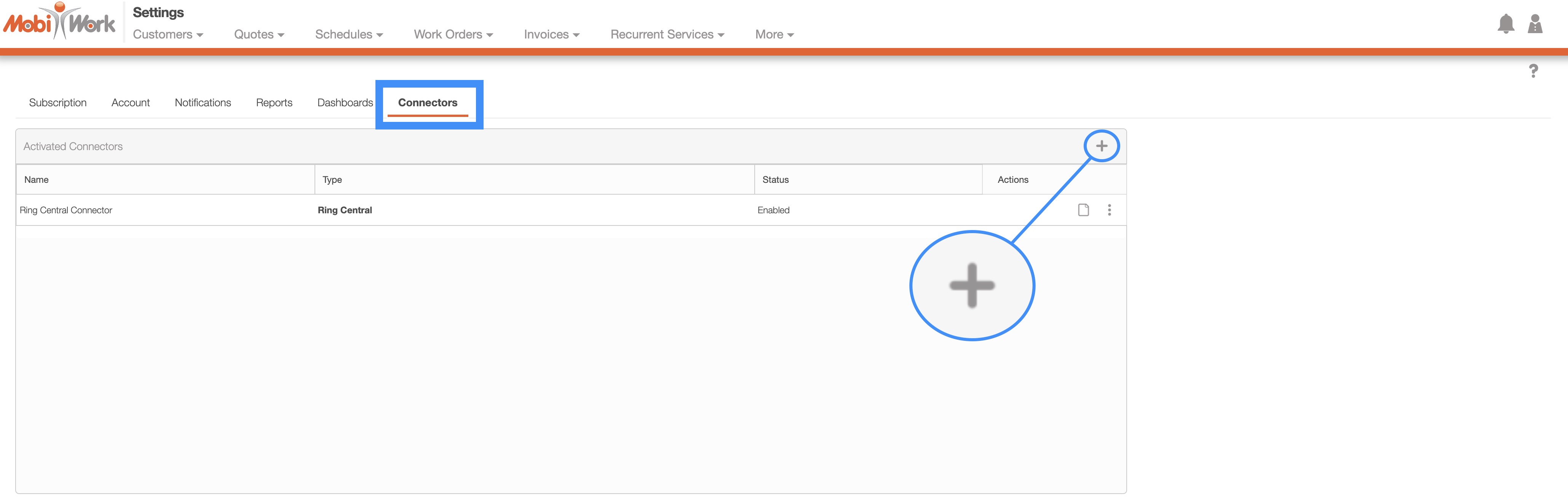
Access the "Connectors" tab, then click on the Plus Sign button:
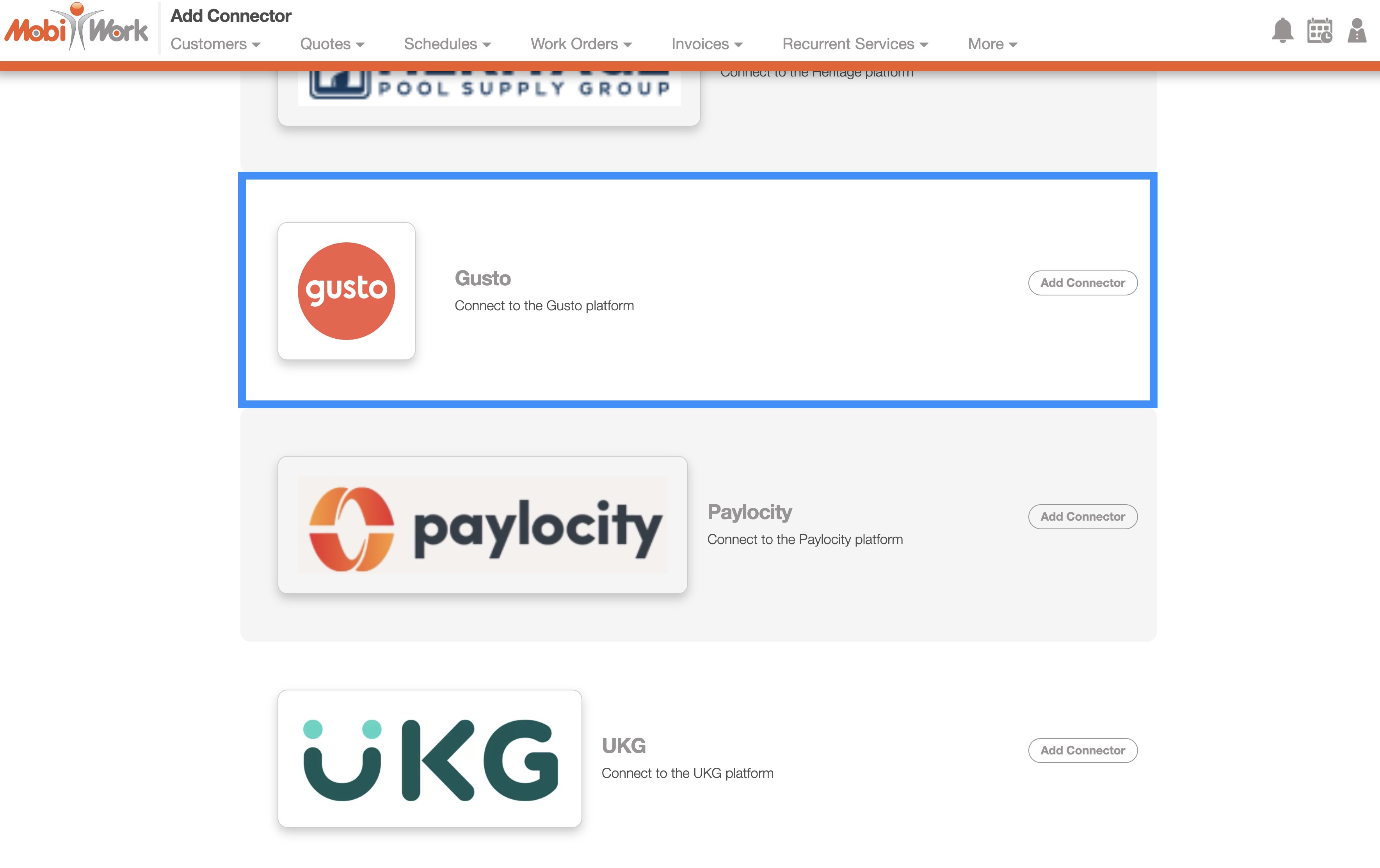
Next, scroll down to the "Others" section, find Gusto and click the Add Connector button:
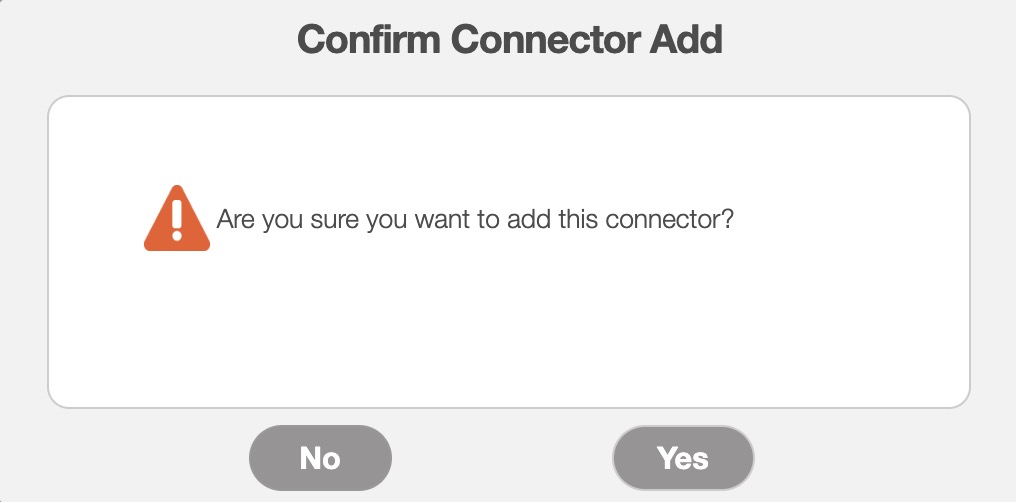
Once you add the connector, the Confirm Connector Add pop-up window will appear. Click the Yes button to confirm that you would like to add the Gusto connector:
To export your MobiWork data for Gusto, navigate to either the Time Tracking for Payroll List page or the Time Tracking Billing List page. The example below is from the Time Tracking for Payroll List page:
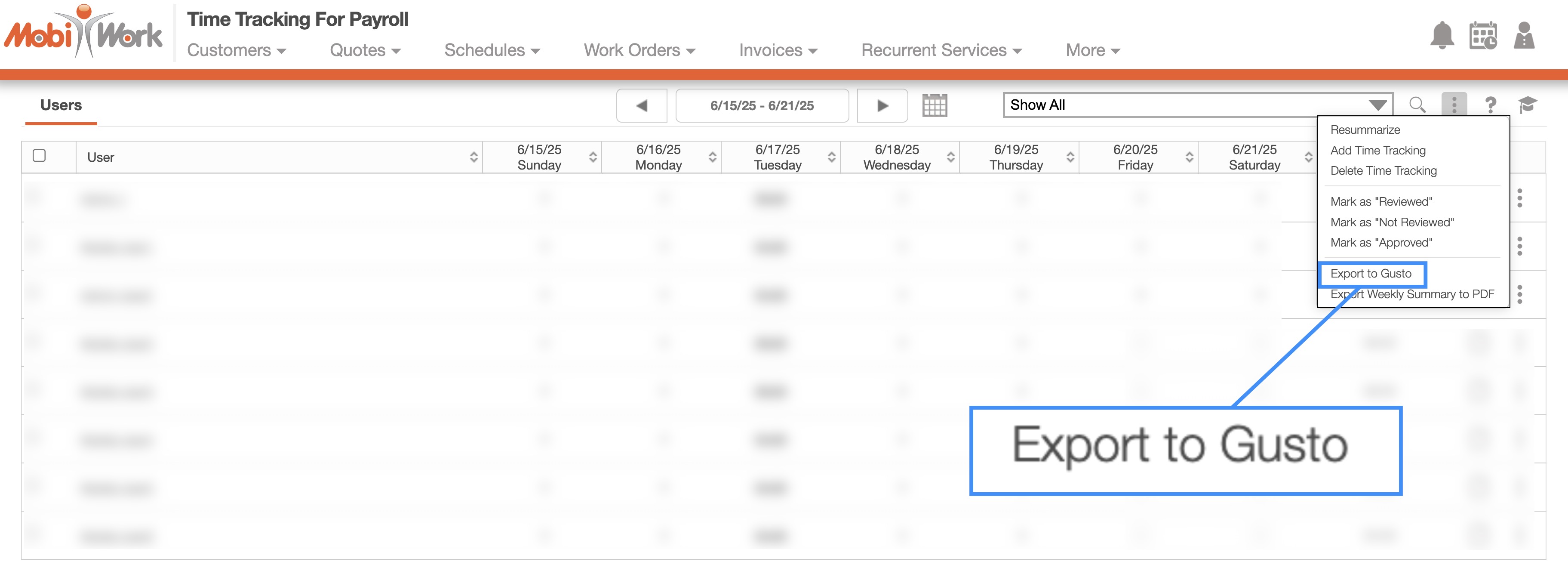
Click the More Actions button and select "Export to Gusto" from the drop-down menu.
An Excel file will be generated and downloaded to your computer:
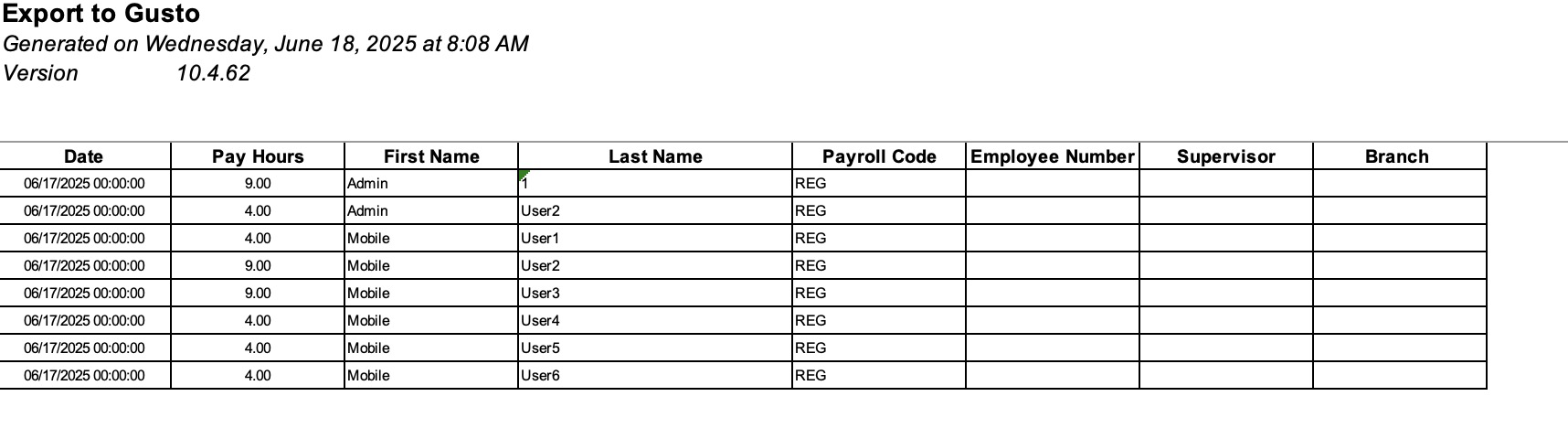
You can then upload this file directly into Gusto.