
The following subsections will explain how to create your JWT token from your RingCentral account and how to sync your connector to MobiWork.
Create the JWT Token
Use the following link to access your RingCentral account and create the credentials required to connect RingCentral to MobiWork.
Important: Using the provided link is required because it automatically prepopulates the MobiWork account information needed to connect your RingCentral account to MobiWork. If you do not use the provided link, MobiWork and RingCentral will not be able to successfully synchronize, and the connector will not function.
After selecting the link, you will be redirected to the RingCentral website. Log in using your RingCentral credentials.
Note: The phone number that you use to log in to your account, is the same number where your SMS text messages will be sent from.
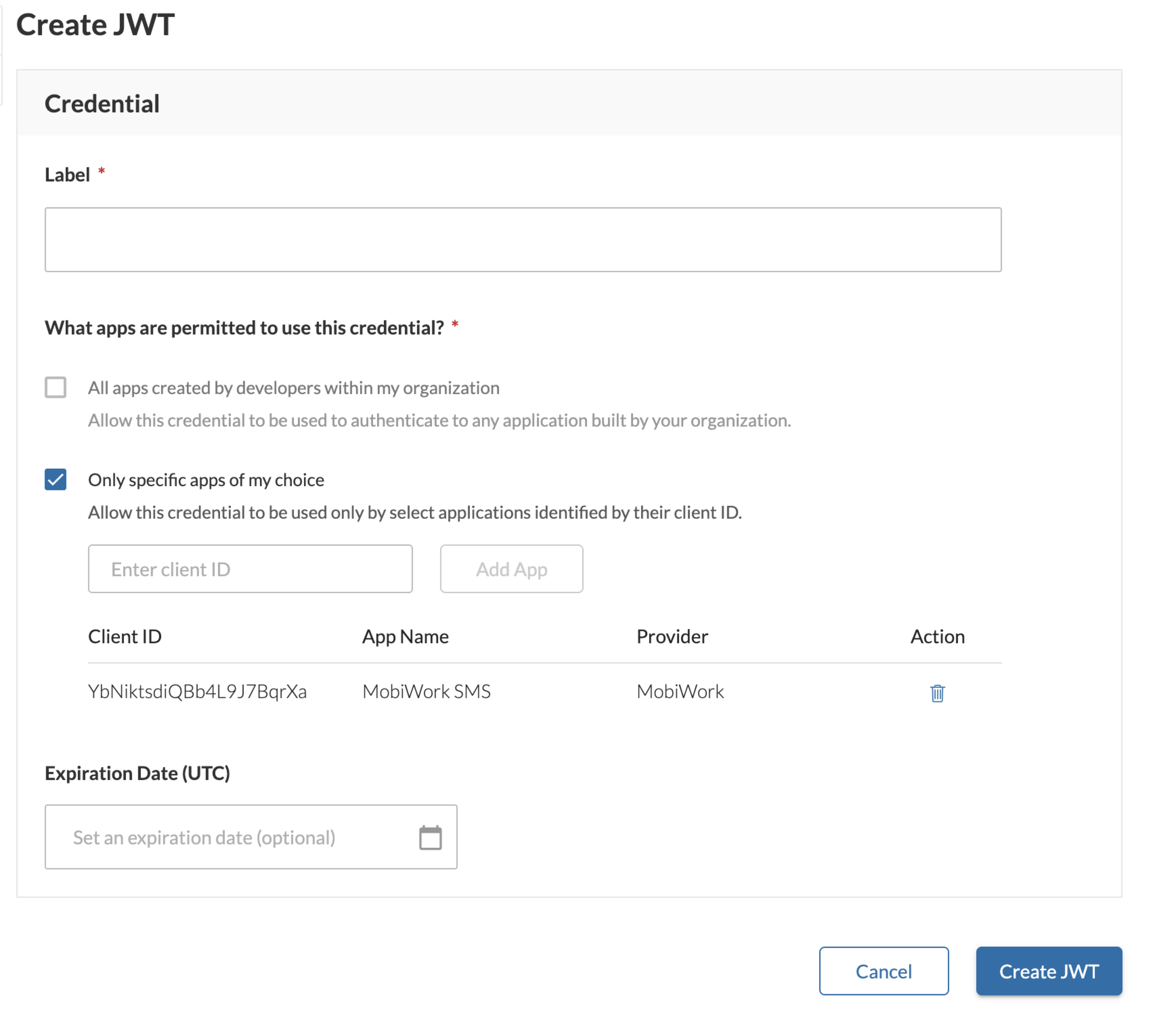
After clicking on the provided link and logging in, you will be redirected to the Credentials page. Enter or verify the following information:
Label - Enter a name that you would like to use to identify the credentials. We recommend using MobiWork SMS.
App Name - Make sure the MobiWork app and corresponding client ID are set to MobiWork. When you access the Credentials page using the link provided above, this information will be automatically populated.
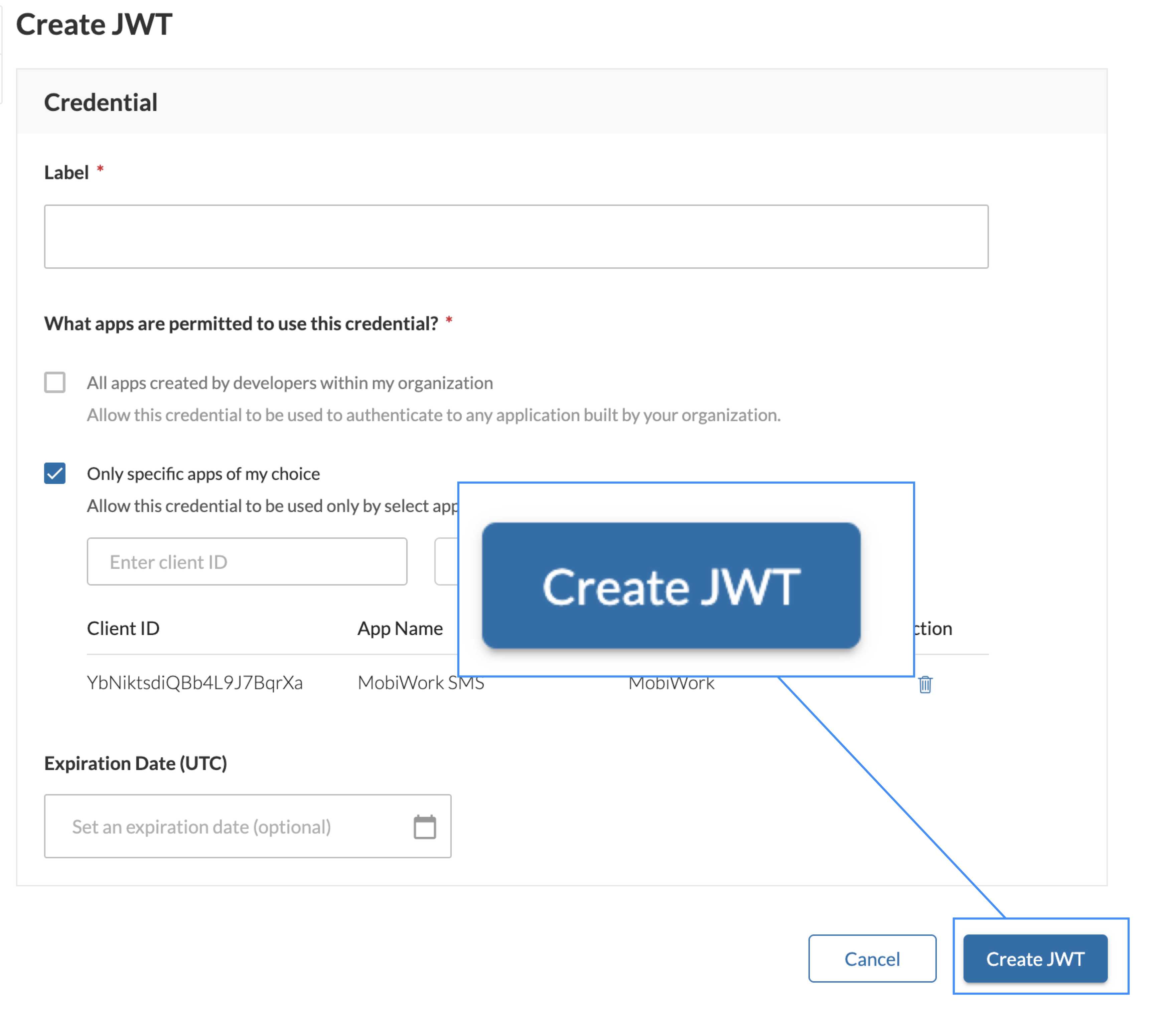
Once the required information has been completed, select the Create JWT button to generate the JWT credential.
The Credentials page will then display your saved MobiWork-RingCentral credentials. Select Click to See to display your unique JWT credential:
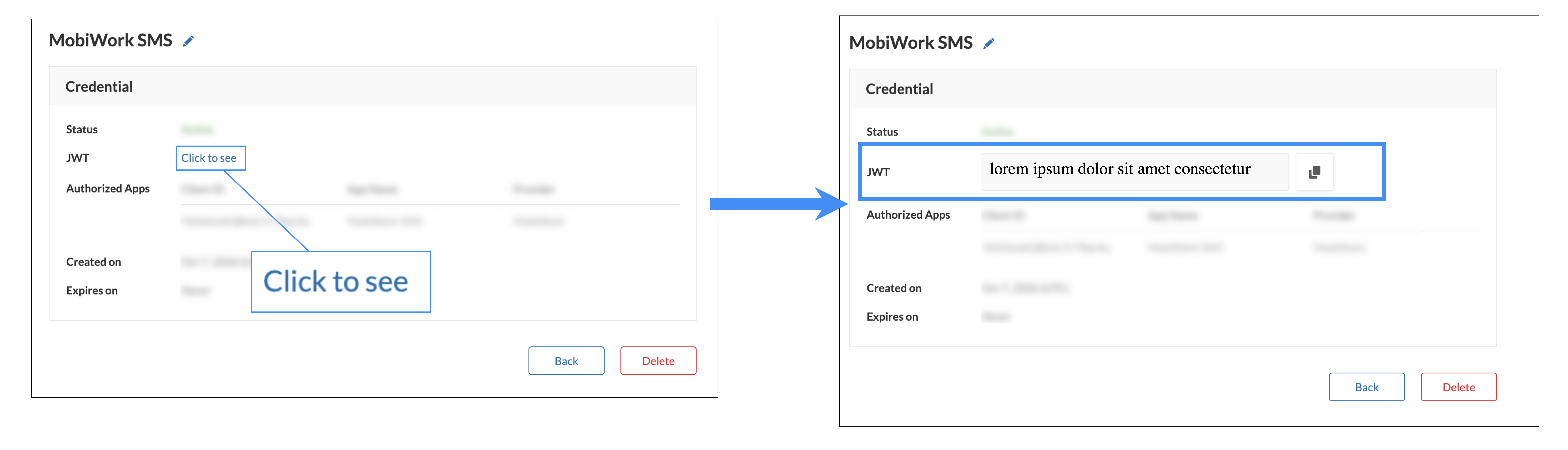
Copy the JWT credential so that you can enter it in MobiWork while setting up the RingCentral connector.
Set Up The Connector
Once you have copied the JWT credential from RingCentral, log in to the MobiWork web user interface and complete the following steps:
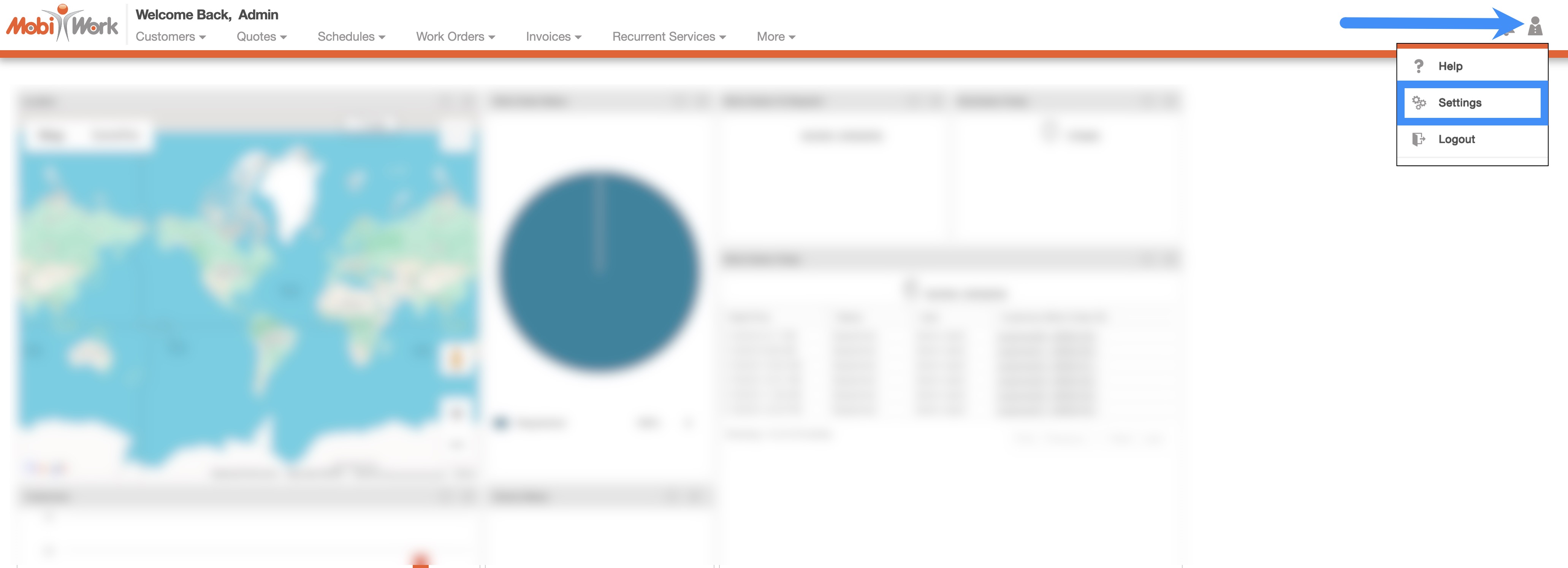
In your MobiWork account, navigate to the User icon, and from the drop-down menu choose the "Settings" option:
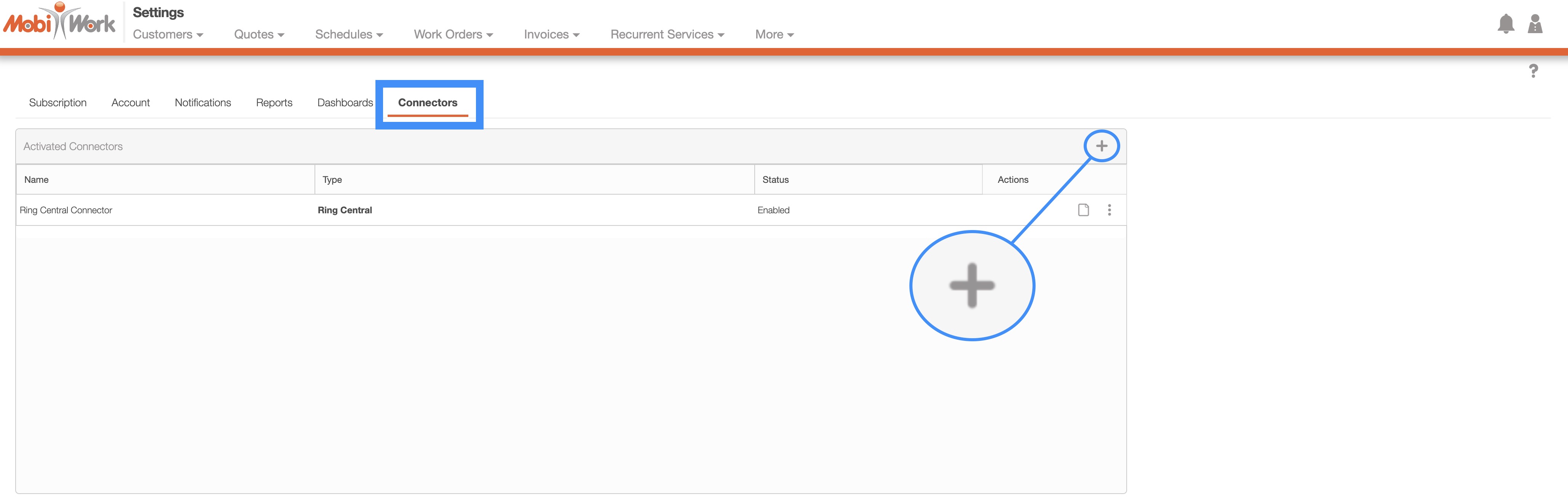
Access the "Connectors" tab, then click on the Plus Sign button:
Next, scroll down to the "Text" section, find Ring Central - SMS and click the Add Connector button:
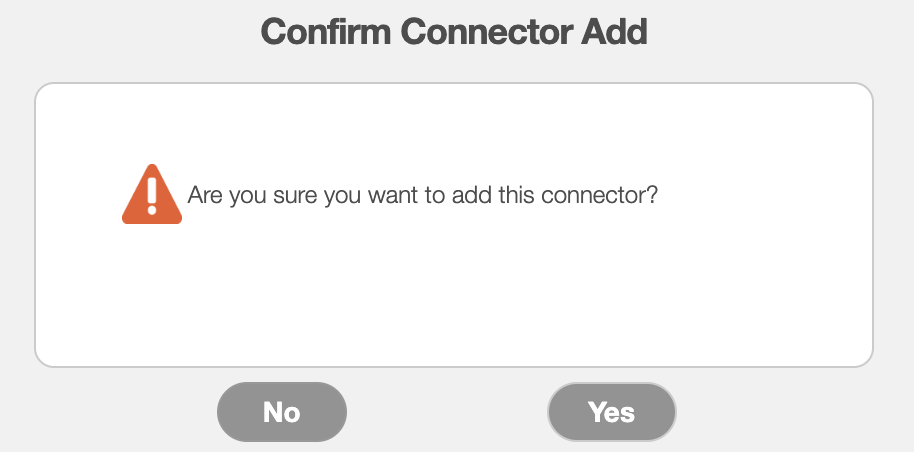
The Confirm Connector Add pop-up window will then appear. In this pop-up window select the Yes button to continue:
You will then be redirected to the Text Settings page; it is on this page that you will input your JWT Credentials:
Complete the following fields to finish configuring the RingCentral SMS connector:
JWT Credential – Enter the JWT credential generated in your RingCentral account.
From Number – Enter the phone number that will be used to send SMS messages.
Enabled – Use this checkbox to ensure that the connector is enabled.
Test SMS to Number – Enter a phone number to use when testing the SMS configuration.

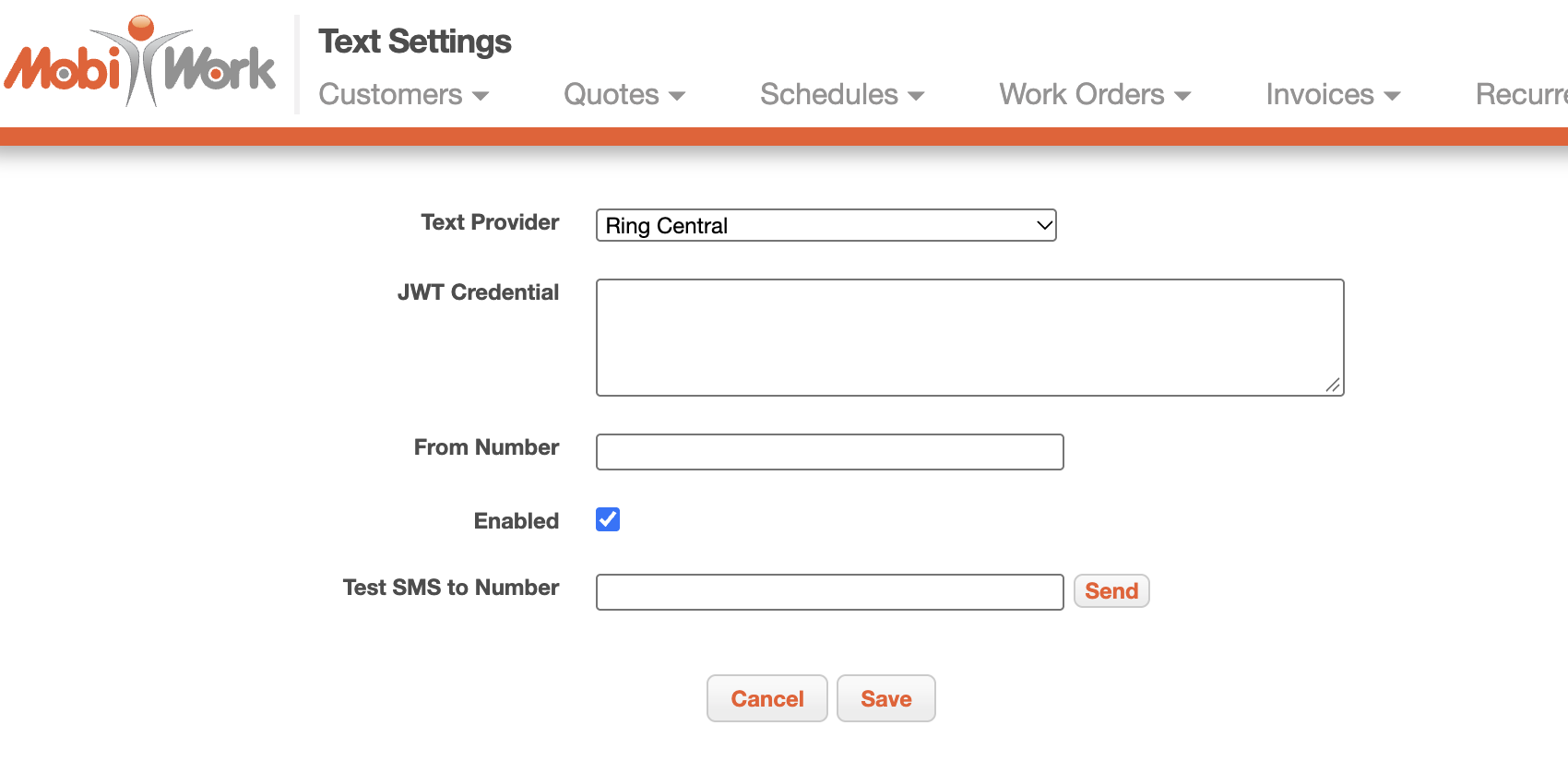
Once all required information has been entered, select the Save button to save and register your RingCentral SMS settings in MobiWork.