
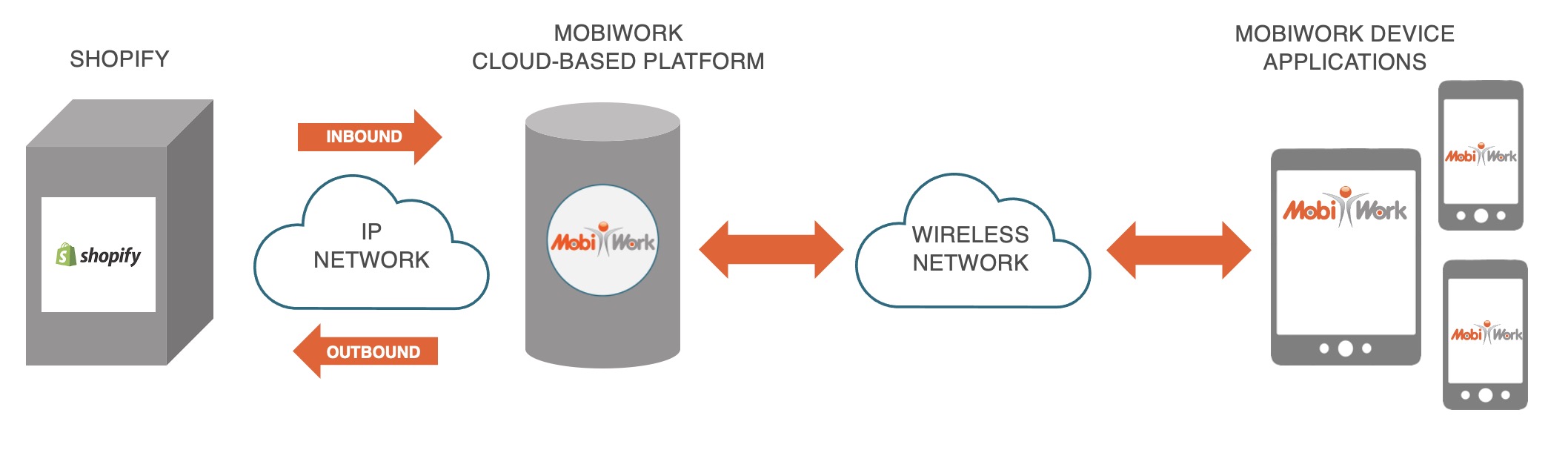
Data from Shopify is transferred to MobiWork through the following synchronization method:
MobiWork and Shopify will sync the following information:
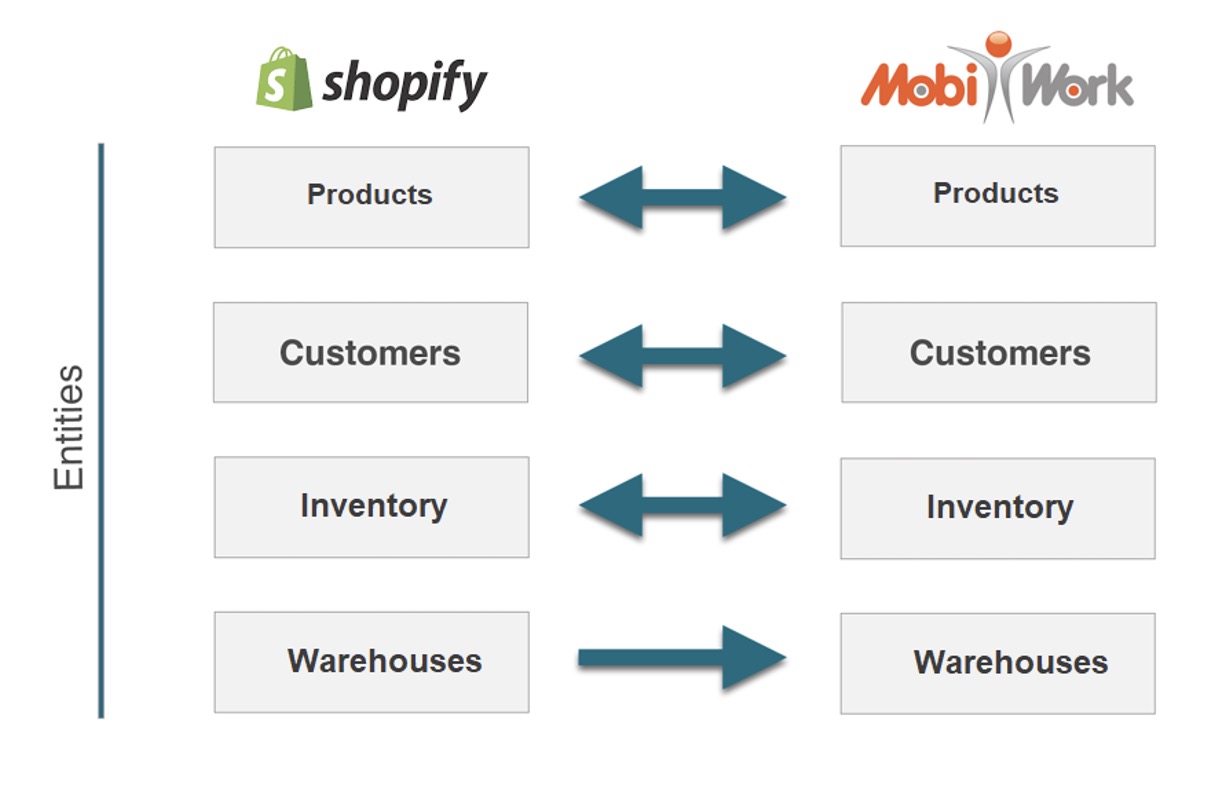
Syncing customers with the Shopify connector will over a two-way synchronization that will import the customer's name, contact, and location information.
When syncing your parts and products, the description, SKU, manufacturer, part number, tag/barcode, and price will all be imported with the two-way synchronization.
For warehouses, the sync is only one way. Only Shopify warehouses will be synced to MobiWork.
Inventory stock has a two-way synchronization between both Shopify and MobiWork.
Note: Use Shopify as the source of truth.
To add the Shopify connector, navigate to the User icon, and from the drop-down menu choose the "Settings" option:

Click the "Connectors" tab, then click on the Plus Sign button to add a new connector:

Next, scroll down to the "Others" section, find the Shopify connector listed and click the Add Connector:

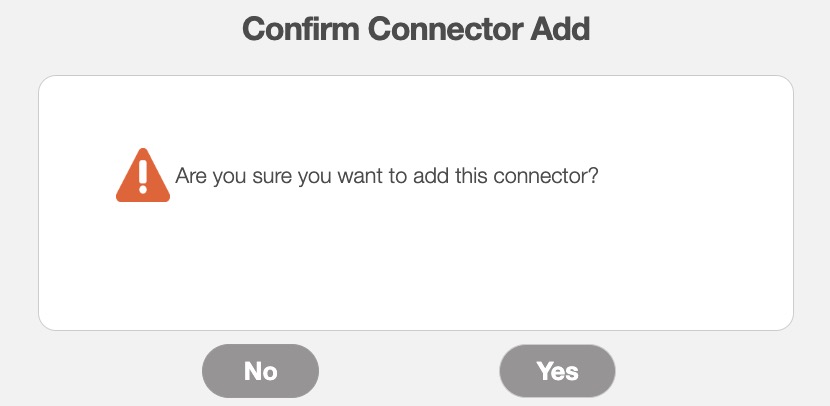
The Confirm Connector Add pop-up window will then appear. Click the Yes button to proceed with adding the Shopify connector:
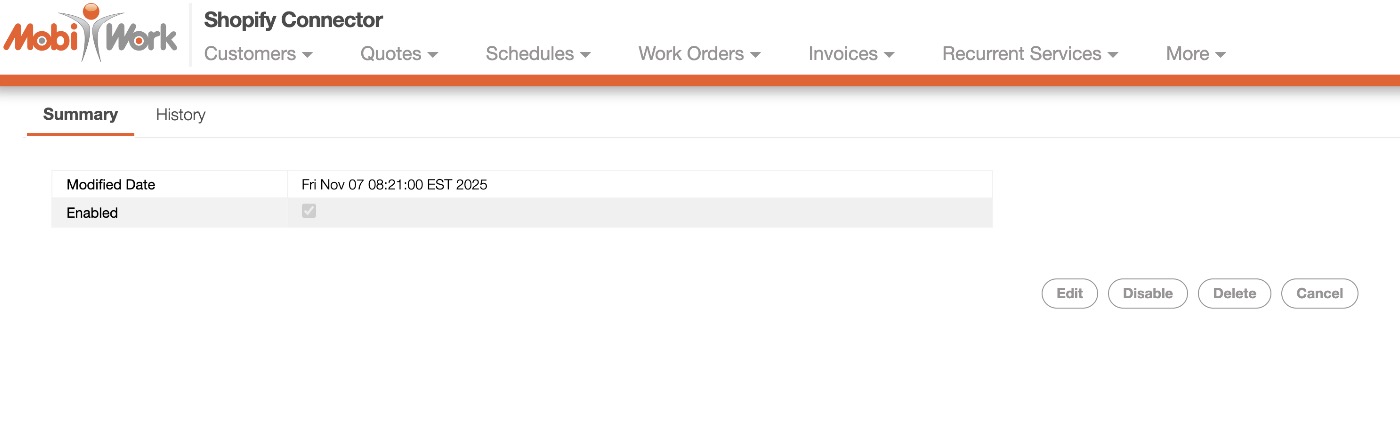
Now, you will need to log in to your Shopify account in order to authorize the connection with MobiWork. On the Shopify Connector Settings page, select the Edit button:
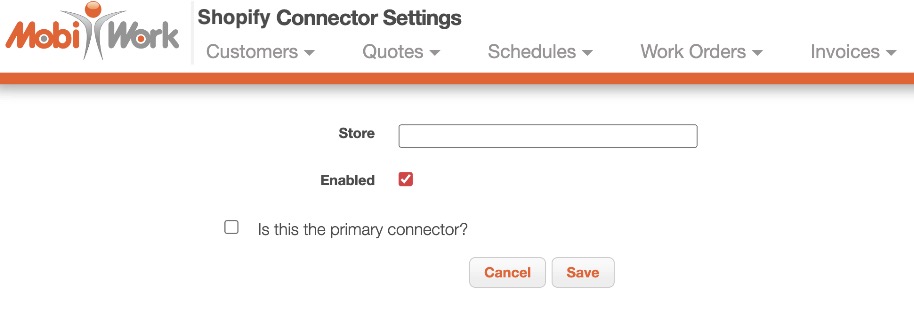
Input your Shopify store information in the "Store" text field. Then click the Save button:
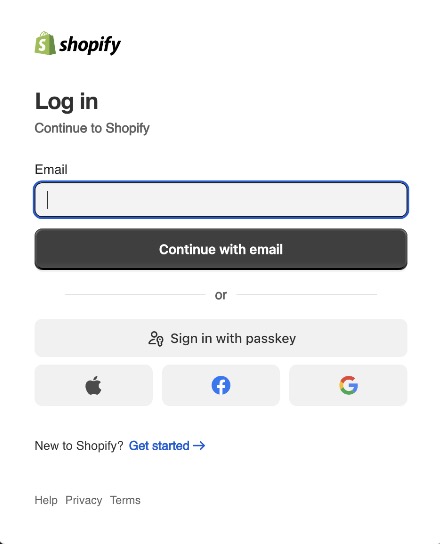
The Shopify web page will then open, allowing you to enter your login credentials:
Once the installation is completed, the following control panel is available:
You will know be able to import and export selected entities from Shopify to MobiWork.
You will be able to import your Shopify customers, parts, warehouses, and inventory into MobiWork by accessing the respective entity List pages.
The example below highlights how to access the import function from the Customers List page; however, you can access the import action from the parts, warehouses, and inventory List pages.
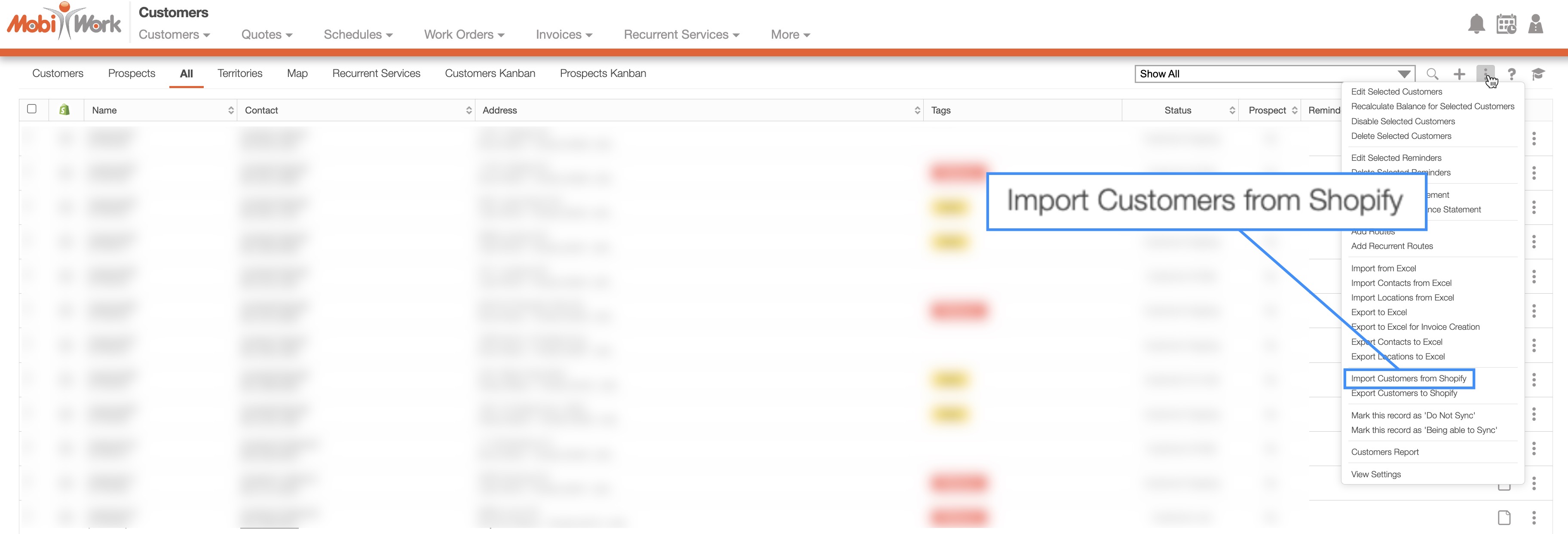
By selecting the import action from the More Actions drop-down, you will be able to sync the selected entities from your Shopify account.
Select the desired entities you would like to import from Shopify to MobiWork. Once selected, click the Submit button to confirm you would like to import the chosen entities:
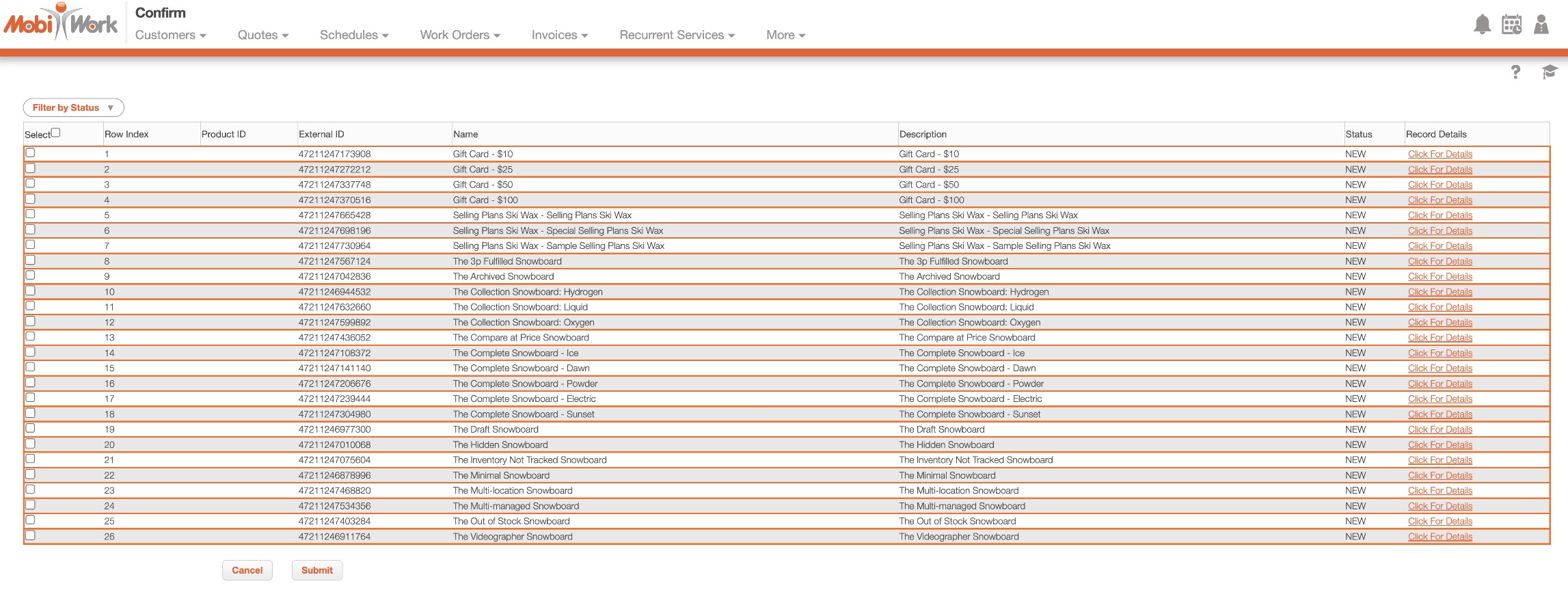
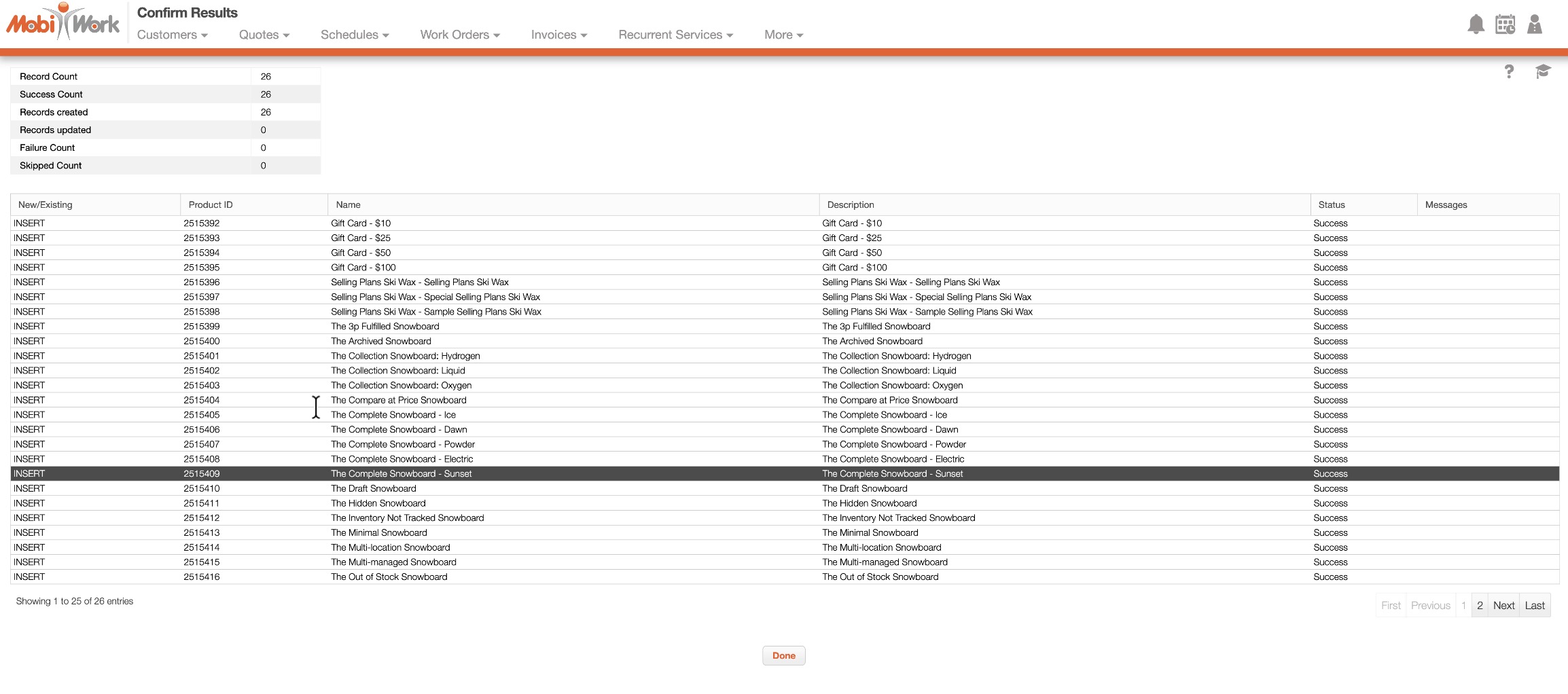
The Confirm Results page will then list the outcome of the synchronization process. The imported customers, parts, warehouses, and inventory will then be displayed in your MobiWork account:
You can export your customers, invoices, inventory, and parts from MobiWork to Shopify.
To export your features from MobiWork to Shopify, first access the respective feature List page. Then mark the desired entities that you would like to sync to Shopify.
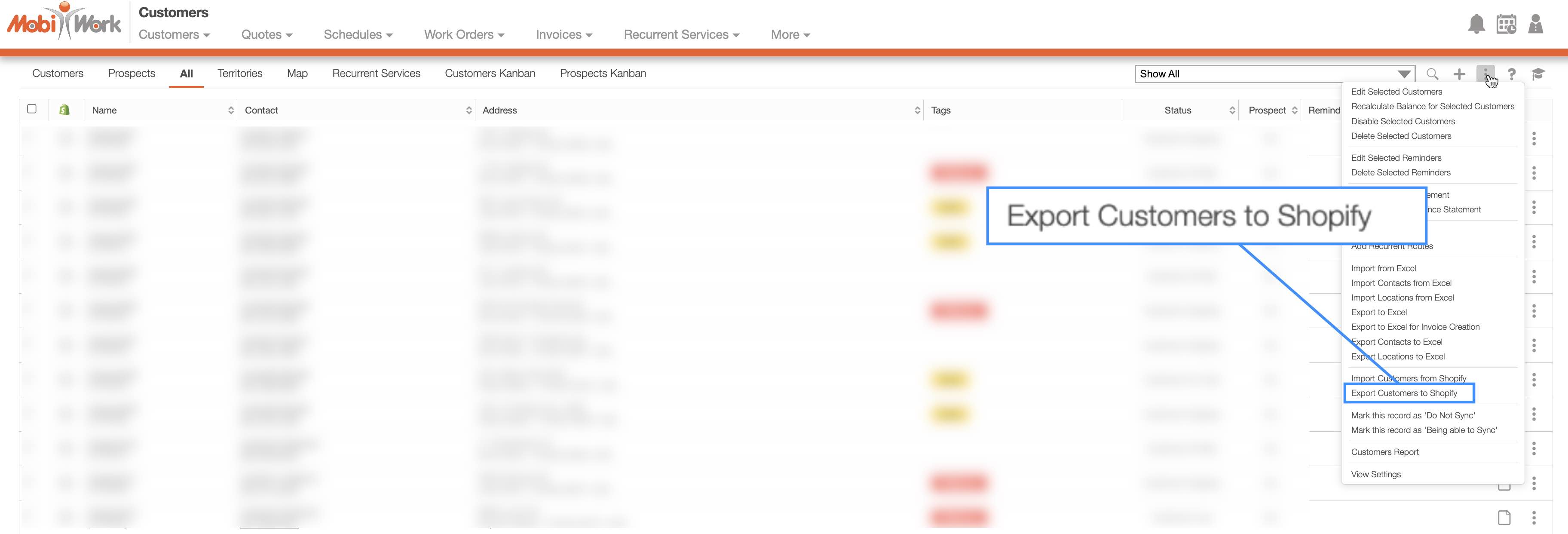
The example below shows the Customers List page; however, you can access the export action from the customers, invoices, inventory, and parts List pages. By selecting the export action from the More Actions drop-down, you will be able to sync the selected entities from your MobiWork account to your Shopify account:
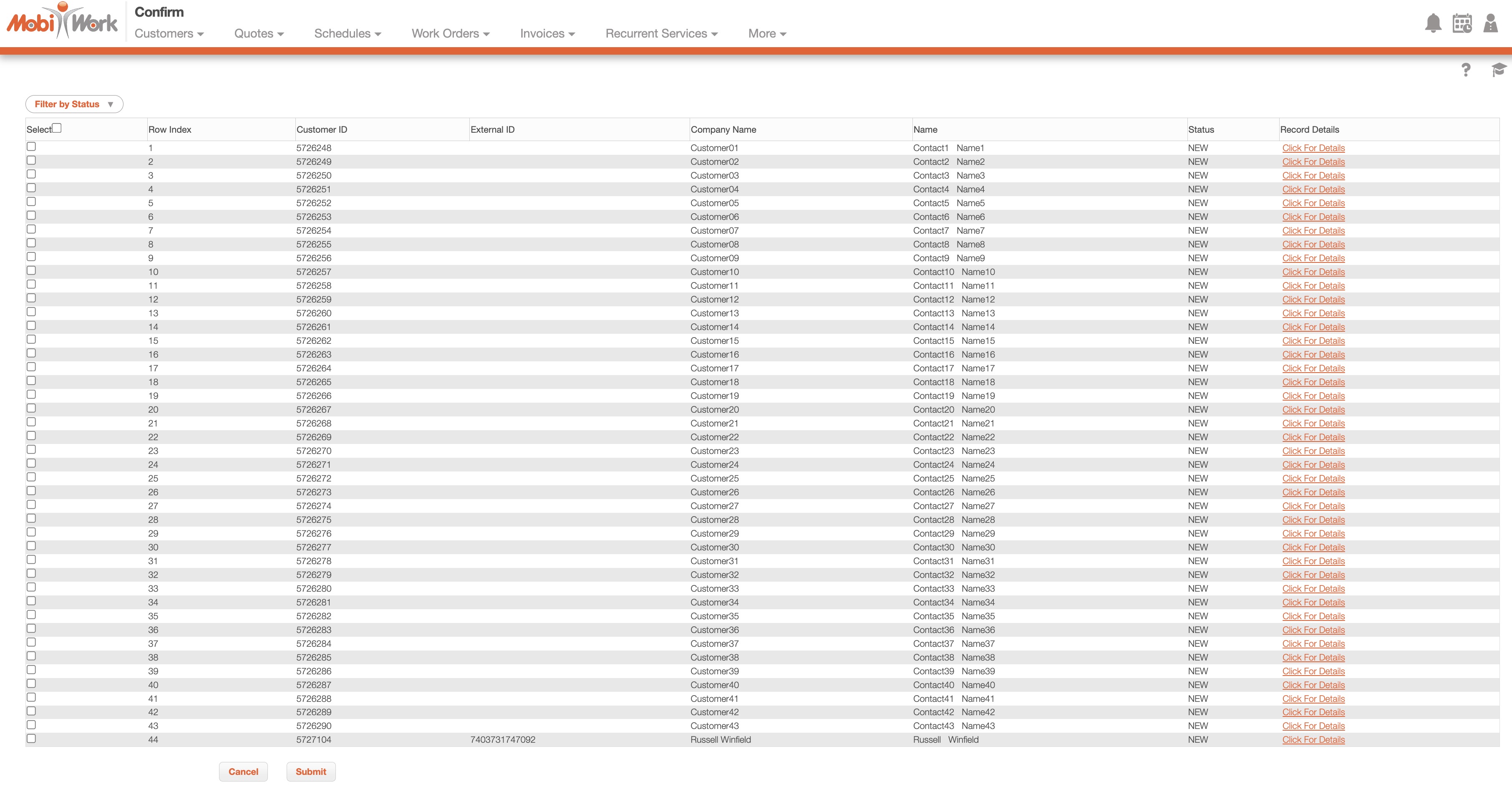
You will then be redirected to the Confirm page. Click the Submit button to confirm the export of data from MobiWork to Shopify:
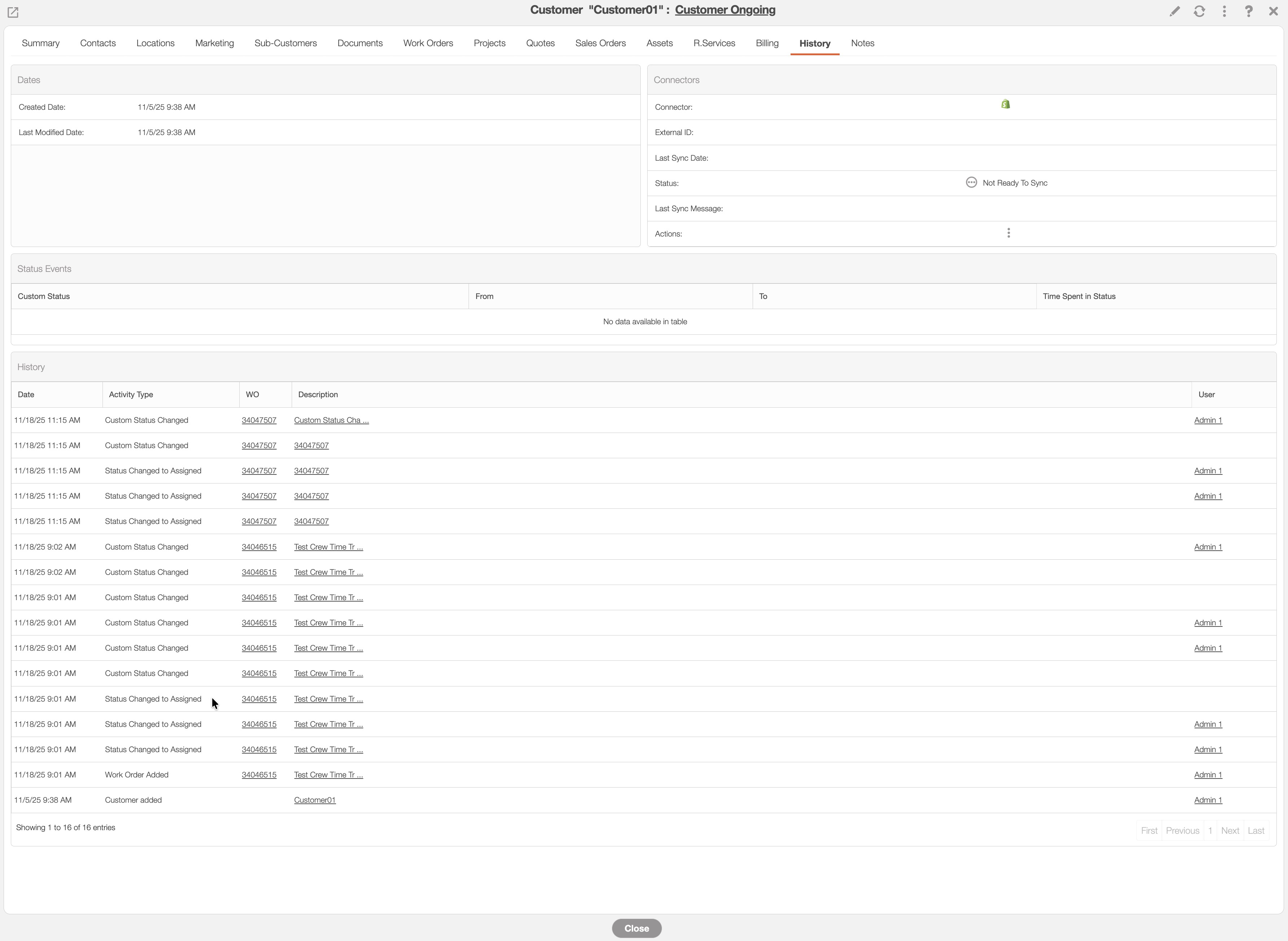
If there is an error during the synchronization process, MobiWork will inform you of the issue.
You will be notified of the error with MobiWork's system notifications; or you can see the issue in the "History" tab of the respective entity's view window:
If you require additional information, you will be able to locate the error logs in the Shopify Connect Logs page. You can navigate to this page from your Connector Settings page. Right-click on the selected connector and click on the "Connector Logs" option from the drop-down:
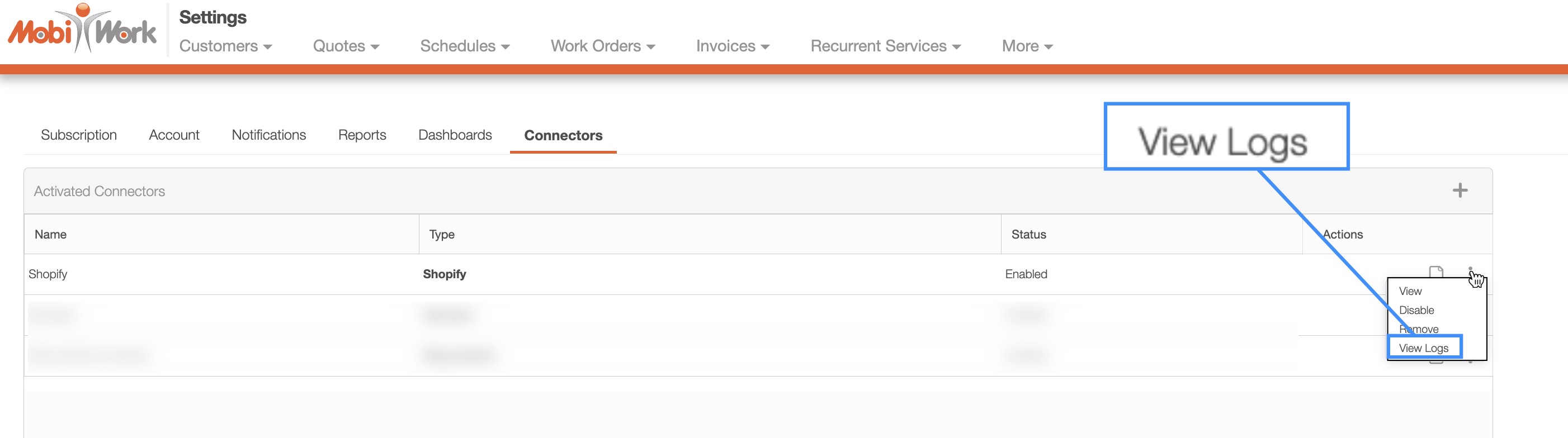
The errors from the synchronization will be displayed here.
Note: Please note that logs are stored for up to 48 hours, after which they are deleted. If you would like to keep a record of the logs, please export the log.