
Data from Sage Intacct is transferred to MobiWork through the following synchronization method. This integration method provides a secure and scalable integration between the Sage Intacct and the MobiWork web-based back-end platforms:
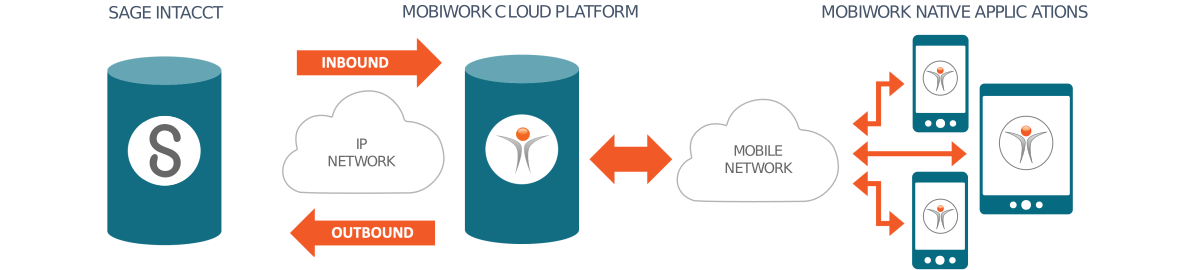
The following subsections go into detail about which entities and transactions are synced with MobiWork and Sage Intacct.
Integration Points: Records
MobiWork and Sage Intacct will sync the following entities from Sage Intacct to MobiWork and vice versa:
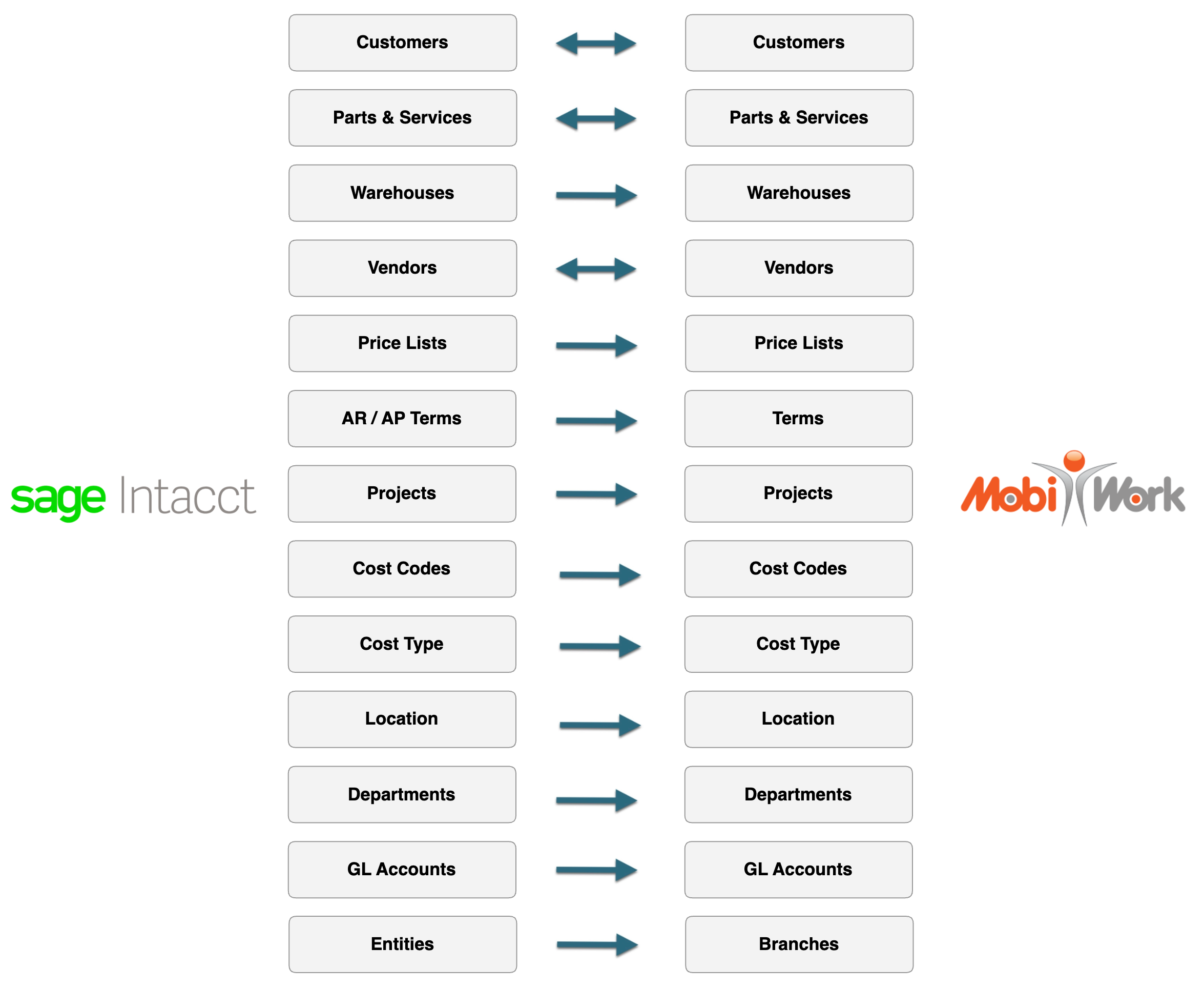
The following outlines what data is synchronized between MobiWork and Sage Intacct. Please note that some entities are available only with a Sage Intacct CRE account:
Customers- Customer names, contact details, and location information are synchronized in both directions. This only applies to only active customers.
Parts and Services (Including Prices)- Item names, descriptions, SKUs, manufacturer names and part numbers, tags or barcodes, and prices are synchronized in both directions. Please note, that when importing parts or services from Sage, the item type determines how the record is created in MobiWork. If the item type in Sage is set to "Inventory," it will be created as a "Part" in MobiWork. If the item type is anything other than "Inventory," it will be created as a "Service" in MobiWork.
Price Lists- Sage Intacct price lists are synchronized from Sage Intacct to MobiWork only.
Vendors- Vendor names, contact information, and location details are synchronized in both directions. If the Contractor module is enabled in MobiWork, vendor contractors can also be created in MobiWork through the Sage Intacct connector.
Projects (CRE ONLY)- Projects, including cost codes and cost types, are synchronized in both directions. MobiWork also pushes related job costing data, such as labor, equipment time, and materials, into Sage Intacct.
Dimensions- Sage Intacct dimensions include Classes, Locations, and Departments. These dimensions are synchronized in one direction only, from Sage Intacct to MobiWork.
Integration Points: Transactions
MobiWork and Sage Intacct will sync the following transactions from Sage Intacct to MobiWork and vice versa:
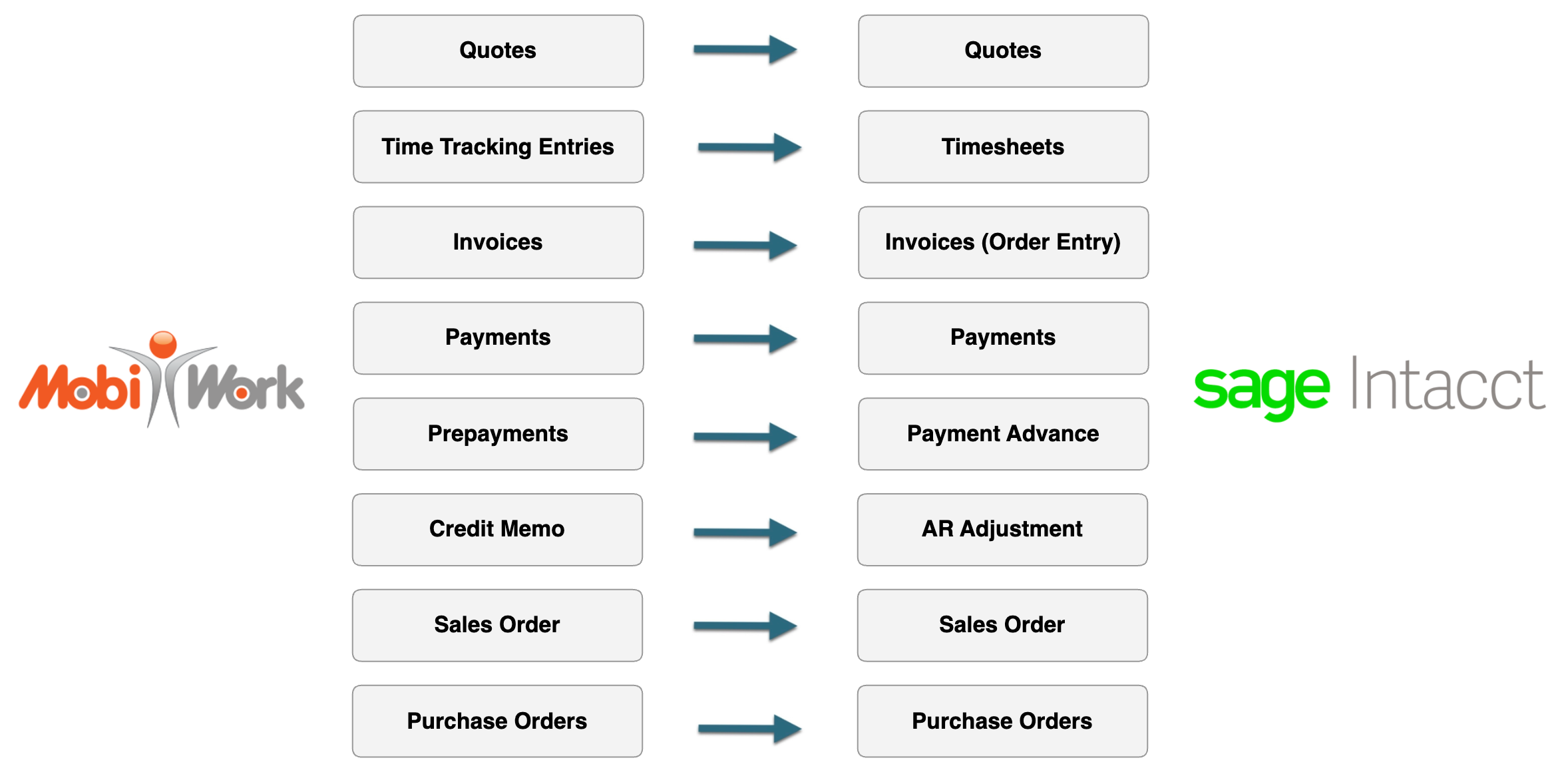
The following outlines what transaction data is synchronized between MobiWork and Sage Intacct:
Credit Memos- Date, amount, and related details.
Estimates / Quotes- Quote header information (title, customer, location, dates, descriptions, discounts, markups, and sales tax) and all quote line items.
Invoices- Invoice details (customer, location, invoice date, due date, discounts, markups, and sales tax) and all invoice line items, including discounts and markups.
Sales Orders- Sales order records and all associated line items.
Purchase Orders- Purchase order records and all associated line items.
Payments- Payment details such as date and amount.
Pre-Payments- Pre-payment details such as date and amount.
The following subsections will highlight how to install the Sage Intacct connector to your MobiWork account. Please note that the "Connector Package" subsection must be completed before you can set up the Sage Intacct connector to your MobiWork account.
Connector Package
Before adding the Sage Intacct connector to your MobiWork account, first add the Web Services in your Sage Intacct account and ensure that it is switched on. You can locate the "Web Services" setting under the Company subscriptions:

Once enabled, you can ignore the warning about additional charges.
Next, add your company's "Sender ID" to the allowed list. Please note that if this process is not done, you will not be able to utilize Sage Intacct with MobiWork:

The "Sender ID" can be located in from "Company Info." From here, click on the Edit button, then select the "Security" tab. In the "Web Services Authorizations" column enter:
MobiWorkMPP
Then click the Add button to confirm the "Sender ID."
Then add a dedicated user to your Sage Intacct account and verify that the user the has all necessary rights and is assigned to the correct user role:
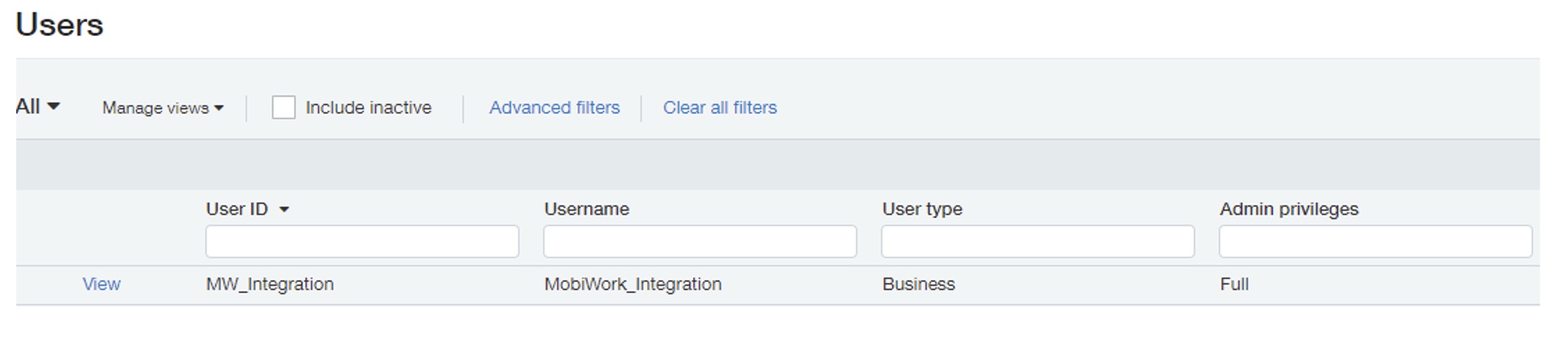
The dedicated Sage Intacct user will ensure that the account is not bound to a specified employee. Thus, giving you full control of the account in case the employee leaves or changes the password.
Note: The specific user instructions may vary slightly depending on whether the client has configured their security as "Role-Based"or "User-Based."
Installation
Once your Sage Intacct account is set up, you will then be able to add the Sage Intacct connector to your MobiWork account.
To add the Sage Intacct connector, navigate to the User icon, and from the drop-down menu choose the "Settings" option:

Click the "Connectors" tab, then click on the Plus Sign button to add a new connector:

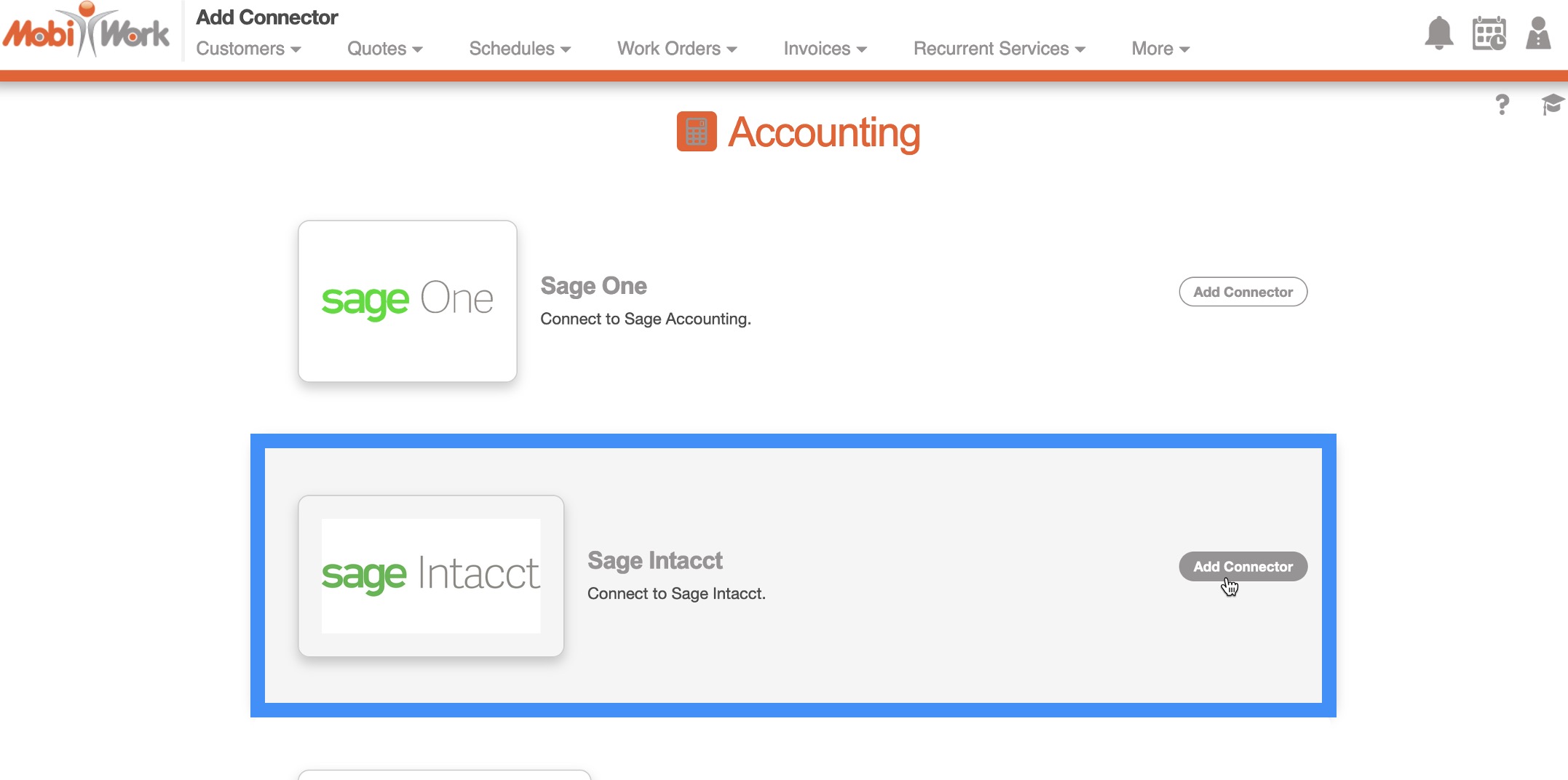
Next, scroll down to the "Accounting" section, find the Sage Intacct connector listed and click the Add Connector:
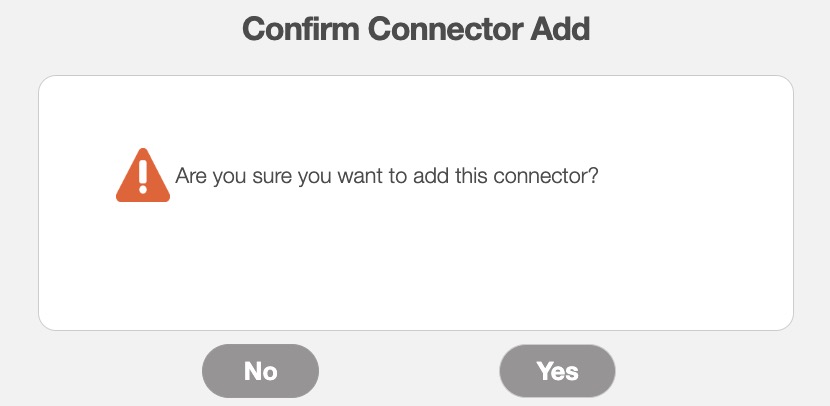
The Confirm Connector Add pop-up window will then appear. In this pop-up window, confirm that you would like to add the Sage Intacct connector to your MobiWork account by clicking the Yes button:
You will then be prompted to enter your Sage Intacct account information into MobiWork. Once the installation is completed, the following control panel is available:
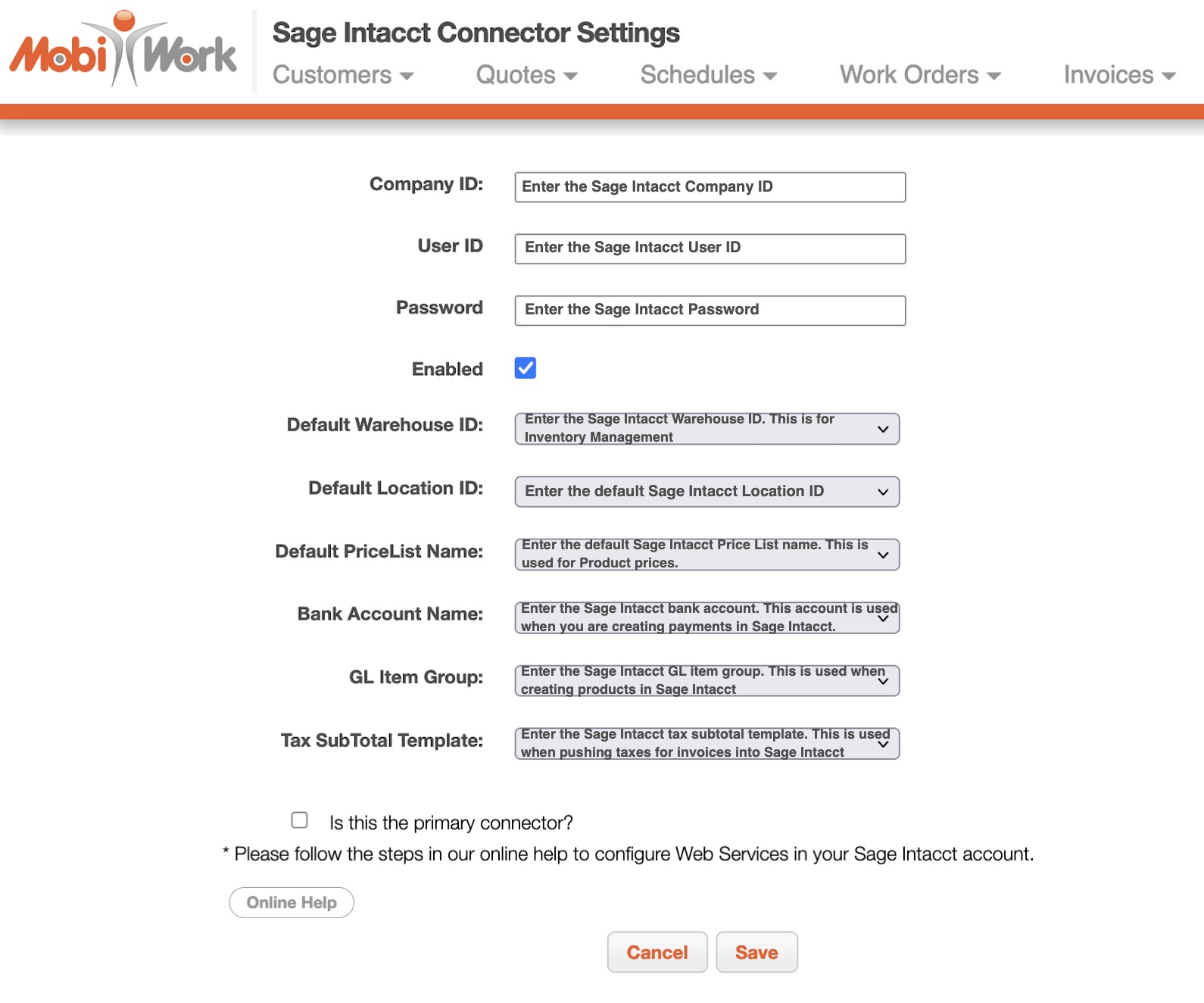
In this control panel you can enter the required information in the requisite fields:
Company ID- Your Sage Intacct company ID
User ID- Your Sage Intacct user ID
Password- Your Sage Intacct password
Default Warehouse ID- The Sage Intacct warehouse used for inventory management
Default Location ID- The default Sage Intacct location
Default Price List Name The Sage Intacct price list used for part pricing
Bank Account- The Sage Intacct bank account used when creating payments
GL Item Group- The Sage Intacct GL item group used when creating parts. If a part or service originates in Sage and is synced into MobiWork, the GL accounts configured in Sage for that item will be used when processing invoices. The GL Item Group setting is only applied when a part or service is created in MobiWork and then pushed to Sage for the first time. For example, when the item does not already exist in Sage.
Tax Subtotal Template The Sage Intacct tax subtotal template used when pushing invoice taxes
Once entered into MobiWork, click the Save button to confirm:
Note: If you already have an existing Sage Intacct account, you can import parts, services, vendors, customers. If you do not have an existing Sage Intacct account, you can simply export the entities from MobiWork.
You can access Sage Intacct synchronization actions directly from each respective customer, invoice, quote, and part entities in MobiWork. With the Sage Intacct connector installed, you can manually sync customers, parts, vendors, invoices, quotes, etc. between MobiWork and Sage Intacct at any time:
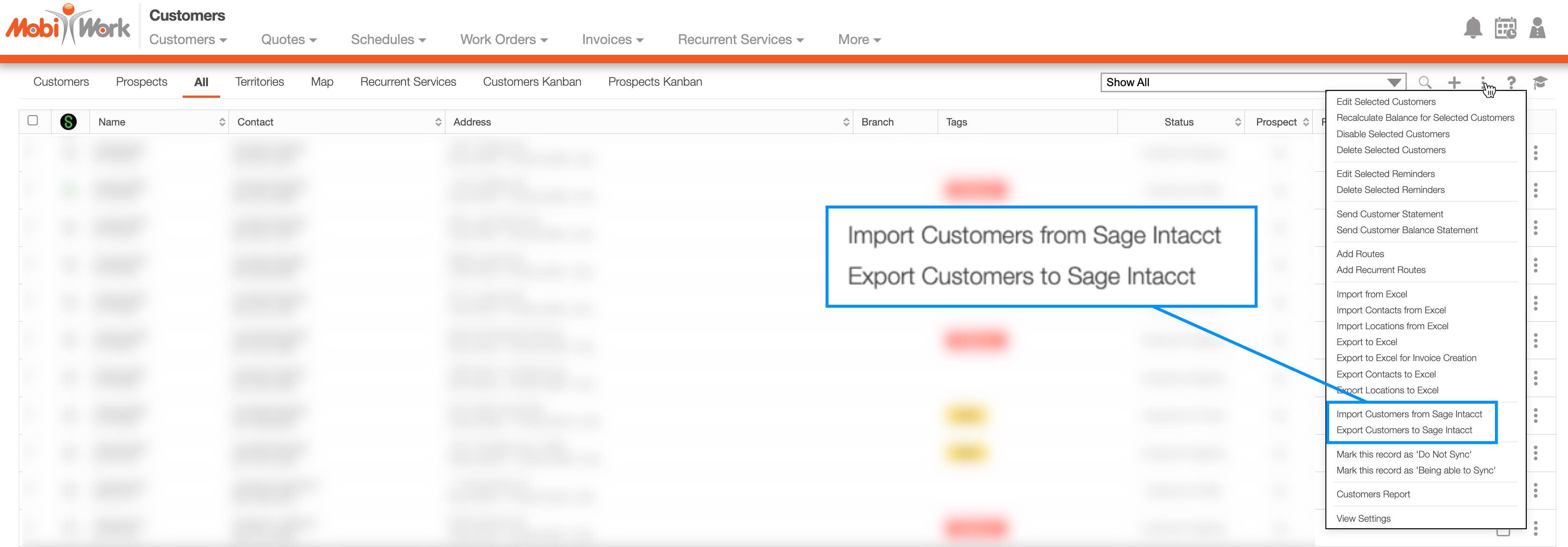
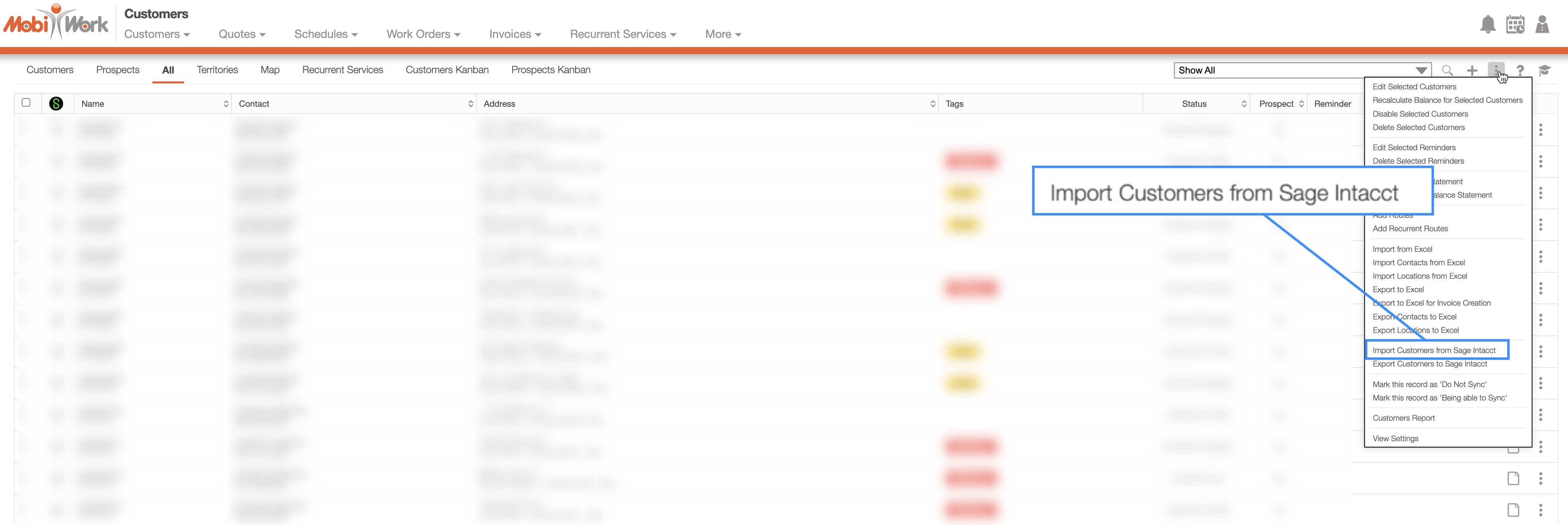
For example, on the Customers List page, you will find the Sage Intacct import and export options from the More Actions drop-down.
Manual Synchronization From Sage Intacct to MobiWork
To manually sync data from Sage Intacct into MobiWork, use the Import options found in the More Actions drop-down. For example, select "Import Customers from Sage Intacct" option from the Customers List page:
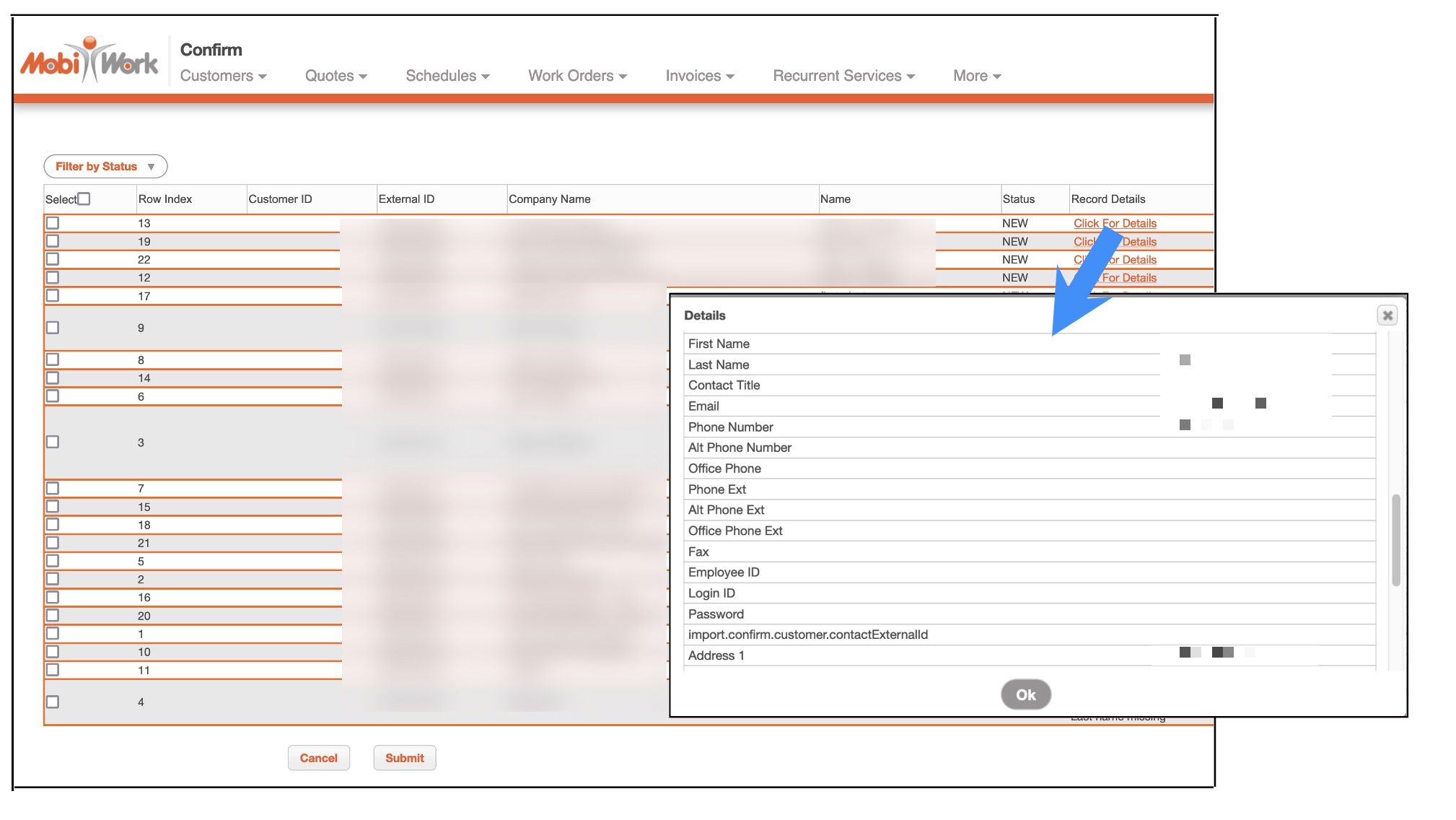
If any differences are detected between Sage Intacct and MobiWork records, MobiWork will clearly display them and prompt you to confirm before applying any changes:
Note: Please note after importing customers, be sure to verify that their addresses are valid and correctly converted into latitude and longitude values. This ensures accurate mapping, scheduling, and dispatching.
To keep both systems fully aligned, it is recommended that you import data from Sage Intacct on a regular (at least weekly) basis. This helps ensure that all customer and part information stays current.
Manual Synchronization From MobiWork to Sage Intacct
Once new records are added to MobiWork, validated, and ready for synchronization, use the "Export to Sage Intacct actions" from the More Actions drop-down menu to push data to Sage Intacct.
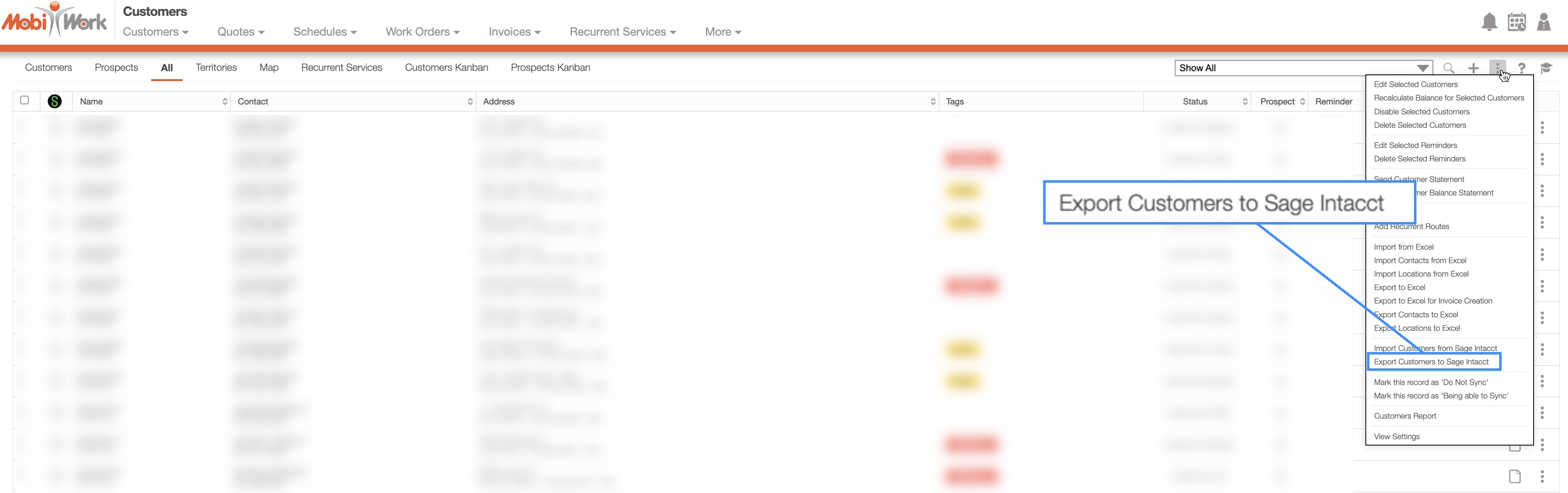
This allows MobiWork's customers, parts, and newly created invoices, quotes etc. to be reflected accurately in Sage Intacct.
Automatic Synchronization
In addition to manual syncing, automatic syncing is also available. The settings for automation can be found on the connector page settings, as per the sample below:
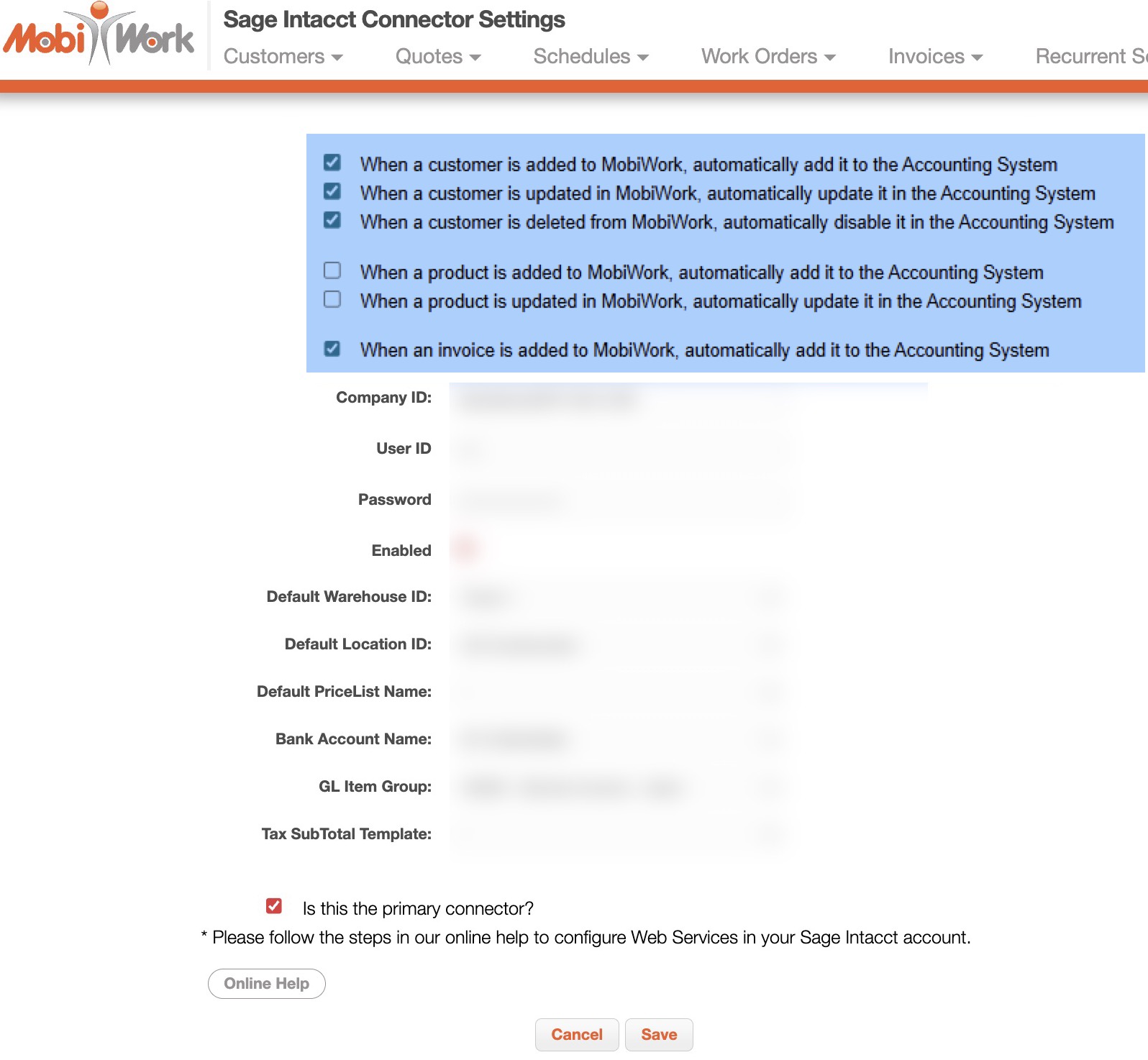
When enabled, it keeps customers and parts up to date and automatically pushes newly created invoices (as soon as the invoice enters the "Customer Invoiced" status), ensuring both systems stay aligned without manual effort. Please note that this option will only appear after installing the Sage Intacct connector to your MobiWork account.
The same data for customers, parts, and invoices that is transferred during a manual sync are also transferred when these entities are synced automatically.
Sage Intacct uses entities to represent different business units, regions, or subsidiaries (for example, East Coast, West Coast, or ABC Construction LLC) which makes it very easy to organize, scale, and grow your business (e.g., add-on acquisitions). In MobiWork we refer to these entities as branches. If you have branches set up in MobiWork, these branches can also be used to organize operations, users, and transactions by location or business unit.
Once MobiWork's Sage Intacct connector is enabled, it will automatically read all of your Sage Intacct entities and creates a matching MobiWork branch for each one. This creates a one-to-one relationship between branches in MobiWork and entities in Sage Intacct.
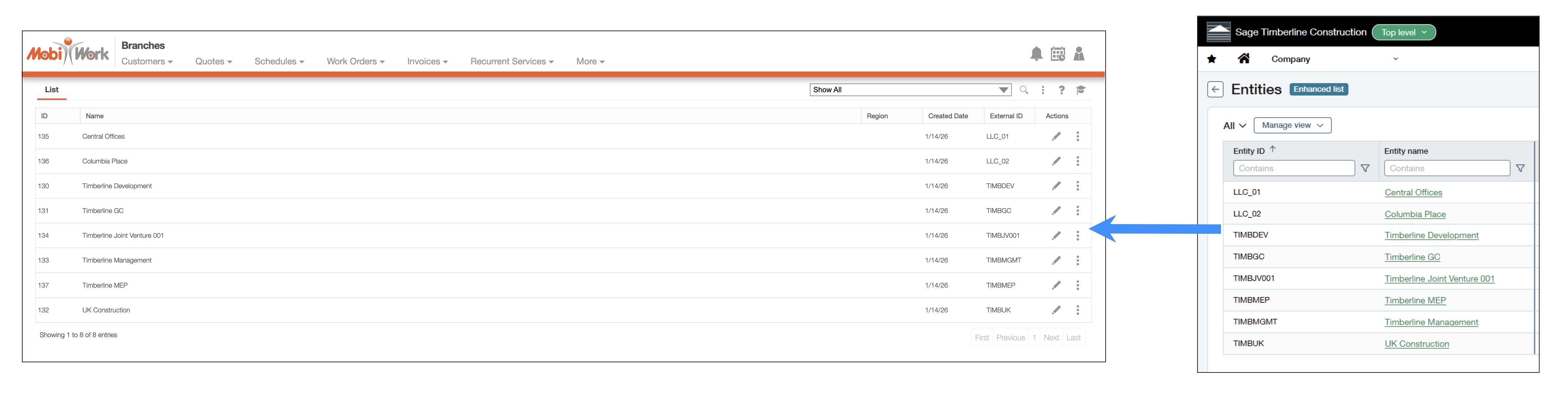
From that point on, any transaction created in MobiWork (such as an invoice, payment, or work order charge) is sent to Sage Intacct based on the branch it belongs to.
If a transaction is linked to a specific MobiWork branch, it is pushed to the matching Sage Intacct entity. If a transaction is not linked to a branch, it is sent to the top-level Sage Intacct entity by default.
For more information about MobiWork branches, please see Branches FAQ.
Sage Intacct Dimensions are synced from Sage Intacct into MobiWork; dimensions are also used when pushing transactions from MobiWork to Sage.
MobiWork provides support for the Class, Location, and Departments Sage Intacct Dimensions. The data that is provided by these dimensions helps to make reporting easier.
Once configured, you will be able to access your Sage Intacct dimensions from the Settings page. On the Settings page, you will notice a new tab, labeled "Dimensions" as shown below:
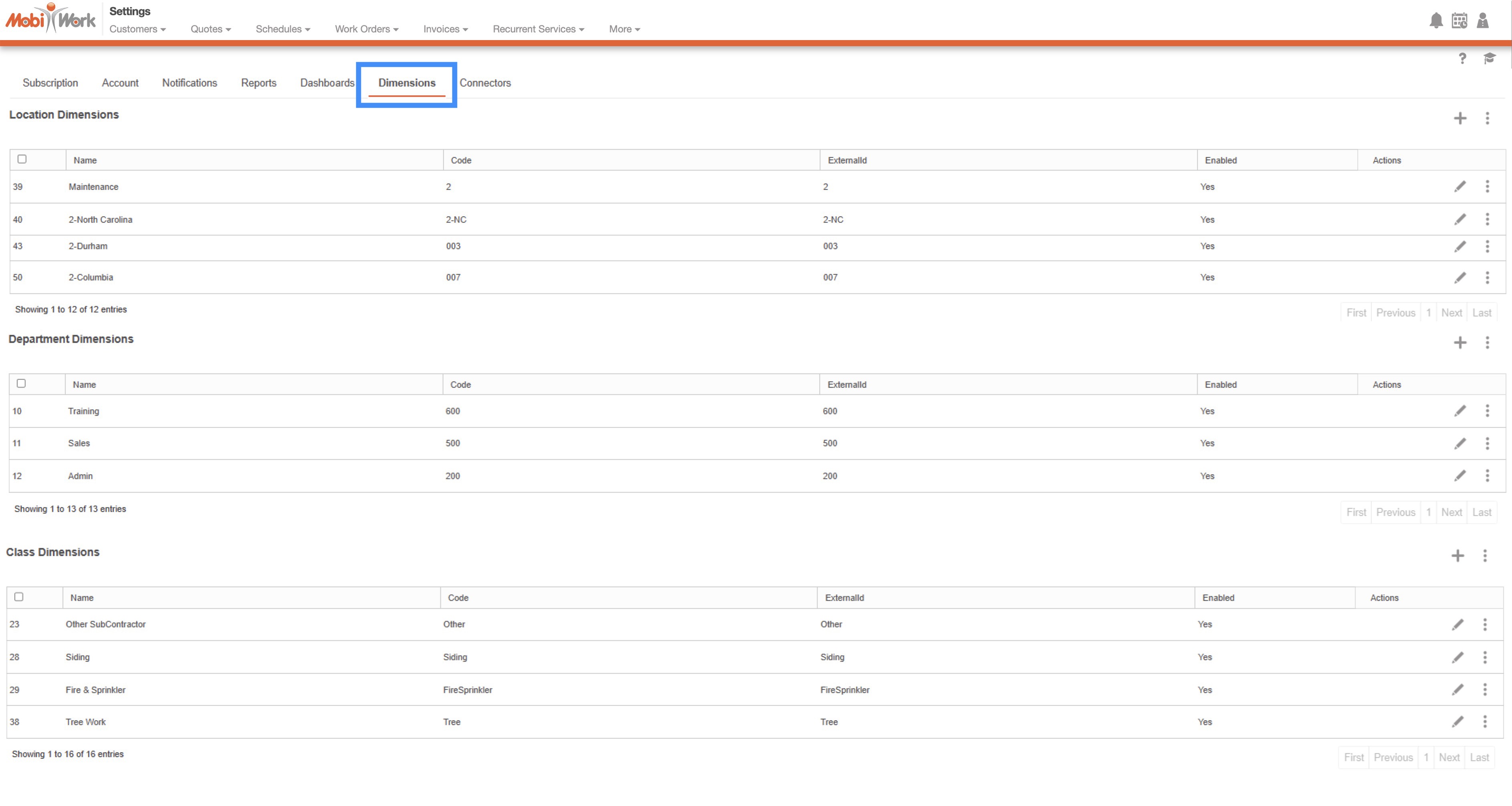
On this tab, there are three different categories of dimensions you can choose from:
Location
Department
Class
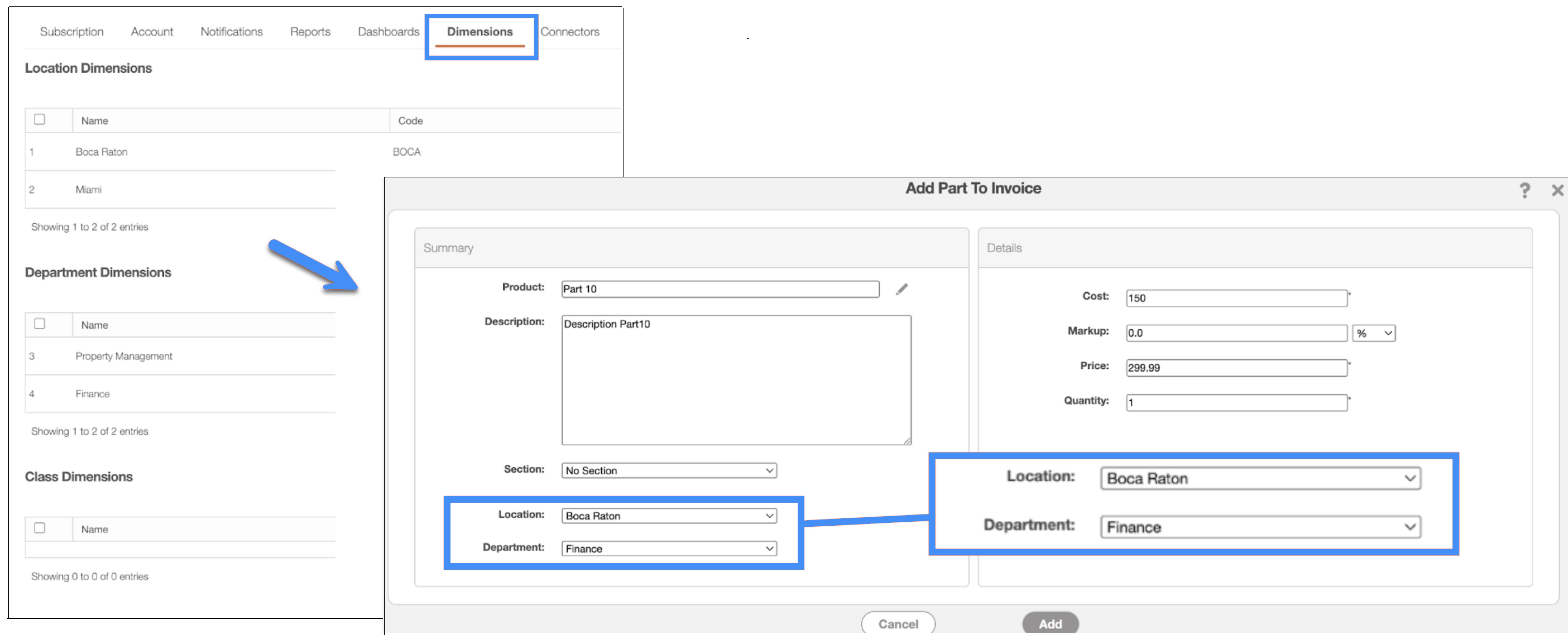
These dimensions are pulled from Sage Intacct and can be displayed on your respective entities. For example, the image below shows the Edit Customer pop-up window as well as the fields that indicate location and department:
Please note that those Dimensions are not part of the MobiWork turnkey solution by default, and that your MobiWork account will have to be configured accordingly. Also, MobiWork currently supports Sage standard dimensions; custom dimensions are not supported at this time.
For more informaton about Sage Intacct Dimensions, please see the Dimensions overview page.
In addition to providing immediate on-screen feedback when Import or Export actions are triggered, the Sage Intacct connector also generates detailed synchronization logs. These logs give you full visibility into what was processed, what succeeded, and what failed.
From the MobiWork Connector Settings page, select the "View" option from the Individual Actions drop-down to access a full breakdown of successful and failed records for each sync:
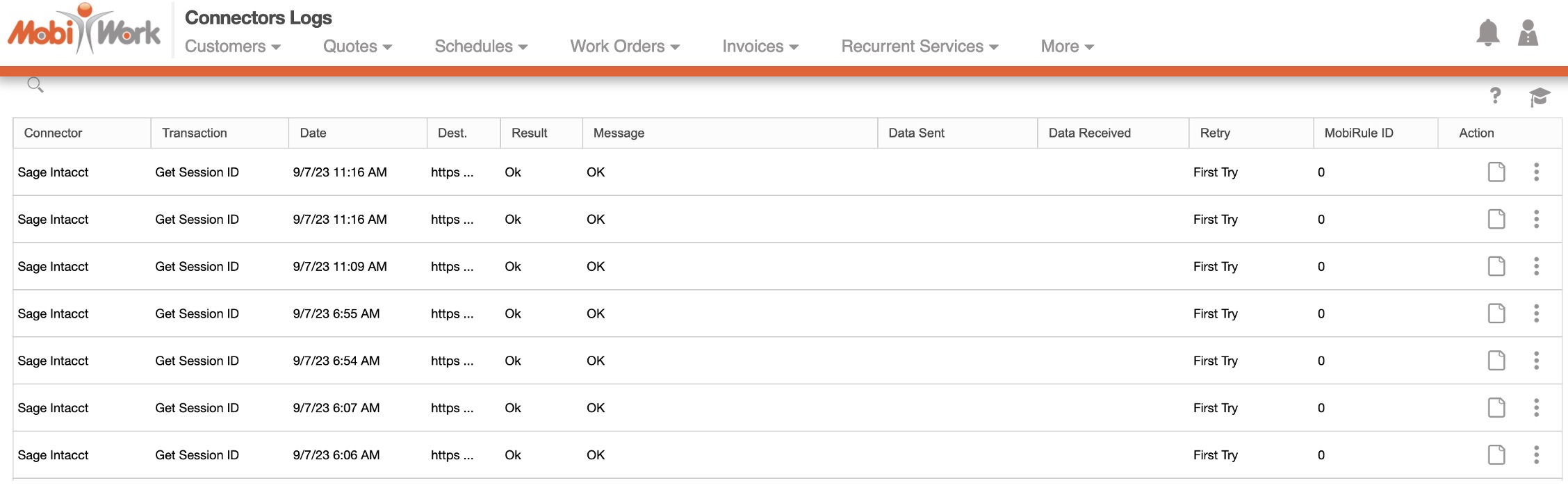
These logs also capture internal integration issues and provide valuable diagnostic information that helps identify and resolve the root cause of any errors.
By reviewing the error logs, you can identify common issues such as missing or invalid data, correct them, and re-run the synchronization.
During each sync, all related entities and transactions are updated with their corresponding External ID values to maintain a clear link between MobiWork and Sage Intacct records. When a record fails to sync, MobiWork will:
Display an error message directly on the affected entity
Change its status from "Pending" to "Sync Failed"
The record will remain in the "Sync Failed" state until it is corrected and marked for export again.
You will also be able to see the sync status from the entity's respective view window. Below is a sample of the sync status on the "History" tab on the View Invoice pop-up window:
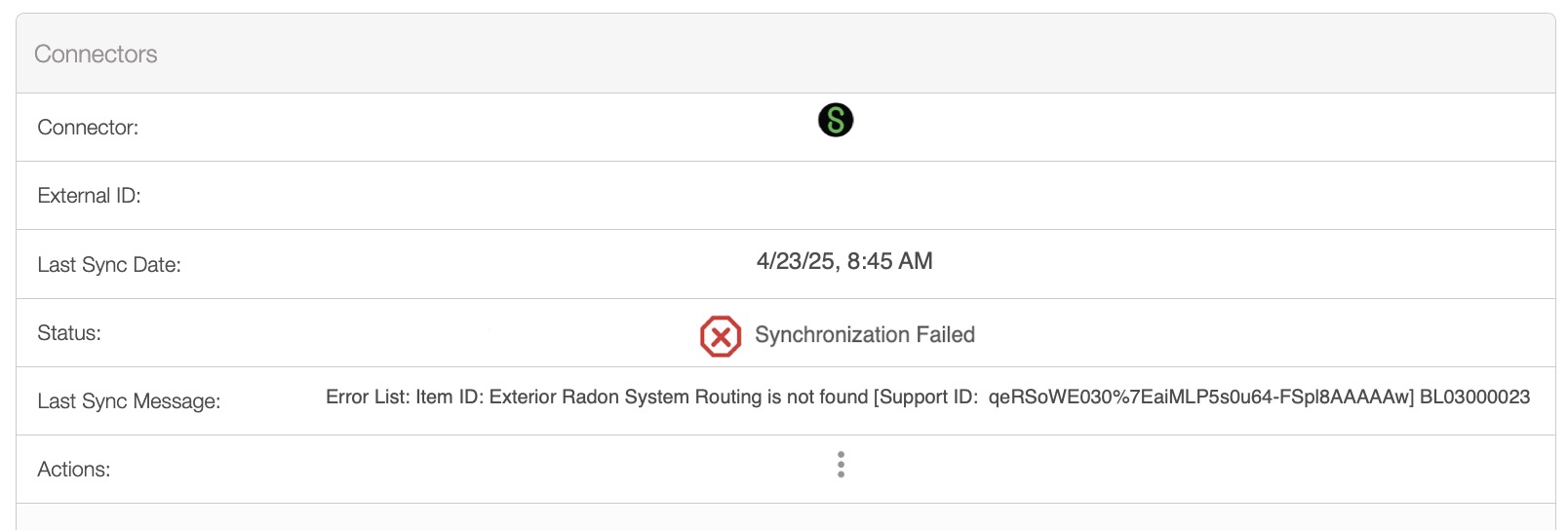
When automated invoices fail to integrate, a system notification is also created that can be seen in the notification page:

The following subsections will go into detail about best practices regarding MobiWork and Sage Intacct.
Best Practices in Sage Intacct
Before adding the Sage Intacct connector to your MobiWork account, first add the Web Services in your Sage Intacct account and ensure that it is switched on. You can locate the "Web Services" setting under the Company subscriptions:
Then add a dedicated user to your Sage Intacct account and verify that the user the has all necessary rights and is assigned to the correct user role:
The dedicated Sage Intacct user will ensure that the account is not bound to a specified employee. Thus, giving you full control of the account in case the employee leaves or changes the password.
Best Practices for the Initial Synchronization
If you already have an existing Sage Intacct account, begin by importing the following entities into MobiWork:
Parts
Services
Vendors
Customers
If you do not yet have a Sage Intacct account, simply export this data from MobiWork to create your records in Sage Intacct.
Best Practices Ongoing
Once new records have been added to MobiWork, validated, and are ready for synchronization, use the Export to Sage Intacct actions to push them into Sage Intacct.
Note: Please note after importing customers, be sure to verify that their addresses are valid and correctly converted into latitude and longitude values. This ensures accurate mapping, scheduling, and dispatching.
To keep both systems fully aligned, it is recommended that you import data from Sage Intacct on a regular (at least weekly) basis. This helps ensure that all customer and part information stays current.