
Data from Samsara is transferred to MobiWork through the following synchronization method:
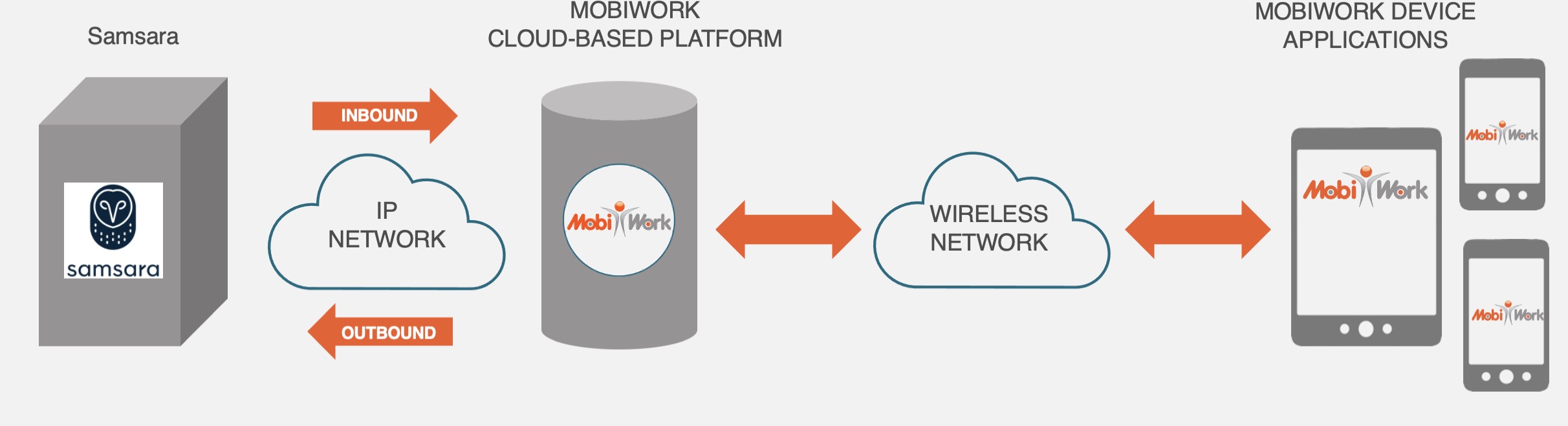
MobiWork and Samara will sync the following information from Samara to MobiWork:
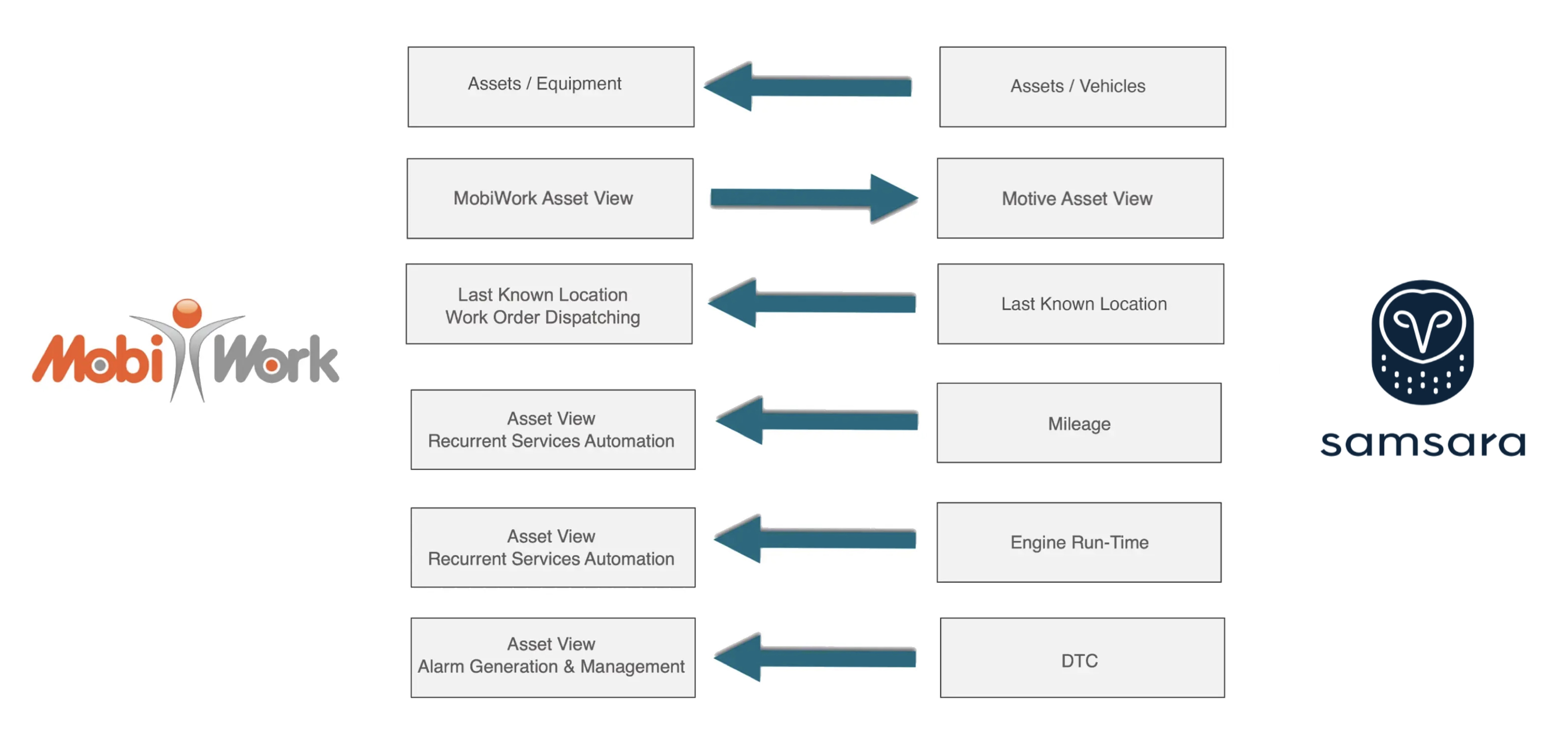
MobiWork will then offer a one-click launch from MobiWork to your Samara dashboard.
Before you sync your Samsara connector with MobiWork, we recommend creating and setting up your Samsara account first. Please ensure that equipments and vehicles are set up correctly in your Samsara account and that telematics are installed in the corresponding equipment and vehicles.
Once your Samsara account is completely set up, you will then be able to add the Samsara connector to your MobiWork account.
To add the Samsara connector, navigate to the User icon, and from the drop-down menu choose the "Settings" option:

Click the "Connectors" tab, then click on the Plus Sign button to add a new connector:

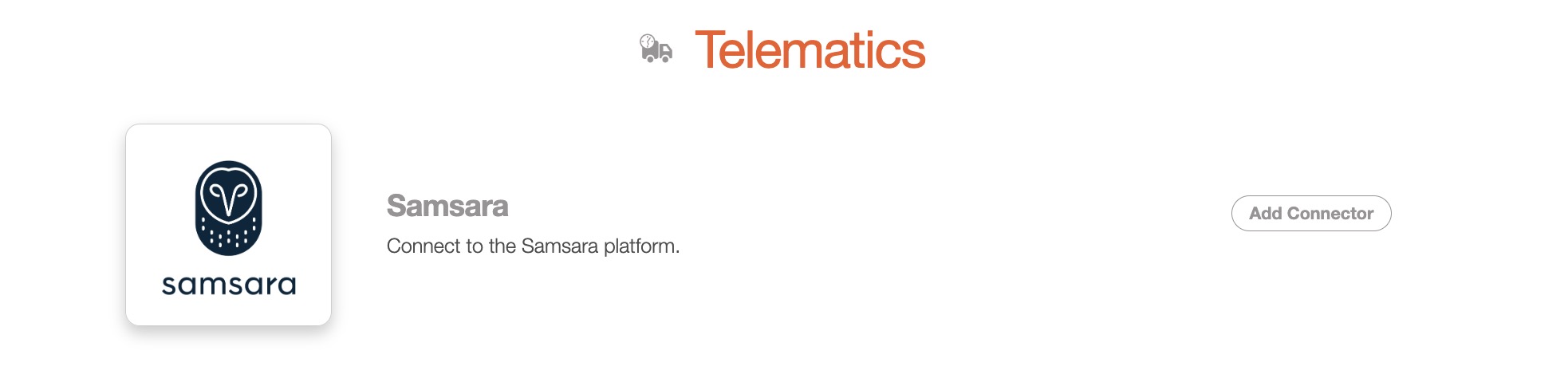
Next, scroll down to the "Telematics" section, find the Samsara connector listed and click the Add Connector:
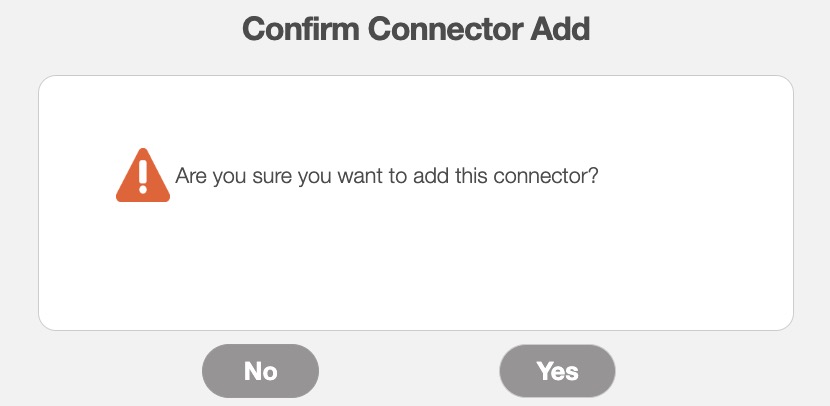
The Confirm Connector Add pop-up window will then appear. In this pop-up window, confirm that you would like to add the Samsara connector to your MobiWork account by clicking the Yes button:
You will then be prompted to enter your Samsara API key into MobiWork. The subsection, Locating Your Samsara API Key will go into detail about how to find your Samsara API Key. Once entered into MobiWork, click the Save button to confirm:
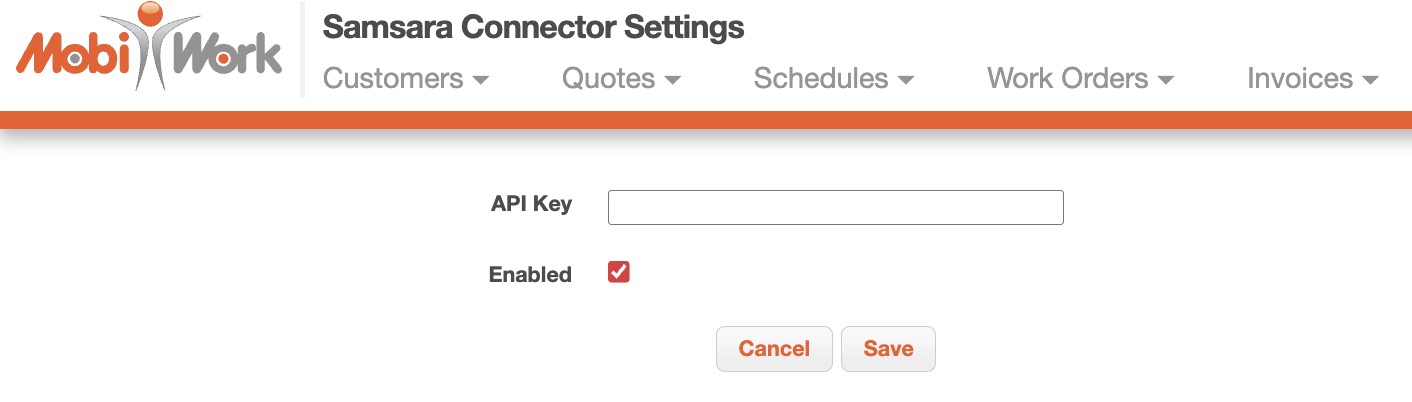
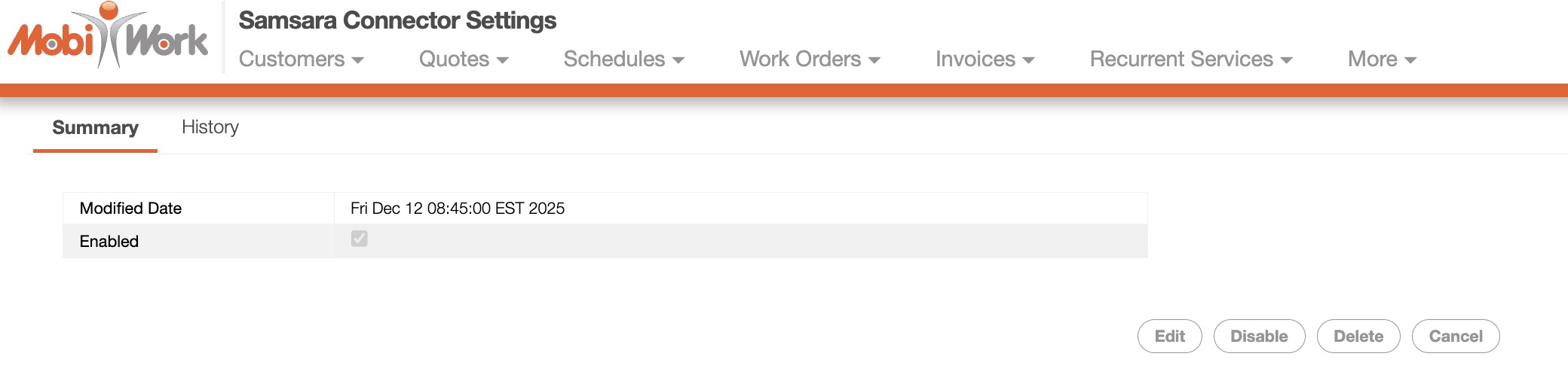
Once the installation is completed, the following control panel is available:
In order integrate your Samsara connector to MobiWork, you will first need to locate the API key in your Samsaara account.
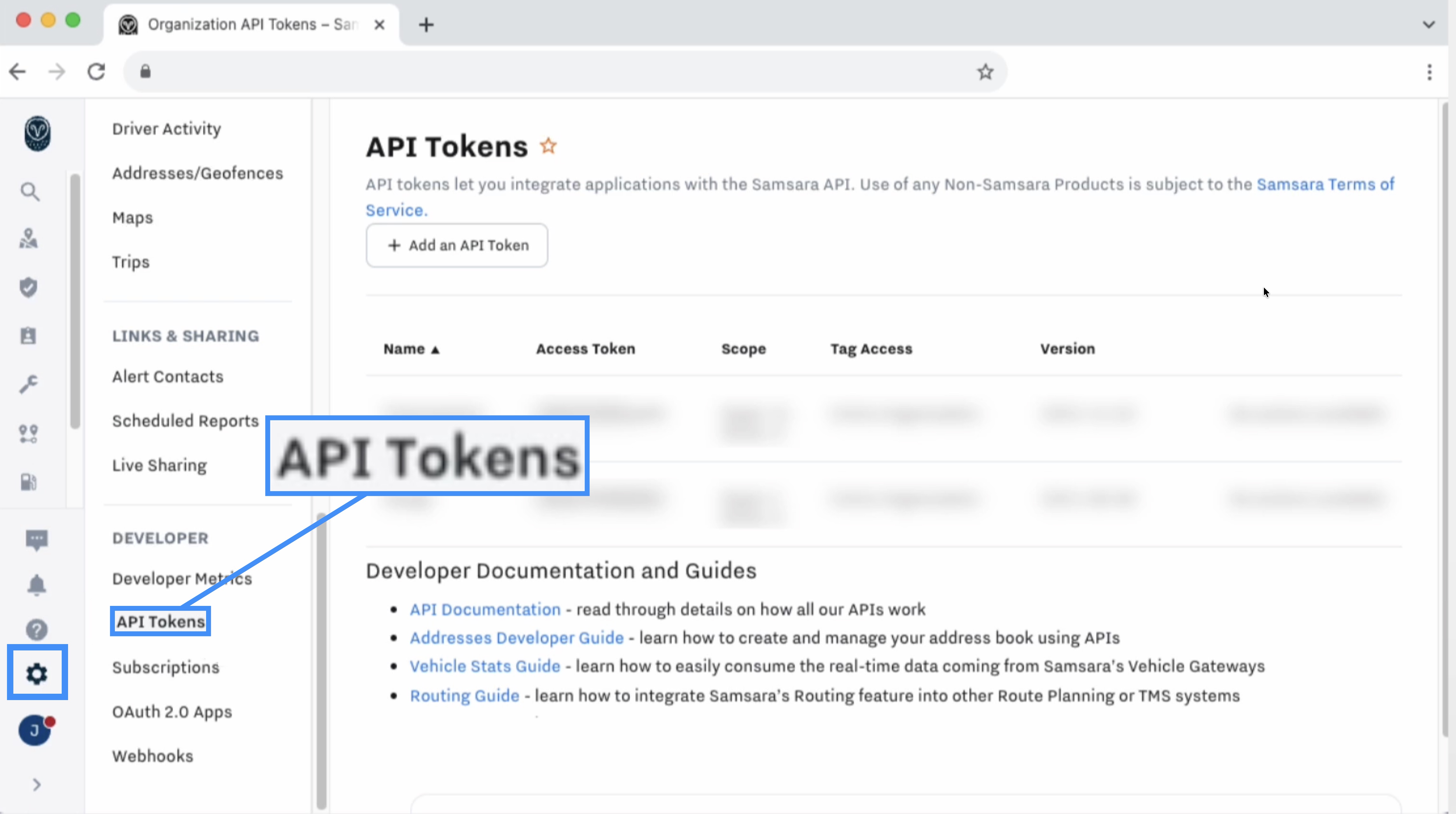
Click the Gear icon to navigate to the Settings page from your Samsara Dashboard; this icon is located on the left-side of your navibation bar. Then select the "API Tokens" article from the side-menu:
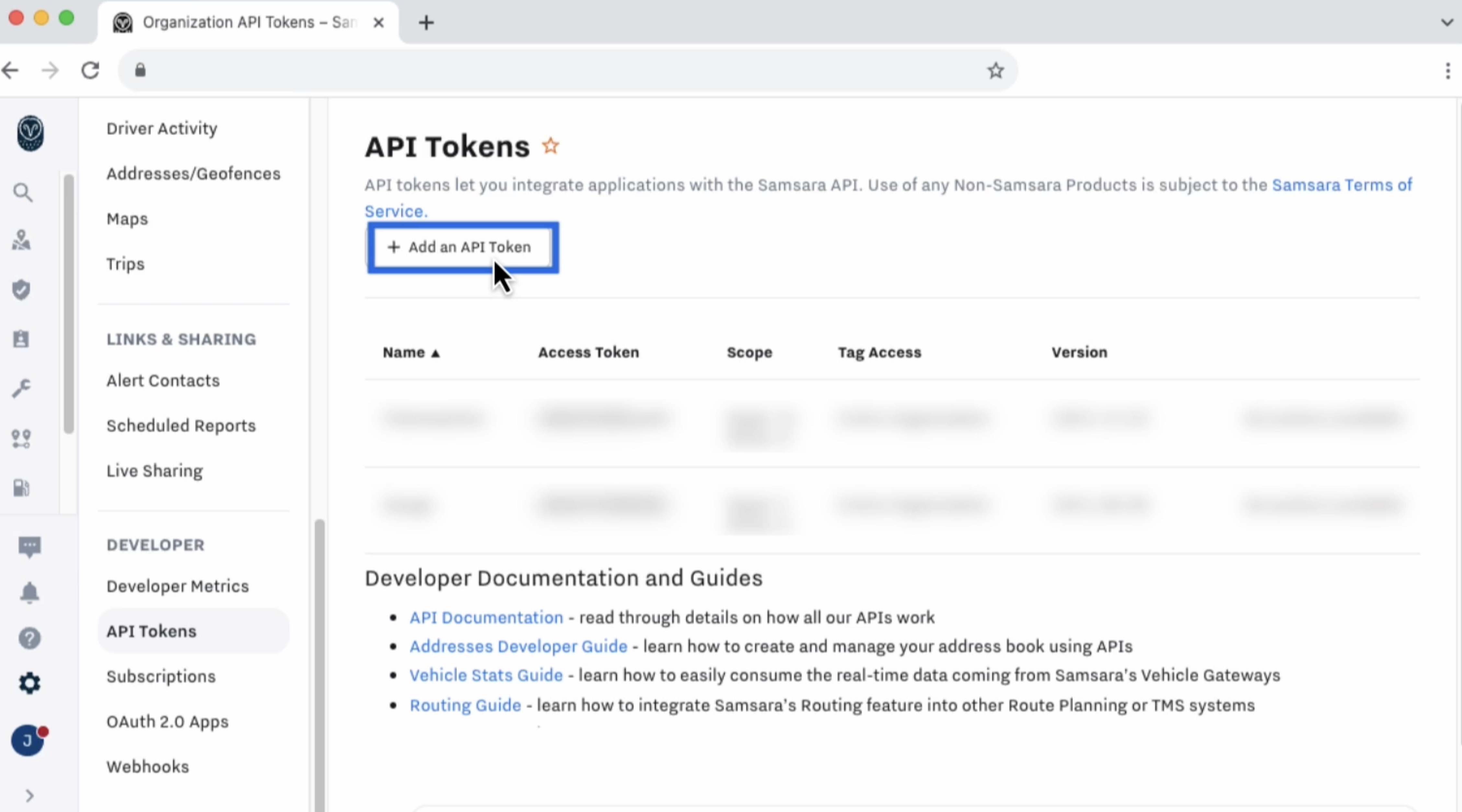
On the API Tokens page, click on the Add an API Token button to create a new API token:
The Add API Token pop-up window will then appear:
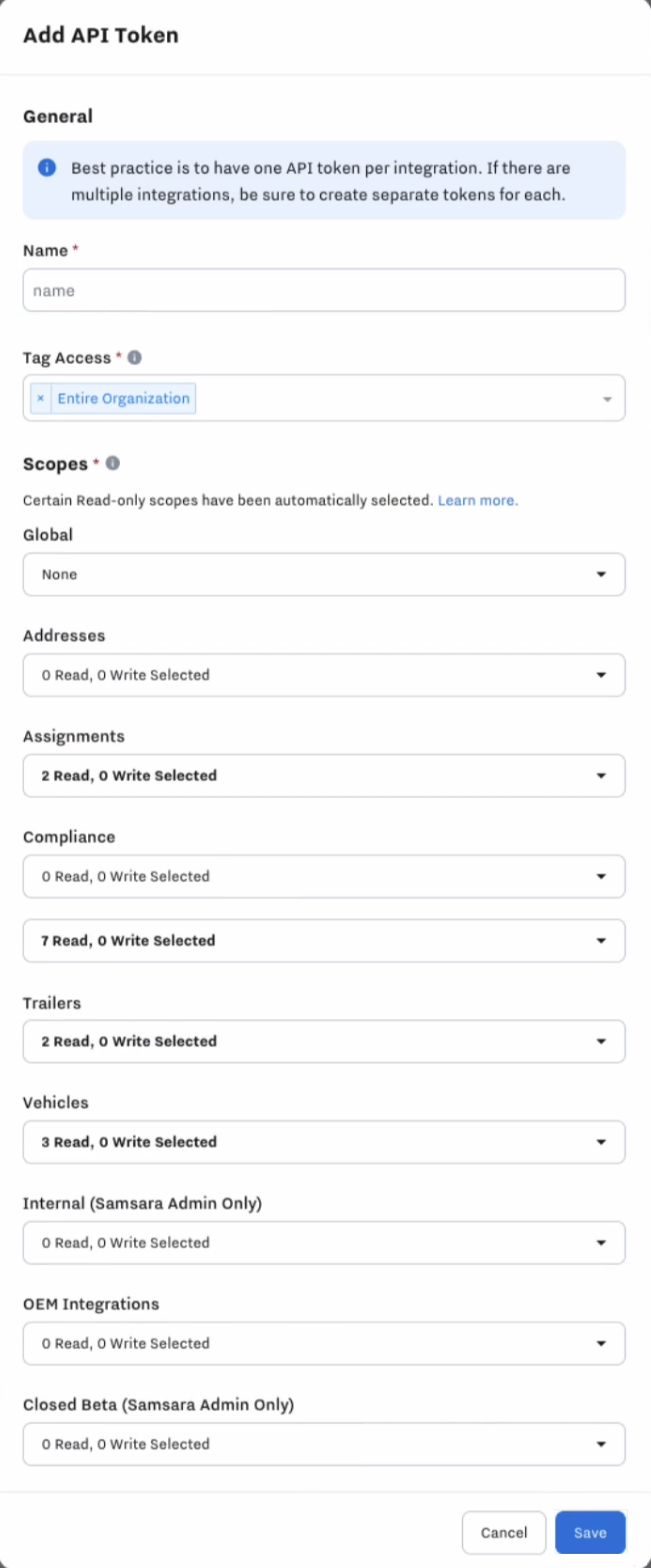
In this pop-up window you will be able to input the following information regarding your API token:
The name of the API token
The tag access; this field will limit which entities the API can interact with. Anything that is not listed as a chosen tag will not be inaccessible.
And the scope, which will limit what information the API can access.
For additional assistance in creating your API tokens, please see the API Authentication documentation. Please note that this is a third-party page, and MobiWork is not responsible for the content that appears on this page.
Once the Samsara connector is added to your MobiWork account, you will be able to access the "Import From Samsara" action in the Assets list page.
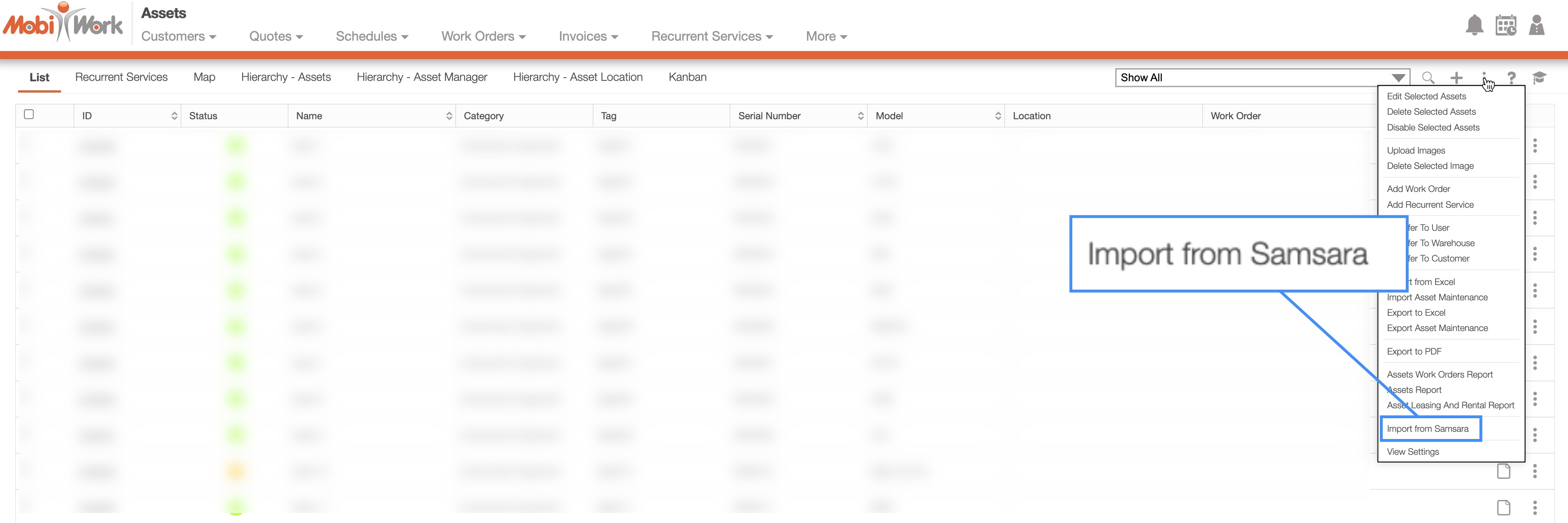
To sync your assets from Samsara to MobiWork. Click on the "Import From Samsara" action from the More Actions drop-down; MobiWork will then retrieve the list of assets from Samsara:
MobiWork will then attempt to find an asset name or external ID that matches the "Samsara name" or "Samsara ID."
If a match is found the text, "MATCH FOUND" will be displayed and the user will be given the chance to re-associate the asset. Essentially, this means that you have the ability to replace this match to a different MobiWork asset.
If there is no match found then the text, "NEW" will be displayed and the user will have the opportunity to add the asset:
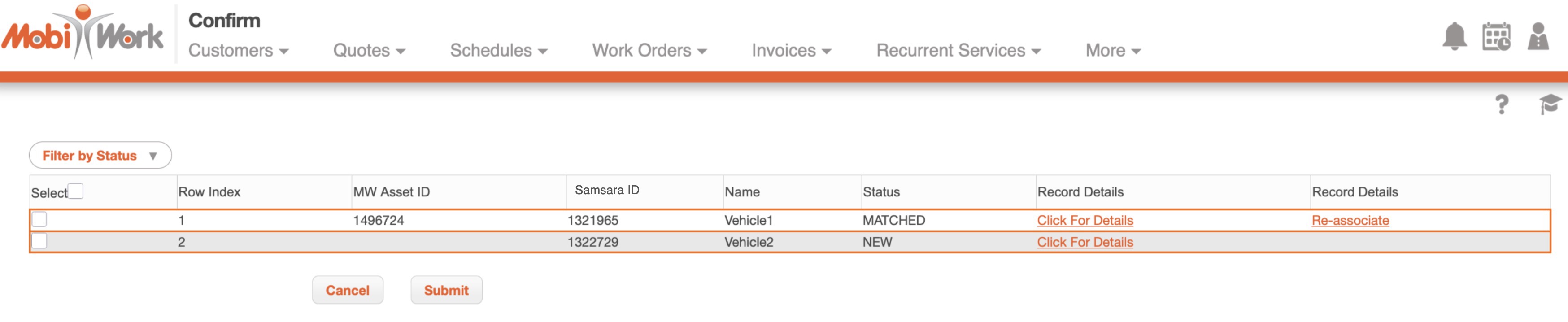
The image above shows the import for both a new asset and an already existing one. On this page you will have the Add Part option (which represents the new status), while existing or automatically matched entries include the option to Re-associate.
After syncing your Samsara data to MobiWork, you will be able to utilize the telematic information when dispatching in MobiWork. Once the Samsara connector is enabled and "Dispatch Based on User's Last Known Location" mode is selected in the work order, MobiWork will retrieve the current asset location from Samsara.
When the asset location data is returned, the user real-time location will be updated accordingly and displayed in the Dispatch Work Order pop-up window so you can have clear visualization of where your users and assets are relative to the work order. You will be able to view the asset real-time location in the Samsara dashboard. The following subsections will go into greater detail where the asset live-location and telematic data can be found.
Asset View One-Click Launch
MobiWork will then offer a one-click launch from MobiWork to your Samsara dashboard:
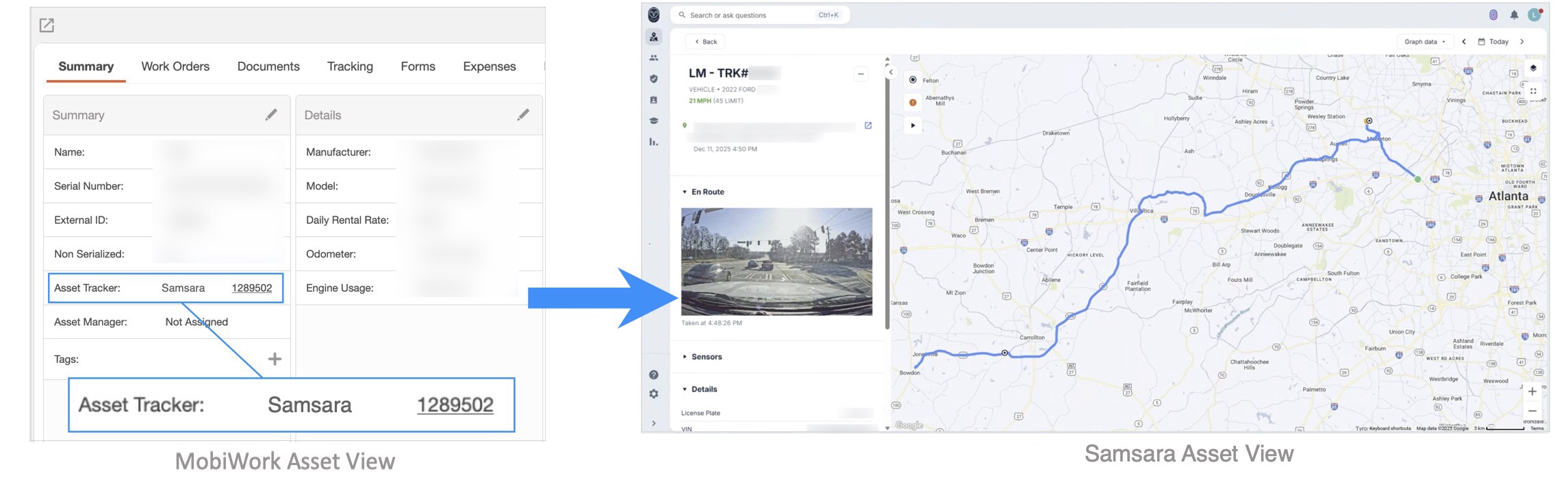
While the Samsara connector does not provide a real-time display of asset locations on the MobiWork Dashboard or Schedule maps, you can view the live location by clicking the Samsara ID link in the View Asset pop-up window, as displayed in the image above.
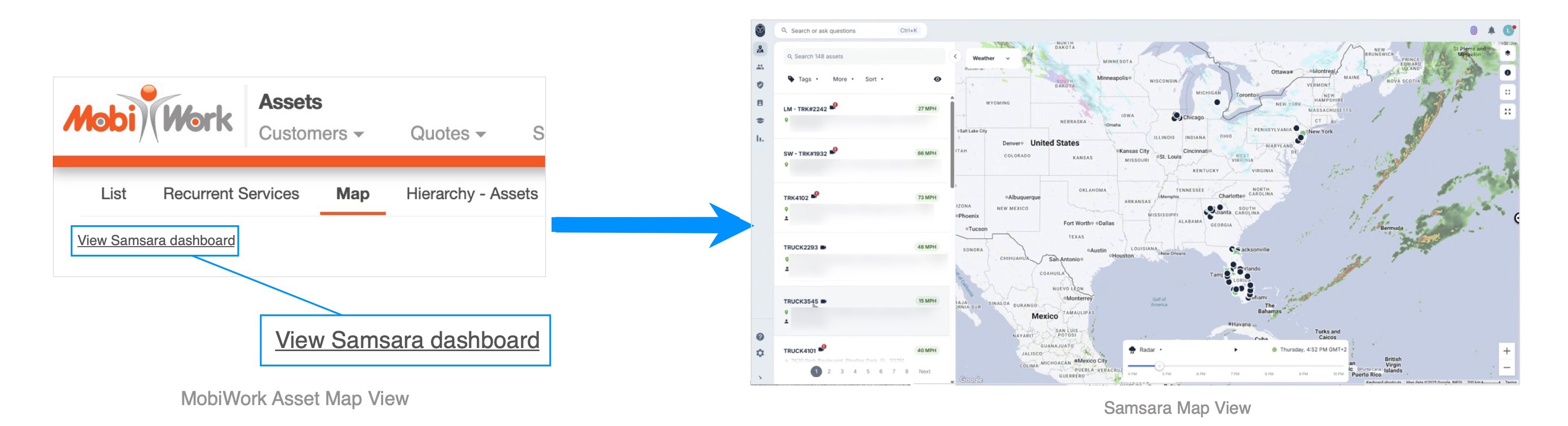
Asset Map View
The Asset "Map" tab will also offer a one-click launch from MobiWork to the Samsara fleet view:
Asset View Engine Hours Miles
After importing the latest from Samsara, you will be able to view the asset tracker, odometer, and engine usage in the View Asset pop-up window in MobiWork:
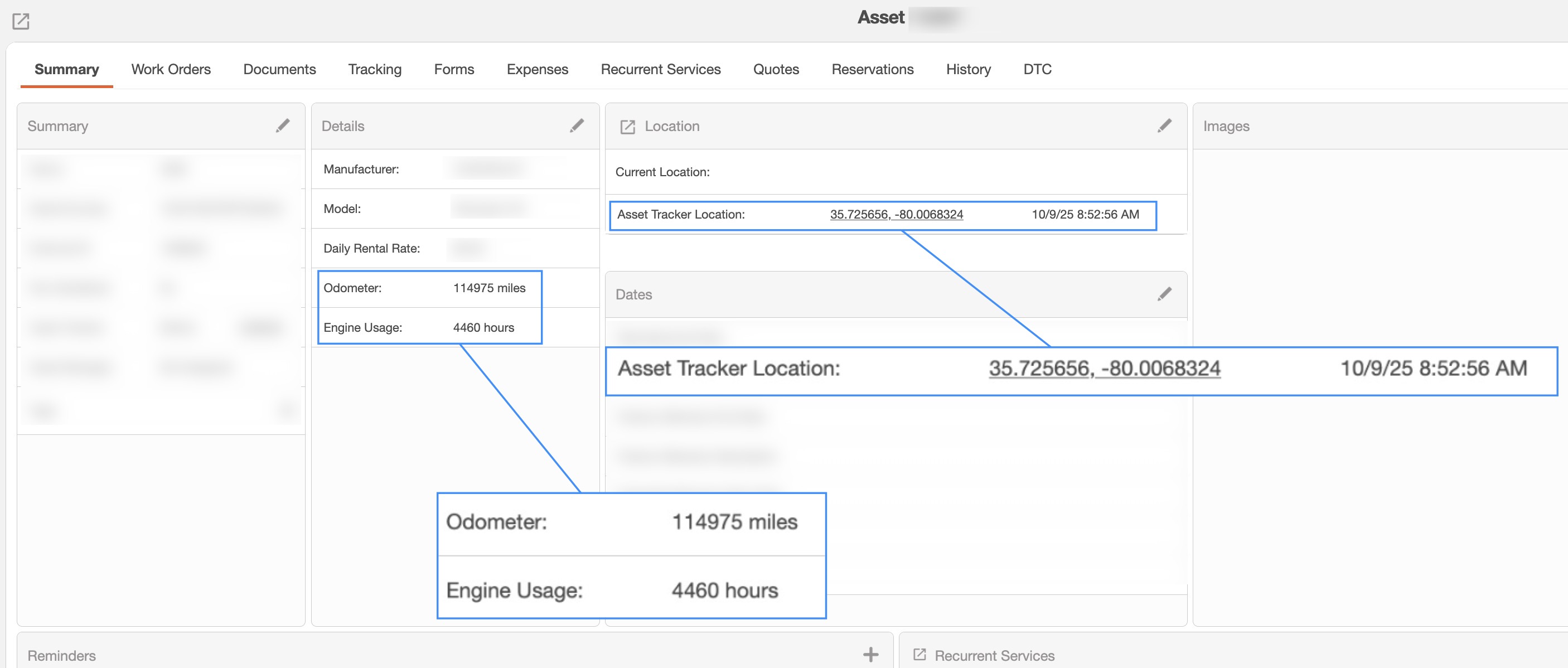
The subsection, "Import Latest From Samsara" will go into more detail how to refresh your latest Samsara data in MobiWork
Asset View DTC
The "DTC" tab in your View Asset pop-up window will display the errors from Samsara.
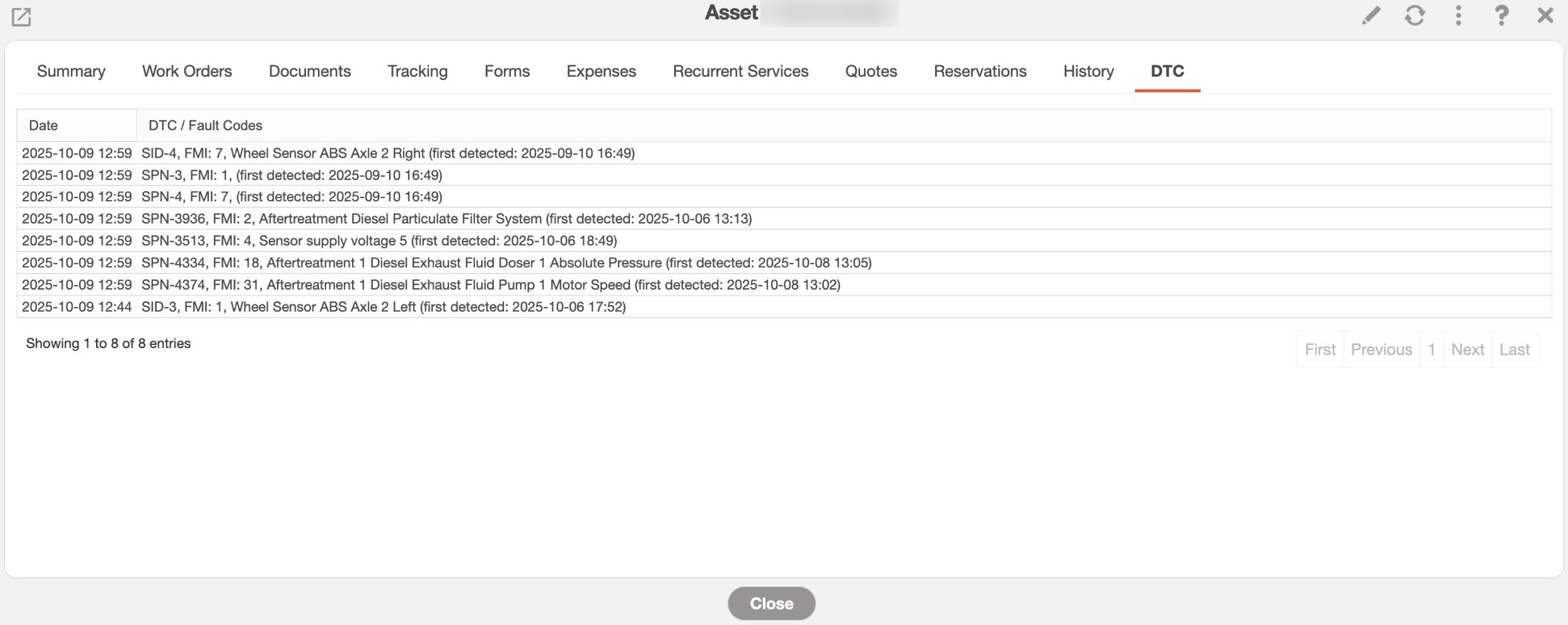
Please note that these errors are not stored in MobiWork. The data is only mirroring what is shown in Samsara.
In order for the telematic data on the asset to be refreshed to show to correct information, you will need to click on the "Import from Samsara" action on the View Asset pop-up window:
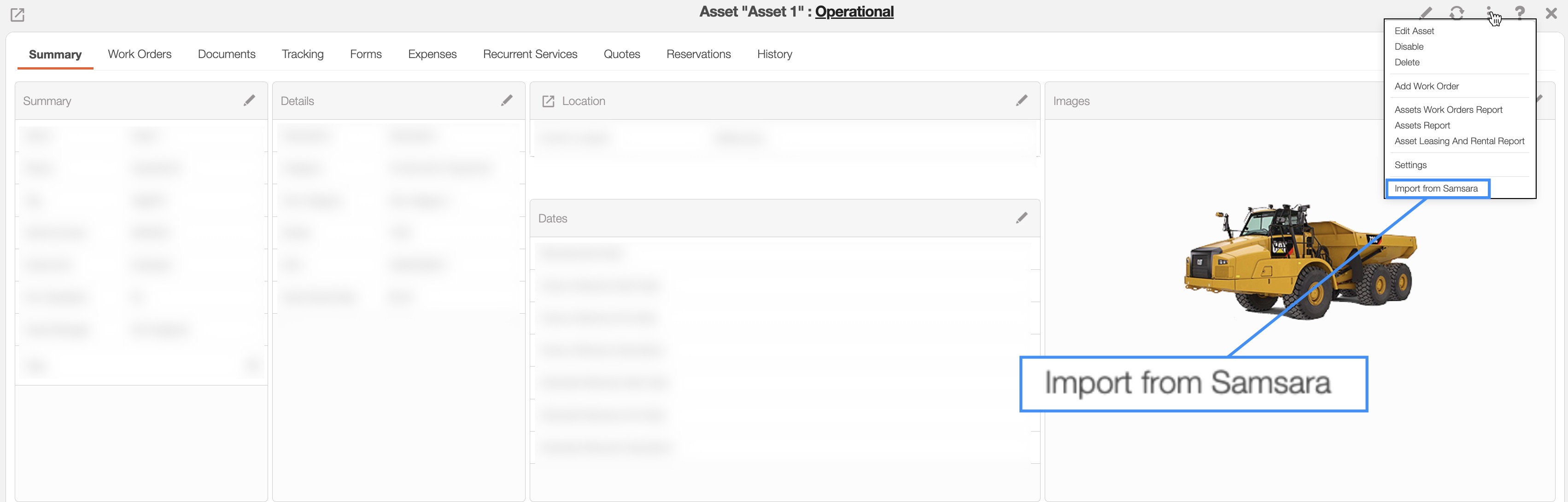
Once selected, the asset location, engine hours and mileage will be updated accordingly in the asset view.
By integrating Samsara's telematics with MobiWork's dispatching capabilities, you can take advantage of the "Dispatch Based on User's Last Known Location" mode to assign jobs based on each user's most up-to-date location:

When dispatching a work order with this mode, MobiWork will ping the asset from Samara to obtain and display the real-time location in the dispatch pop-up window. Please see the Dispatching Modes page for more information on how to dispatch user's based on their last known location.
Asset Manager
In order for the "Dispatch Based on User's Last Known Location" mode to work correctly, you will first need to assign the asset to the correct user. You can do this by editing the specified asset and selecting the correct user in the "Asset Manager" drop-down:
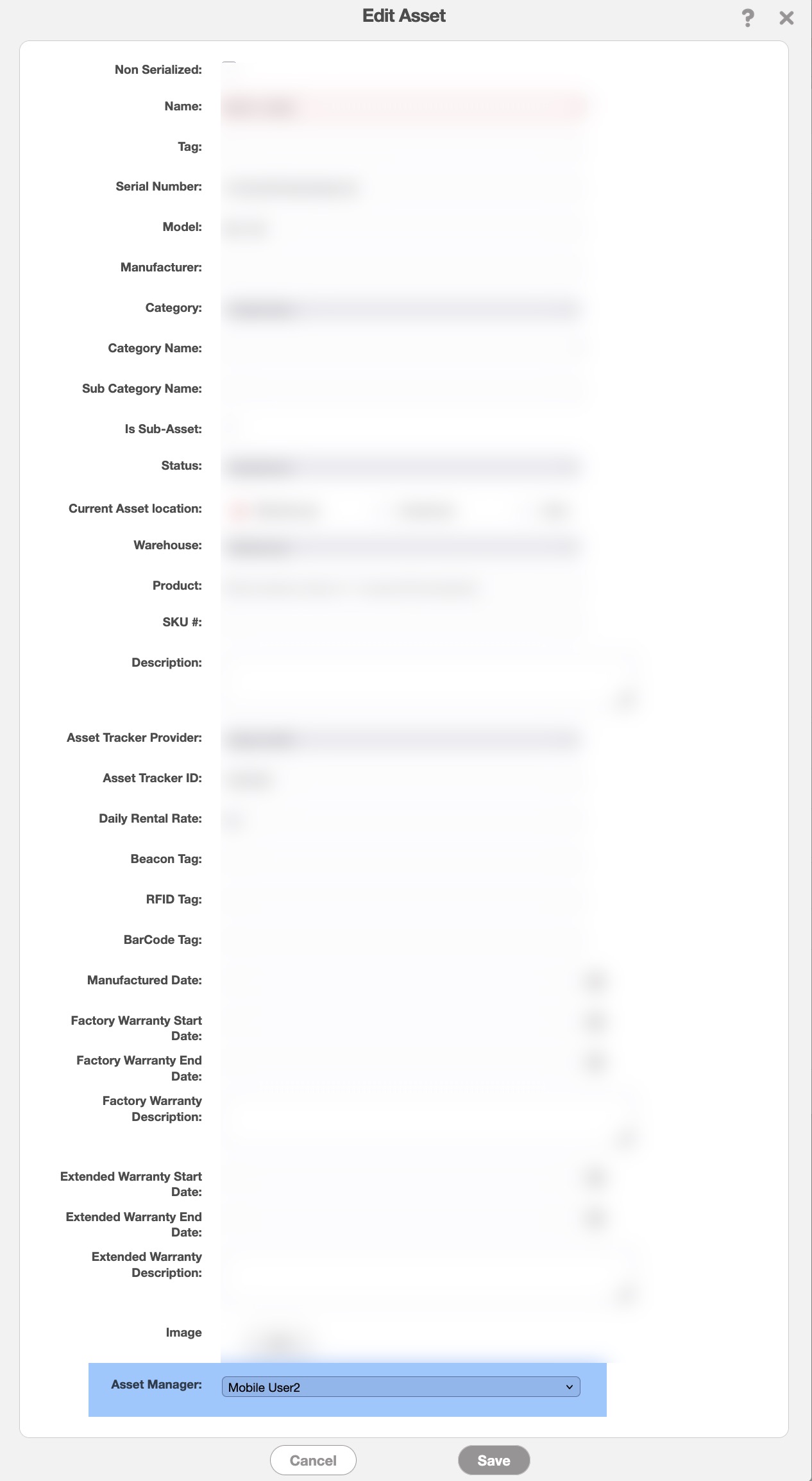
Dispatch based on User Last Known Location
Once the user has been linked to the asset, you will be able to effectively use the "Dispatch Based on User's Last Known Location" mode.
To link or unlink an asset from Samsara, simply open the Edit Asset pop-up window:
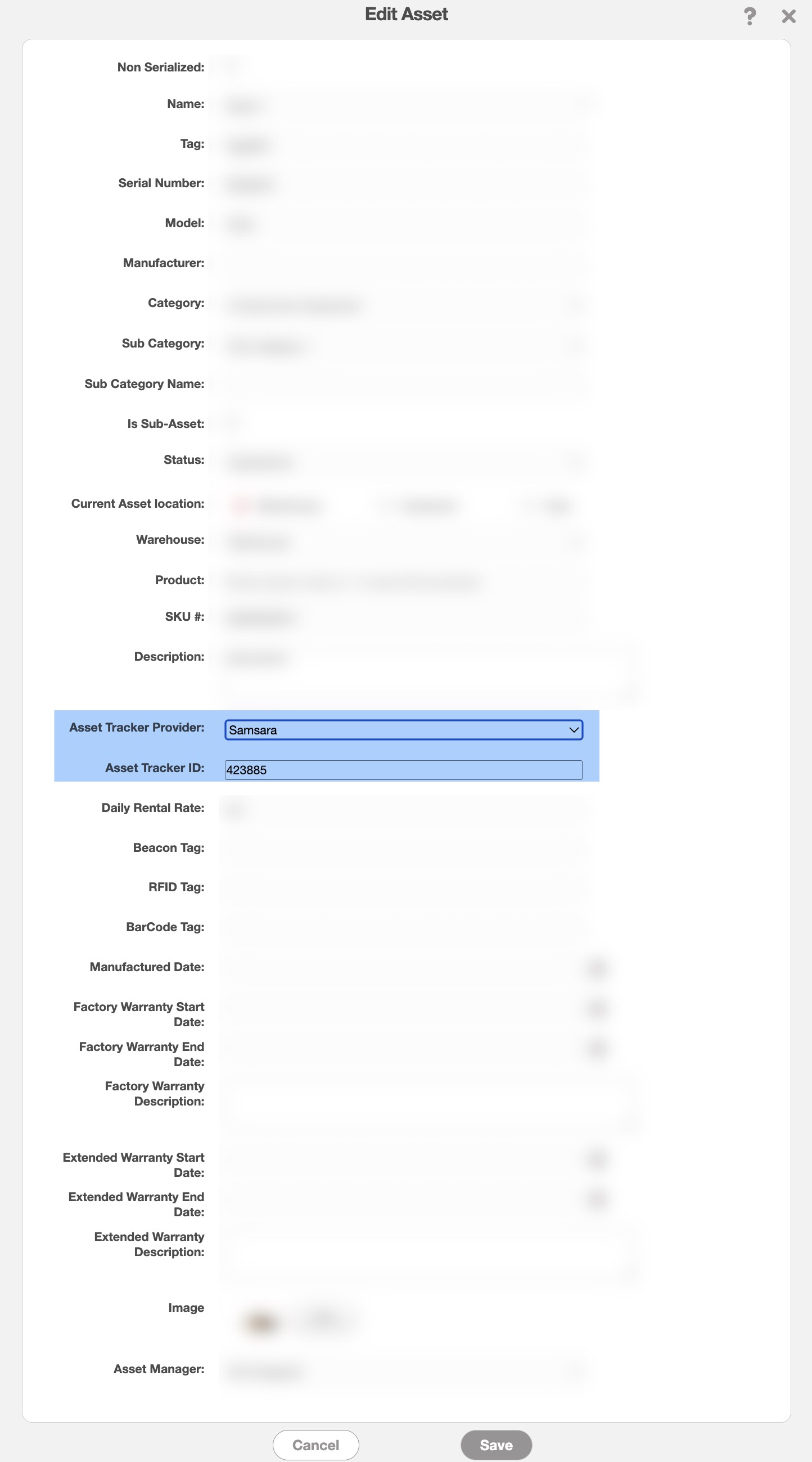
In the "Asset Tracker Provider" drop-down you can select the desired telematic connector.
To de-associate the asset from Samsara, select the "None" option from the "Asset Tracker Provider" drop-down and then delete the ID in the "Asset Tracker ID" field.