
Data from Verizon is transferred to MobiWork through the following synchronization method:
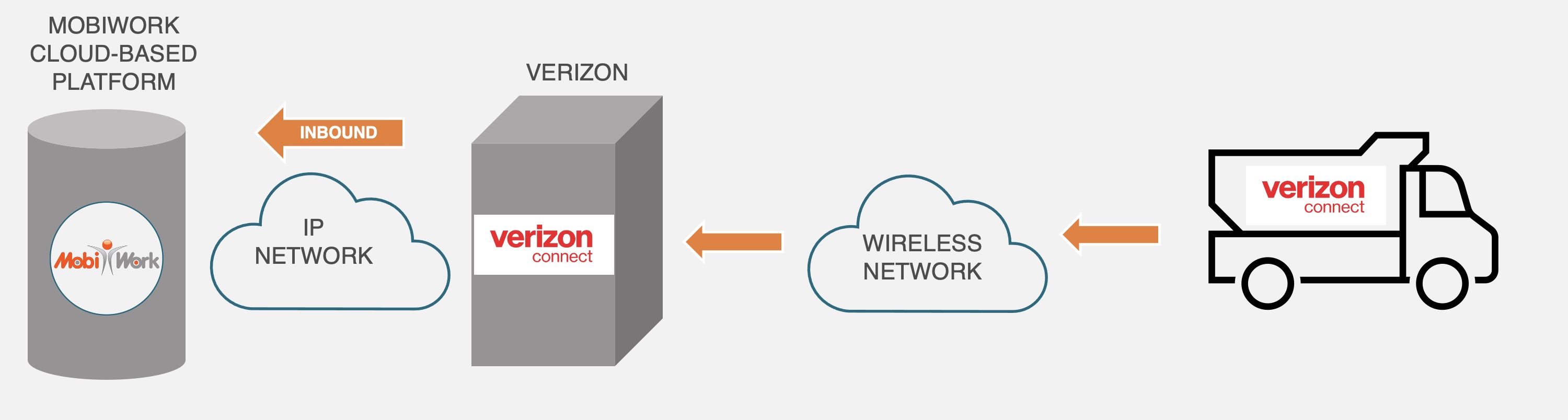
MobiWork and Verizon will sync the following information from Verizon to MobiWork:

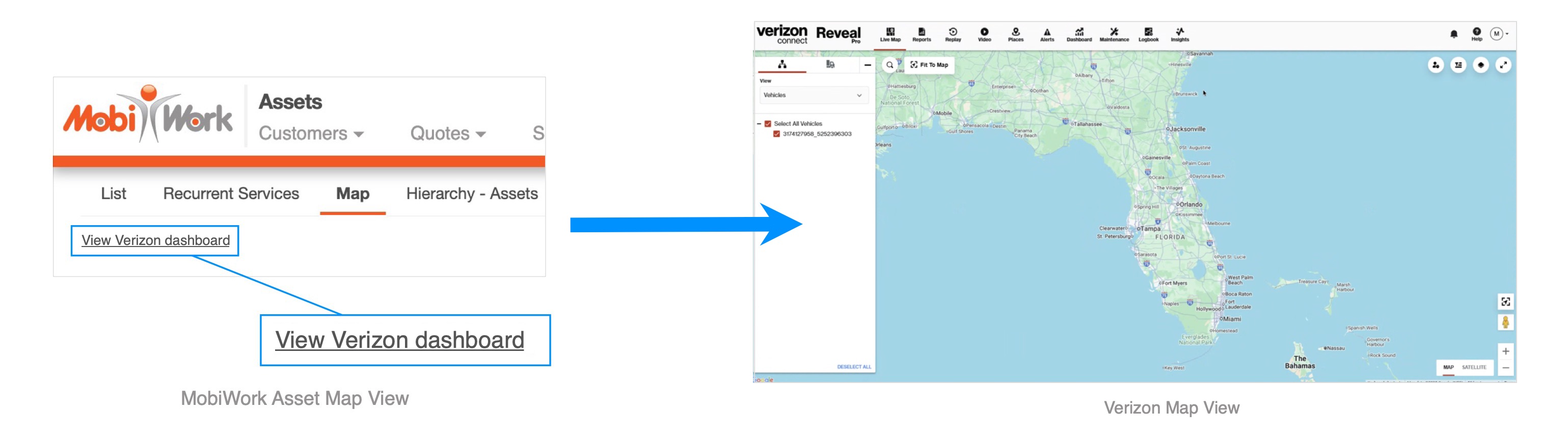
MobiWork will then offer a one-click launch from MobiWork to your Verizon dashboard.
Before you sync your Verizon connector with MobiWork, we recommend creating and setting up your Verizon account first. This Verizon Connect link will allow you to authorize Verizon Connect to give the third-party company and developer access to your data.
When filling out the Verizon form, please enter the following bolded answers to the listed prompts:
Third-party company name: Enter the third-party company name, or if integrating internally, use your own company's name.
Answer: MobiWork
Integration name: Create a unique name for the integration, so you can identify it in the Admin section of Reveal.
Answer: MobiWork
Developer name: Enter the name of the developer you want to share your data with.
Answer: MobiWork Success
Developer email: Enter the developer's email address.
Answer: success@mobiwork.com
Please ensure that equipments and vehicles are set up correctly in your Verizon account and that telematics are installed in the corresponding equipment and vehicles.
Once your Verizon account is completely set up, you will then be able to add the Verizon connector to your MobiWork account.
To add the Verizon connector, navigate to the User icon, and from the drop-down menu choose the "Settings" option:

Click the "Connectors" tab, then click on the Plus Sign button to add a new connector:

Next, scroll down to the "Telematics" section, find the Verizon connector listed and click the Add Connector:
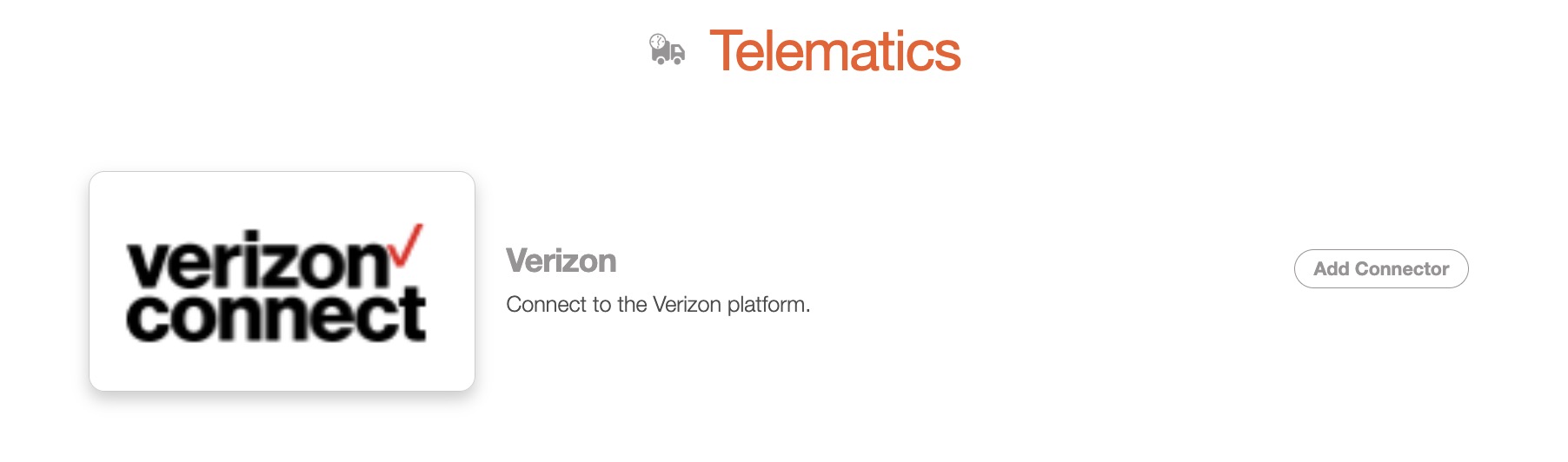
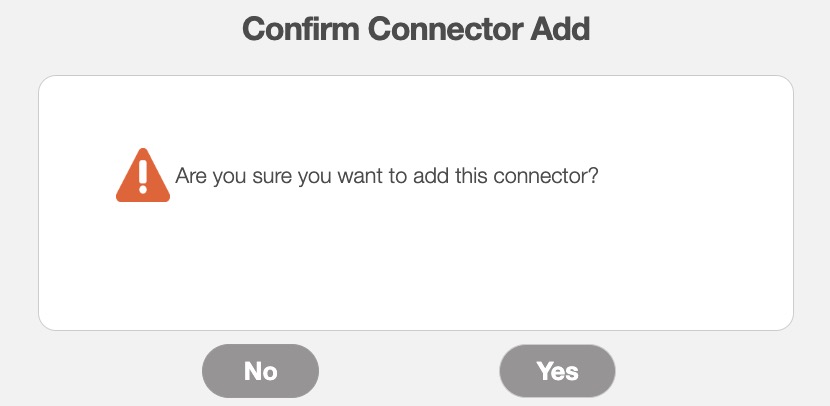
The Confirm Connector Add pop-up window will then appear. In this pop-up window, confirm that you would like to add the Verizon connector to your MobiWork account by clicking the Yes button:
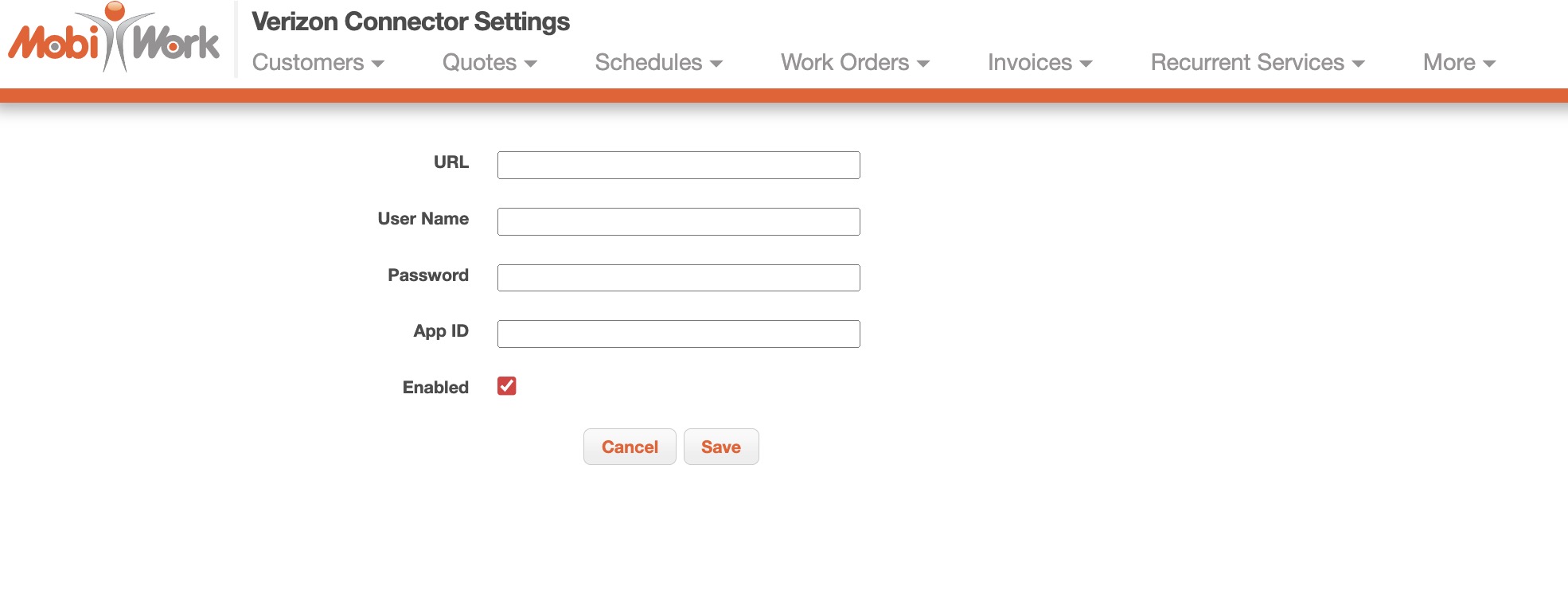
You will then be redirected to the Verizon Connector Settings page. On this page, input the URL, user name, password, and App ID of your Verizon account. Once the fields are filled, click the Save button to confirm the account information:
Once the installation is completed, the following control panel is available:
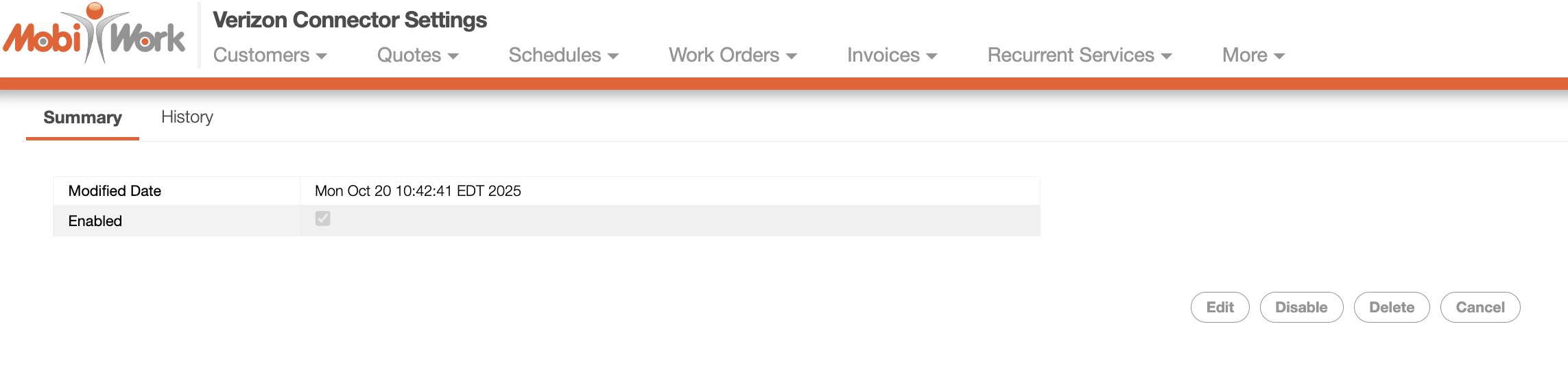
Once the Verizon connector is added to your MobiWork account, you will be able to access the "Import From Verizon" action in the Assets list page.
To sync your assets from Verizon to MobiWork. Click on the "Import From Verizon" action from the More Actions drop-down; MobiWork will then retrieve the list of assets from Verizon:
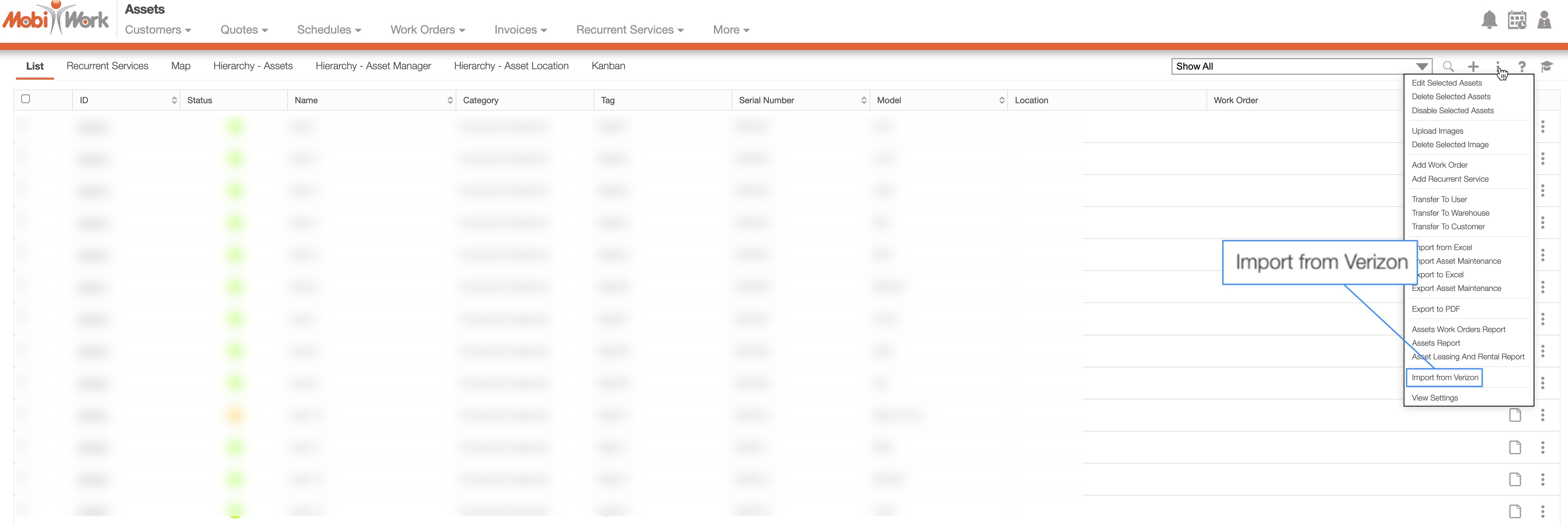
MobiWork will then attempt to find an asset name or external ID that matches the "Verizon name" or "Verizon ID."
If a match is found the text, "MATCH FOUND" will be displayed and the user will be given the chance to re-associate the asset. Essentially, this means that you have the ability to replace this match to a different MobiWork asset.
If there is no match found then the text, "NEW" will be displayed and the user will have the opportunity to add the asset:
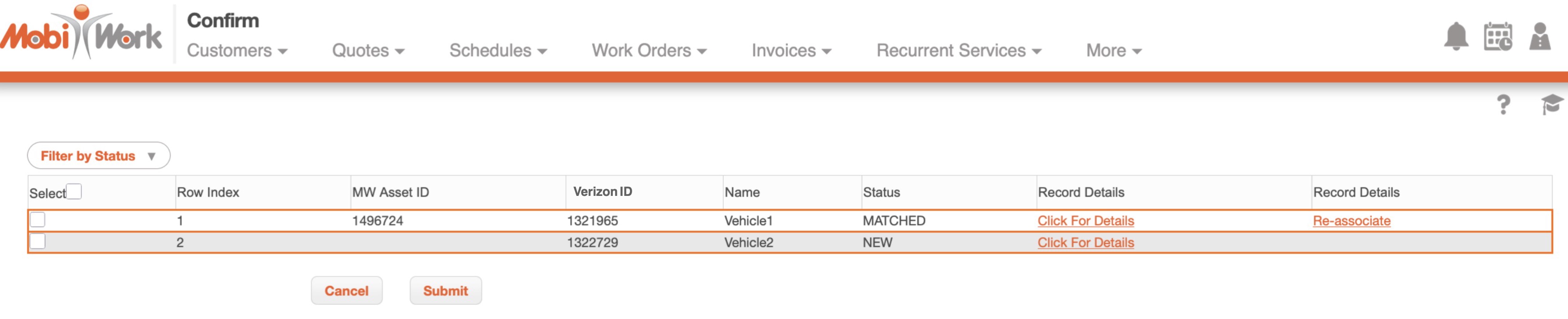
The image above shows the import for both a new asset and an already existing one. On this page you will have the Add Part option (which represents the new status), while existing or automatically matched entries include the option to Re-associate.
After syncing your Verizon data to MobiWork, you will be able to utilize the telematic information when dispatching in MobiWork. Once the Verizon connector is enabled and "Dispatch Based on User's Last Known Location" mode is selected in the work order, MobiWork will retrieve the current asset location from Verizon.
When the asset location data is returned, the user real-time location will be updated accordingly and displayed in the Dispatch Work Order pop-up window so you can have clear visualization of where your users and assets are relative to the work order. You will be able to view the asset real-time location in the Verizon dashboard. The following subsections will go into greater detail where the asset live-location and telematic data can be found.
Asset View One-Click Launch
MobiWork will then offer a one-click launch from MobiWork to your Verizon dashboard:
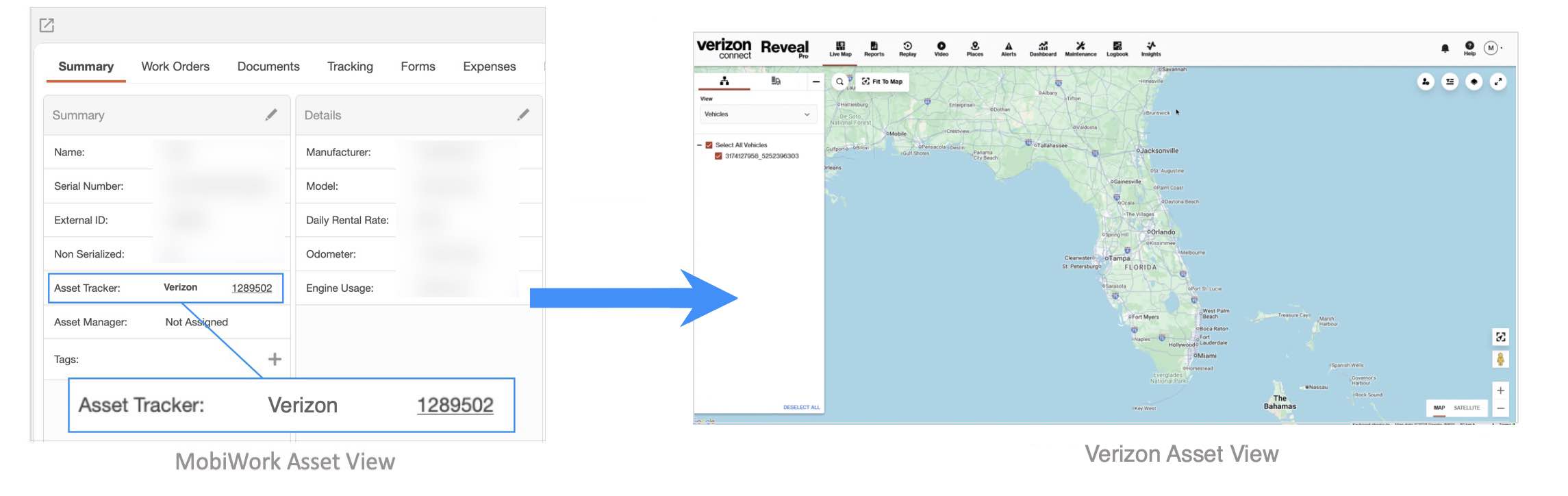
While the Verizon connector does not provide a real-time display of asset locations on the MobiWork Dashboard or Schedule maps, you can view the live location by clicking the Verizon ID link in the View Asset pop-up window, as displayed in the image above.
Asset Map View
The Asset "Map" tab will also offer a one-click launch from MobiWork to the Verizon fleet view:
Asset View Engine Hours Miles
After syncing your Verizon data to MobiWork, you will be able to use the telematic data to dispatch the closest assets and their associated users to a work order.
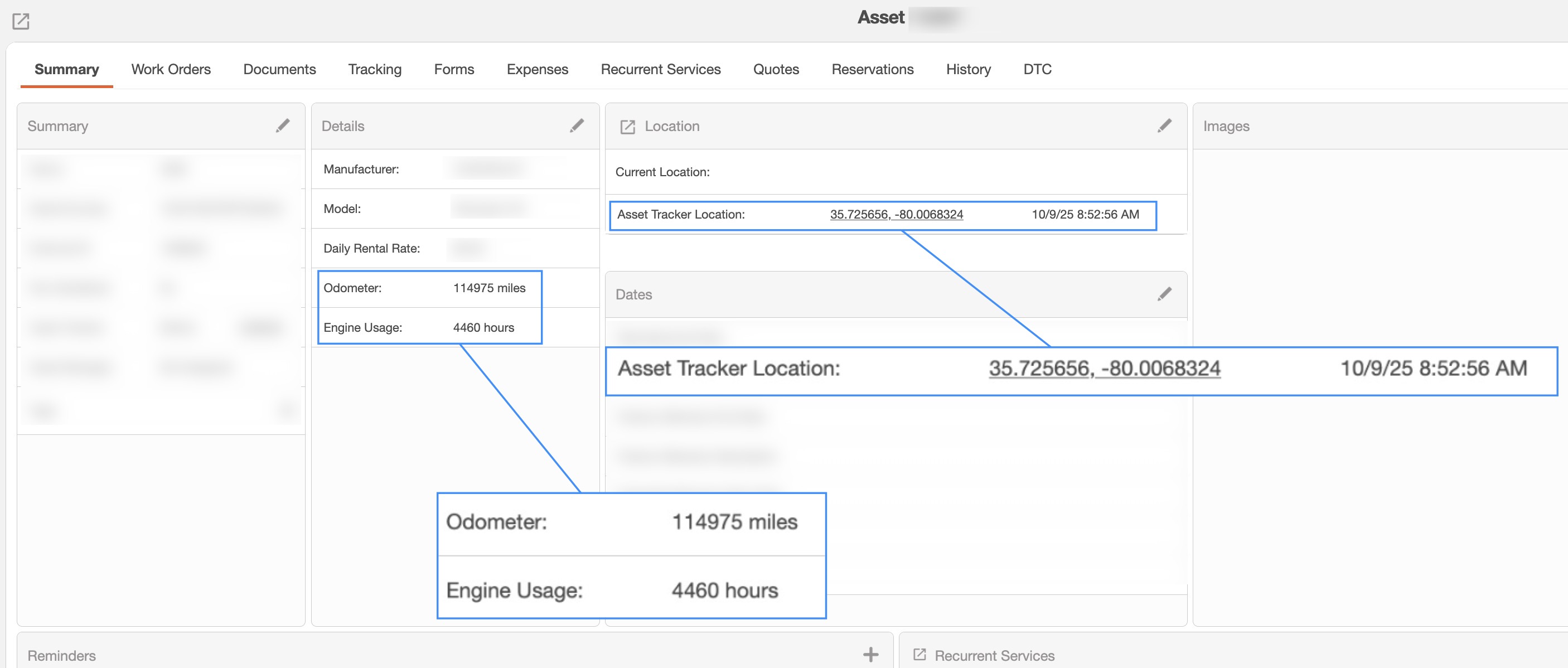
Please note that you will be able to view the asset real-time location in the Verizon dashboard. The following subsections will go into greater detail regarding the View Asset pop-up window and the Verizon telematic data.
Asset View DTC
The "DTC" tab in your View Asset pop-up window will display the errors from Verizon.
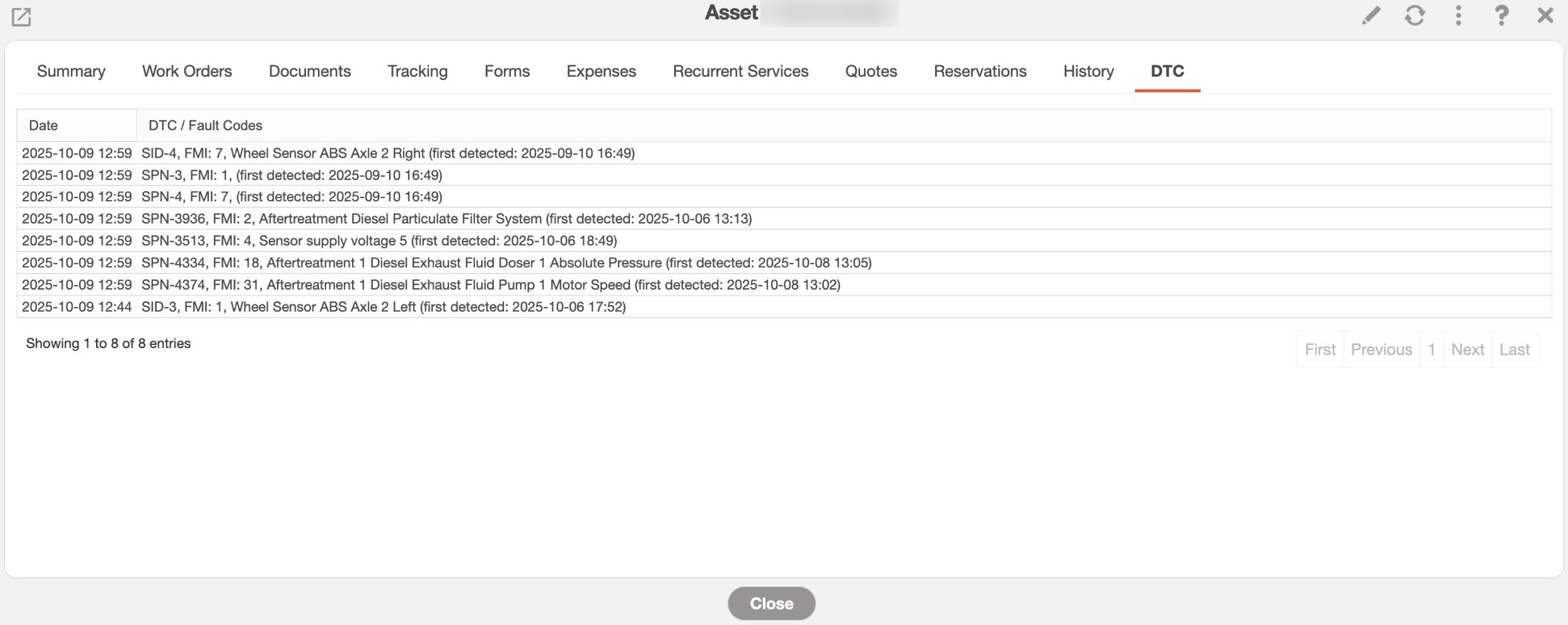
Please note that these errors are not stored in MobiWork. The data is only mirroring what is shown in Verizon.
Asset View Actions
In the View Asset pop-up window you will see a couple of Verizon-specific actions:
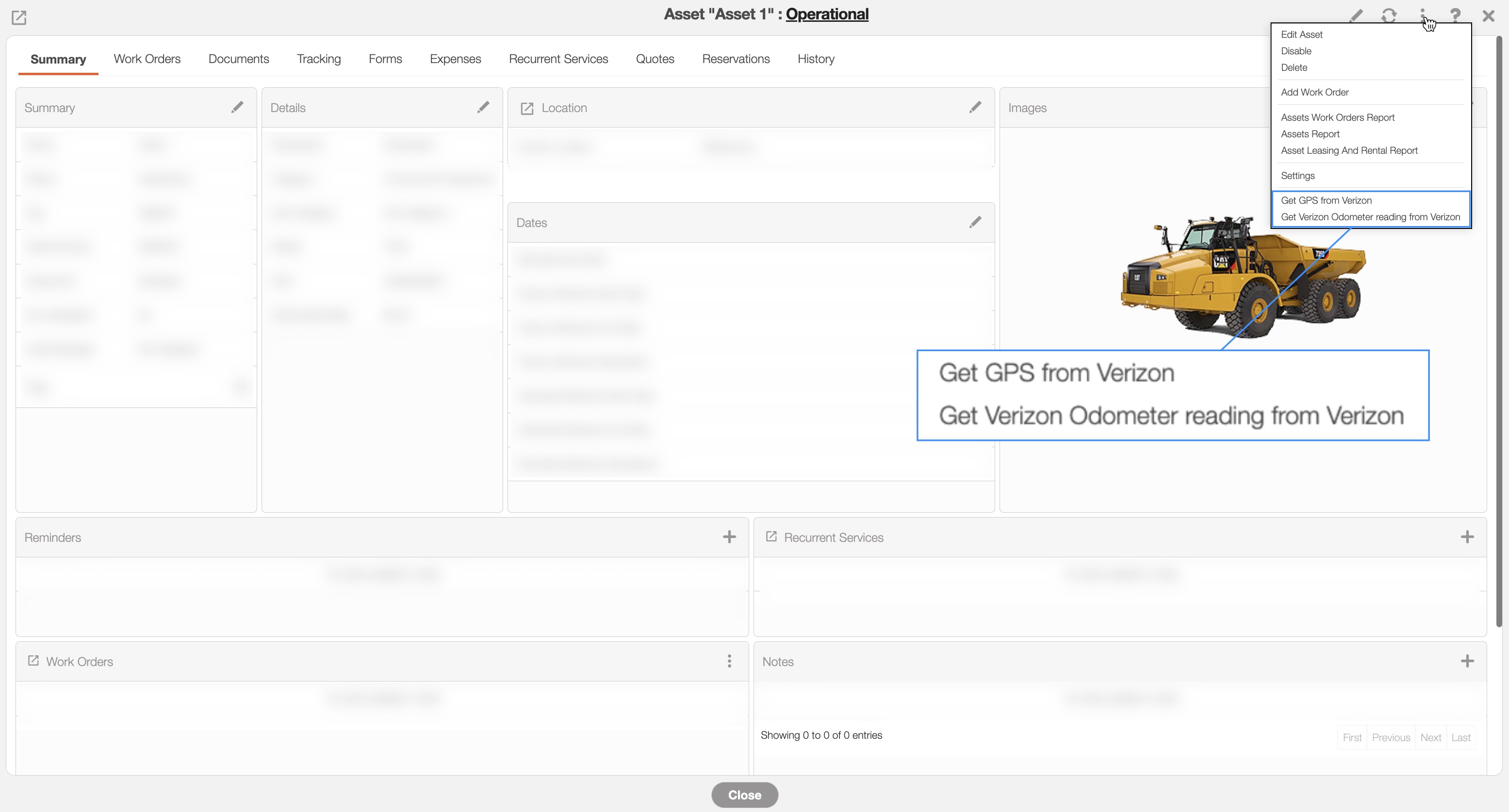
These actions will allow you to update the telematic date of the asset in your MobiWork account so that you will be able to effectively utilize the "Dispatch Based on User's Last Known Location" mode.
Get GPS From Verizon
You will be able to update your asset GPS location through the View Asset pop-up window. In this pop-up window, click on the Individual Actions button and from the drop-down select the "Get GPS from Verizon" option:
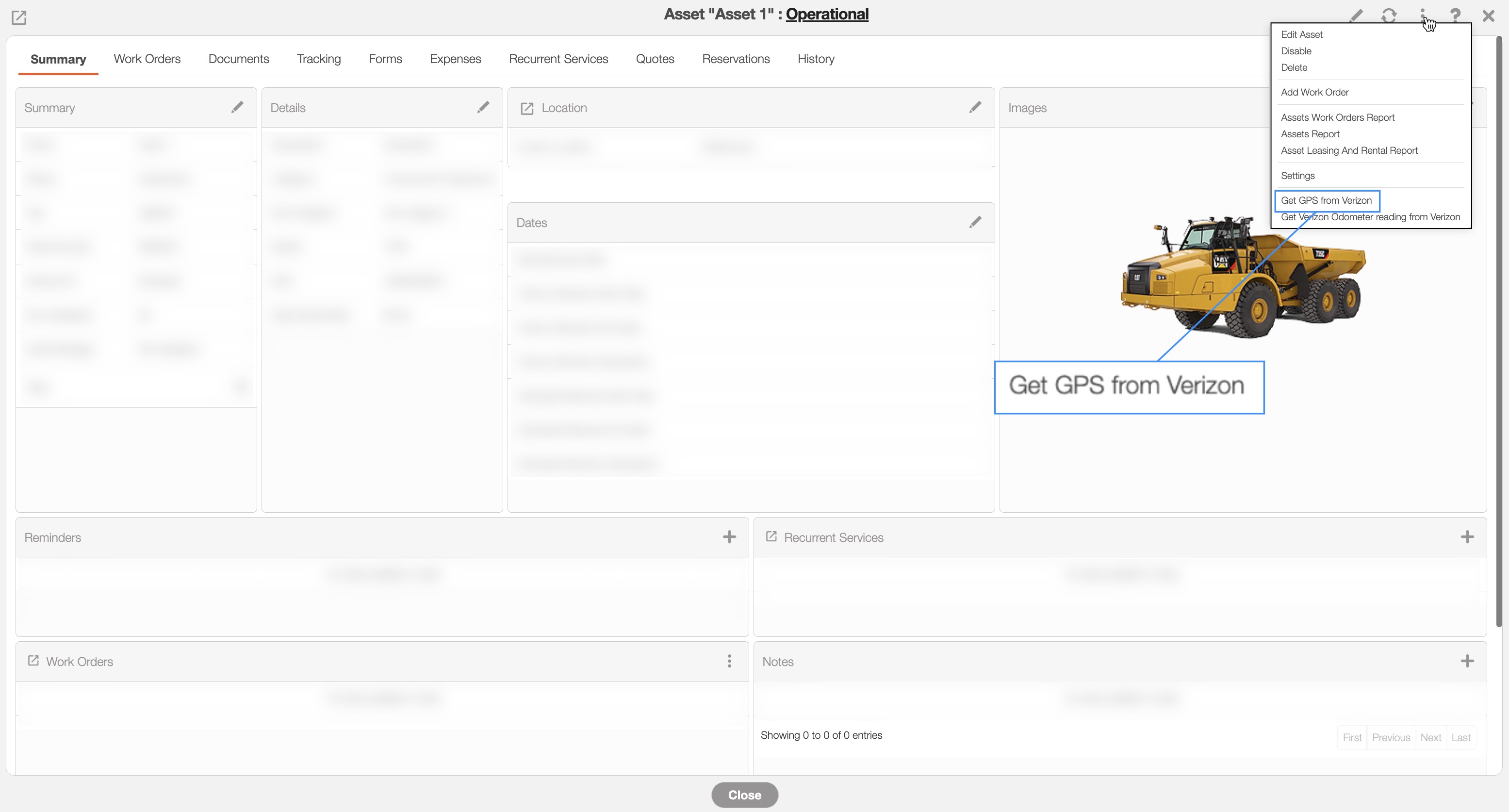
The asset will then pull the latest GPS information from your Verizon connector.
Get Odometer From Verizon
You will be able to update your asset odometer reading through the View Asset pop-up window. In this pop-up window, click on the Individual Actions button and from the drop-down select the "Get Verizon Odometer reading from Verizon" option:
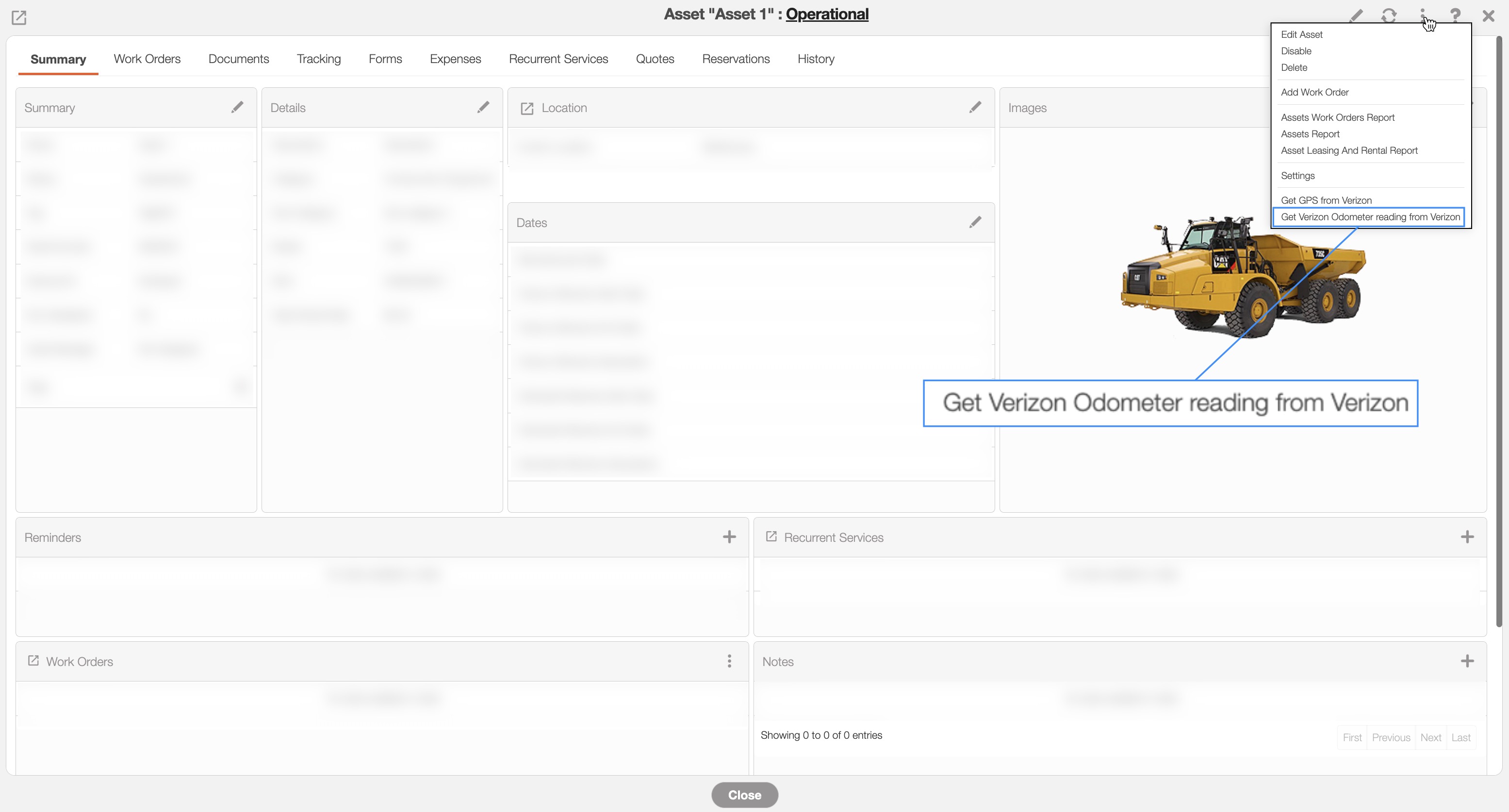
The asset will then pull the latest odometer readings from your Verizon connector.
By integrating Verizon's telematics with MobiWork's dispatching capabilities, you can take advantage of the "Dispatch Based on User's Last Known Location" mode to assign jobs based on each user's most up-to-date location:

When dispatching a work order with this mode, MobiWork will ping the asset from Verizon to obtain and display the real-time location in the dispatch pop-up window. Please see the Dispatching Modes page for more information on how to dispatch user's based on their last known location.
Asset Manager
In order for the "Dispatch Based on User's Last Known Location" mode to work correctly, you will first need to assign the asset to the correct user. You can do this by editing the specified asset and selecting the correct user in the "Asset Manager" drop-down:
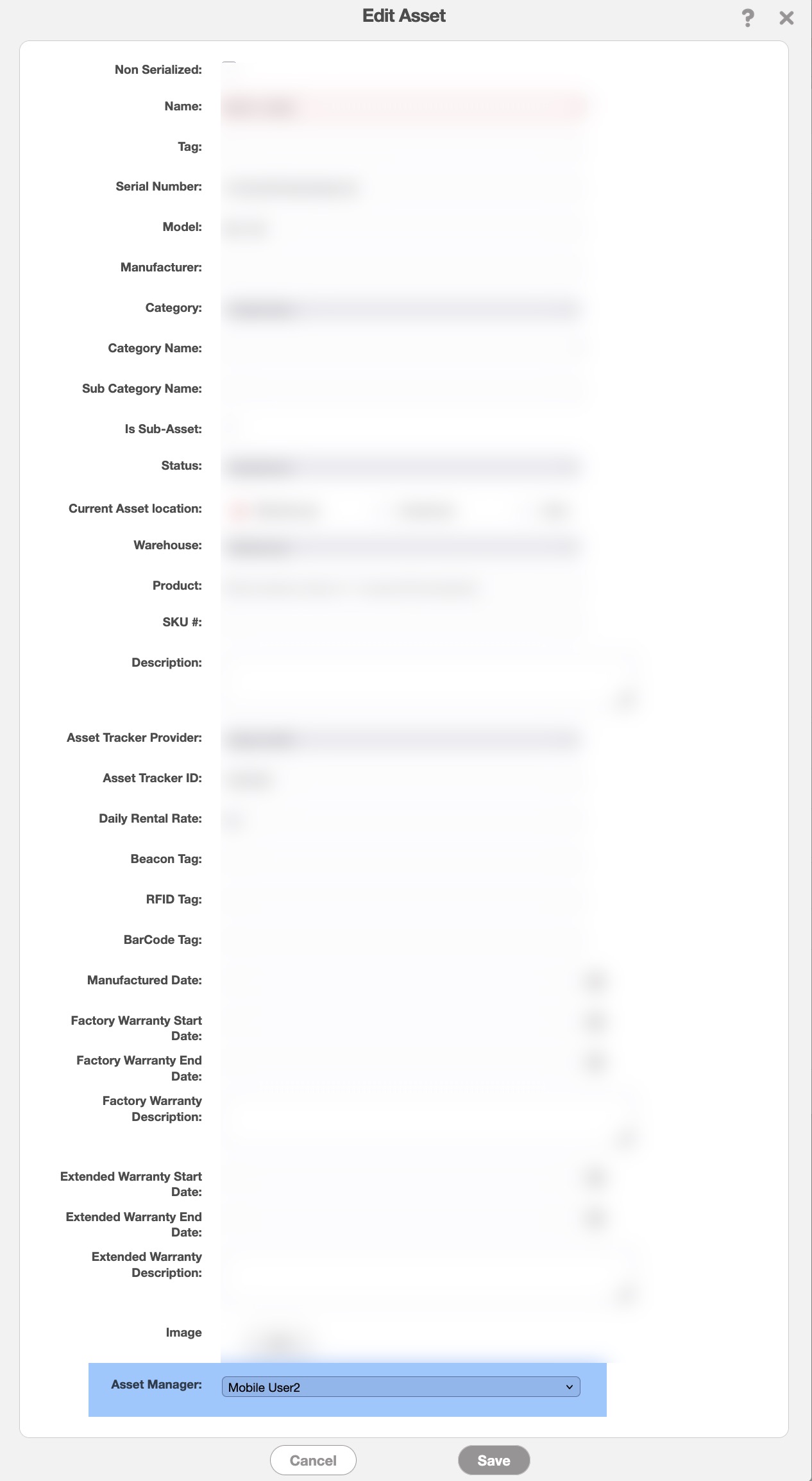
Ideally, only one asset should be associated with the user and the Asset Manager should be the user driving the asset. If there are multiple assets associated with a user, only the first asset will be selected when dispatching. The order in which assets are prioritized is determined sequentially by the Asset Tracker ID. For example, if a user is associated with asset #456 and asset #123, the user's location will be based on asset #123.
Dispatch based on User Last Known Location
Once the user has been linked to the asset, you will be able to effectively use the "Dispatch Based on User's Last Known Location" mode.
To link or unlink an asset from Verizon, simply open the Edit Asset pop-up window:
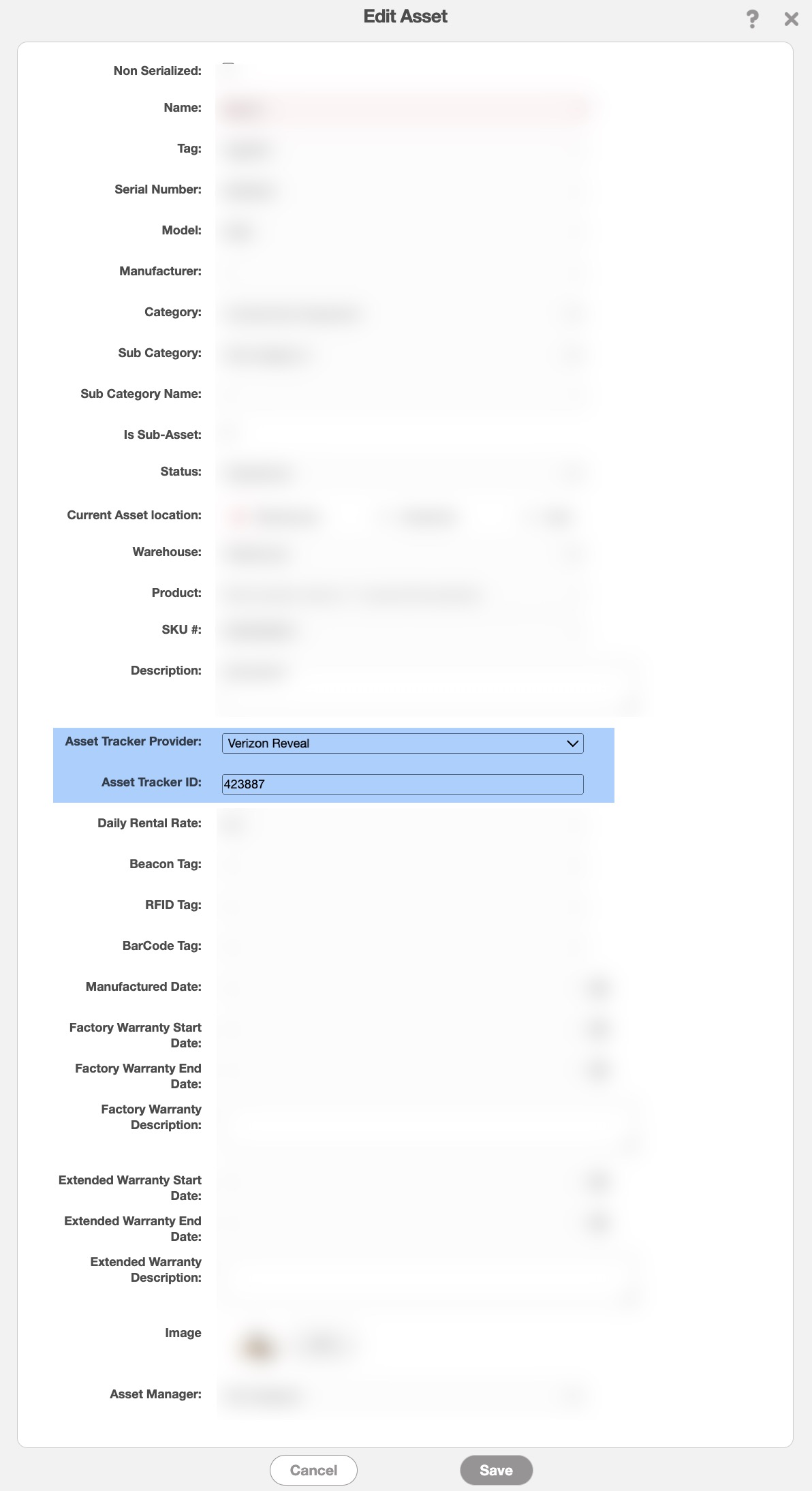
In the "Asset Tracker Provider" drop-down you can select the desired telematic connector.
To de-associate the asset from Verizon, select the "None" option from the "Asset Tracker Provider" drop-down and then delete the ID in the "Asset Tracker ID" field.
To associate the asset from Verizon, simply follow the instructions outlined in the Add Multiple Assets from Verizon subsection. When assets are synced with Verizon (either manually or automatically), the Asset Tracker ID must match. If it does not, the Verizon connector will be unable to provide MobiWork with the asset's real-time location.