
Data from Heritage is transferred to MobiWork through the following synchronization method:
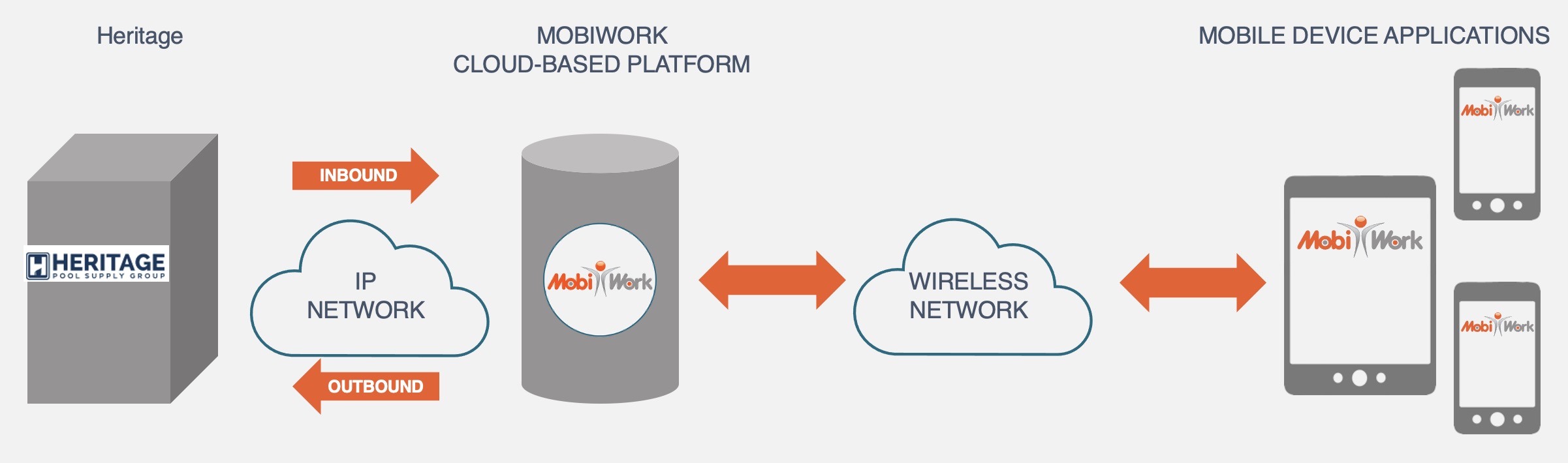
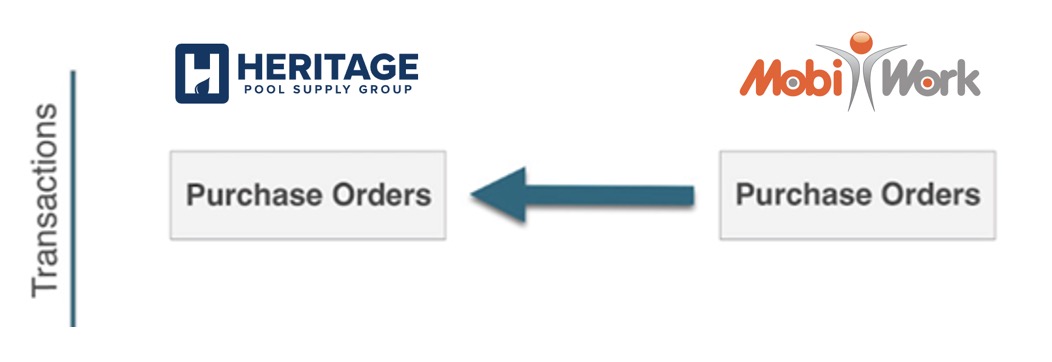
MobiWork and Heritage will sync the following information from Heritage to MobiWork:
To add the Heritage connector, navigate to the User icon, and from the drop-down menu choose the "Settings" option:

Click the "Connectors" tab, then click on the Plus Sign button to add a new connector:

Next, scroll down to the "Others" section, find the Heritage connector listed and click the Add Connector:

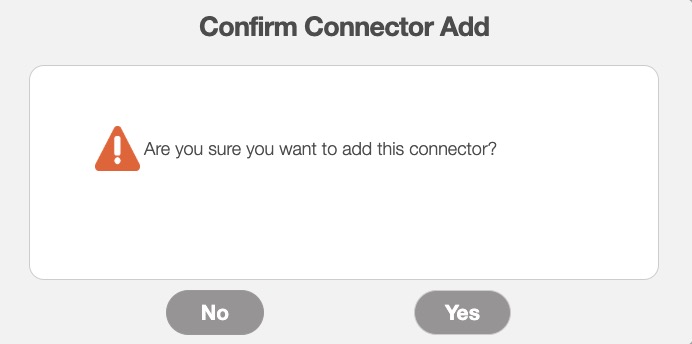
The Confirm Connector Add pop-up window will then appear. In this pop-up window, click the Yes button to proceed with adding the Heritage connector:
You will also be able to sync your purchase orders in Heritage as well as check the purchase order status.
To sync your purchase order information from MobiWork to Heritage, first access the View Purchase Order pop-up window. From the Individual Actions drop-down you can either select to "Create Order in Heritage" or to "Check Order Status in Heritage:"
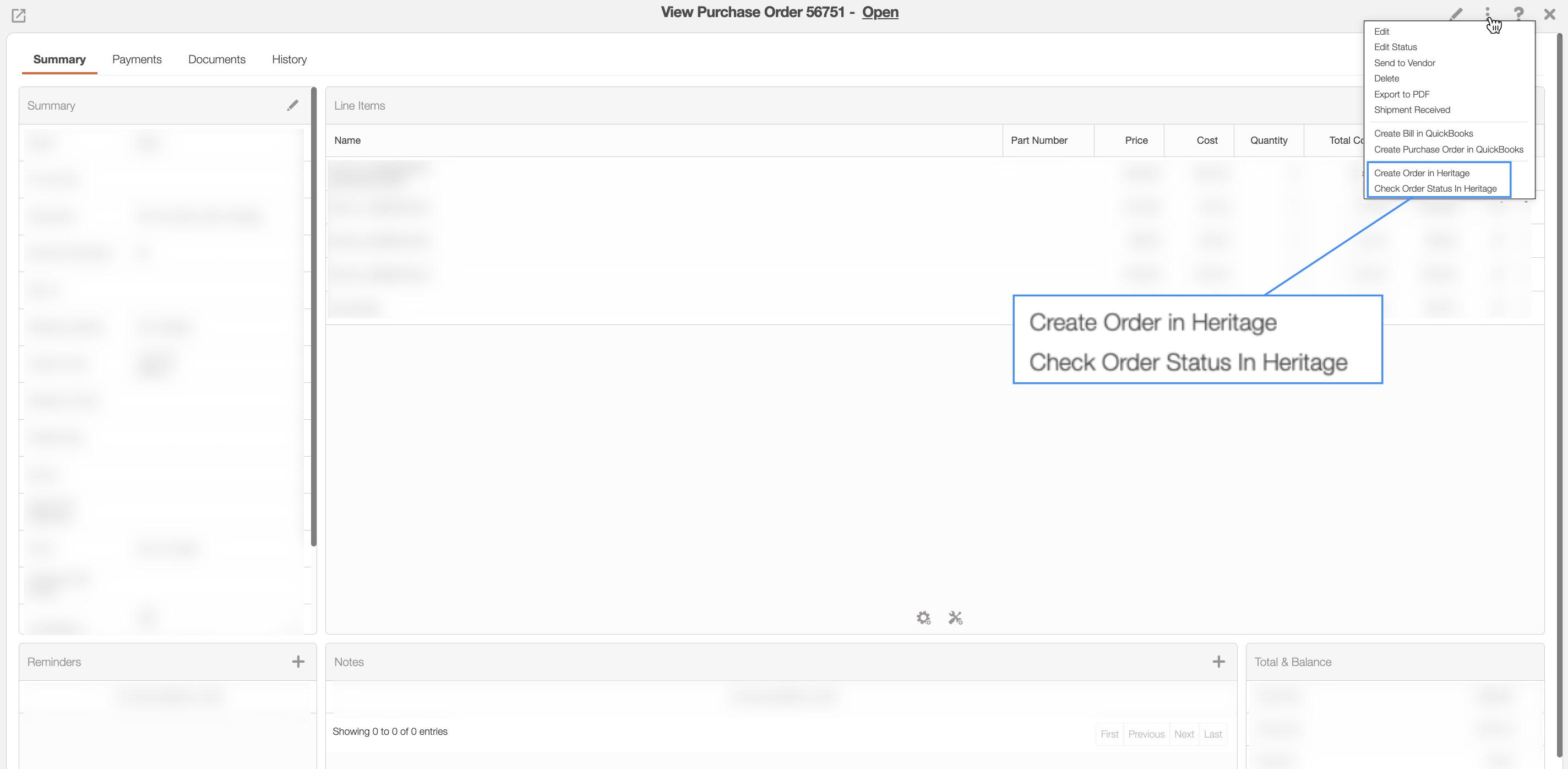
The "Create Order in Heritage" action will allow you to sync the purchase order to Heritage.
The "Check Order Status in Heritage" action will allow you to directly access the status of the purchase order in Heritage.
All marked Purchase Orders and their line items are synchronized from MobiWork to Heritage only.
This synchronization runs automatically once per day in your MobiWork account.
Sync Errors
In addition to providing immediate feedback when the Export actions are triggered, the Heritage connector also provides detailed logs:
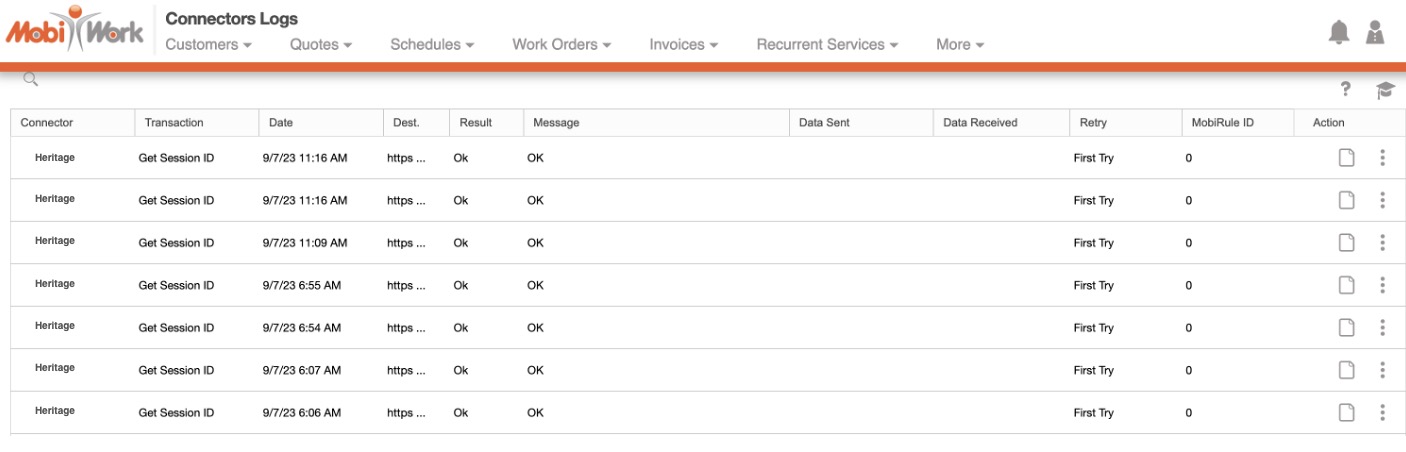
In addition to providing immediate feedback when the Export actions are triggered, the Heritage connector also provides detailed logs:
All corresponding entities and transaction External ID fields will also be updated.
The Heritage Connector Settings page allows you to enter and manage your Heritage account credentials and default configuration details.
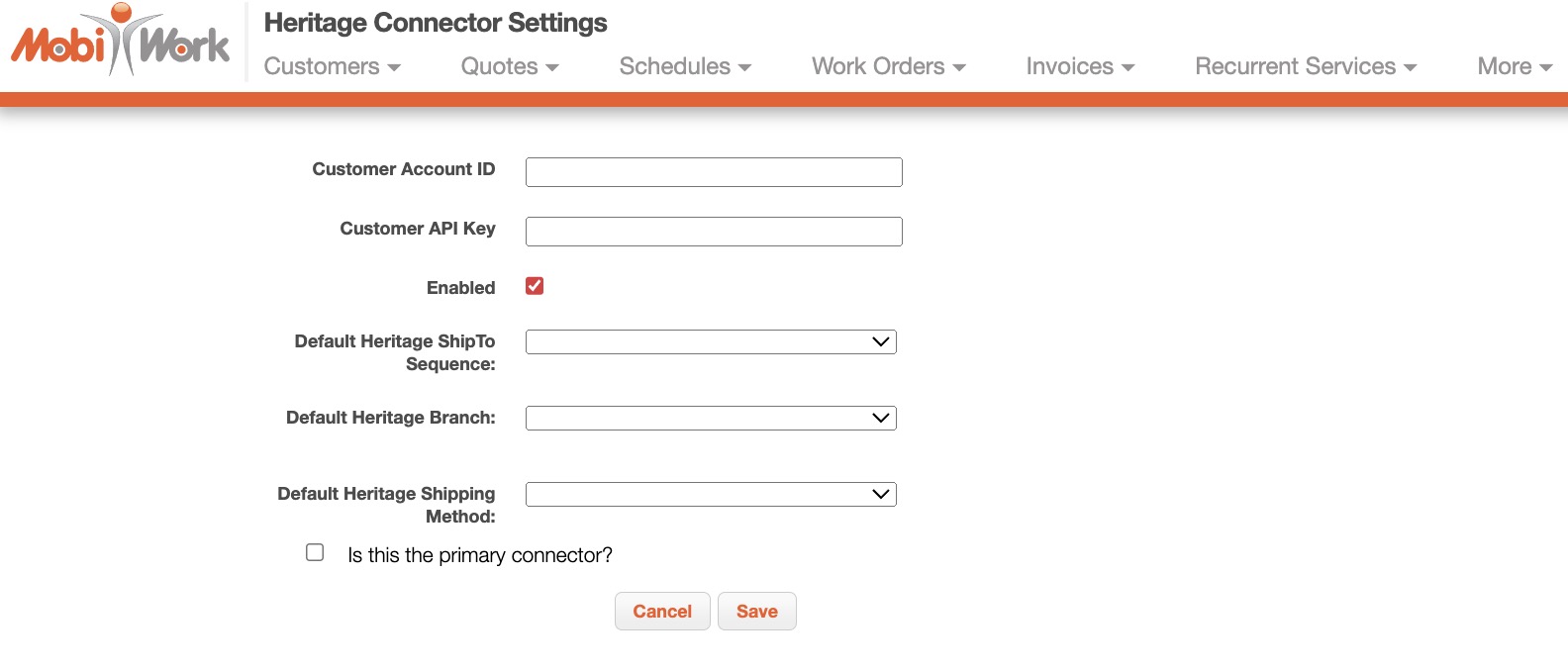
The information on this page includes:
Customer Account ID
Customer API Key
Default Heritage ShipTo Sequence
Default Heritage Branch
Default Heritage Shipping Method
Once all the details are entered, you can click the Save button to confirm the information.