
To access "Crew Time Tracking" feature, tap on the Side Menu tile in the top-left corner of the MobiWork app:
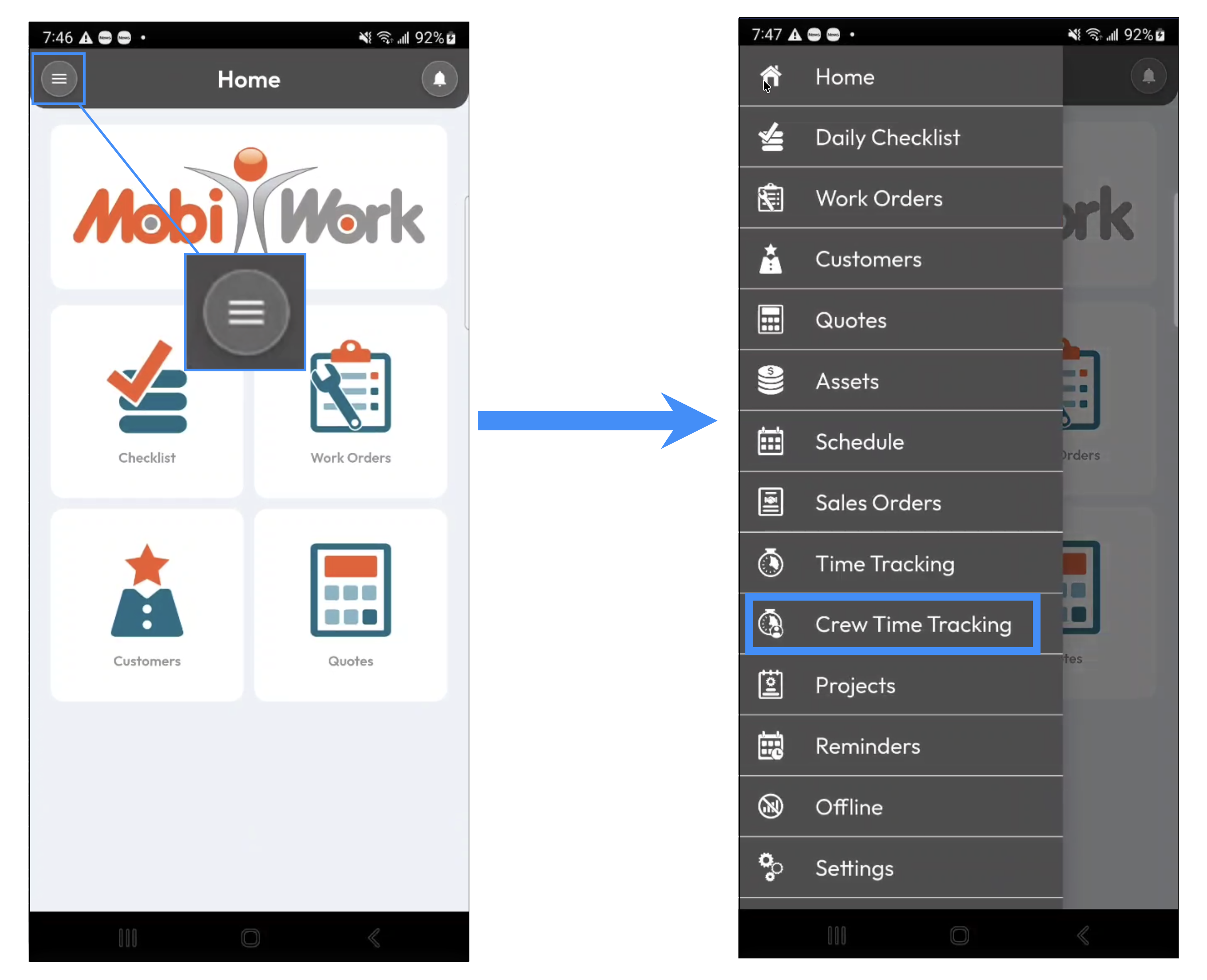
Then scroll down until you locate the "Crew Time Tracking" feature; tap on it to open the corresponding Crew Time Tracking page:
The Time Tracking page allows you to manage your crew's time tracking entries, including starting and stopping time entries and adding entries retroactively when needed:
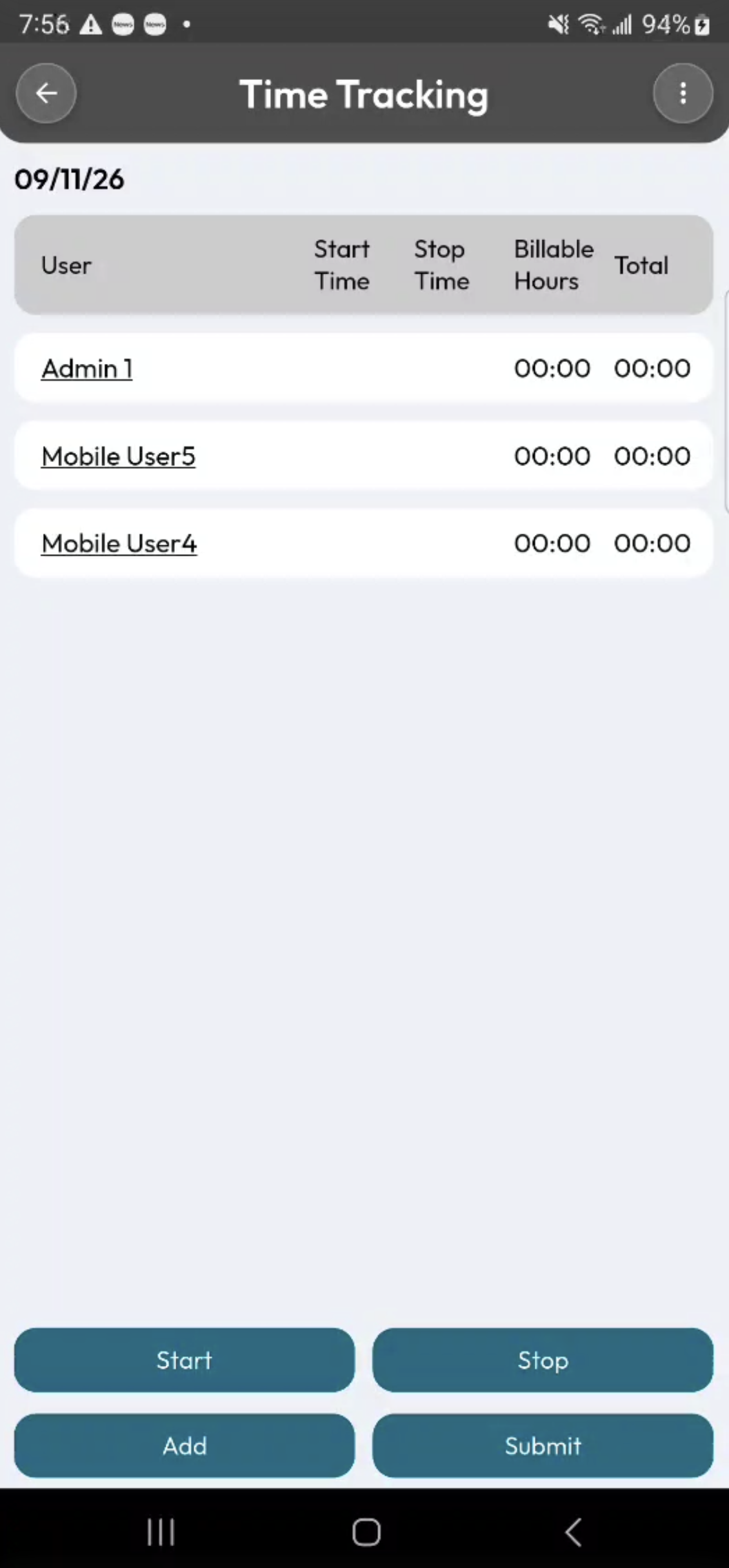
Once the crew's time tracking entries have been completed for the week, you can submit them for payroll processing.
Add Crew Time Tracking
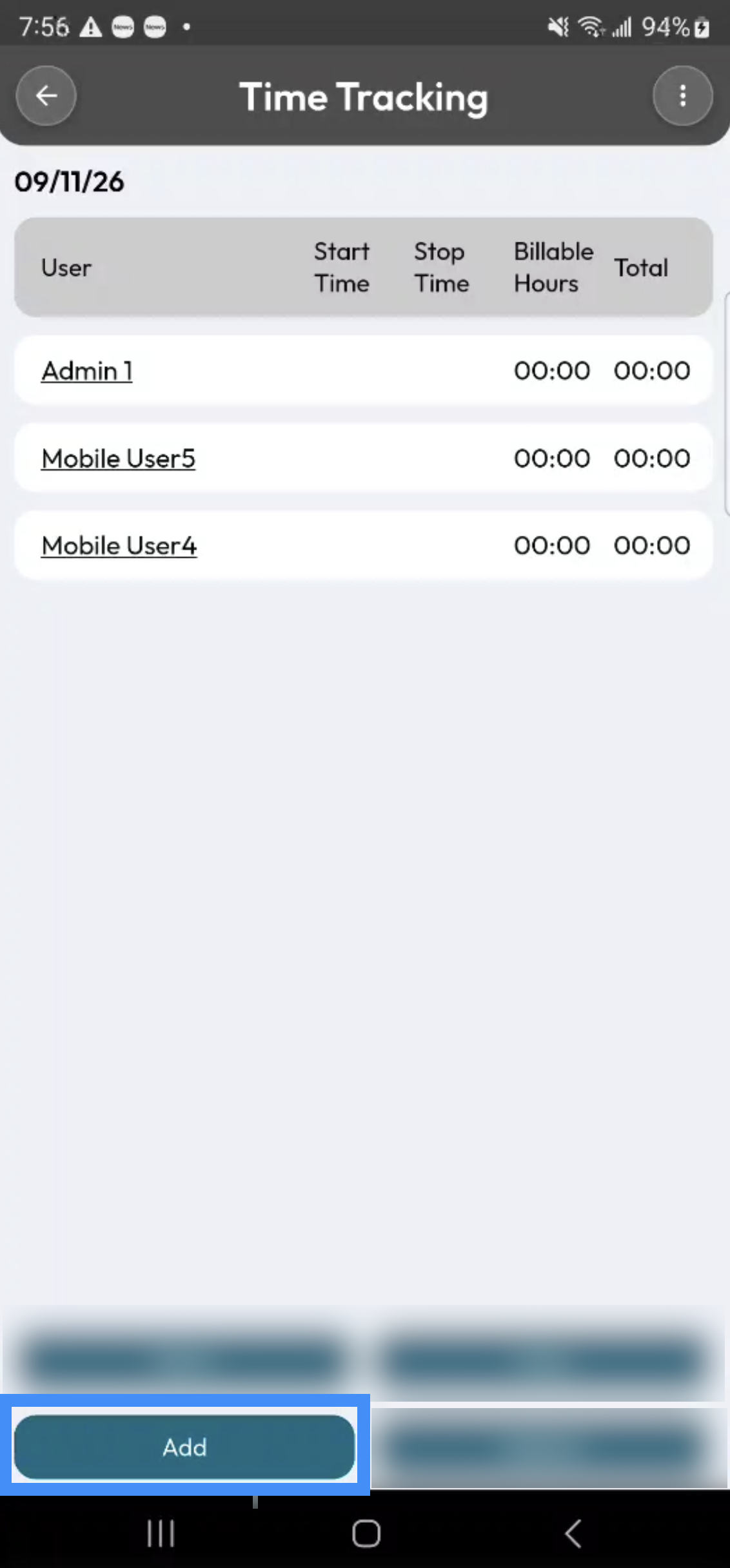
To add hours to a crew's time tracking, tap the Add tile:
You will then be redirected to the Time Tracking page for the crew:
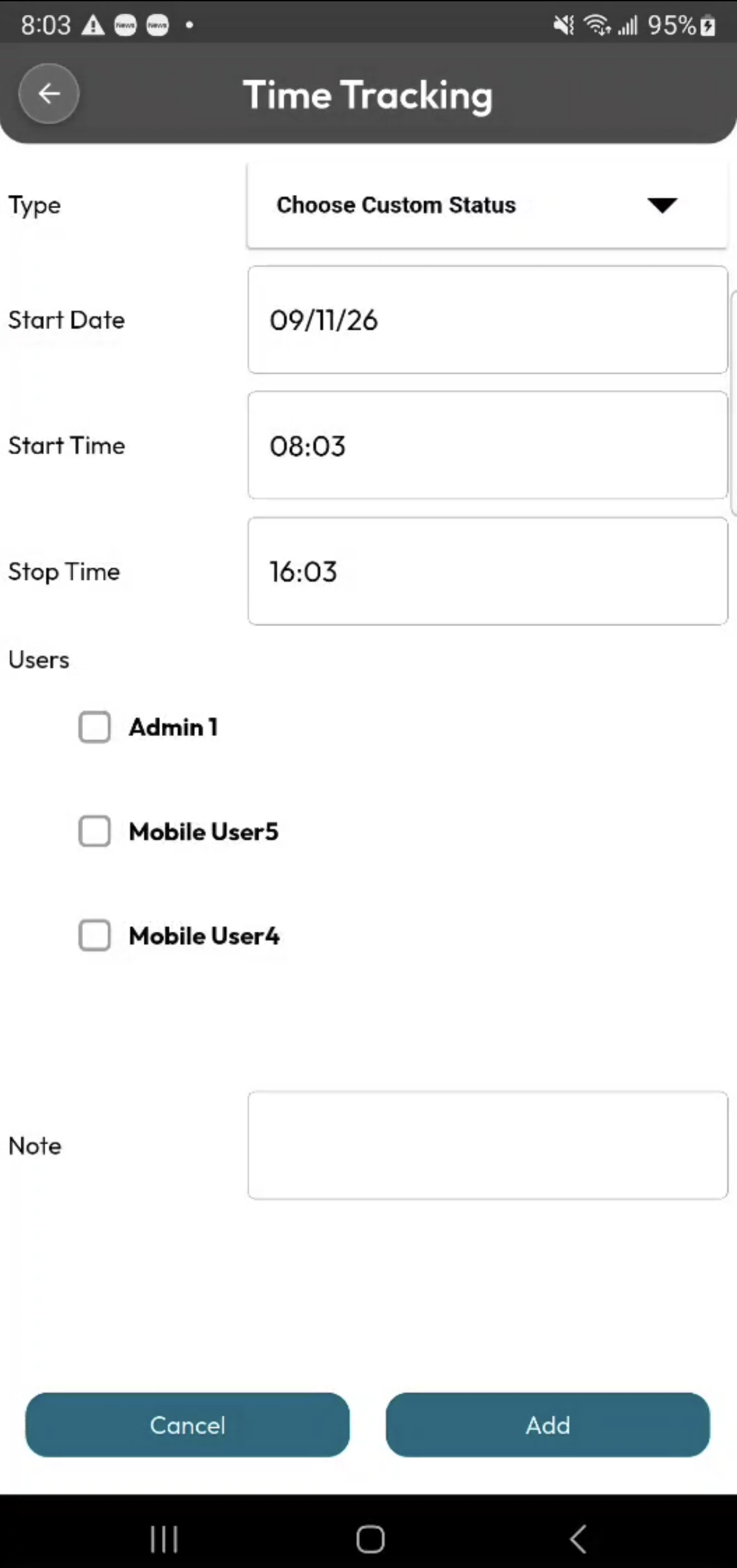
You can then populate the time tracking entry for the crew with the following information:
Type- Use the drop-down to select the type of time tracking entry being recorded.
Start Date- Input the start date that the time tracking entry is set to begin.
Start Time- Input the time that the time tracking entry is set to start.
Stop Time- Input the time that the time tracking entry is set to end.
Users- Indicate which crew members the time tracking entry applies to.
Note- If needed, you can also add a note to provide additional information about the time tracking entry.
Press the Add button to confirm the time tracking entry.
Start Crew Time Tracking
To start a crew's time tracking, tap the Start tile:
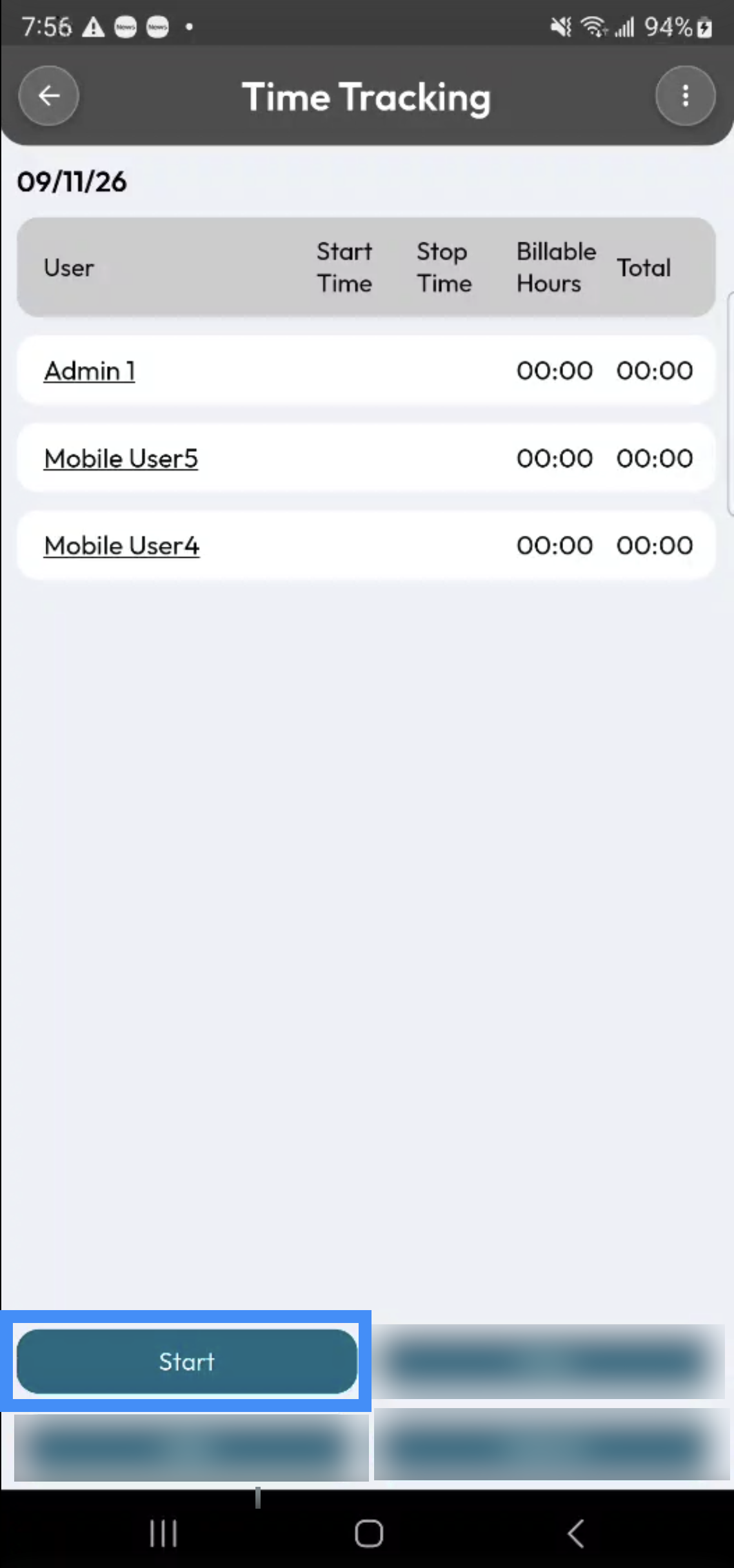
You will then be redirected to the Time Tracking page for the crew:
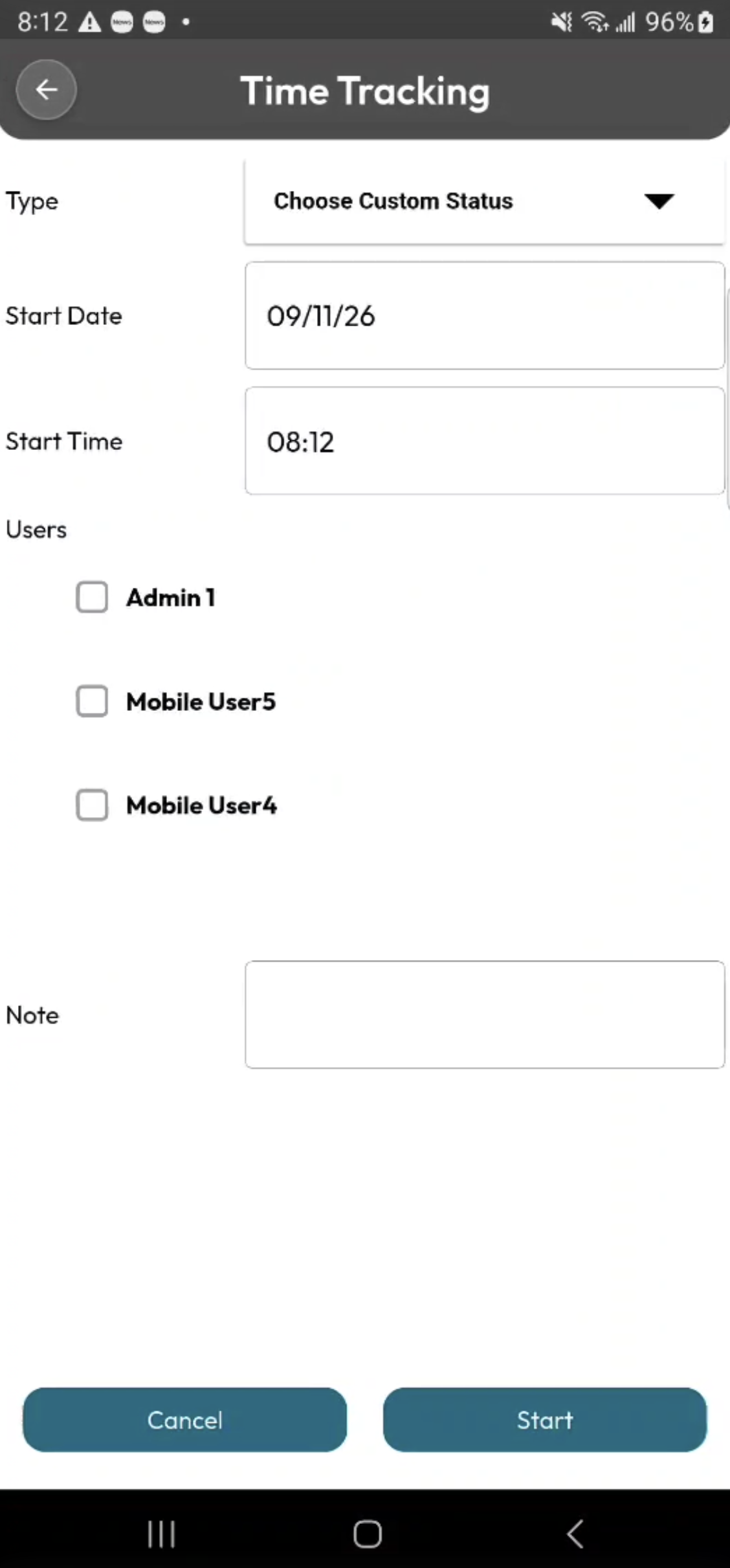
You can then start the time tracking entry for the crew with the following information:
Type- Use the drop-down to select the type of time tracking entry being recorded.
Start Date- Input the start date that the time tracking entry is set to begin.
Start Time- Input the time that the time tracking entry is set to start.
Users- Indicate which crew members the time tracking entry applies to.
Note- If needed, you can also add a note to provide additional information about the time tracking entry.
Press the Start button to begin the time tracking entry.
Stop Crew Time Tracking
To stop time tracking for a crew, tap the Stop tile from the crew's Time Tracking page:
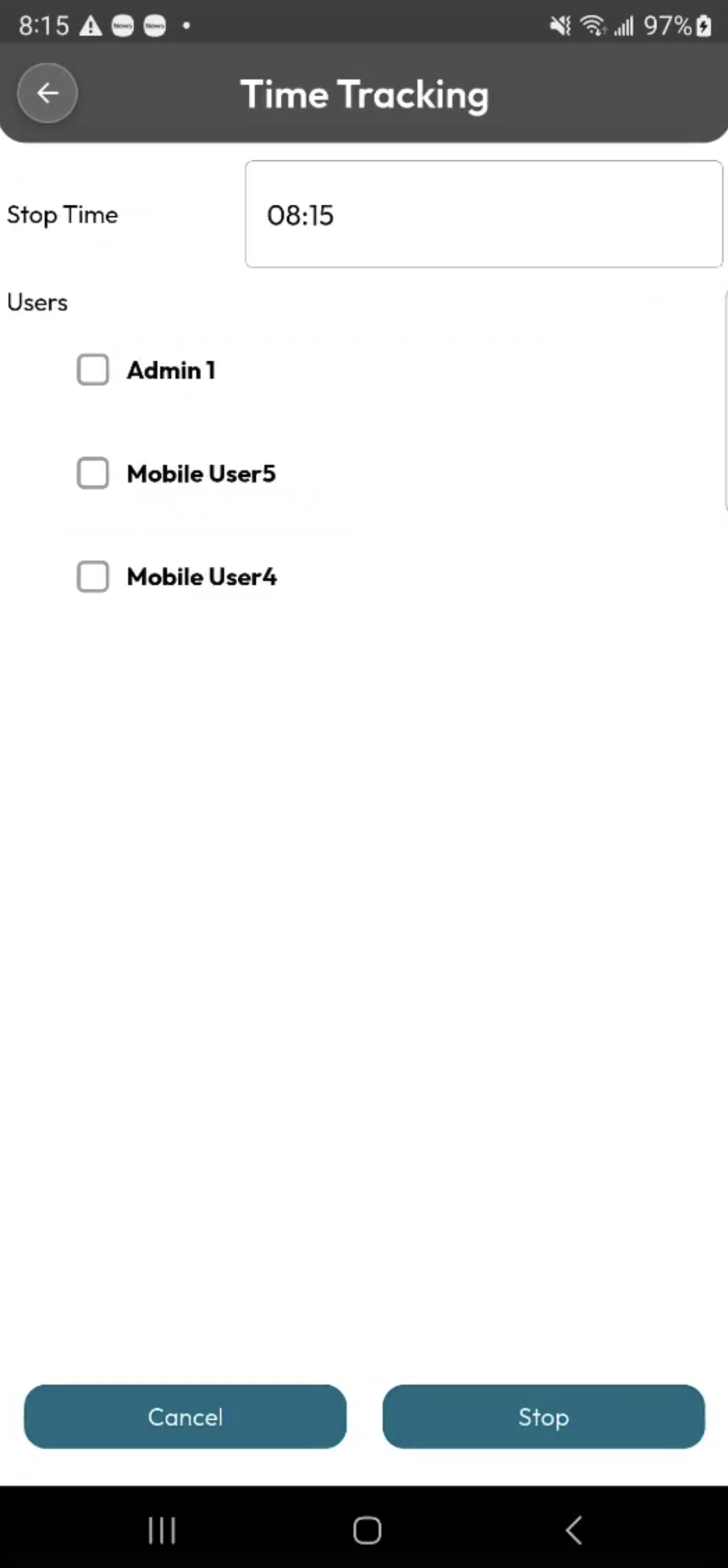
Select the users whose time tracking you would like to stop and the time that the time tracking entry should end.
Press the Stop button to end the time tracking entry.
The Time Tracking page also provides convenient access to crew management tools, allowing you to quickly update your crew's daily assignments. To manage a crew, tap the Actions Panel in the top-right corner of the Time Tracking page:
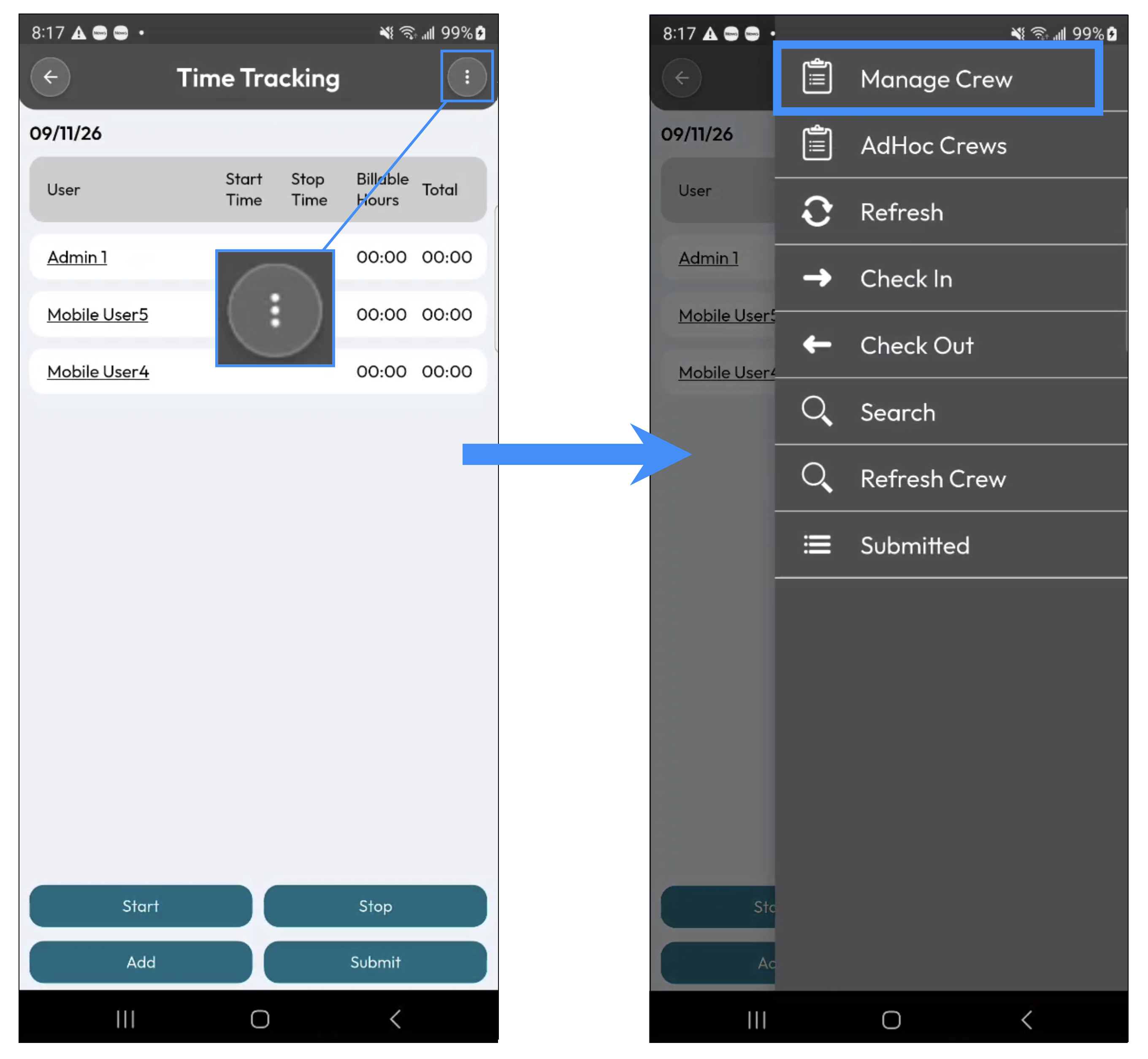
In the Actions Panel, select the "Manage Crews" action; you will then be redirected to the Manage Crew page:
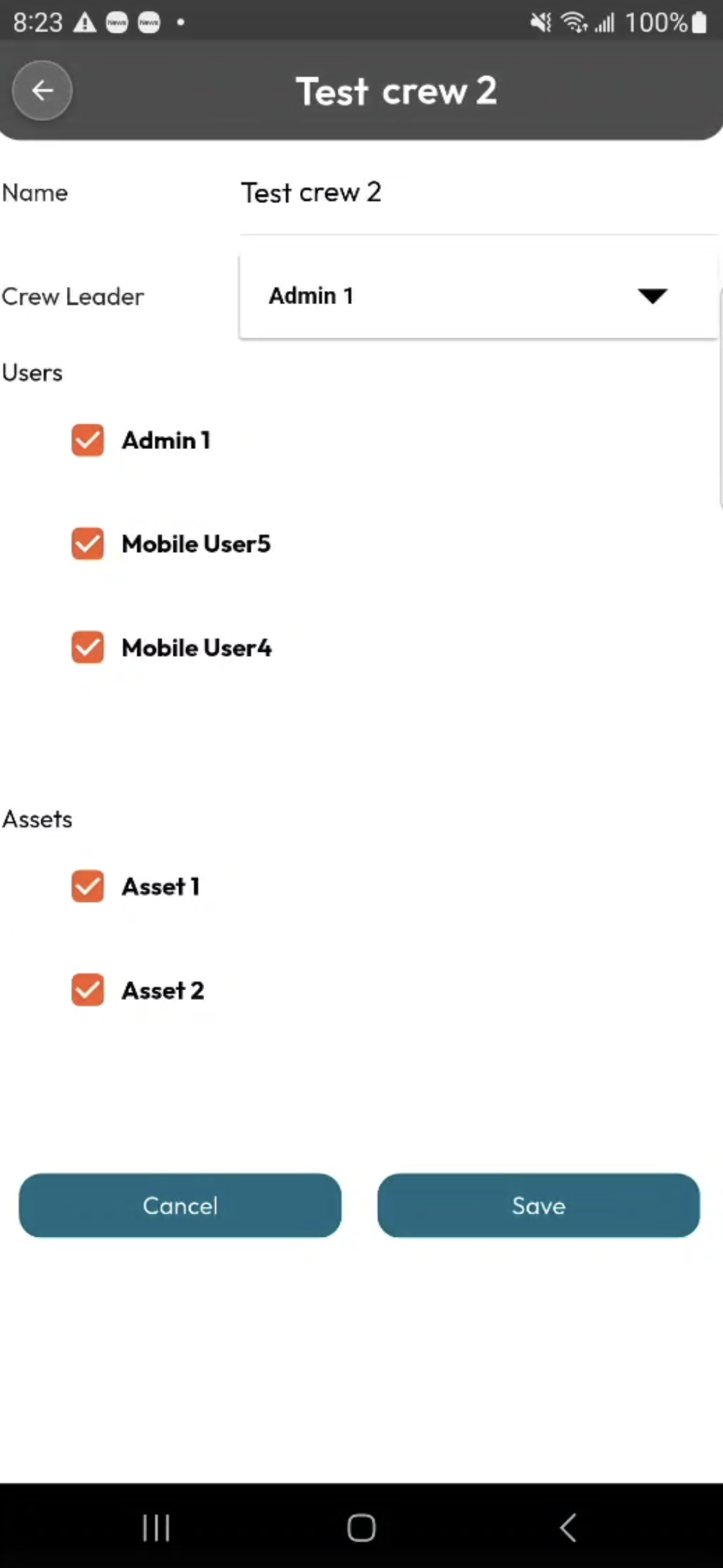
From this page, you can select a new crew leader and specify which users and assets will be part of the crew for that day.
Tap Save to confirm your changes, or tap Cancel to return to the Time Tracking page without saving.
You can also manage ad hoc crews directly from the Time Tracking page, making it easy to create and adjust temporary crew assignments as needed. To manage an ad hoc crew, first tap the Actions Panel in the top-right corner of the Time Tracking page:
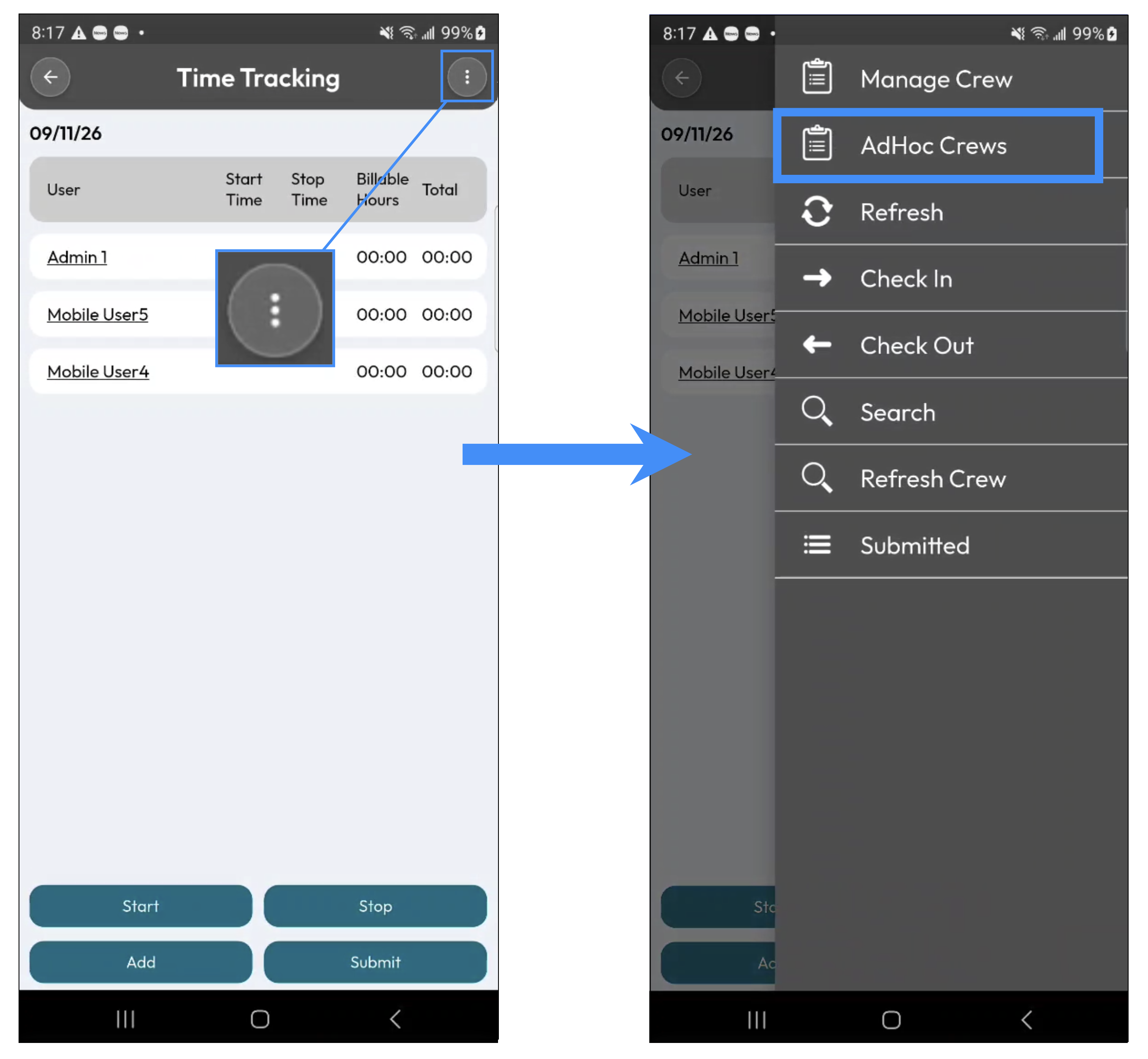
Then select "Manage Ad Hoc Crews" action from the list of available actions:
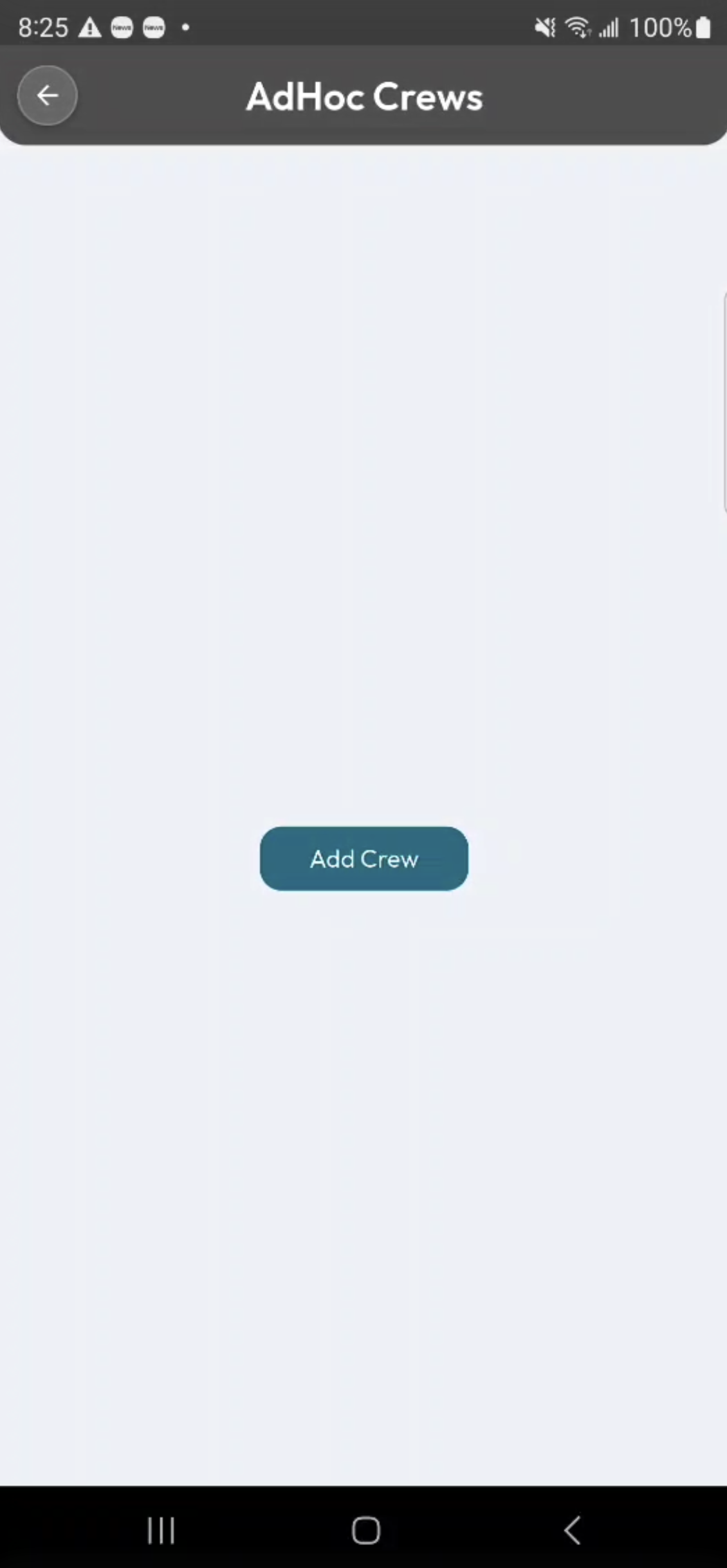
You will be redirected to the Manage Crew page. From this page, you can create a new ad hoc crew and specify which users should be assigned to it. Then, tap Save to create the ad hoc crew and confirm the assignment.