
The easiest way to access the View Crew pop-up window is through the "List" tab. For more information on how to access the "List" tab, please see the Crew List page.
Once you are on the "List" tab, there are four different ways to access the View Crew pop-up window:
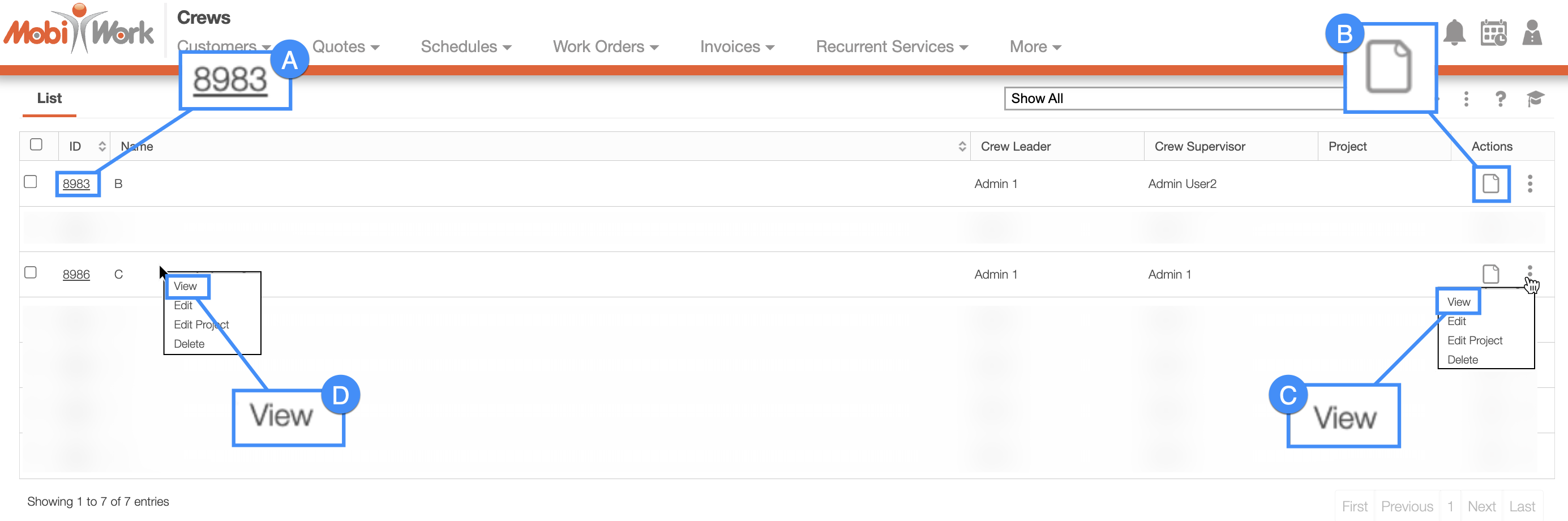
Select the desired crew ID.
Select the View icon under the "Actions" column.
Right-click on the selected crew and click on the "View" option from the drop-down.
Click on the "View" option from the Individual Actions drop-down.
The View Crew pop-up window will display the "Summary" panel, and the corresponding selected users, assets, and projects:
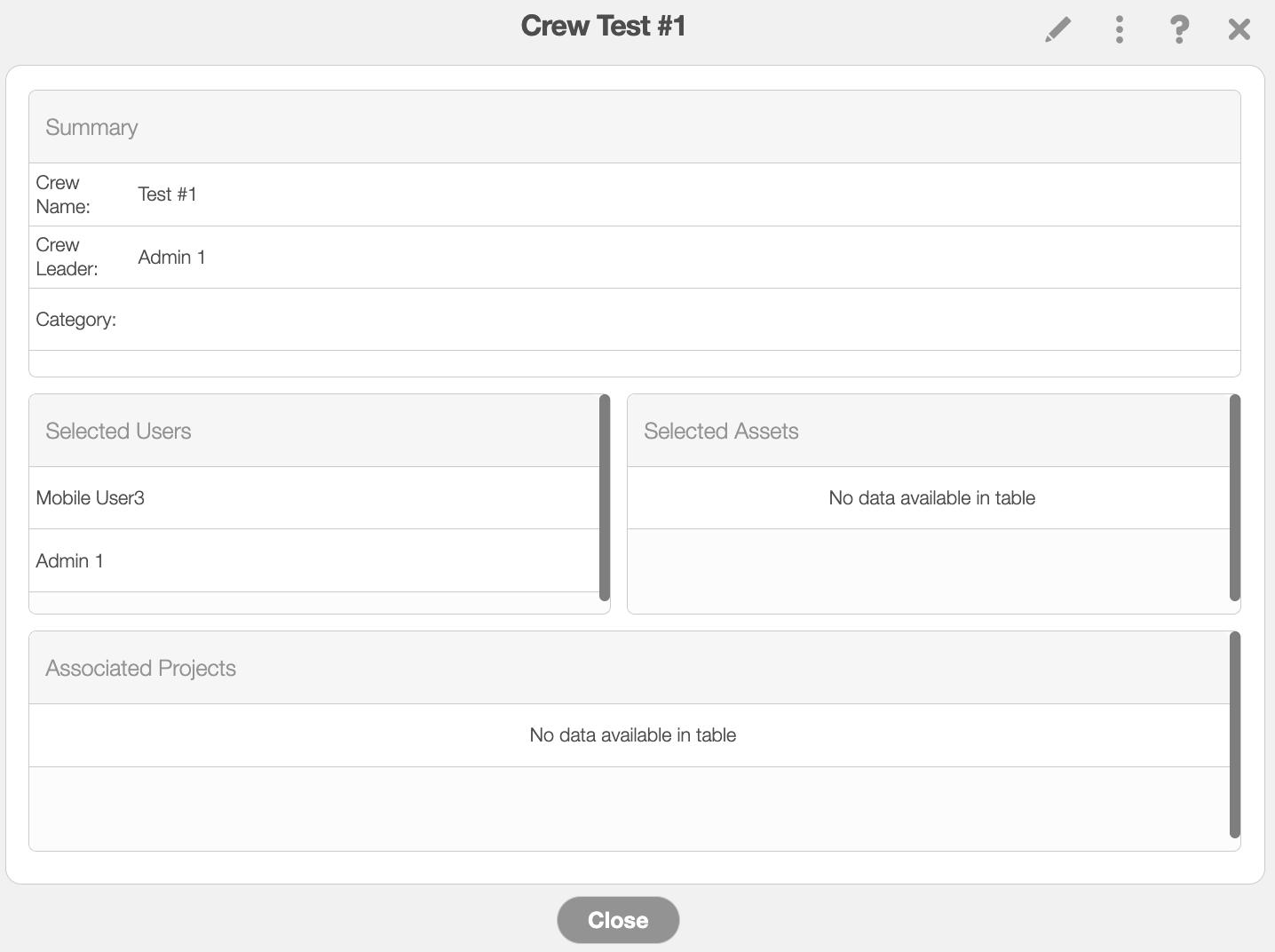
In the pop-up window, you will be able to access the Upper Right Corner Actions; these actions will allow you to perform additional actions on the crew.
Please note that if you would like to easily close this pop-up window, you can click on the esc button from your keyboard.
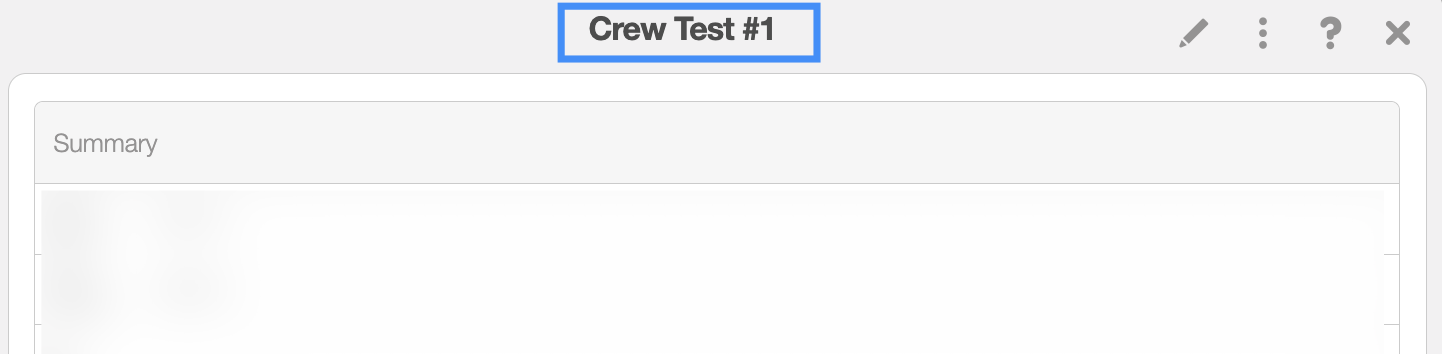
Crew Name
The crew name will be displayed in the center of the pop-up window:
Crew upper right corner actions
The Crew's Upper Right Corner Actions can be found in the top-right corner of the View Crew pop-up window:
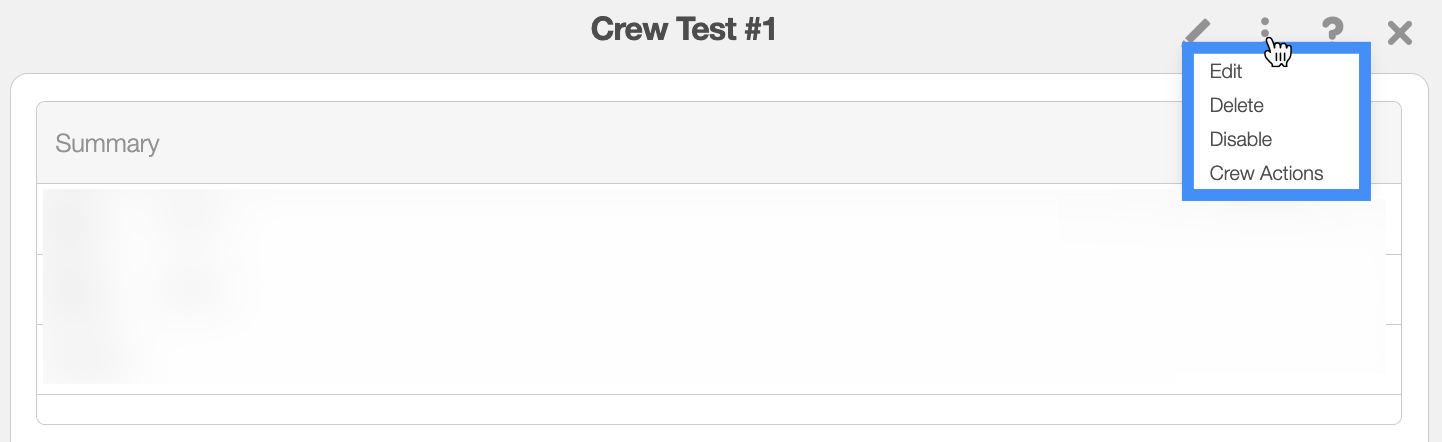
After clicking on the vertical three dots in the top-right corner, the Individual Actions drop-down menu will appear:
From the Individual Actions drop-down menu, you can select various actions that will help manage the specified crew.
The complete list of actions found in the Individual Actions drop-down menu are defined below:
| Name: | Description: |
|---|---|
| "Crew" | Allows you to edit the selected crew. This includes managing the corresponding users, assets, and projects that are associated with the crew. |
| "Delete" | Deletes the crew; any users associated with the crew will not be deleted. Instead, you will be able to allocate the corresponding user to a new crew. |
| "Disable" | Disables the crew. |
| "Crew Actions" | Allows you to add a work order action specific to the specified crew member. |
The View Crew pop-up window consists of four different panels:
The subsections below will go into more detail regarding the information found in the different panels.
Summary Panel
The "Summary" panel will contain general crew information, including the crew name, the name of the crew leader and category information.
These terms are described below:
| Name: | Description: |
|---|---|
| "Crew Name" | The name of the crew. |
| "Crew Leader" | The leader of the crew. Crew leaders are users who are in charge of their fellow users and guide the team towards project completion. |
| "Category" | The category associated with the crew. |
Selected Users Panel
The "Selected Users" panel will showcase the users that are assigned to the crew:
Selected Assets Panel
The "Selected Assets" panel will showcase the assets that are assigned to the crew:
Associated Projects Panel
The "Selected Projects" panel will showcase the projects that are assigned to the crew: