
You can add a new crew from the Crew "List" tab. Please see the Crew List section for more information on how to access this page.
Once you are on the "List" tab click on the Plus Sign to add a new crew:
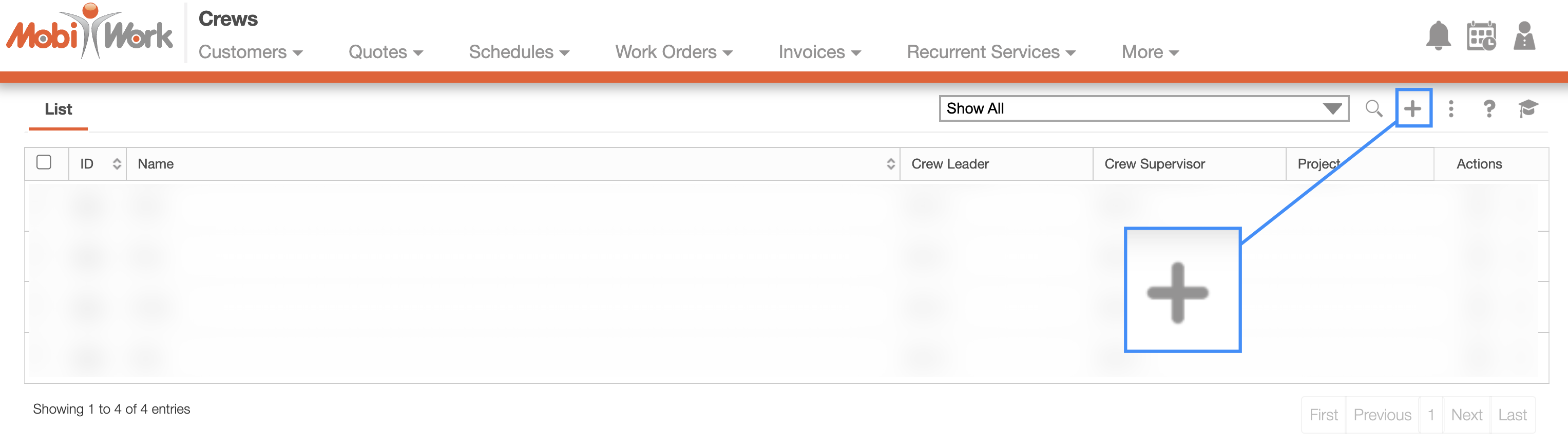
The Add Crew pop-up window will then appear.
You can also add an ad hoc crew by clicking on the More Actions and selecting the "Add Ad Hoc Crew" from the drop-down:
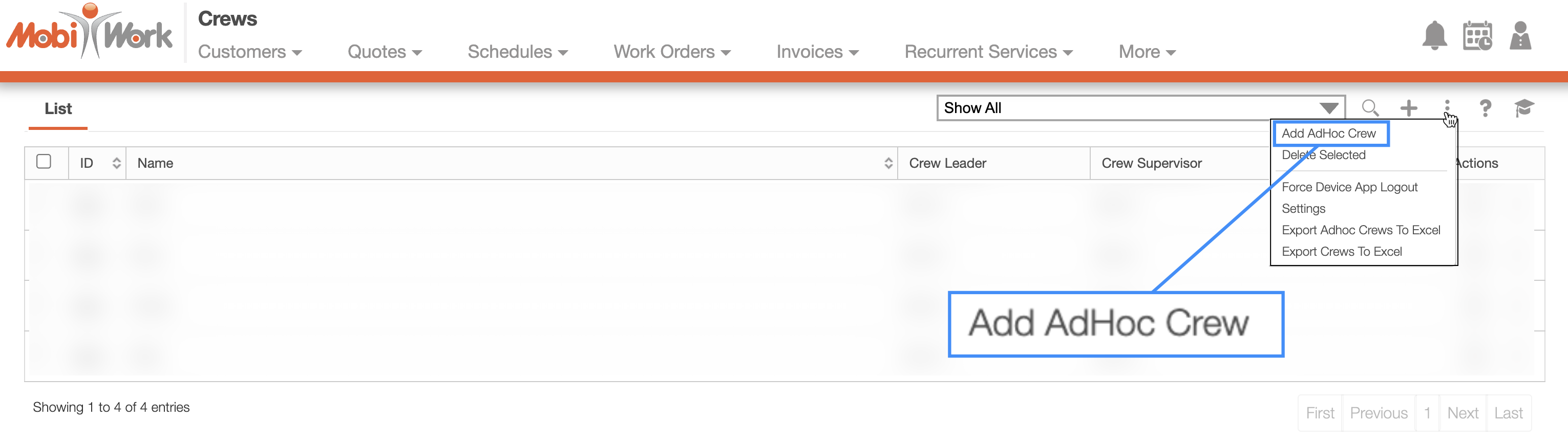
The Add Crew pop-up window will then appear for you to populate with the ad hoc crew information. This pop-up window is the same as when you are adding a normal crew.
Once you click on the Plus Sign icon, the Add Crew pop-up window will appear:
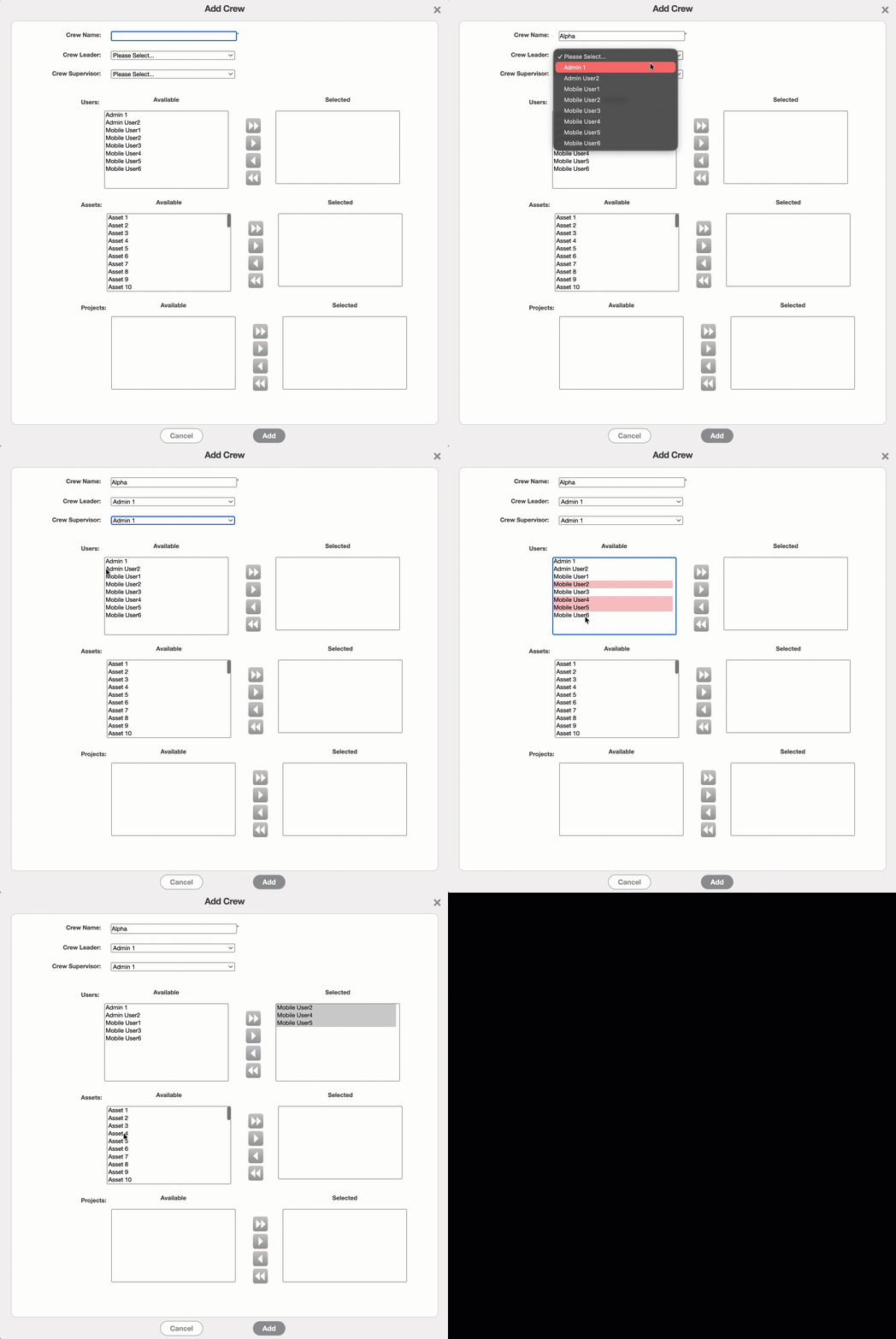
In this pop-up window you will be able to input the name of the crew as well as the following information:
The crew leader
The crew supervisor
Any assets associated with the crew
And any projects that are also associated with the crew.
Use the drop-down to select the desired crew leader and crew supervisor. Then use the arrows to indicate which users, assets, and projects should be moved from the "Available" column to the "Selected" column. Once all the fields have been populated, click on the Add button to confirm the crew composition.
Please note that crew leaders are users who are in charge of their fellow users and guide the team towards project completion. Meanwhile, crew supervisors are users who monitor the productivity of the work and set project goals. Furthermore, as long as the supervisor has permission to access the other users, the supervisor will be able to manage the time tracking (either directly or with the work order's action items) for those select users.
Important: Users can only be part of one crew. However, a crew supervisor or crew leader can manage multiple crews. If a Crew Leader or Crew Supervisor is also assigned as a member of a crew, the one-crew-per-user rule still applies. In other words, they can manage multiple crews, but they can only be a member of one crew. Likewise, assets can only be assigned to one crew.
When a user is part of a crew, they will no longer be displayed as an individual user in the View Dispatch pop-up window or in the schedule; instead the crew name will be displayed:
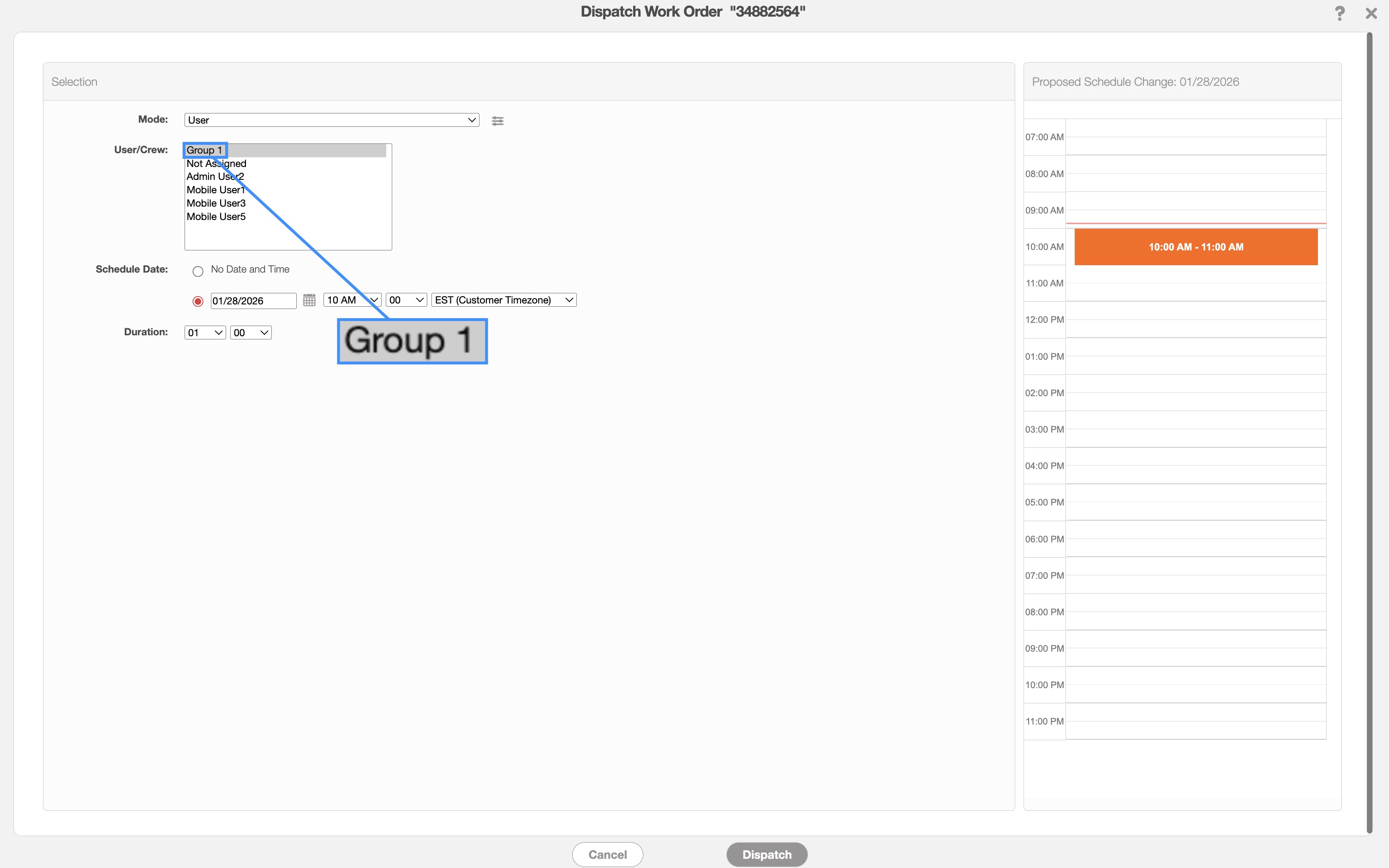
For more information on how crews appear when dispatching on on the schedule page, please see the Crew Dispatching page.
The "Add ad hoc Crew" option in MobiWork allows dispatchers to create temporary crews by assigning available team members to a specific work order or task.
These crews can include members who are already assigned to other crews and can be assembled as needed based on factors such as employee availability, skills, location, or specific job requirements. For example, in an emergency situation, a dispatcher can temporarily pull users from different crews and combine them into an "Ad Hoc Crew" to handle a specific work order.
Once the "Ad Hoc Crew" is no longer needed and it is deleted, the users are automatically returned to their original crews. This allows dispatchers to temporarily reorganize team members without permanently changing their normal crew assignments.
To add an "Ad Hoc Crew," simply select the "Add ad hoc Crew" option from the More Actions drop-down:
The Add Crew pop-up window will then appear; please note that the Add ad hoc Crew pop-up window is the same as Add Crew pop-up window.
Before assigning a project to a crew, you must first create the project in MobiWork. For more information on how to create a new project, please see the Add Project page.
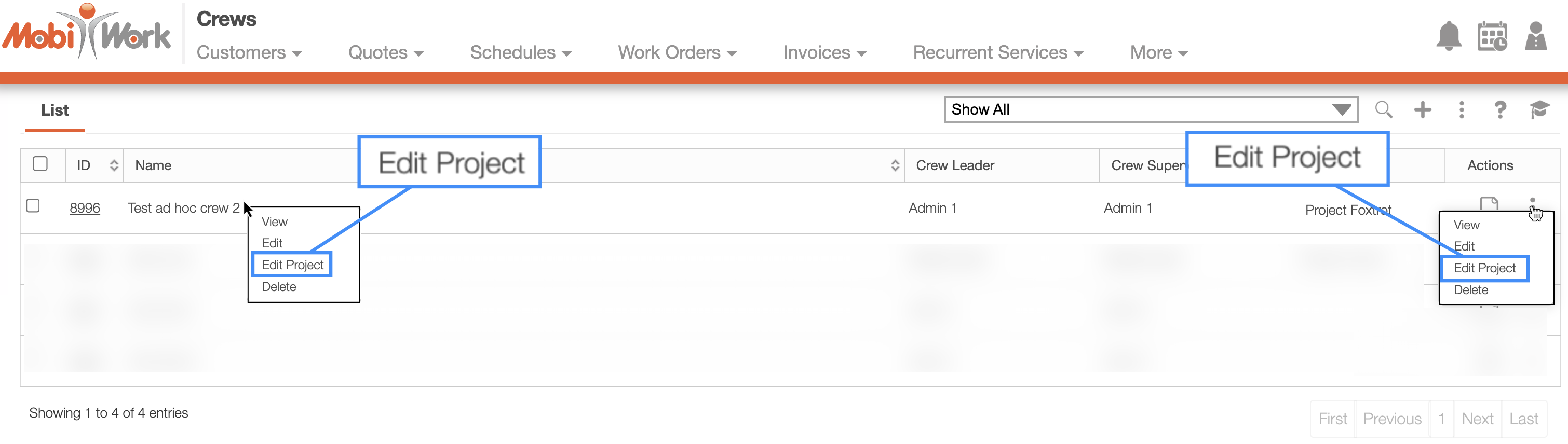
Once the project has been created, you can assign it to a crew. From the right-click options or the Individual Actions drop-down on the Crew List page select the "Edit Project" action:
The Edit Crew pop-up window will then appear. In this pop-up window, use the project drop-down to select the desired project:
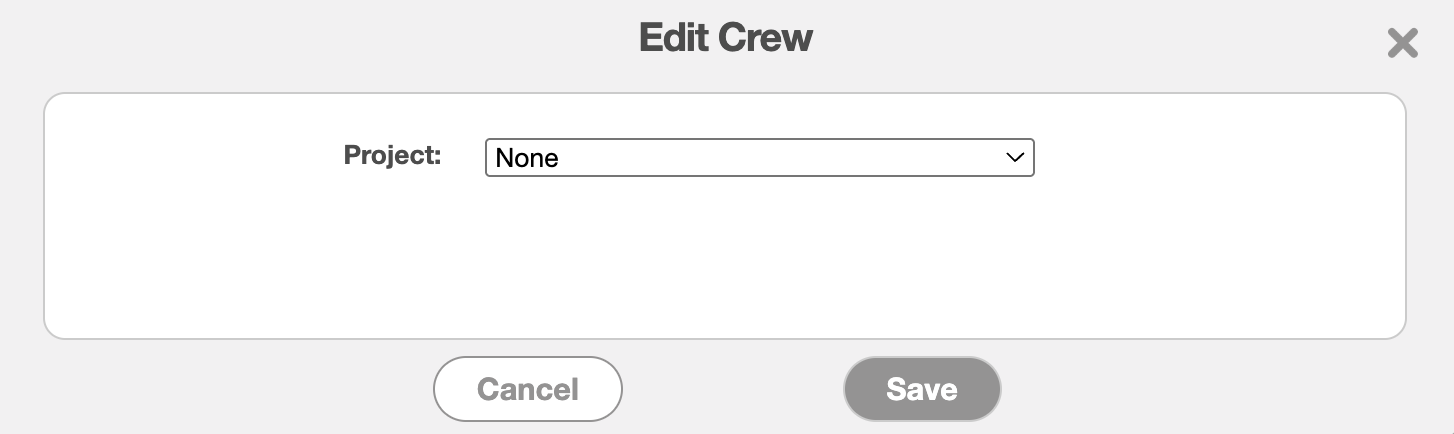
Then click the Save button to confirm that the crew is assigned to the corresponding project.
The crew will then be assigned to the selected project.