
To delete your crews, you will first need to be on the Crews feature page. Please see the Crews List for more information on how to access this page.
Once you are on the "List" tab, there are four different ways to access the Delete Crew pop-up window:
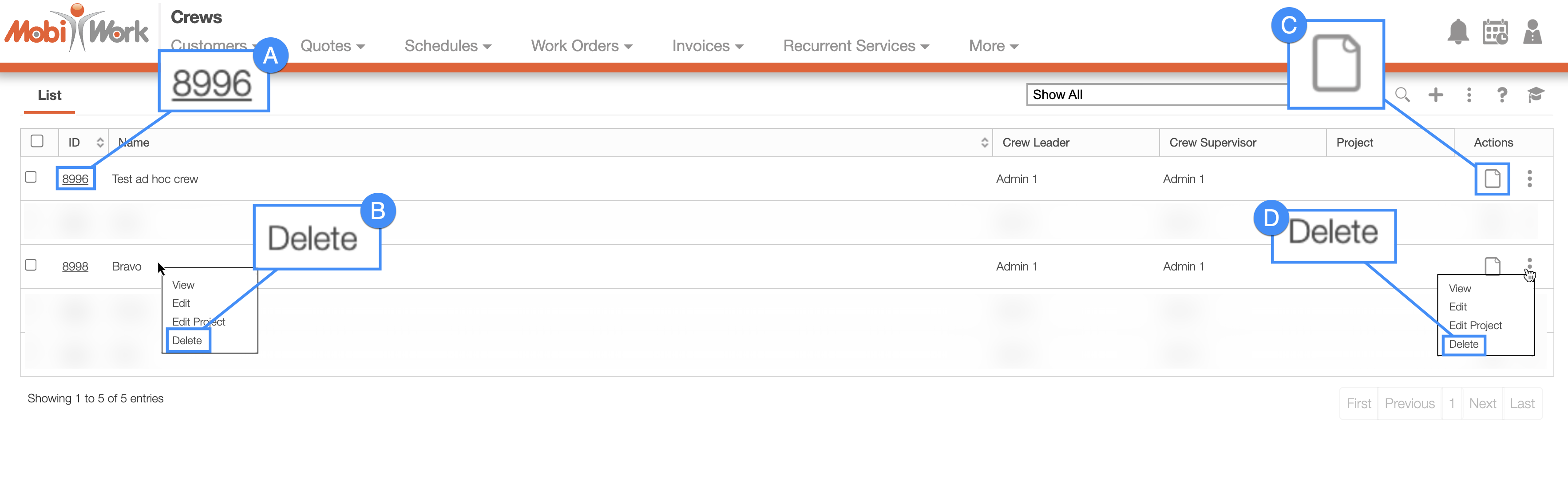
Select the desired crew ID.
Select the View icon under the "Actions" column.
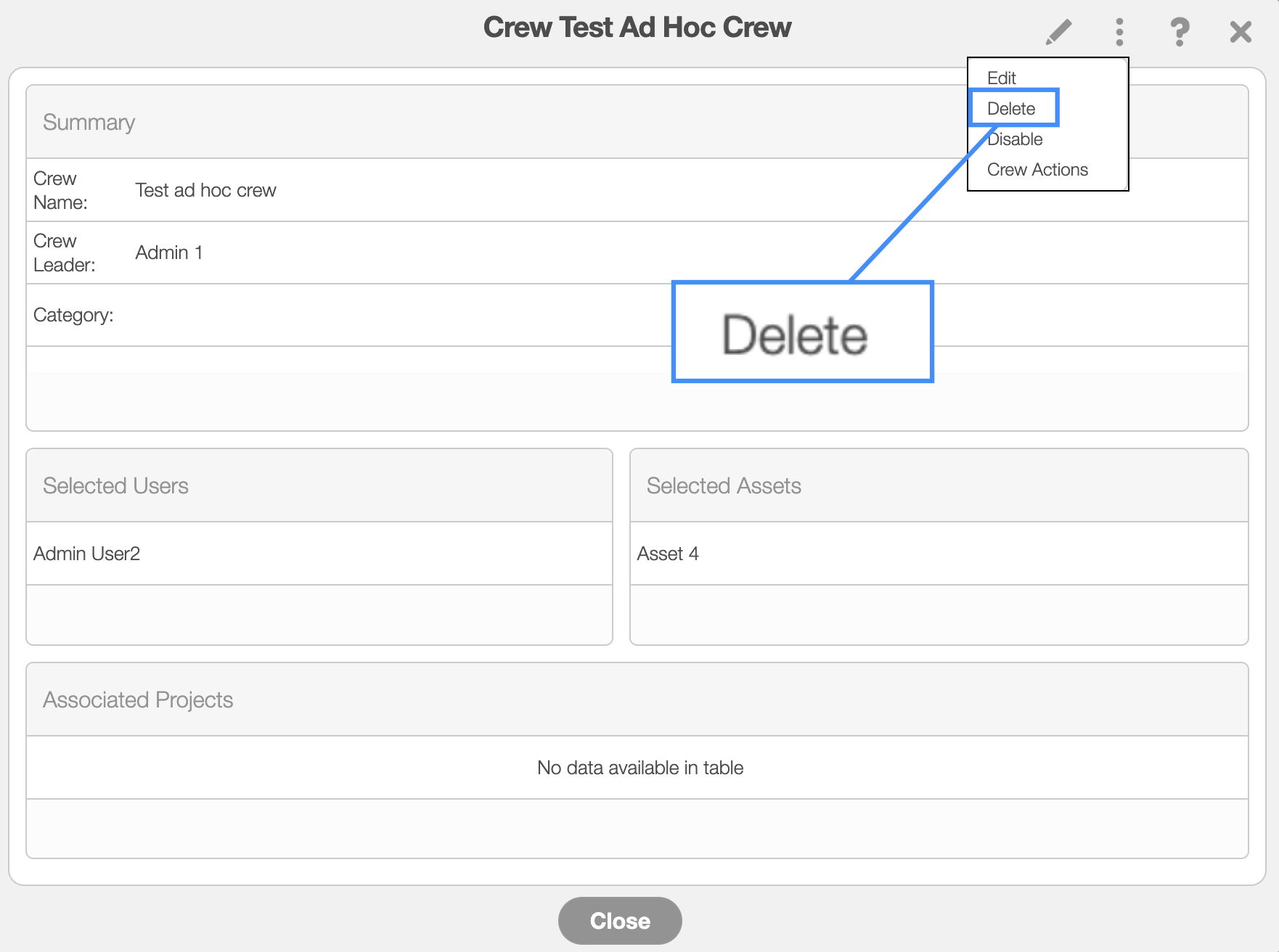
In the upper right-corner of the View Crew pop-up window, you will see the Individual Actions button. From the drop-down, you can select the "Delete" option.
Please note that there are various ways to access the View Crew pop-up window. Please see the View Crew page for more information.
Right-click on the selected crew and click on the "Delete" option from the drop-down.
Regardless of how you choose to delete a crew, a warning pop-up will appear asking to confirm if you would like to delete the crew, and informing you that the deletion of the crew is permanent:
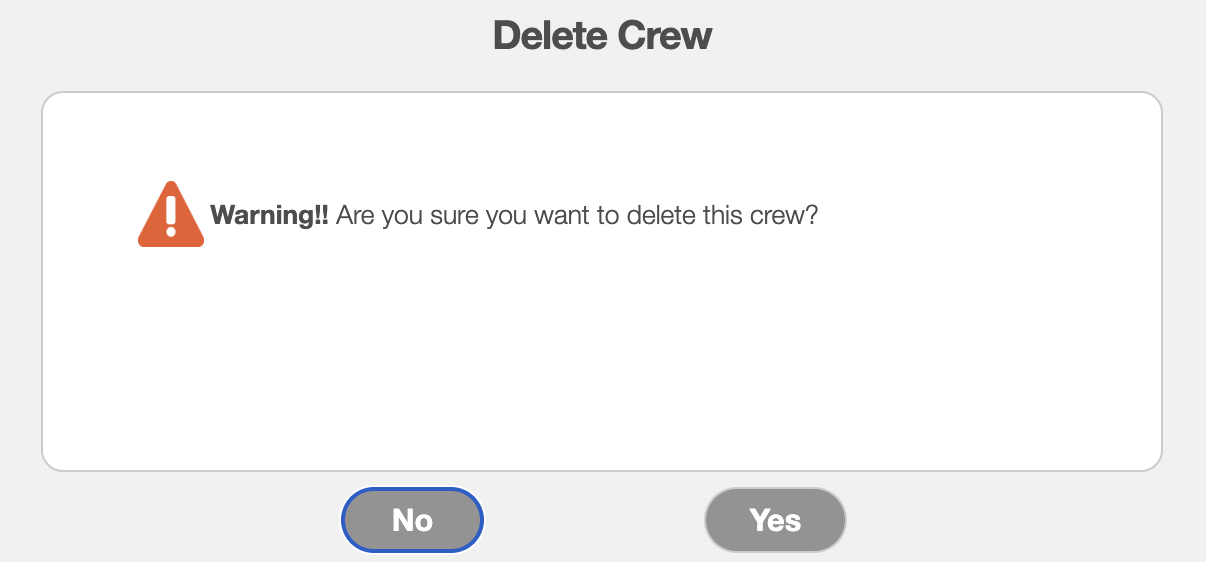
Click the Yes button to confirm deletion. Once confirmed, the crew will automatically be deleted from MobiWork.
When a crew is deleted, its former crew members and assigned assets are released and become available to be assigned to a new crew.
MobiWork allows you to delete multiple crews at once, thus saving you time and energy from having to delete crews one at a time.
To delete multiple crews, you will need to access the More Actions button from the Crew feature page:
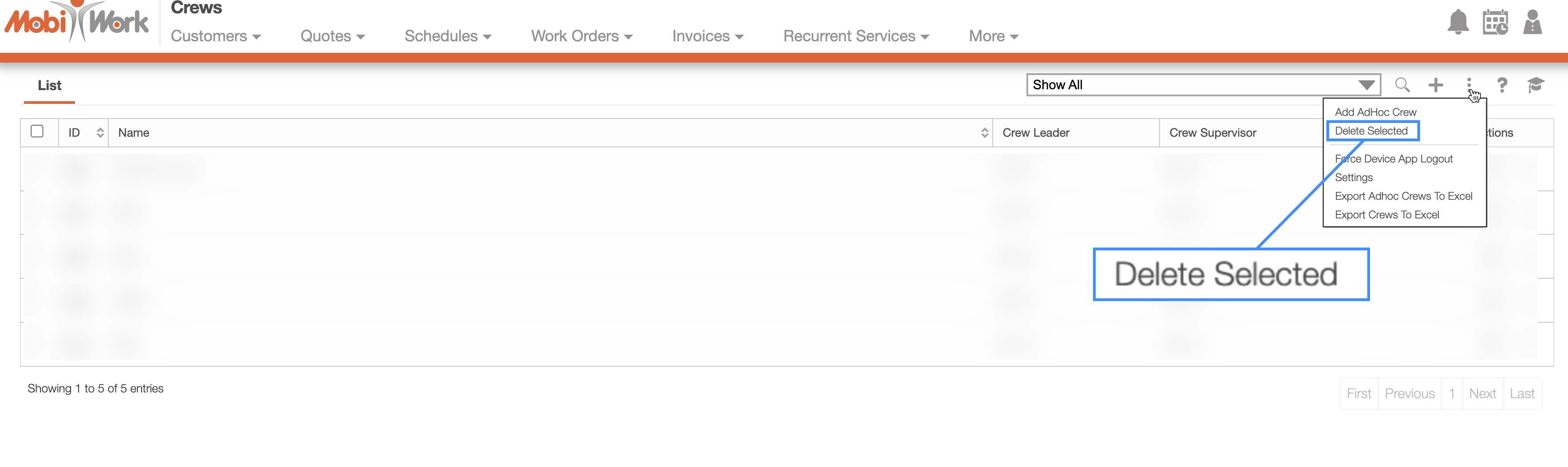
Check off the desired crews you would like to delete; if you would like to delete all your crews you can click on the topmost checkbox (Multiple Selection Area) located in the "List" column:
Click on the More Actions button and from the drop-down select the "Delete Selected" option:
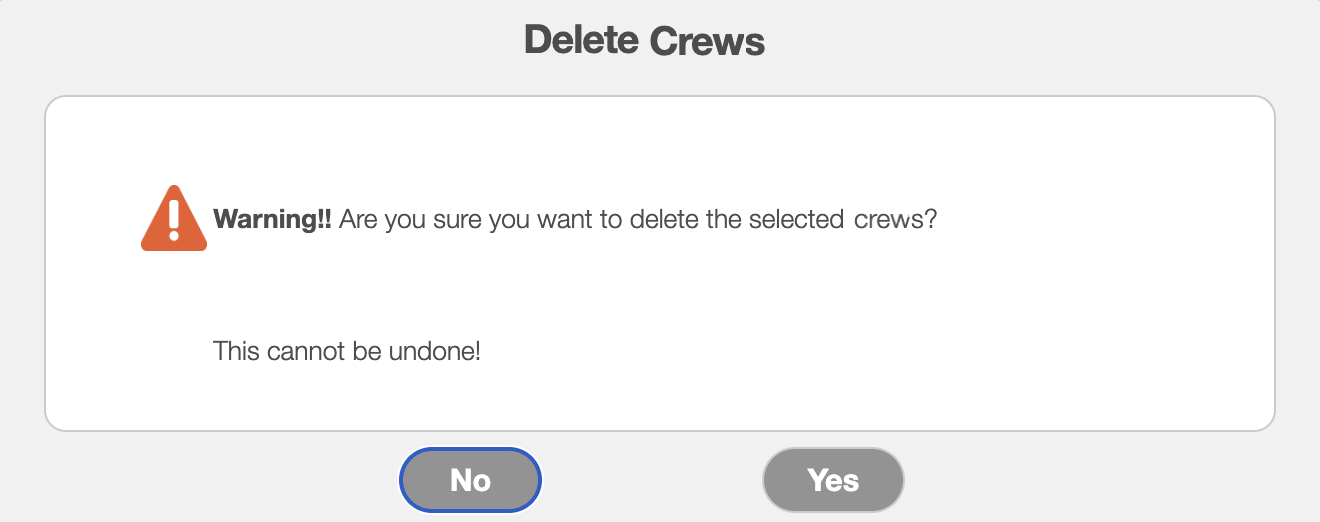
A warning will then appear, informing you that the deletion of the crews will be permanent:
Click the Yes button to confirm deletion. Once confirmed, the crews will automatically be deleted from MobiWork.
Once the crews are deleted, the former crew members and assigned assets are released and become available to be assigned to a new crew.