
You can dispatch a work order to a crew through the View Dispatch pop-up window:
The crew name will be listed in the "User" column." Simply select the crew name from the list of users and then update the duration, schedule, and date and time as required.
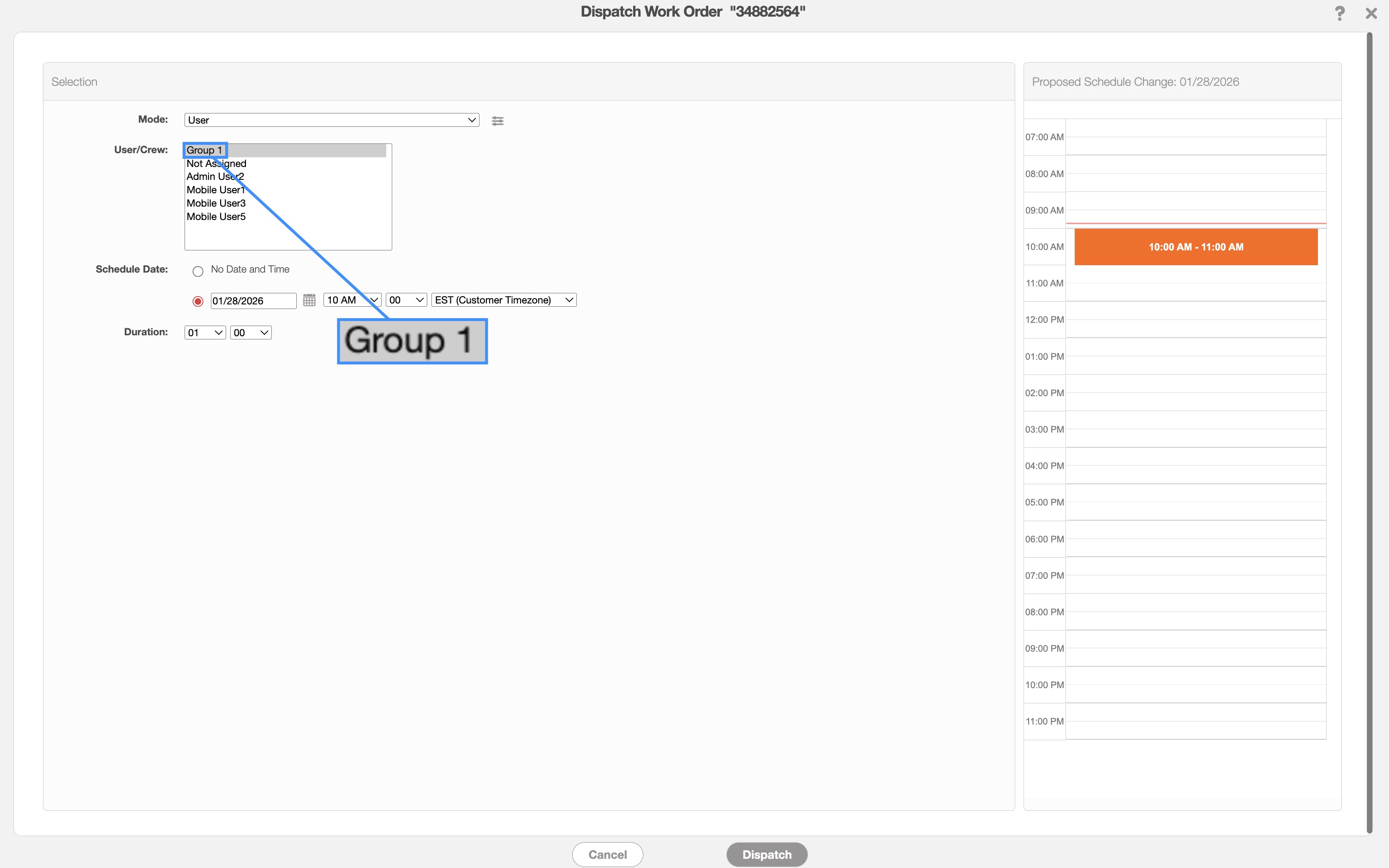
For more information about work order dispatching, please see the How to Access the Dispatch Feature page.
You will be able to see the users that compose the crew in the "Scheduling & Dispatching" panel in the View Work Order pop-up window:
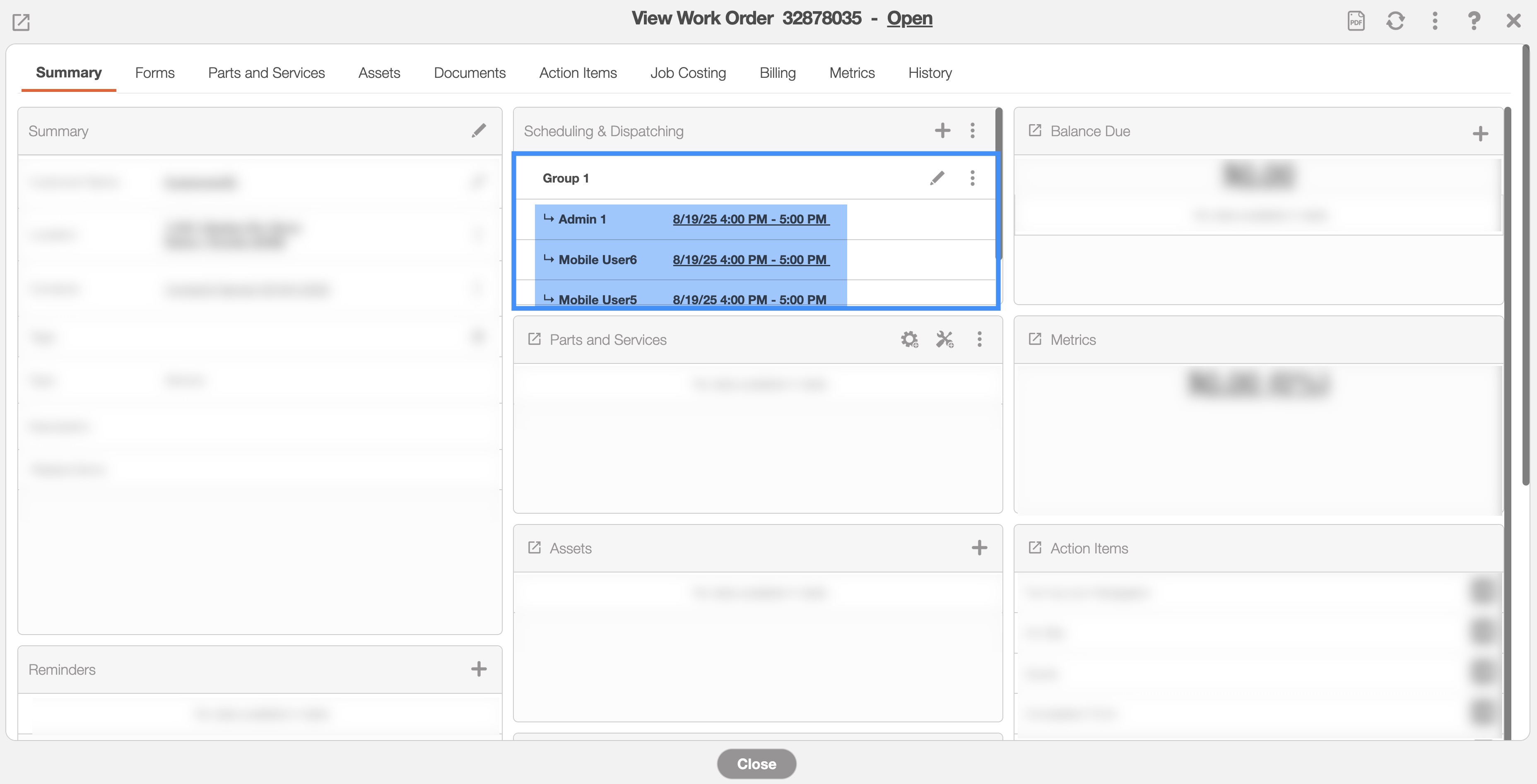
The Pencil icon next to the crew name will allow you to edit the work order details, while the Individual Actions will allow you to perform additional actions, like deleting the work order appointment or accessing the View Crew pop-up window.
When you click on the dispatched time and date for the corresponding crew member, you will be able to update it; once updated, the dispatched time and date will be updated for all corresponding crew members.
You can see the dispatched crew visually through the Schedule feature by selecting the designated crew from the user drop-down list:
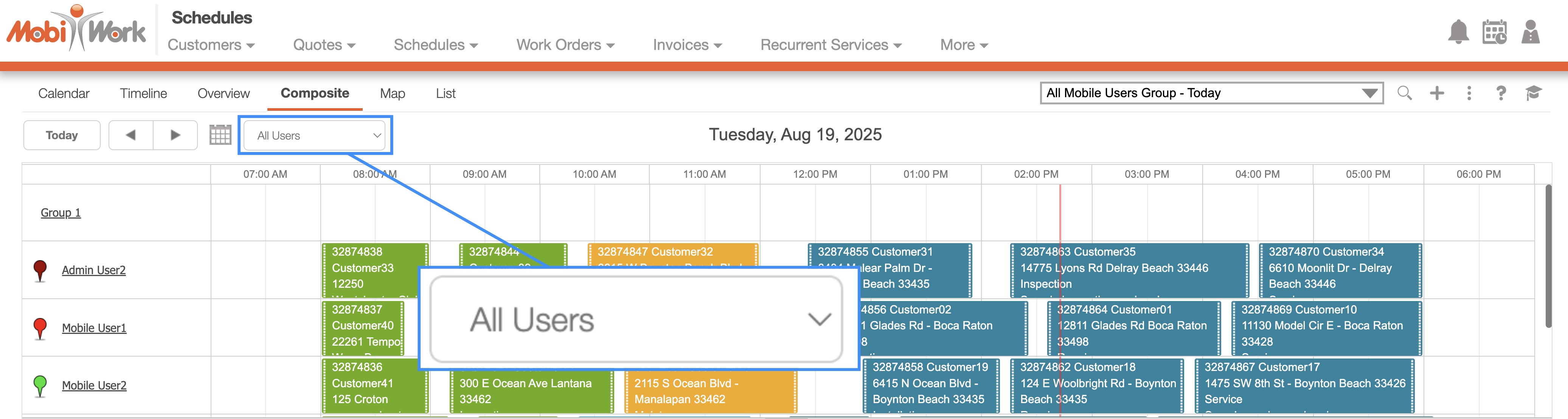
As you can see from the image below, the users that consist of the group will be removed from the "Calendar" view. Instead, the crew they belong to will be displayed:
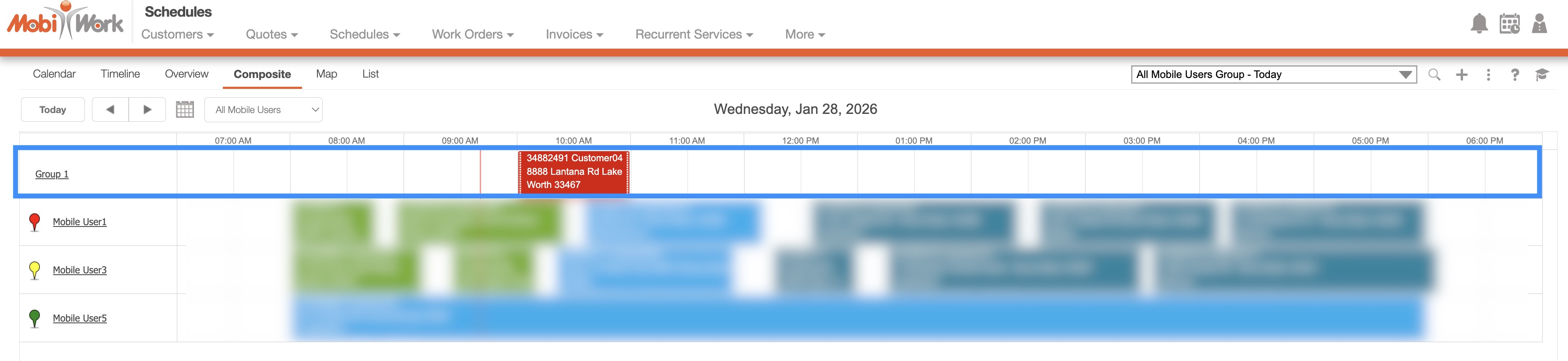
By clicking on the crew in the "User" section, you will be able to access the corresponding drop-down; from the drop-down you can either access the View Crew pop-up window or directly edit the corresponding crew.
By clicking on the crew name in the work order's tooltip, you will also be able to access the View Crew pop-up window.