
There are two different ways to add delivery items to your account. The following subsections will go into detail on how to add delivery items.
Adding Delivery Items from the List Page
Once you are on the Delivery Items feature page, click on the Plus Sign to add a new delivery item:
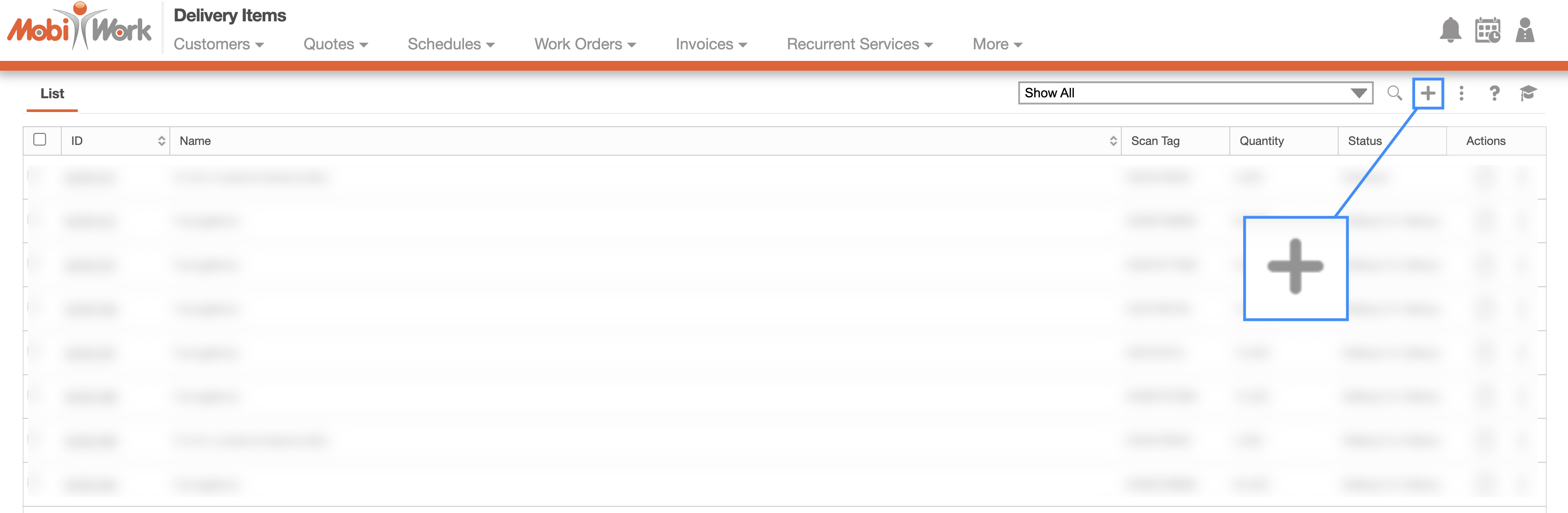
The Delivery Items pop-up window will then appear.
Adding Delivery Items from the Work Order
You can also add delivery items through the work order. When adding a work order, please ensure that the work order type is either, "Pick Up and Drop Off," "Pick Up," or "Drop Off." No other work order type will allow you to add delivery items.
The "Delivery Items" subsection will then appear in the Add Work Order pop-up window. In this subsection, click on the Plus Sign button:

The Add Delivery Item pop-up window will then appear.
After clicking on the Plus Sign button, the Add Delivery Item pop-up window will appear:
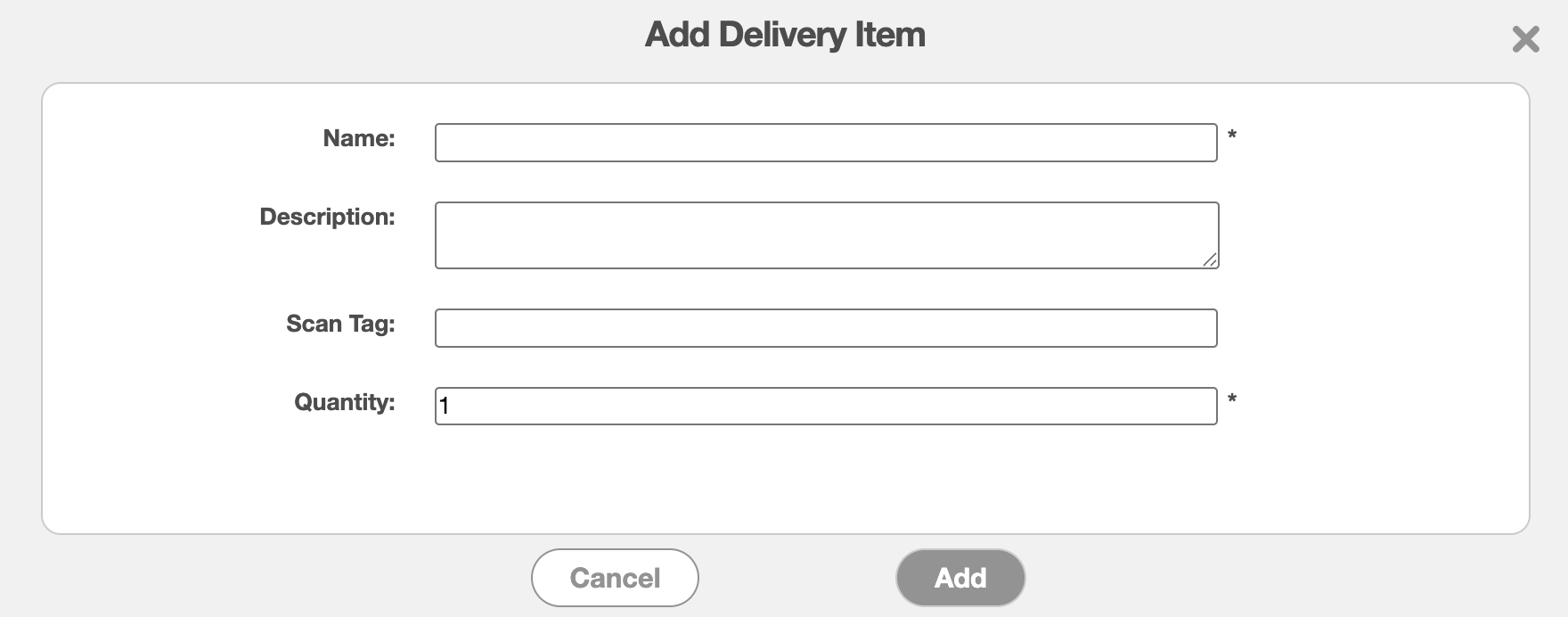
The terms listed in the Add Delivery Item pop-up window are defined below:
| Name: | Description: |
|---|---|
| "Name" | The designated name or title of the delivery item for easy identification. |
| "Description" | The description of the delivery item. The character limit for the description is 255 characters. |
| "Scan Tag" | The barcode or QR code identifier used to quickly locate and identify the delivery item. |
| "Quantity" | Shows the total quantity associated with the selected delivery item, helping you monitor available inventory and delivery stock. |
Add Delivery Item Window from the Work Order
If you add a delivery item through the Add Work Order, the user interface for the Add Delivery Item pop-up window will appear differently than if you added the delivery item from the Delivery Item List page:
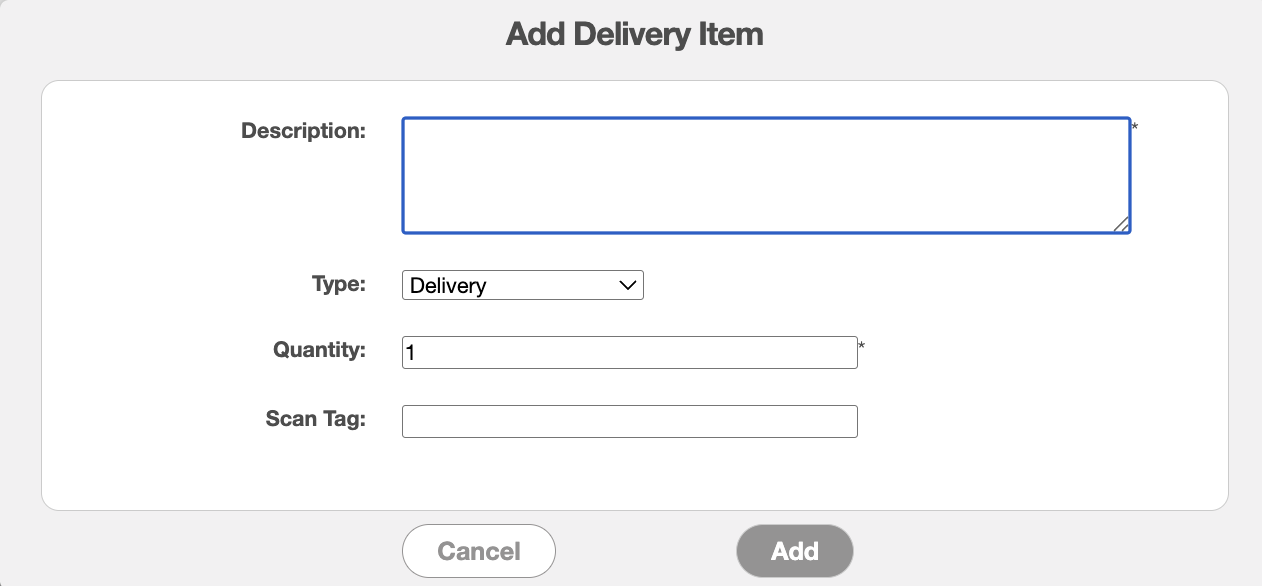
In this pop-up window, you will be able to enter the following information:
| Name: | Description: |
|---|---|
| "Name" | The designated name or title of the delivery item for easy identification. |
| "Description" | The description of the delivery item. The character limit for the description is 255 characters. |
| "Scan Tag" | The barcode or QR code identifier used to quickly locate and identify the delivery item. |
| "Quantity" | Shows the total quantity associated with the selected delivery item, helping you monitor available inventory and delivery stock. |
| "Quantity" | Shows the total quantity associated with the selected delivery item, helping you monitor available inventory and delivery stock. |
| "Quantity" | Shows the total quantity associated with the selected delivery item, helping you monitor available inventory and delivery stock. |
Once the delivery item is added to the work order, you will be able to locate it on the Delivery Item List page.
Also, once added to the work order you will be able to track the delivery item's movements through the "Inventory" section on the View Delivery Item pop-up window or through the Delivery Item Movements List page.
For more information on how to view the delivery items inventory, please see the View Delivery Items page. If you would like to see the delivery items movements, please refer to the Delivery Item Movements page.