
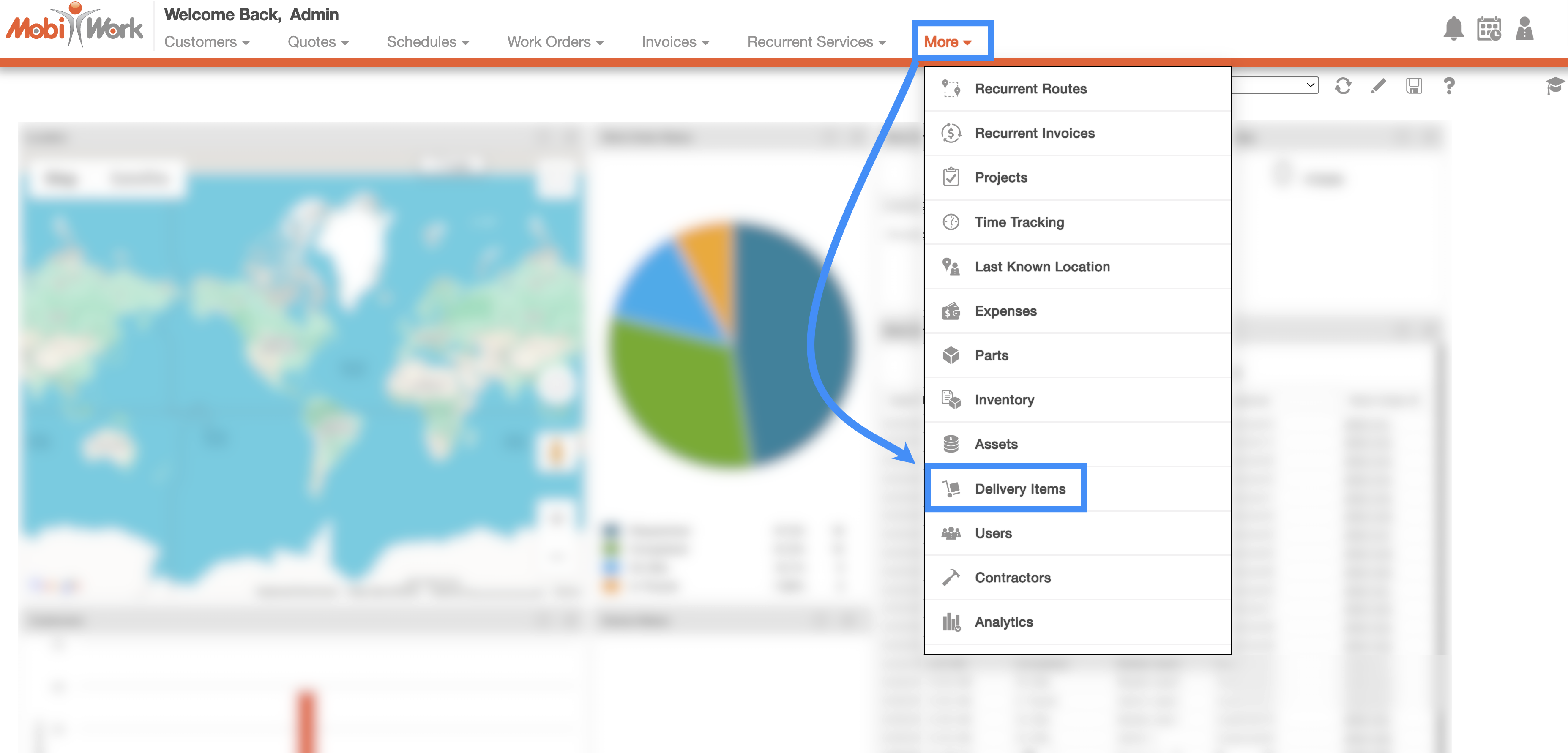
You can access the Delivery Items feature page by hovering over the Delivery Items feature from your MobiWork menu and clicking on the "View Delivery Items" option:
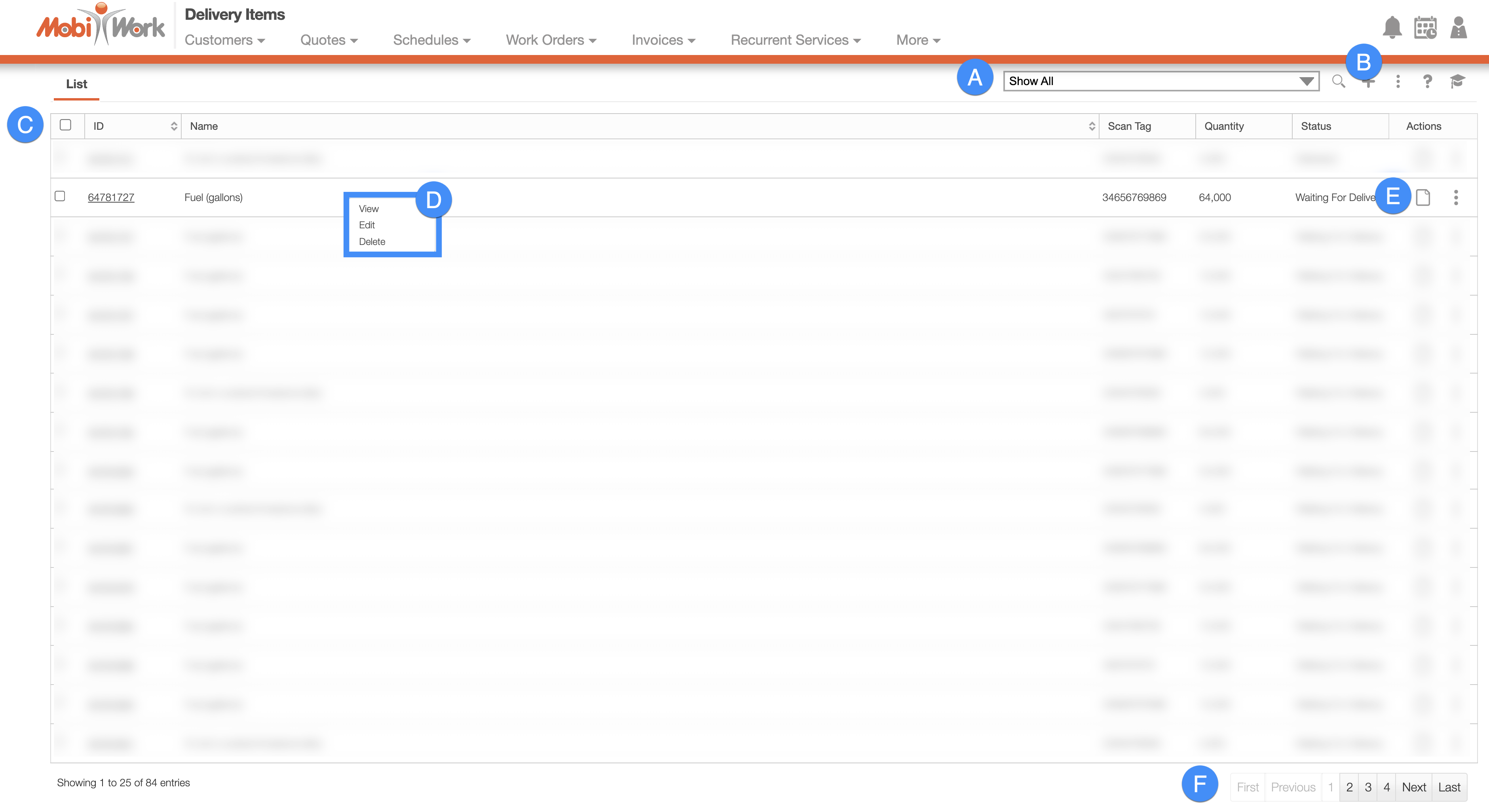
The Delivery Items "List" tab is the default tab you will be brought to once you access the Delivery Items feature page. This tab provides a centralized summary of all your delivery items, allowing you to quickly review, search, and manage delivery information from a single location. From here, you can easily access individual delivery item records and perform the actions needed to support your delivery operations.
Below is a list of the main features that are located on the "List" tab:
Free-Text Search
You can type in the search bar (free-text search) to locate a specific delivery item. Once you click in the search bar, the search drop-down menu will automatically appear. You can use the search drop-down menu or continue typing your own search parameters:

When typing in the search bar, the drop-down menu will provide some helpful search criteria. With free-text search you will also be able to search by:
The ID number of the delivery item
The name of the delivery item
If the number of delivery items surpasses the number range, the subsequent number of delivery items will be found on the next page:
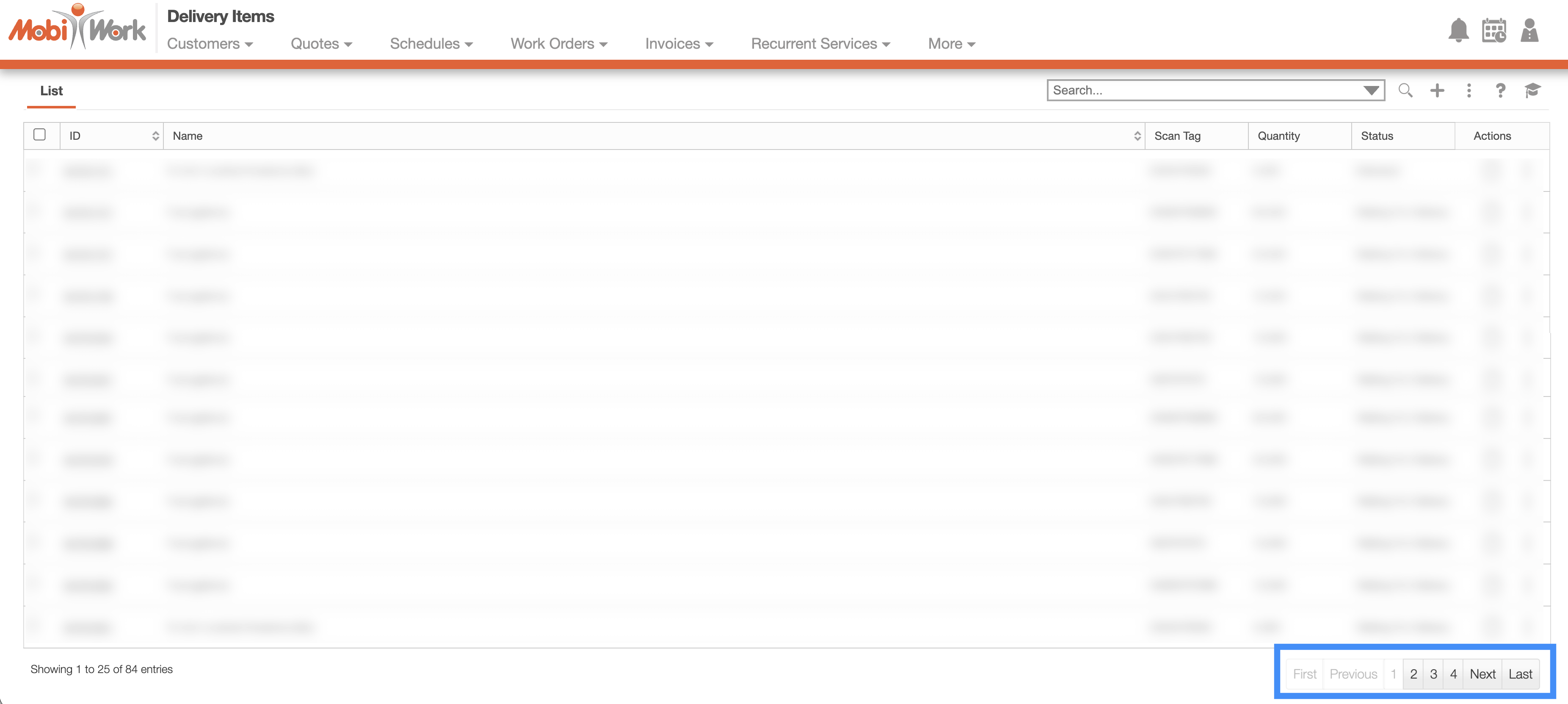
To navigate through these pages, use the First, Previous, Next, and Last buttons located towards the bottom of the Delivery Items section.
Predefined Saved Searches
Saved searches are a powerful search tool where the search-criteria has been saved for future use; to access the saved searches drop-down, click in the search bar. The default saved search for Delivery Items is the "Show All" search.
These saved searches will appear in the drop-down menu and can also be used for dashboards and reports.
You can access any of the saved searches by clicking on the "Search Area" and selecting your desired "Predefined Saved Search" from the drop-down menu:

If you would like to view all your delivery items, click on the "Show All" option from the drop-down menu:

New Search
To create a new saved search, select the "Create a New Advanced Search" option from the search menu:

After clicking on "Create a New Advanced Search" a pop-up window will appear where you can enter your data in the appropriate fields. If you would like to exit from this pop-up window you can click on the esc button from your keyboard.
Once you have finished inputting the required information, you can save the search, make it available to all users, or make it your default search:
Please note that the data used to create a saved search can also serve as the basis for generating reports in MobiWork.
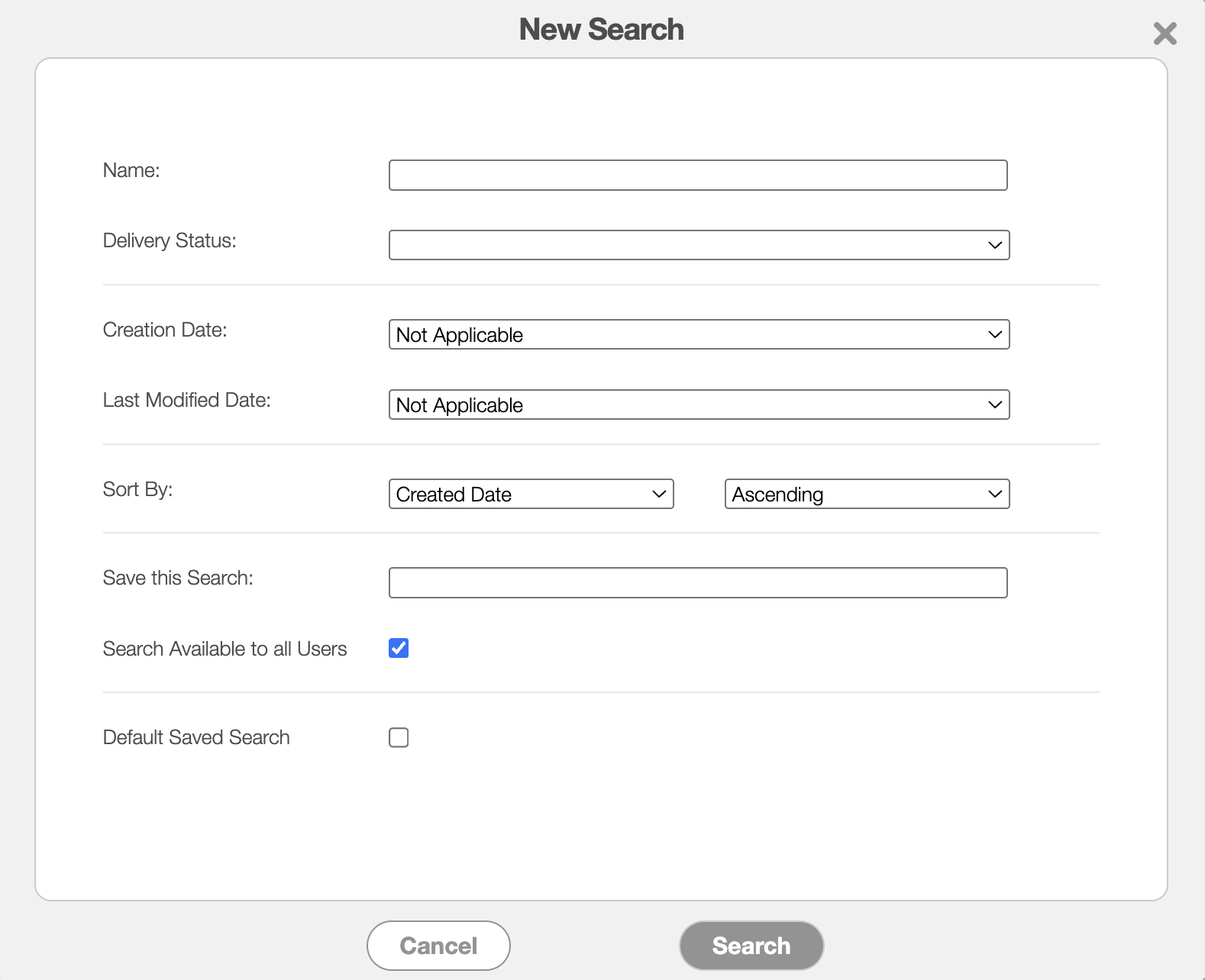
Further definitions for all the terms in the New Search pop-up window can be found below:
| Name: | Description: |
|---|---|
| "Name" | The designated name or title of the delivery item for easy identification. |
| "Delivery Status" | |
| "Creation Date" | The date that the delivery item was created in MobiWork. |
| "Last Modified Date" | The date that the delivery item was last edited. |
| "Sort By" | Sorts your search in ascending or descending order by: Name, ID, and Created Date. |
| "Save This Search" | Allows the search parameters to be saved under a name to be reused in the future. |
| "Search Available to All Users" | Allows the search to be available to all users. |
| "Default Saved Search" | Sets the saved search as the default view when accessing the search feature in the future. |
Manage Saved Searches
After creating a saved search, you can adjust the search criteria (e.g., dates, tags, categories, etc.) to include more data or to be more selective in the data that is being searched.
Please note that the data used to create a saved search can also serve as the basis for generating reports in MobiWork.
Any new searches or existing searches can be managed or edited in the Manage Saved Searches pop-up window:

To manage, edit, or remove any Saved Searches you can access the "Manage Saved Searches" option in the drop-down menu; the Manage Saved Searches pop-up window will then appear:
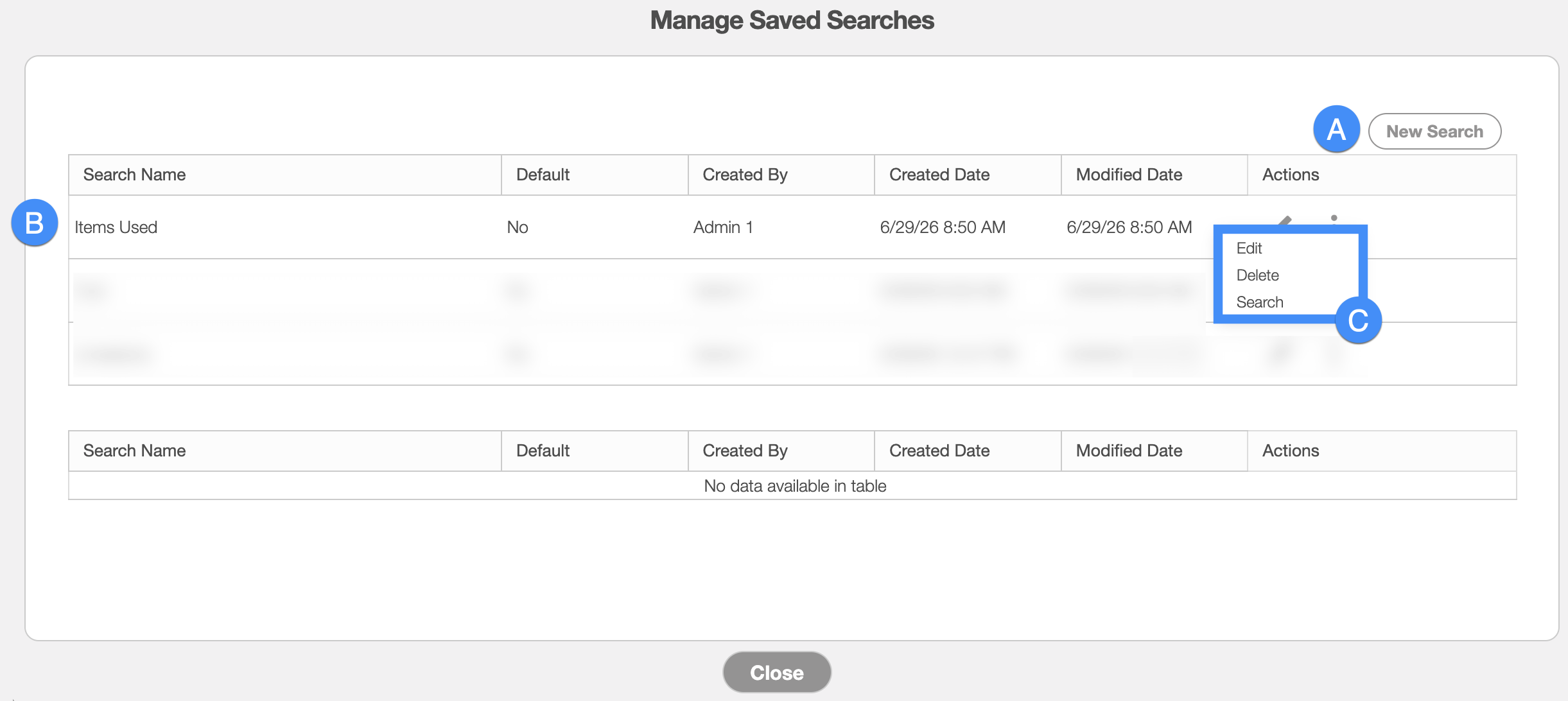
You can add a new saved search by clicking the New Search button in the top right of the pop-up window.
You can rearrange the order of the saved searches by clicking, then dragging & dropping the selected Search.
You can edit or delete a selected saved search by using the drop-down menu under the "Actions" column.
If you would like to easily close this pop-up window, you can click on the esc button from your keyboard.
The "Global Actions" section is located at the top-right of your "List" tab:
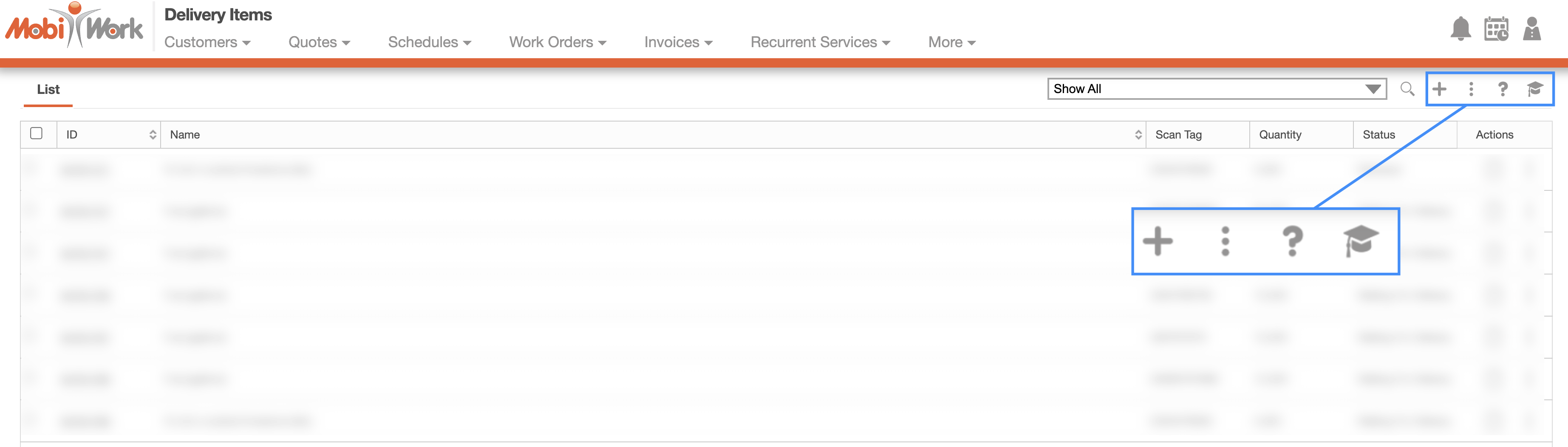
The "Global Actions" section includes:
The Plus Sign button which will allow you to quickly add a new delivery item.
The More Actions button (represented by the three vertical dots) which will allow you to access the Delivery Items Settings page.
The Question Mark button which will direct you to the respective MobiWork Features page.
The Graduation Cap which will activate the Onboarding Assistant.
After clicking on the vertical three dots in the top-right corner, the More Actions drop-down menu will appear. From this menu you can access the Delivery Items Settings page.
The "List" tab will display the data associated with the delivery item and will allow you to perform actions on the selected delivery item:
List Tab Columns
In the "List" tab, the columns are structured to display specific data related to each individual delivery item.
These columns are organized as: "ID," "Name," "Scan Tag," "Quantity," "Status," and "Actions:"

The corresponding rows under the column headings will display the relevant delivery item data.
The checkboxes (multiple selection area) found to the left of the "ID" column, will allow you to select either one or multiple delivery items to view, edit, or delete:
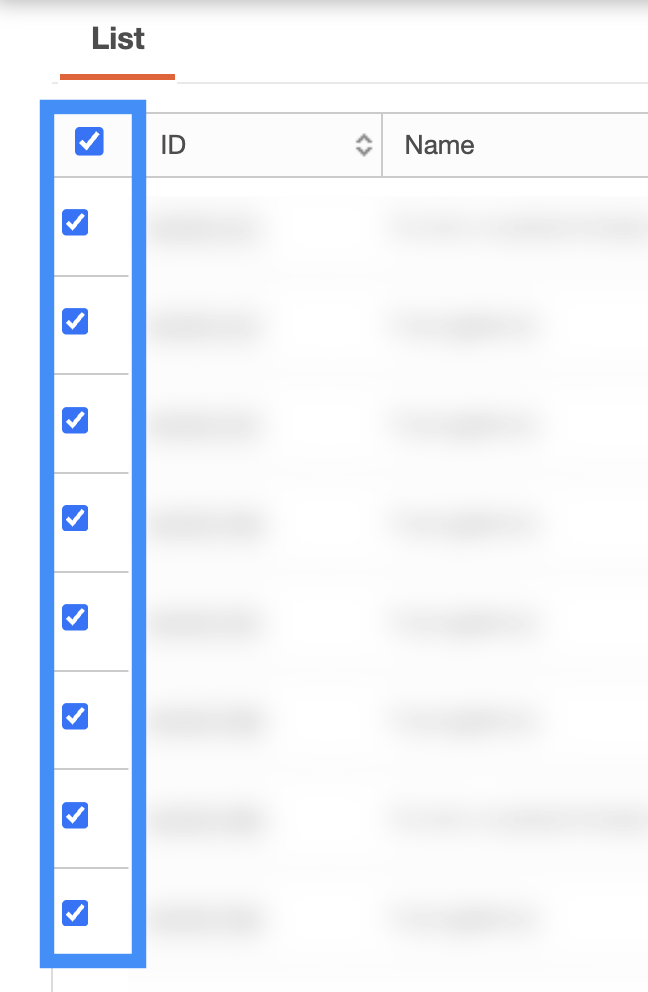
By clicking the topmost checkbox in the column heading you will select all the delivery items.
The "List" tab column headings are defined as:
| Name | Description |
|---|---|
| "ID" | A unique internal identification number assigned to the delivery item within the MobiWork system. |
| "Name" | The designated name or title of the delivery item for easy identification. |
| "Scan Tag" | |
| "Quantity" | The total quantity of delivery items that is available. |
| "Status" | The status of the delivery item. The status can be "Waiting for Delivery," "Delivered," "Partially Delivered," "Rejected," "Received and Ready for Delivery," and "Received Damaged." The pick-up status will not influence the status in this column. |
| "Actions" | Allows you to view, edit, or delete the selected delivery item |
List Tab Individual Actions
When selecting a delivery item and clicking on the Individual Actions button (the three vertical dots under the "Actions" column) you will be able to view, edit, or delete the selected delivery item.
Any actions that are done with the Individual Actions button will only apply to the selected delivery item:
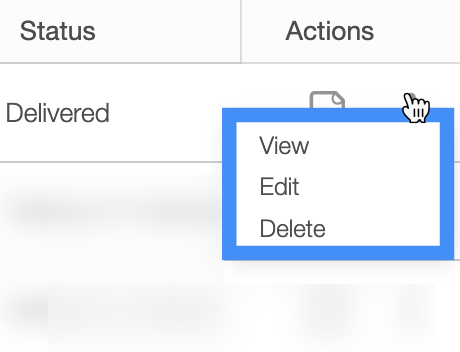
The View icon found under the "Actions" column will allow you to quickly access the View Delivery Items pop-up window of the selected delivery item:

The options that are displayed when you select the Individual Actions button are also available under the right-click actions.
List Tab Right-Click Actions
When right-clicking with your mouse on a user in the "List" tab, you will be able to view, edit, or delete the selected delivery item.
The options that are displayed when you right-click on a delivery item are also available when you select the Individual Actions button.
Any actions that are done with the right-click actions will only apply to the selected delivery item:
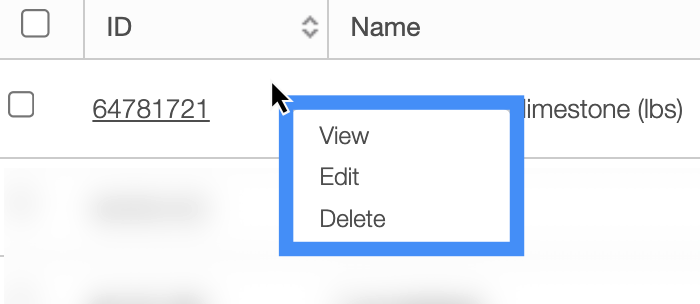
The definitions for the actions found in the Individual Actions and when you right-click in the "List" tab are below:
| Name | Description |
|---|---|
| "View" | Opens the View Delivery Item pop-up window. |
| "Edit" | Edits the selected delivery item. |
| "Delete" | Deletes the selected delivery item. |