
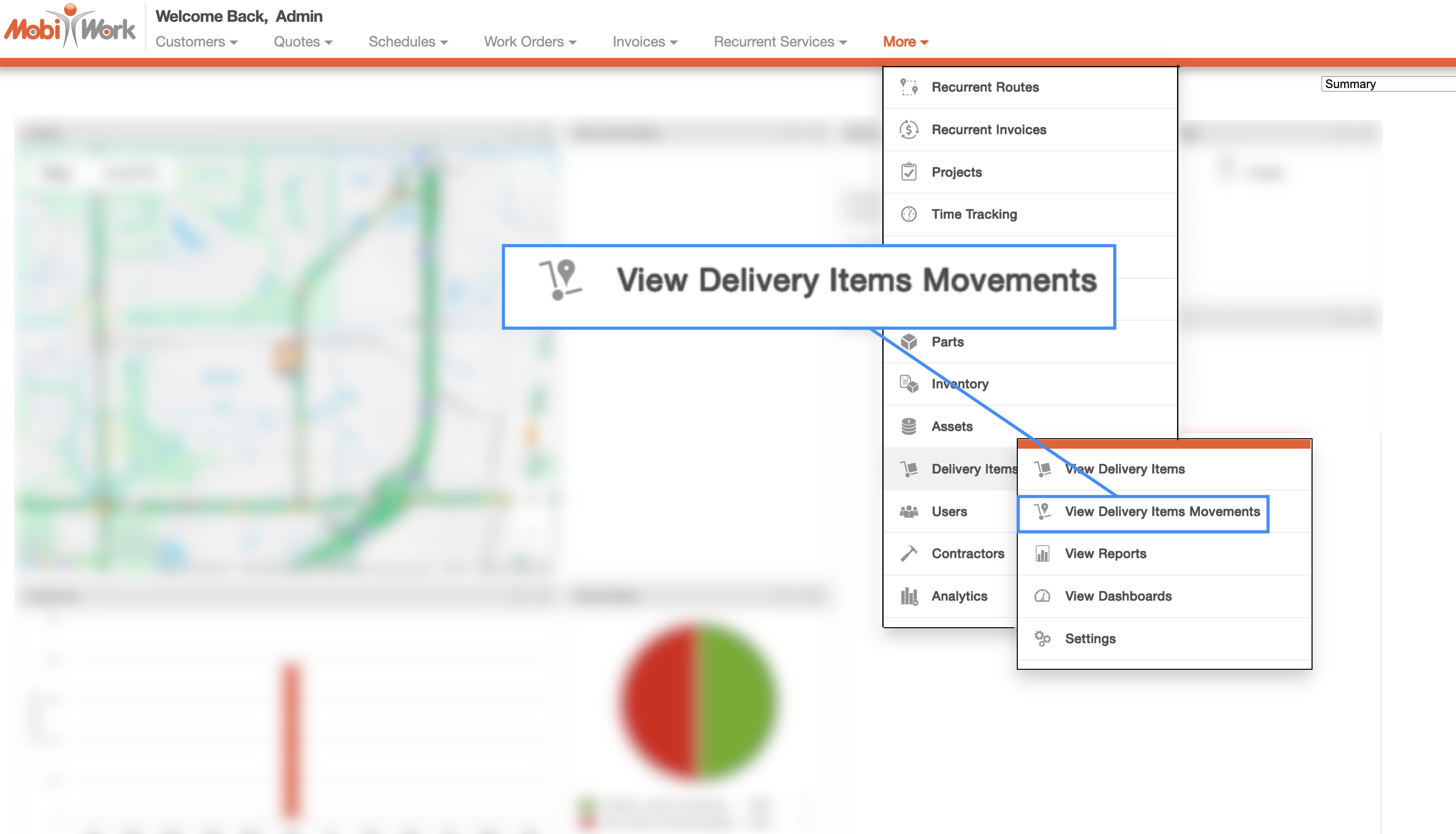
You can access the Delivery Items Movement List page by hovering over the Delivery Items feature from your MobiWork menu and clicking on the "View Delivery Items Movements" option when it appears:
To populate the Delivery Items Movement List page, you will first need to add a work order and ensure that the work order type is set to either "Pick Up and Drop Off," "Pick Up," or "Drop Off."
For this example, we will use the "Pick Up" and "Drop Off" work order type. Once the correct work order type is selected, the "Delivery Items" panel will appear. Click the Plus Sign button to add the new delivery item:

For further details on adding a delivery item, please see the Add Delivery Items page. For information on how to add a work order, please see the Add Work Order page.
On the View Work Order you will notice the "Delivery Items" panel. In this panel, you will be able to edit, view, transfer quantity, and more of the selected delivery item:
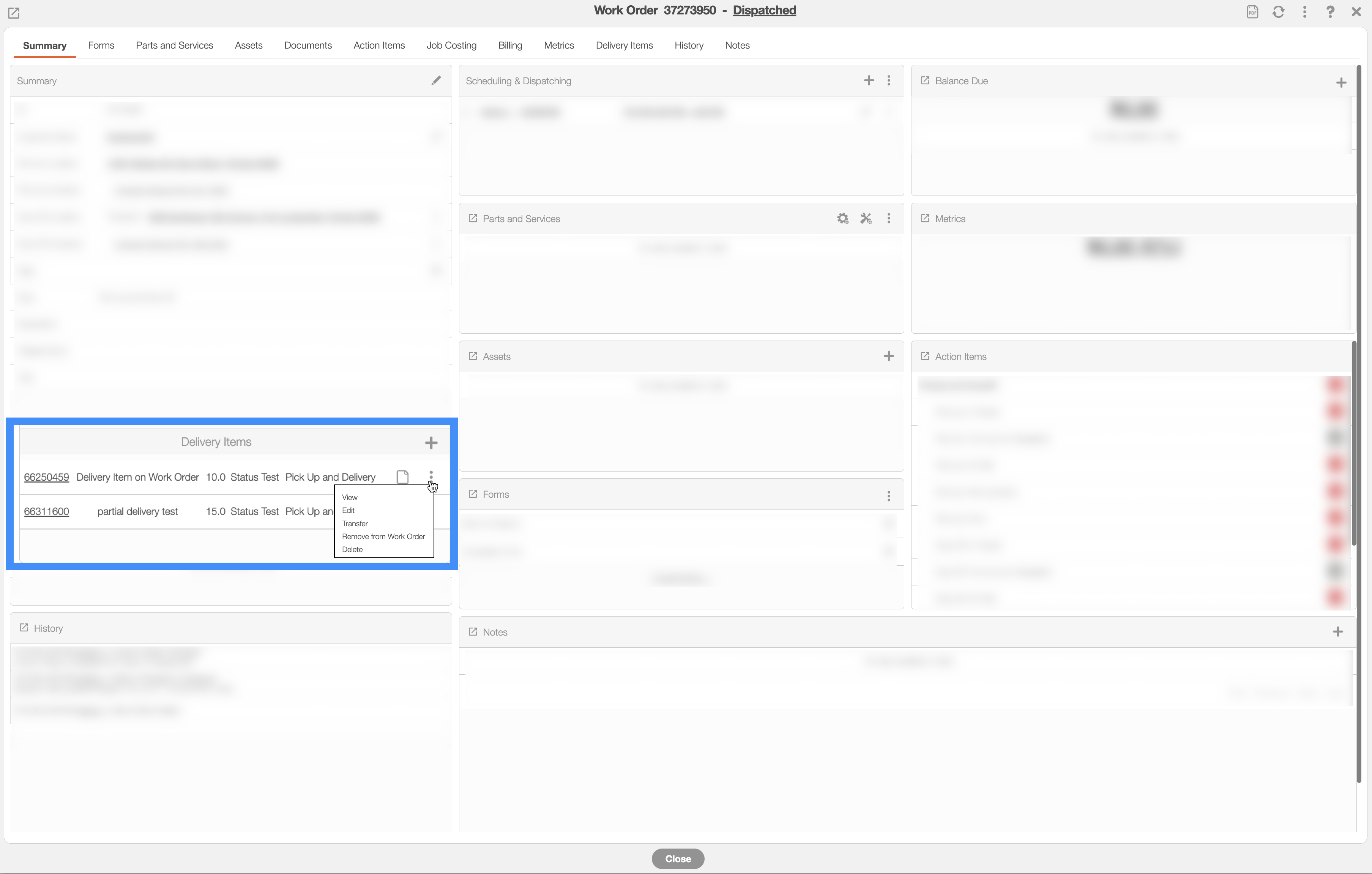
You will also be able to add additional delivery items by clicking the Plus Sign button. To complete the use of the delivery item, first dispatch the work order and have the user complete the work order from the MobiWork mobile app.
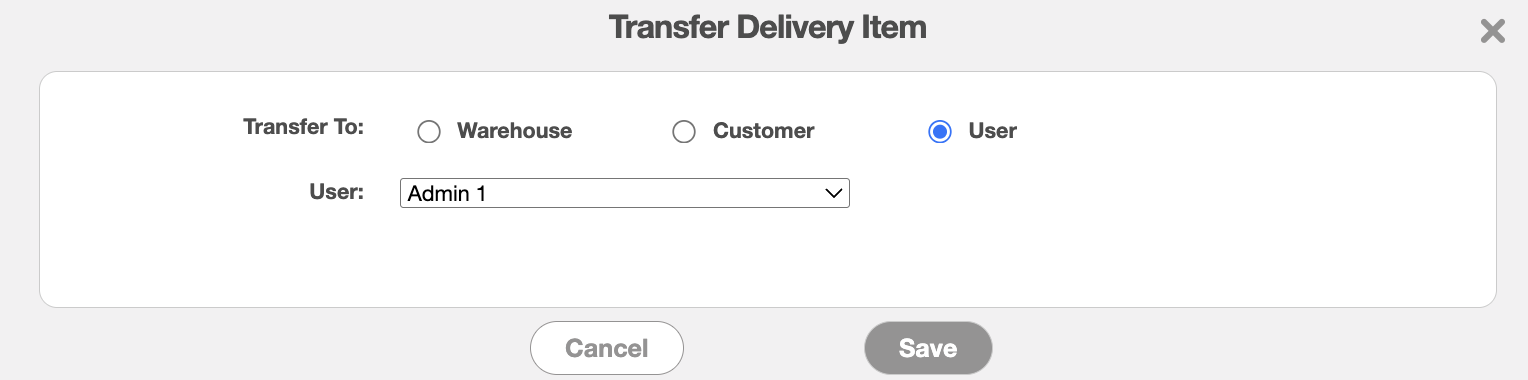
From this panel, you will also be able to transfer the delivery items to transfer another user, customer or warehouse. Simply select the "Transfer" option from the Individual Actions of the respective delivery item:
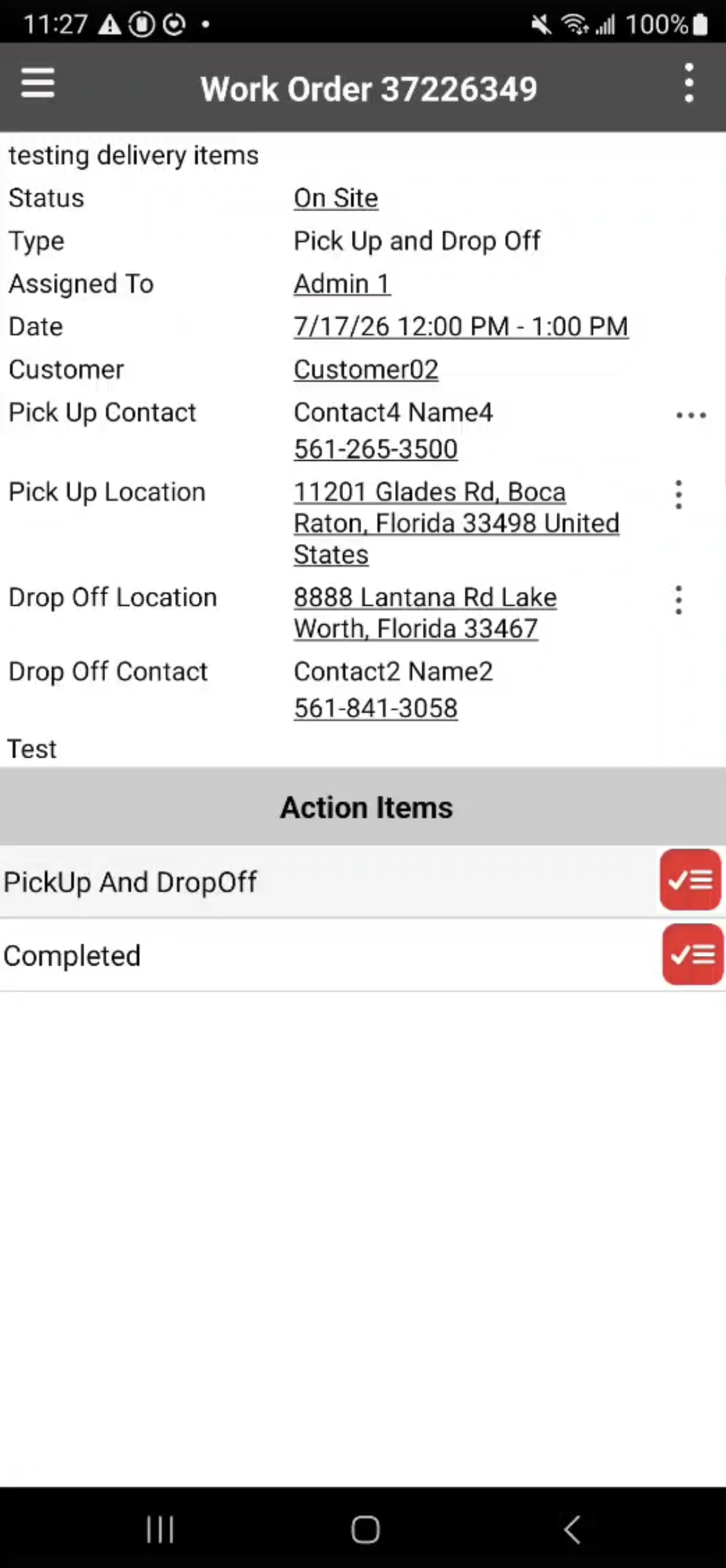
Once the work order has been dispatched, you can access it from the MobiWork mobile app. Open the work order and complete the required Action Items. For this example, we will use the "Pick Up" and "Drop Off" work order type. Click on the Pick Up and Drop Off tile to begin:
You will then be redirected to the Pick Up and Drop Off page:
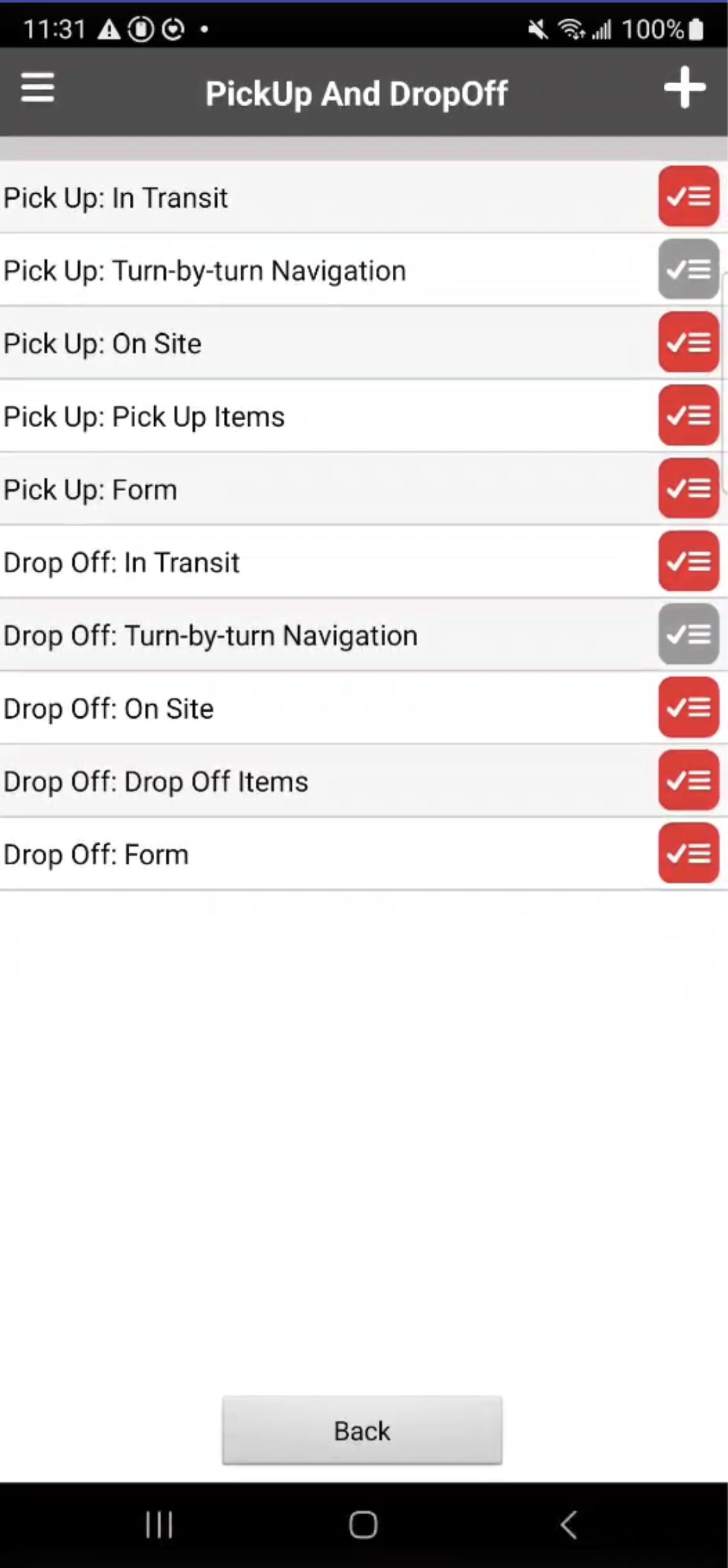
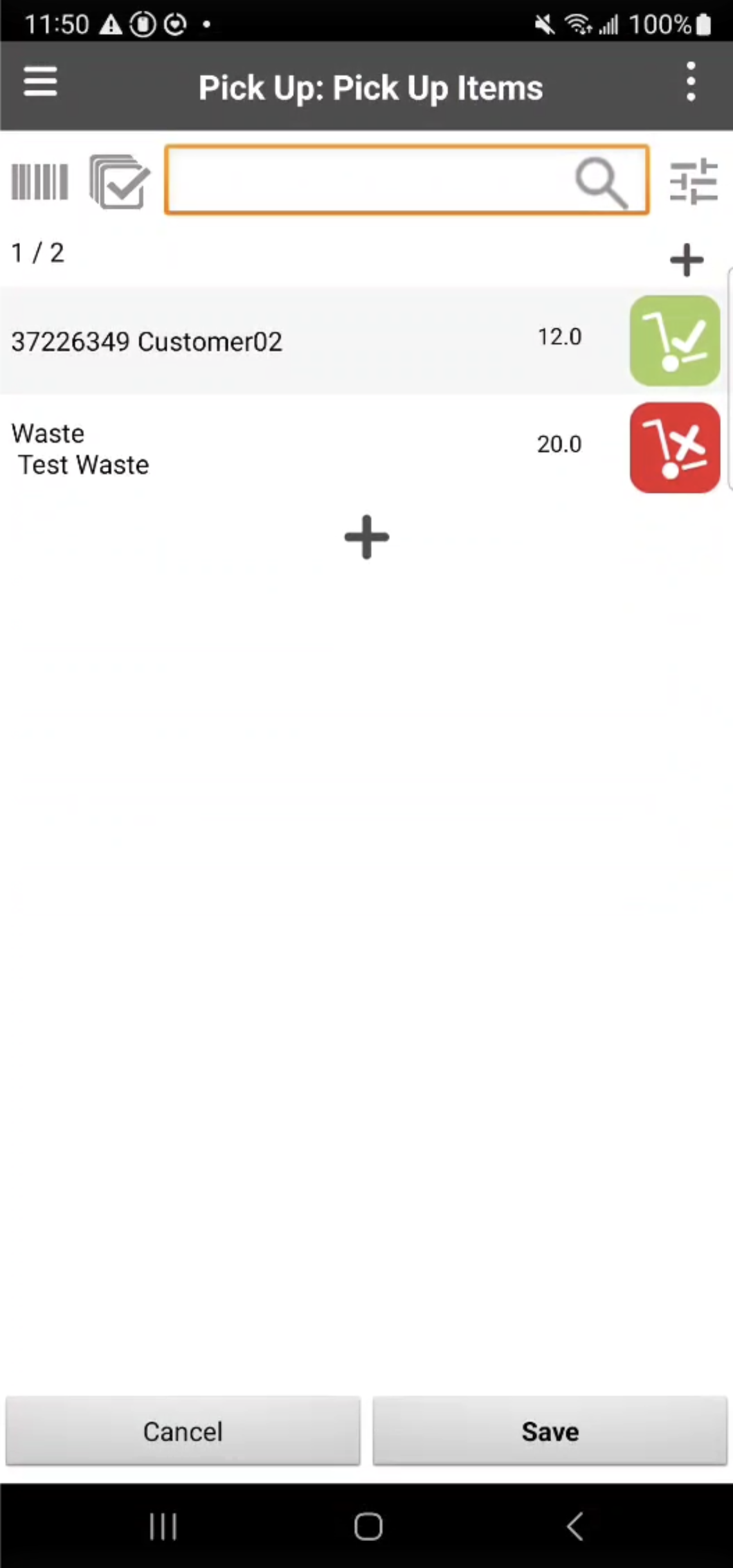
On this page, complete the Pick Up tiles; once you get to the Pick Up: Pick Up Items tile, you will be able to indicate which delivery items are being picked up as well as the specified quantity.
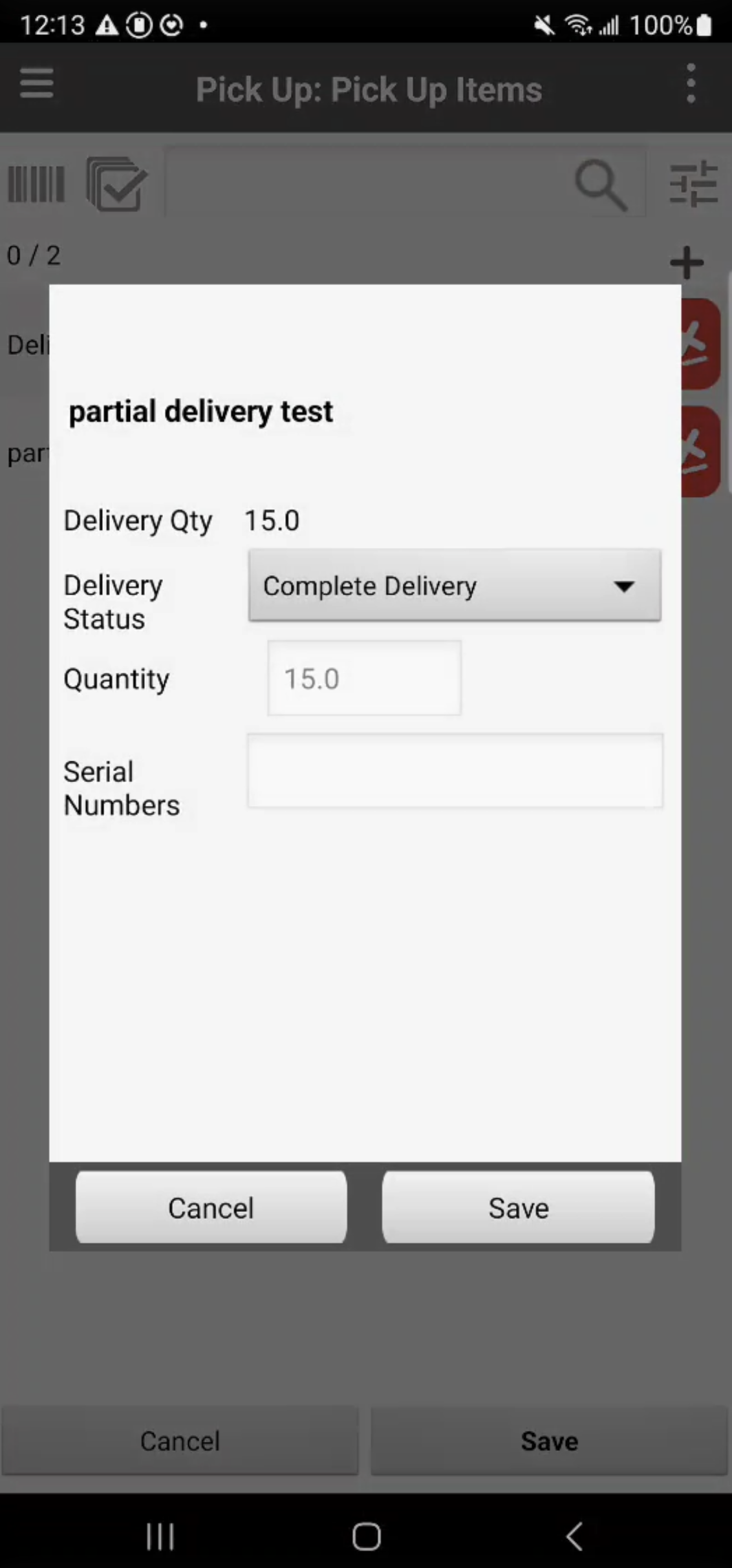
If a delivery item supports partial deliveries, you will have the option to specify the exact quantity being picked up or delivered when adding the item to the work order:
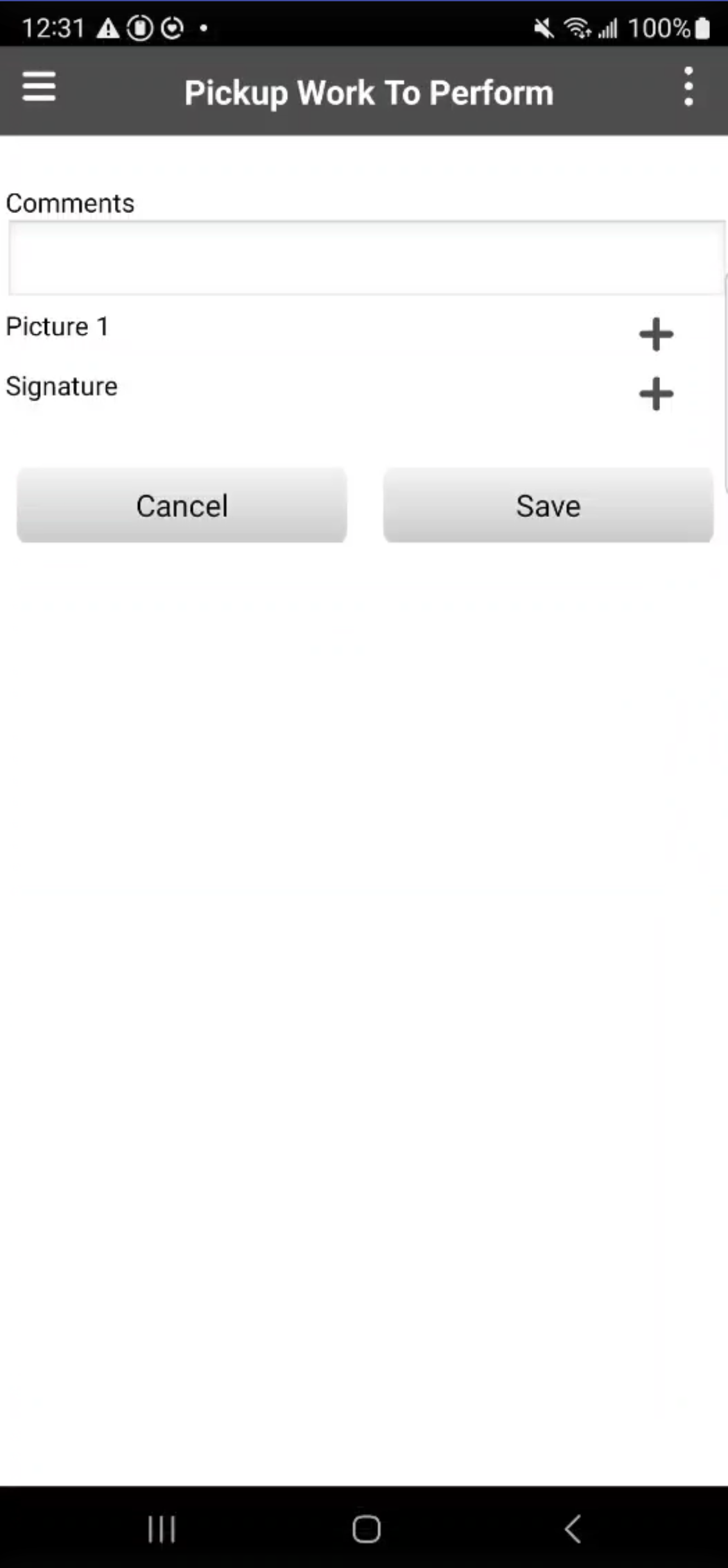
You can complete the Pick Up: Form tile to record the delivery items being collected, take a picture of the items, and sign for them:
The same process will be repeated for the drop off actions; however, this time complete the Drop Off tiles.
Once you reach the Drop Off: Drop Off Items tile, you can indicate which delivery items and their respective quantities will be dropped off.
Then complete the Drop Off: Form to record the delivery items being dropped off, the corresponding photographs of the delivery items, and signature.
After all the Pick Up Items and Drop Off tiles have been completed and the work order is marked as Completed, MobiWork automatically updates the delivery item records. The delivered quantities are reflected on the Delivery Items Movement List page, and the corresponding "Work Orders/Forms" section, or the "Inventory" for each delivery item is updated to provide a complete history of its movement and delivery status.
This automated workflow ensures accurate inventory tracking, provides a clear audit trail for every delivery item, and keeps your delivery records synchronized between the mobile app and the web platform.
Once the delivery items have been added to the work order, the "Work Orders/Forms" section will populate accordingly:

From this section, you will be able to see the work order that the delivery items are attached to, the work order type, and more.
After the delivery items have been picked up or dropped off, then the "Inventory" section will also populate:

This section will display the quantity transferred, who received the items, and more.
Once delivery items have been added to a work order and the corresponding pickup and drop-off activities have been completed, each movement is automatically recorded on the Delivery Items Movement List page:

While this List page is intended for viewing purposes only and does not support record edits, it provides a comprehensive history of every delivery item movement. From this page, you can review transfer events, view the associated customer, identify the user who initiated the transfer, see the movement date and time, and access other relevant tracking information.
By maintaining a complete audit trail of all delivery item movements, MobiWork helps improve accountability, enhance traceability, and provide full visibility into the lifecycle of every delivery item.