
There are several different ways to delete your delivery items. The following subsections will go into detail on how to delete your delivery items.
Deleting Delivery Items from the List Page
To delete any delivery items, you first need to be on the Delivery Items List page. For more information about this page, please see the Delivery Items List page for more information:
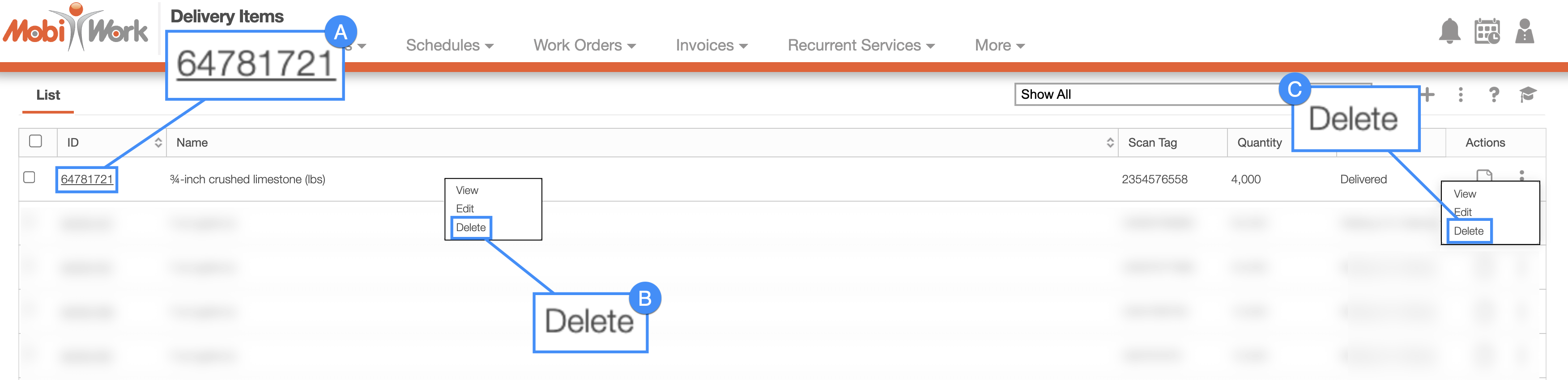
Select the desired delivery item ID and once the View Delivery Item pop-up window appears, click on the Individual Actionsi button. From the drop-down choose the "Delete" option:
Right-click on the selected delivery item and choose the "Delete" option.
Click on the Individual Actions button and from the drop-down choose the "Delete" option.
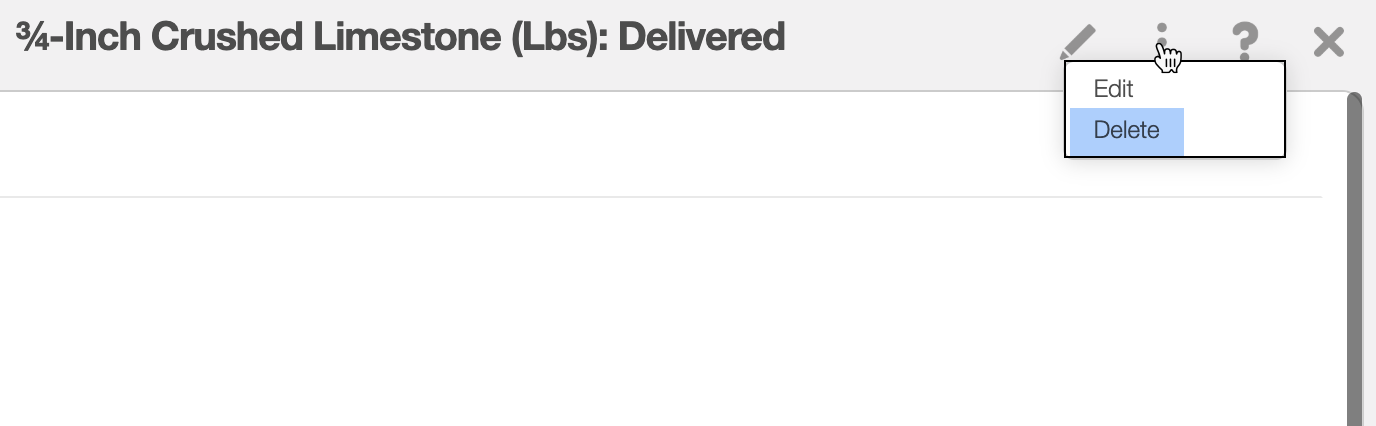
Deleting Delivery Items from the Work Order
You can also delete delivery items from the corresponding work order as well. To delete the delivery items directly from the View Work Order pop-up window, first click on the Individual Actions button and from the drop-down, select the "Delete" option:
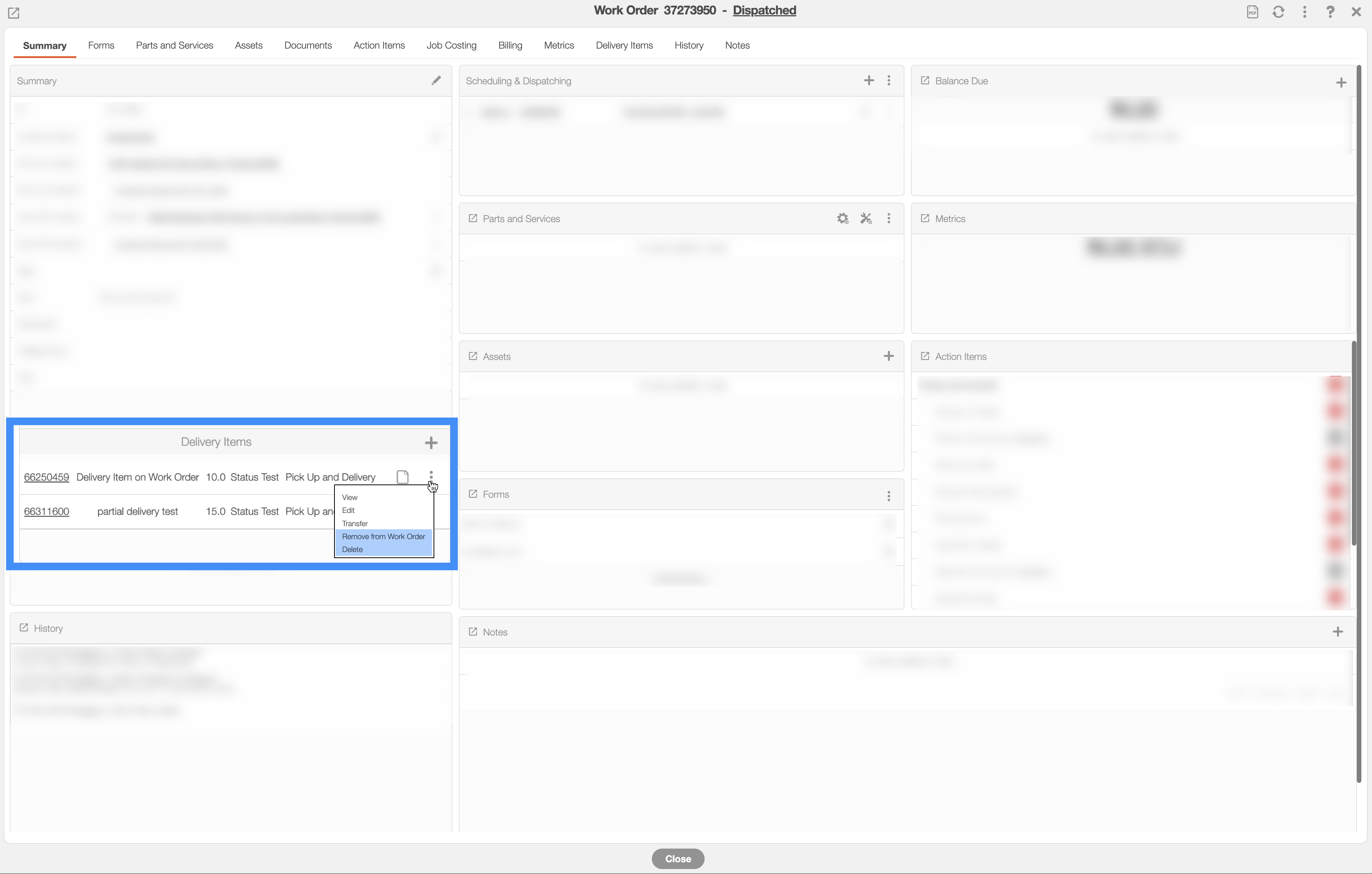
You can select the "Remove from Work Order" option if you would like to remove the delivery items from the work order without deleting the delivery items entirely.
Regardless of how you choose to delete an individual delivery item, the Delete Delivery Item pop-up window will automatically appear:
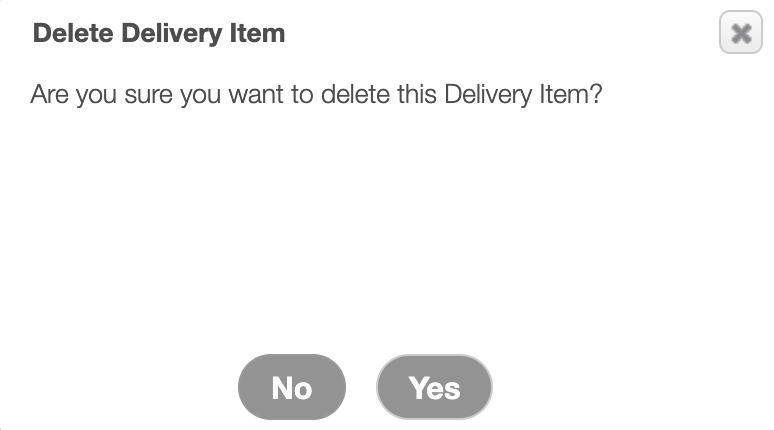
If you are sure you would like to delete the selected delivery item, click the Yes button. Please note that this action is permanent and all references to the delivery item will become invalid.