
To allow your customers to finance invoices using Affirm or Klarna, please ensure that these payment methods are properly enabled in your Stripe account.
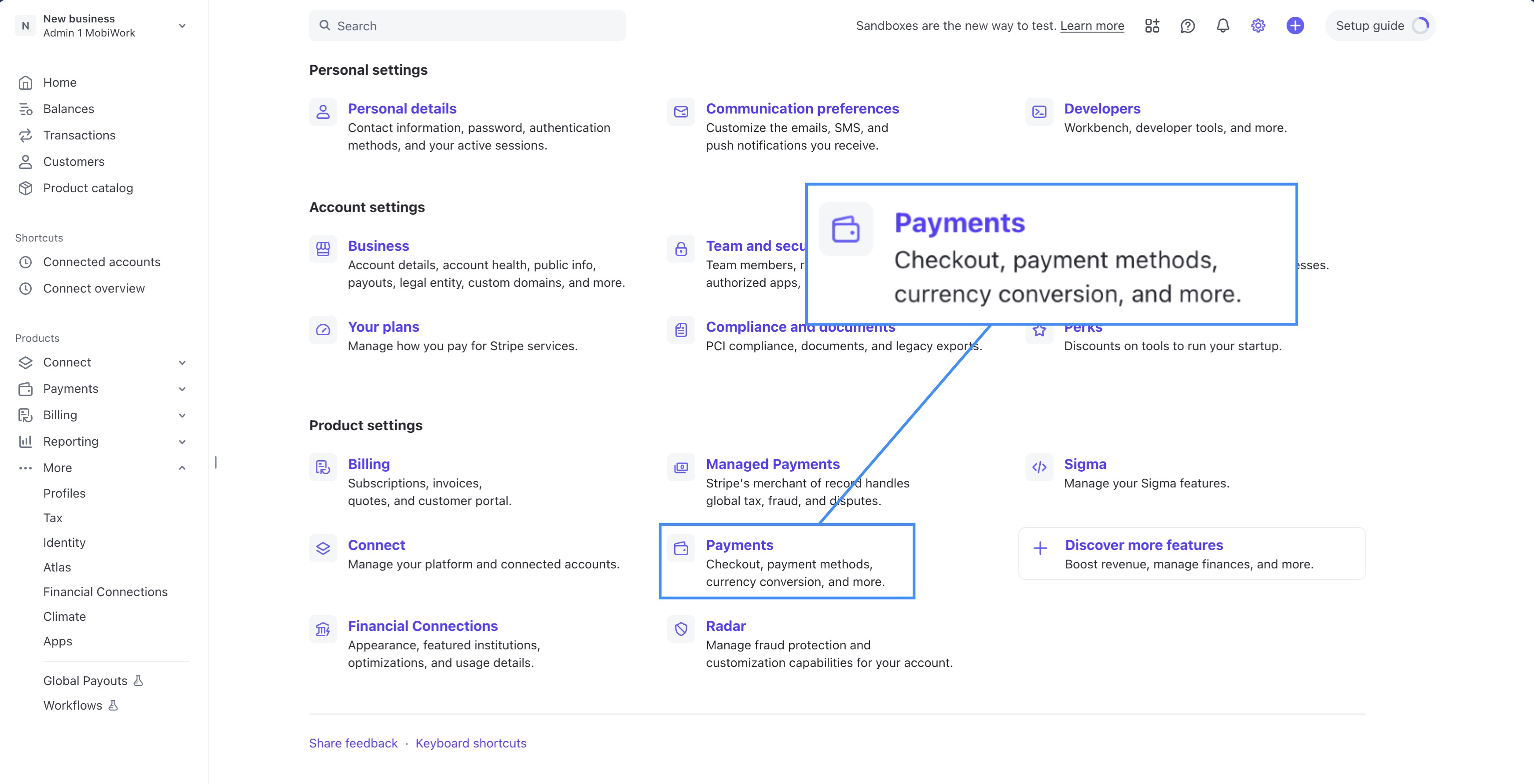
To get started, log in to your Stripe account and access the "Payments" option from the "Settings" menu. This will take you to the Payments page:
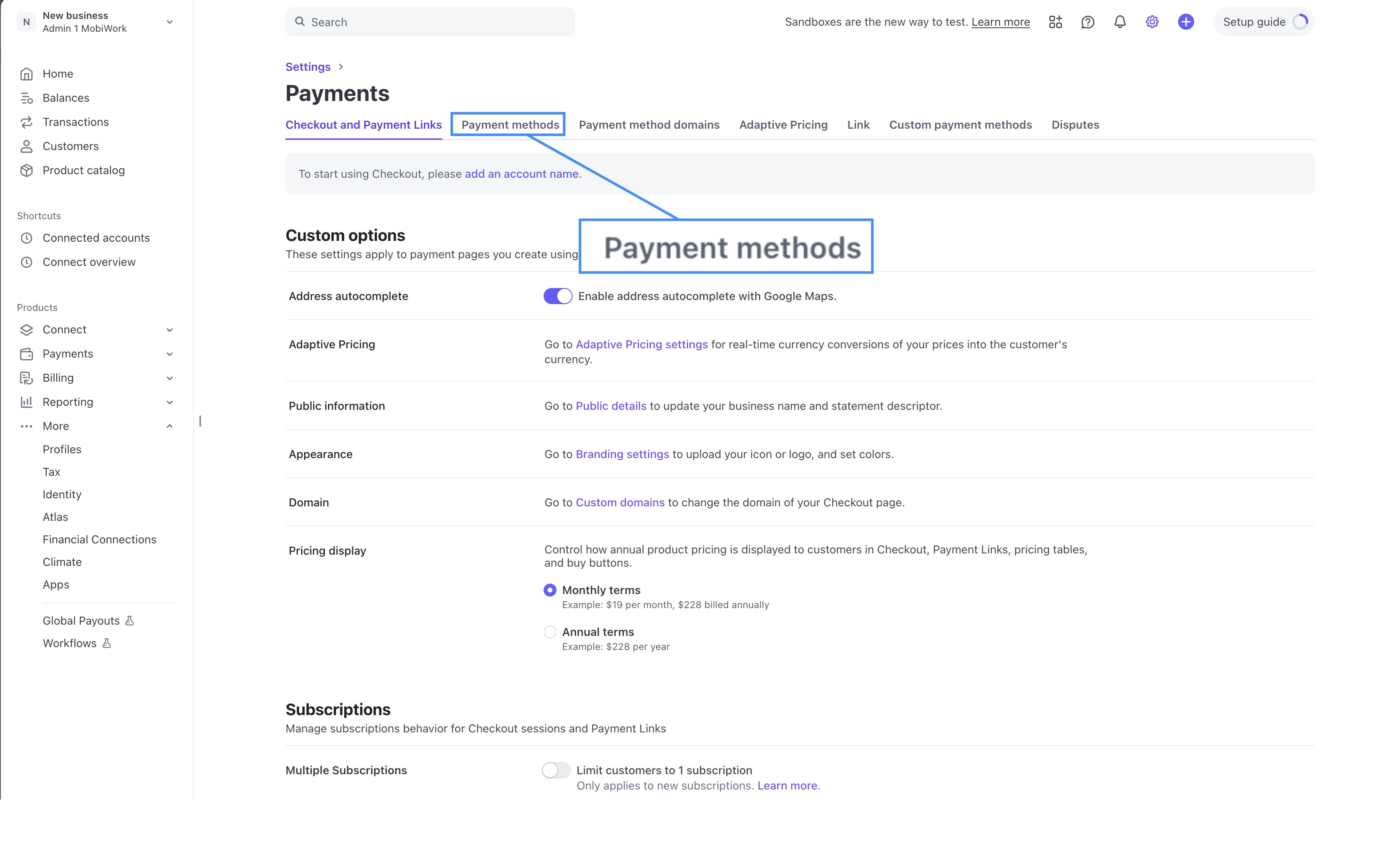
From there, select the "Payment Methods" tab:
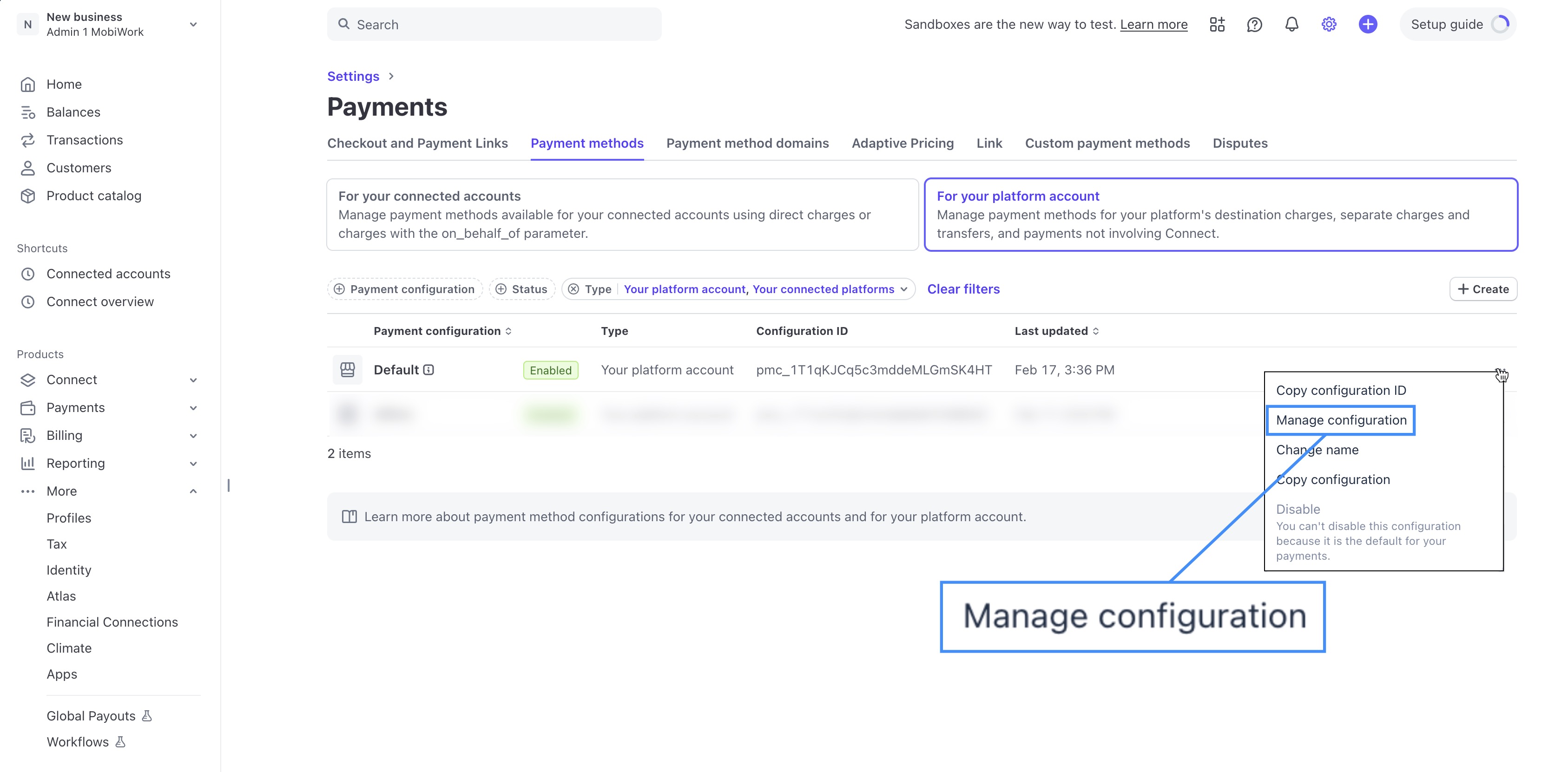
On the "Default Configuration" option, click on the Three Dots button and from the drop-down select the "Manage Configuration" option:
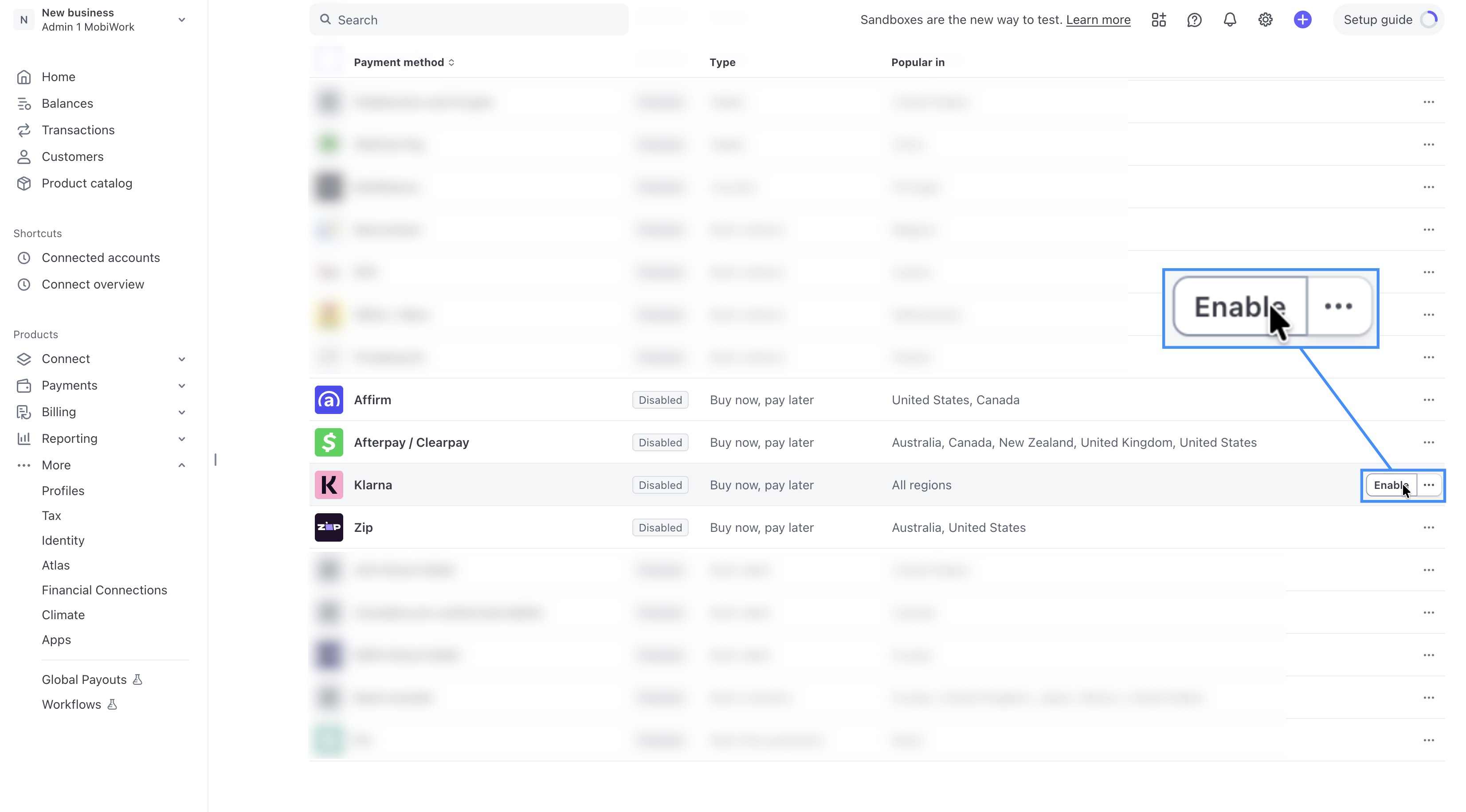
Scroll down until you locate the desired payment method, and then click on the Enable toggle:
Note: When setting up Zip in your Stripe dashboard, it might be pending approval for use. You will neeed to wait for approval in order to use this payment method.
The payment methods will then be enabled for your Stripe account, thus your customers will be able to access Affirm, Afterpay, Klarna or Zip when checking out. For additional information, please see the:
Flexible payment options in minutes with Klarna on Stripe page.
The Affirm payments page.
or the Accept popular payment methods with a single integration page.
Note: Please note that the customer will need to create an account with their chosen payment method in order to complete the transaction. If they do not have an Affirm, Klarna, Zip, or Afterpay account they will be unable to use their selected payment option to pay for the invoice.
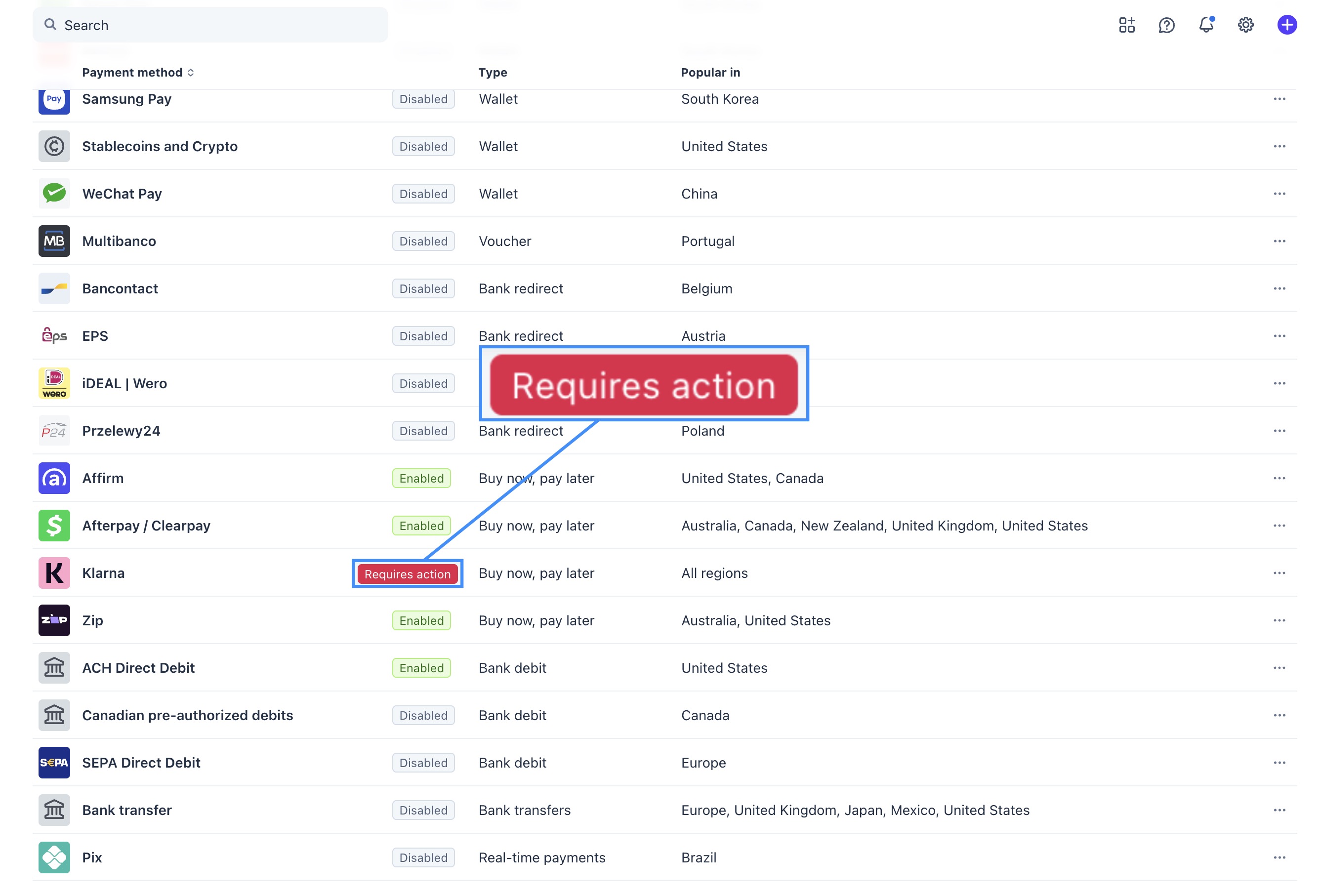
If your selected payment method displays a notification indicating that a domain must be submitted, please follow the steps below to resolve the issue.
Navigate to the "Payment Methods" tab and scroll down to the selected payment option. Click on the desired payment method to open its settings:
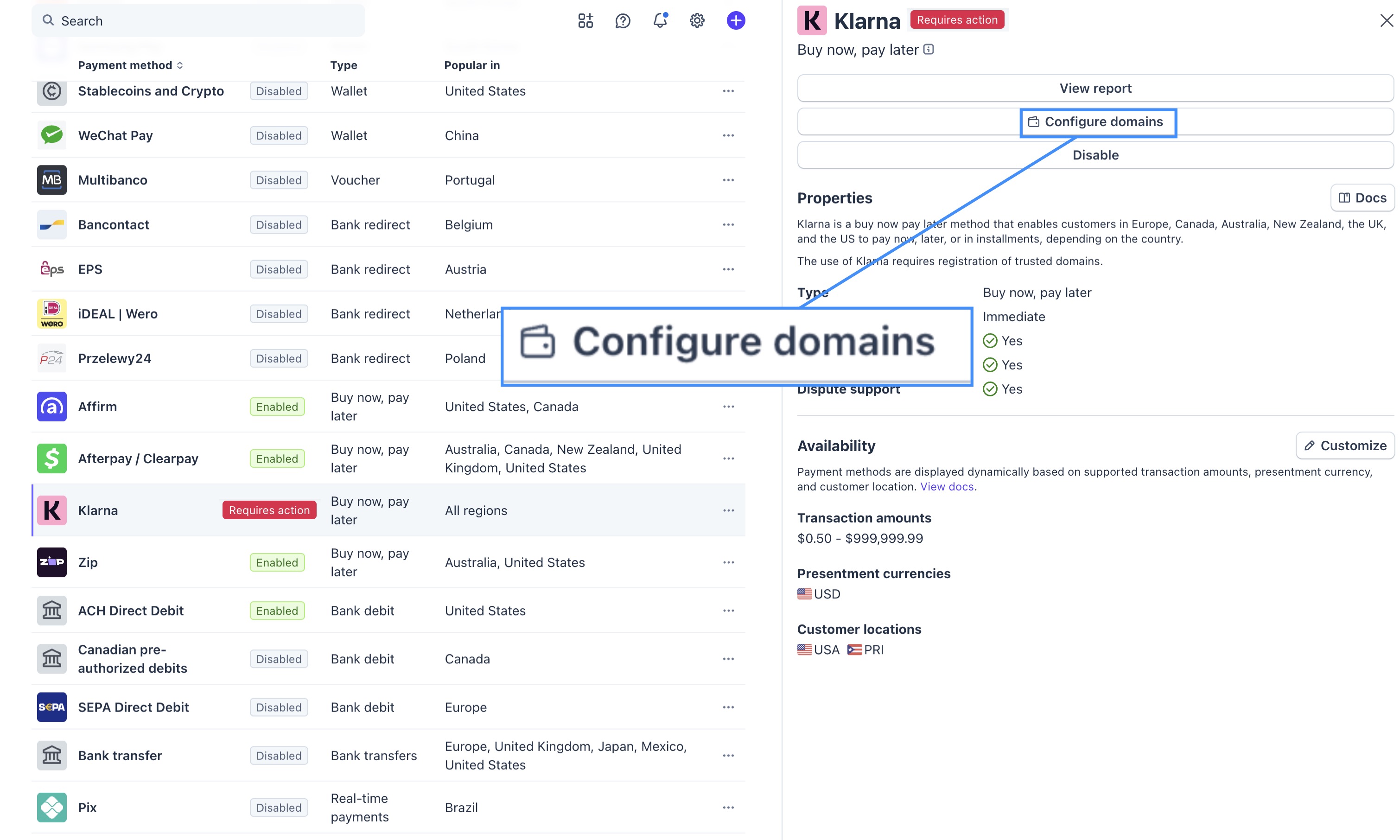
In the side panel that appears, select the Configure Domains button. You will be redirected to the "Payment Method Domains" tab:
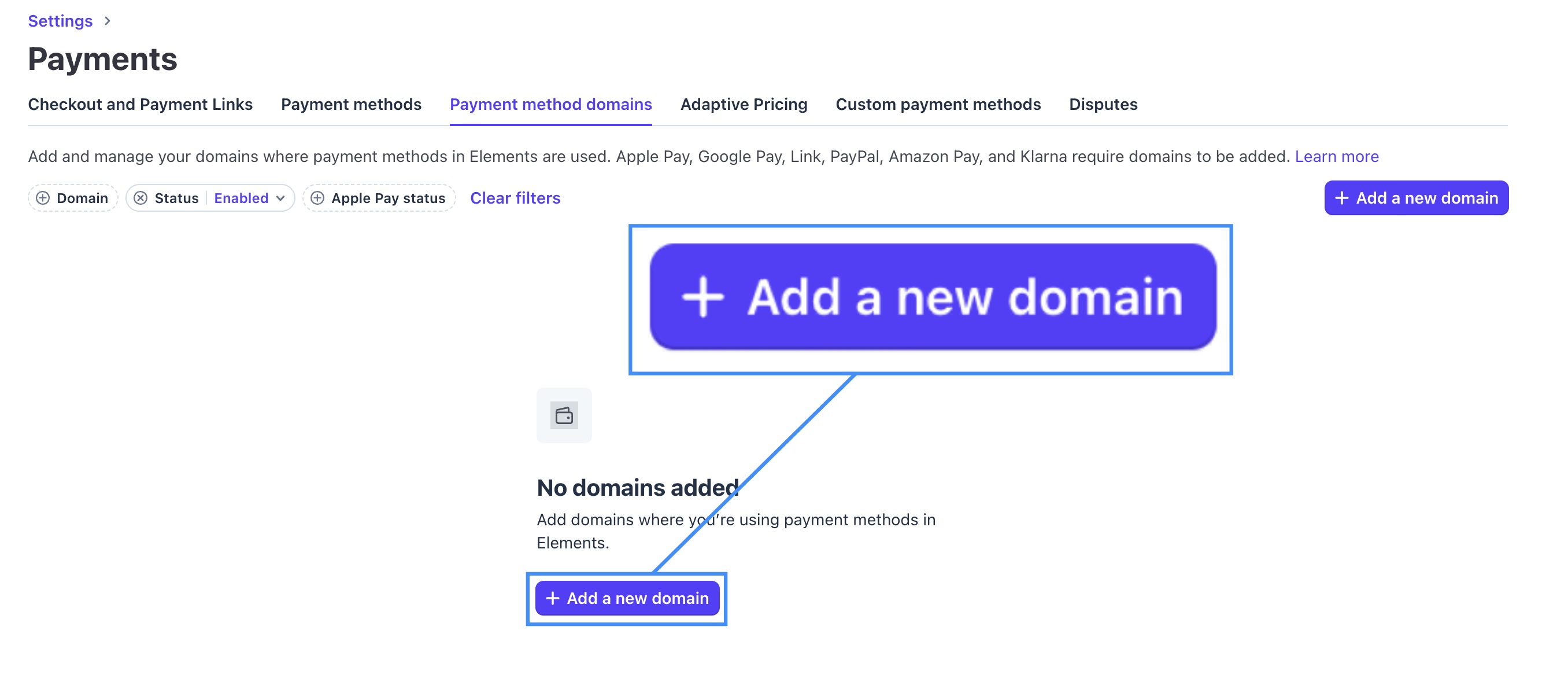
On this tab, click on the + Add a New Domain button:
In the side panel that appears, enter your company's web address and then click the Save button:
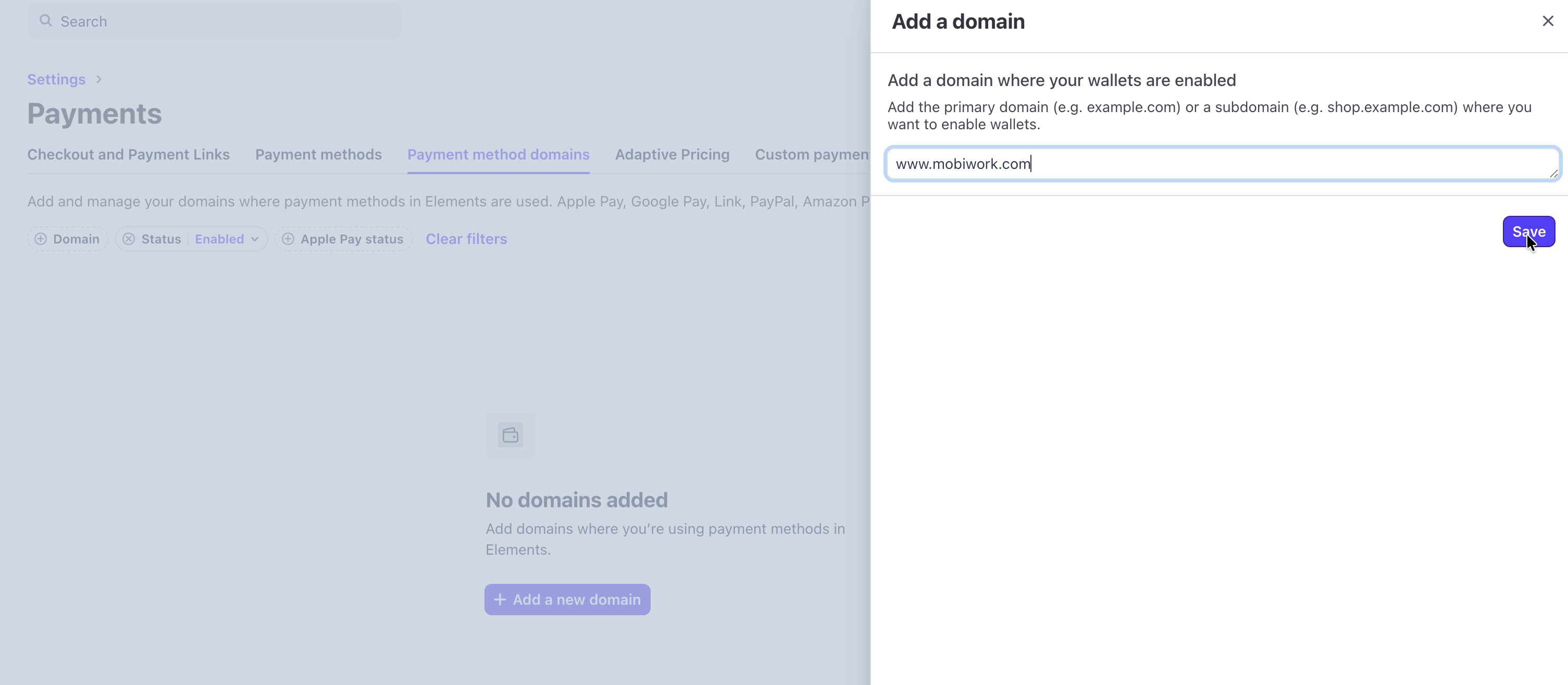
Once completed, the Requires Action label will be removed from the payment method, and it will be available for processing payments in MobiWork.
After sending the invoice to the customer, they can choose their preferred payment option when completing the payment. For more information on how to email or text an invoice to a customer, please see Send an Invoice for Review & Payment.
When the customer opens the message and views the invoice, they can select their desired payment method.
In the payment window, choose "Credit Card" option from the "Payment Method" drop-down. The customer will then have the option to select Affirm, Afterpay, Klarna or Zip, if enabled:
Once selected, the customer will be prompted to log in and complete the necessary steps to finalize their payment.
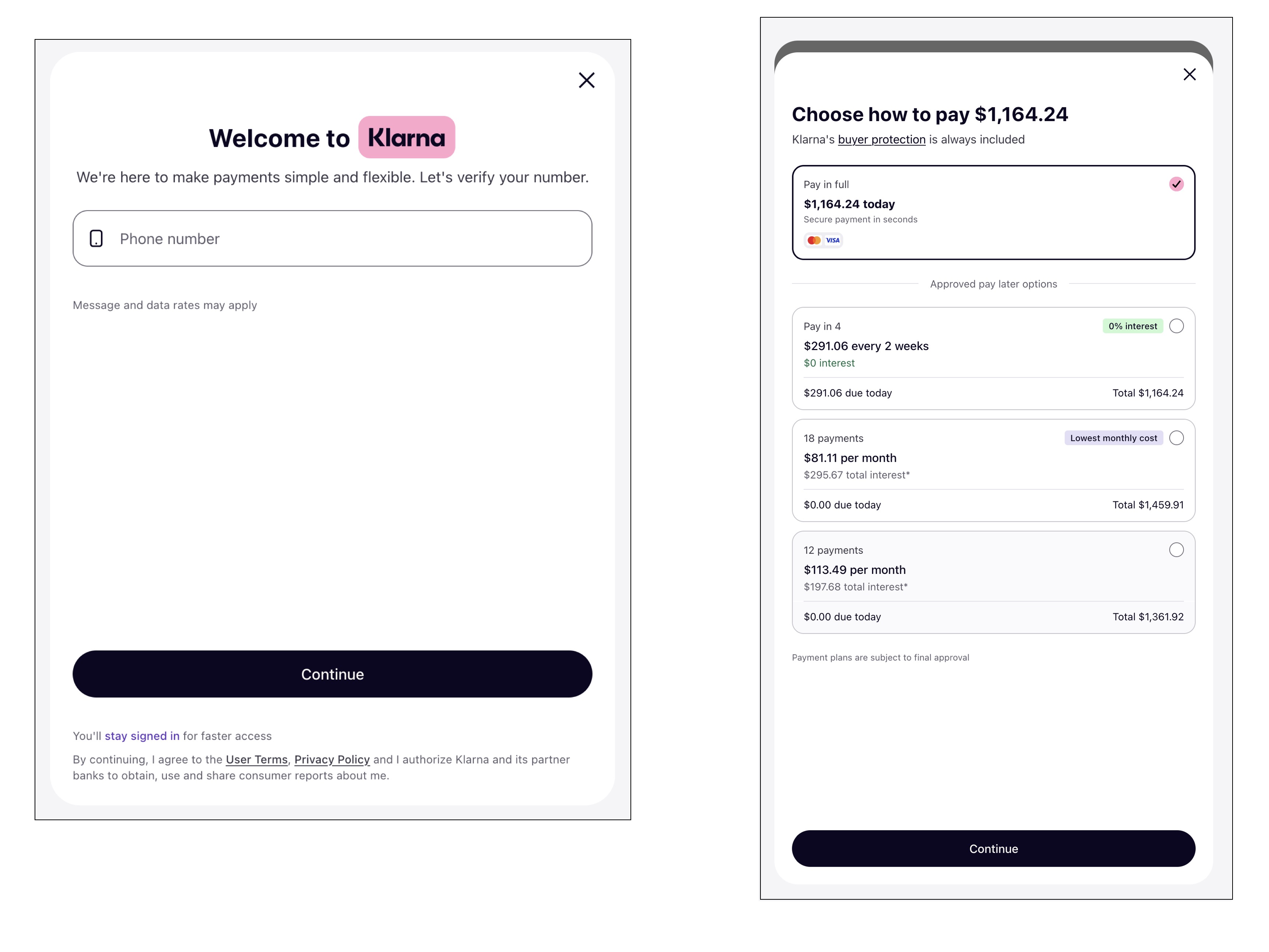
The example below shows Klarna; however, each of the "Buy Now, Pay Later" options will be aesthetically similar but composed of different payment plans:
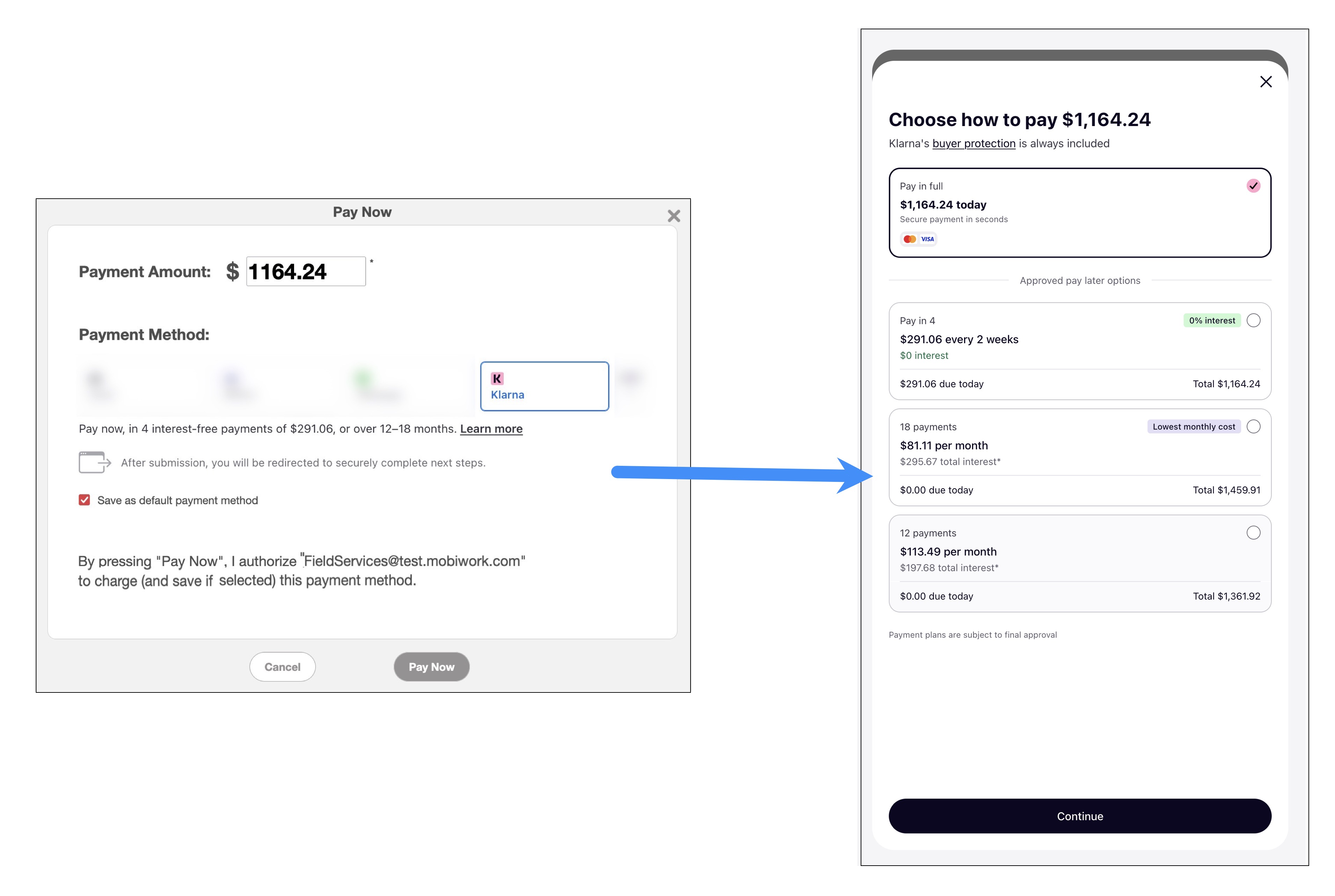
The following subsections will go into more detail regarding each of the different options.
Affirm
If the customer would like to use Affirm, they should select the desired option; then they should click on the Pay Now button:
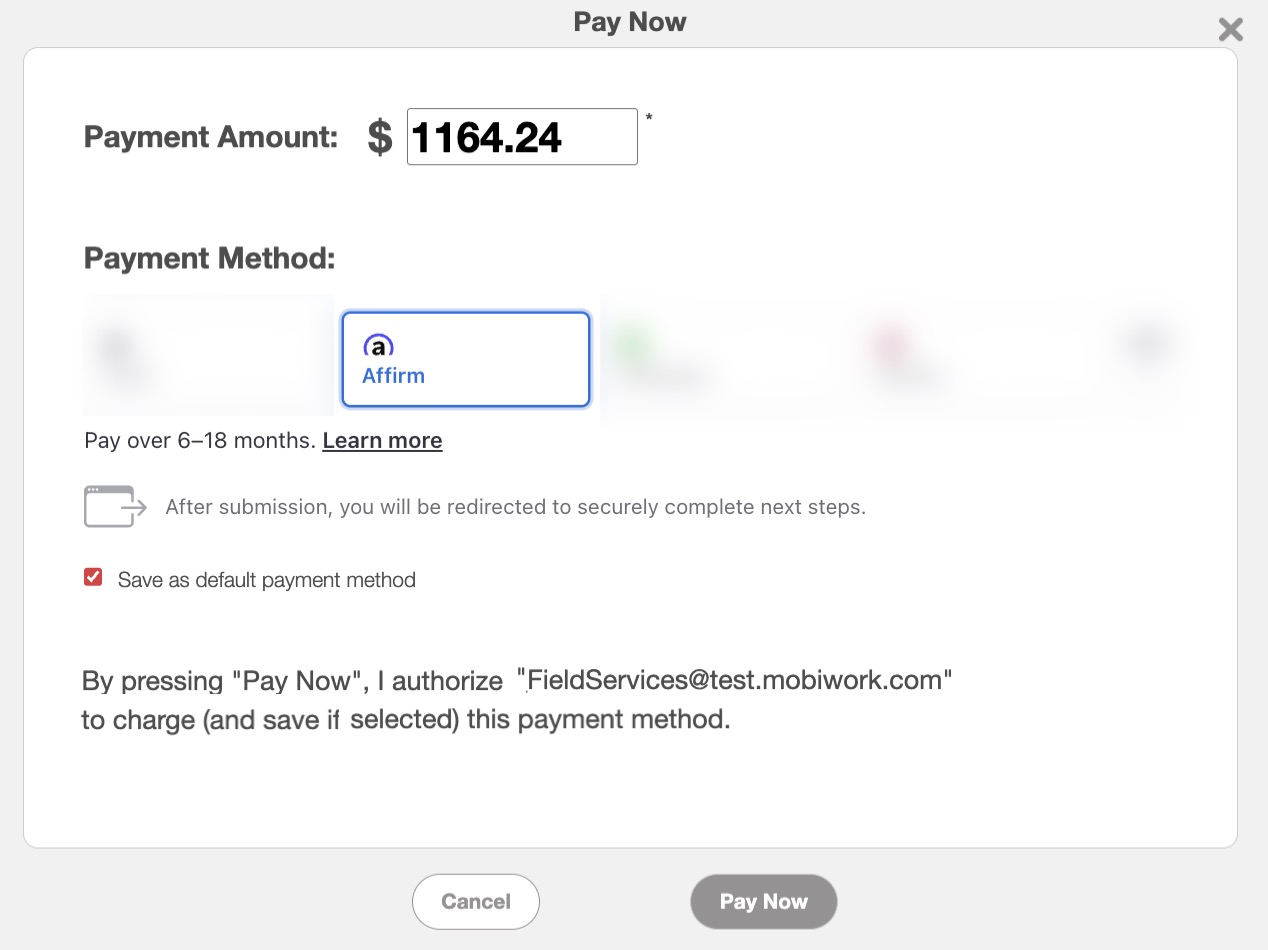
The customer will then be redirected to the Affirm payment page where they can enter their credentials, choose the payment plan, and authorize the payment:
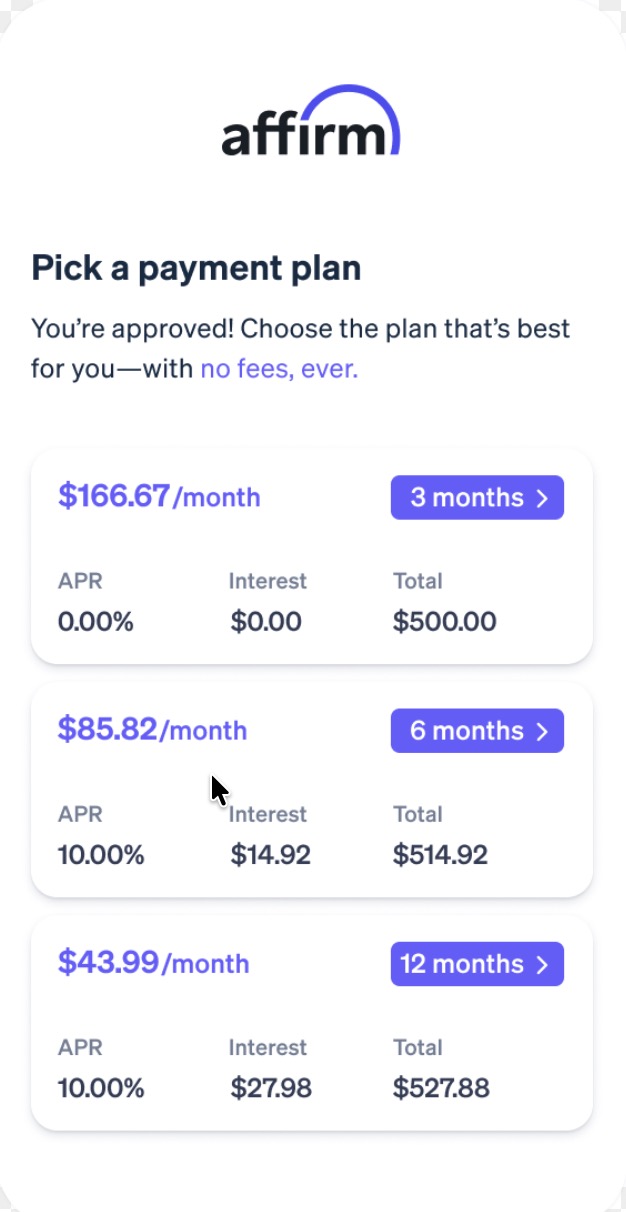
Note: Please note that if the invoice amount is under $50 the Affirm payment option will not appear.
Klarna
If the customer would like to use Klarna, they should select the desired option; then they should click on the Pay Now button:
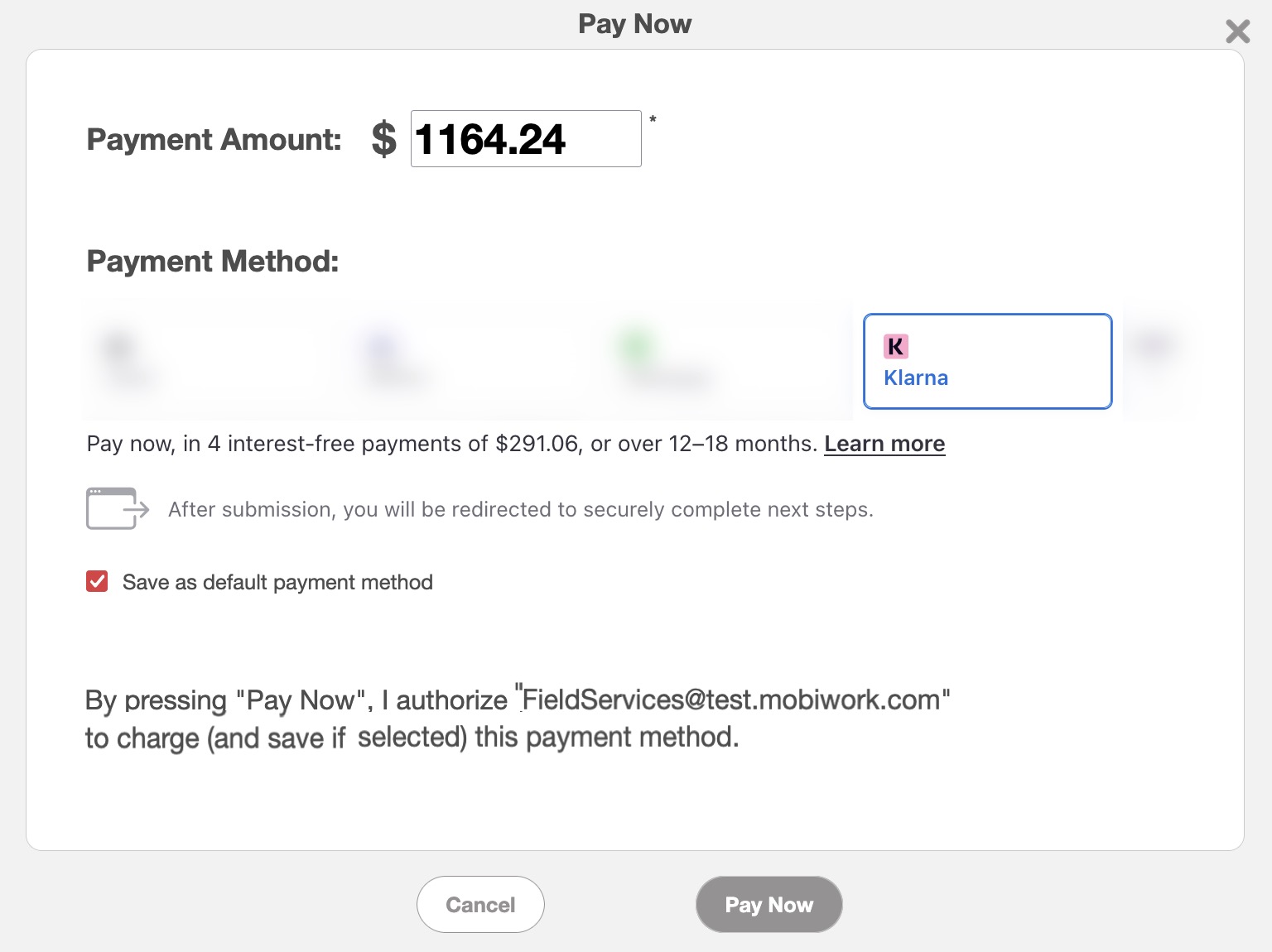
The customer will then be redirected to the Klarna payment page where they can enter their phone number, choose the payment plan, and authorize the payment:
Afterpay
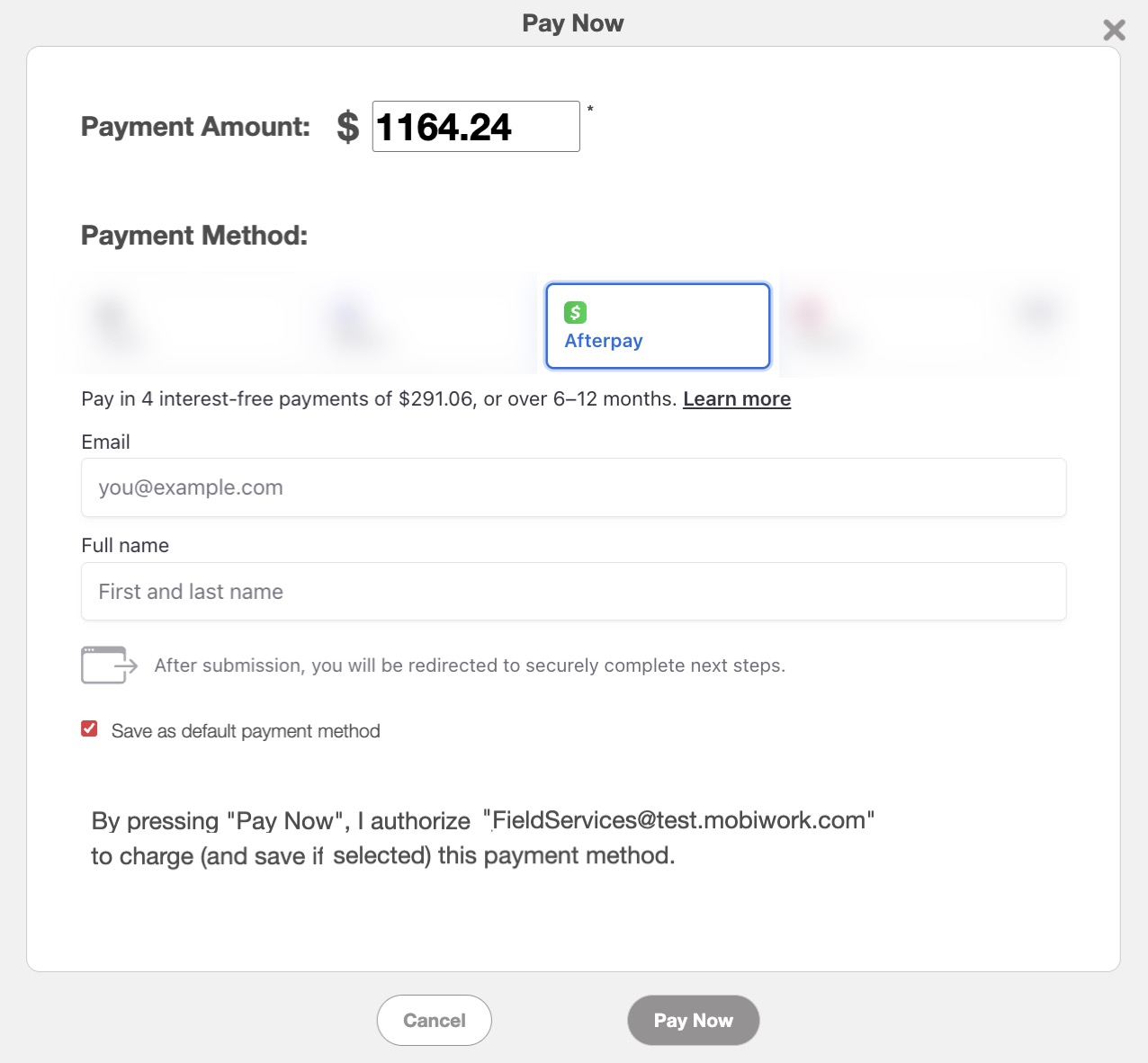
If the customer would like to use Afterpay, they should select the desired option; the customer should then enter their email address and full name, then click on the Pay Now button:
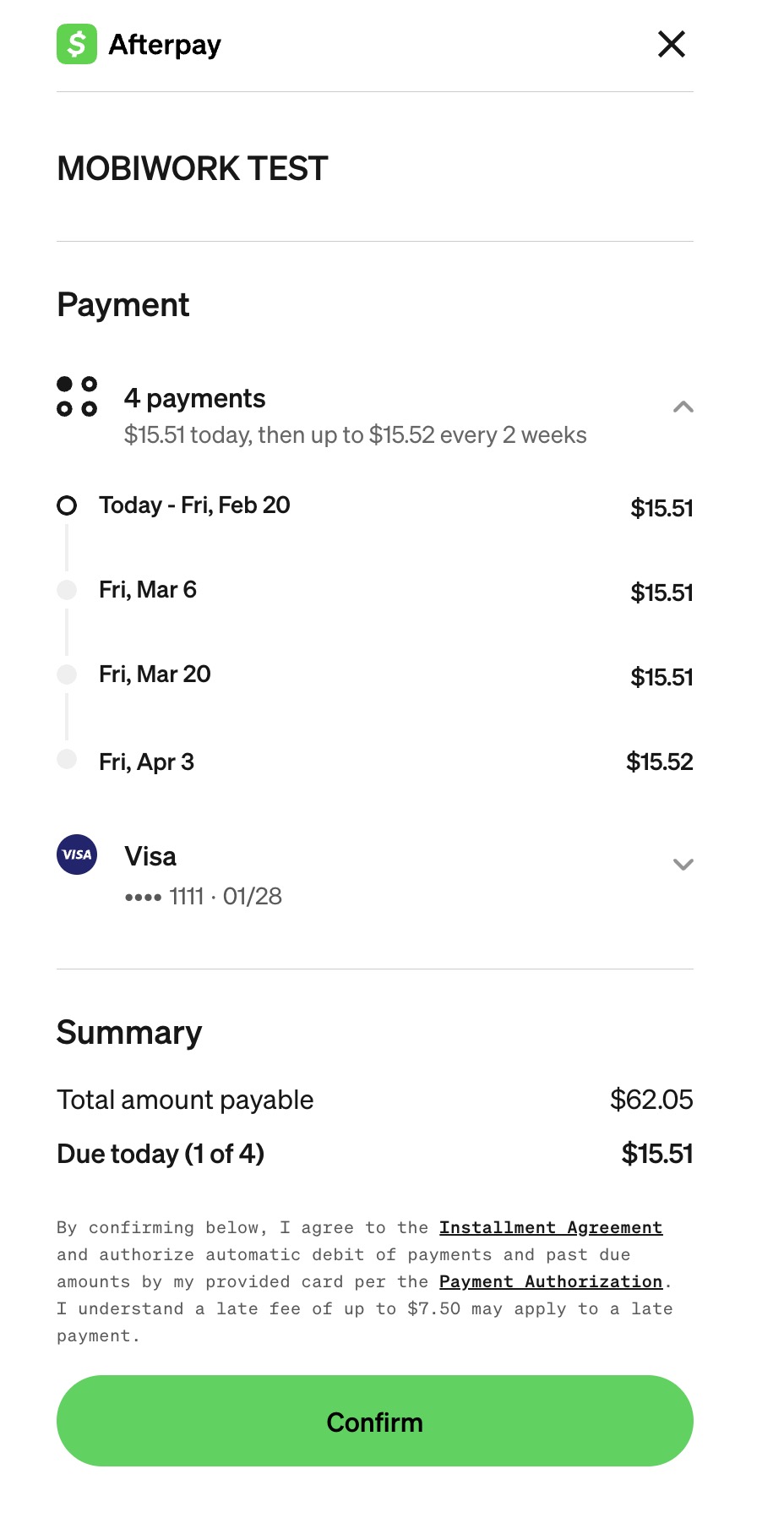
The customer will then be redirected to the After Pay payment page where they can enter their phone number, choose the payment plan, and authorize the payment:
Zip
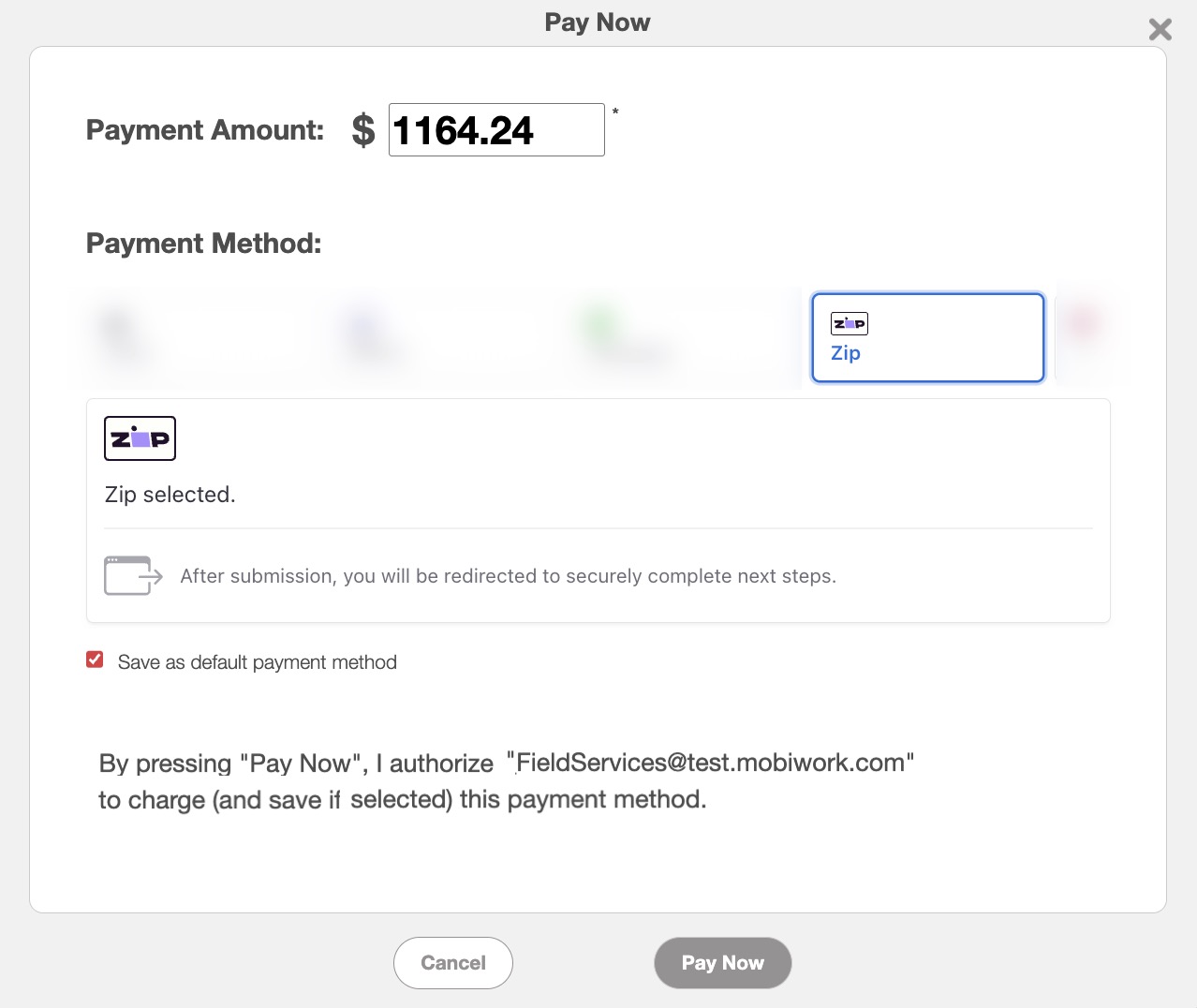
If the customer would like to use Zip, they should select the desired option; the customer should then enter their email address and full name, then click on the Pay Now button:
The customer will then be redirected to the Zip payment page where the customer can securely complete next steps:
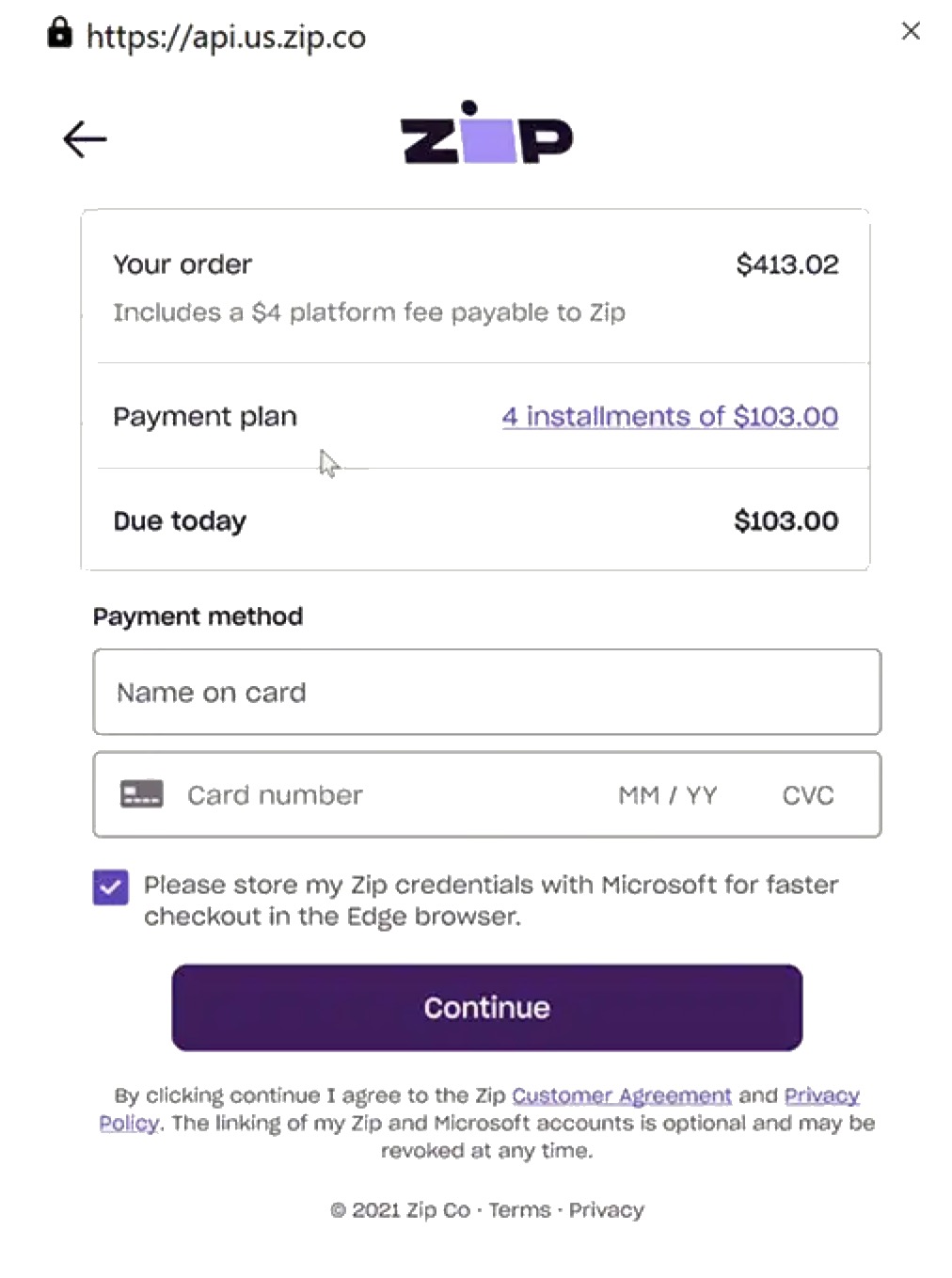
Note: Please note that if the invoice amount is over $1500 the Zip payment option will not appear.
If the payment went through successfully, then the web page will redirect back to MobiWork and the payment transaction will be recorded.
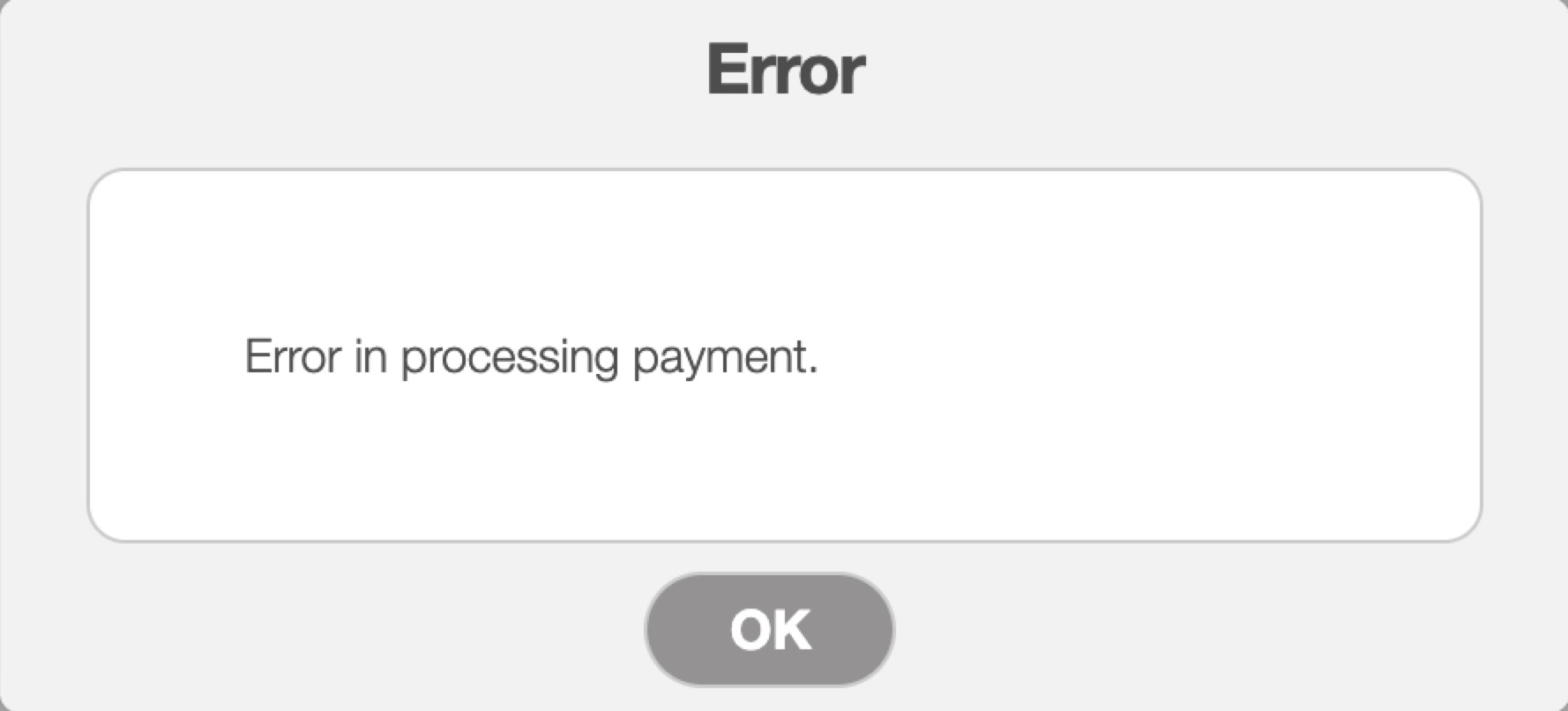
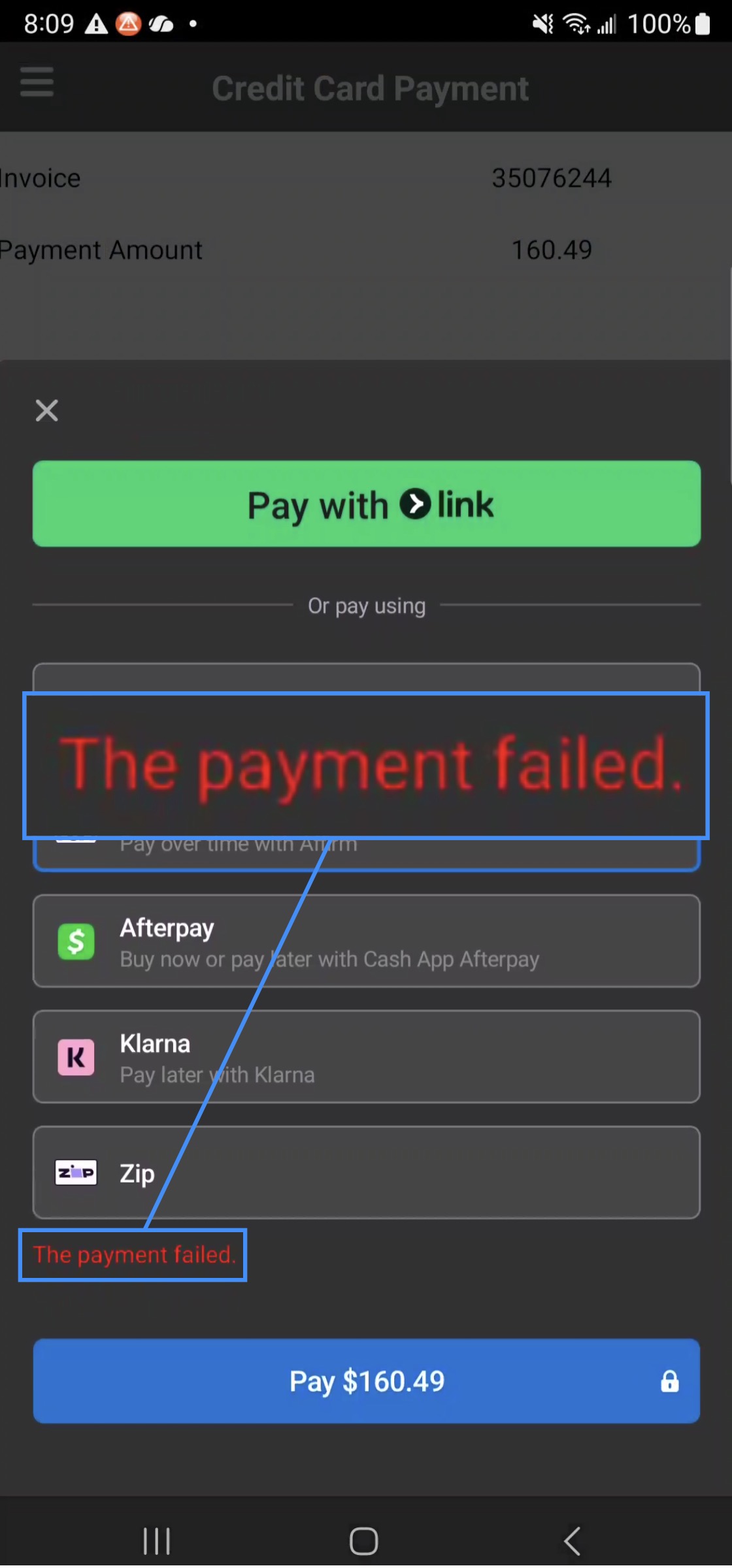
If the payment failed, then the page will redirect back to MobiWork and also displays the following error message:
The following examples will highlight the payment process after work order completion.
The customer can pay the invoice directly from the work order in the mobile app after the work order is completed, or by using the payment link sent via text message. For more information about how to pay a work order after services have been completed, please see the Invoice Checkout and Payment.
After texting the invoice to the customer, they can choose their preferred payment option when completing the payment. For more information on how to email or text an invoice to a customer, please see Send an Invoice for Review & Payment.
When the customer opens the message and views the invoice or when they are in the process of checking out, they can select their desired payment method.
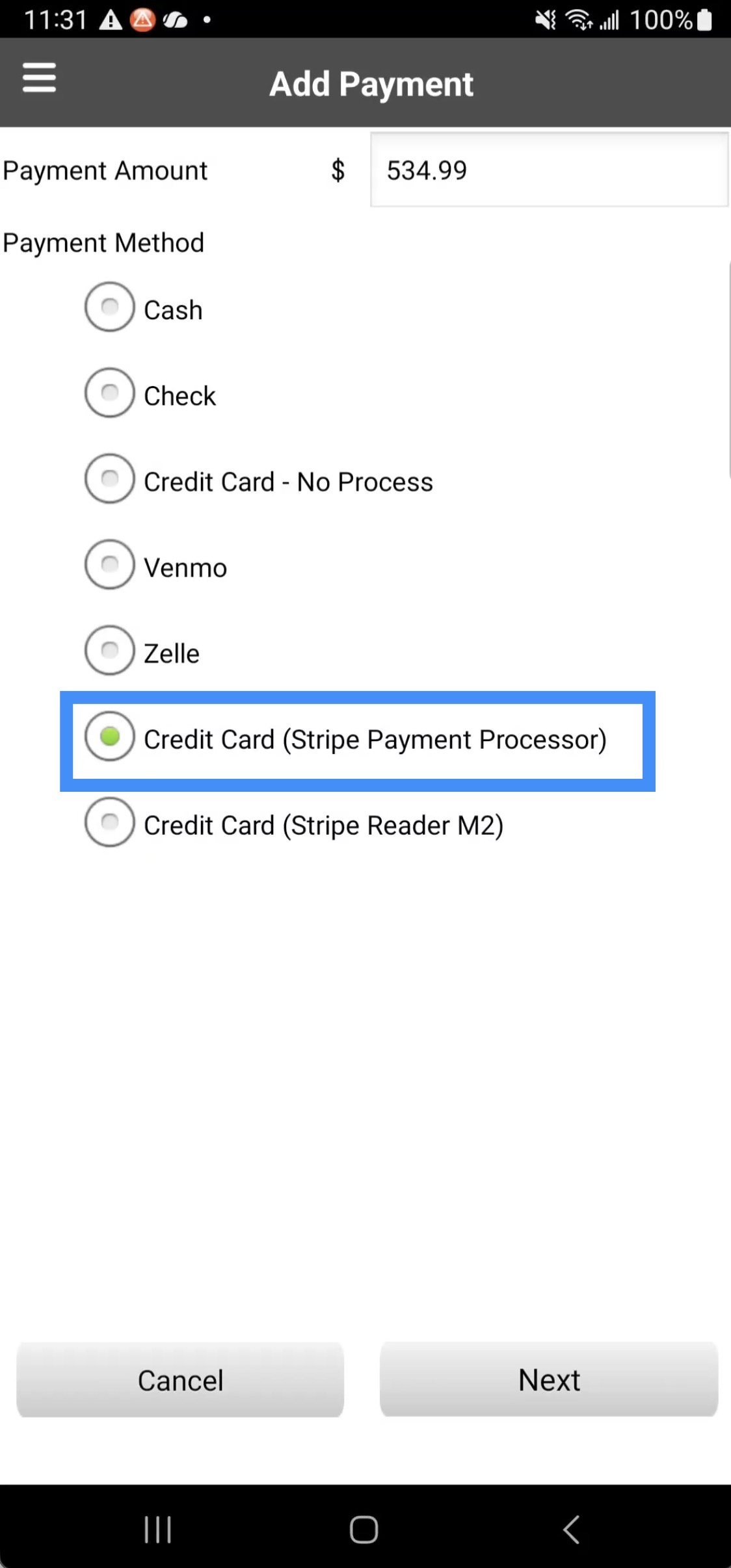
Select the "Credit Card (Stripe Payment Processor) option from the offered options. Then press the Next button to choose your desired payment option:
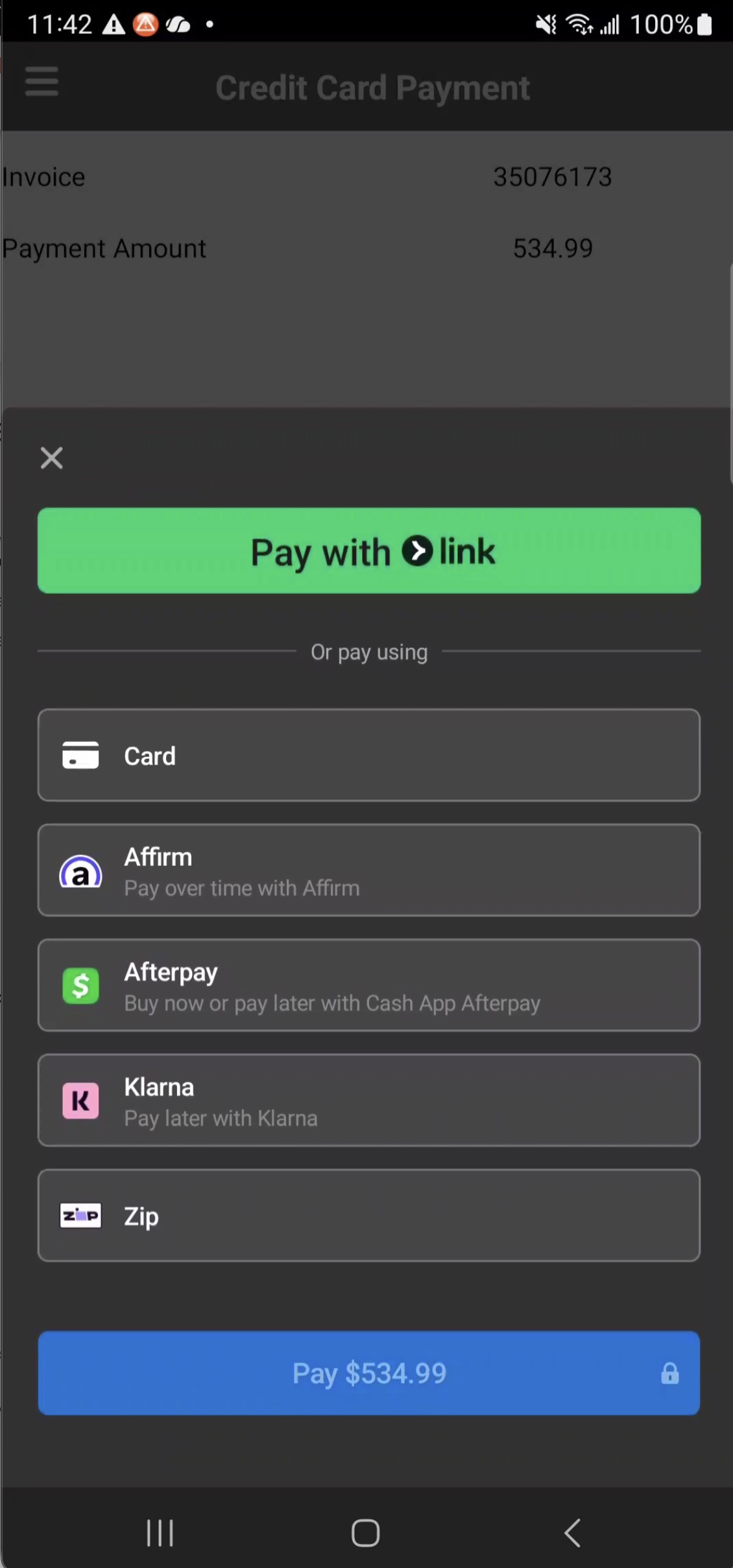
The customer will then have the option to select Affirm, Afterpay, Klarna or Zip, if enabled:
Once selected, the customer will be prompted to log in and complete the necessary steps to finalize their payment.
Affirm
If the customer would like to use Affirm, they should select the desired option; then they should click on the Pay button:
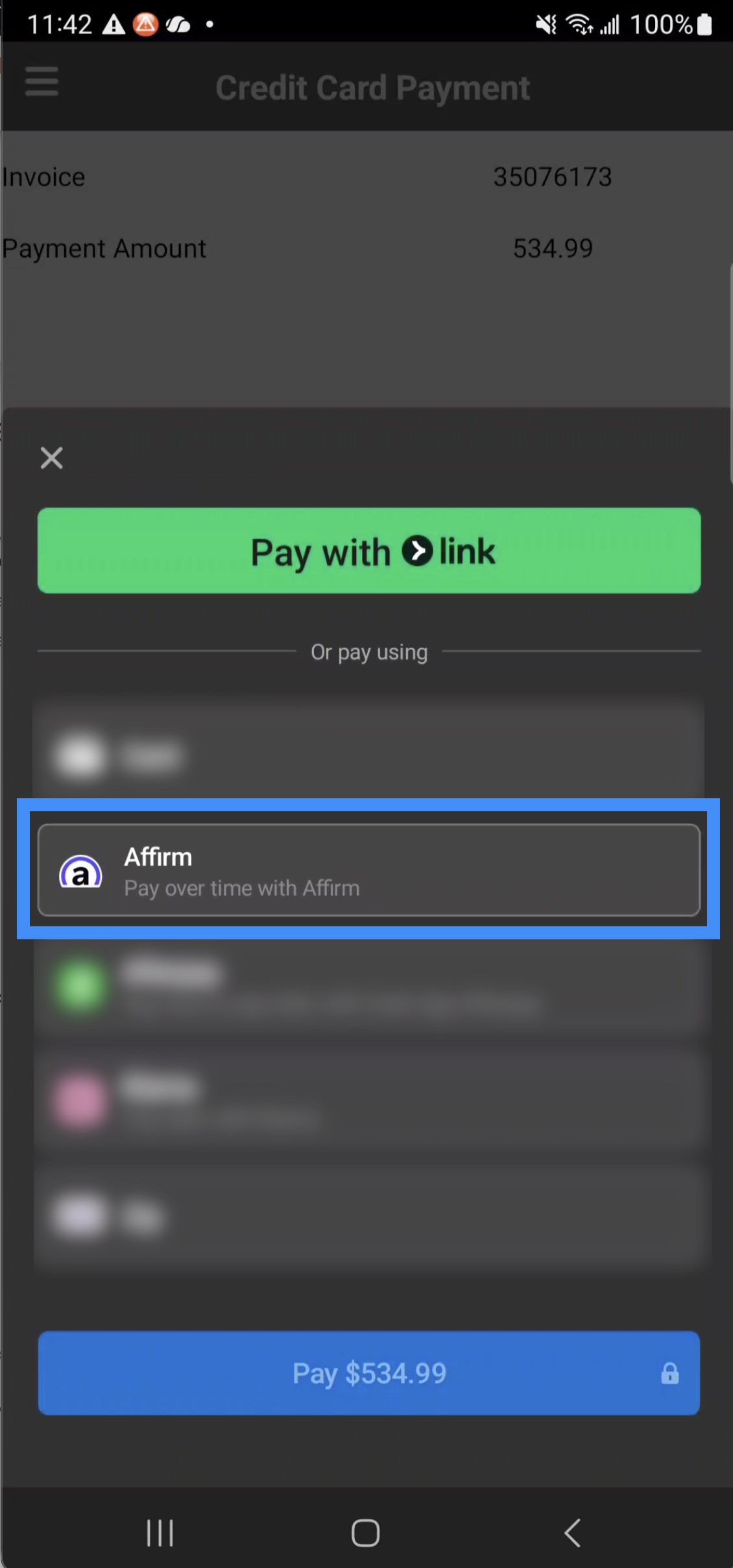
The customer will then be redirected to the Affirm payment page where they can enter their credentials and authorize the payment:
Klarna
If the customer would like to use Klarna, they should select the desired option; then enter their email address and country. Afterwards, they should click on the Pay button:
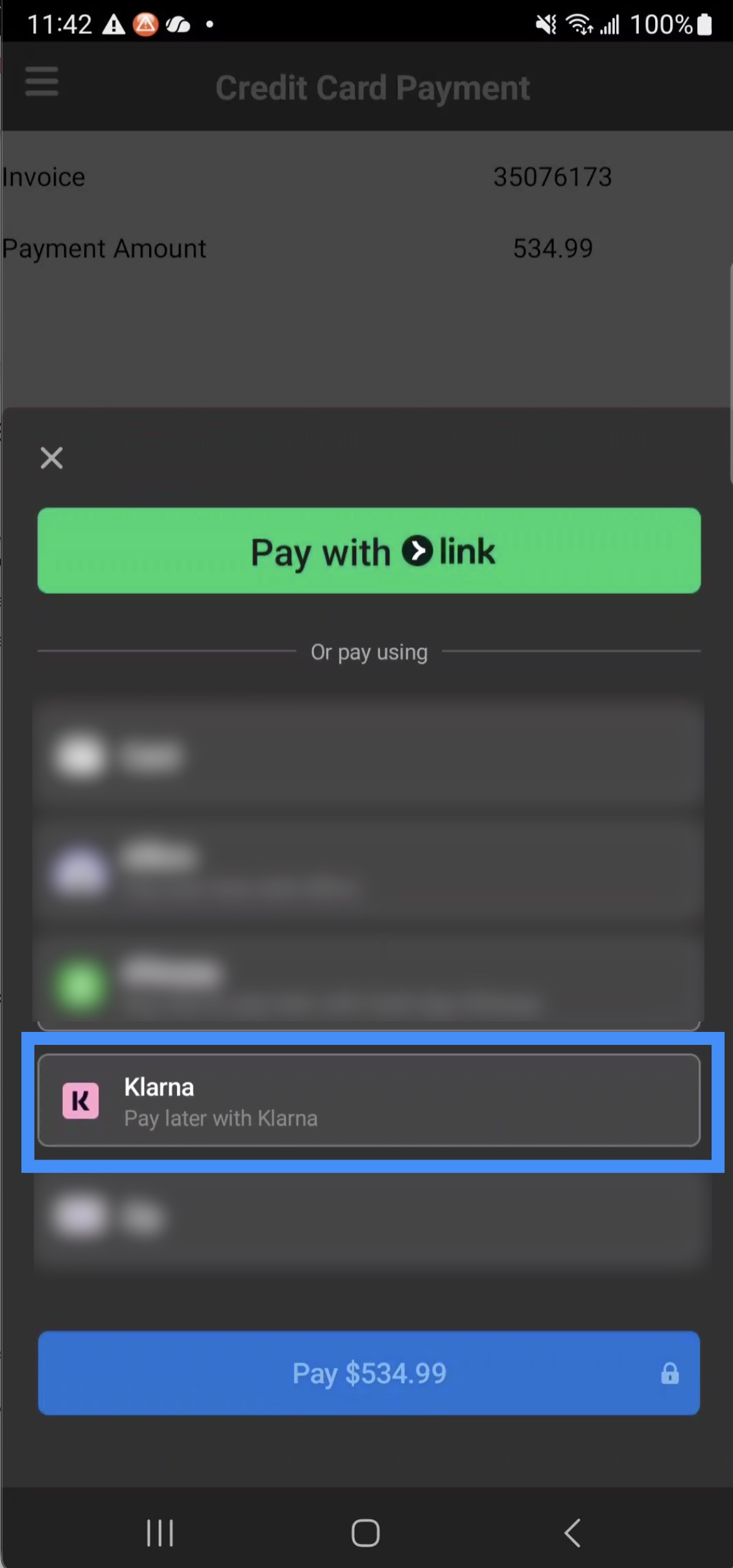
The customer will then be redirected to the Klarna payment page where they can enter their phone number and authorize the payment:
Afterpay
If the customer would like to use Afterpay, they should select the desired option; the customer should then enter their contact information, then click on the Pay button:
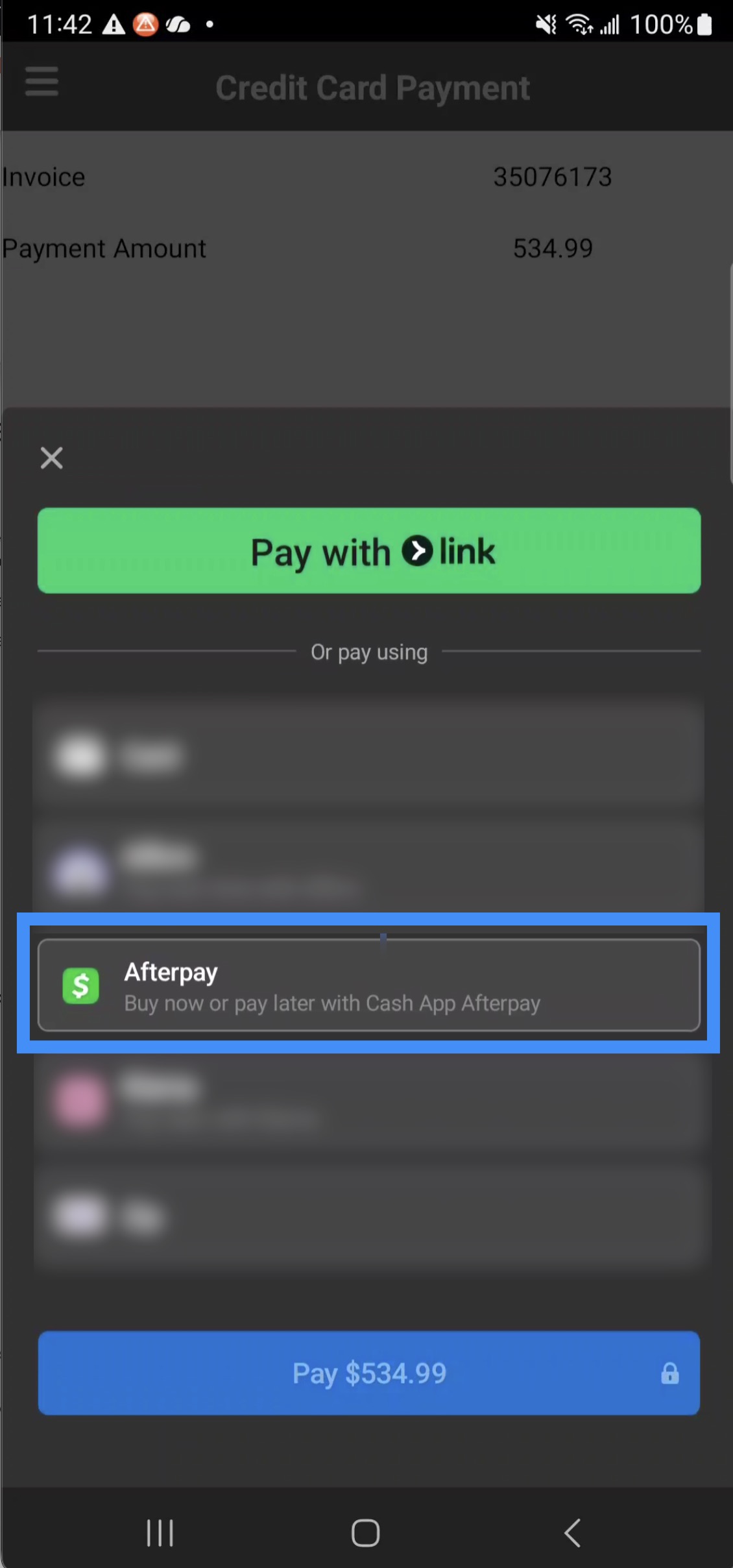
The customer will then be redirected to the After Pay payment page where they can enter their phone number and authorize the payment:
Zip
If the customer would like to use Zip, they should select the desired option then click on the Pay button:
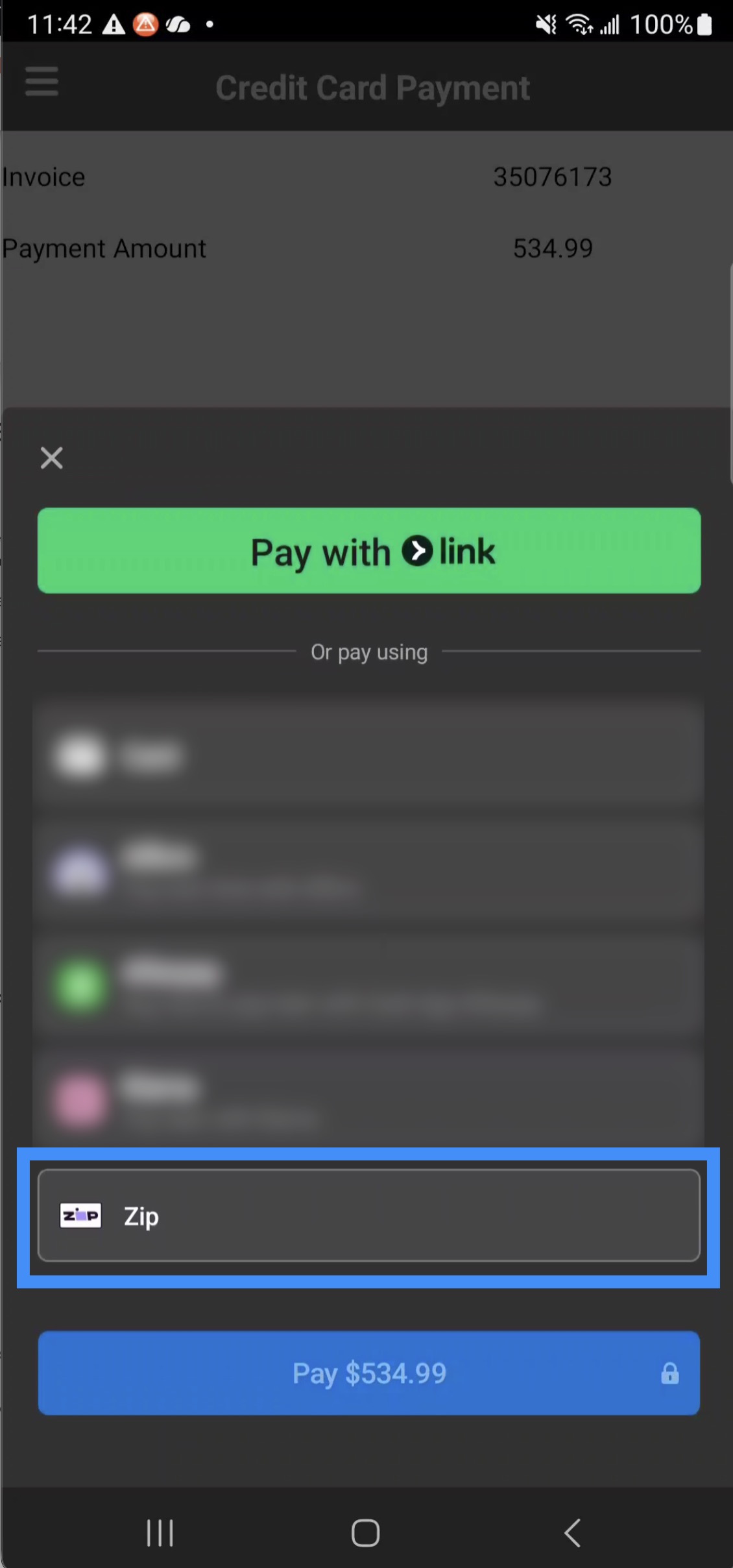
The customer will then be redirected to the Zip payment page where the customer can securely complete next steps:
Note: Please note that if the invoice amount is over $1500 the Zip payment option will not appear.
If an error occurs while processing the payment on the device, a notification will appear indicating that the payment has failed:
The transaction cannot proceed until a successful payment is completed using an alternate method.