
The Try the New UI option is available to users with Global Admin access.
To explore the new interface:
Log in to your MobiWork account.
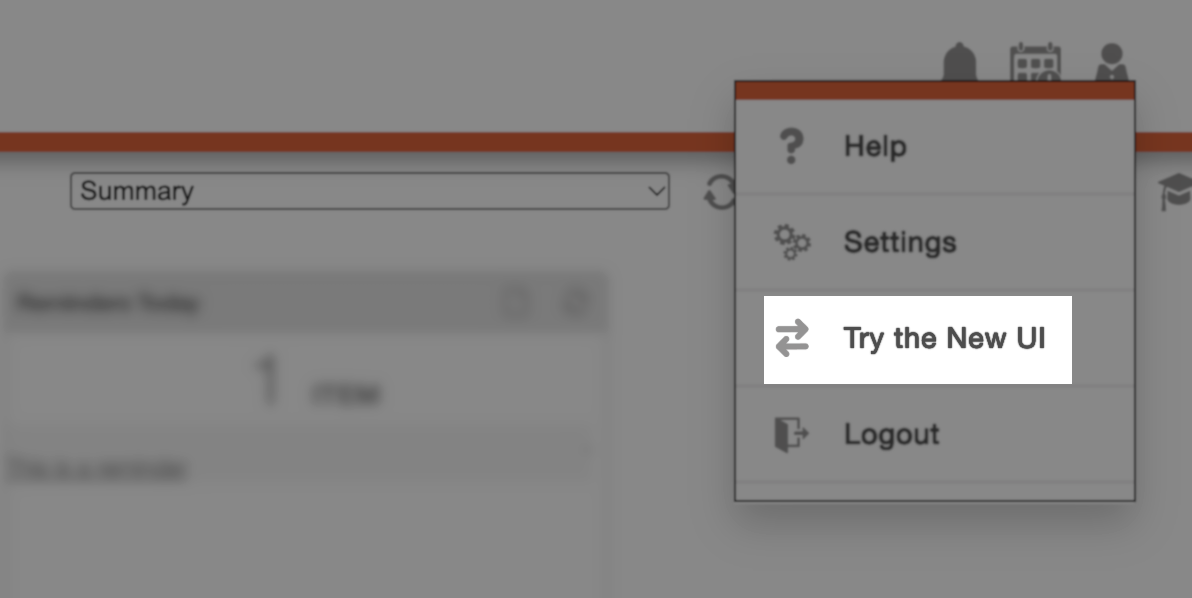
Click the User icon in the upper-right corner of the Web Portal.
Select Try the New UI from the User Menu.
The updated Web UI will open, allowing you to explore the new layout and features.
Note: The Try the New UI option is available exclusively to Global Administrators during the preview period.
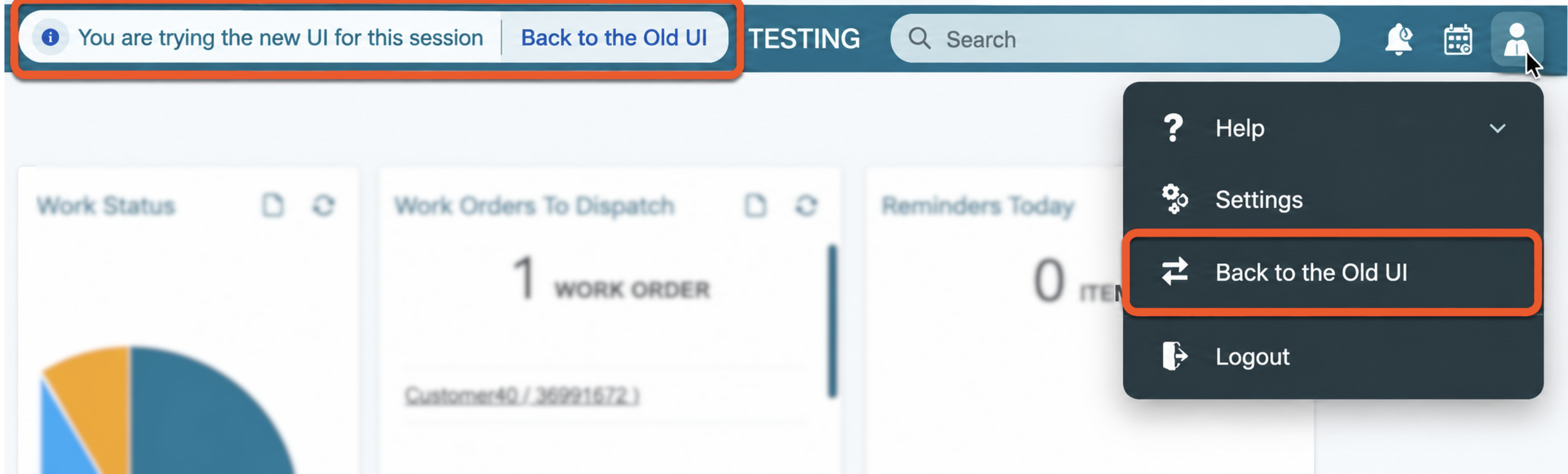
During the preview period, you can return to the previous Web UI at any time using one of the following methods:
Option 1: User Menu
Click the User icon in the upper-right corner.
Select Back to the Old UI.
Option 2: Notification Banner
Locate the notification banner at the top of the page.
Click Back to the Old UI.
Option 3: Log Out
Log out of MobiWork. When you log back in, the previous interface will automatically be displayed.
Note: These options apply during the new UI preview period and may no longer be available after your account has been fully transitioned.
The refreshed Web UI introduces several enhancements designed to improve navigation and make information easier to find.
| Name: | Description: |
|---|---|
| "New Home Menu" | Access MobiWork features through a redesigned navigation menu located on the left side of the Web Portal. |
| "Global Search" | Search across supported MobiWork features using one centralized search field in the Top Navigation Bar. |
| "Quick Filter" | Narrow List View results using predefined filtering criteria without creating an advanced search. |
For additional information, select the corresponding feature in the Web User Interface section of Online Help.
New Home Menu
Use the Home Menu to access key MobiWork features, including Work Orders, Customers, Quotes, and Assets.
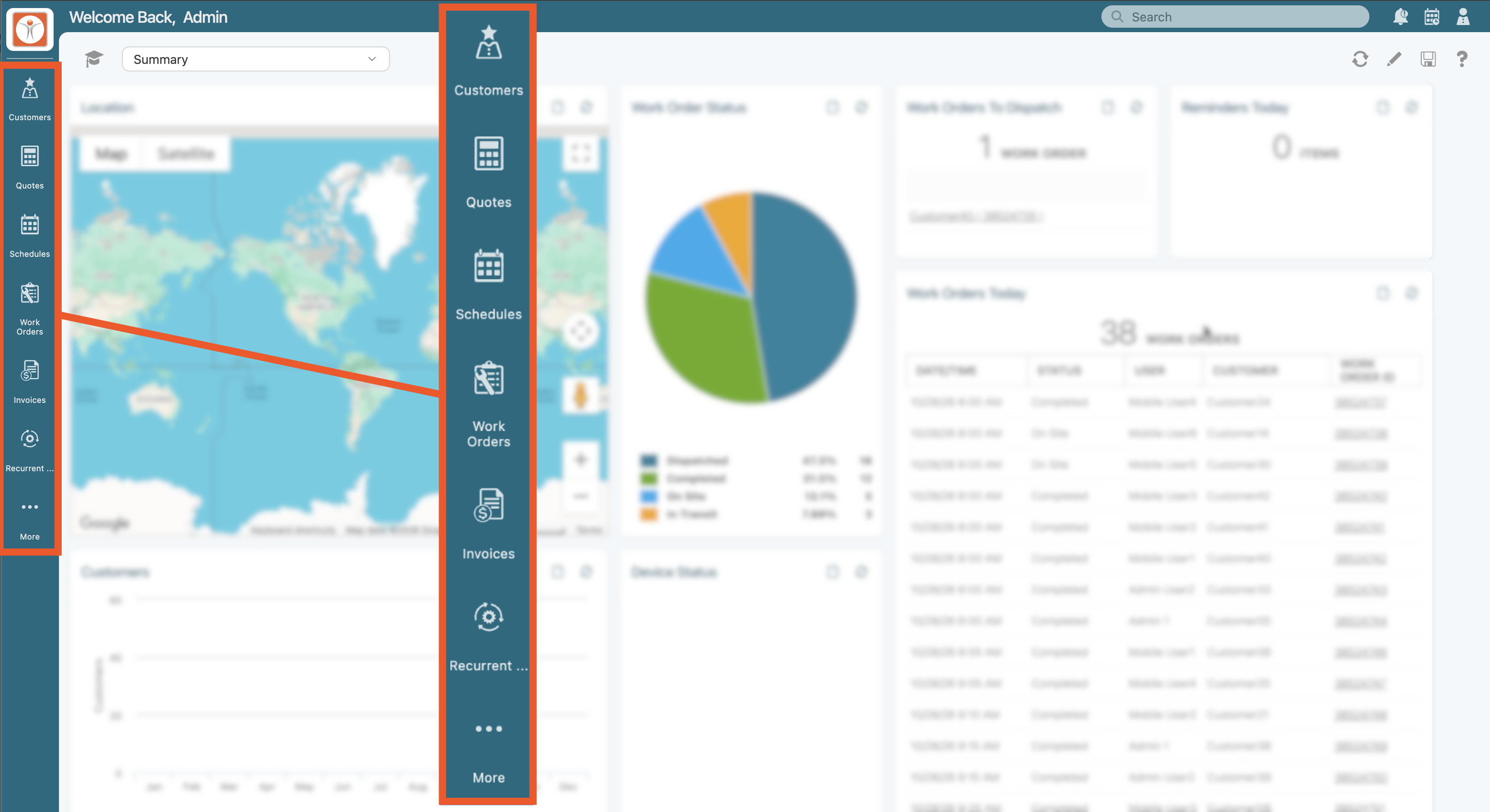
To access additional features, select the More button in the left navigation menu. This menu provides access to other features available in your MobiWork account, such as Projects and Inventory. The features available in the More menu may depend on your account configuration and the features enabled for your organization.
Global Search
The new Global Search Field allows you to search across MobiWork from one central location, using the familiar free-text search functionality available throughout the platform.
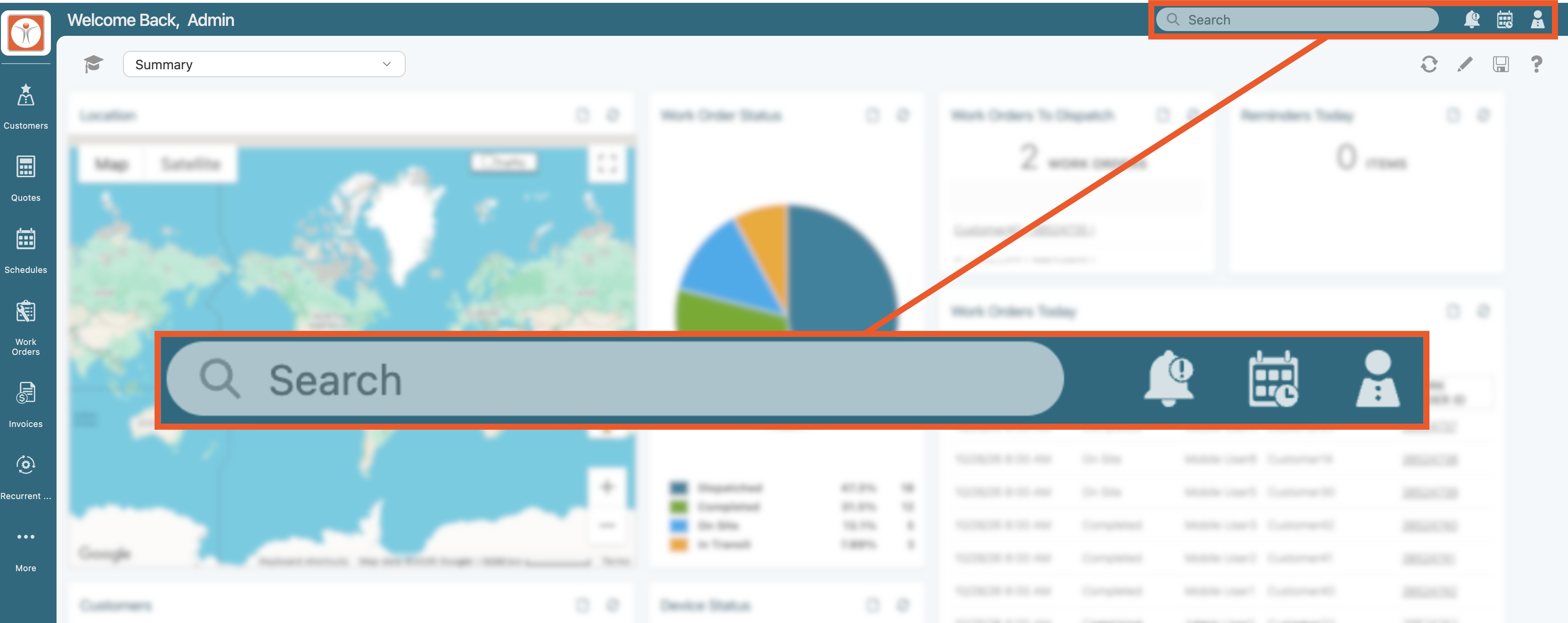
Instead of navigating to individual features to locate a specific record, you can enter your search criteria directly into the Global Search Field to find relevant information more efficiently.
Quick Filter
The new Quick Filter feature makes it easier to narrow search results using predefined filter criteria, helping you locate the records most relevant to your needs. Instead of manually searching through an entire list, you can apply filters to refine the displayed results based on specific criteria.
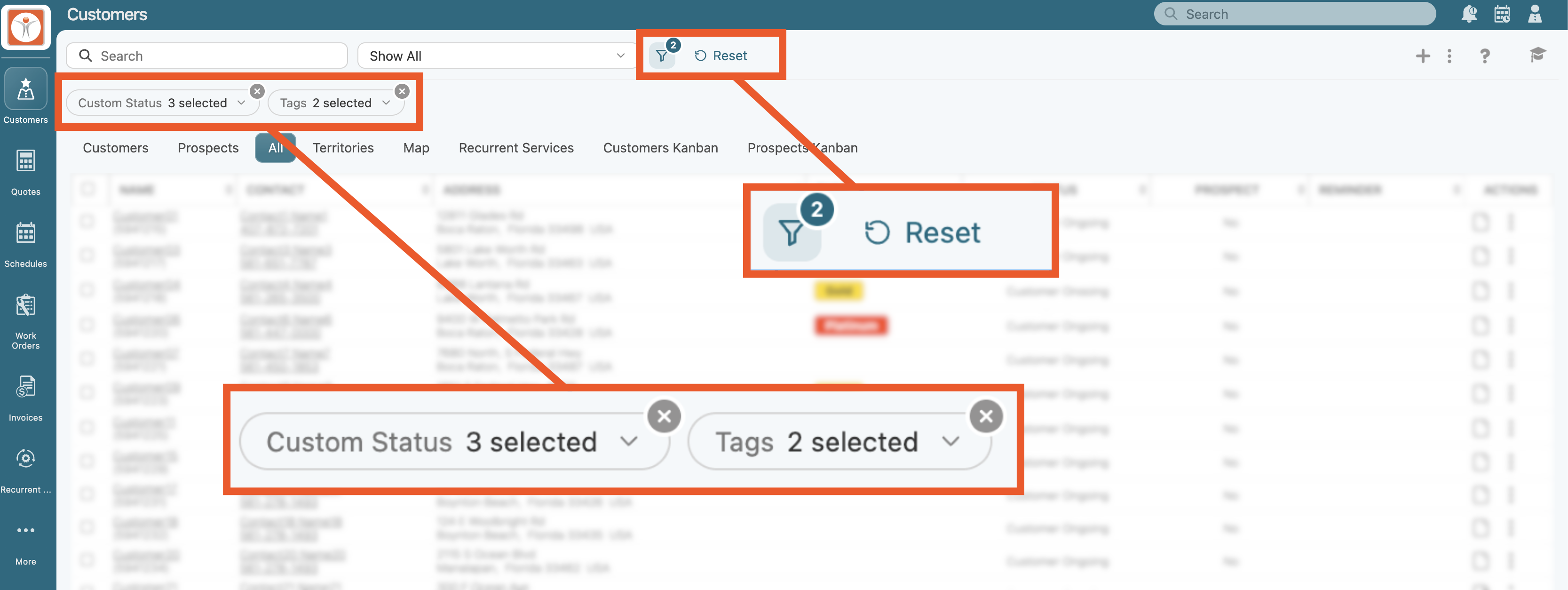
To get started, select the Filter icon to open the Quick Filter panel. From this panel, select your desired filter criteria to narrow the results displayed on the page. This allows you to focus on specific records without navigating away from the current list. If you want to clear your selections and return to the default filter settings, click the Reset button. This allows you to quickly restore the original filter configuration and start a new search.
Note: The available filters may vary depending on the feature you are viewing.