
To access an entity's list page, select the desired entity from the left navigation menu. You will be redirected to the corresponding Entity List page.
The Entity List page displays records associated with the selected MobiWork feature, allowing you to view, search, and manage existing entities. Although the information displayed varies by feature, list pages generally provide common tools for locating records, adding new entities, and performing actions on individual or multiple records.
For this example, we will use the Customer List page to demonstrate the common features and functionality available on an Entity List page:
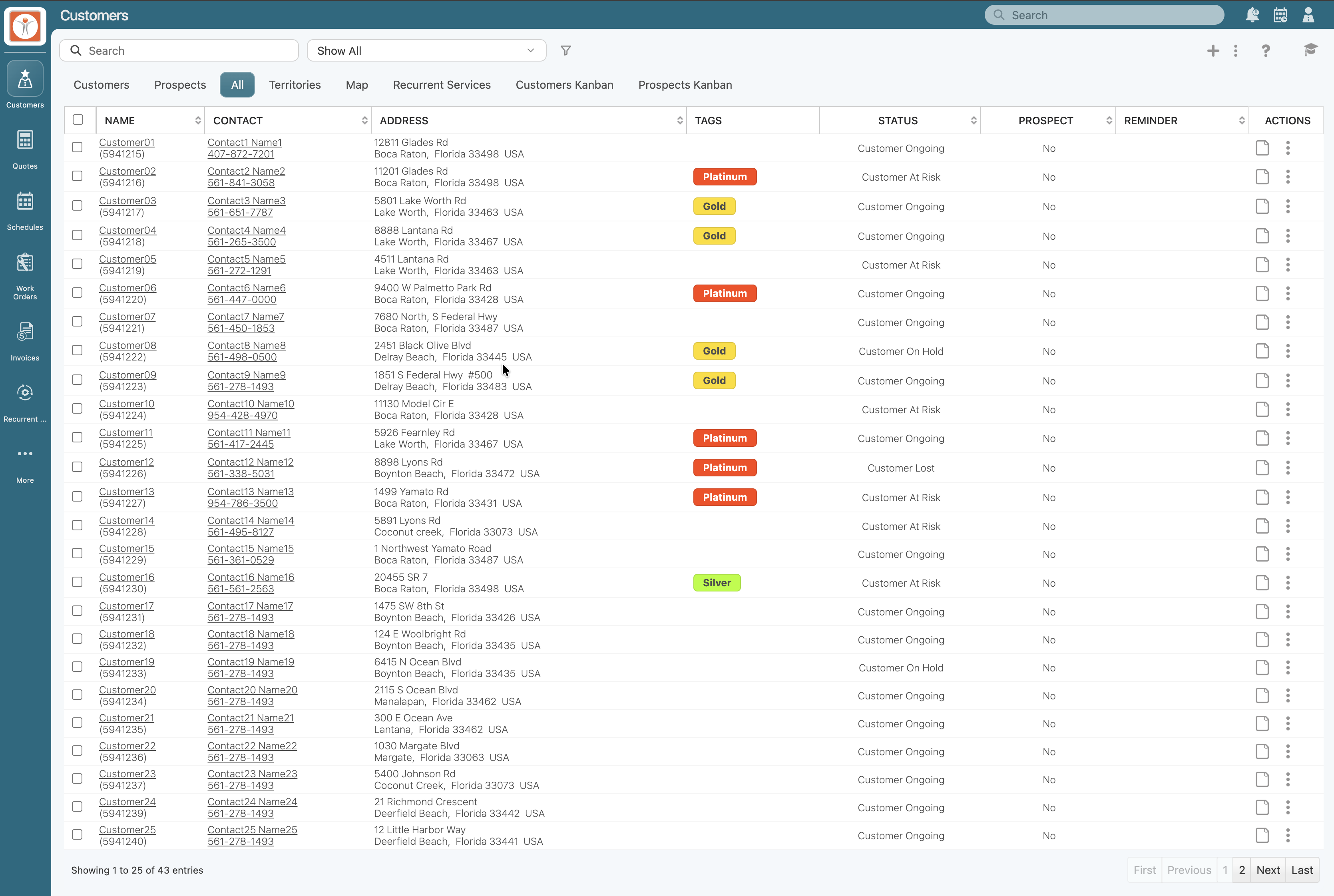
From the Entity List page, you can perform the following actions:
View an Entity- To view a specific record, select the desired entity from the list. This will open the corresponding Entity View pop-up window, where you can review the entity's information and access additional details and actions.
Add an Entity- Create a new record for the selected feature.
Access Page Controls- Use the available page controls to perform other record management tasks.
Search for an Entity- Locate a specific record within the list.
The tabs available on an Entity List page vary depending on the entity type and provide different ways to view, organize, and manage your records. The example below shows the tabs available on the Customers List page, including the "Customers," "Prospects," "All," "Territories," "Map," "Recurrent Services," and "Prospect - Kanban:"
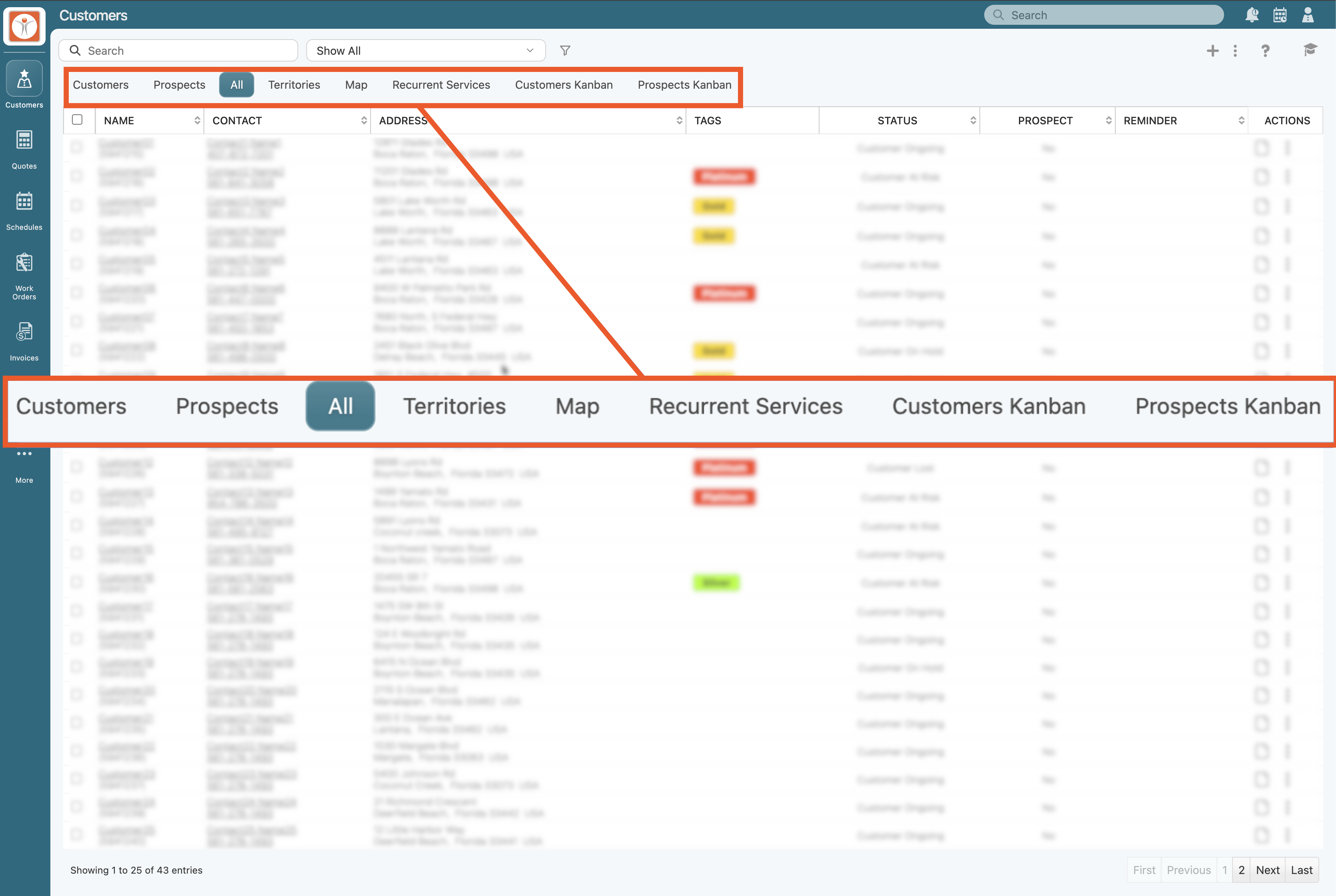
Other entity types, such as work orders, also offer multiple tabs to help you organize and access records. The available tabs and their functions vary by entity, allowing you to work with each type of record in the way that best suits your needs.
Each tab presents information in a format suited to its purpose.
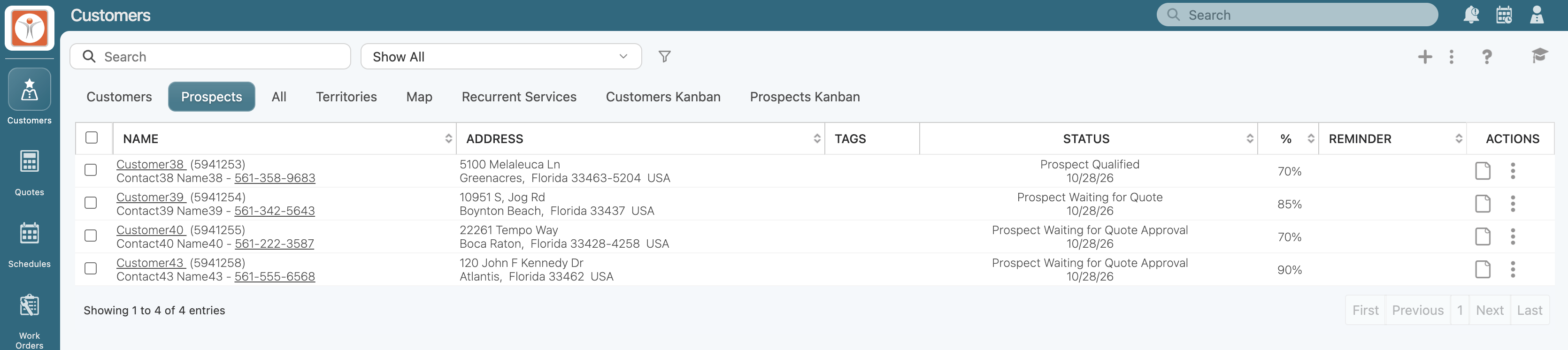
For example, the "Prospects" tab displays prospect records, allowing you to focus specifically on potential customers:
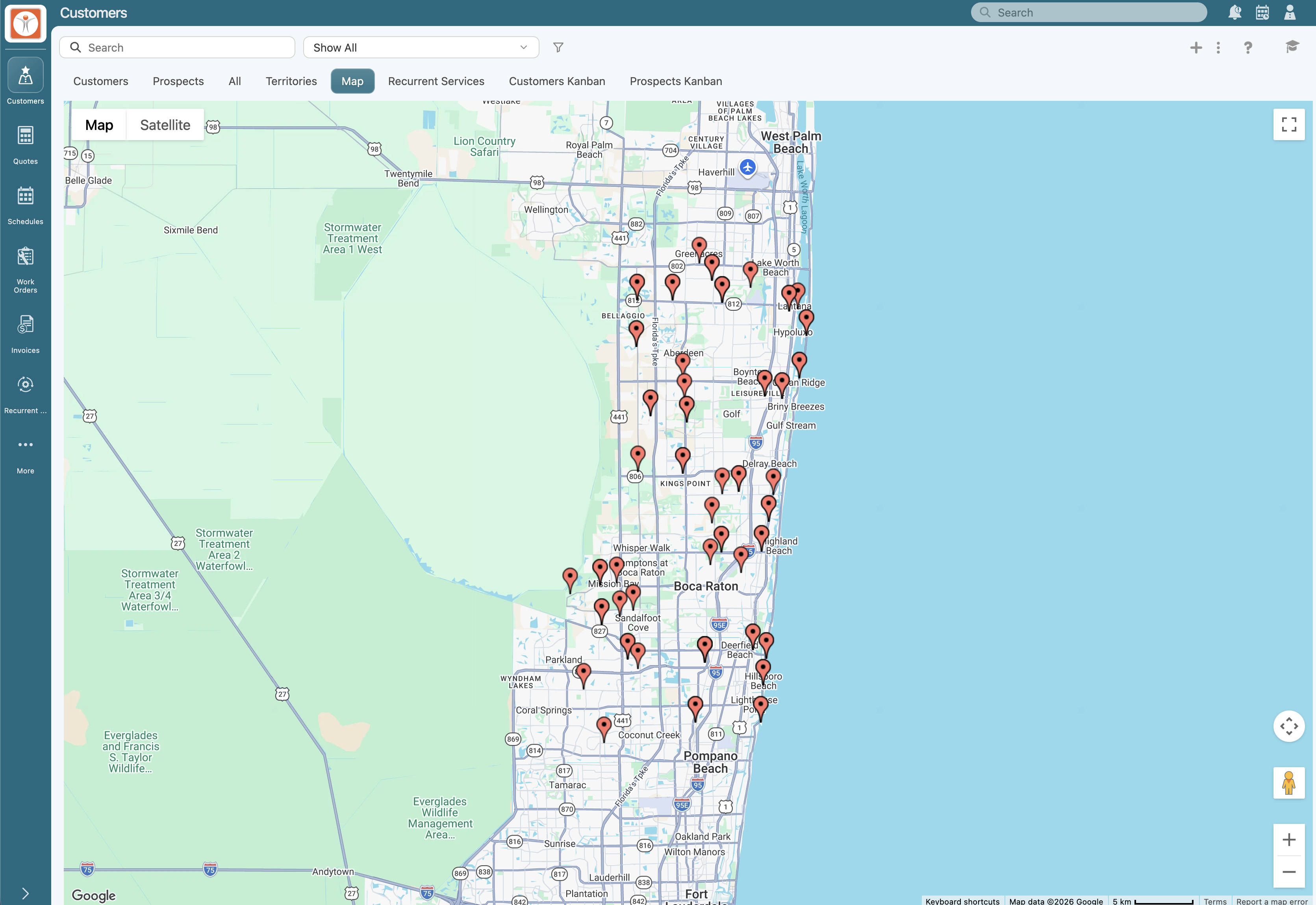
The "Map" tab displays customers geographically, providing a visual overview of their locations and distribution:
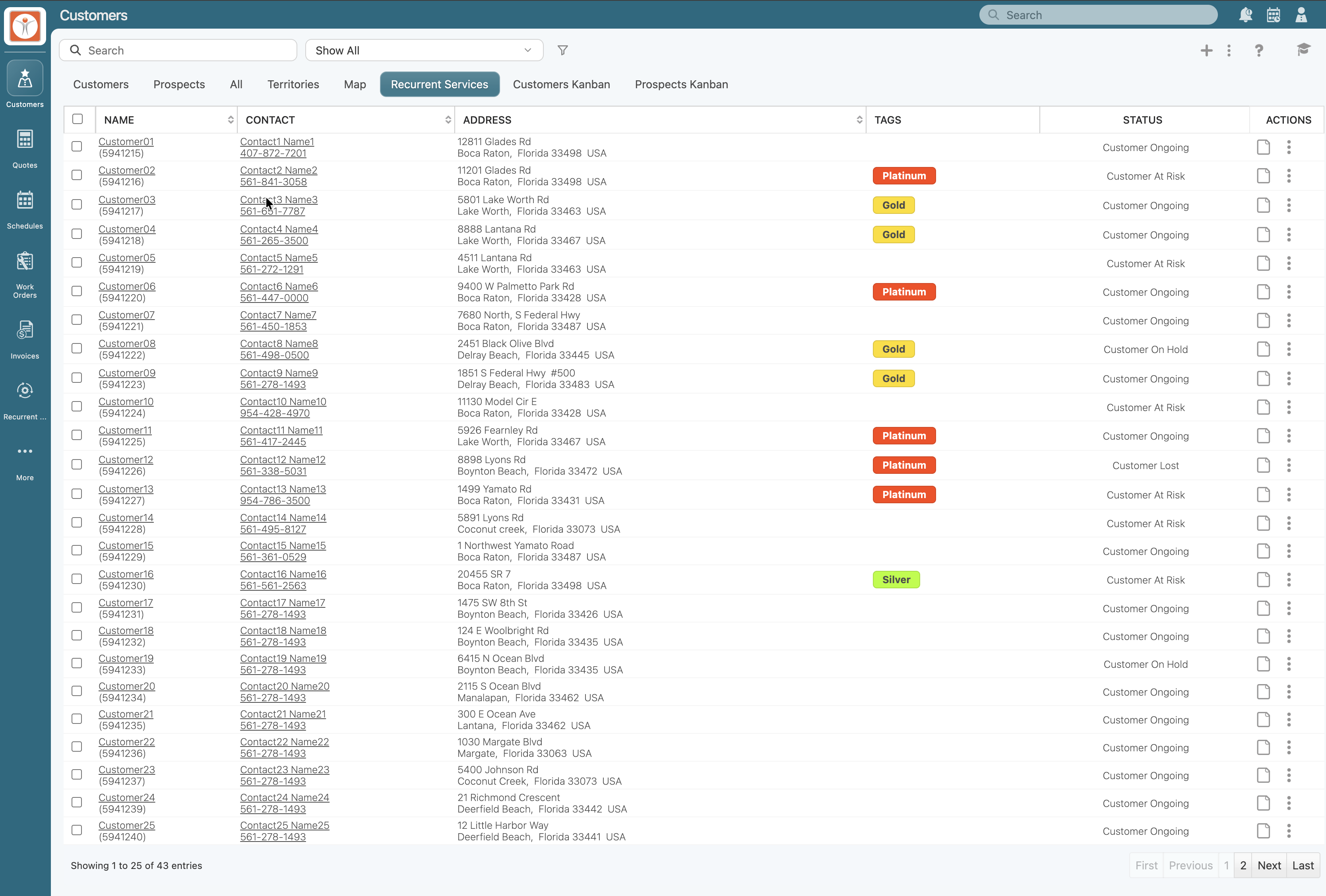
Similarly, the "Recurrent Services" tab displays recurring services associated with customers, making it easier to review and manage scheduled services:
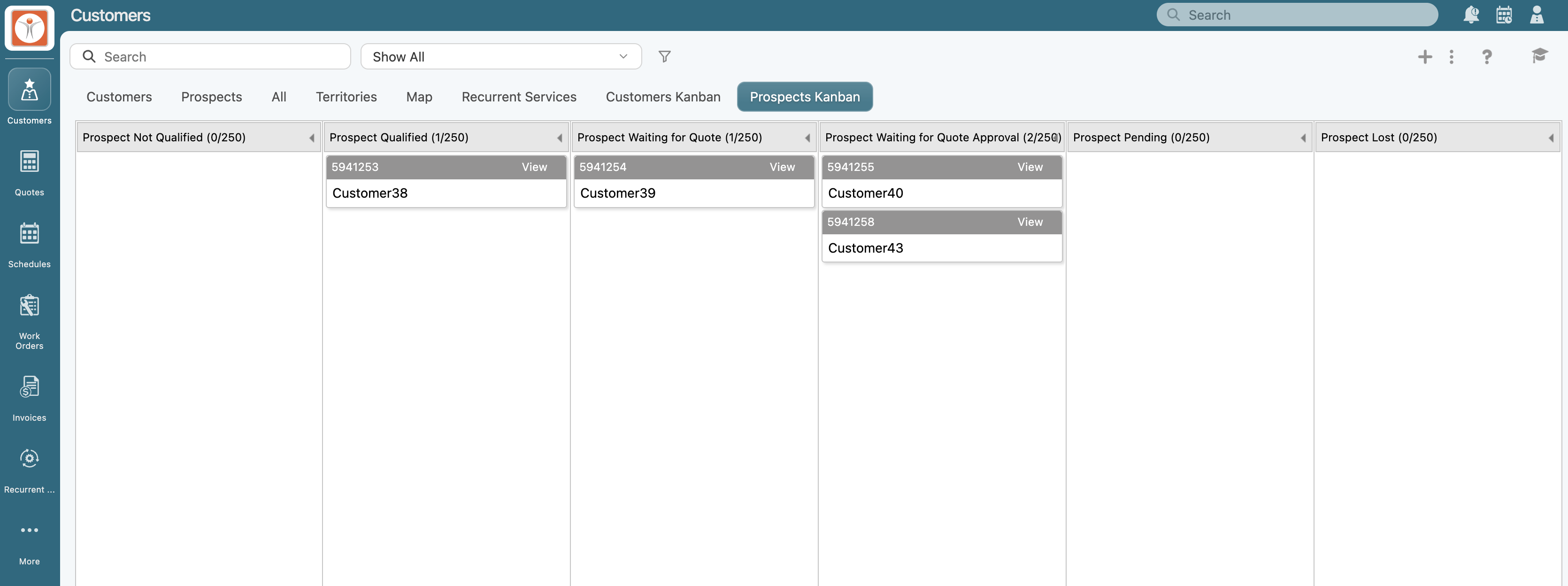
And the "Prospect - Kanban" tab provides a visual workflow for tracking prospects through different stages of the sales process and updating their status as they progress.
Each Entity List page displays its records in the central content area, where column headers organize the information into a structured, easy-to-navigate format. The example below shows the Customer List page:
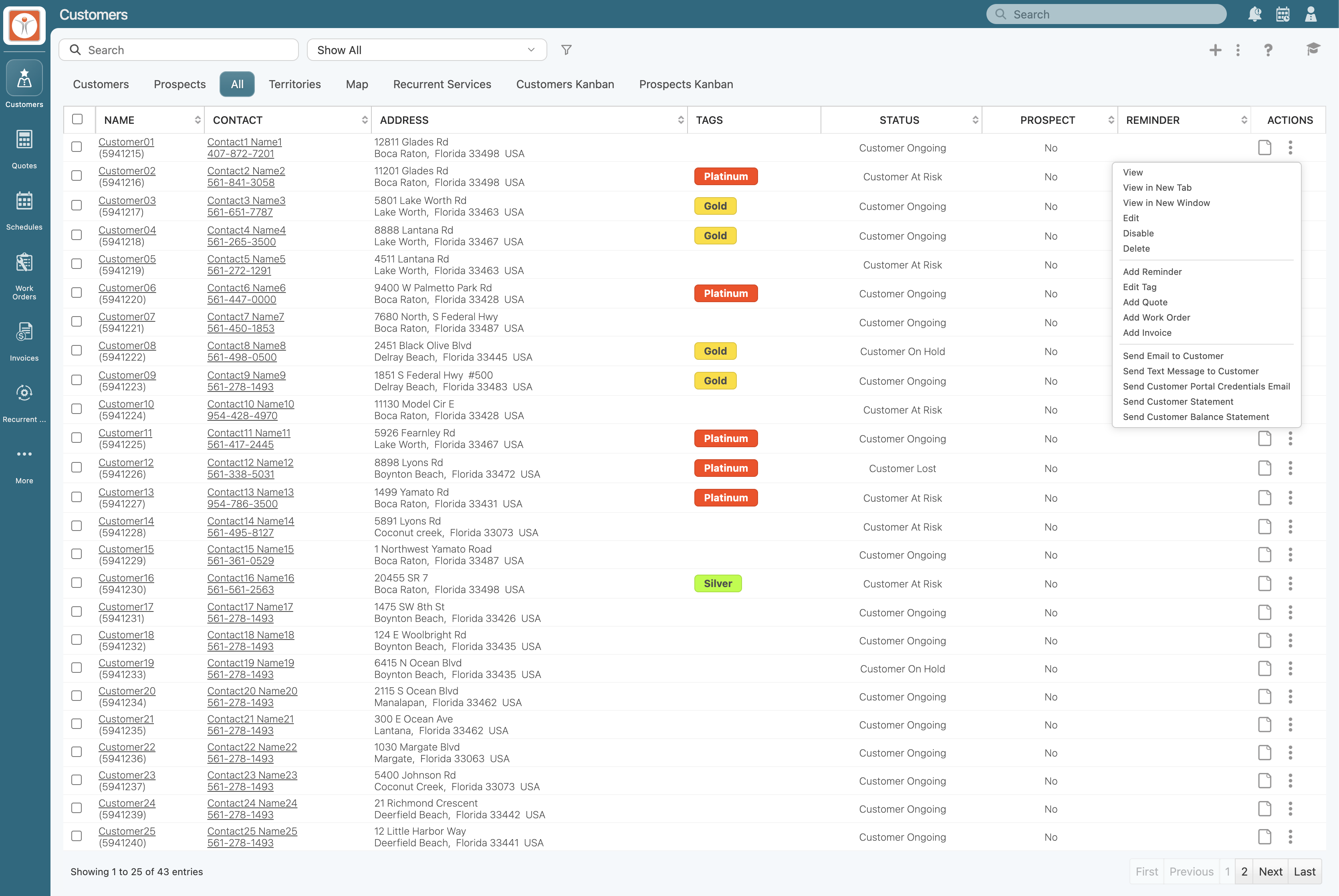
From this area you can access the Entity View pop-up window by clicking on its ID or name. You can also interact with individual records by right-clicking a record or selecting its available actions. These options allow you to perform actions on a specific entity without affecting other records in the list.
Please note that depending on the entity the available actions will differ. If an appropriate connector is installed and configured in your MobiWork account, additional columns may be available to display the entity's external ID and synchronization status.
Each Entity List page provides access to page controls that help you manage the records displayed in the list. Depending on the entity type and your user permissions, these controls may allow you to perform bulk updates, modify records, and import or export data. The example below shows the Customers List page controls:
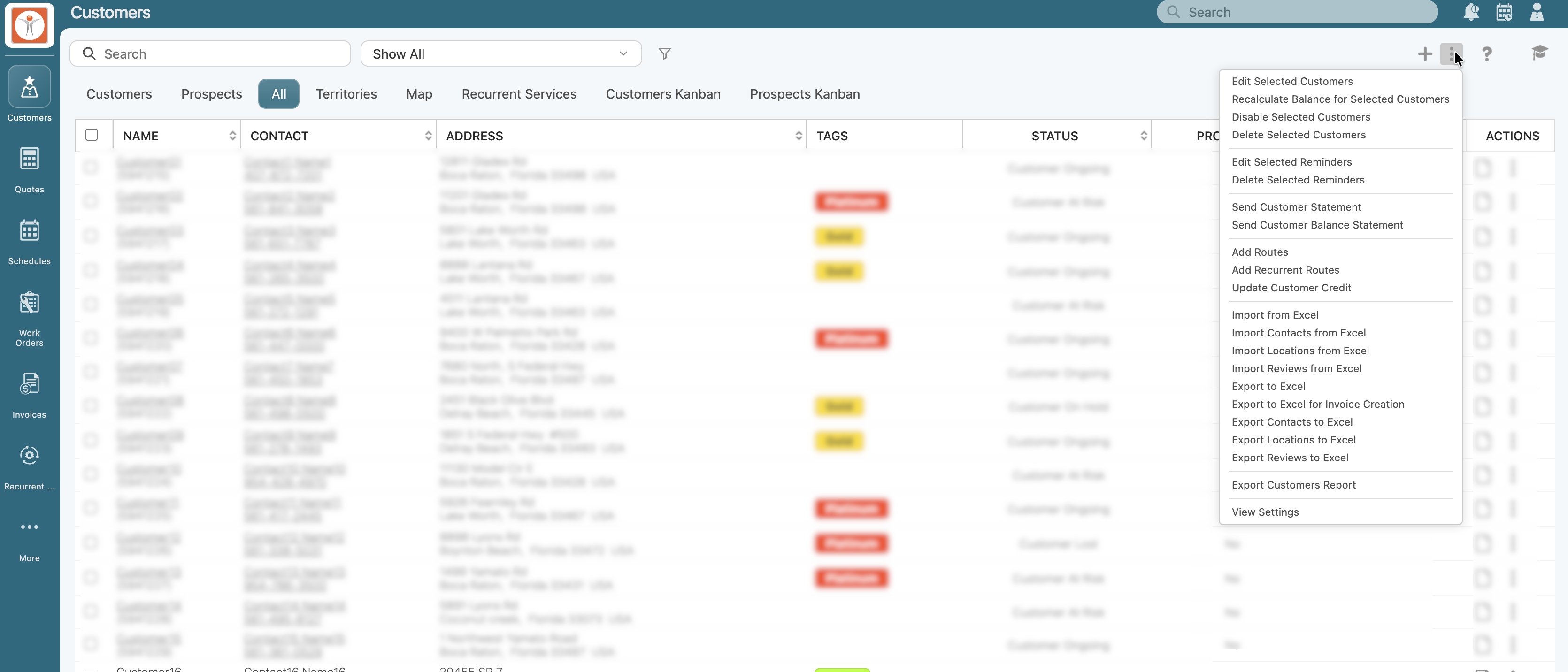
You can also use the Plus Sign button to add a new entity to the list.
If an appropriate connector is installed and configured in your MobiWork account, additional integration options may also be available. For example, you may be able to export data to QuickBooks directly from the Entity List page.
Together, these controls provide convenient access to essential record management tools, helping you maintain your data and perform common tasks efficiently.