
Step by Step
STEP 1: Access the Gmail Settings Page
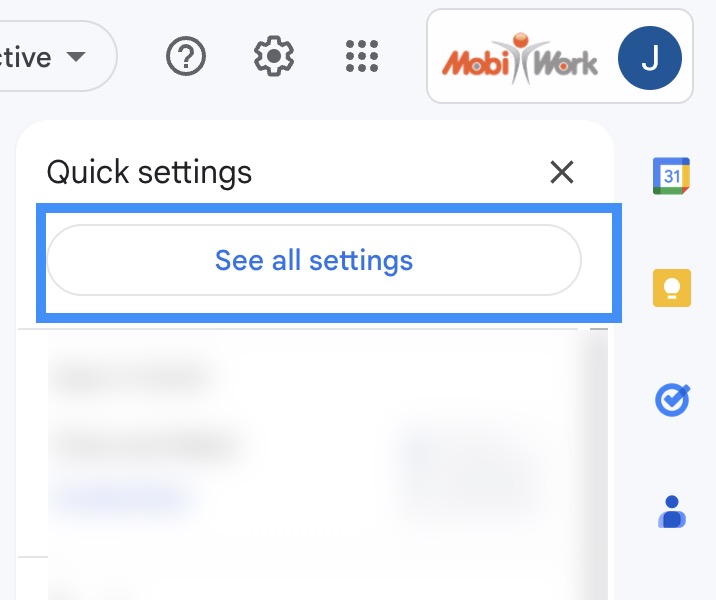
To access the Gmail notifications, you will first need to be on your Gmail page; once you are on this page, click on the Gear button in the top right of your screen:
The Gear button will then open the "Quick Settings" sidebar. On this sidebar, click the See all settings button; this button will then redirect you to the Gmail Settings page:

STEP 2: Locate the Desktop Notifications Section
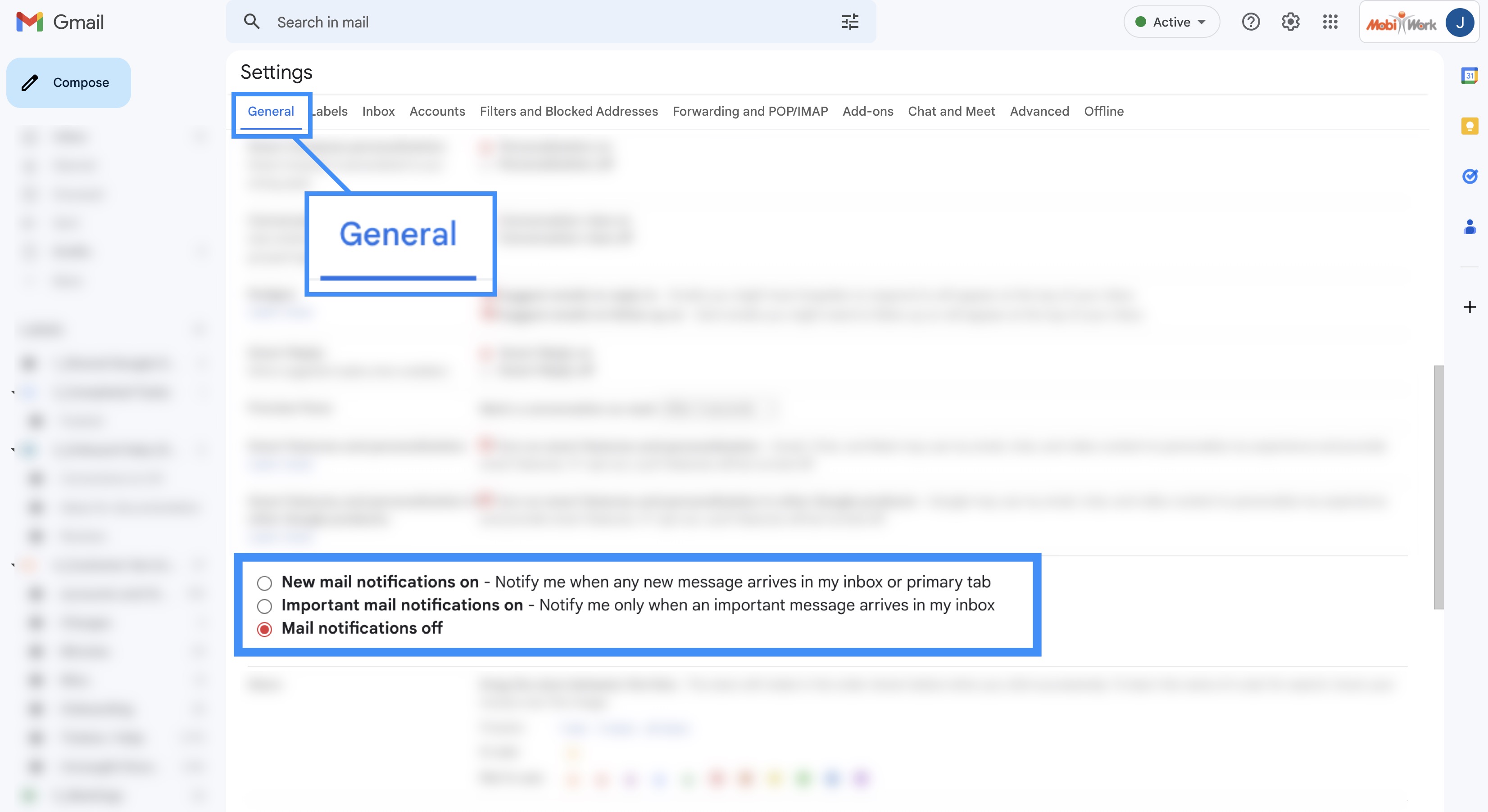
Under the "General" tab (this tab will be the default tab that you are directed to) scroll down until you locate the "Desktop Notifications" section:
Step by Step
STEP 1: Access the Settings App
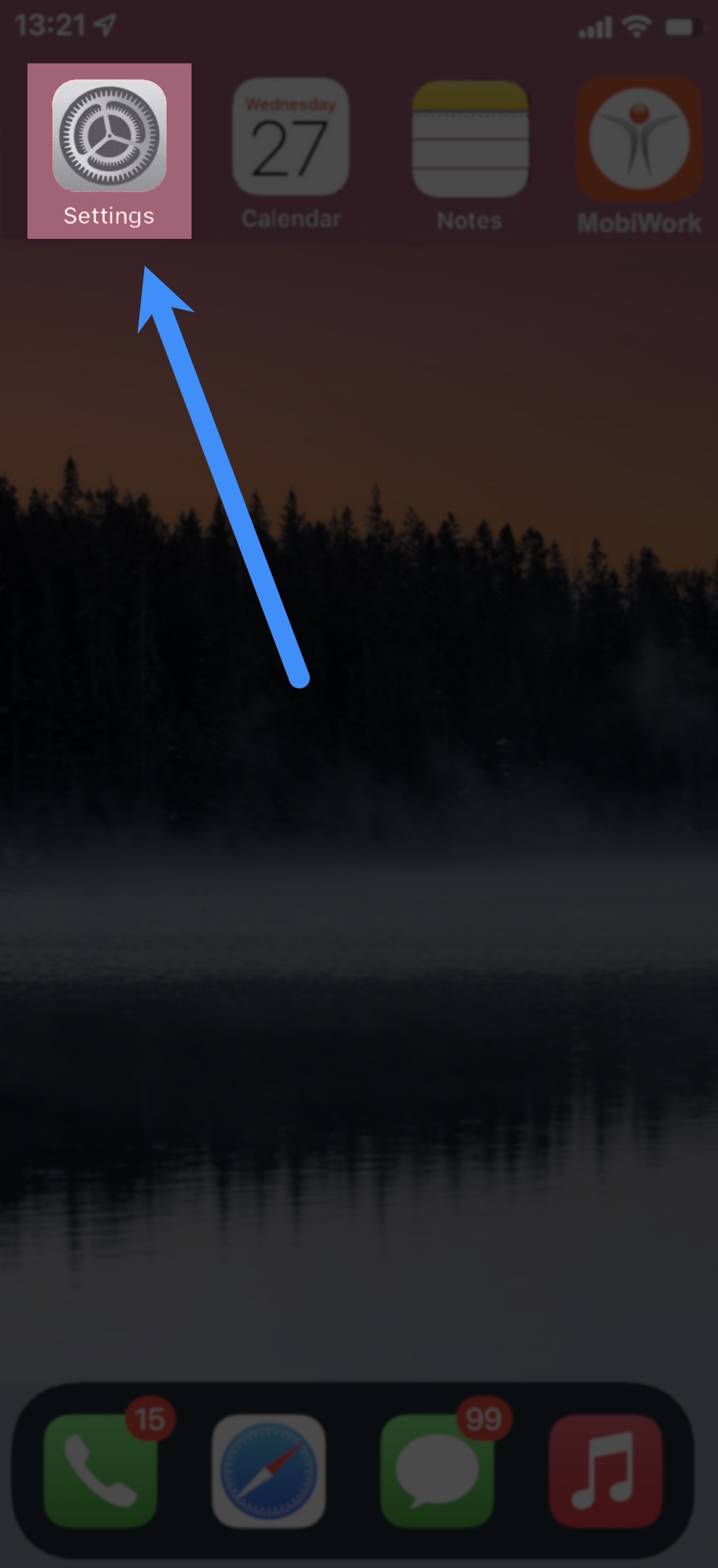
To access your Gmail notifications on your Apple device or iPhone, you will first need to access your Settings App:
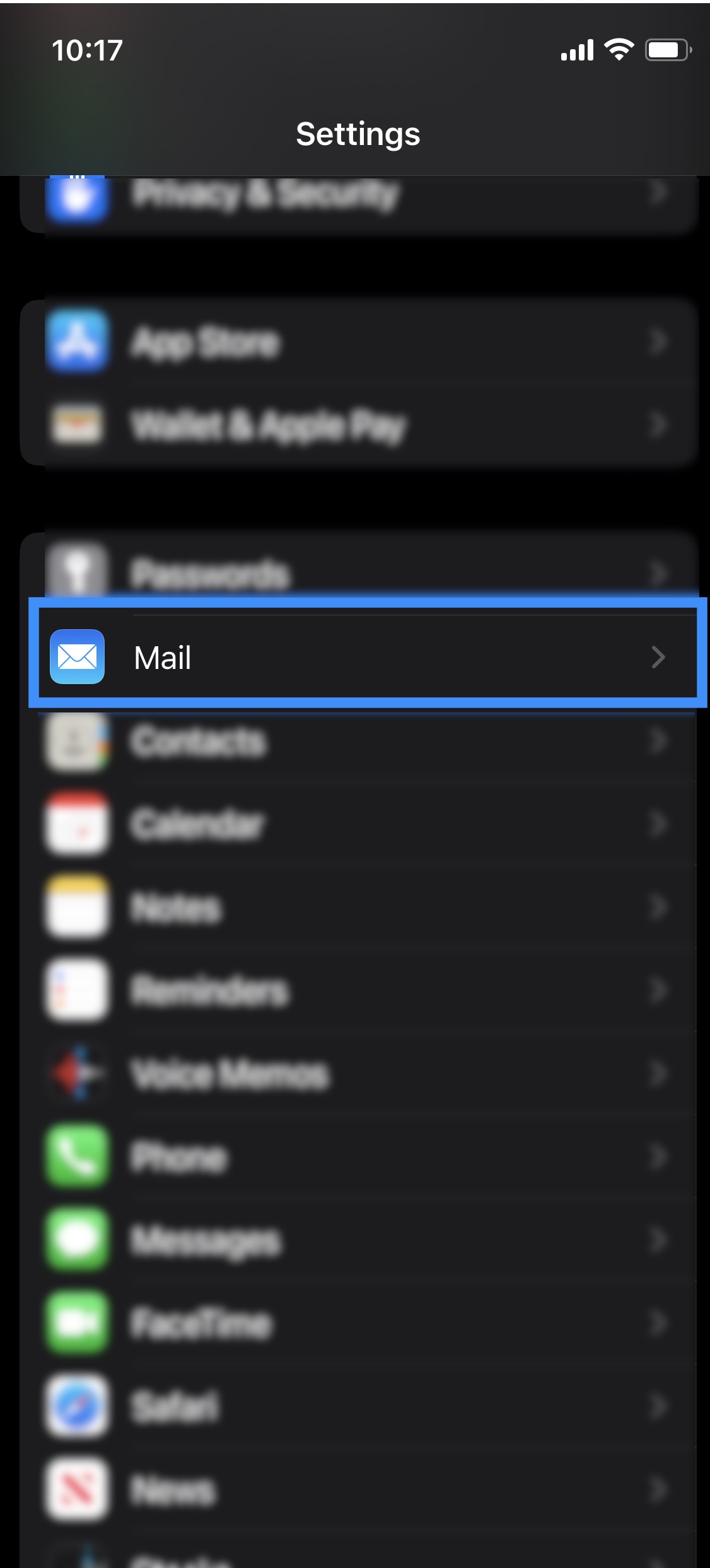
Once you are in the Settings app, scroll down until you see the Mail button. Click on the Mail option to access the mail notifications:
STEP 2: Access Mail Notifications
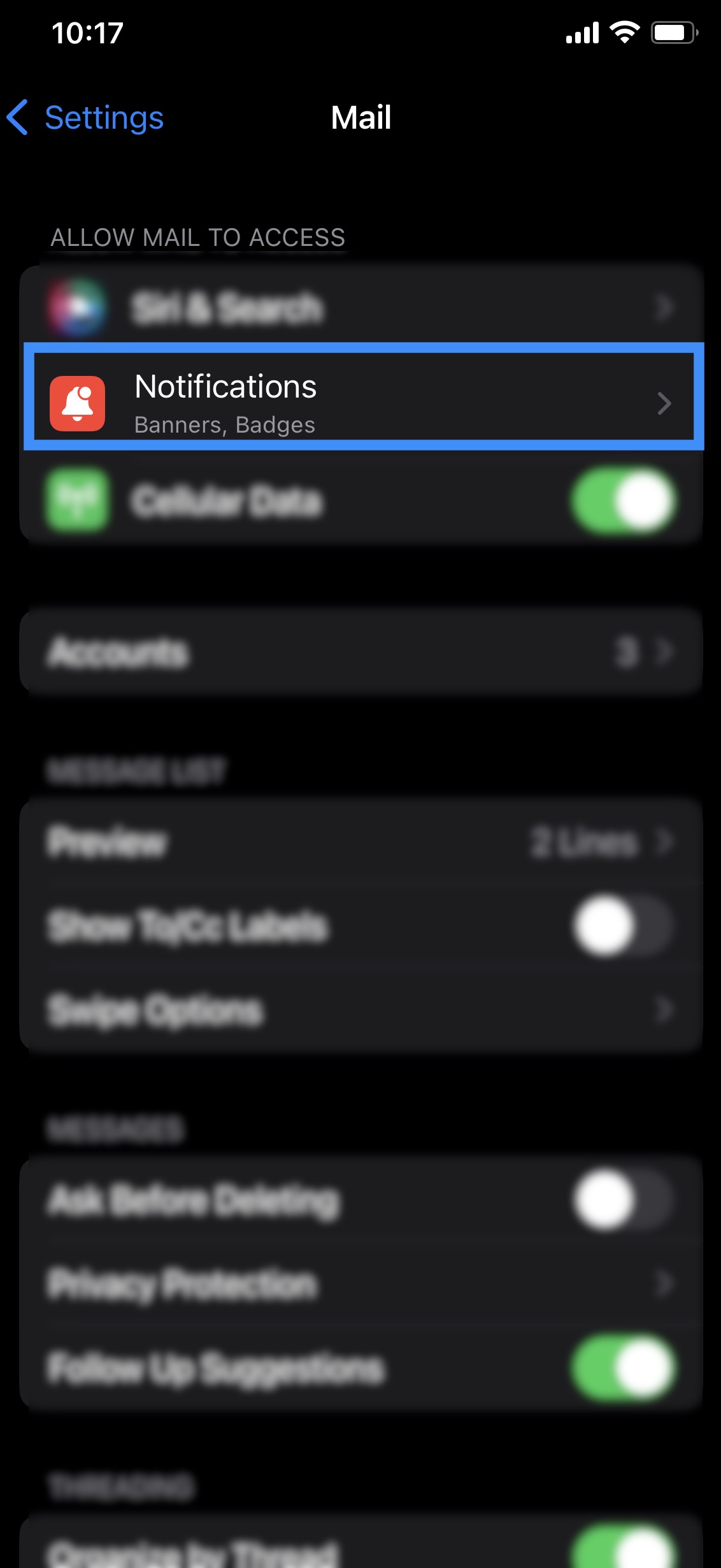
Click on the Notifications button; this will redirect you to the Notifications page:
STEP 3: Set up Visual and Sound Notifications
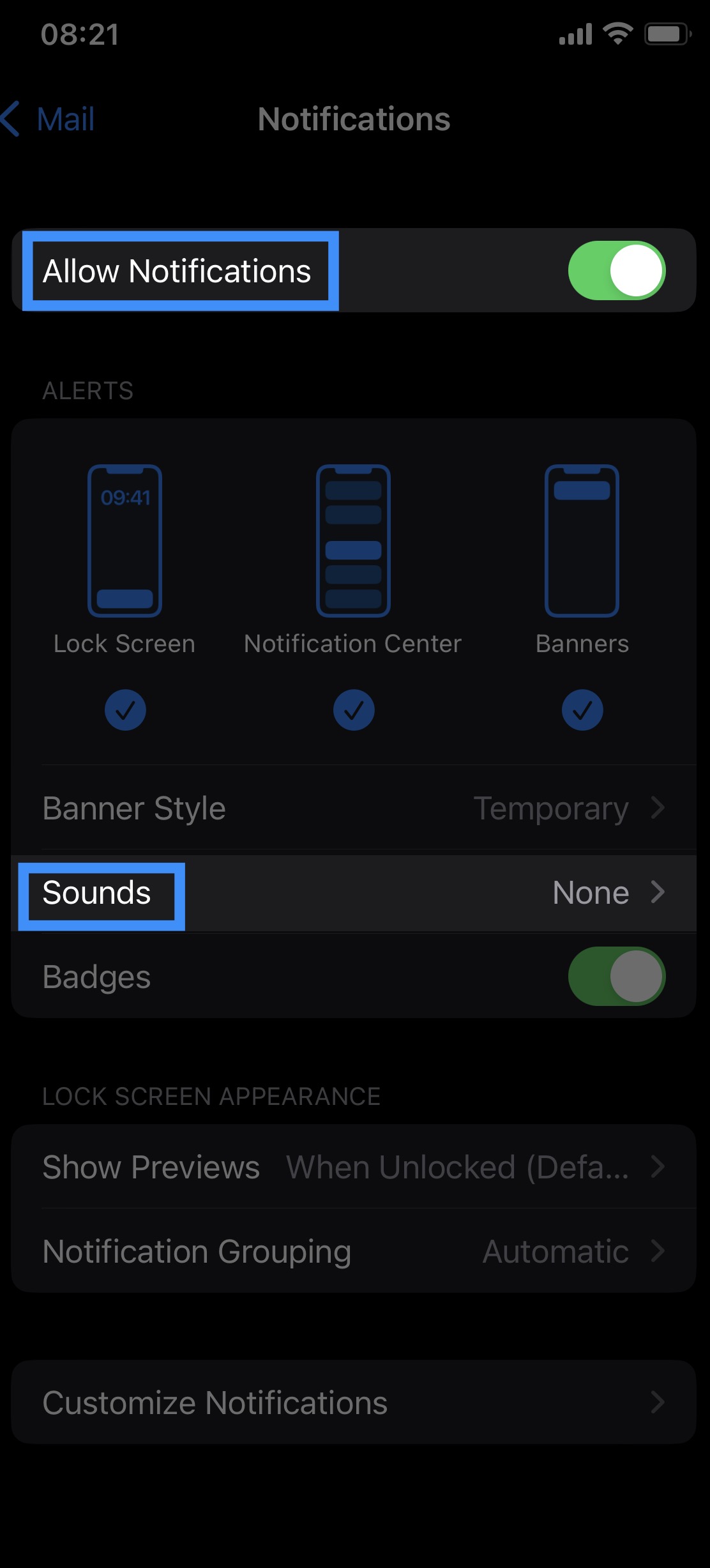
Click the "Allow Notifications" toggle (make sure that the toggle is green to activate notifications):
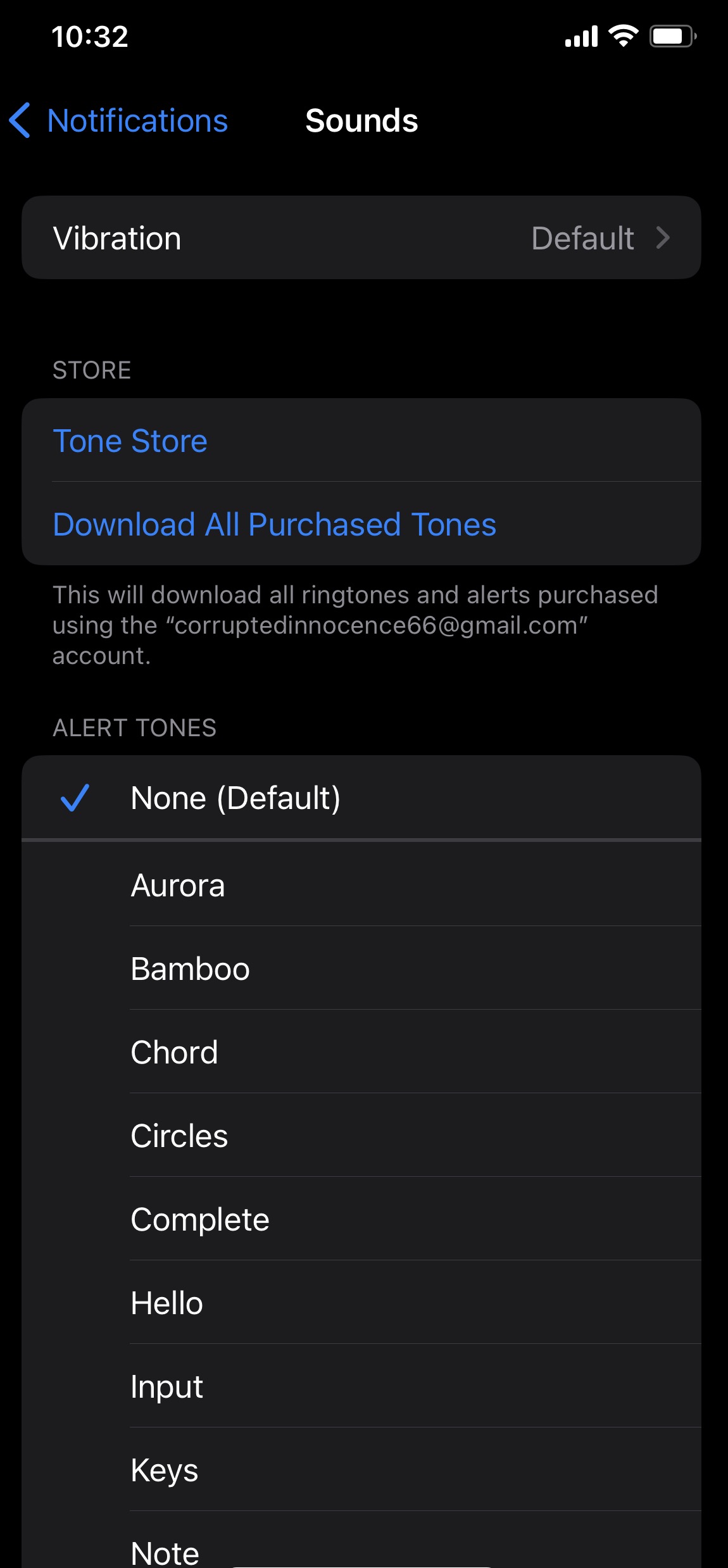
Next, click on the Sounds button to select the sound effect that should play once a new email has arrived:
The updated changes will be implemented automatically.
Step by Step
STEP 1: Access the Gmail Settings App
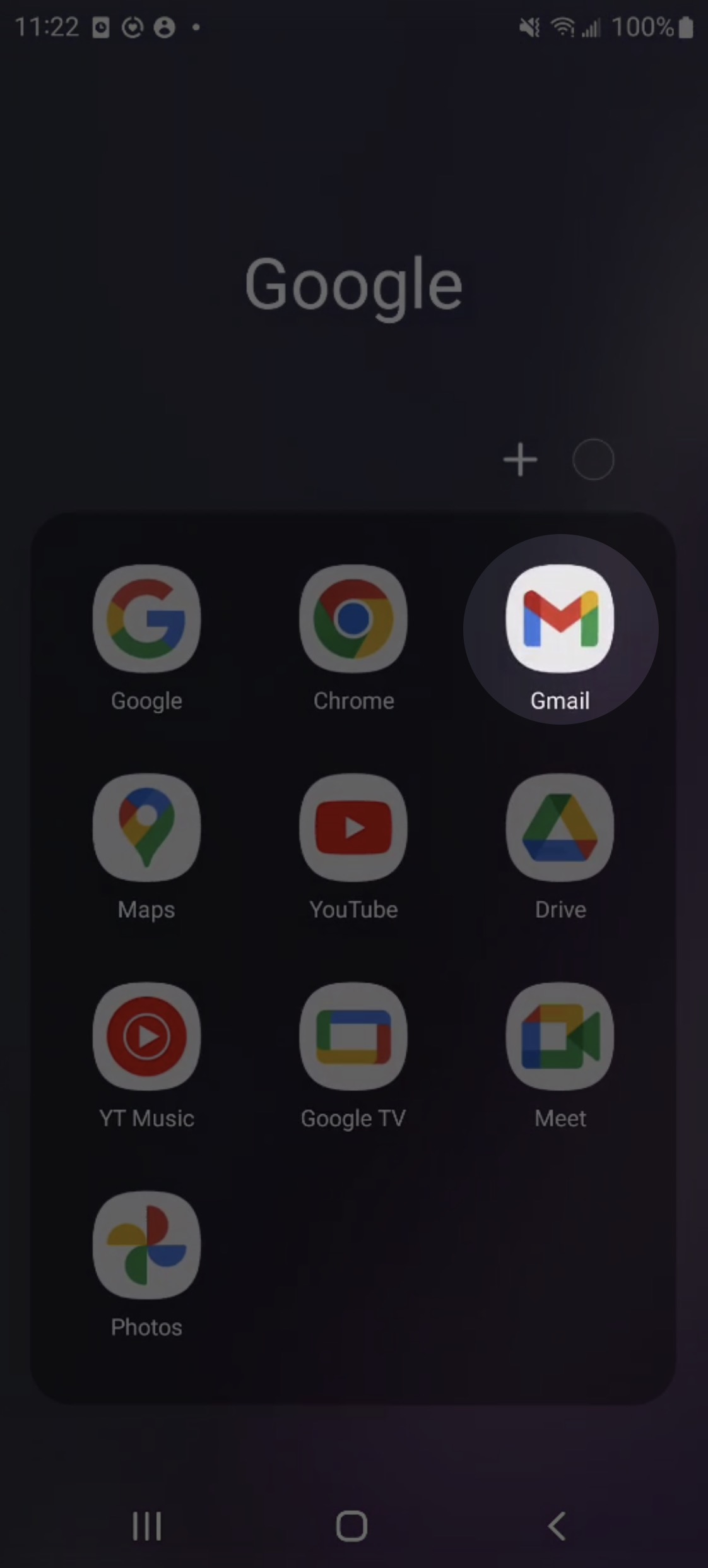
To access your email notifications on your Android phone or device, you will first need to access your Gmail App:
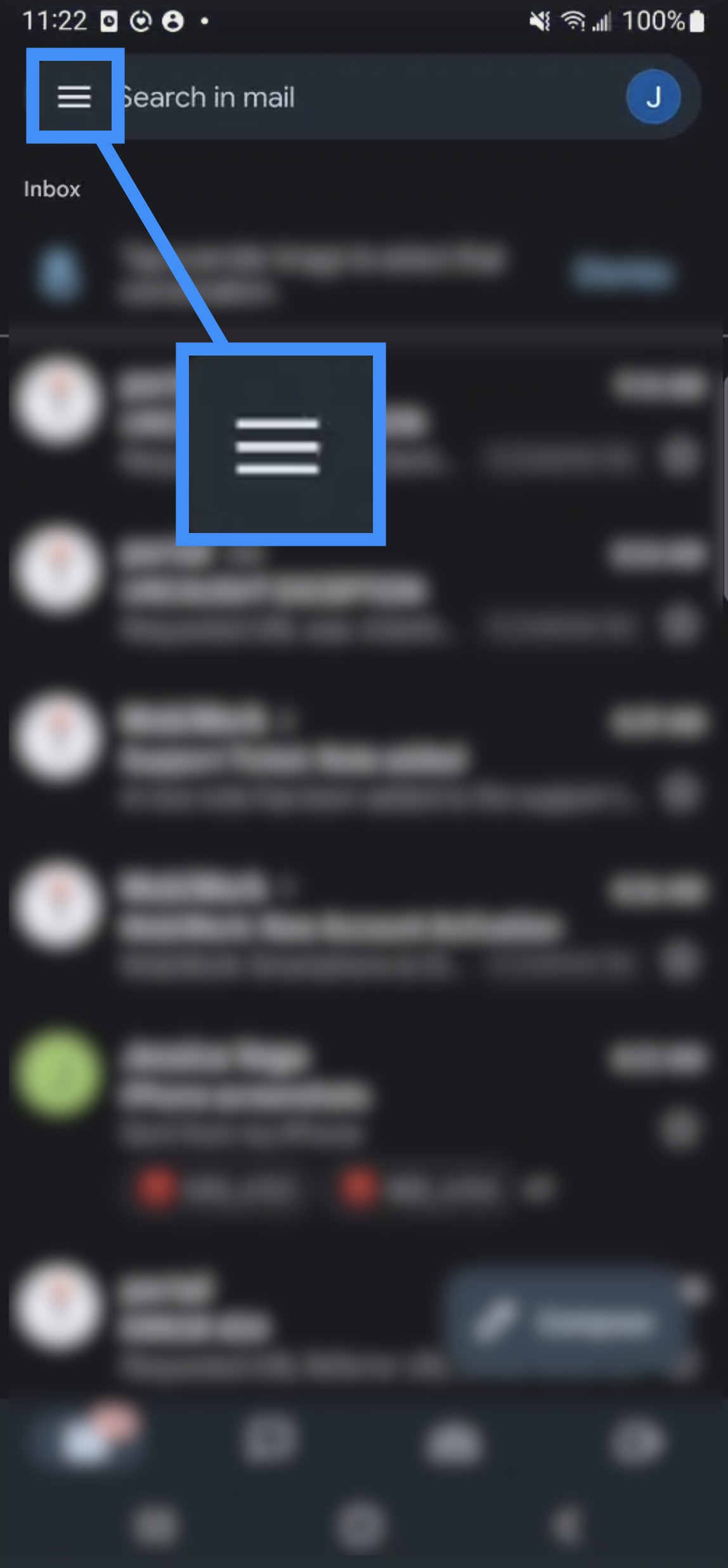
Once you are in the Gmail app, click on the three bars to the left of the search bar; a sidebar will then appear:
STEP 2: Access the Settings Option
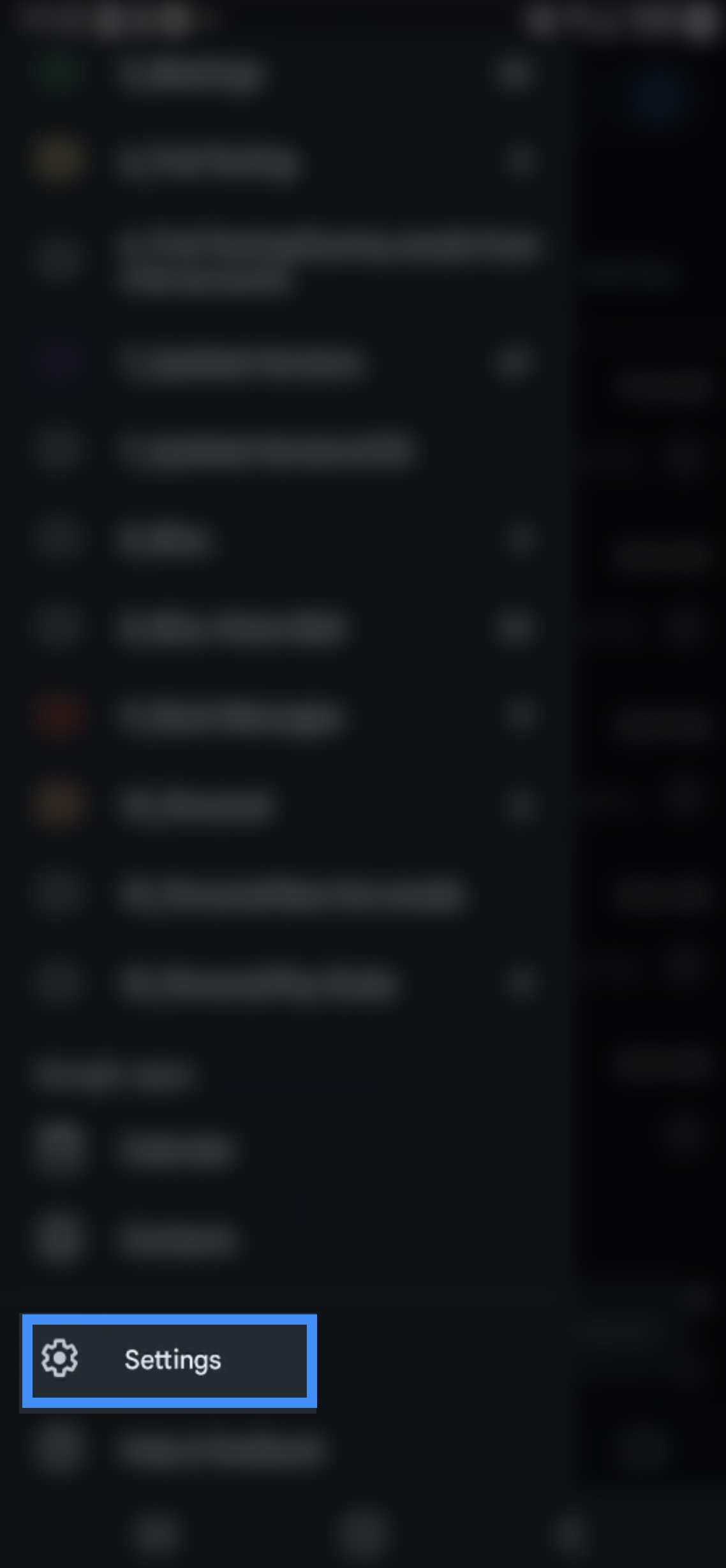
In the sidebar that appears, scroll down until you see the "Settings" option. Click on the "Settings" option to access the mail notifications of your Android device:
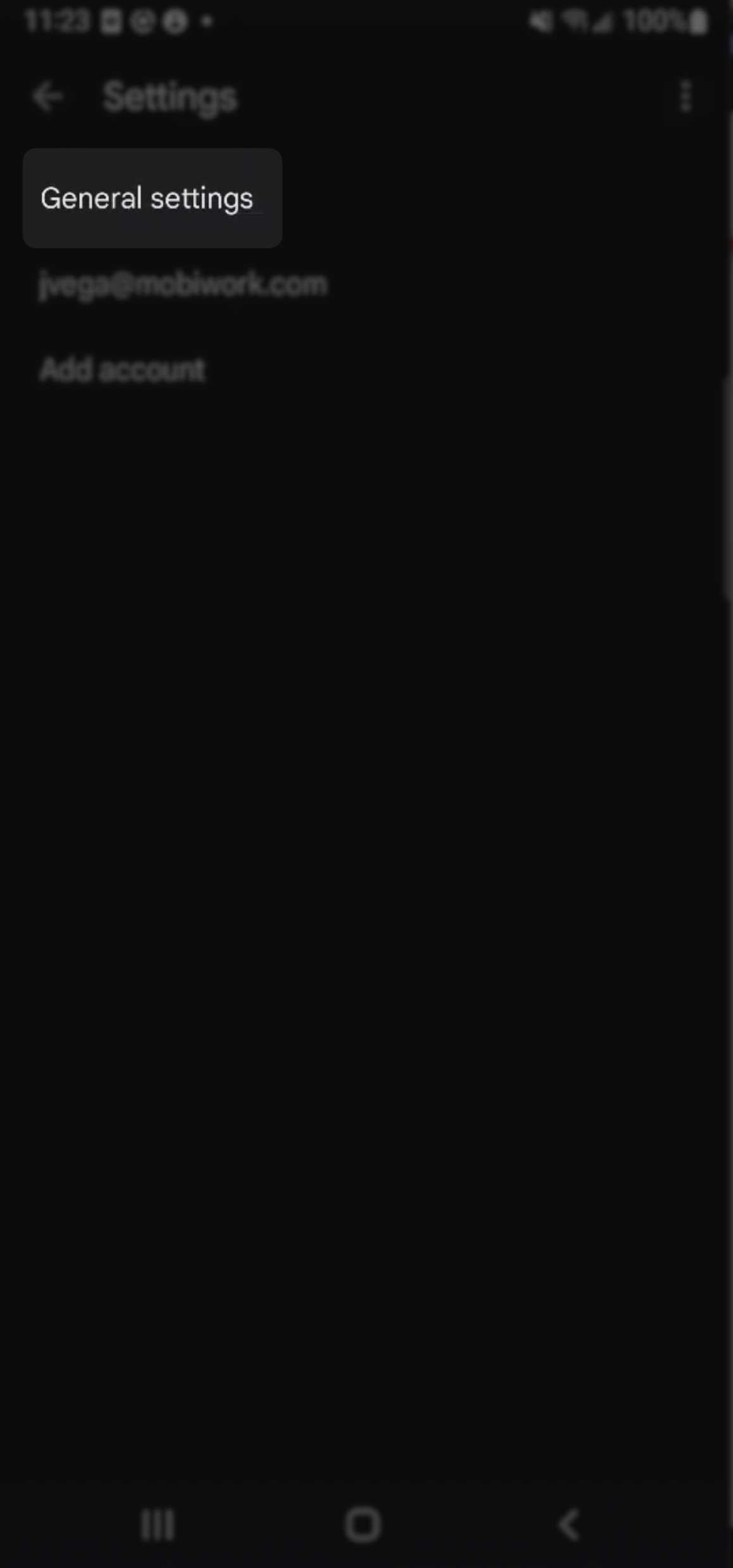
You will then be redirected to the Settings page. On this page, click on the "General Settings" option; you will then be redirected to the General Settings page:
STEP 3: Manage Notifications
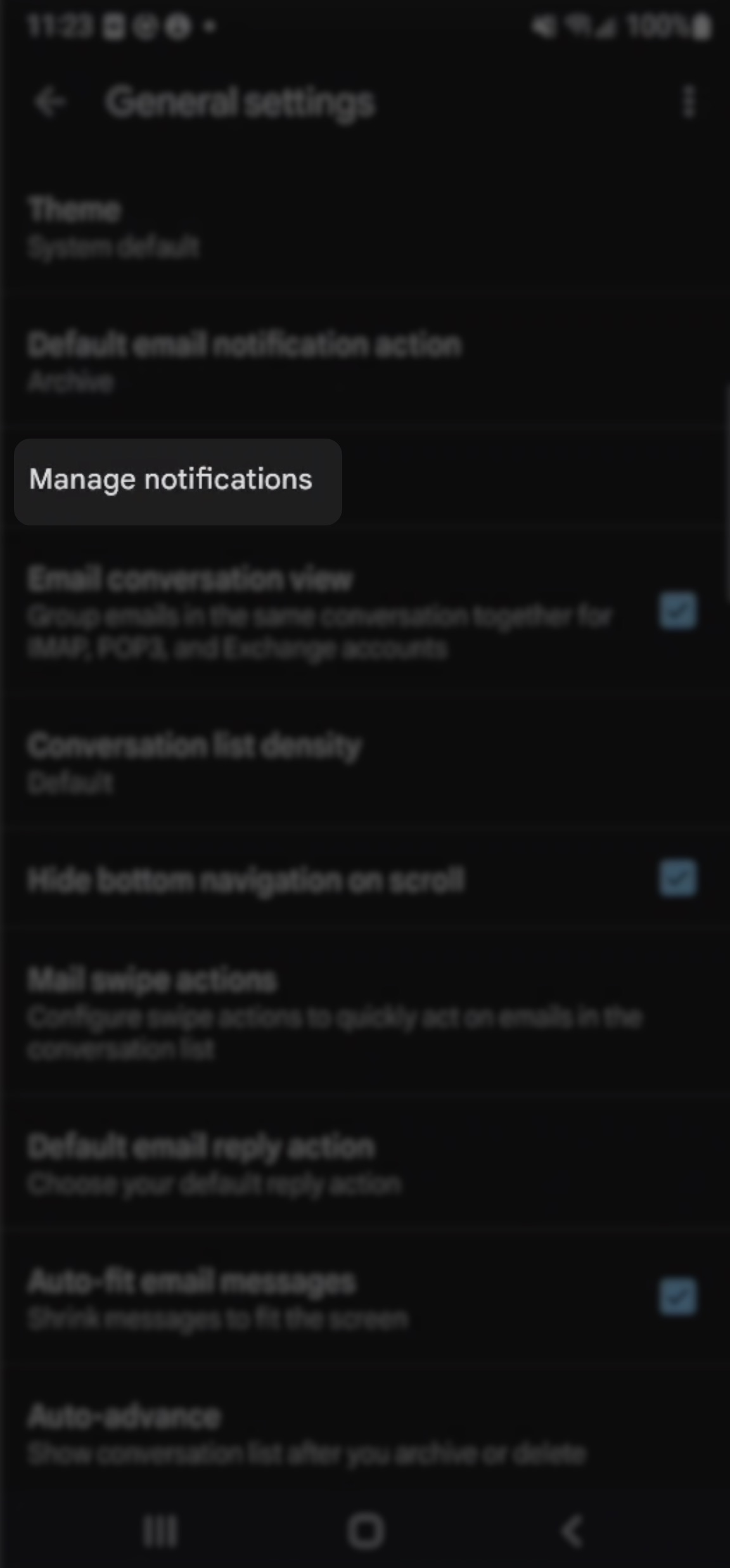
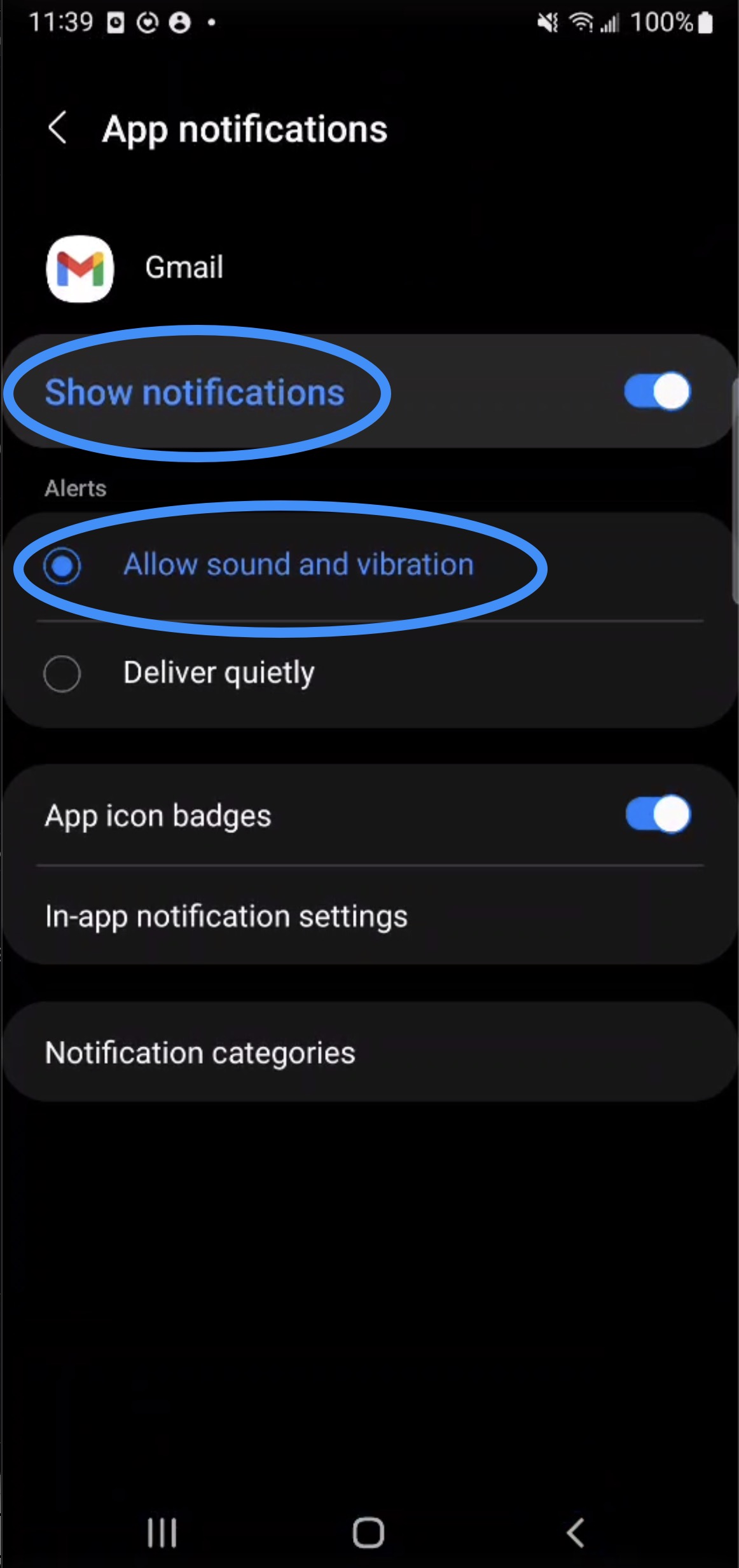
On the General Settings page, click the "Manage Notifications" option; you will then be redirected to the App Notifications page:
On the App Notifications page, ensure that the "Show Notifications" option is toggled (make sure that the toggle is blue to activate notifications):
To enable sound notifications, select the "Allow Sound and Vibration" option.
The updated changes will be implemented automatically.